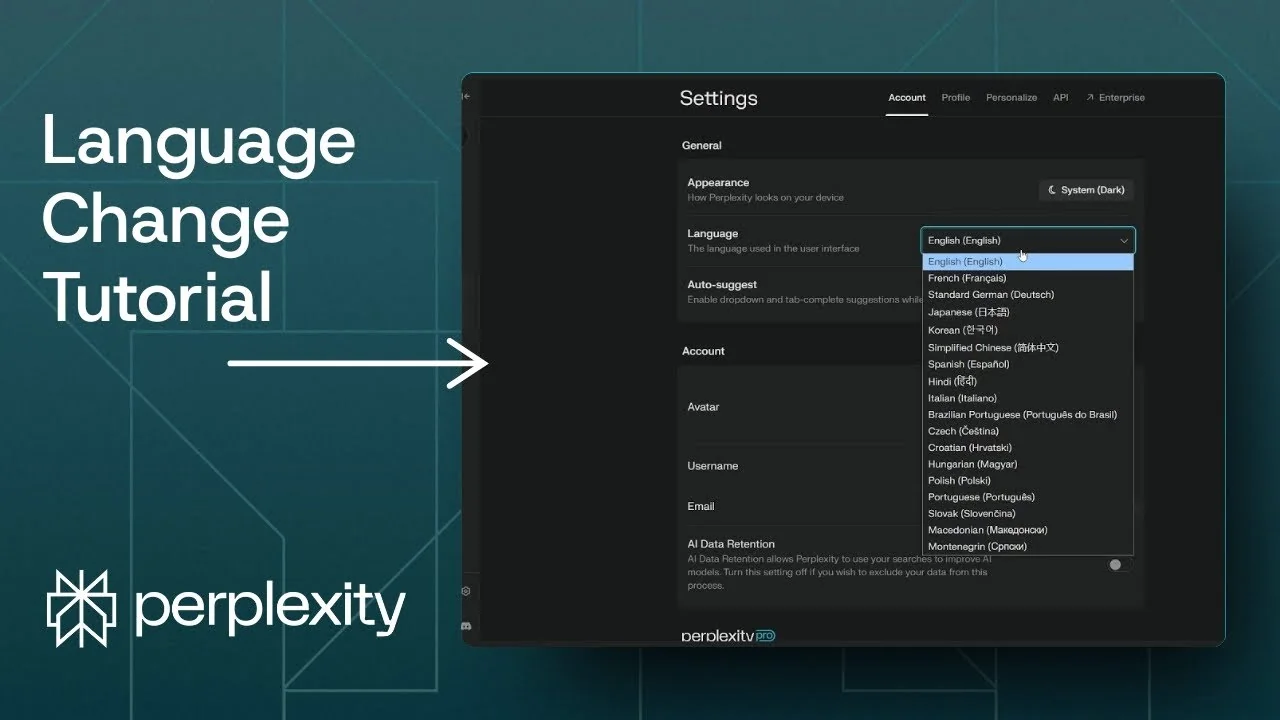
Changing the language in Perplexity is simple. There are two areas to adjust: the user interface language you see in menus and links, and the language the AI uses to answer your queries. Here is how each one works and how to set them.
Read More: Create Superior AI Art
Perplexity Language Settings: Interface
The interface language controls everything in the menus and prompts you see on Perplexity. You can switch it to your preferred language in just a few steps. The change applies instantly.
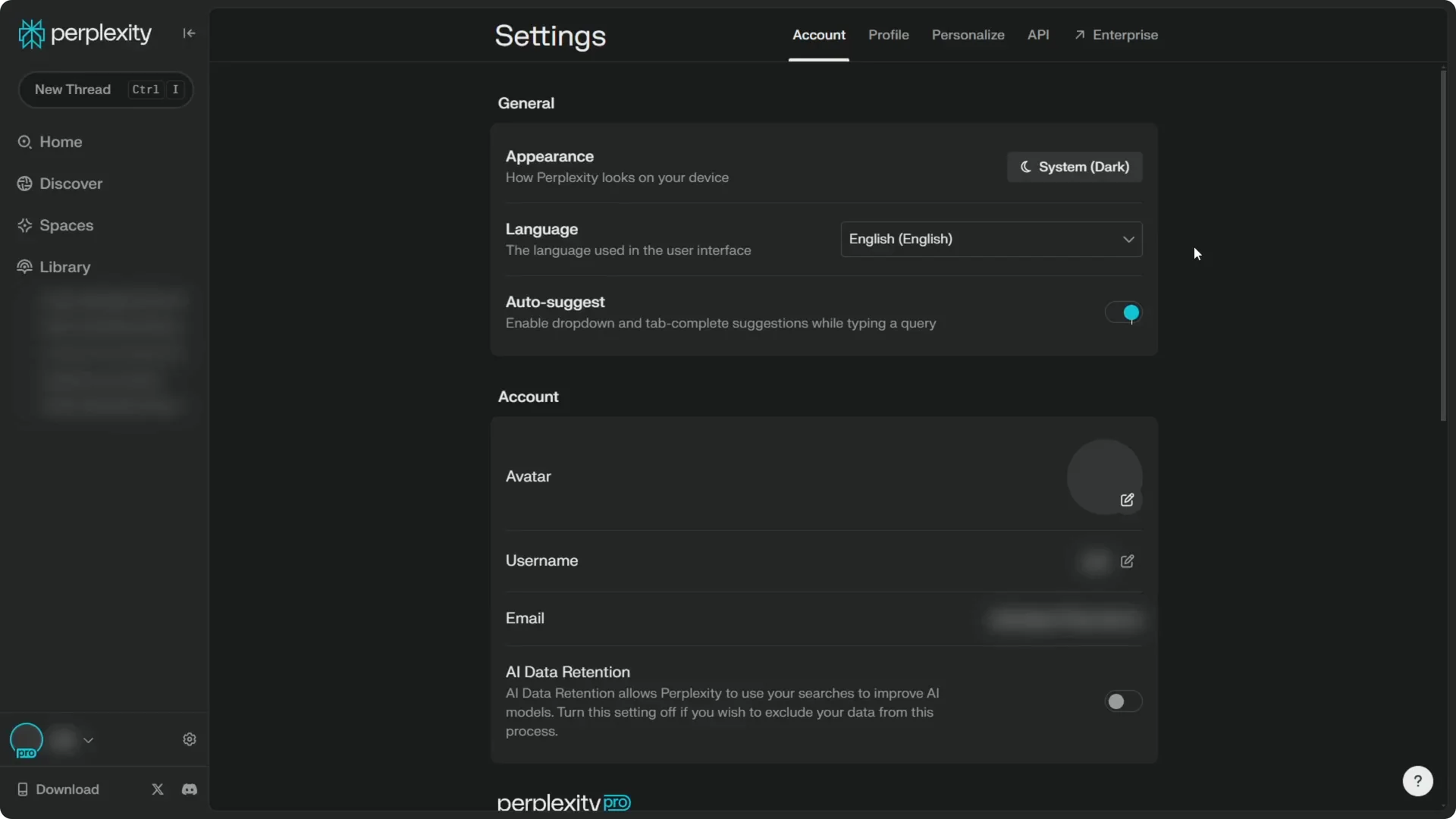
Step 1: Navigate to the Settings page.
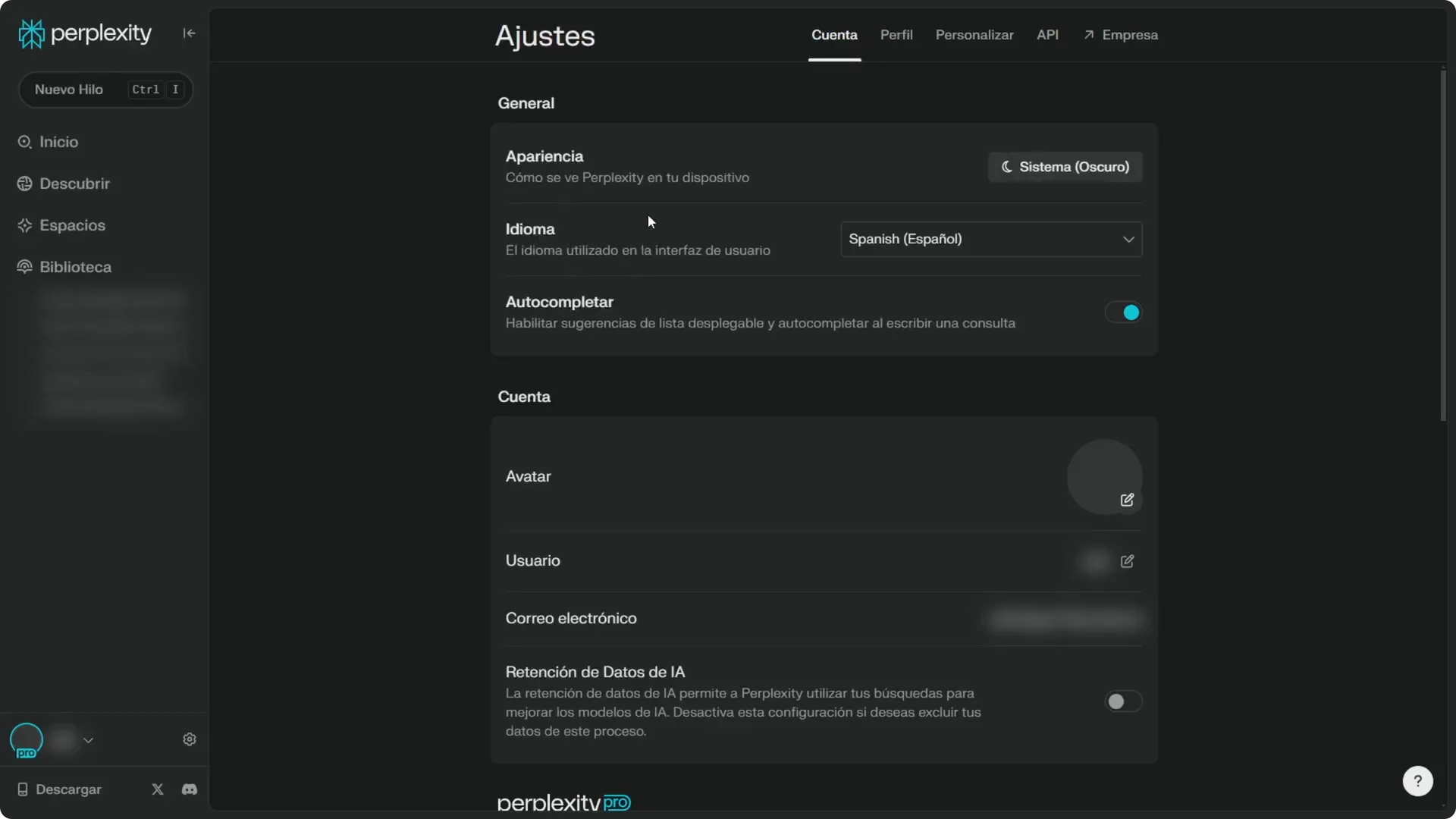
Step 2: Find the Language section.
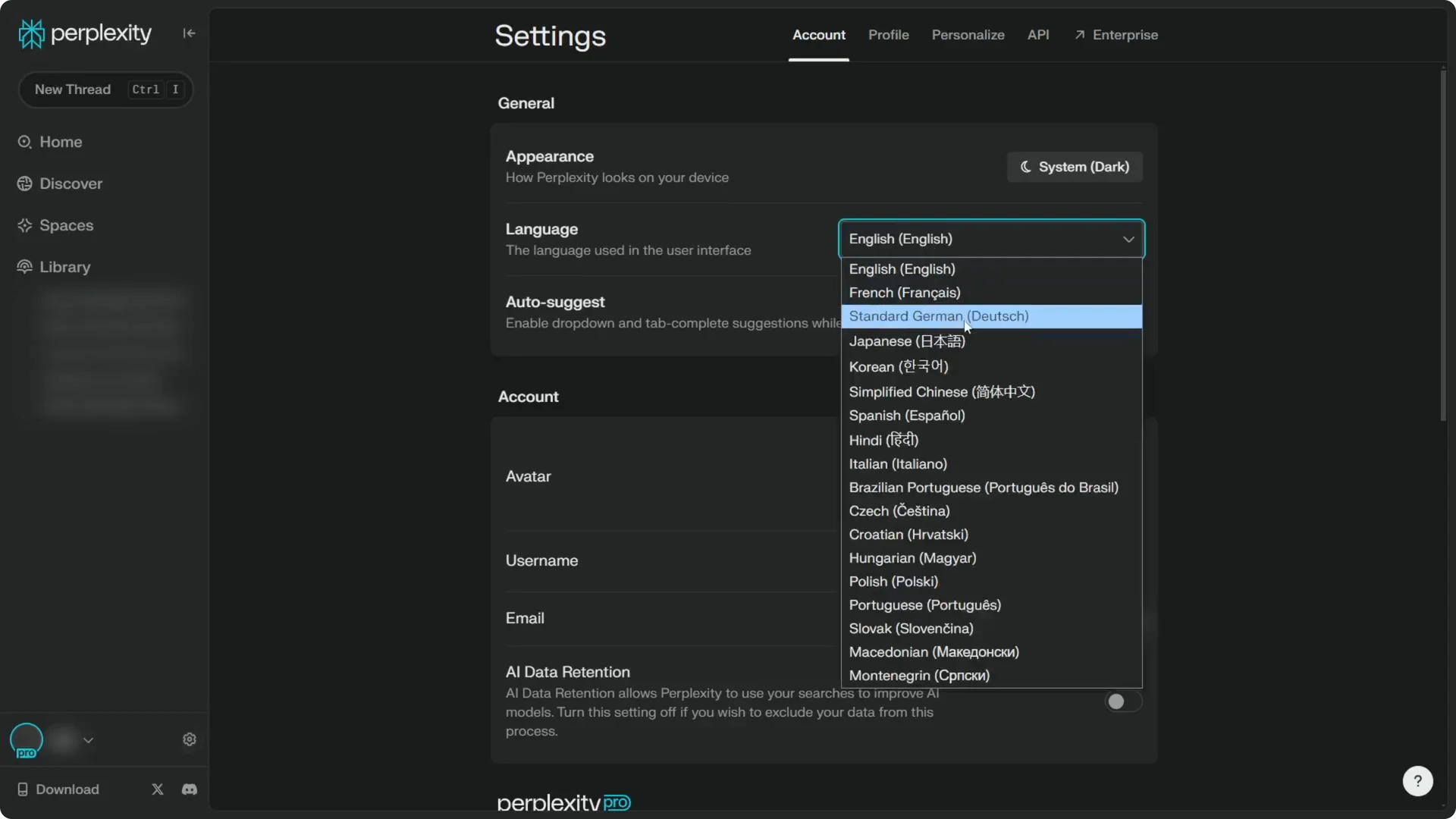
Step 3: Select the language you prefer for the interface, then confirm.
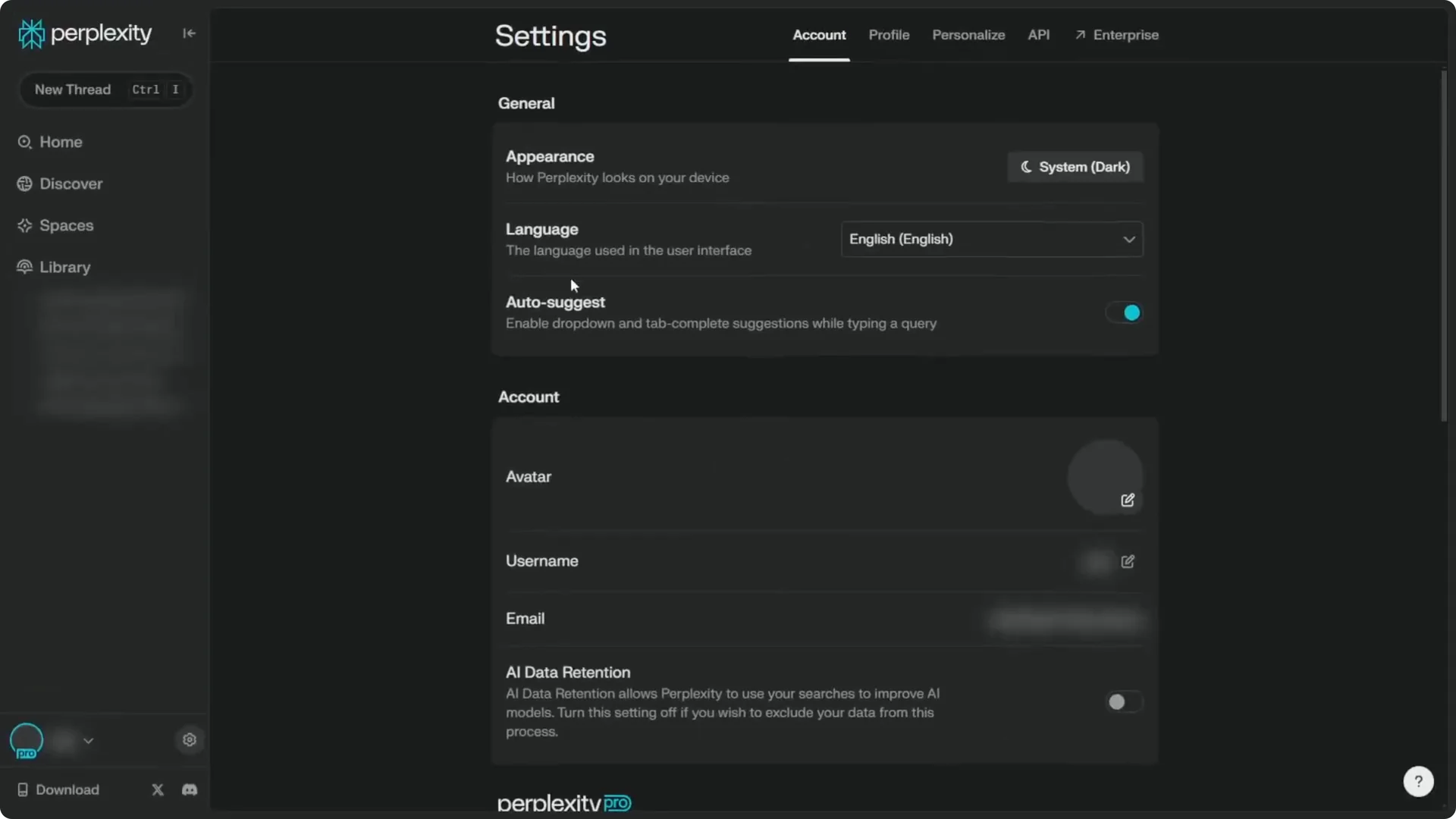
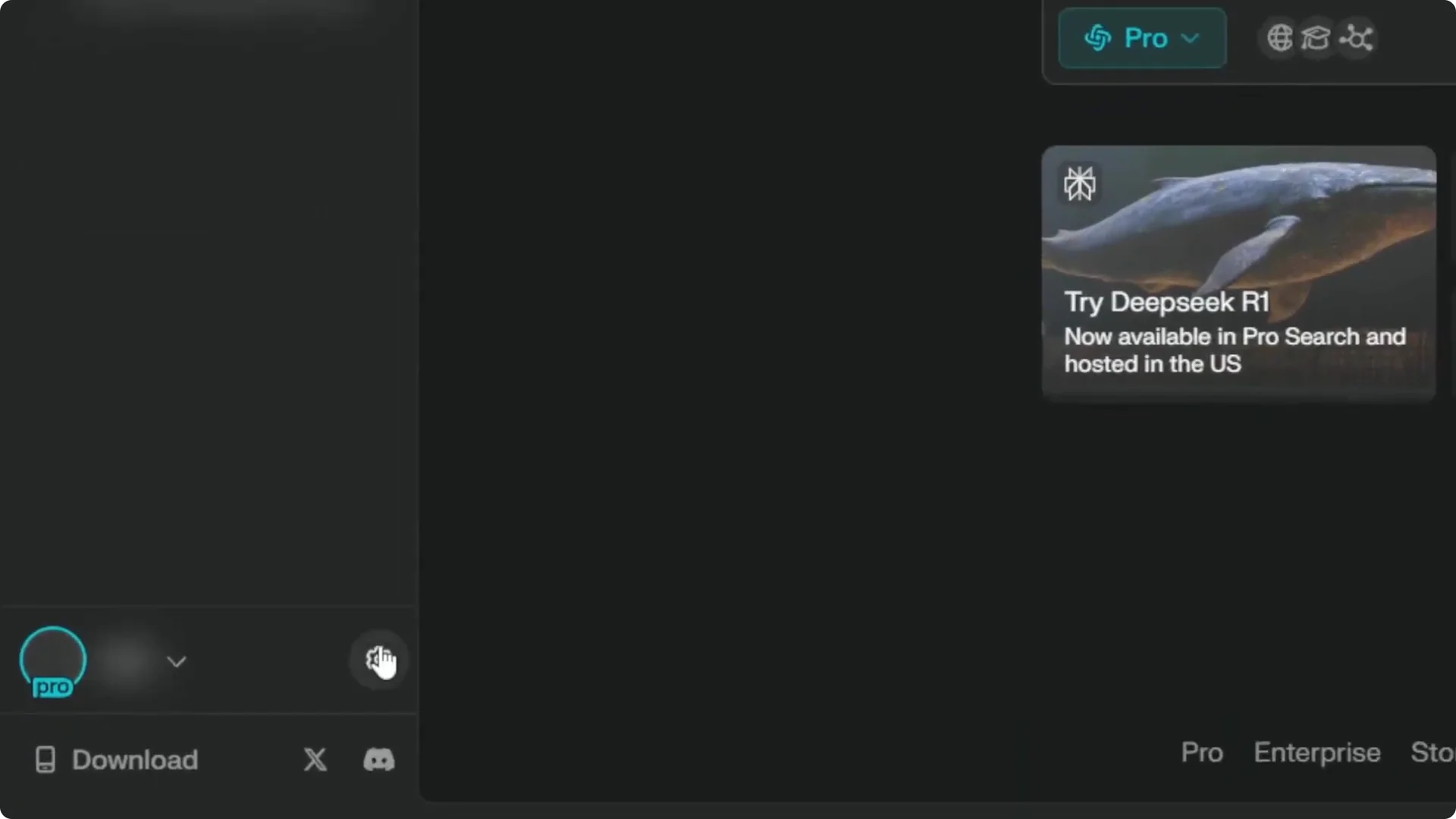
I use English, but I can switch to a different language. There are plenty of options, though not all languages are covered. These options should be enough for the vast majority of people.
For example, switching to Spanish immediately changes the interface. It is no longer in English. You will see the entire UI update to the new language at once.
Read More: Eye Catching Ai Art Midjourney Prompts Styles
Perplexity Language Settings: Response Language
The AI response language can follow the language of your question by default. If you ask in Japanese, the answer will come back in Japanese. You can also force responses in a specific language, even when your input uses a different one.
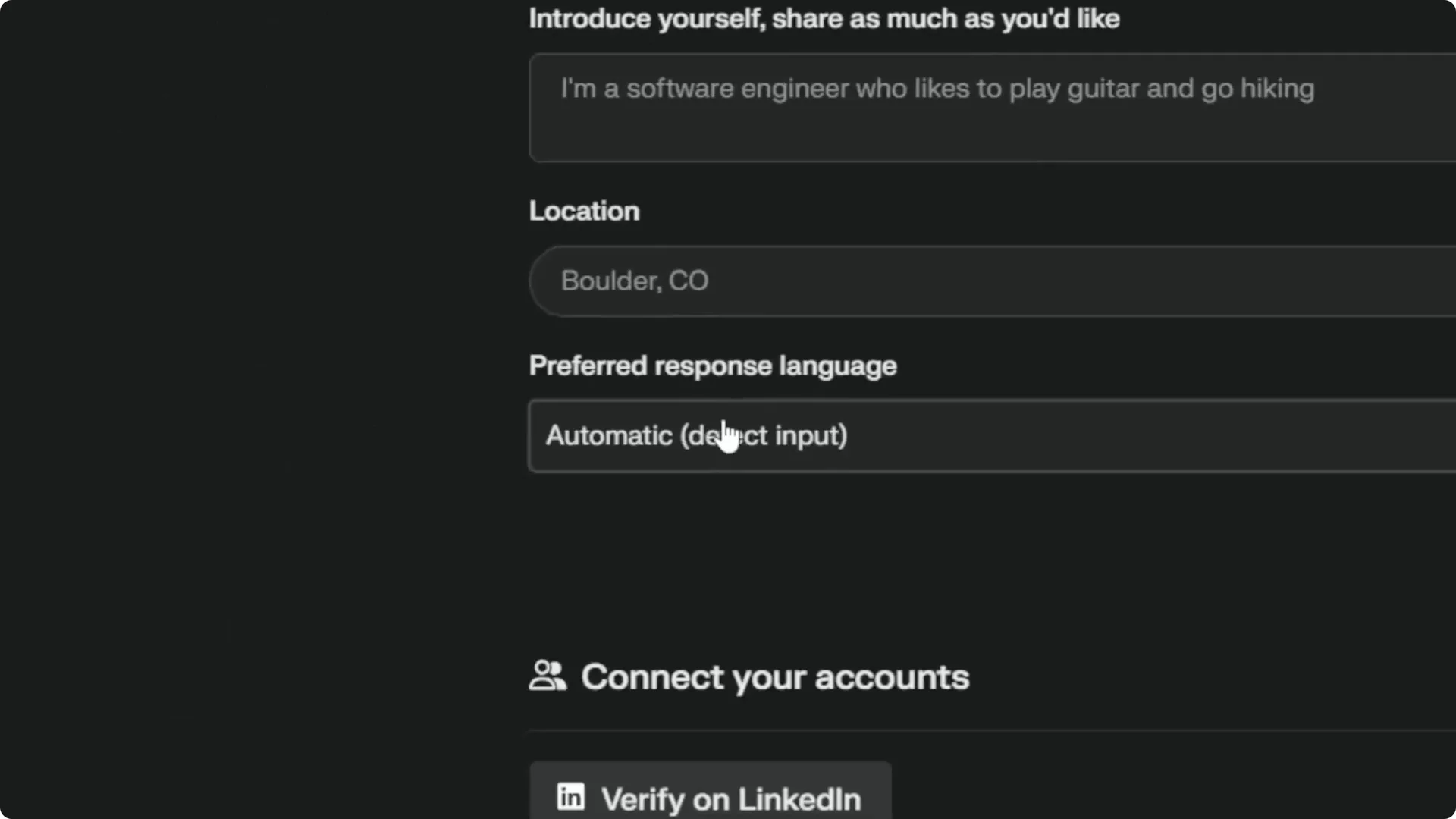
Step 1: Open the profile menu.
Step 2: Under Preferred response language, note it is Automatic by default.
Step 3: Change it to a specific language, then click Save.
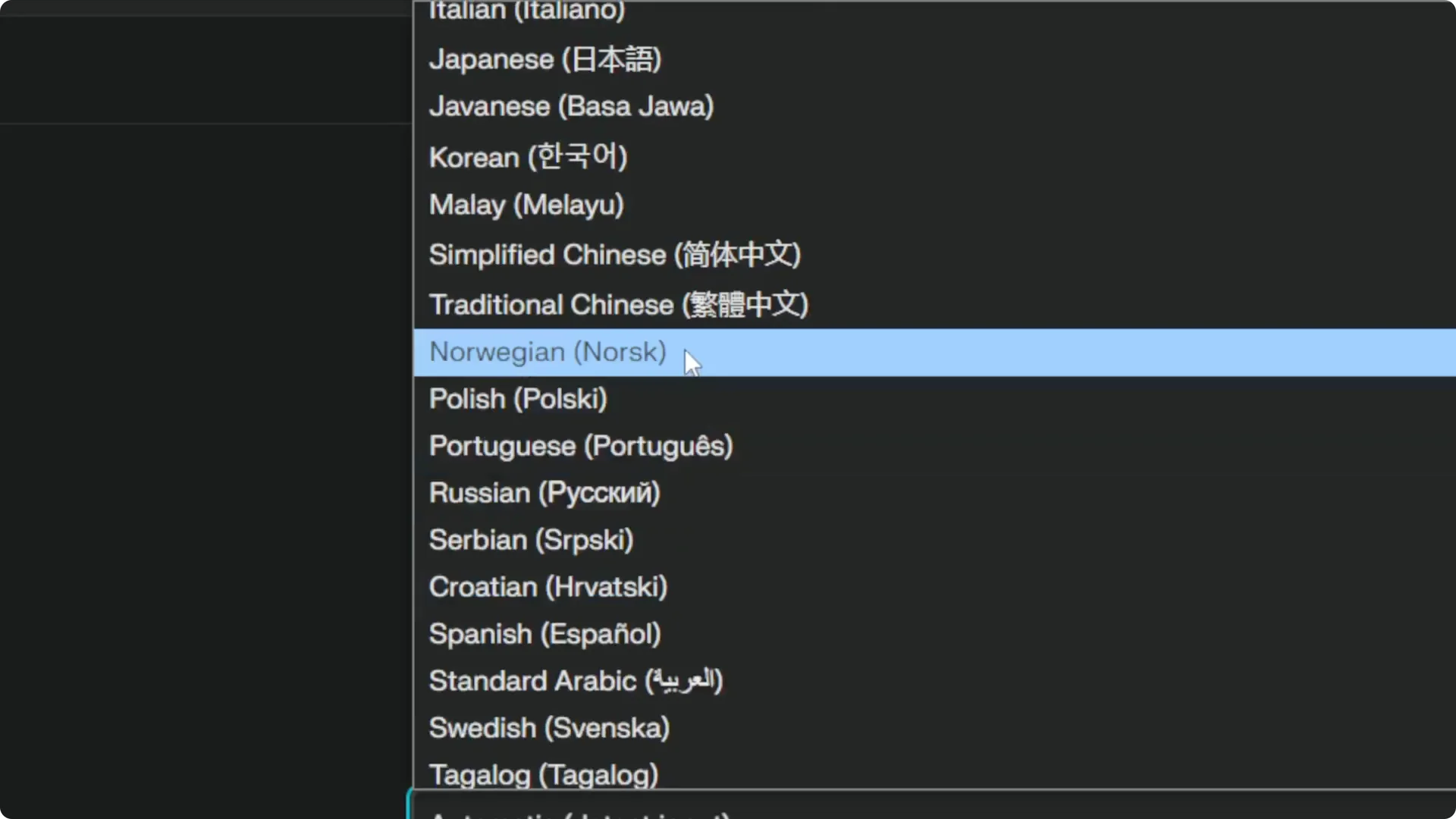
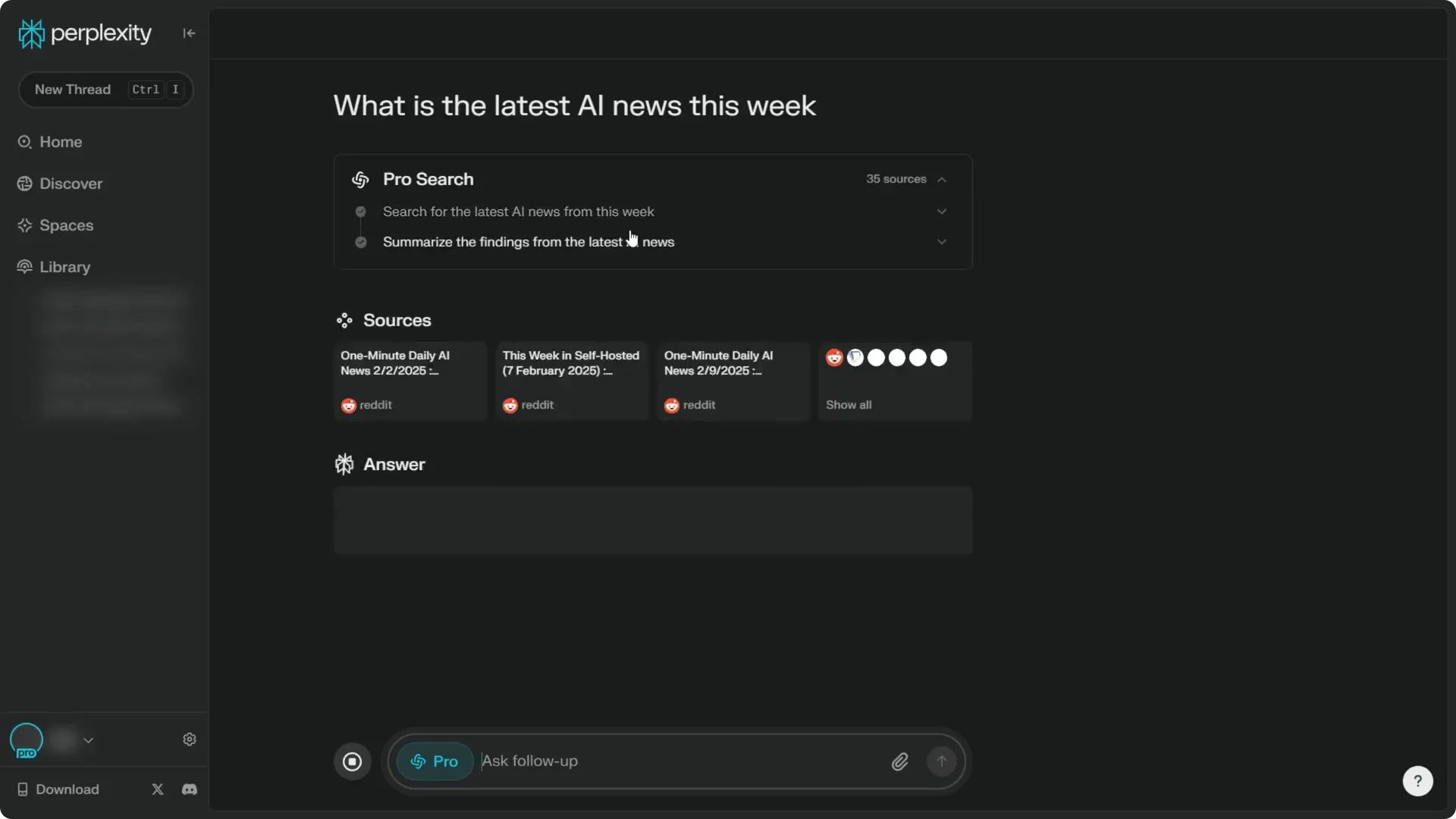
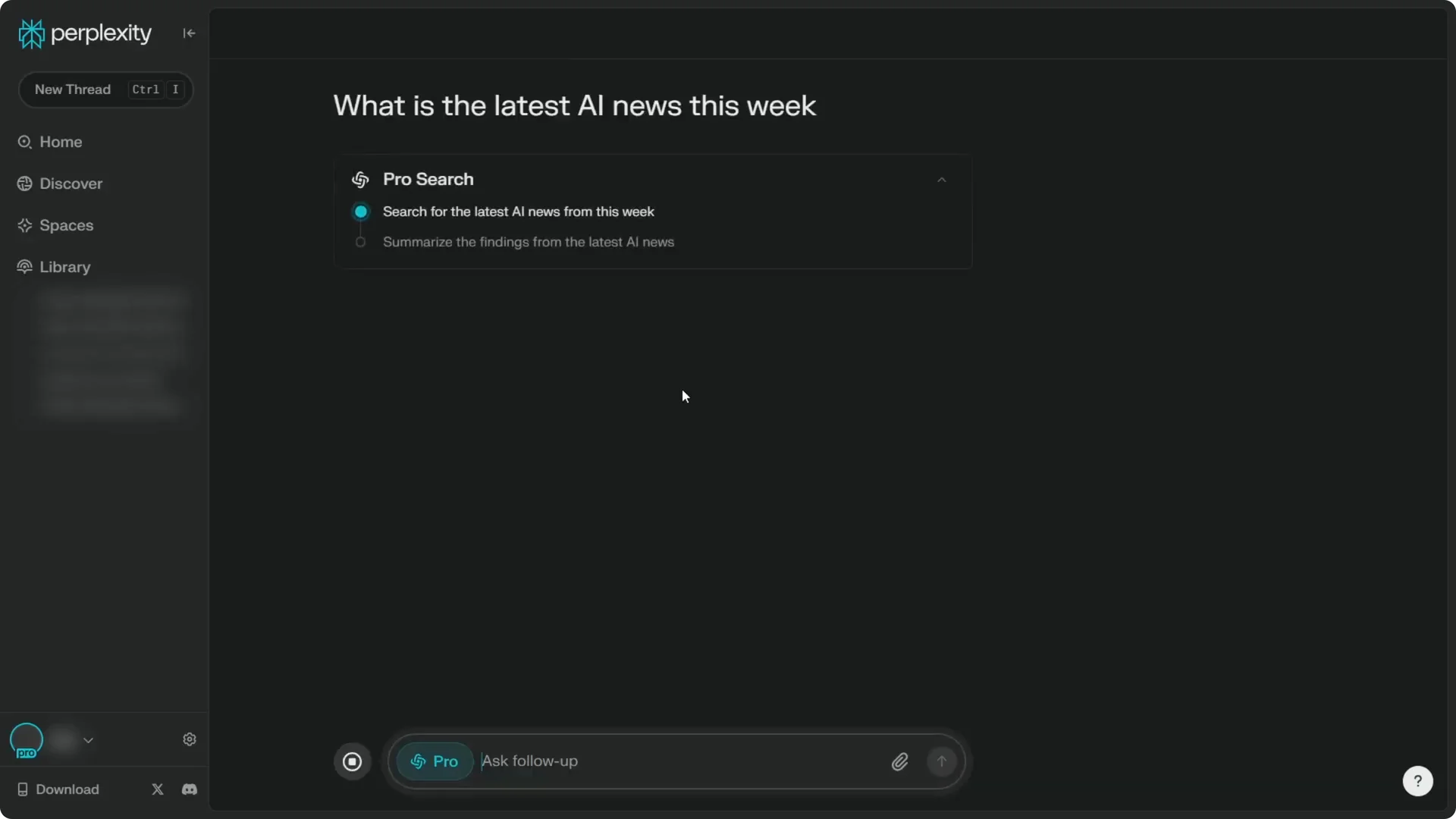
I set it to Norwegian as a test. I created a new thread and asked, “What is the latest AI news this week?” After it finished searching, the answer appeared in Norwegian, confirming the setting works.
Read More: Transformative Ai Art Midjourney Prompts
Final Thoughts on Perplexity Language Settings
You can control both the interface language and the AI response language in Perplexity. Use Settings for the interface, and use the profile menu for Preferred response language. If you want the AI to always reply in a specific language, set it explicitly rather than relying on Automatic.
Read More: Camera control for AI video
