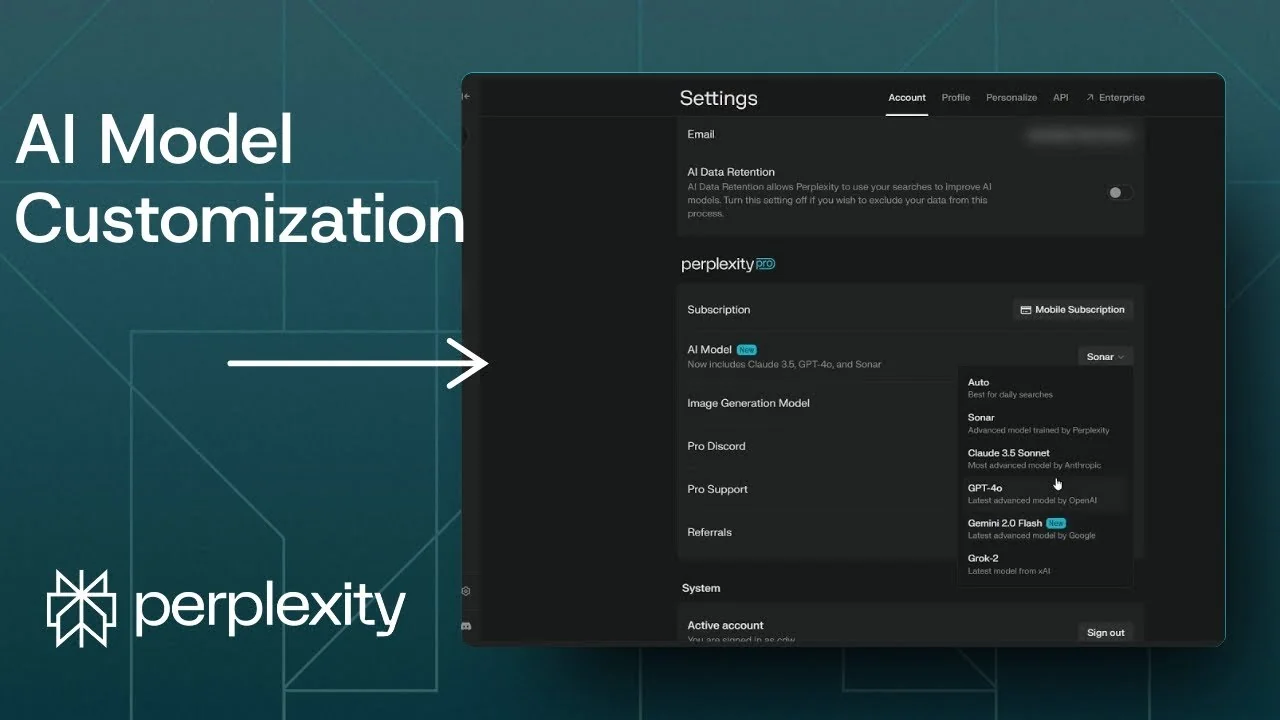
I’m going to show you how to change the AI model in Perplexity. Perplexity has a lot of AI models, and you can pick which one it uses for research and answers. There are three methods you can use.
Use these methods to switch models on the fly or set a default. You can also confirm which model produced an answer right in the thread. Here’s how I work with Perplexity model selection day to day.
Perplexity Model Selection: Three Methods
Perplexity Model Selection with the top toggle
On the Perplexity website there is a button at the top that says Auto. You can change that to Pro, which is the deeper version that does more research when answering a question. There are also Reasoning R1 and Reasoning o3 mini, which are new reasoning models you can pick.
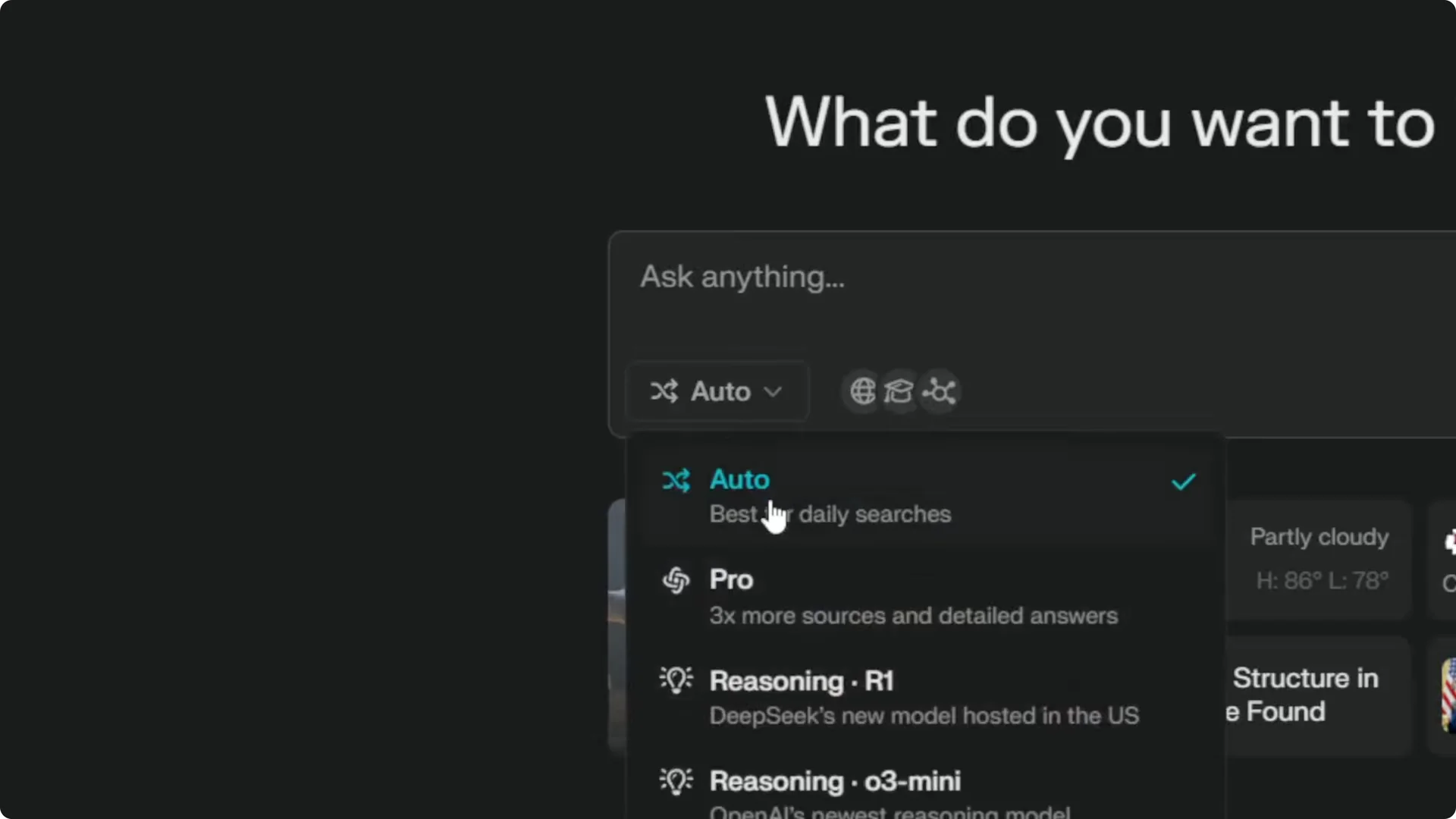
Step 1: Open Perplexity in your browser.
Step 2: Click the model button at the top that shows Auto.
Step 3: Switch to Pro, Reasoning R1, or Reasoning o3 mini.
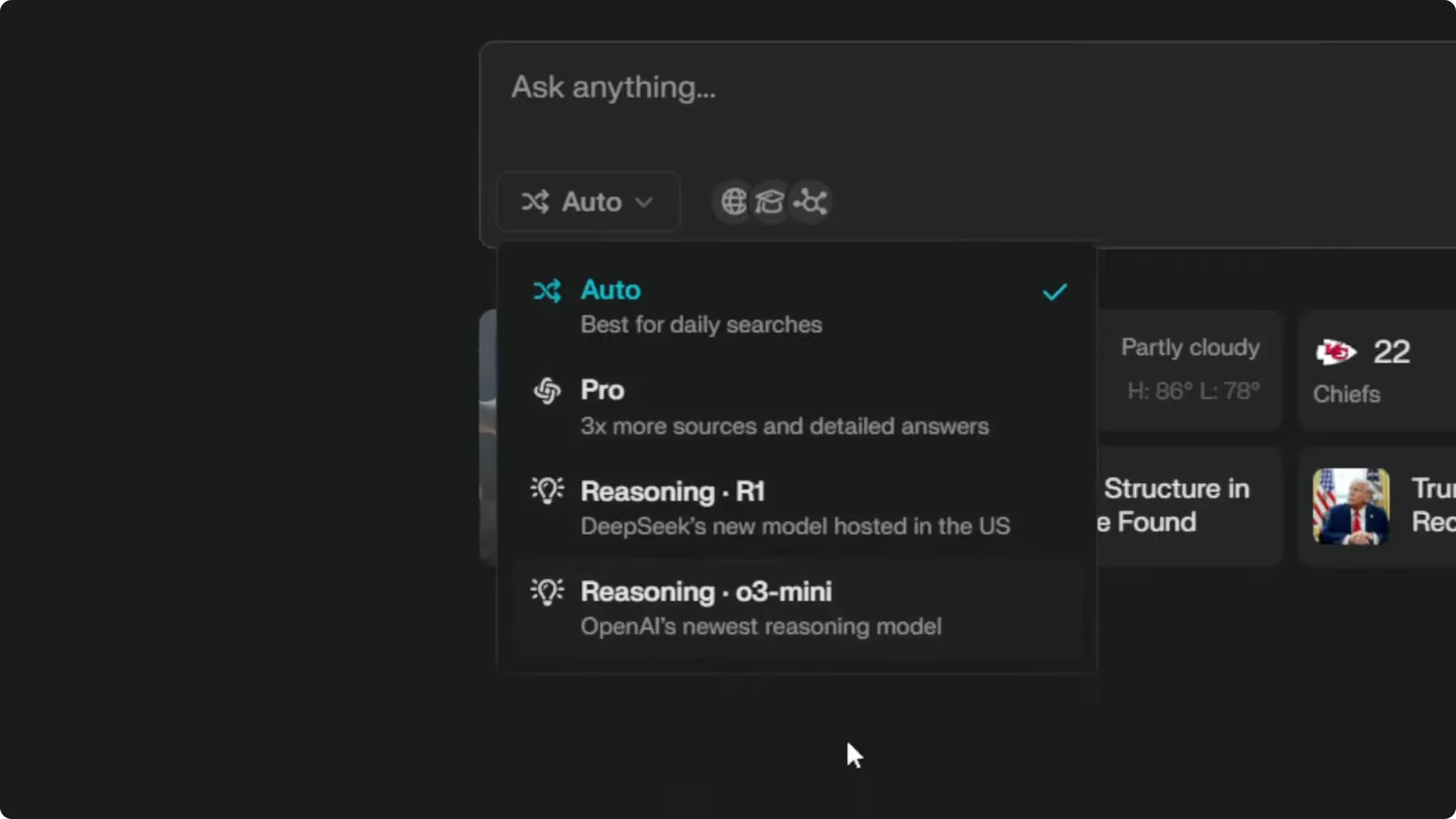
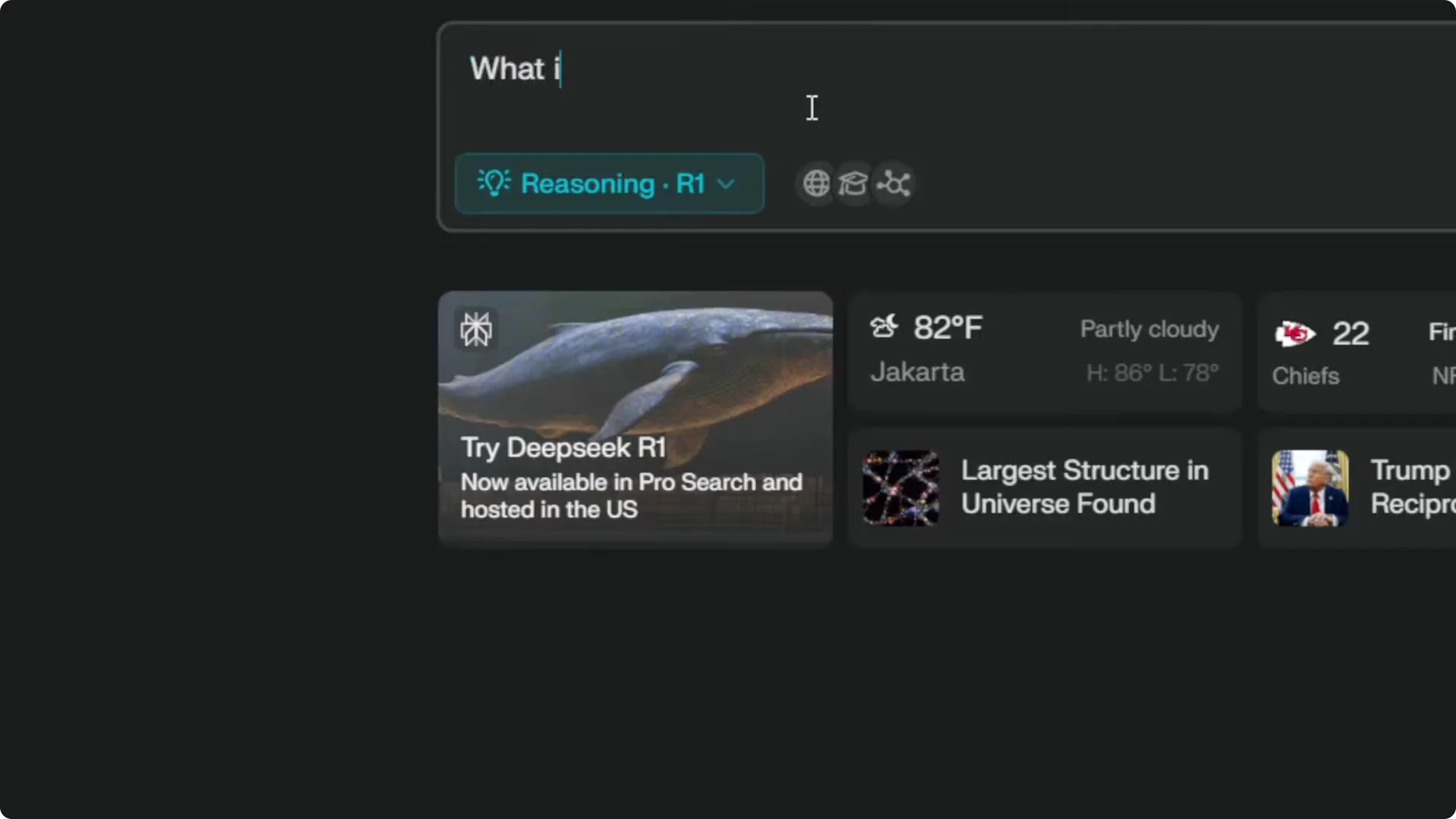
Ask something like “What is the latest Samsung phone?” and it will use the model you selected. With this quick toggle, you basically get Auto, Pro, R1, and o3 mini right away. I’ll show broader options below.
Read More: Create Superior Ai Art
Perplexity Model Selection using Rewrite
You still have other options like Sonar, Claude 3.5 Sonnet, GPT, Gemini, Grok 2, and more. After you run a search, you can recreate the answer with a different model using Rewrite.
Step 1: Ask your question and wait until the answer is finished.
Step 2: Scroll down and click the Rewrite button.
Step 3: Pick from the full list, such as Sonar, Claude 3.5 Sonnet, GPT, Gemini, or Grok 2.
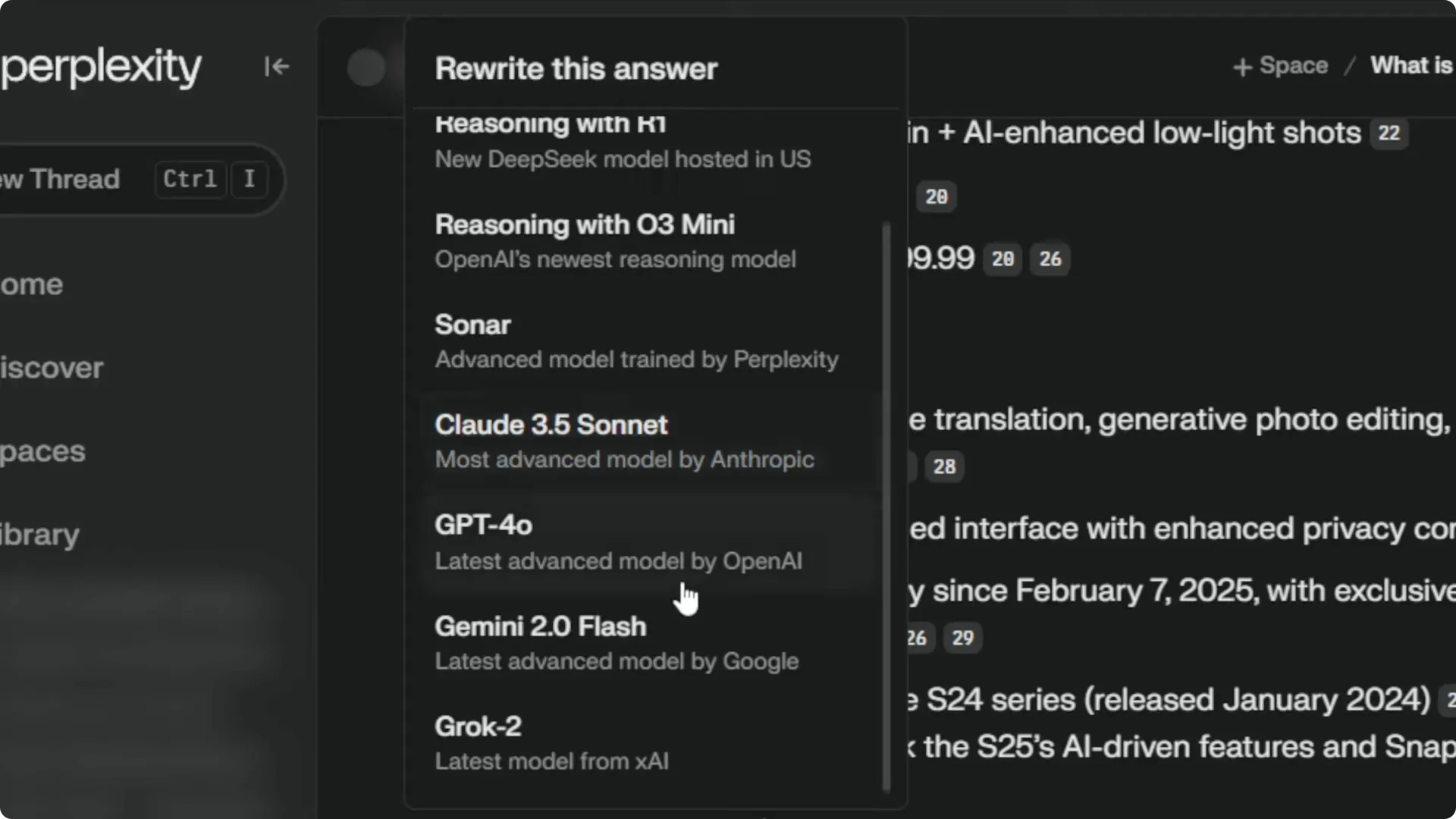
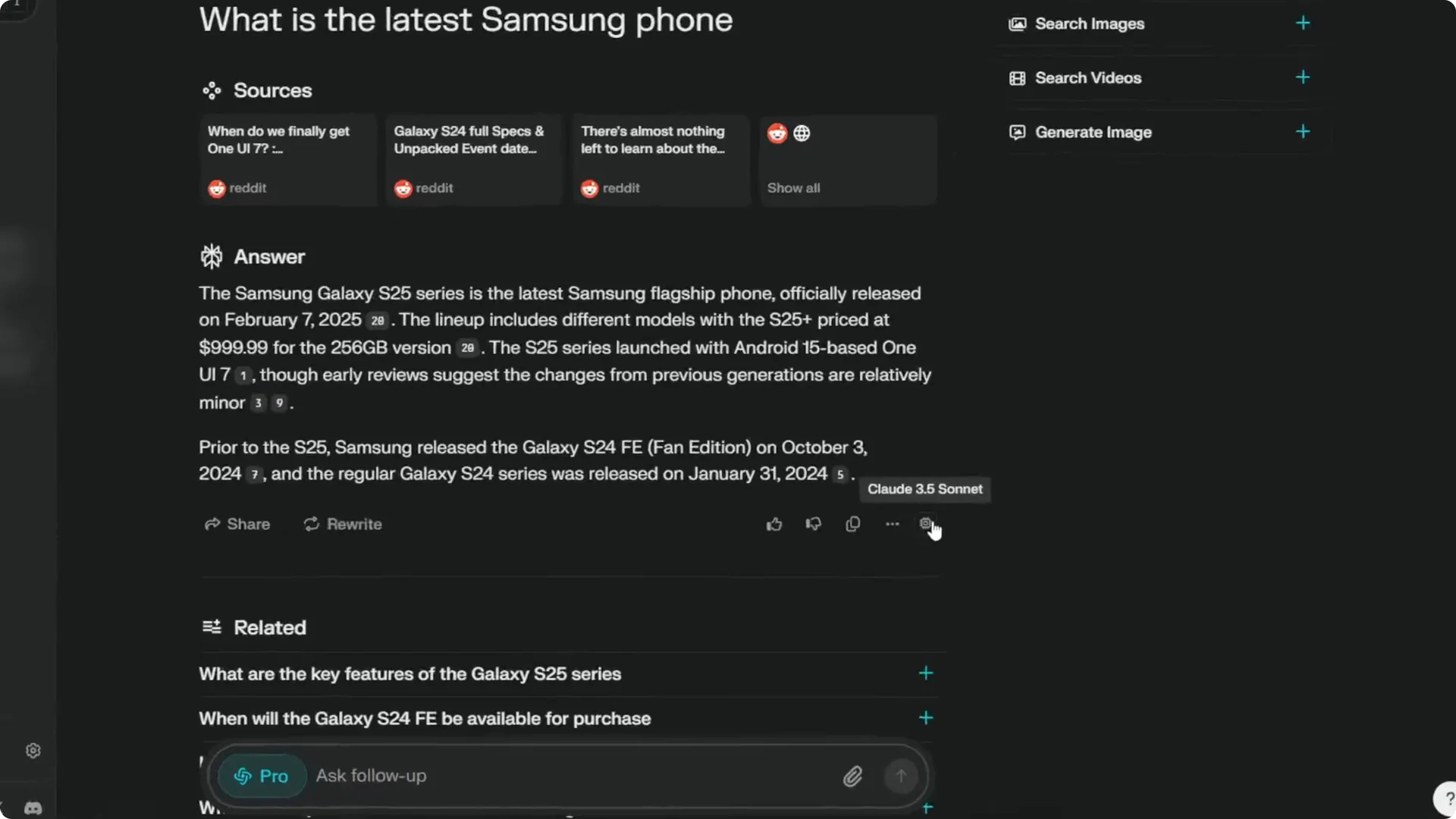
I’ll pick Claude 3.5 Sonnet and enable it, and the answer will be recreated using that model. When it finishes, hover the model label to confirm it says the answer was created by Claude 3.5 Sonnet. This is a quick way to compare answer styles and depth.
Read More: Transformative Ai Art Midjourney Prompts
Set a default for Perplexity Model Selection
If you want every new thread to start with a specific model, set a default. Perplexity lets you choose a default AI model in Settings.
Step 1: Go to Settings.
Step 2: Under the Account menu, scroll to the AI model section.
Step 3: Select the model you prefer. By default I use Sonar, but you can choose GPT-4o, Gemini 2.0, Grok, Claude, and others.
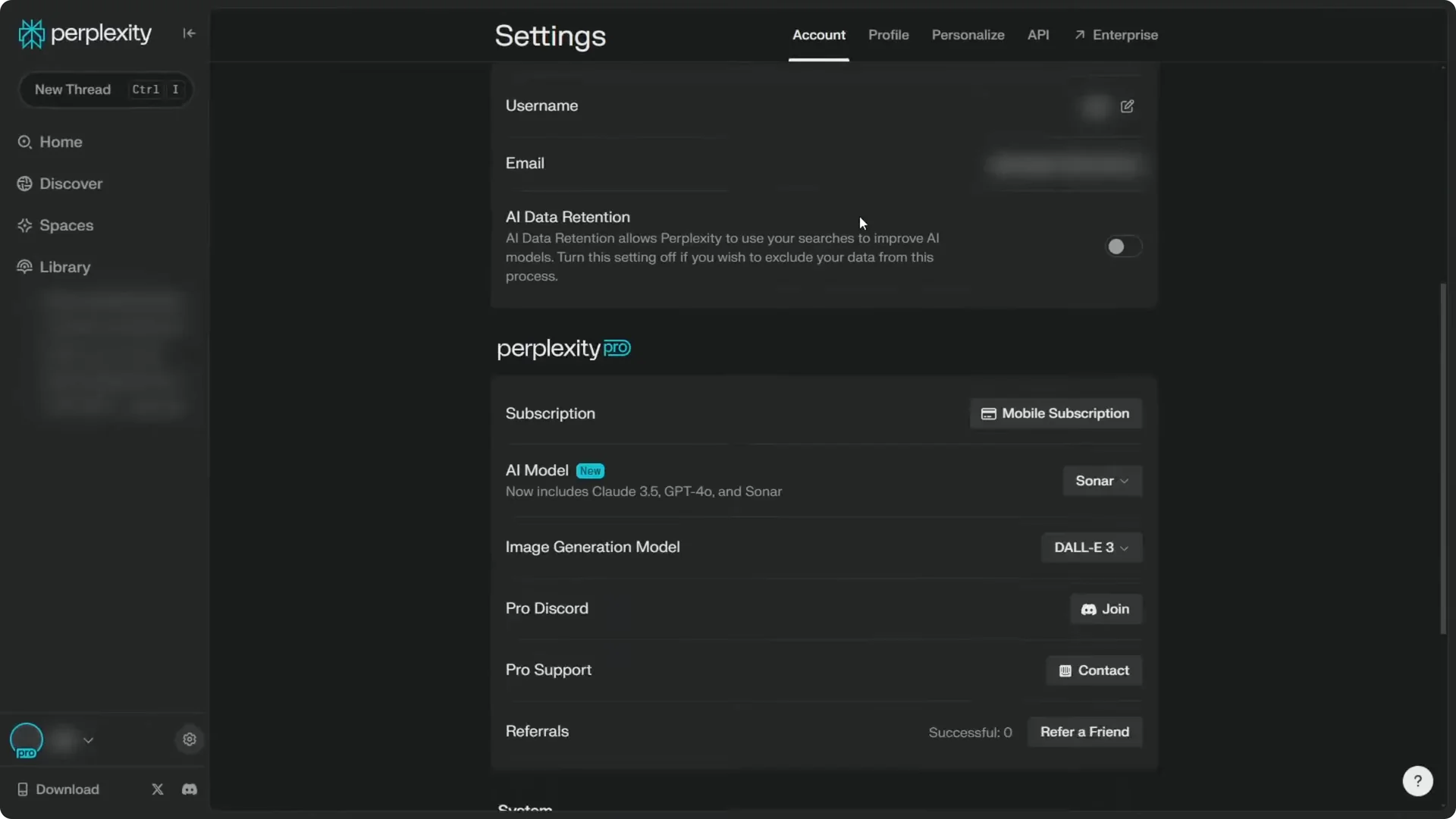
Step 4: Create a new thread and it will use your default model. As a demo, I’ll switch to GPT-4o and start a new thread asking “What are the latest CES 2025 gadgets?” If you override it by enabling R1 or o3 mini, it will not use GPT-4o anymore for that thread.
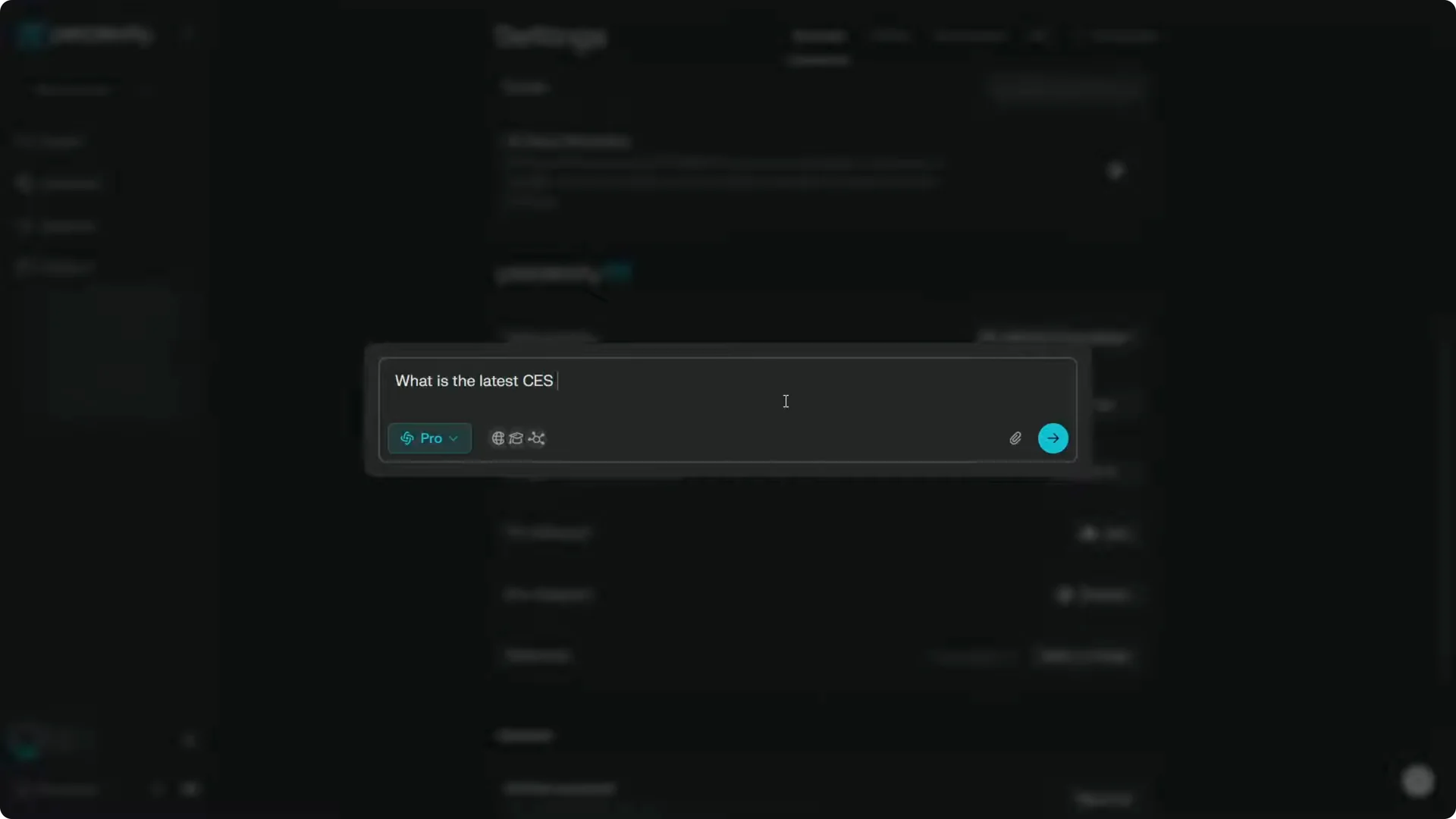
This mix of toggles and defaults can feel a bit awkward because there are multiple ways to select a model, and they are not fully interchangeable. That’s one criticism I have of the new interface. Keep this in mind if something does not stick as expected.
Read More: Camera Control For Midjourney Ai Video
Tips for Perplexity Model Selection
After an answer is generated, scroll down to the footer of the message. You’ll see a line that says the answer was generated by a specific model. For example, it may say “This answer was generated by GPT-4o Omni.”
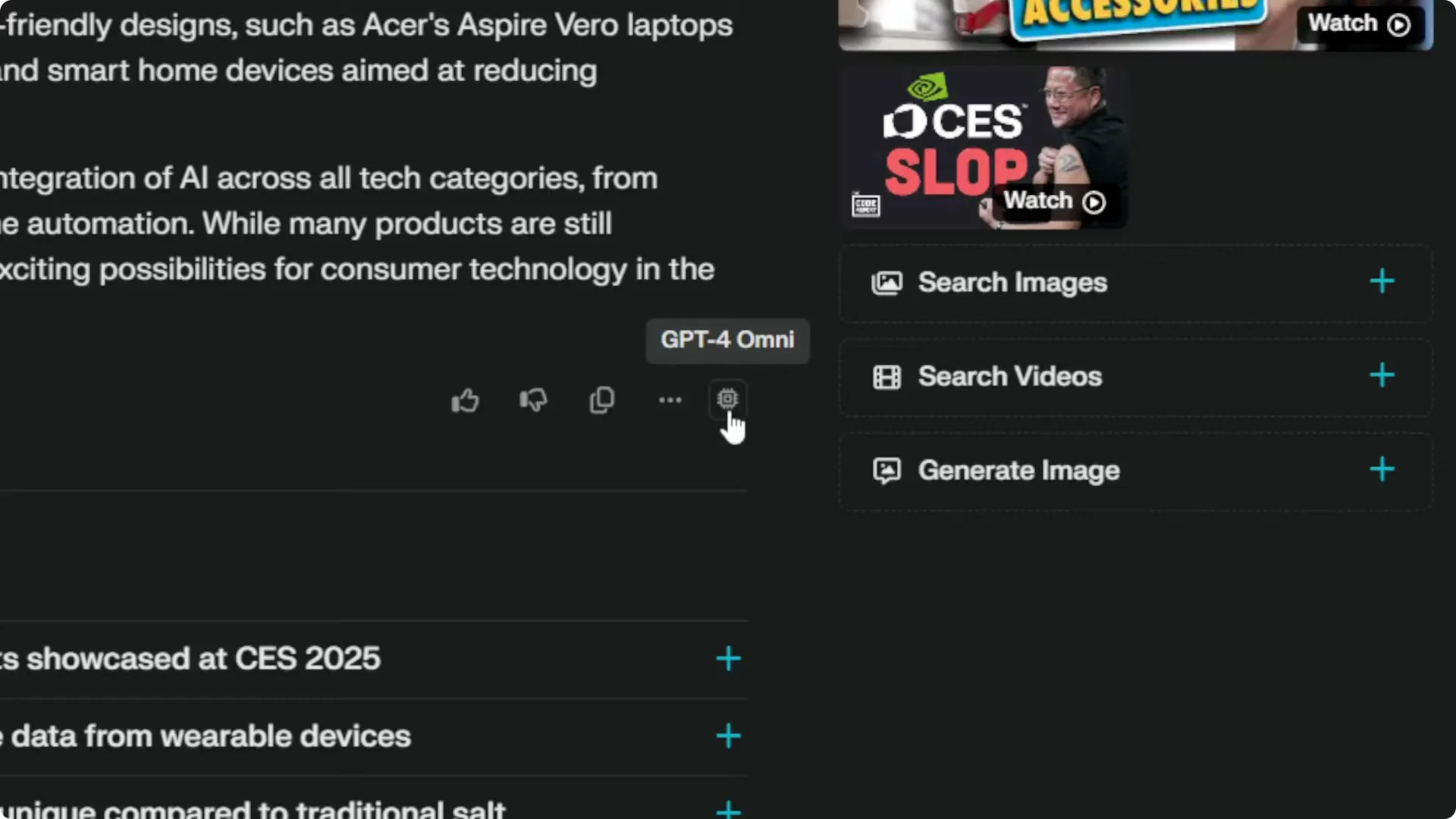
If the result feels too short or too long, try recreating it with a different model using Rewrite. You may find Sonar more concise and a model like Claude 3.5 Sonnet more descriptive. Keep experimenting until the tone and depth fit your question.
If you mostly want deeper research, Pro is a solid pick for day-to-day queries. For logic-heavy prompts, try Reasoning R1 or o3 mini. For a consistent starting point, set a default in Settings and override only when needed.
Read More: Eye Catching Ai Art Midjourney Prompts Styles
Final Thoughts on Perplexity Model Selection
You have three practical ways to pick models in Perplexity. Use the top toggle for quick control, use Rewrite to recreate answers with a different model, and set a default in Settings for new threads. Watch the model label under each answer to confirm exactly which model produced it.
