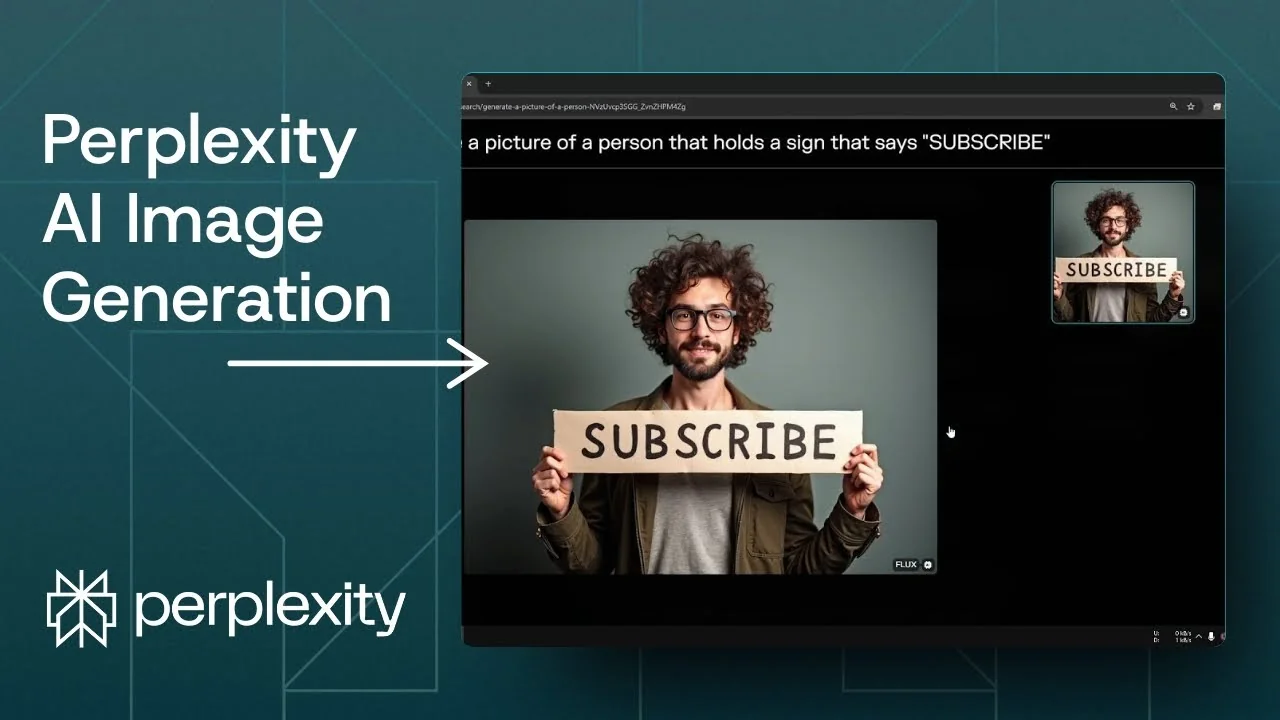
I will show you how to generate an image using AI in Perplexity. This tool is not only for research, there is also an AI image generator built in. I will also share the best tips and best practice for getting good results.
You will see exactly how I set up a prompt, how I send it to the image model, and how I switch models for better output. I will keep the example simple so you can follow along and repeat it. The same steps work for more specific prompts.
Perplexity AI Image Generation setup
You need a Pro subscription. The free version does not include image generation. Make sure your account has Pro before you start.
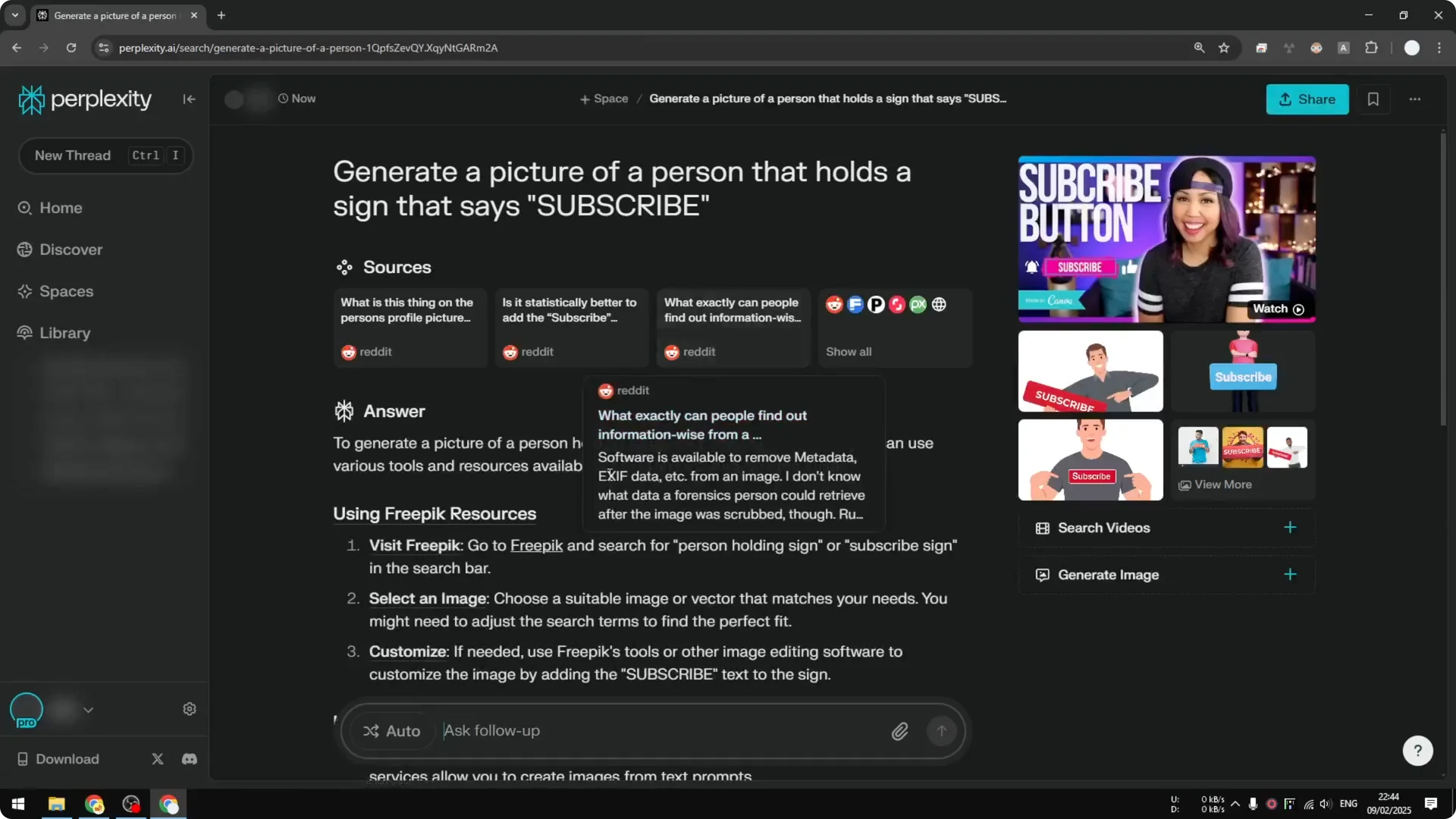
Disable PR search or the reasoning model for this thread. You are using an AI image model, not a research or text model like ChatGPT or Claude 3.5 Sonnet. I also recommend disabling web, academic, and social search because they are not necessary here.
If you are exploring motion and visual control in other tools, check this guide on camera control for AI video. It pairs well with static image workflows when you expand into video.
Perplexity AI Image Generation steps
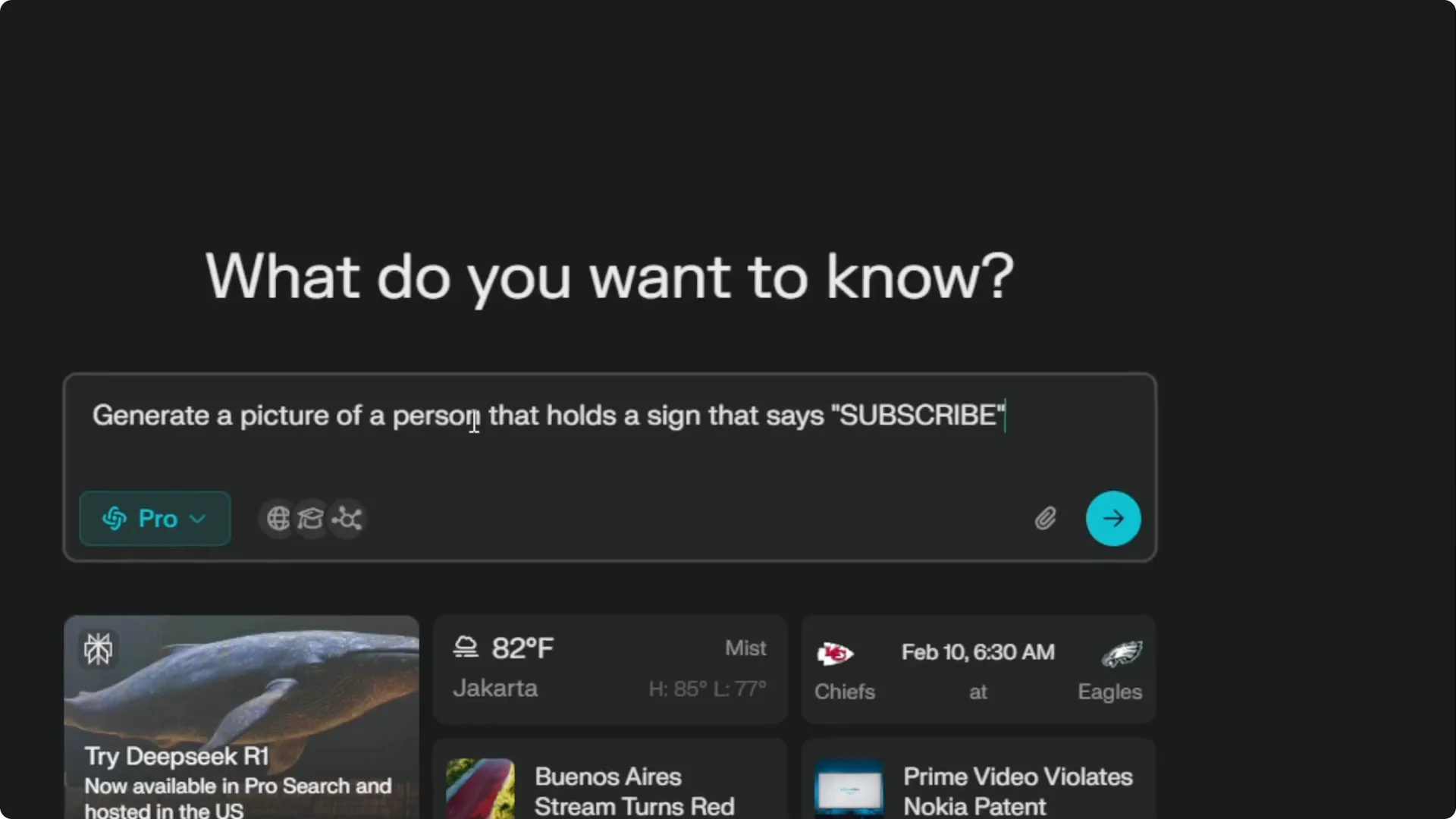
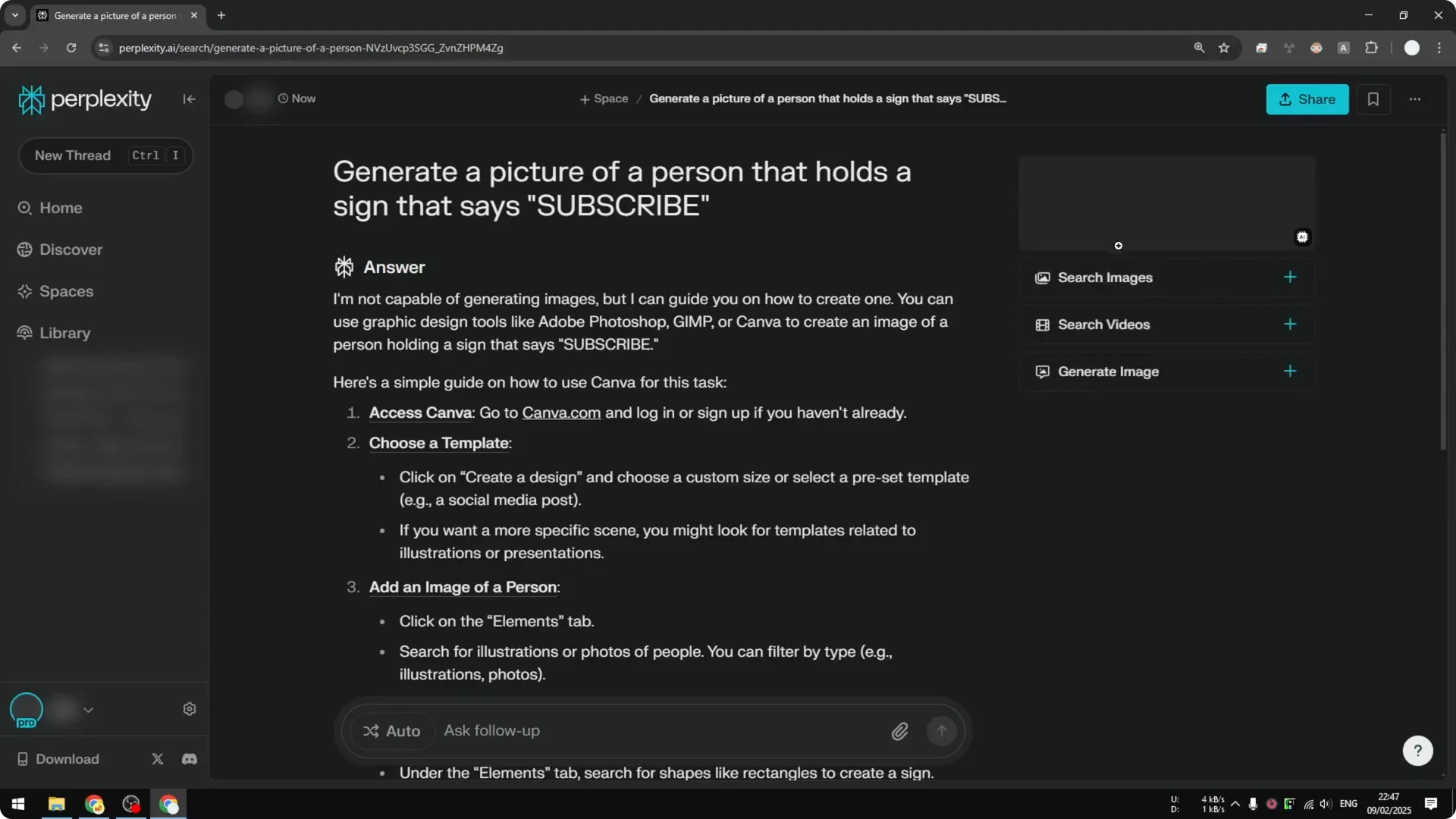
Step 1: Create a new thread in Perplexity. I will use a simple prompt as an example. The prompt is “Generate a picture of a person that holds a sign that says Subscribe.”
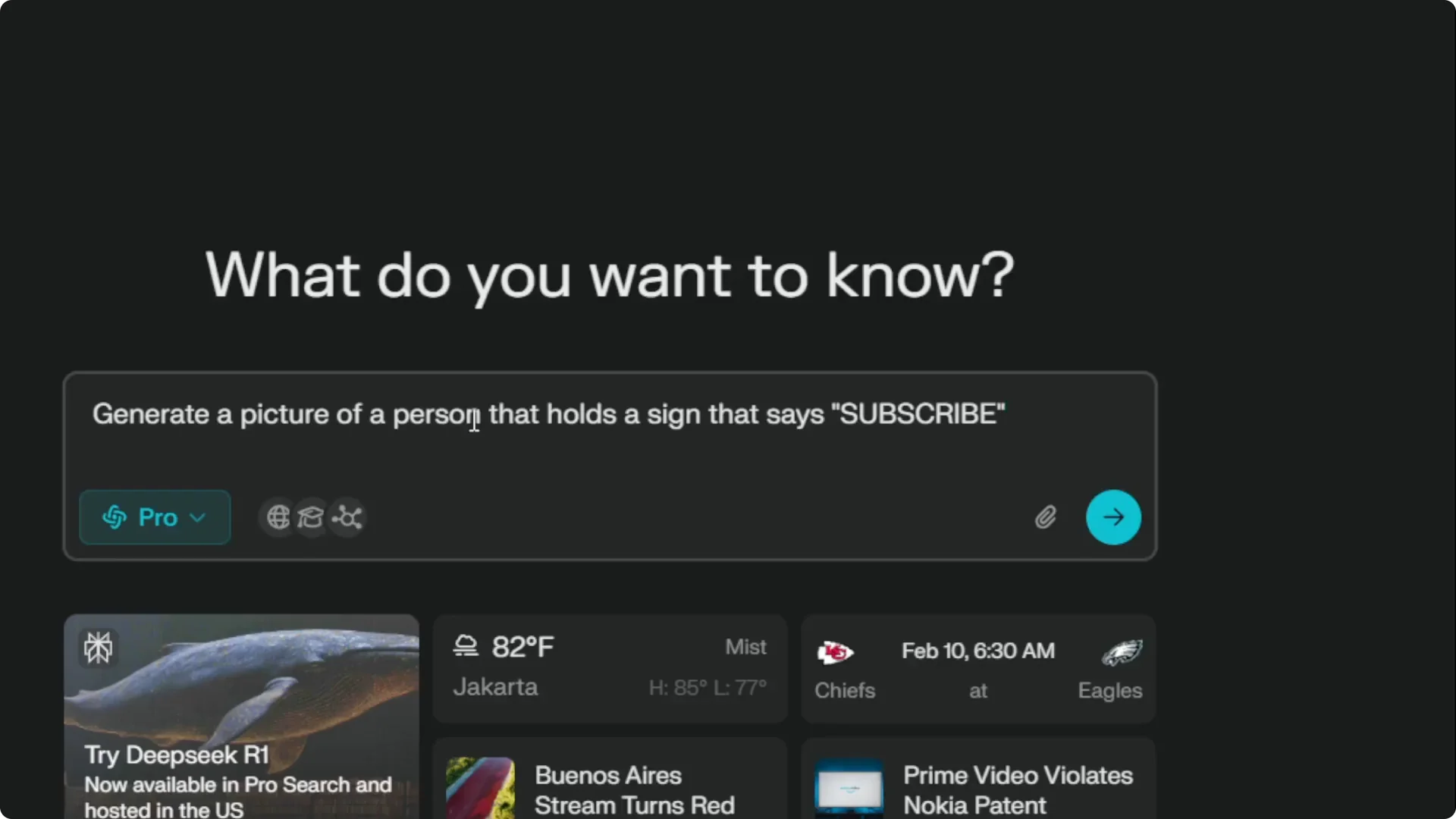
Step 2: Start the thread with your prompt text ready to paste. I prefer to prepare the prompt first so I do not rely on any auto generated text. Keeping the prompt clear makes a big difference.
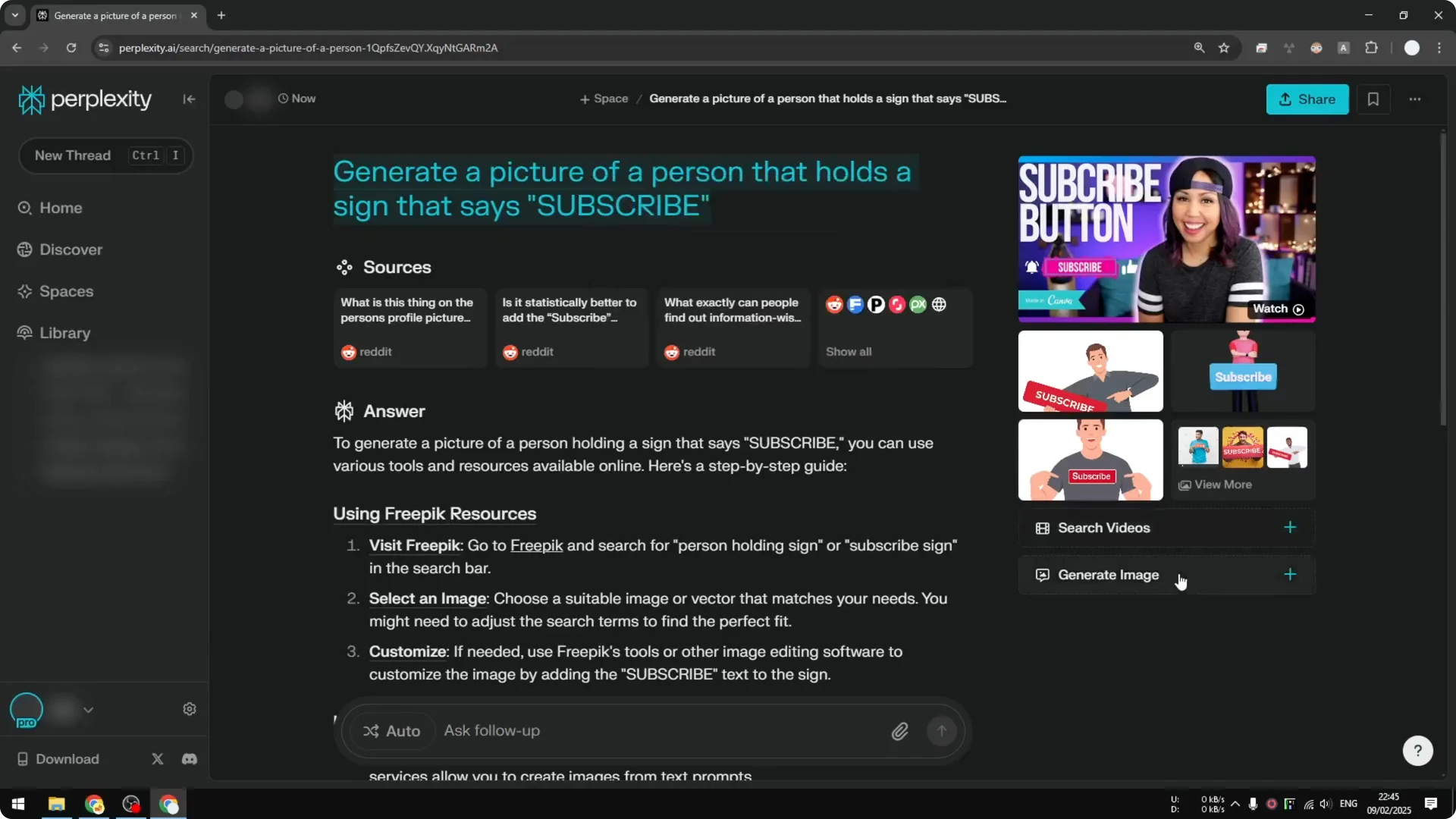
Step 3: After the thread opens, click Generate Image on the right panel. You will see four options labeled painting, photograph, illustration, and diagram. Do not click any of those.
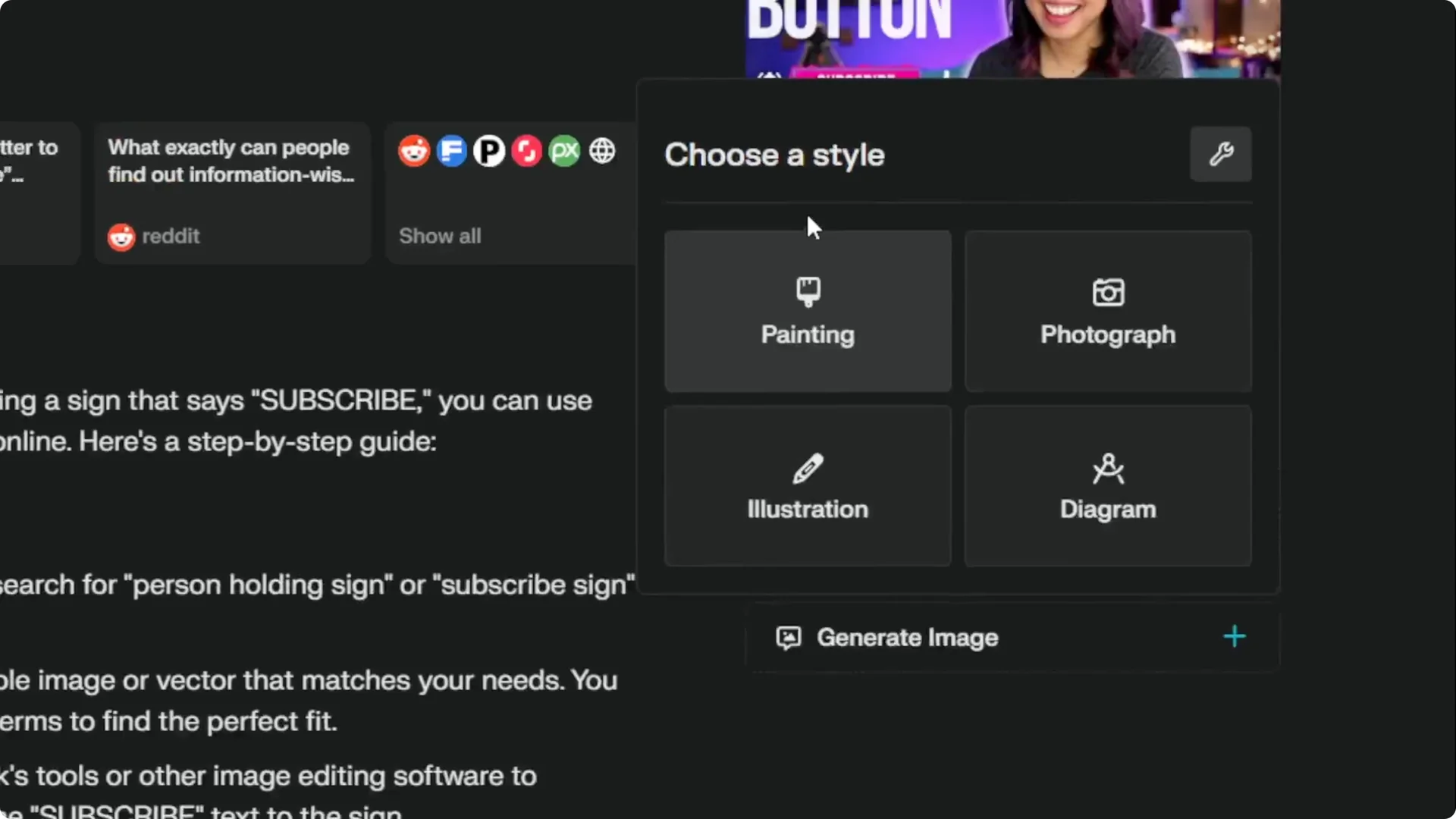
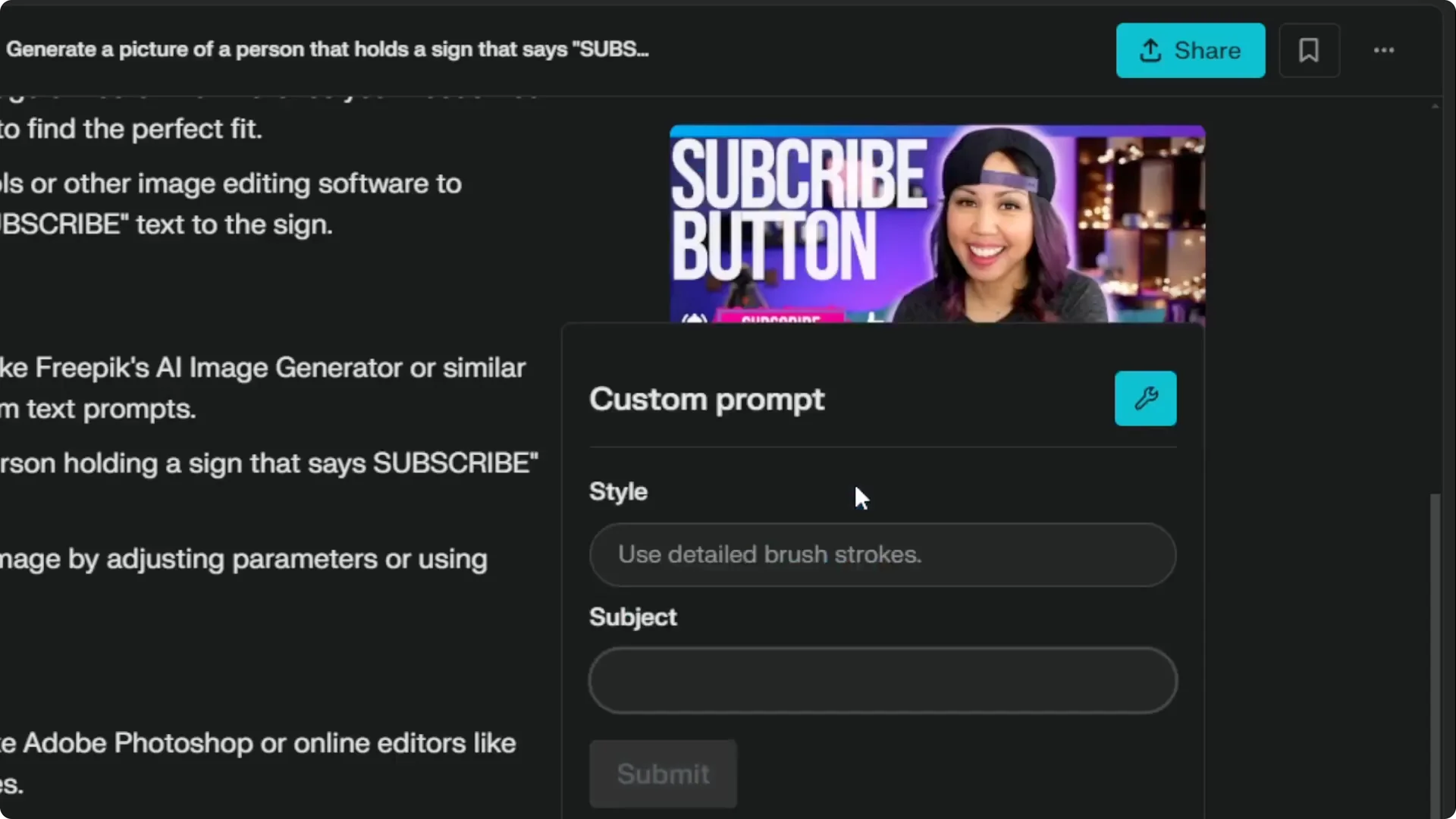
Step 4: Those four options create an image based on the AI’s answer text in the thread. That is not the prompt you want to use. Instead, click Generate Image, then choose Custom prompt.
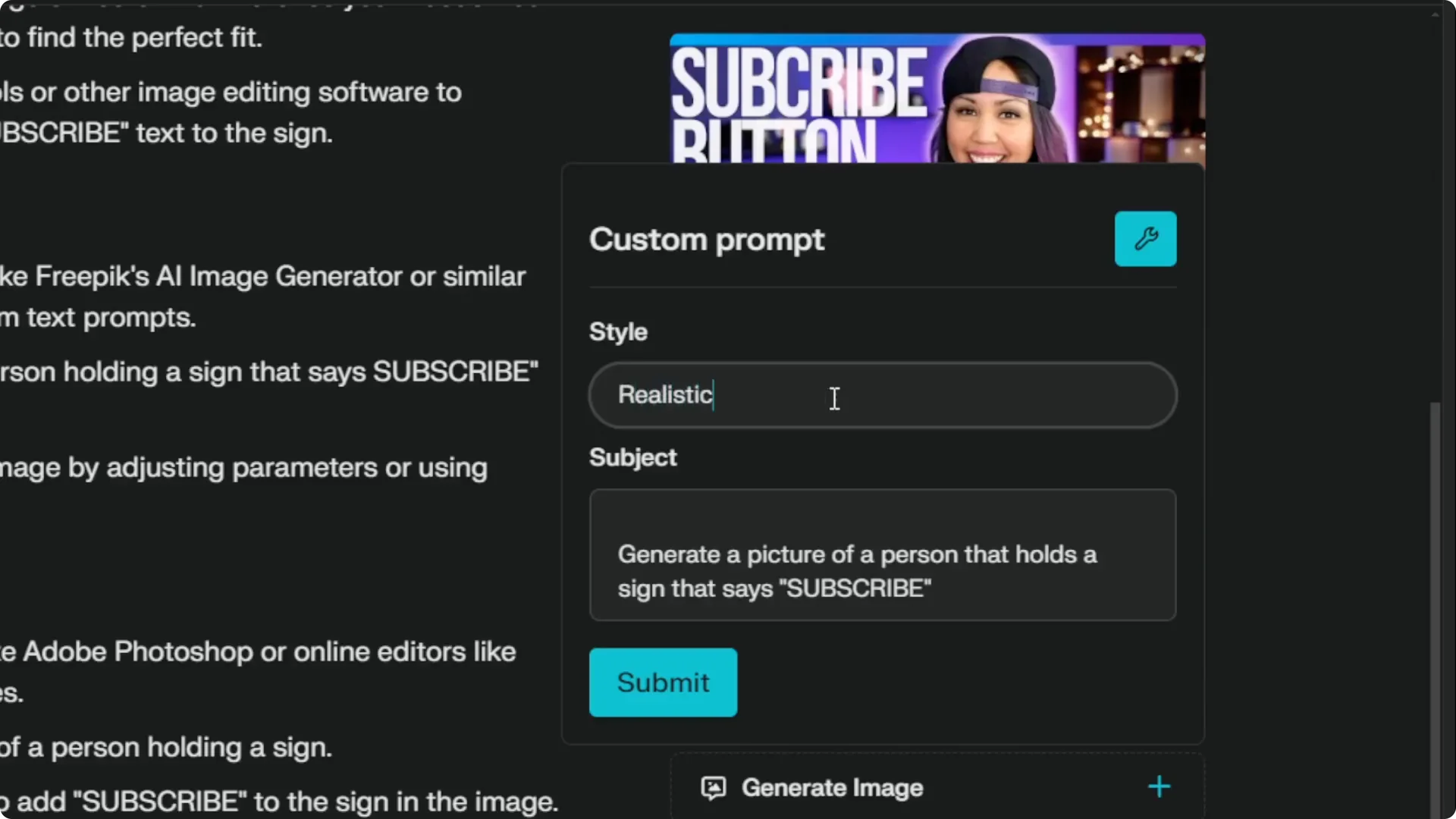
Step 5: Remove any default content in the custom prompt box. Paste the exact prompt you prepared earlier. Replace everything in that field with your prompt.
Step 6: Select the style you prefer. In my case I choose realistic. When you are done with the prompt and style, click Submit.
Step 7: Wait a few seconds for the image to finish. You should see the result appear with the prompt applied. You will also see the model that Perplexity used for this image.
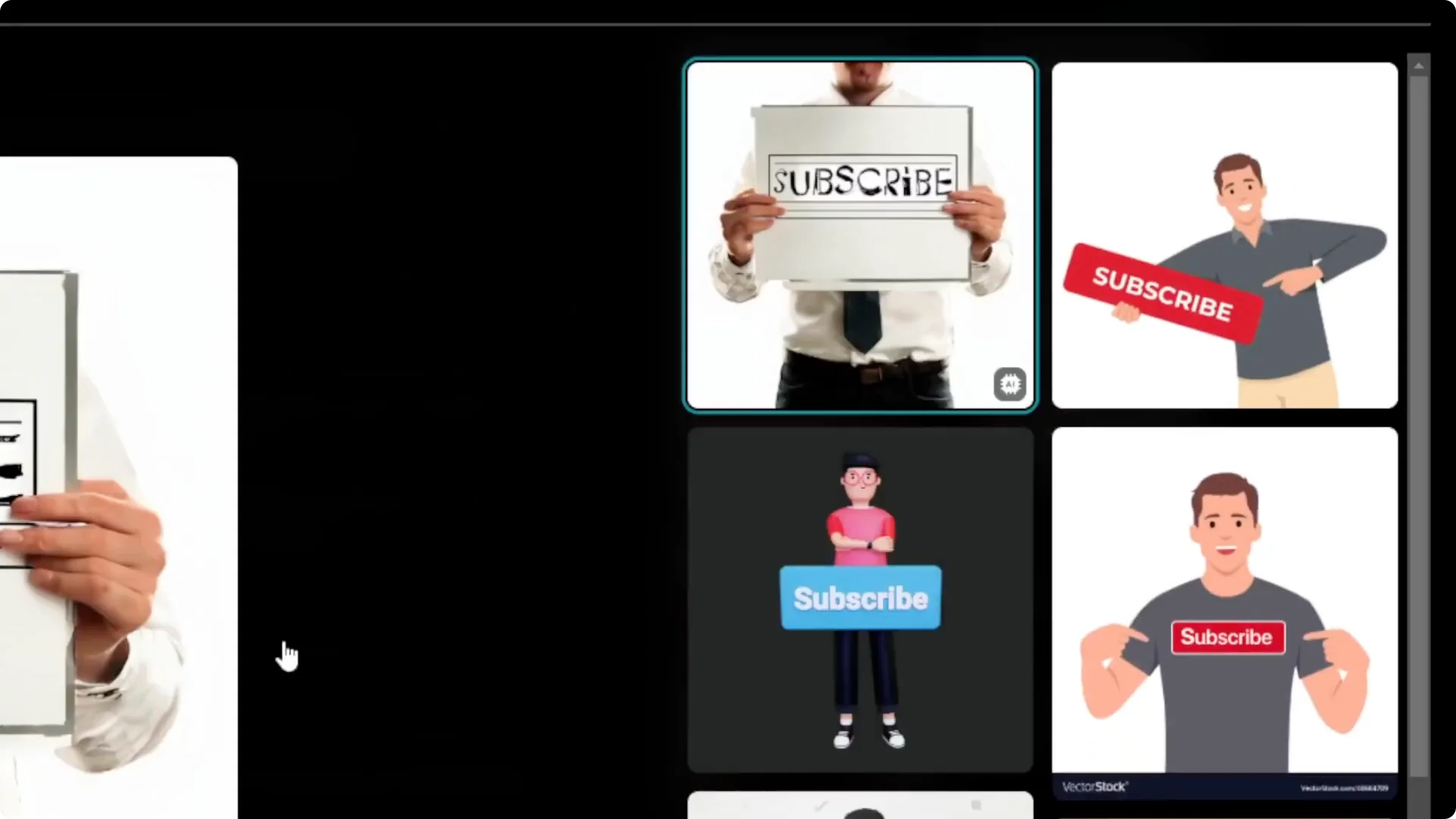
Step 8: If you want stronger style control and prompt ideas, see this guide on prompt styles for eye catching AI art. It helps when you want to push a specific look. For more structured prompt patterns, this collection of transformative prompt ideas can also improve clarity and results.
Switch the Perplexity AI Image Generation model
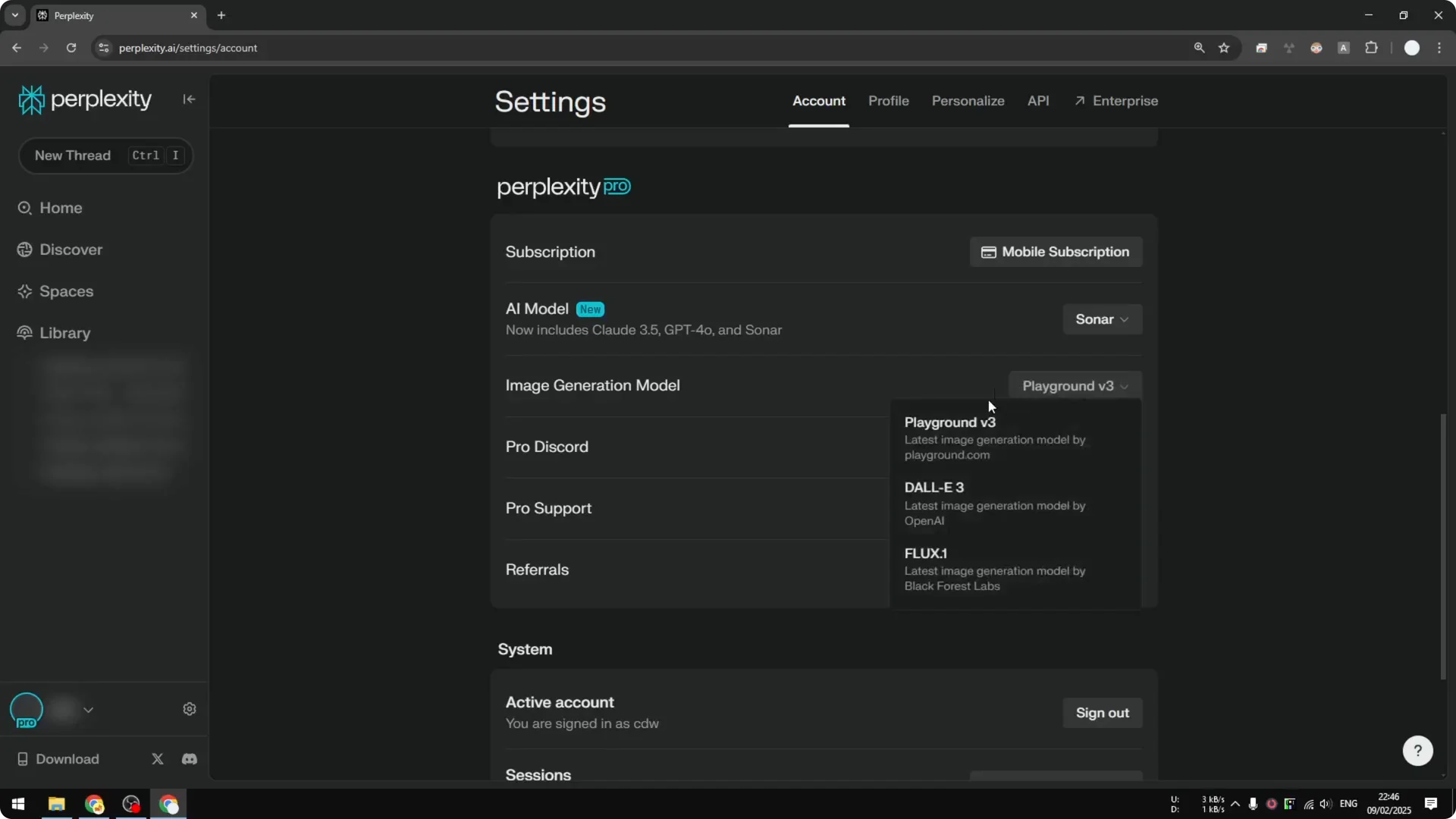
Perplexity will show which model created your image. Playground is one of the image models available in Perplexity, but I do not recommend using Playground for this. I get better results with Flux.
Open Settings, go to Account, scroll down, and change the image generation model from Playground to Flux 1. There is DALL-E 3, but in my testing it was worse for this use case. Flux 1 is by far the best model here.
Create a new thread and use the same prompt again. Click Generate Image, pick Custom prompt, paste your prompt, choose realistic, and click Submit. The result is definitely better than the picture made with Playground.
If you want to see where Flux based tooling is heading, take a look at the fast editor in Flux 2 Klein. It is a helpful point of reference when comparing model families and editing speed.
Perplexity AI Image Generation tips
Use Custom prompt every time, not the AI’s answer text. Keep your prompt focused and remove extra fluff. Set the style before you submit.
Flux 1 gave me the strongest results compared to Playground and DALL-E 3. If your first output is not what you want, tweak the prompt phrasing and try again. Small wording changes can help the model lock onto the right subject and details.
Final thoughts
Perplexity can generate solid images if you start a clean thread, disable research features, and use the Custom prompt option. Flux 1 is the image model I recommend for quality and consistency. Prepare a clear prompt, pick your style, and you can get a good image in just a few seconds.
