I’m sharing simple tips you can start using right away to improve the images you create in Midjourney. These are practical tweaks I use to get more control, better detail, and stronger style consistency.
Midjourney Optimization Tips: Free Upscaling and Fast Hours
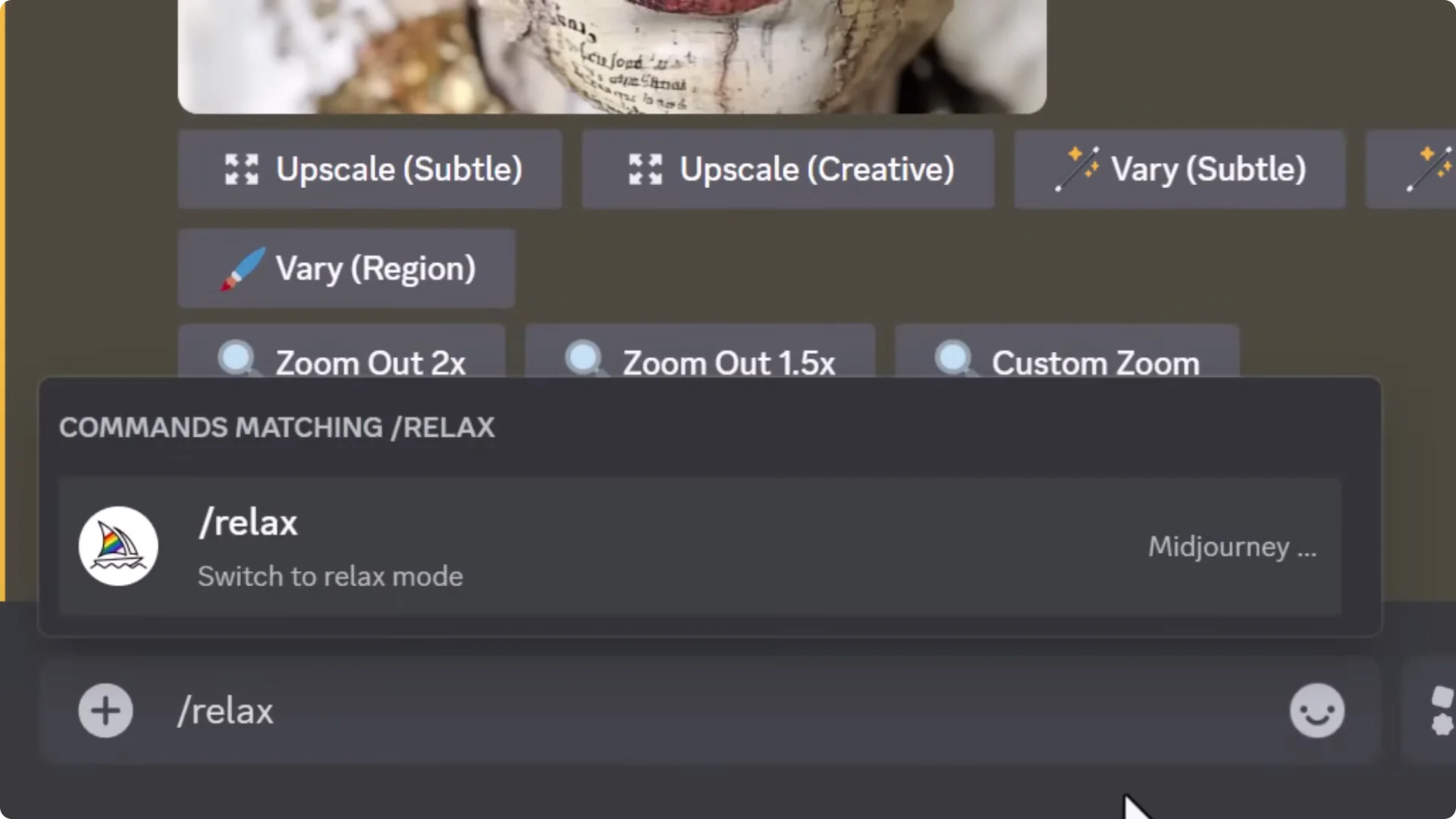
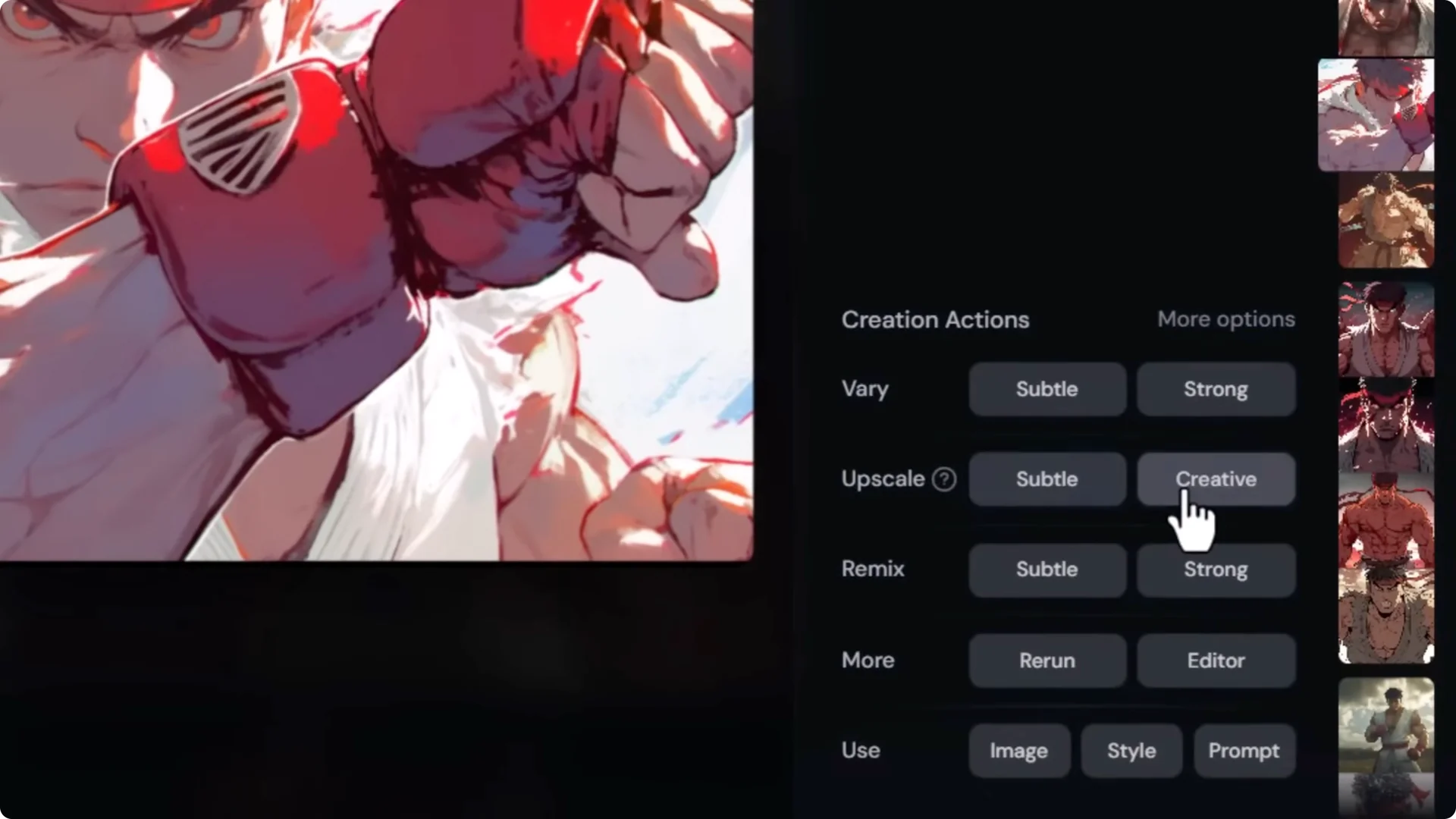
Upscale in Relax Mode
If you have the Standard plan or higher:
- On the website: open Settings and turn on Relax Mode. Upscale your images and they won’t use any GPU time. It’s a little slower, but worth it if you’re low on fast hours.
- On Discord: type /relax, then upscale from there. You can queue a few and upscale without using any GPU time.
Earn Fast Hours in Tasks
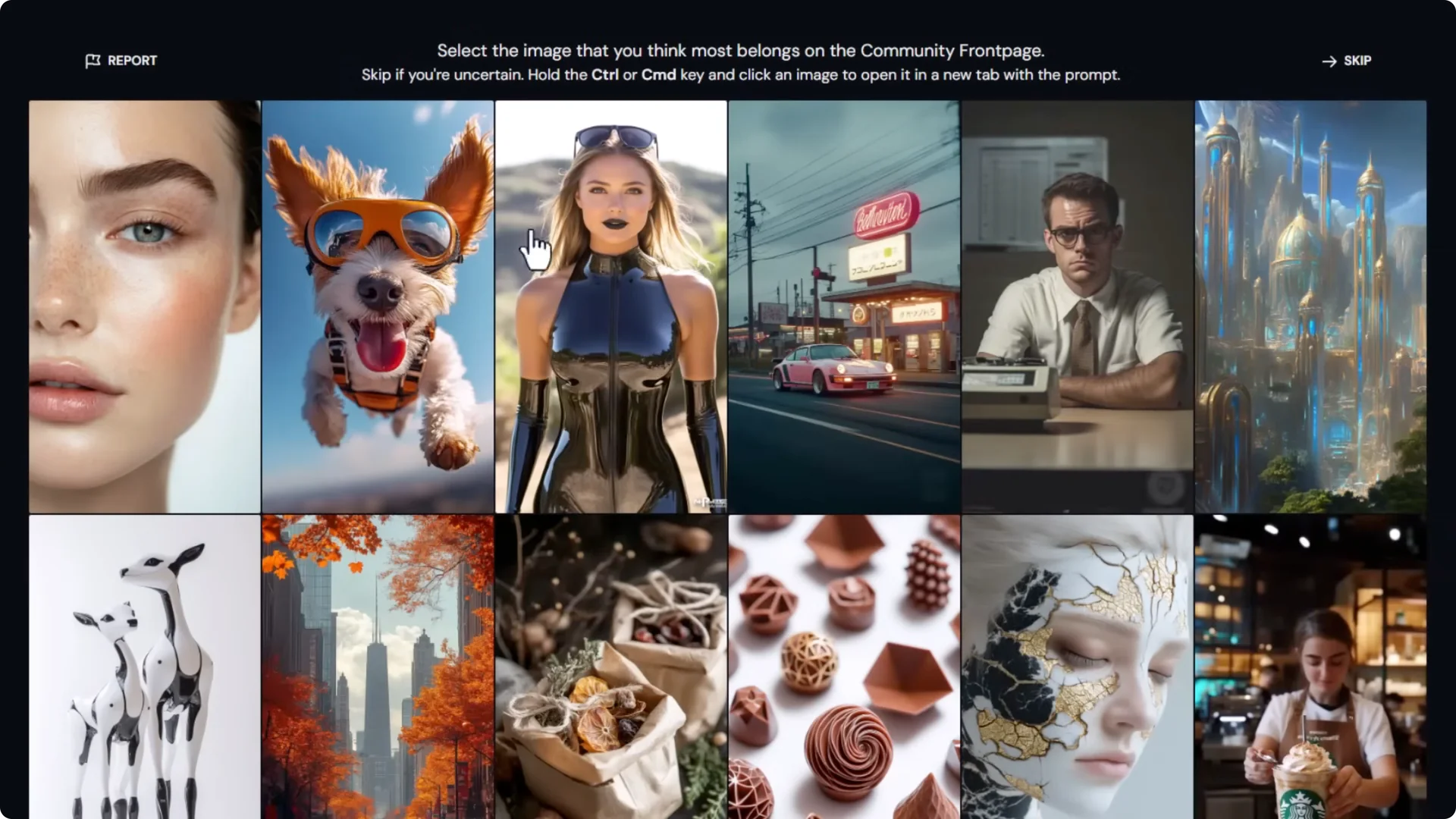
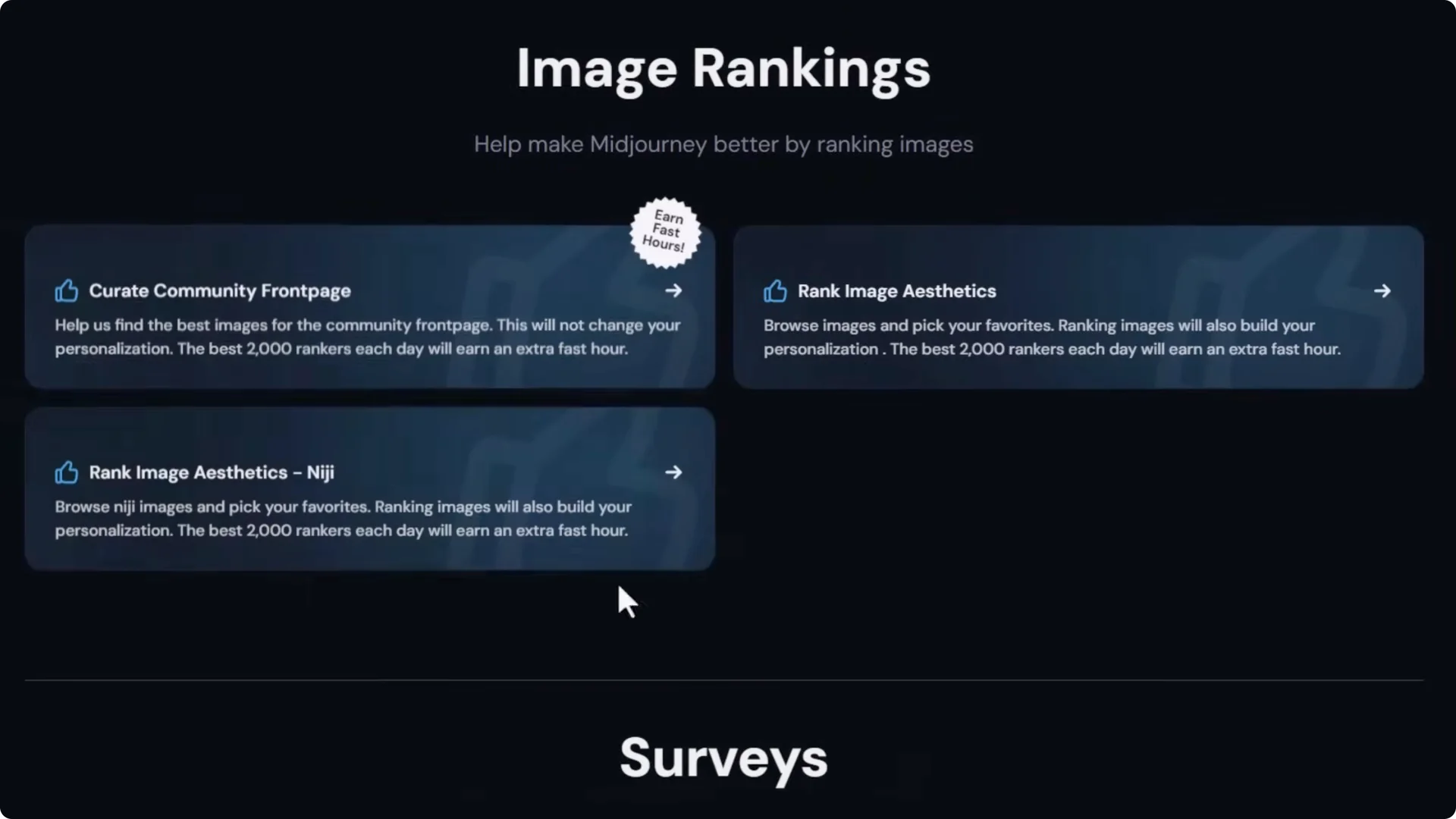
- On the Midjourney website, go to Tasks and look for the badge that says Earn fast hours.
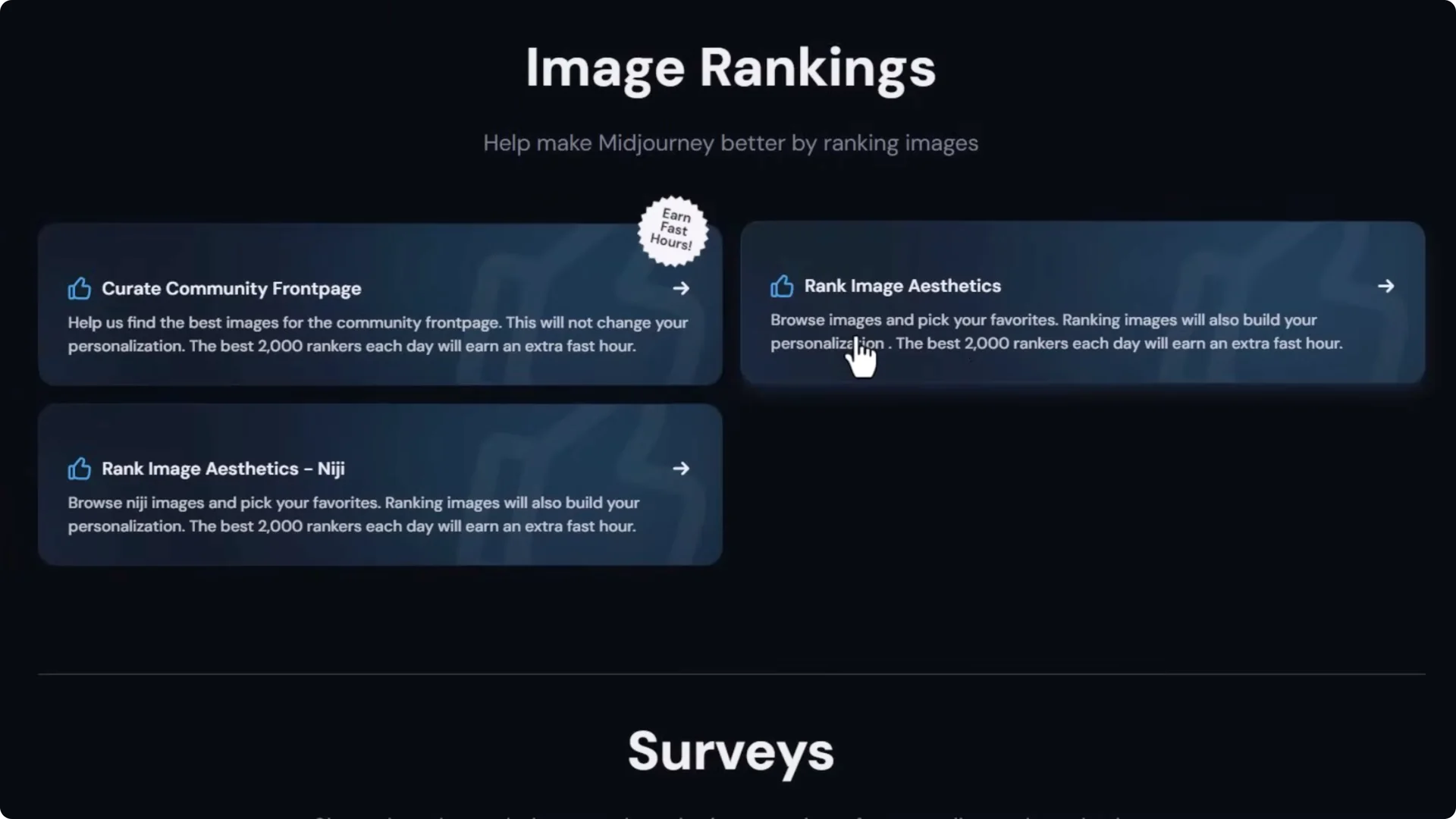
- Curate images to earn fast hours. Click images you think should be on the front page.
- The top 2,000 rankers of the day receive one GPU hour. Do 50 to 100 daily to gain more time for experimentation.
Midjourney Optimization Tips: Personalization Profiles
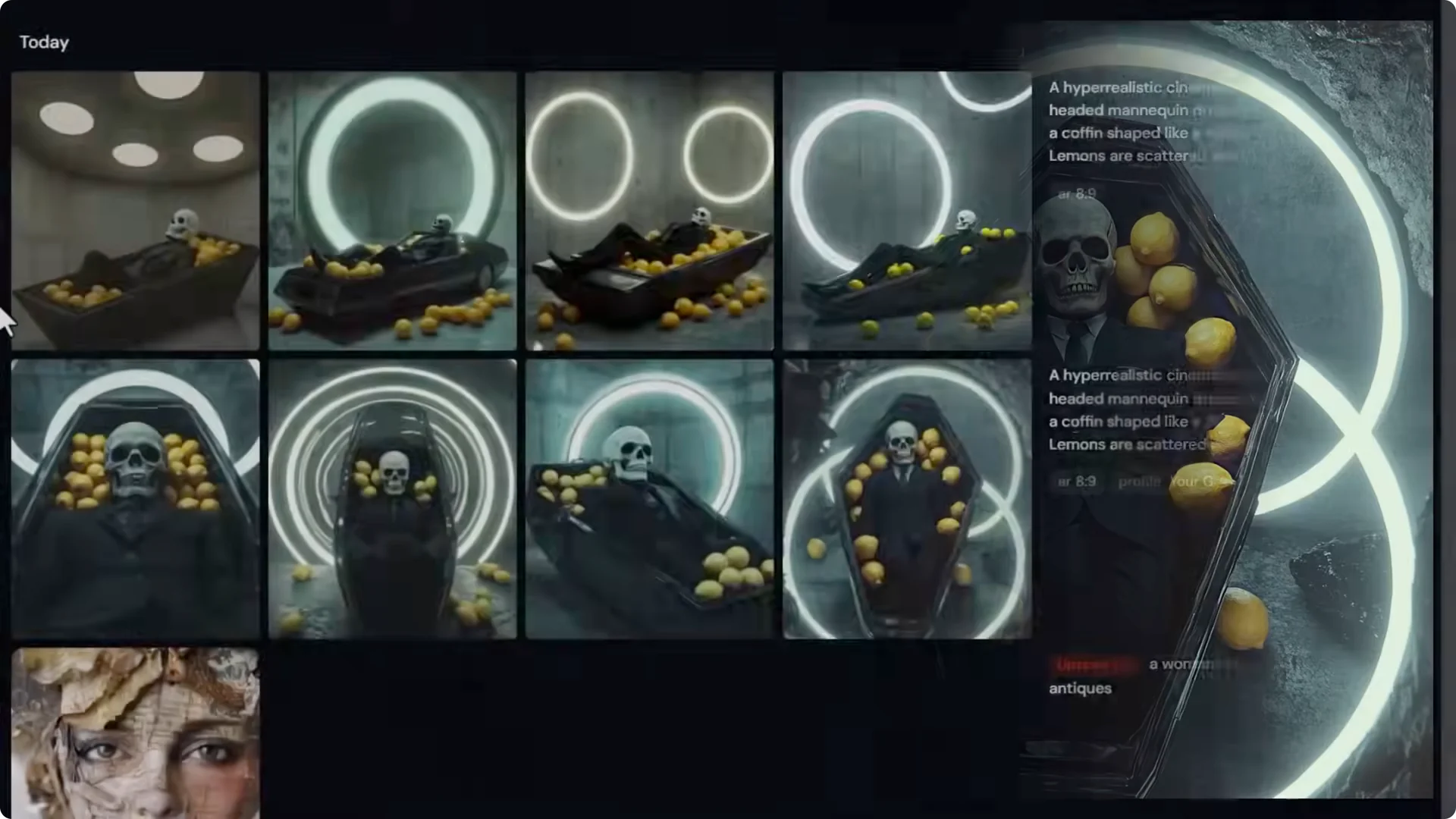
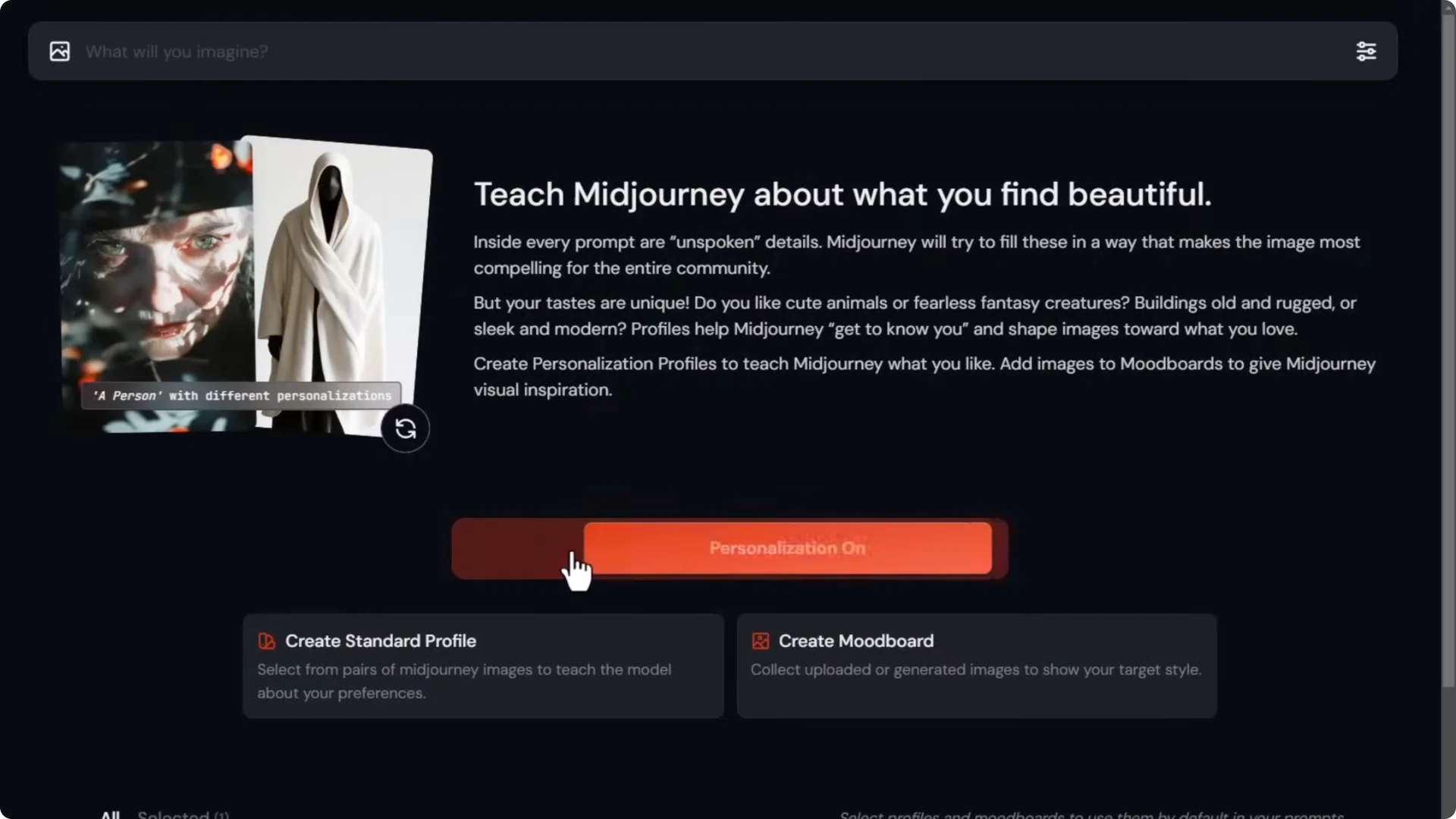
Personalization helps push results toward your taste. I tested a prompt with and without personalization, and the personalized set looked a lot better.
Rank Image Aesthetics for Global or Niji
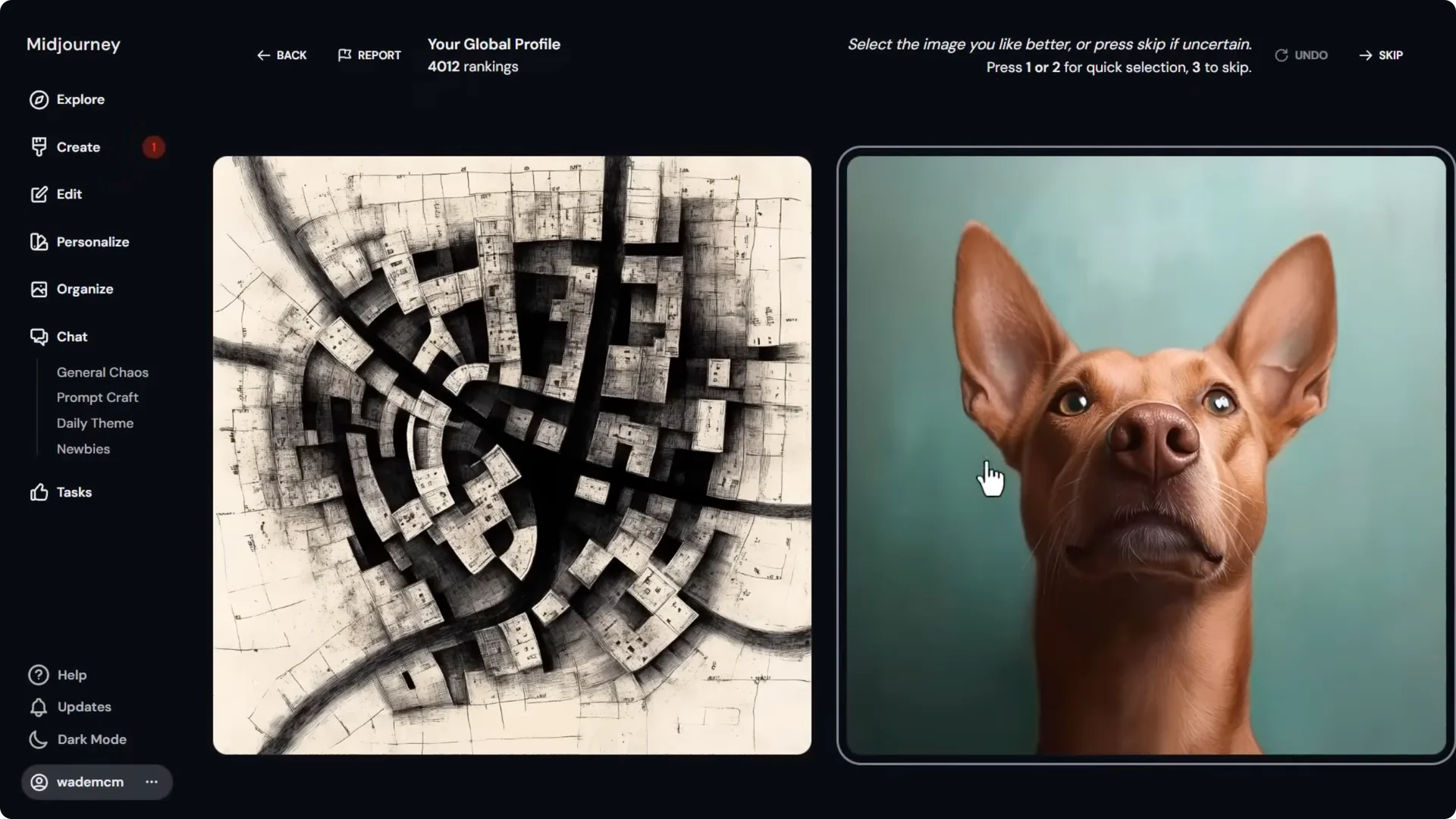
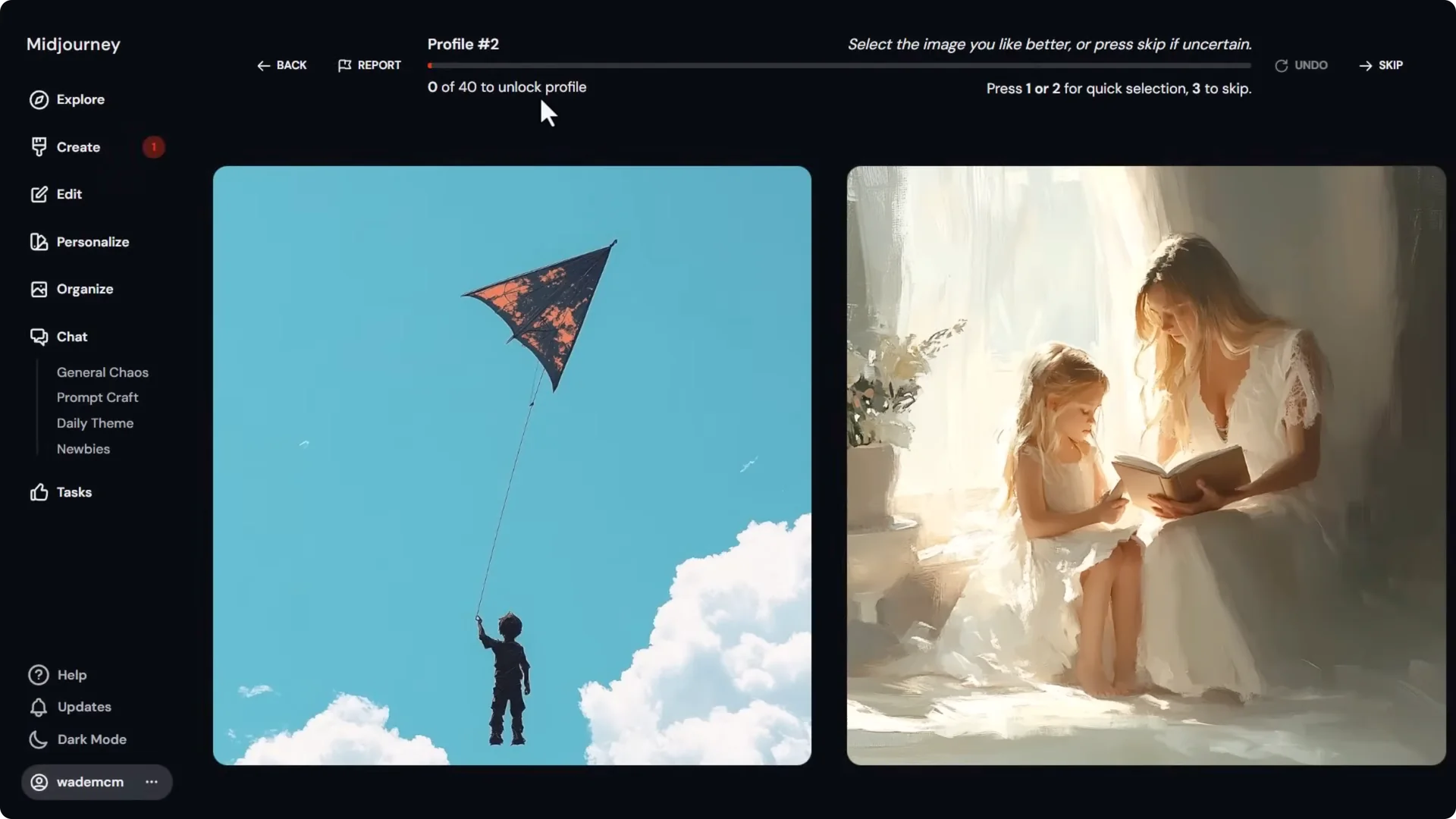
- Go to Tasks and rank image aesthetics for your Global profile or specifically for Niji.
- Use keyboard shortcuts: 1 for left, 2 for right, 3 to skip.
- Rank up to 2,000 and Midjourney builds a personalization profile.
Turn Personalization On and Use Codes
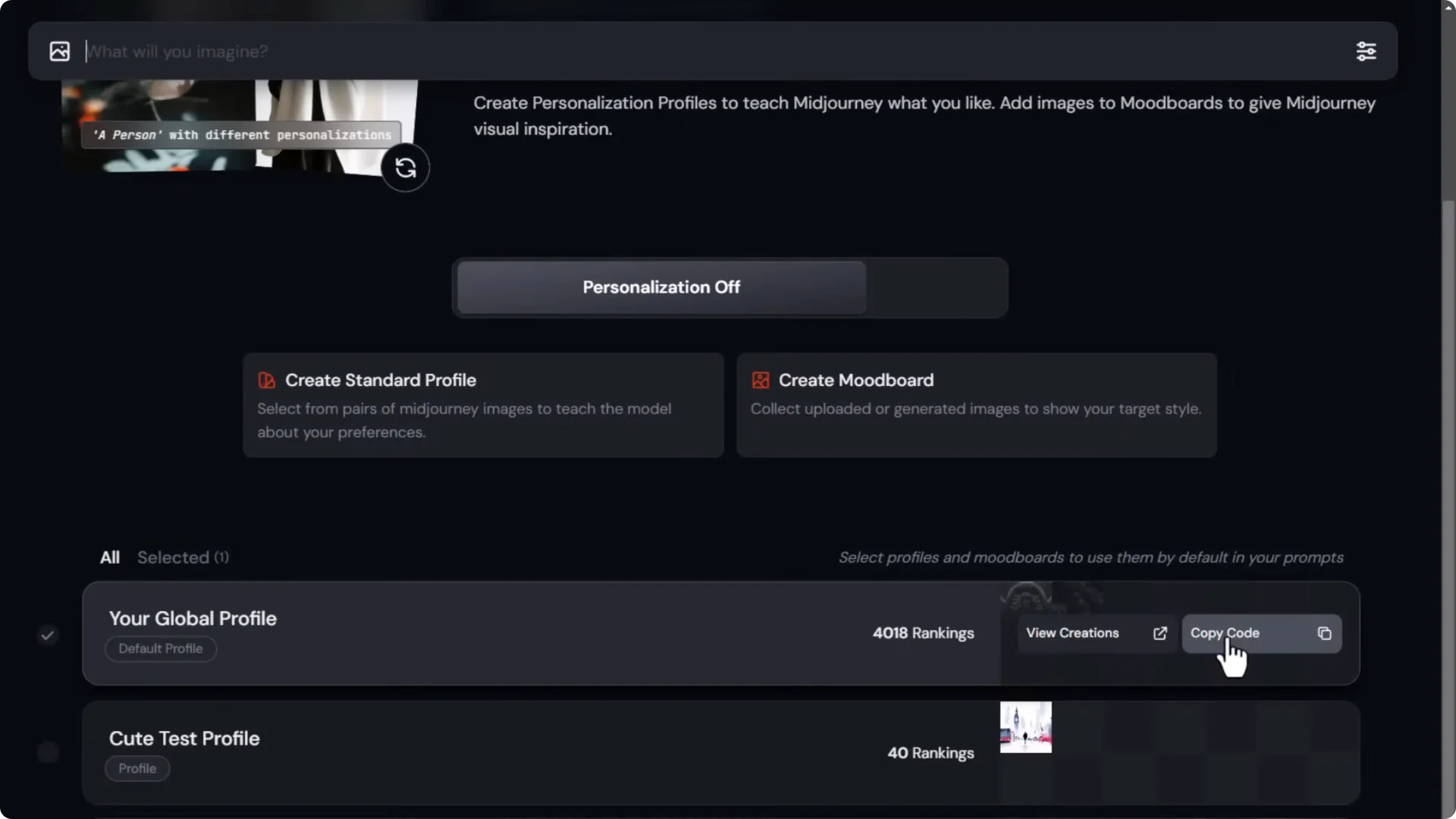
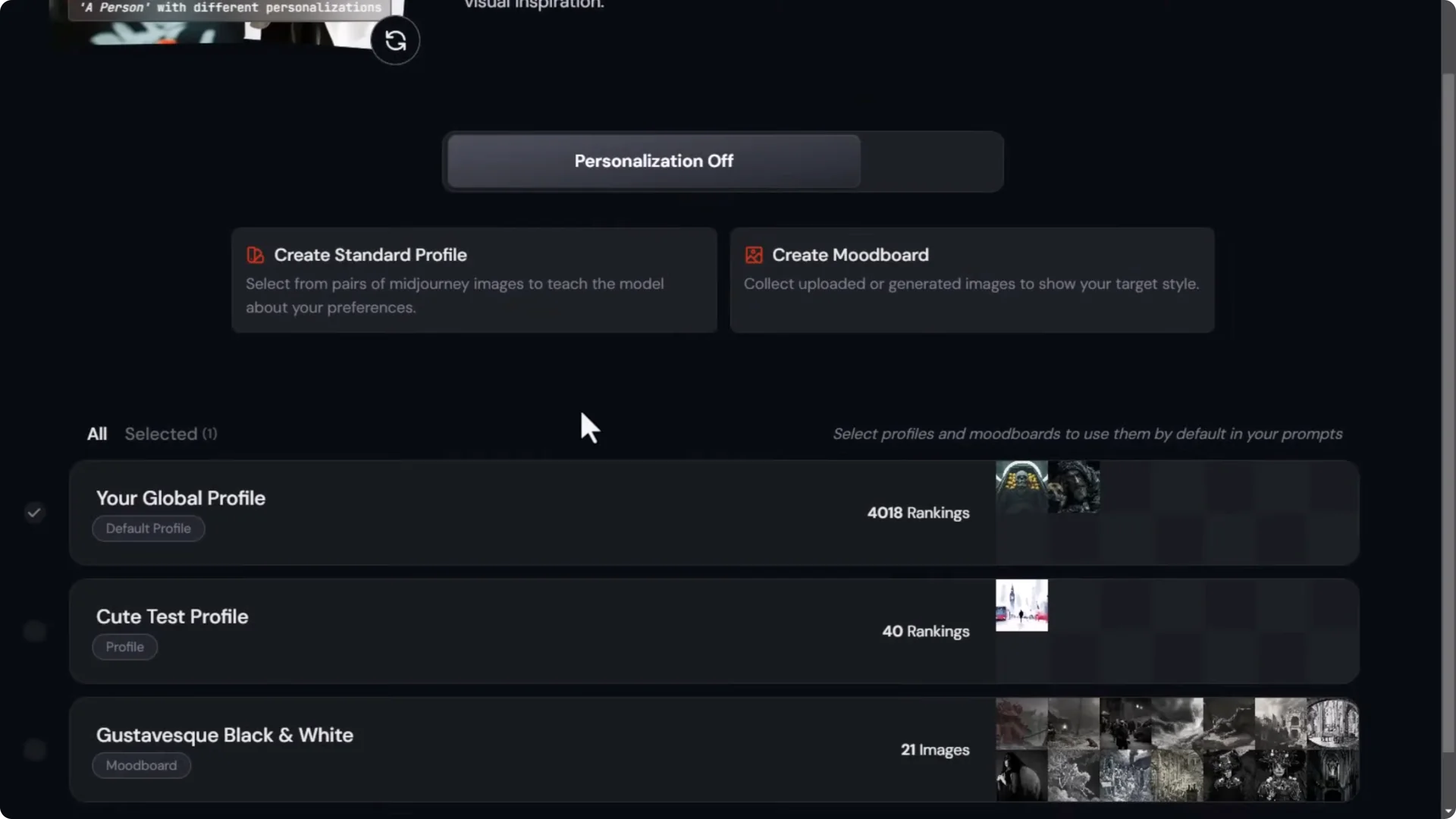
- In Personalize, toggle personalization on. You’ll see it turn on in the creation bar.
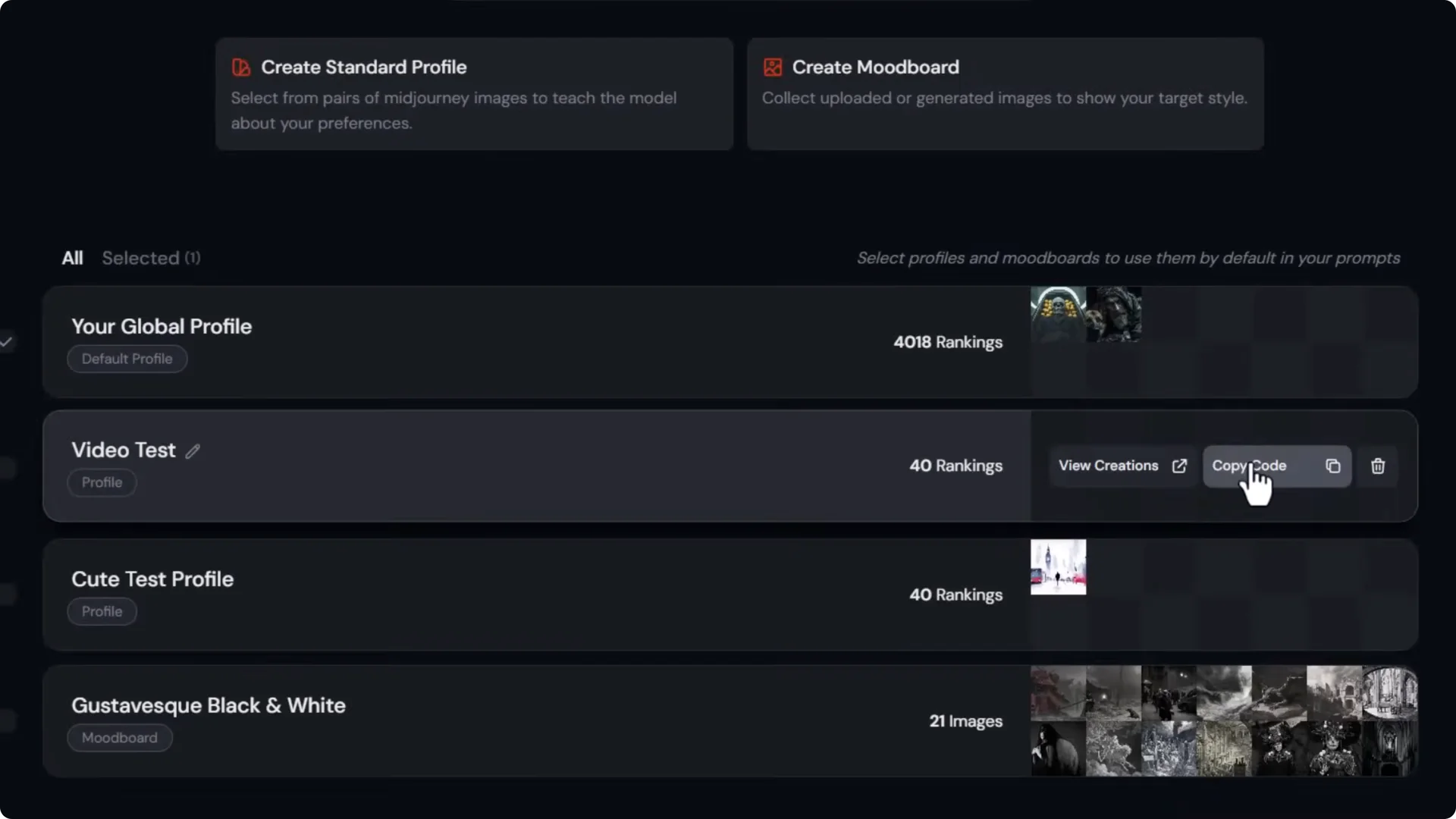
- You can view creations made with a profile and copy its code to add at the end of your prompt on the website or in Discord.
Create and Name Multiple Profiles
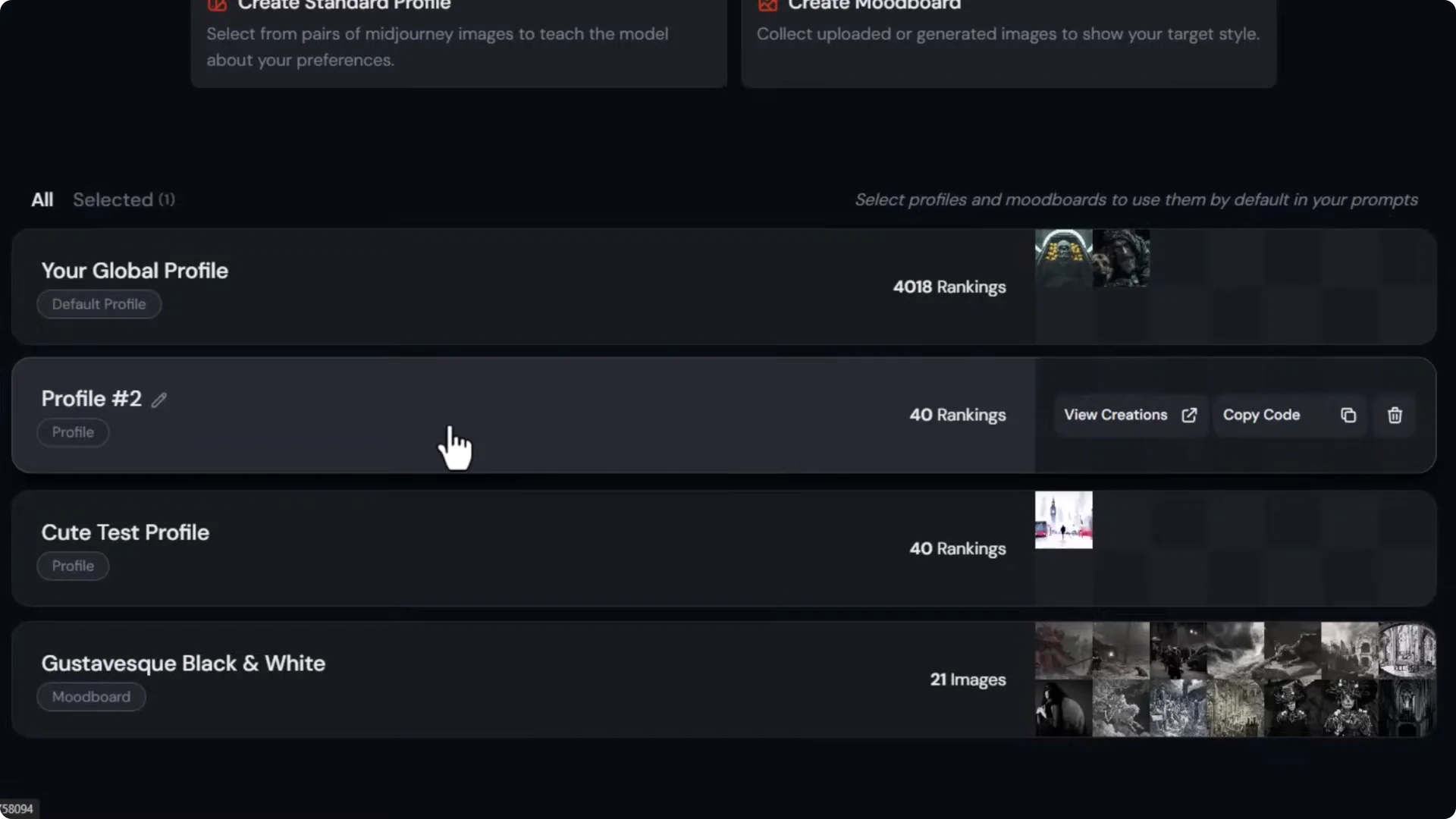
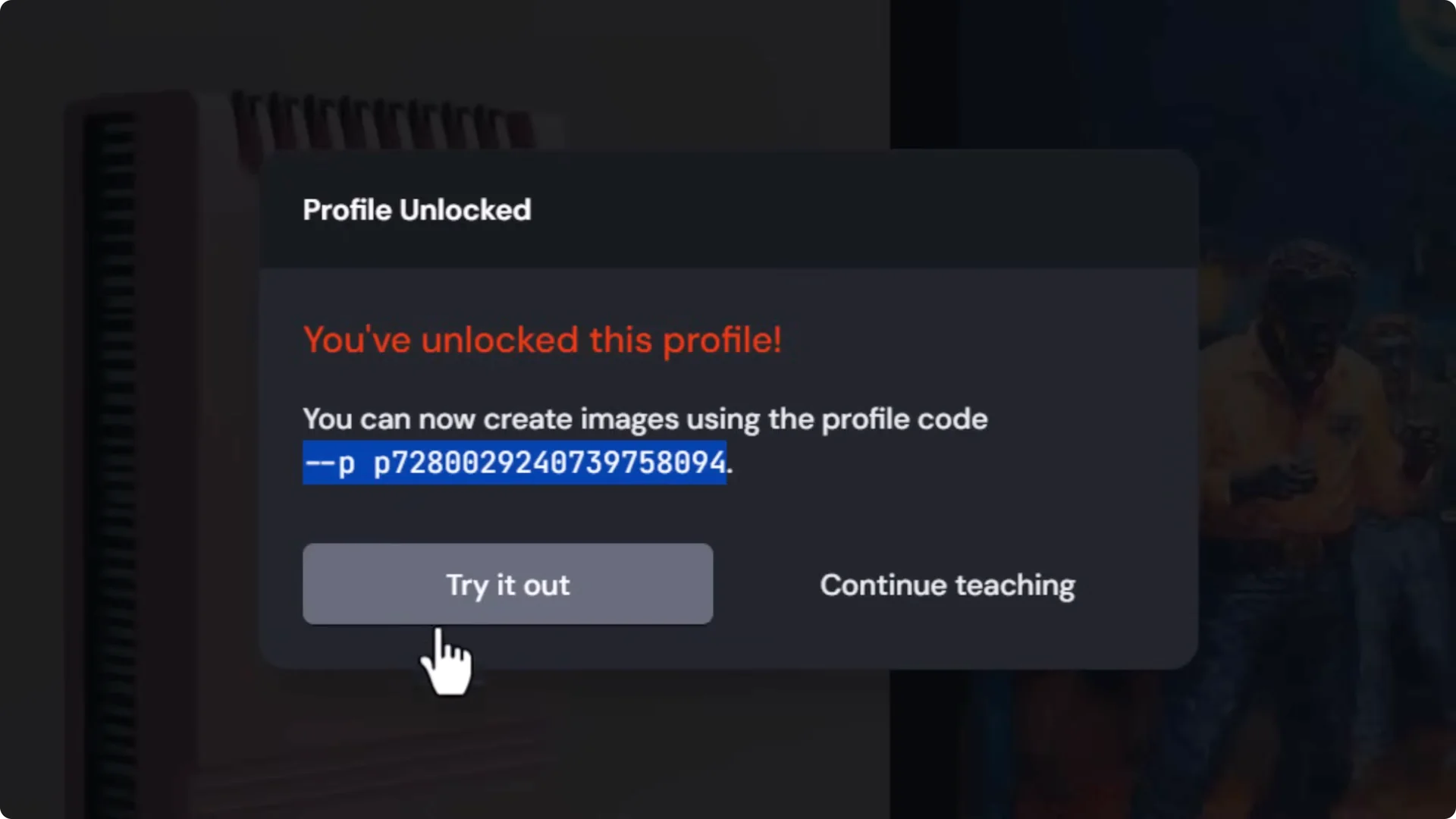
- Create a new profile by ranking 40 images to unlock it.
- Copy the profile code, paste it at the end of your prompt, or click Try it out to auto-insert it.
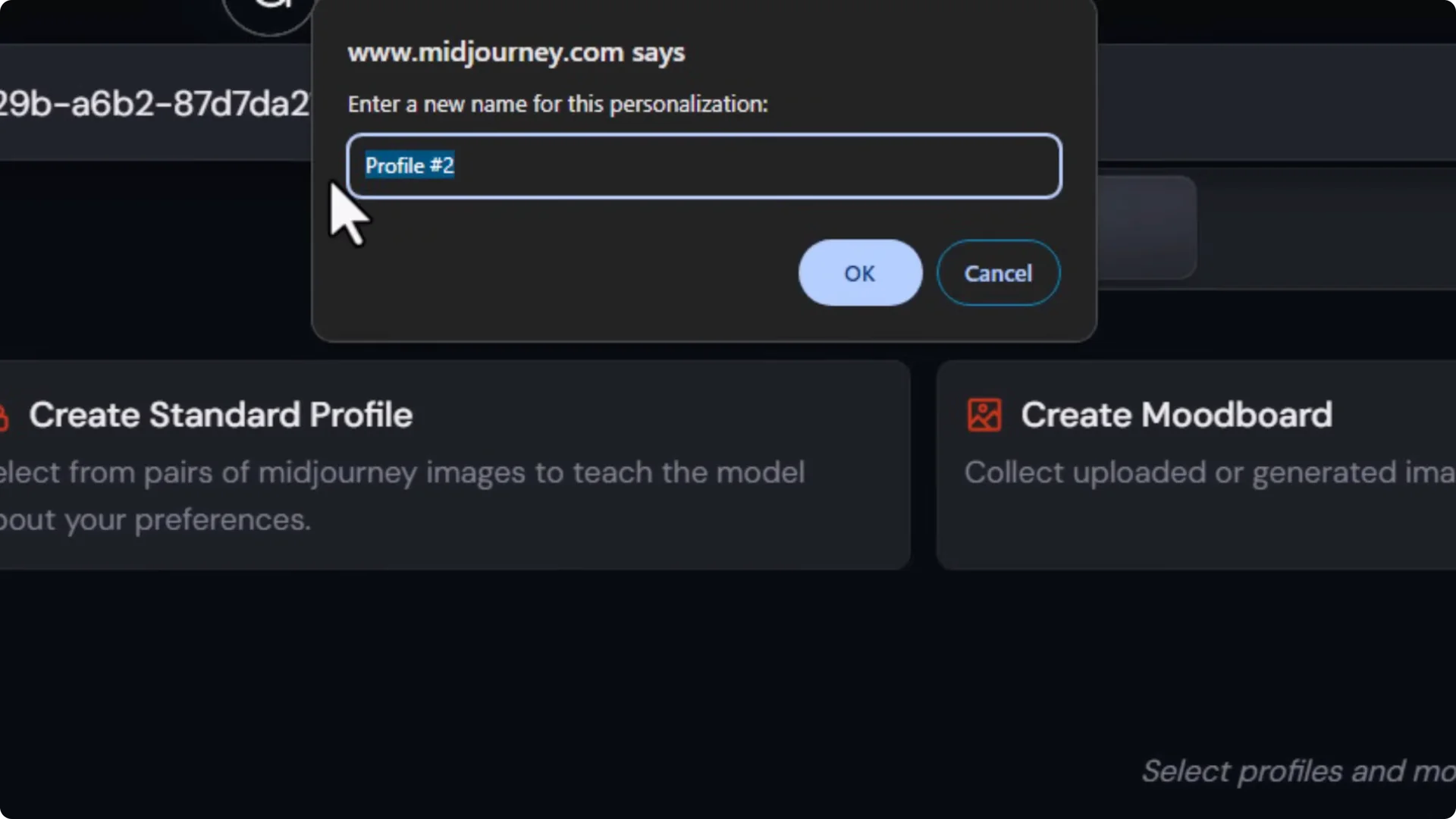
- Name profiles via the pencil icon, then copy code when needed. You can switch between profiles anytime.
Midjourney Optimization Tips: Mood Boards for Style Control
Build a Mood Board from Uploads, Links, or Gallery
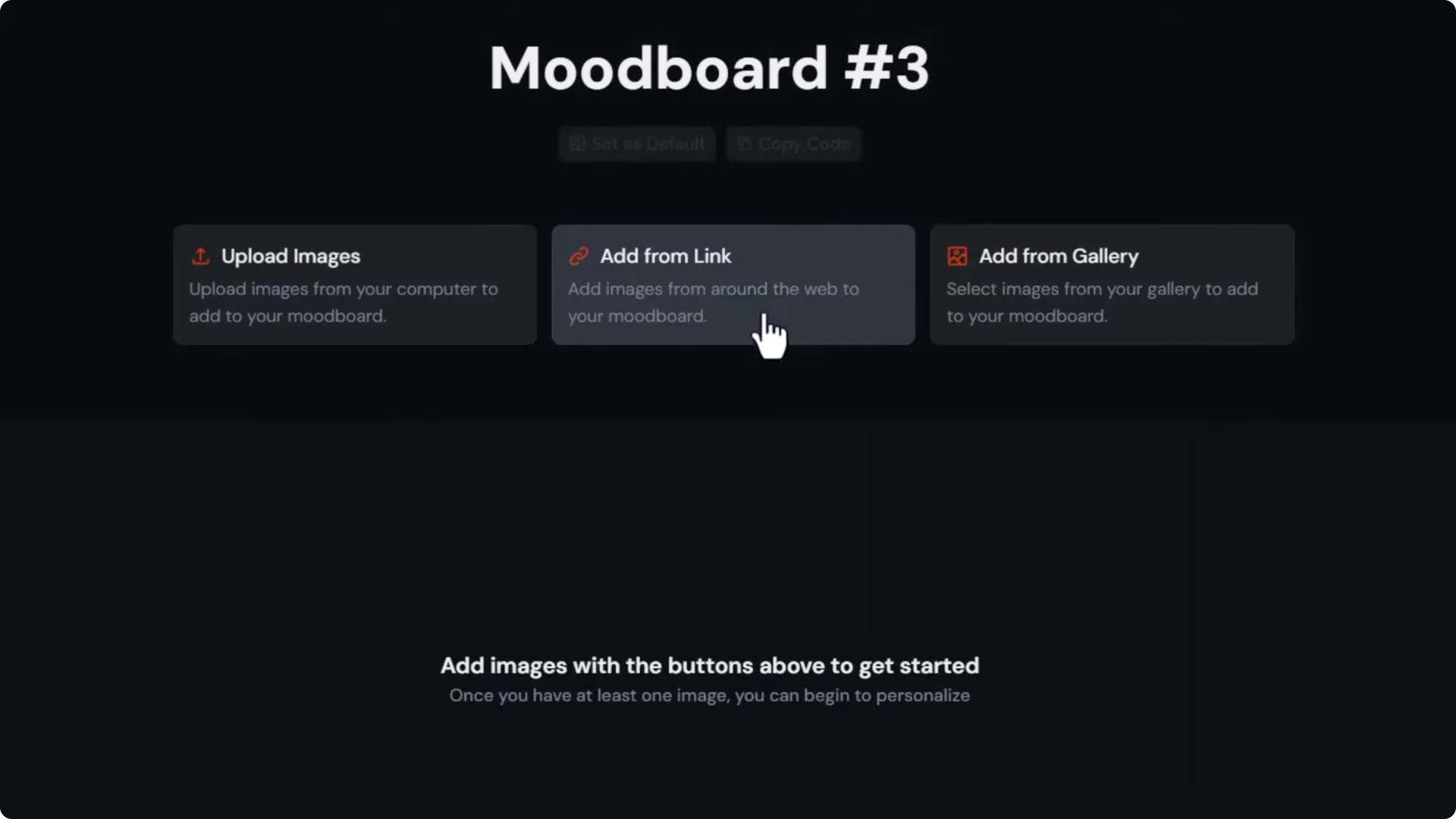
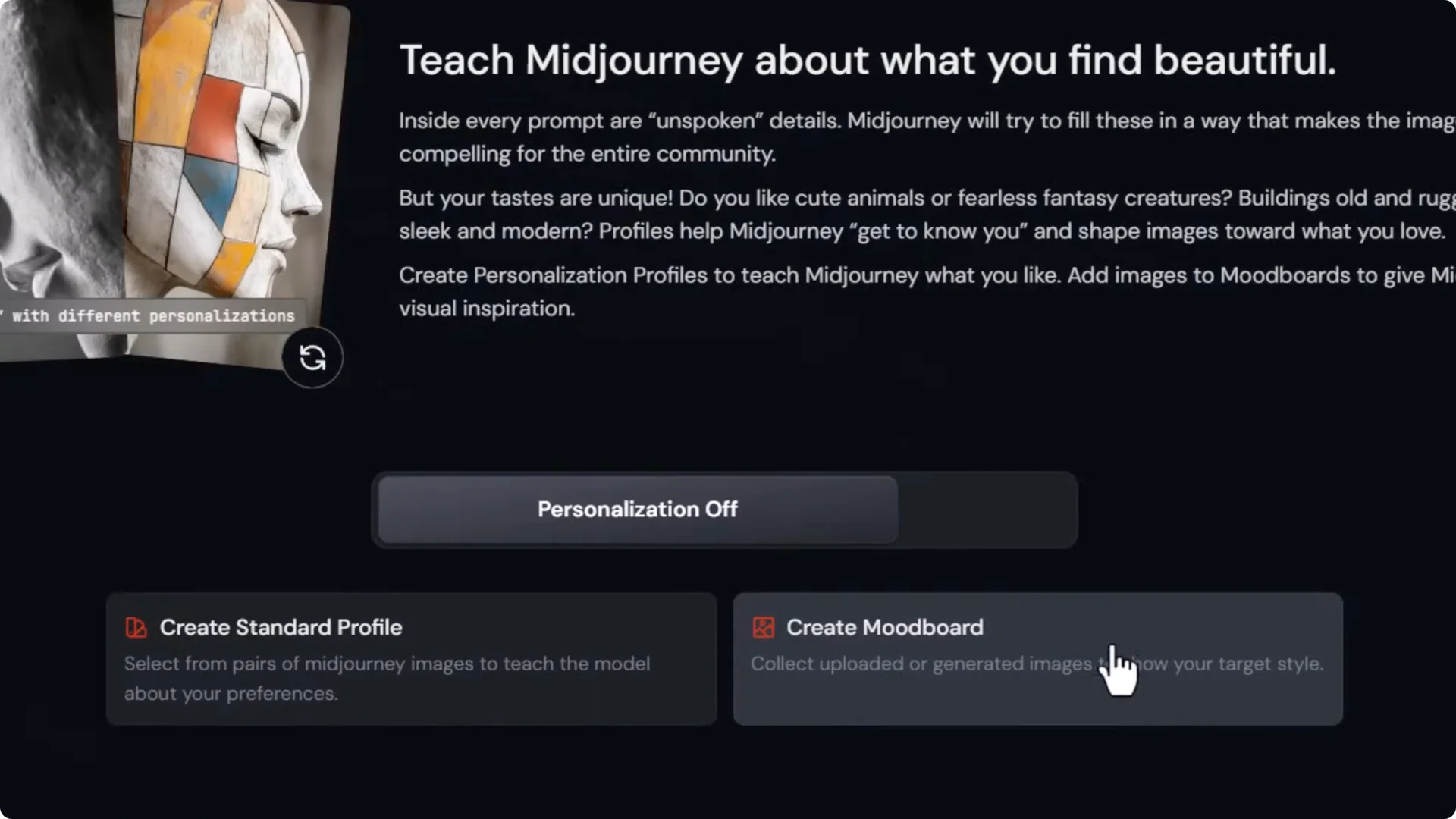
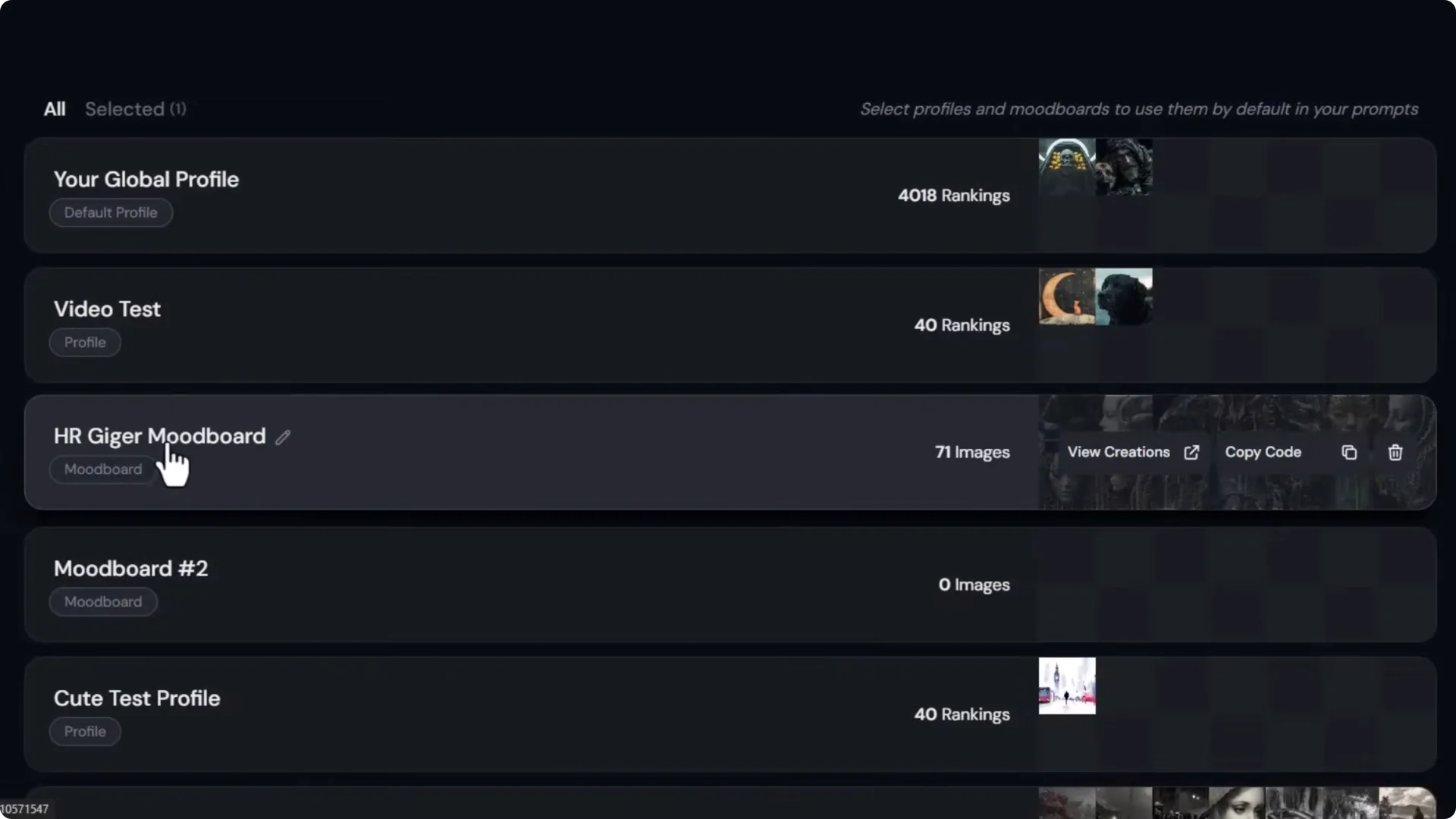
- In Personalize, click Create mood board.
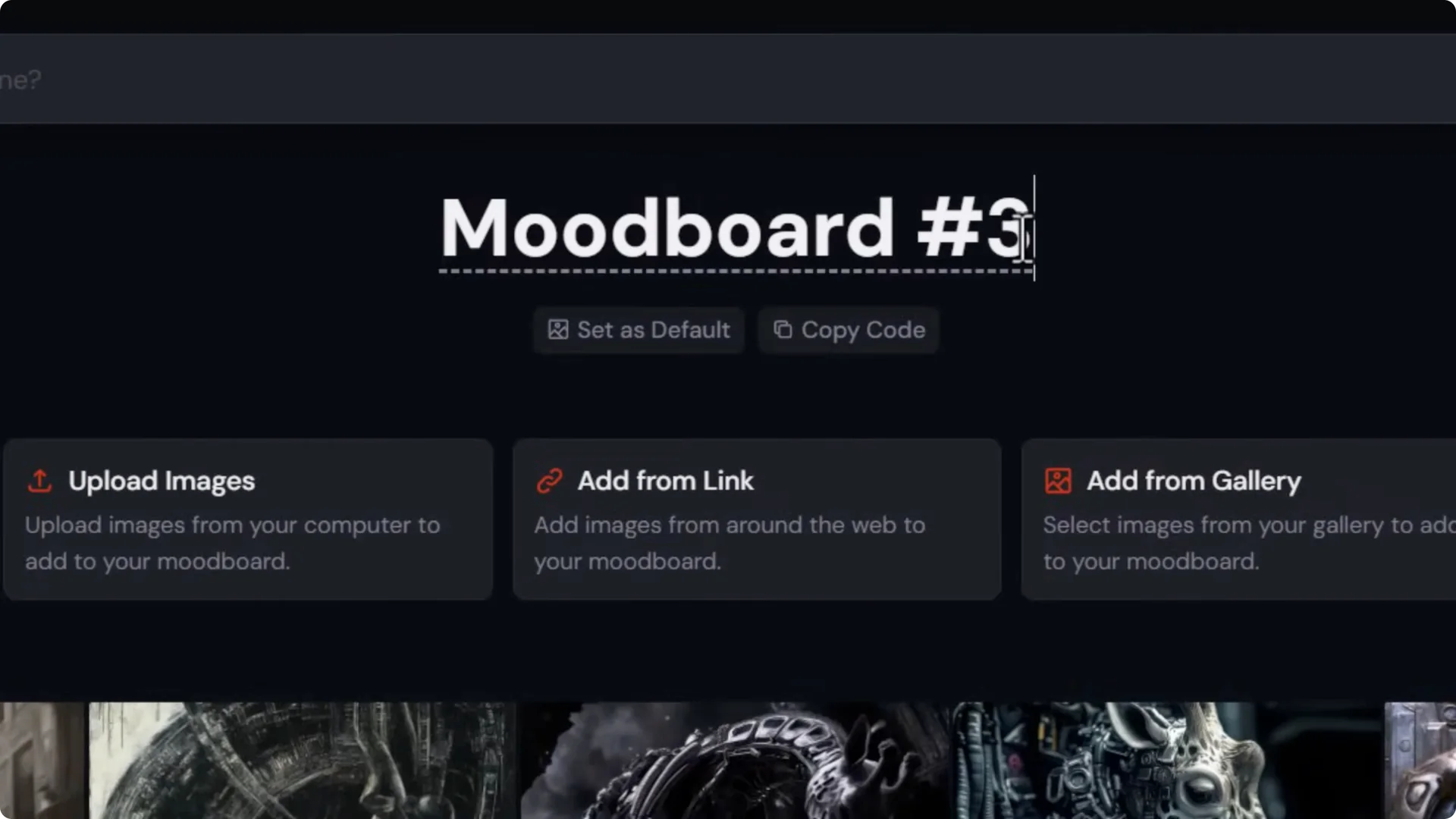
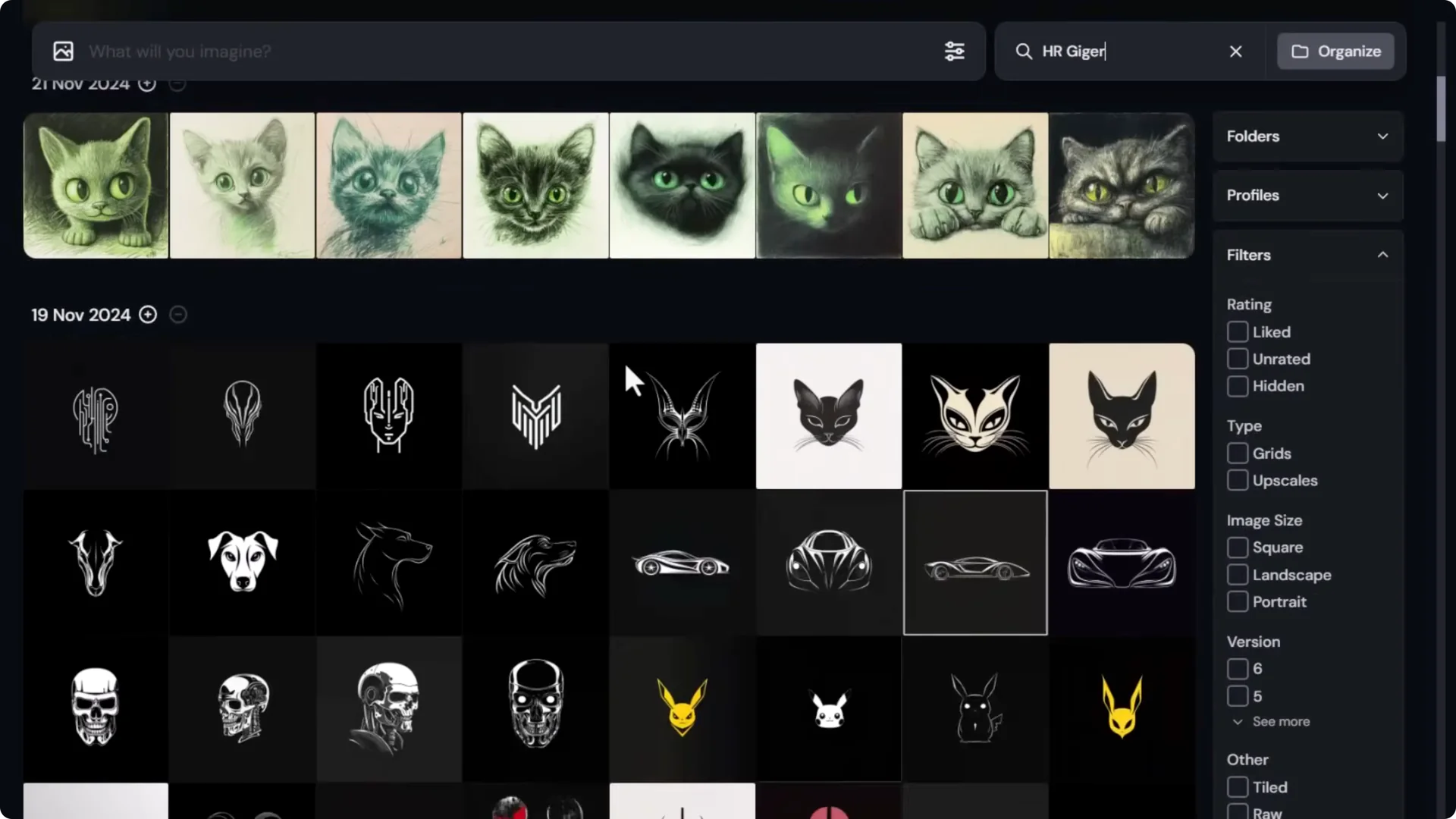
- Upload images, add links to images, or click Add from gallery to pull from your own creations.
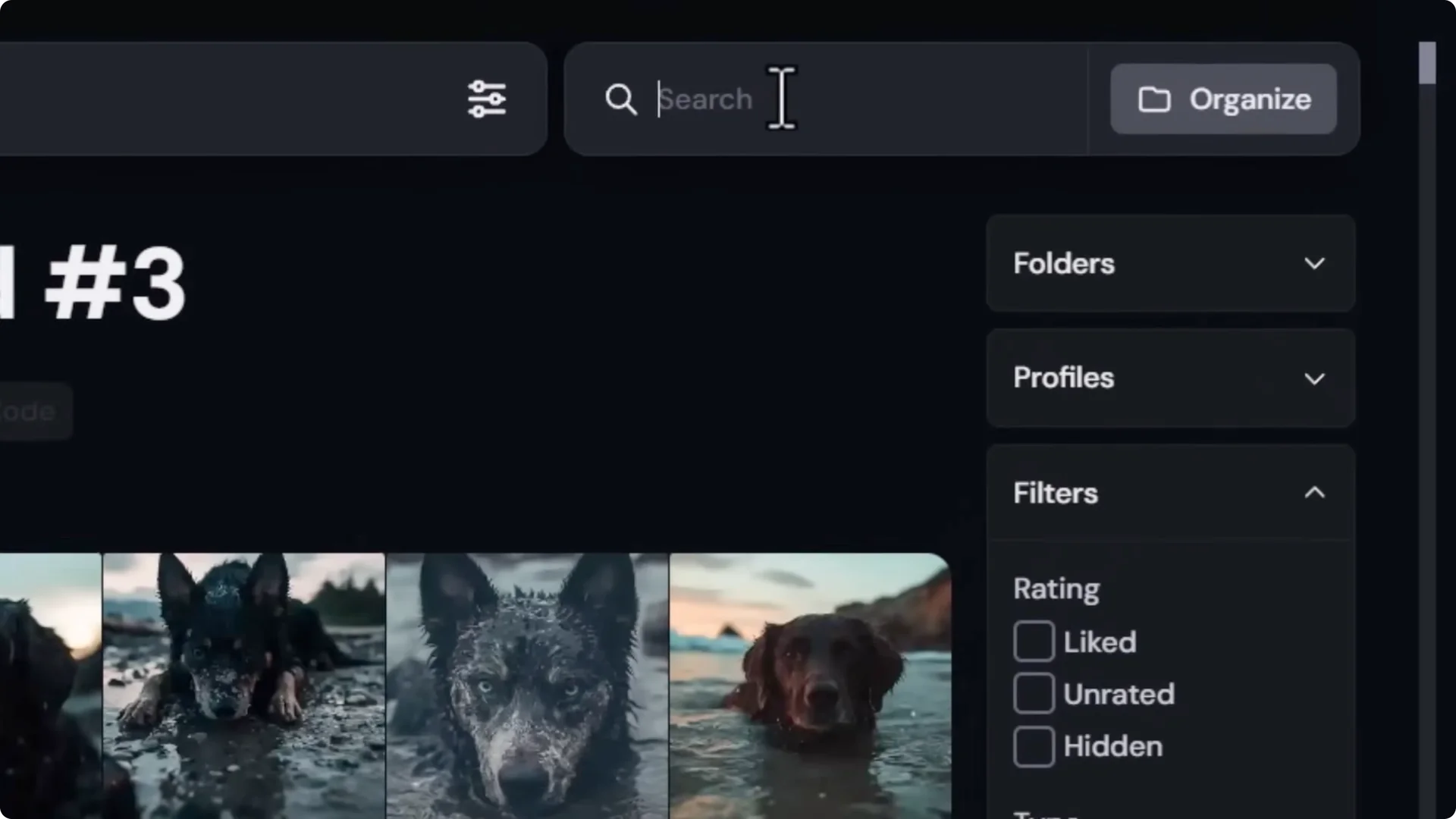
- Search for a style or artist you’ve used, select the images you want, then rename the mood board.
Apply a Mood Board to a Prompt
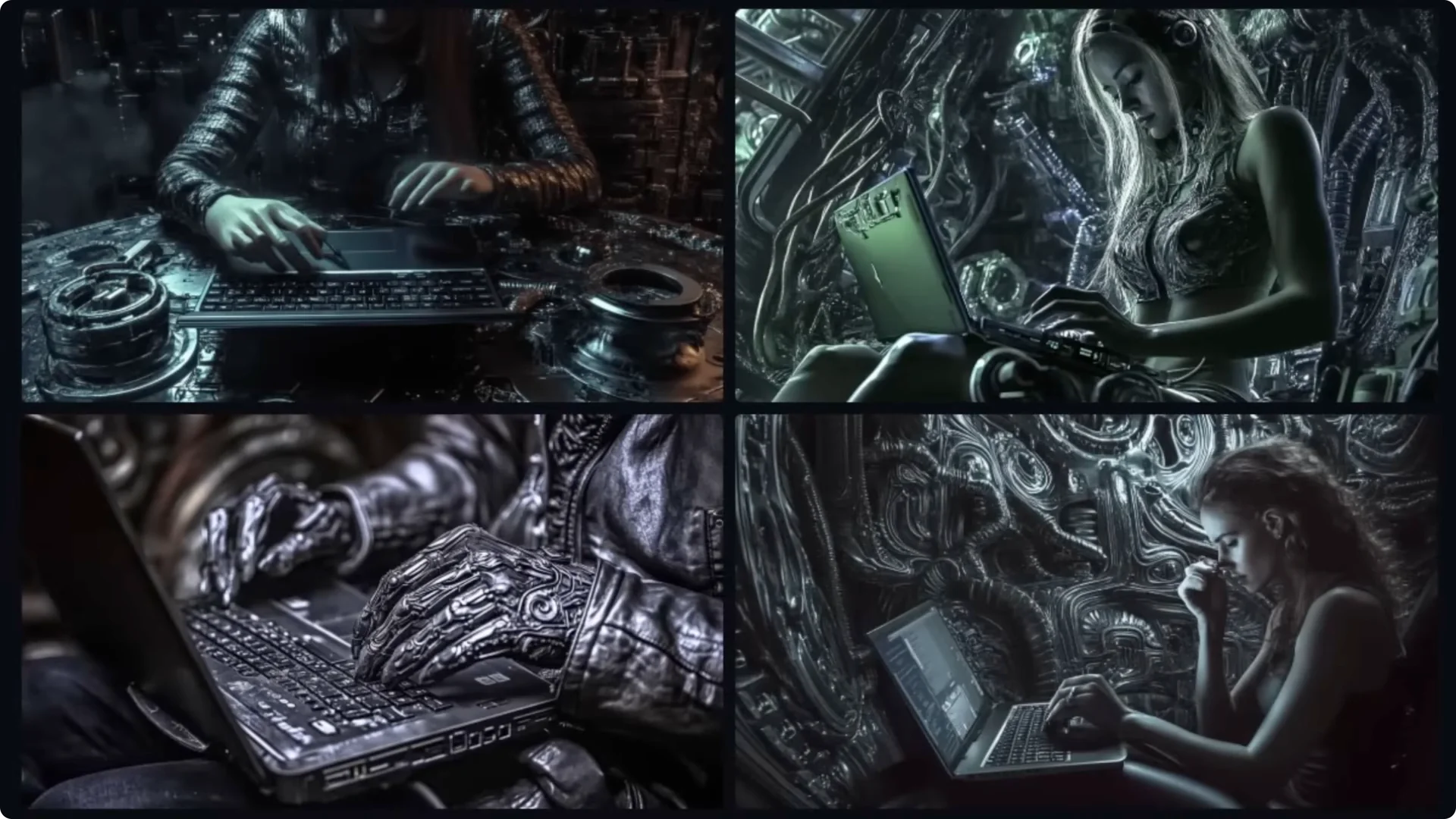
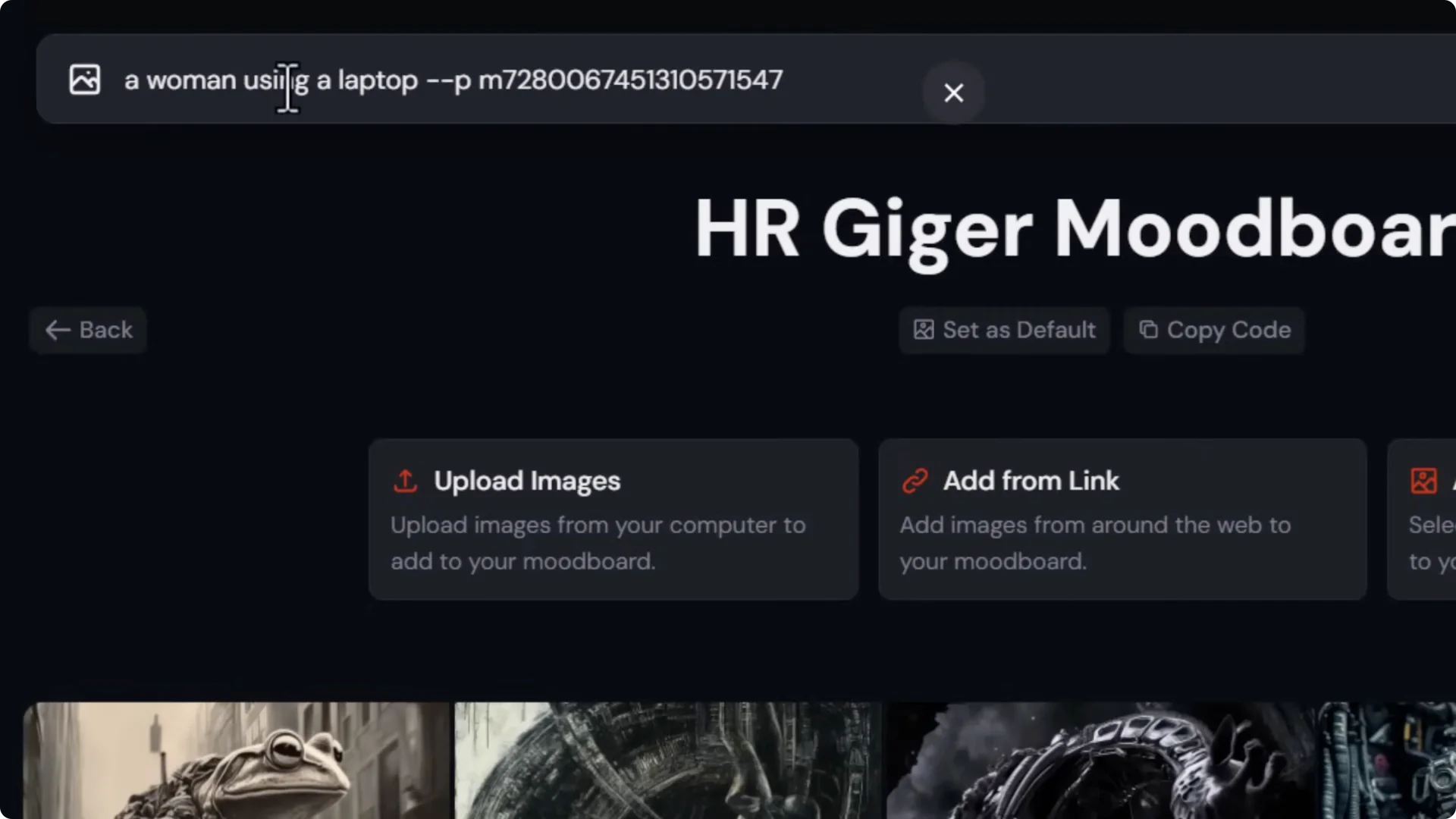
- Copy the mood board code and add it to your prompt.
- Even without explicitly prompting for a style, the mood board pushes the output toward that look.
- You can edit a mood board anytime by adding or removing images.
Midjourney Optimization Tips: Quality Settings for Detail Control
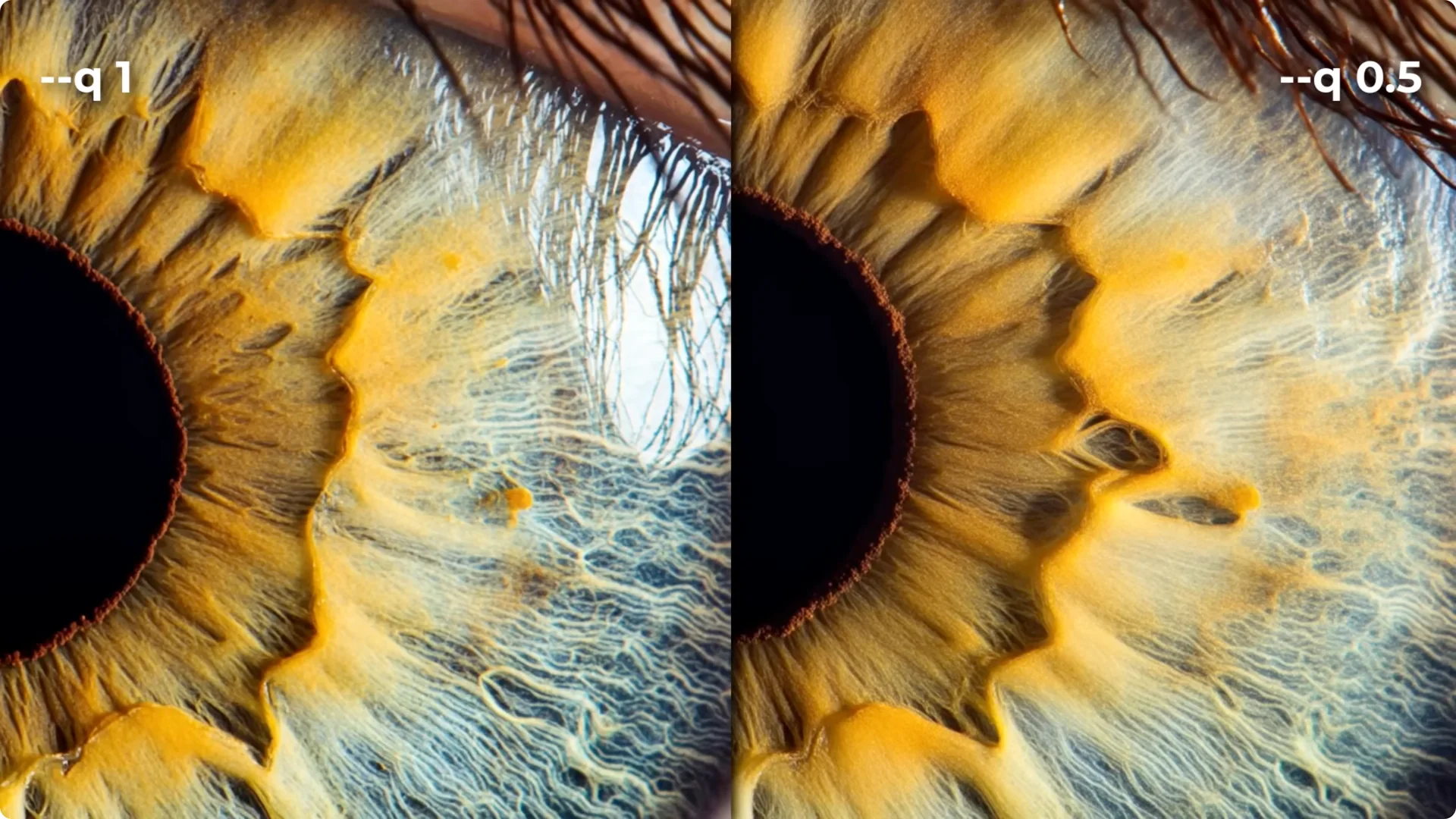
Lower Quality for Simpler Results (–q 0.5)
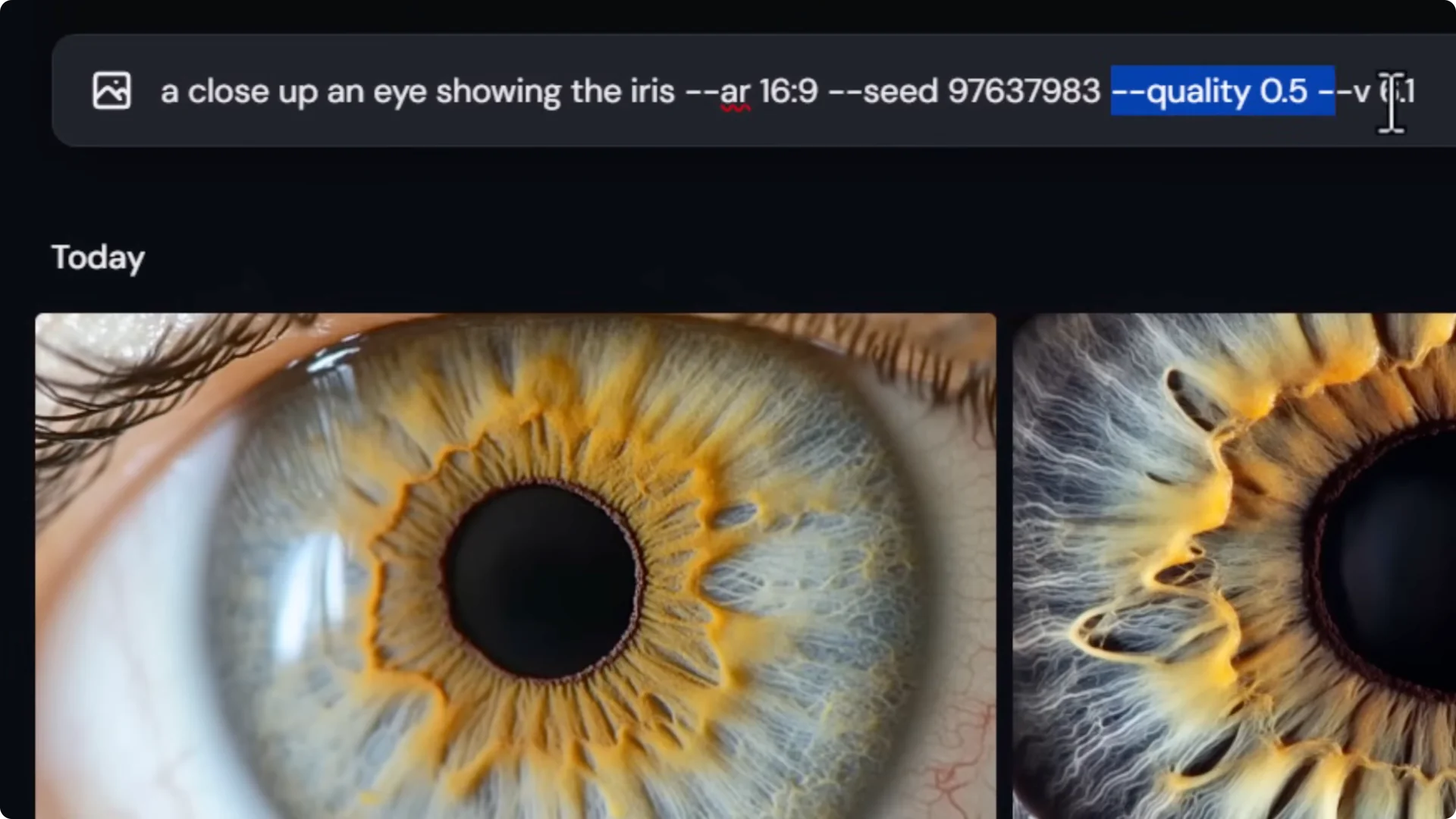
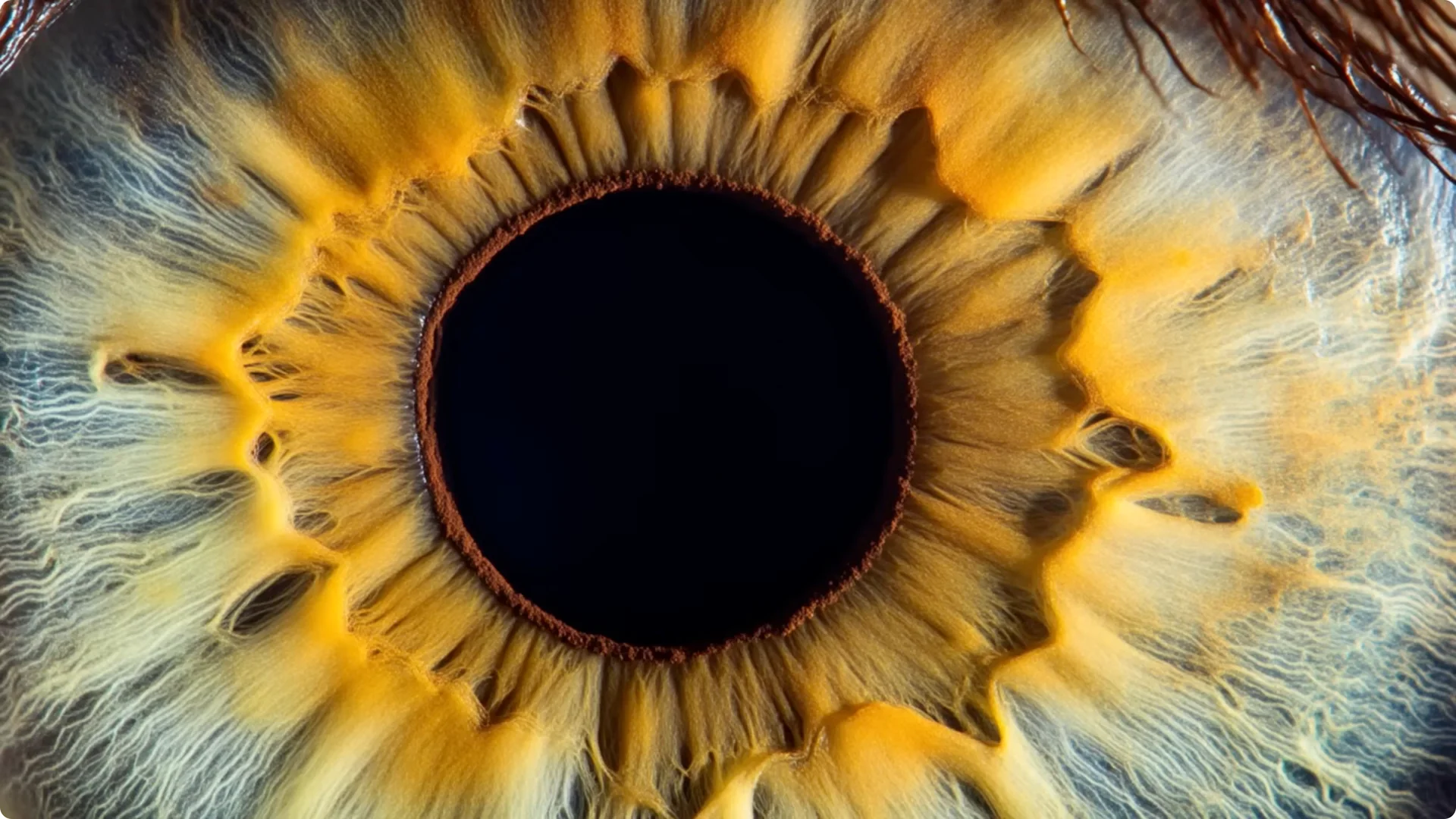
- Add –q 0.5 to reduce detail, halve render time, and use less GPU.
- This is useful when images have too much fine detail and you want a cleaner, softer look.
Double Quality for More Detail (–q 2)
- Add –q 2 with version 6.1 to increase detail. It doubles render time and cost but steps up sharpness and micro-details.
Reuse Seeds for Consistent Comparisons
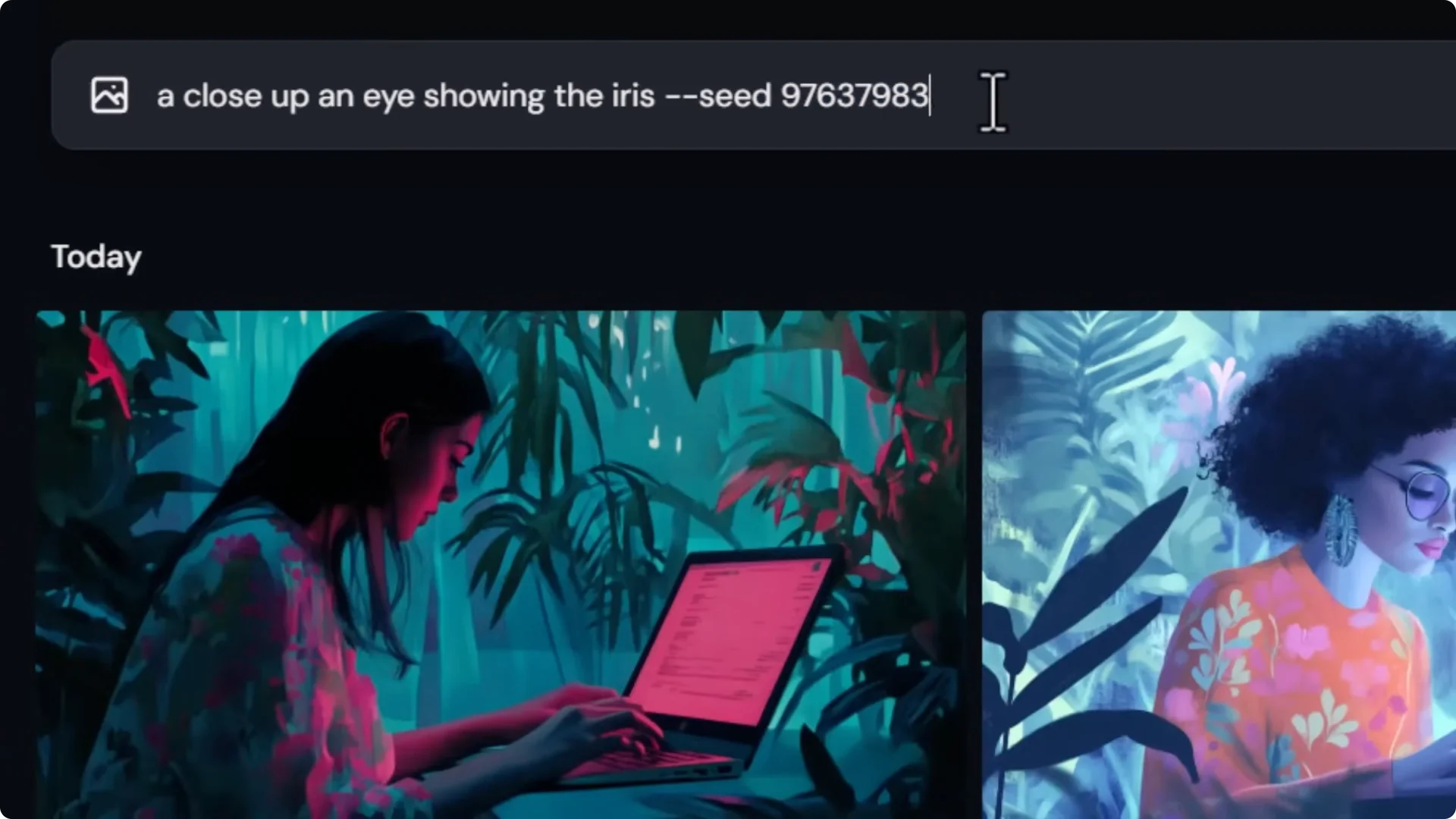
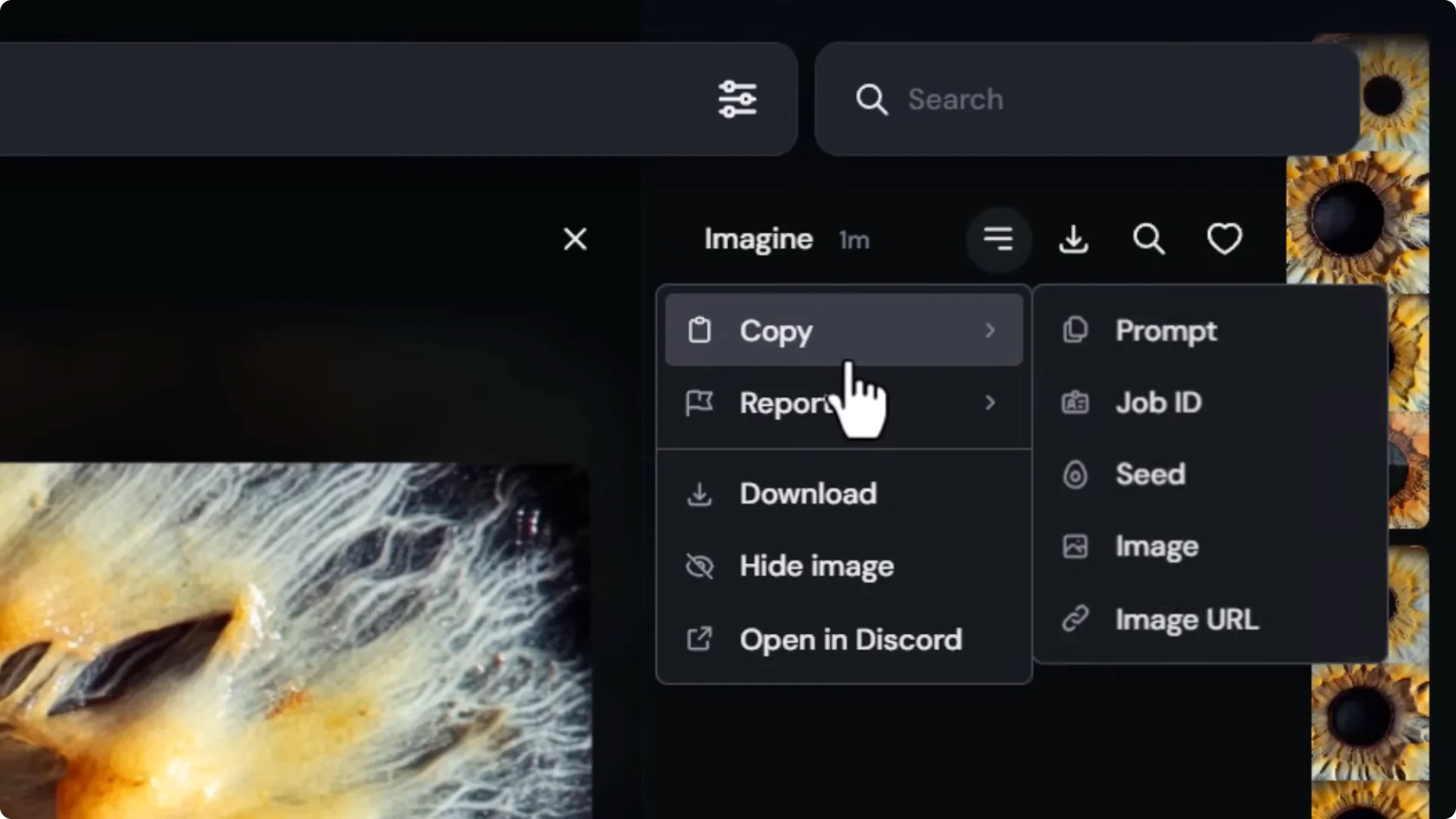
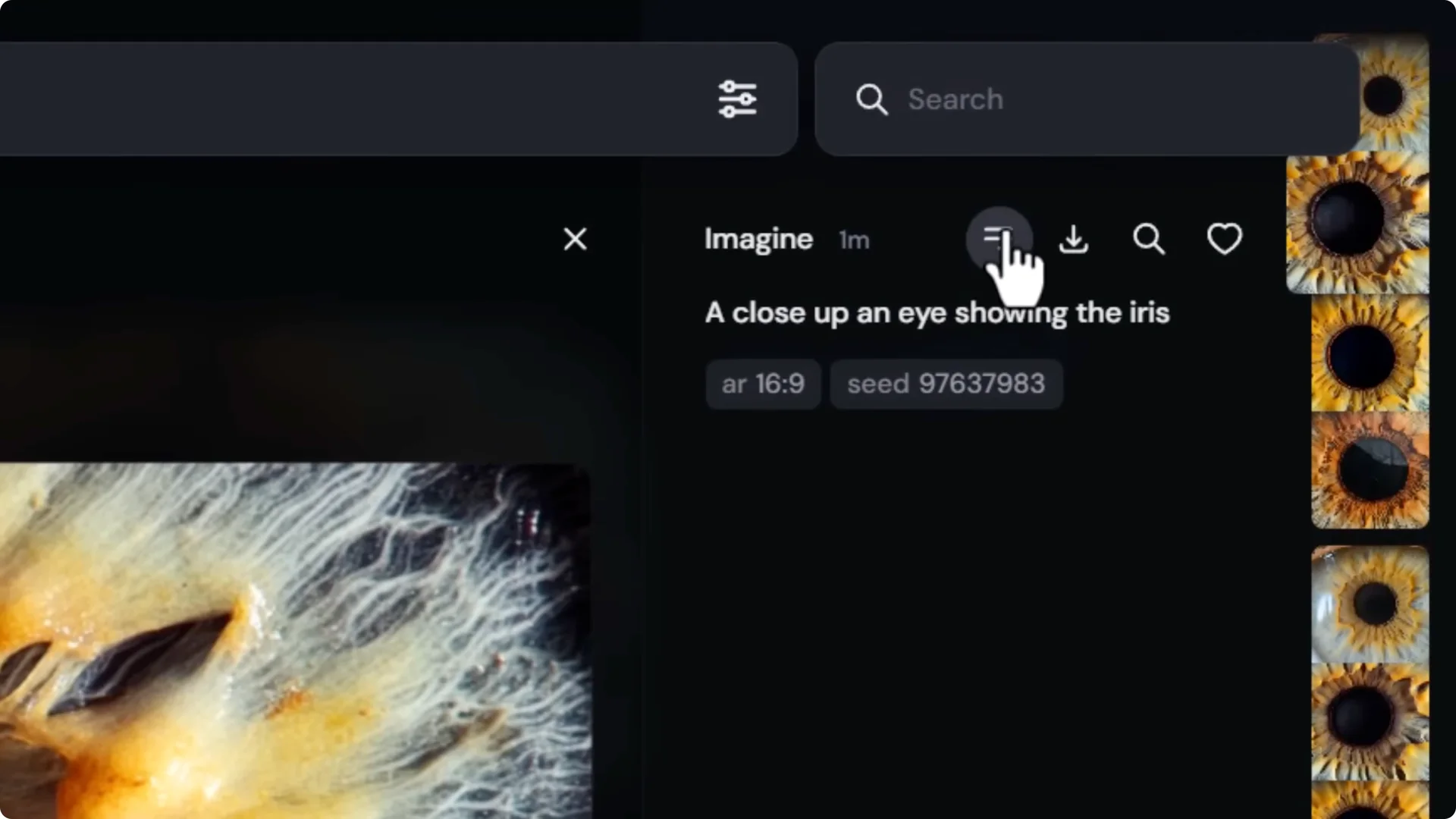
- Copy seed: open an image, click the three dots, Copy, then Seed.
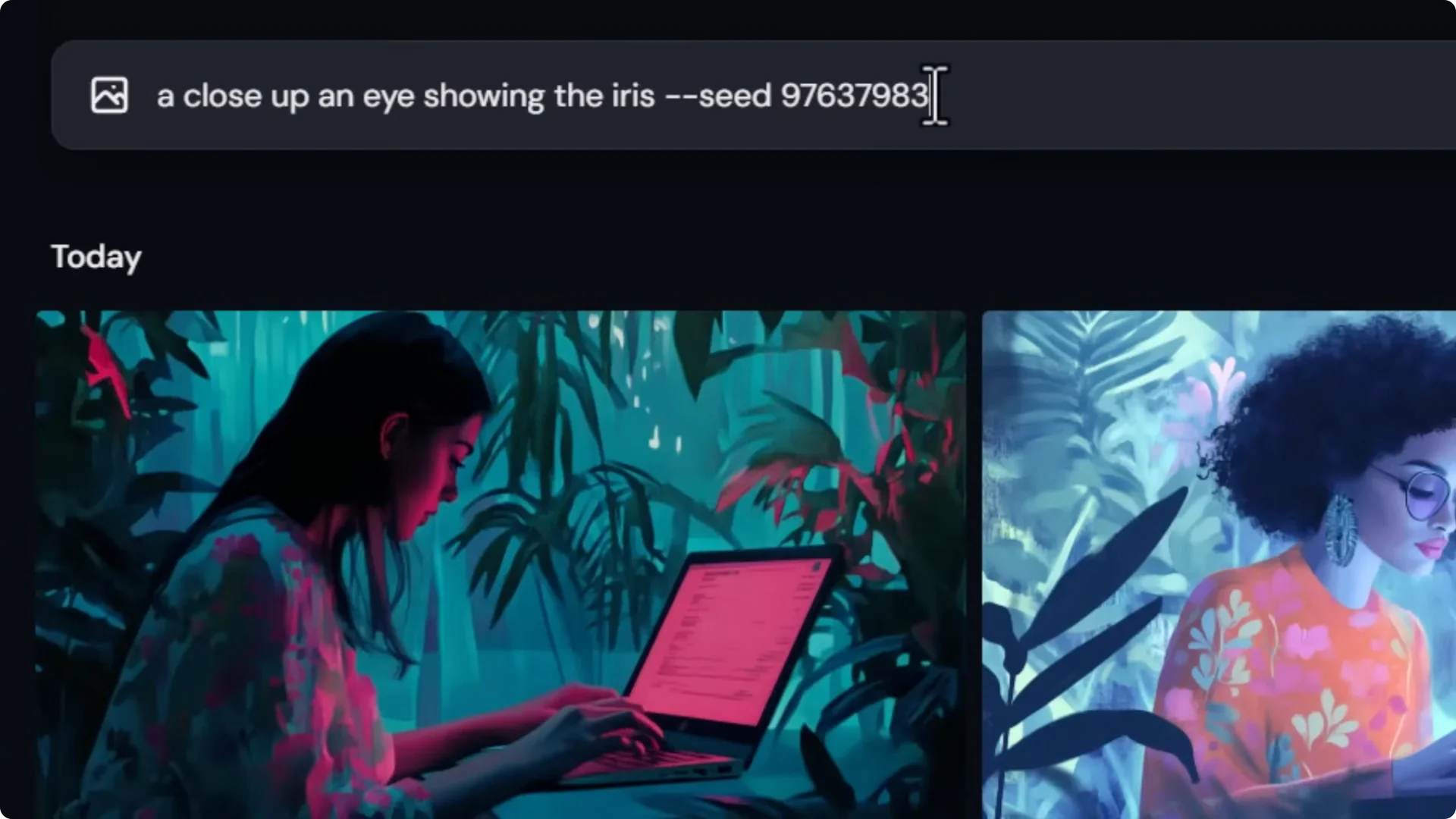
- Paste with –seed [number] at the end of your prompt to keep the same base and accurately compare changes from –q 0.5, –q 1, and –q 2.
Midjourney Optimization Tips: Try Non-Anime Styles on Niji
Niji is Midjourney’s anime model, but throwing non-anime styles at Niji often produces interesting variations. Switch models in the creation bar or prompt with –niji and compare the interpretations.
Midjourney Optimization Tips: Move Jobs Between Website and Discord
Use /show with Job ID
- On the website, open an image, click the top three dots, Copy job ID.
- In Discord, type /show and paste the job ID. Midjourney brings the grid into Discord so you can upscale or edit there even though the image was generated on the website.
Midjourney Optimization Tips: Zoom and Upscale Crops with the Editor
The website editor doesn’t support full cropping, but there’s a simple workaround.
Crop Externally, Then Reconstruct in the Editor
1. Upscale your image first (subtle or creative upscale).
2. Download the upscale.
3. Use an external cropper. Example: search for Adobe image Cropper, open the free tool, and crop the area you want.
4. Back on the Midjourney website, go to Edit. Note: access currently requires a 12-month paid account history or an annual subscription, with broader rollout coming.
5. Drag the cropped image into the editor.
6. Set a small brush size and lightly brush out a small section.
7. In the prompt bar, type a simple instruction like fill and submit.
8. Pick the best of the four edits and upscale to gallery.
This reconstructs and upscales your crop at a higher resolution than the original cropped file.
Midjourney Optimization Tips: Upscale Small External Images
You can upscale small external images with the same editor workflow:
- Go to Edit, bring in your small image.
- Lightly brush out a small area and prompt with fill or white.
- Choose the closest match, upscale to gallery, and you’ll get a much larger, cleaner version of your original.
Midjourney Optimization Tips: Controlled Experiments with Seeds, Stylize, Chaos, Weird
Lock a Seed and Vary Stylize with Permutations
- Copy the seed from an image you want to iterate on and add –seed [number] to your prompt.
- Adjust Stylize with permutations:
– Example: –stylize {120,140,160,200,250}
– Midjourney will submit one job per value so you can compare evolving changes on the same base.
- You can go broad too:
– Example: –stylize {0,10,500,750,1000}
Explore Chaos and Weird
- With the same seed, increase –chaos to push variety within the grid.
- Try –weird to observe different interpretive shifts, then compare across jobs.
Midjourney Optimization Tips: When to Use Parameters vs Settings
One-off Model Switches with Parameters
If you mostly work in version 6.1 but want to test Niji once, it’s easy to forget to switch back in settings. For one-offs:
- Add –niji to the prompt so your global setting stays on 6.1 for the next prompt.
Test Multiple Models with Permutations
- Use permutations to test models in one go:
– Example: –model {niji, v3, v4, v6.1, v4-style-cursed}
- Compare outputs and pick the direction you like best without permanently changing settings.
Midjourney Optimization Tips: Remaster Older Generations
If you prefer the layout from an older model but want modern detail:
- Upscale a v4 or earlier image.
- Click Remix subtle. It loads the image and model version.
- Change the model to v6.1 and submit.
- Keep tapping Very subtle to slowly evolve the image, building on the previous generation while modernizing details.
Midjourney Optimization Tips: Creative Character References
Character reference isn’t limited to faces. You can drop in a texture or random object as a character reference and Midjourney still finds a way to incorporate it, often influencing color and styling of the subject.
Midjourney Optimization Tips: Discover and Manage Style Codes
Generate Many sref Codes with –repeat
- Use –sref random to get a style code with a job.
- To discover many codes quickly, add –repeat:
– Basic plan supports up to 10. Pro and Mega can go higher.
– Example: –sref random –repeat 10
Prefer Style Phrases Over Codes
Style codes can change. I save images I like as style references, then learn phrases I can reuse anywhere.
- In Discord, use /describe on an image link. It returns several prompts that approximate the style.
- Imagine those and keep the best-performing prompt. Swap subjects while keeping the style phrasing.
Midjourney Optimization Tips: Learn Styles from Image Uploads
- In the website prompt bar, click the image icon and upload an image.
- Hover and click the info icon to see extracted data like artists, rendering notes, and descriptors.
- Click items to add them to your prompt and generate images that echo those traits.
- You can download images created with style codes, re-upload them, and learn phrases the same way.
Midjourney Optimization Tips: Prompt Formulas
Prompt formulas are fill-in-the-blank frameworks that guide your thinking. Keep a few templates handy so you can drop in subject, medium, lighting, composition, and style phrases. They help you prompt with more intent and get better results more consistently.
Final Thoughts
- Upscale smartly with Relax Mode and fast-hour curation.
- Personalization and mood boards push outputs toward your taste.
- Control detail with –q 0.5, –q 1, and –q 2, and lock seeds for fair comparisons.
- Test styles across models, including Niji for non-anime looks.
- Move jobs between website and Discord with /show.
- Zoom and upscale crops through the editor workflow.
- Use seeds, permutations, stylize, chaos, and weird for controlled experiments.
- Remaster older layouts with newer models.
- Explore character reference with non-face assets.
- Discover codes with –sref random and –repeat, but learn reusable style phrases and artist prompts.
- Keep prompt formulas nearby to speed up high-quality prompting.
