Perplexity has announced a Windows app for its AI platform, and I wanted to try it and share my thoughts. I went in with no expectations because I suspected it would be the web experience packaged for desktop. The announcement I saw only said you can access all the models from your desktop, which felt very generic.
I decided to download it and see how it works on my Windows PC. I expected a straightforward installer and a familiar interface. That turned out to be accurate.
Perplexity Windows App Overview – Download and installation
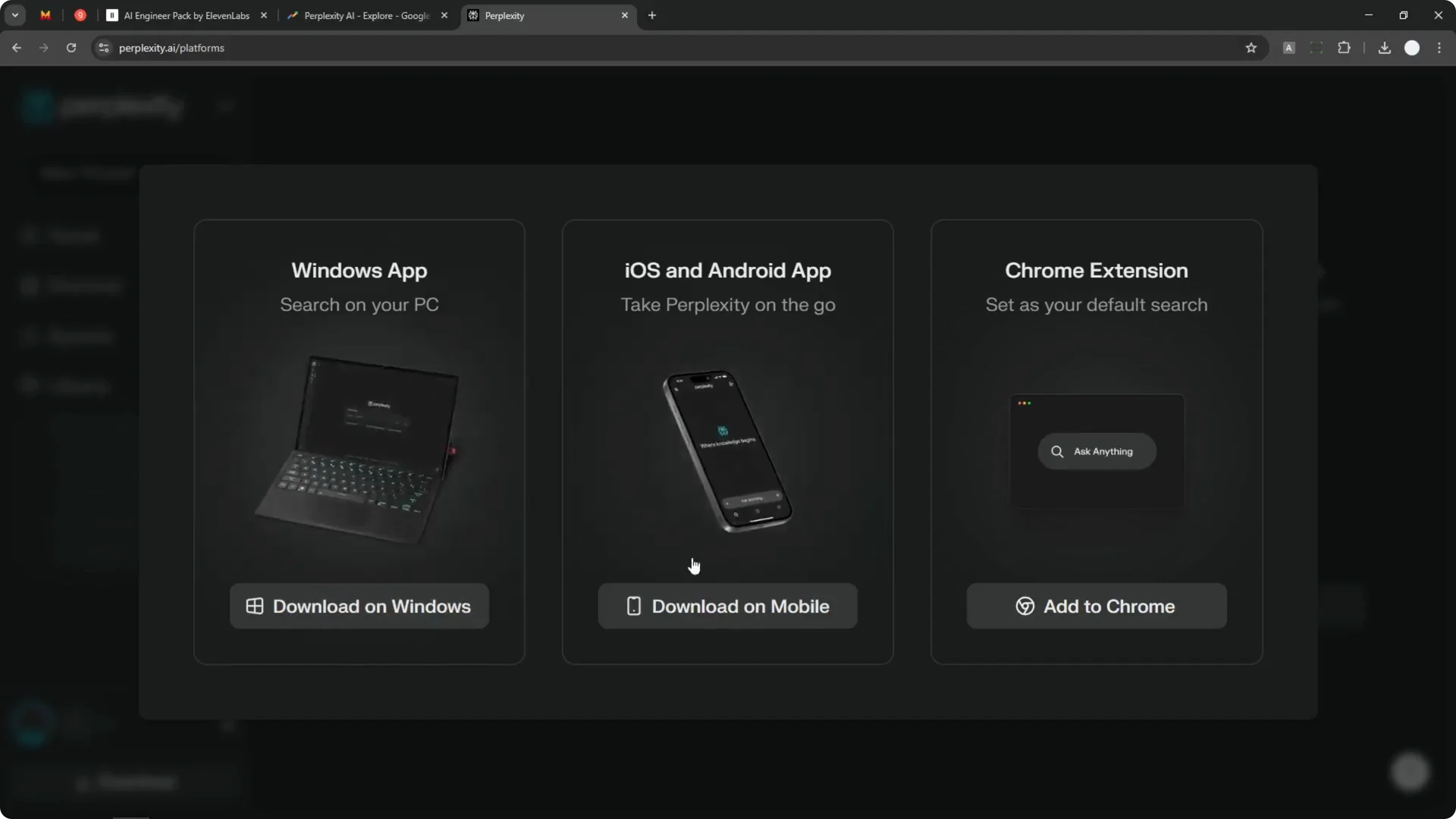
Step 1: Download the Windows installer from Perplexity’s official site. The file I received was about 78 MB, which is not big but not small either.
Step 2: Run the setup. It follows a typical Windows installer flow with nothing unusual during installation.
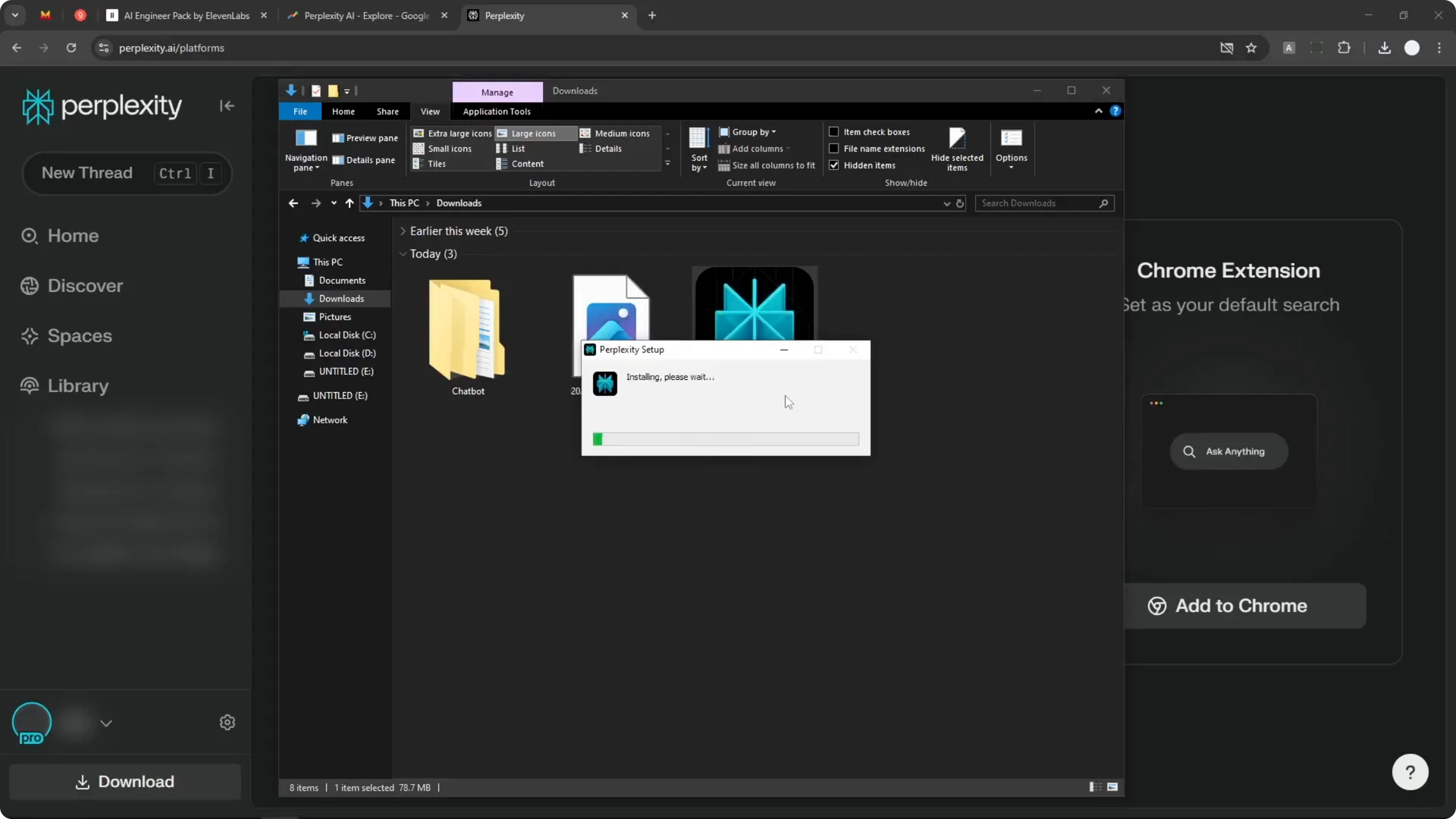
Step 3: Complete the install and open the app. I did wonder why it was not released through the Microsoft Store, since that can feel safer and is likely the direction for Windows apps in general.
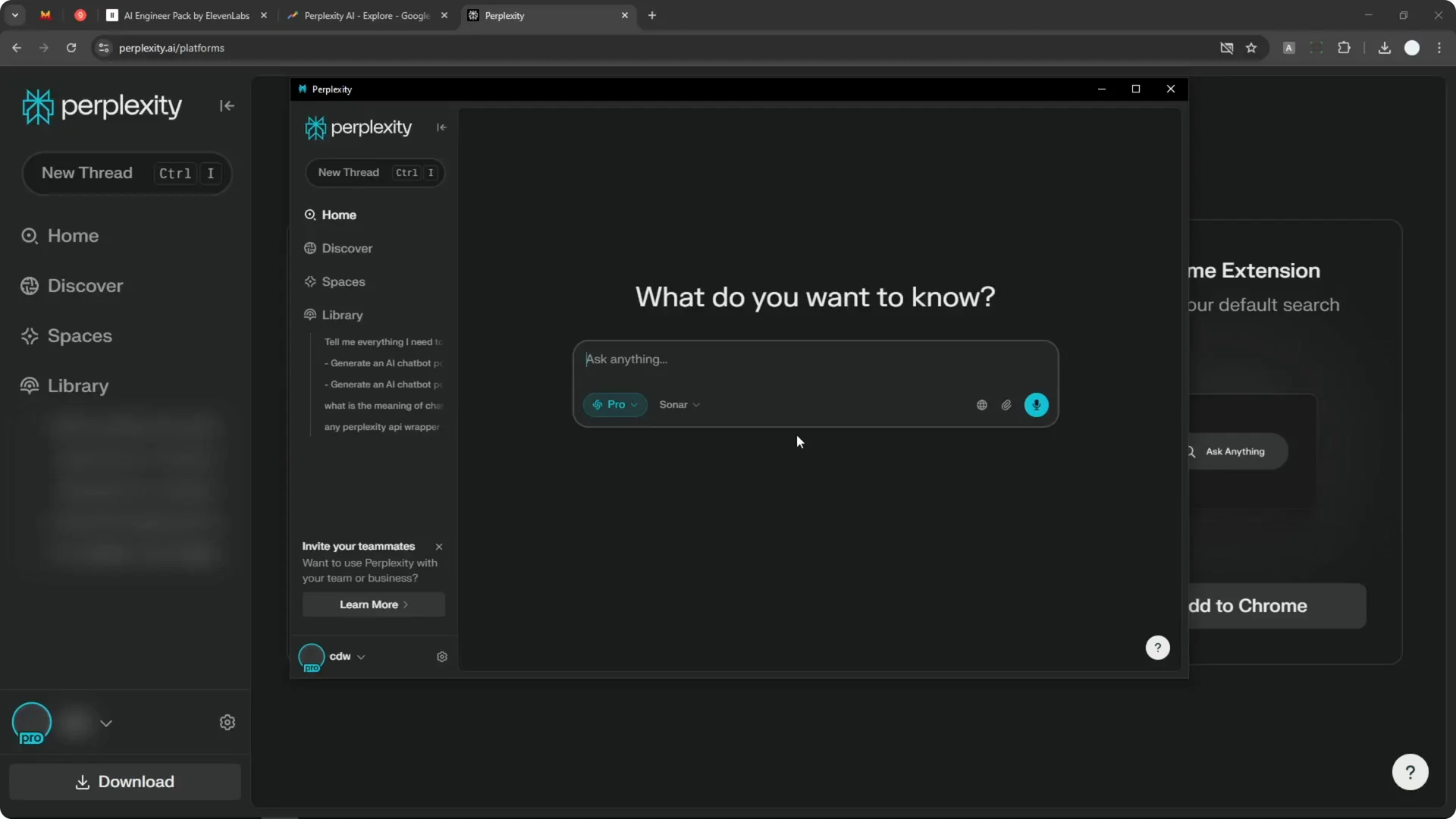
Step 4: Log in to your account. After signing in, the app looked exactly like the web version running in a desktop window.
Read More: Midjourney User Profiles
Perplexity Windows App Overview – First look
The interface mirrors the web version almost one to one. I did not see anything noticeably new at first. It feels like the web app wrapped as a desktop application.
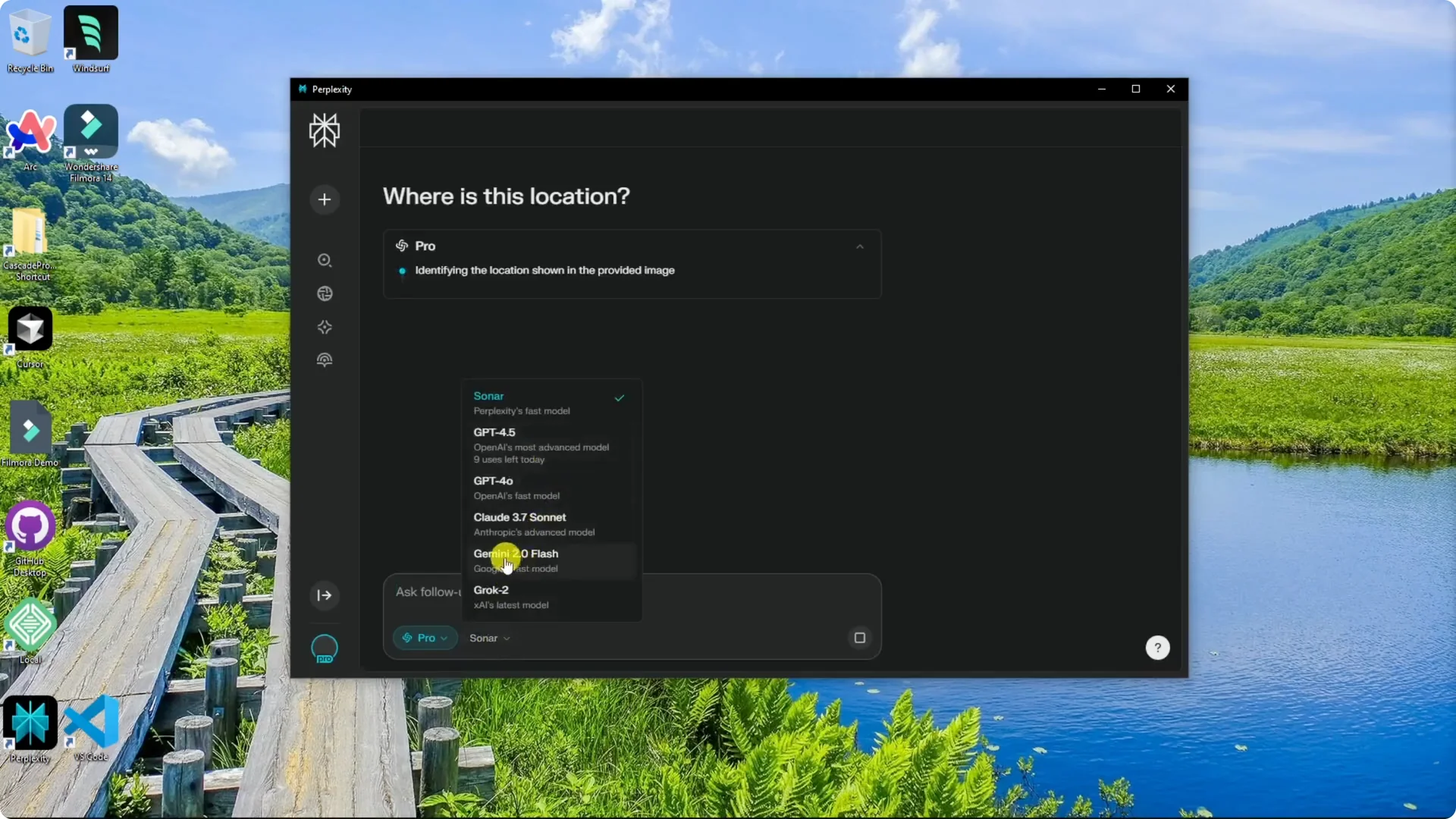
You can still access the same model options, including GPT, Claude, Gemini, and Grok. Every workflow still routes back through the same desktop window. That is fine if you want quick access without switching browsers.
Perplexity Windows App Overview – Keyboard shortcut and quick access
There is a useful global shortcut. Press Ctrl + I to bring up a small chat window from anywhere on your desktop.
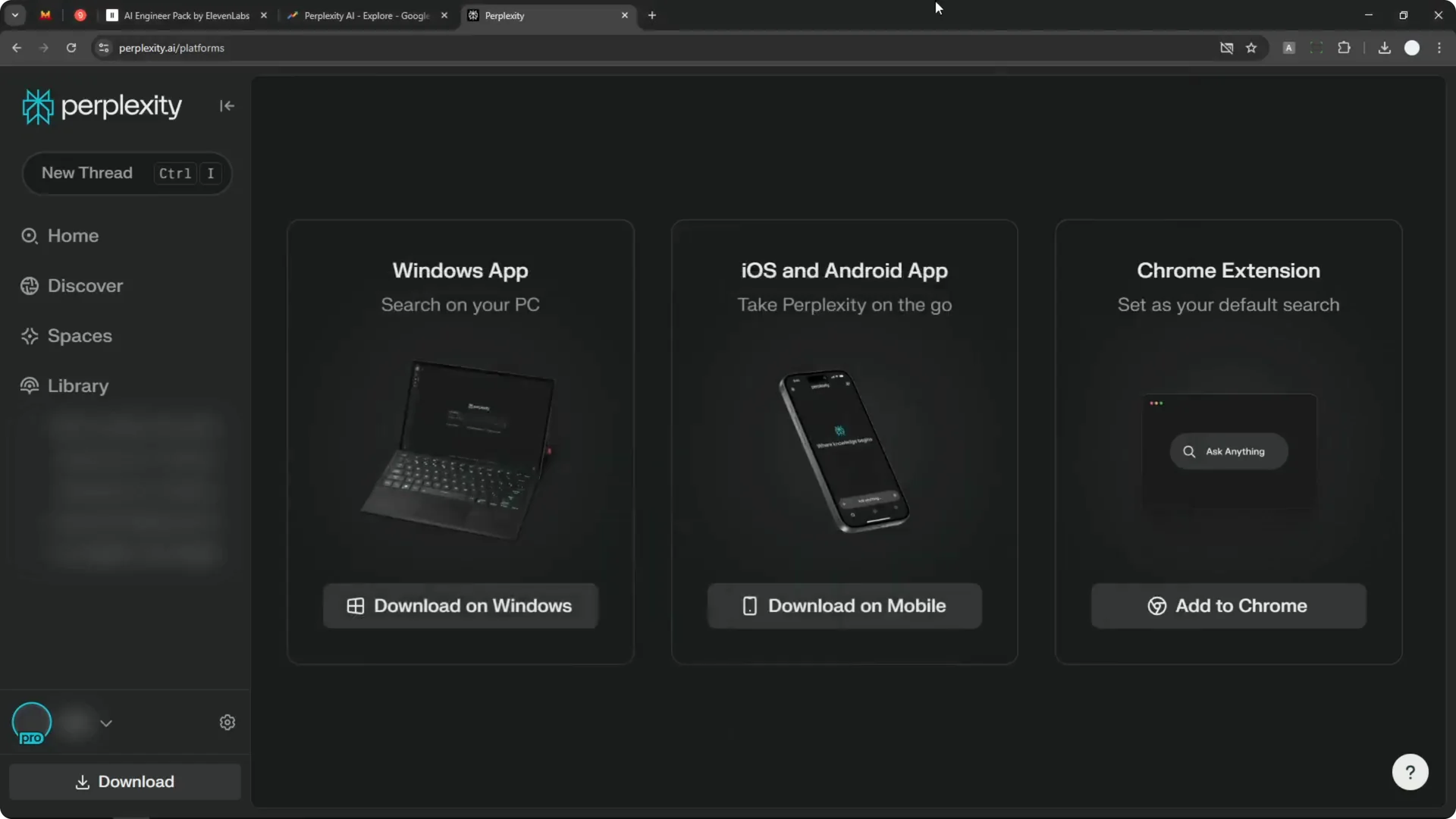
I minimized the app and used Ctrl + I to test it. The tiny window appeared, and I asked a question, but it jumped back to the regular window.
At one point, I did not see the thread appear right away. It showed the homepage without the answer, then the thread finally loaded. That is something they may need to fix.
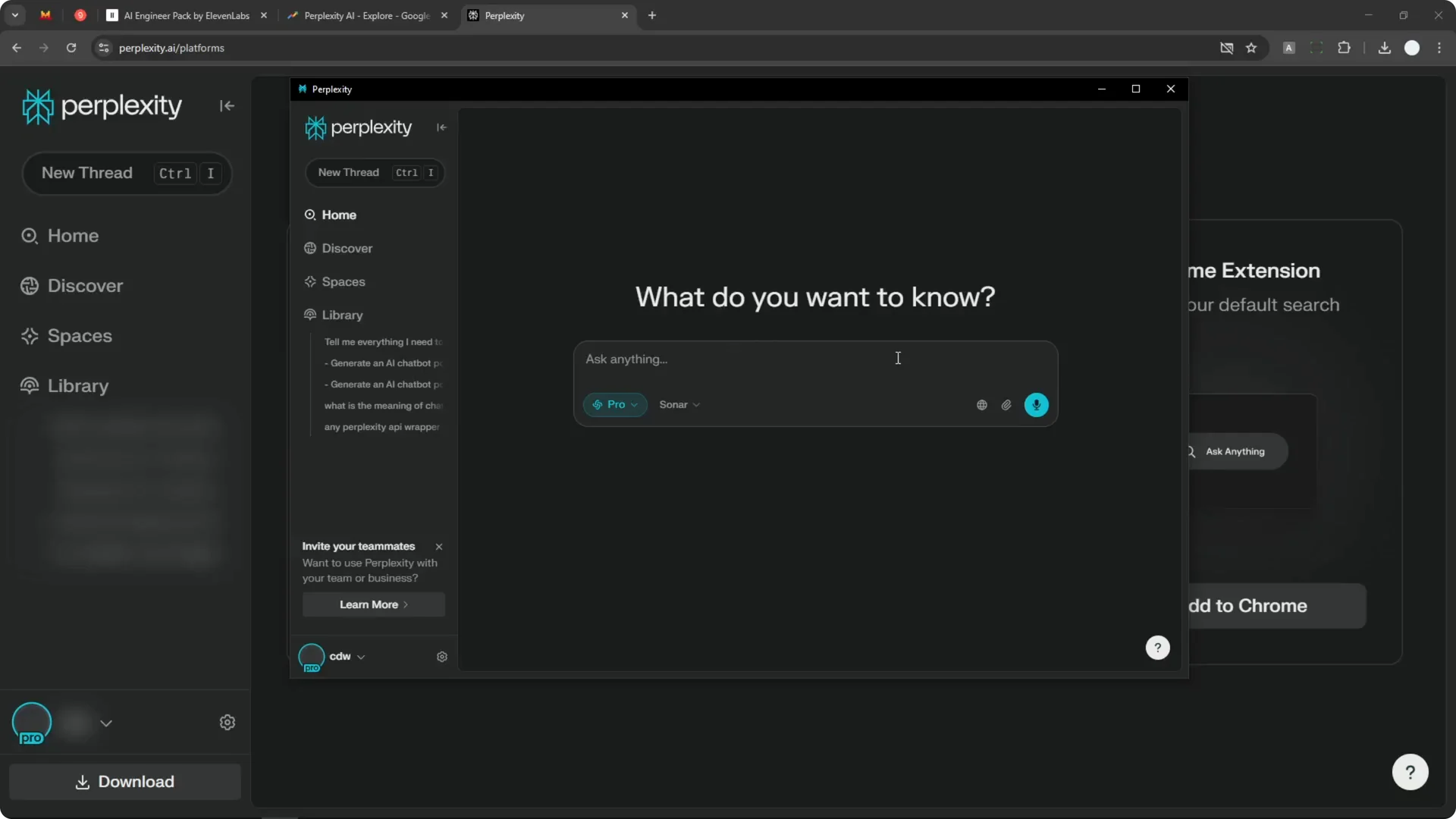
The app keeps running in the background, so the shortcut works even after you close the main window. That makes it easy to ask something quickly. The quick access is the main benefit I noticed.
Read More: Hide Midjourney Images On Your Profile
Perplexity Windows App Overview – Screen awareness and screenshots
I wanted to know if it is aware of what is on my screen. I asked directly, and it replied that it cannot see or access the screen.
You can still take a screenshot on Windows and send it. Press Windows + Shift + S to capture a region, then press Ctrl + V inside Perplexity to paste it.
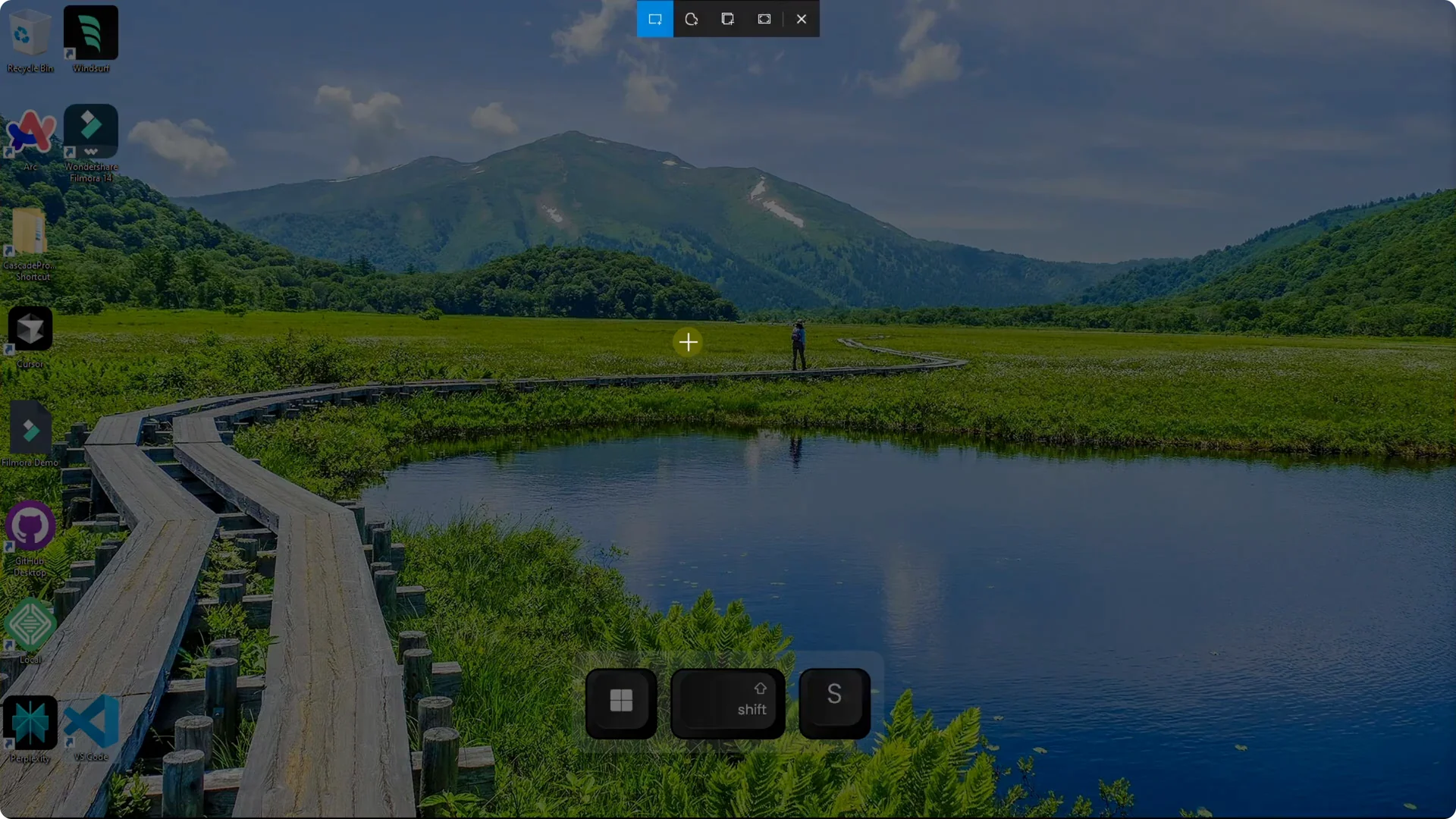
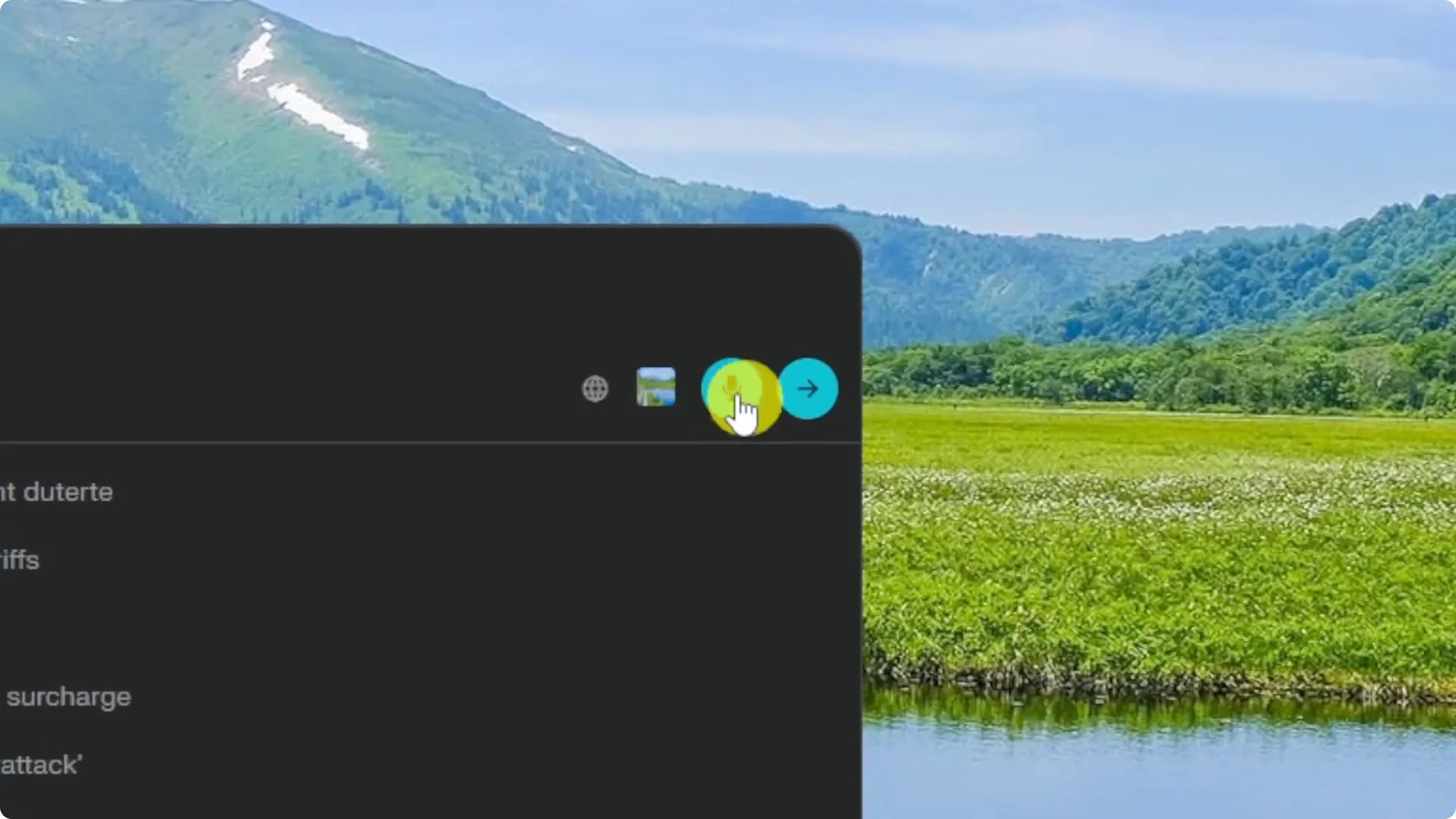
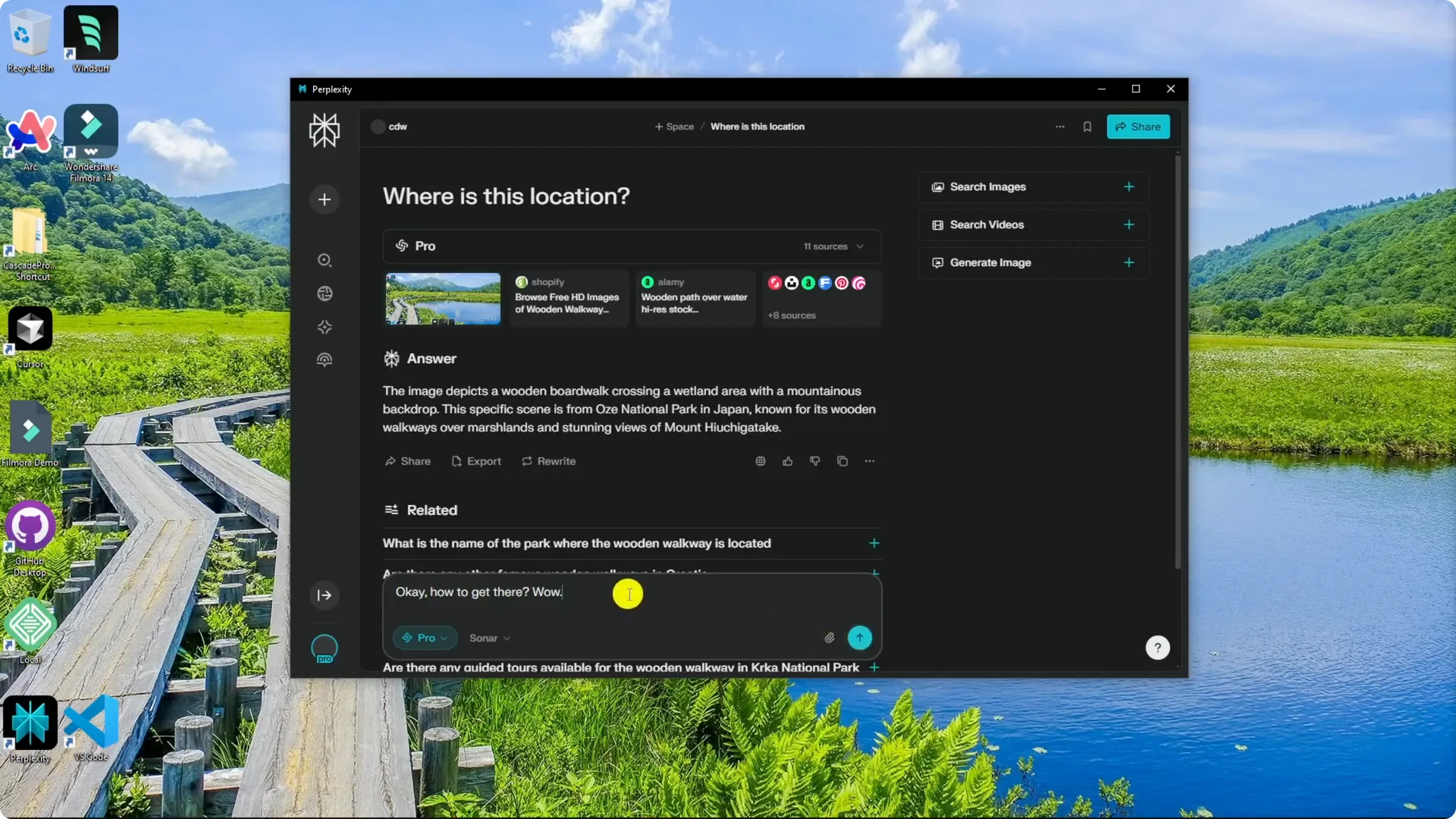
The screenshot uploads immediately, and you can ask questions about it. I asked where a location was based on the image, and it recognized the content from the upload. This makes visual questions practical without screen access.
Read More: Midjourney Style Creator
Perplexity Windows App Overview – Dictation
I noticed an icon for dictation. You can speak your prompt instead of typing it.
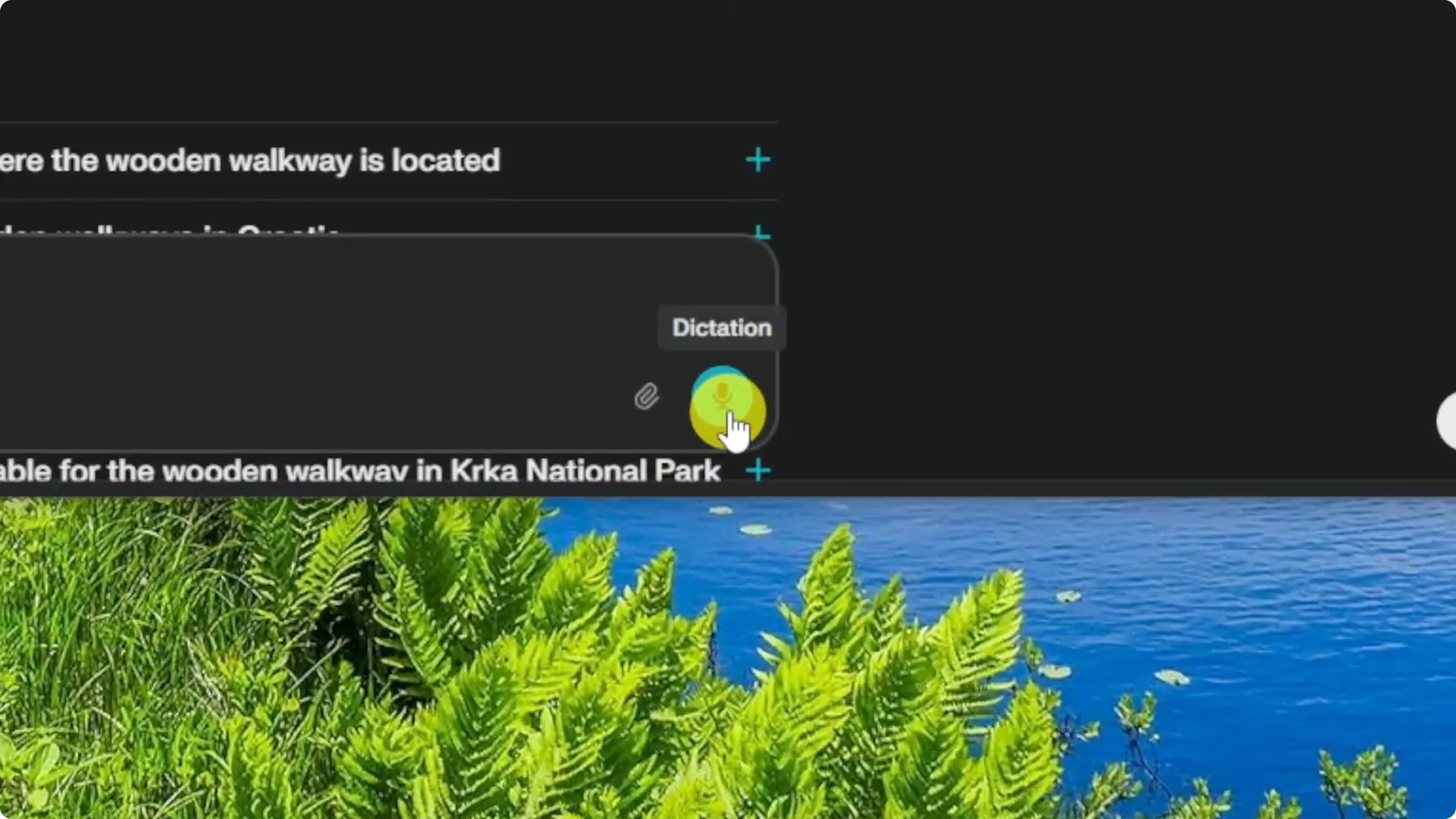
I tested it by asking how to get there, and it transcribed my speech well. It is helpful if you prefer voice input over typing.
This is not the same as the mobile voice mode that supports back-and-forth voice conversations. It is regular dictation, and I could not find a true voice mode in the Windows app. That was a bit disappointing, but voice input still saves time.
Read More: Hide Bulk Download In Midjourney
Perplexity Windows App Overview – What stands out and what is missing
The app functions like the web version packaged for desktop. The biggest advantage is the global Ctrl + I shortcut and the ability to keep it running in the background.
I did not find exclusive desktop features beyond dictation. I hope more desktop specific enhancements arrive later.
Final thoughts
Perplexity’s Windows app delivers the web experience in a desktop wrapper with quick access via a global shortcut. Dictation is useful for voice prompts, and screenshot uploads make visual questions easy. Outside of that, it feels identical to using Perplexity in a browser, with a few minor quirks that may get fixed over time.
