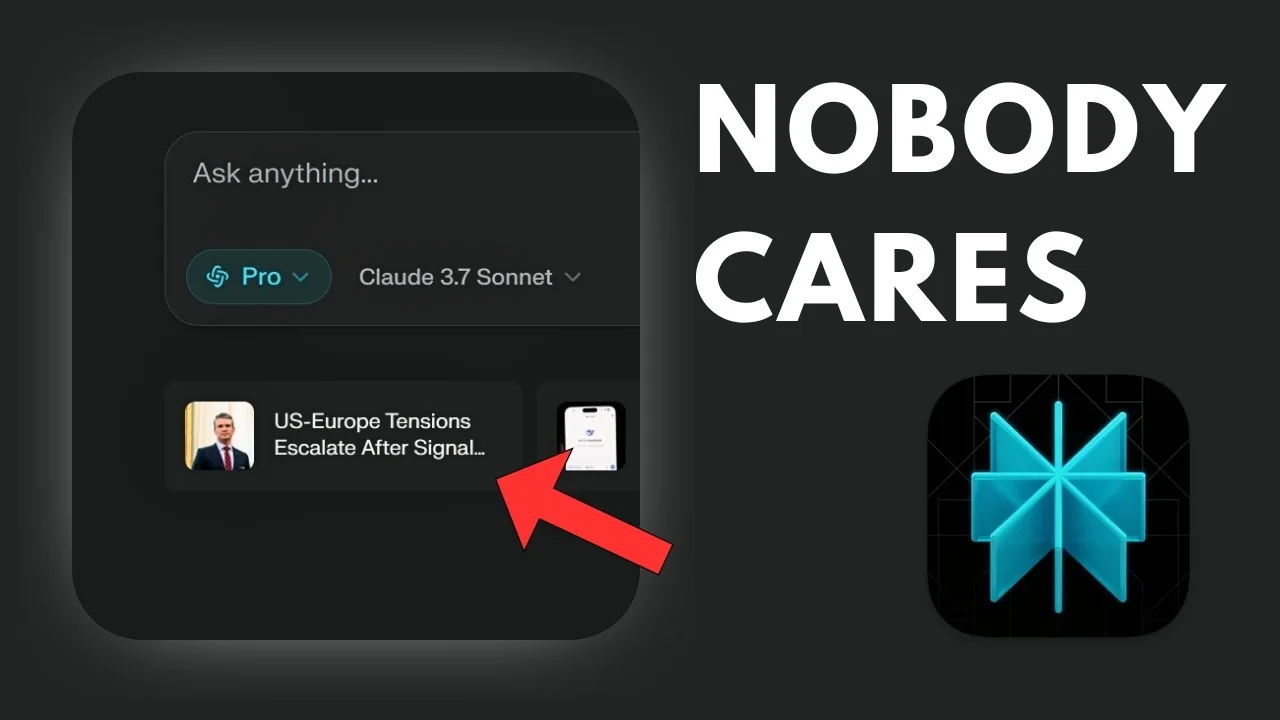
I was not planning to write this, but I kept seeing people ask the same question. They want to remove the news section at the bottom of the search bar in Perplexity. I agree it is distracting, often not useful, and very US-centric even if you are not in the US.
It can get in the way if you want to use Perplexity for a professional workflow. If you do not care about that news feed, it feels like noise. Here is how to remove it on the web.
Why Remove Perplexity News Bar
The news panel is visually noisy and pulls your attention away from your task. It rarely affects users outside the US, yet it takes up space every time you open the app. For focused research or work, it is better to hide it.
Read More: Create Superior Ai Art
No Built-in Toggle
There is no setting in Perplexity to disable or hide the news bar. You cannot turn it off inside the app. That means the only practical route is a third-party tool.
Read More: Eye Catching Ai Art Midjourney Prompts Styles
Use Chrome to Remove Perplexity News Bar
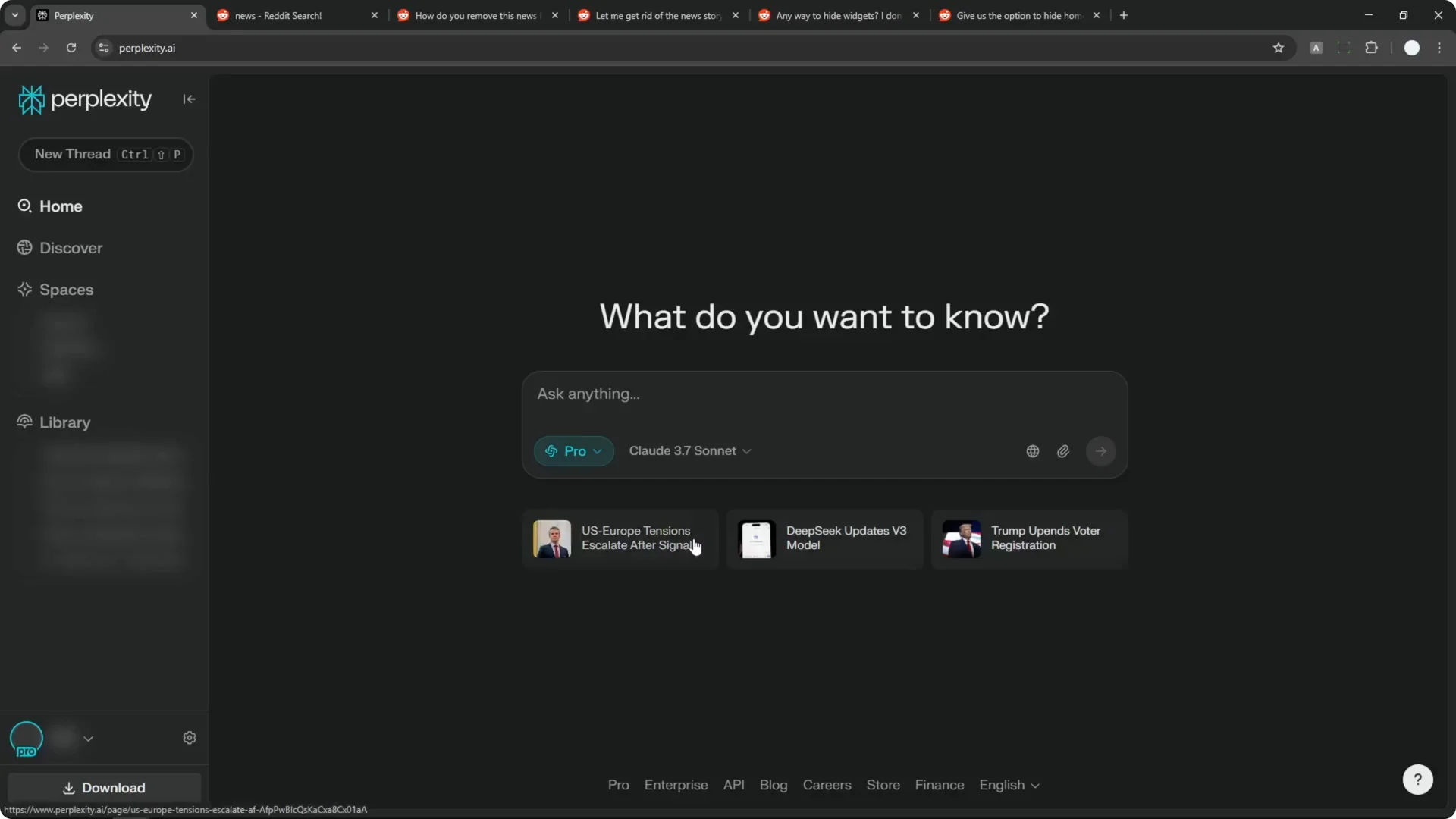
If you are using Google Chrome or any Chromium-based browser, you can remove the panel with a simple extension. It is called Click to remove element. Once configured, the news section will disappear and stay gone on refresh.
Step-by-Step: Remove Perplexity News Bar in Chrome
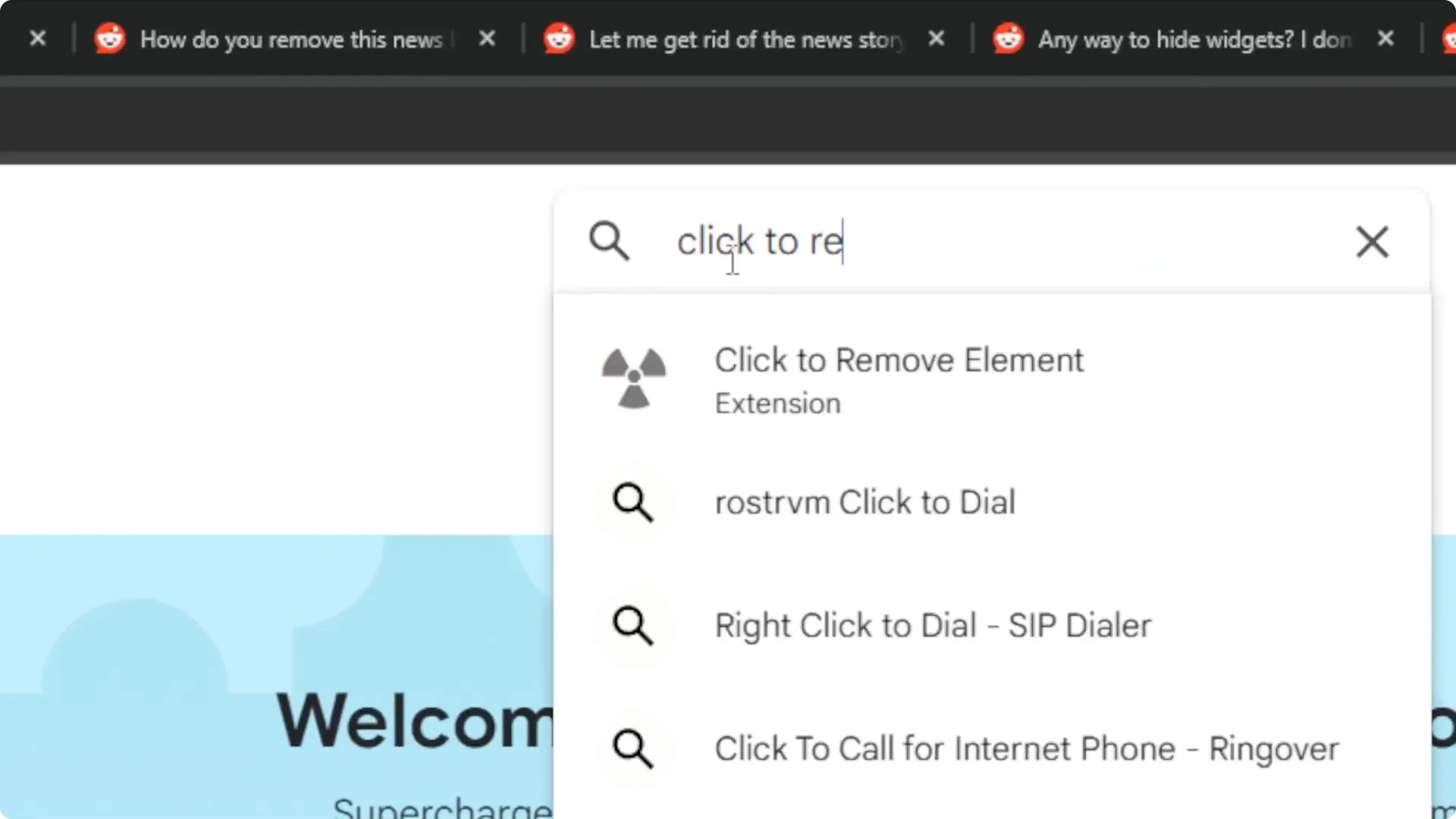
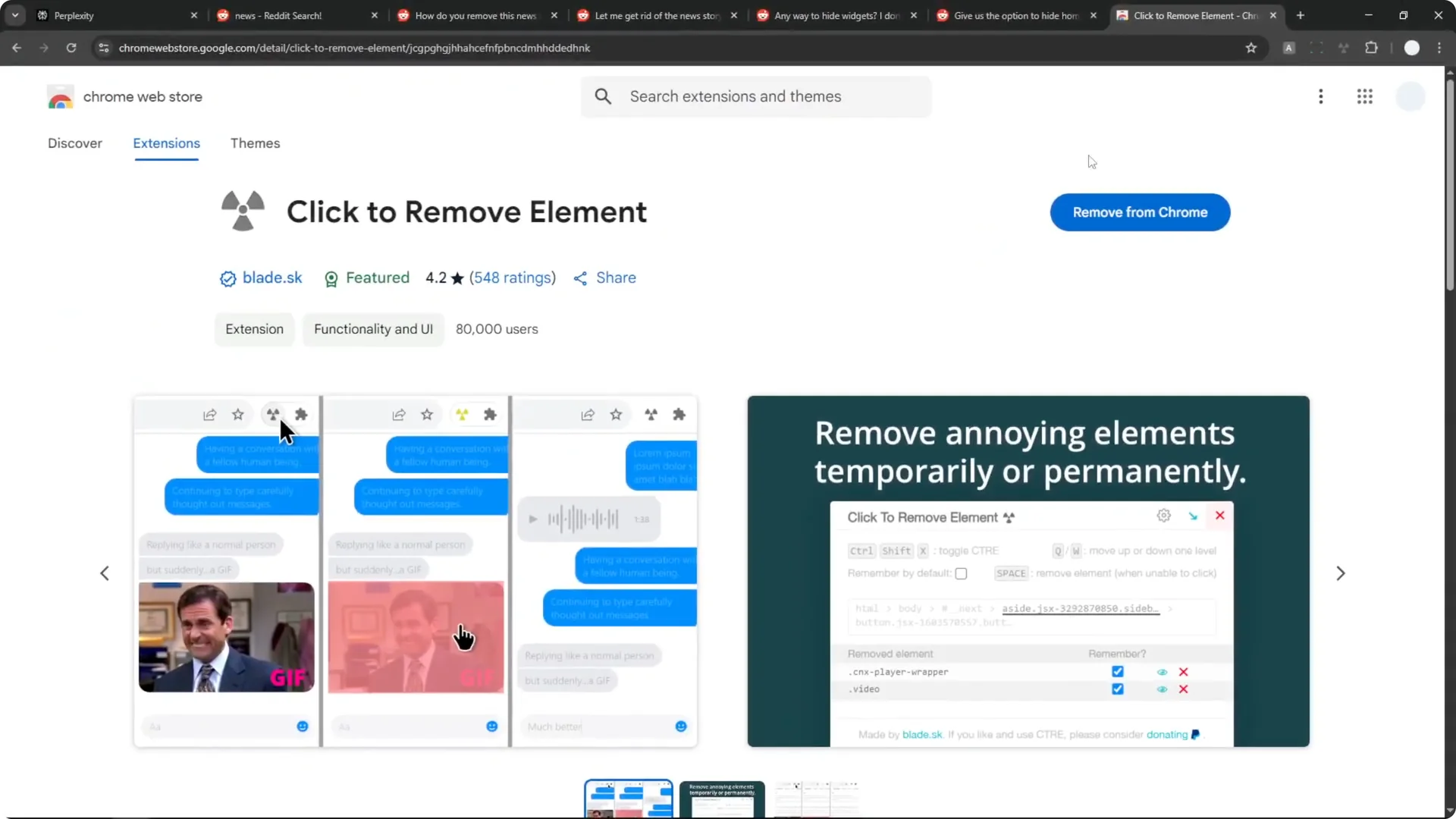
Step 1: Open the Chrome Web Store at chromewebstore.google.com. Use the search box to find Click to remove element. You will see an extension that lets you delete any element on a page.
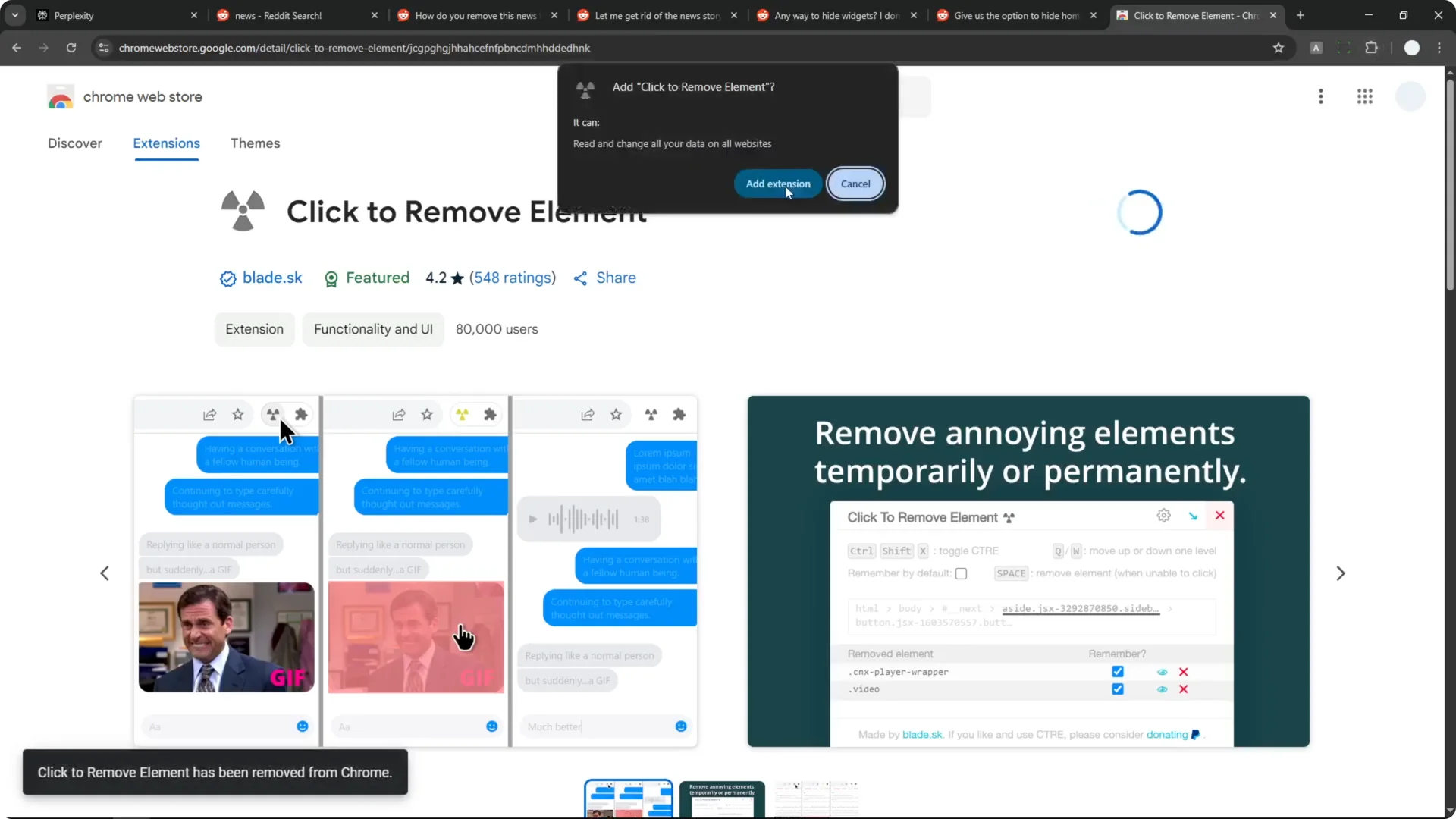
Step 2: Click Add to Chrome. Confirm by clicking Add extension. Wait for the installation to finish.
Step 3: Open the extensions menu in your browser toolbar. Pin Click to remove element for quick access. This makes it easier to use when you need it.
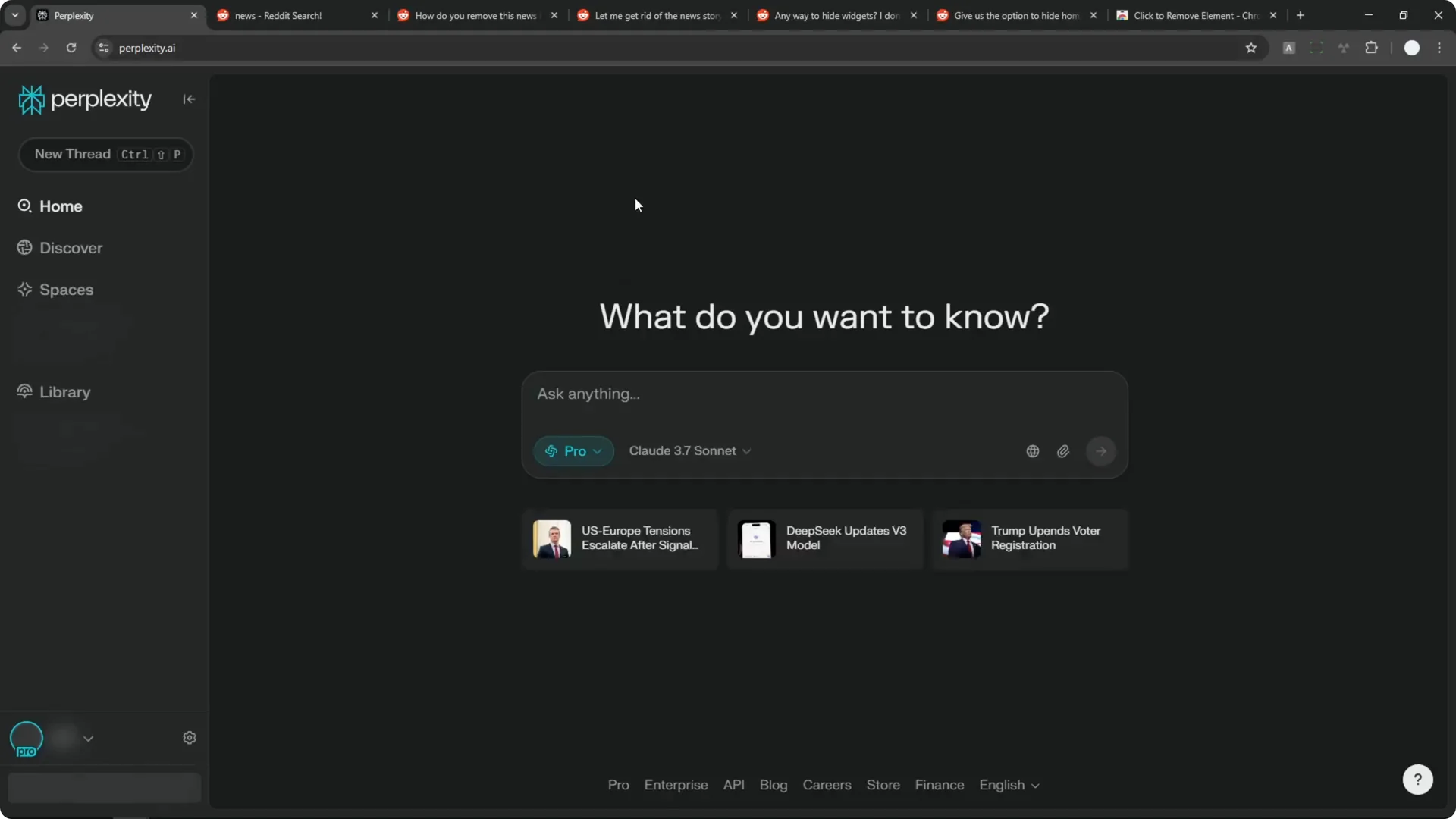
Step 4: Refresh your Perplexity page once after installing. This ensures the extension can act on the page correctly. Keep Perplexity open.
Read More: Transformative Ai Art Midjourney Prompts
Step 5: Click the Click to remove element icon in your toolbar. Hover over the news section at the bottom of the search bar until it is highlighted. Click once to remove it and confirm it disappears.
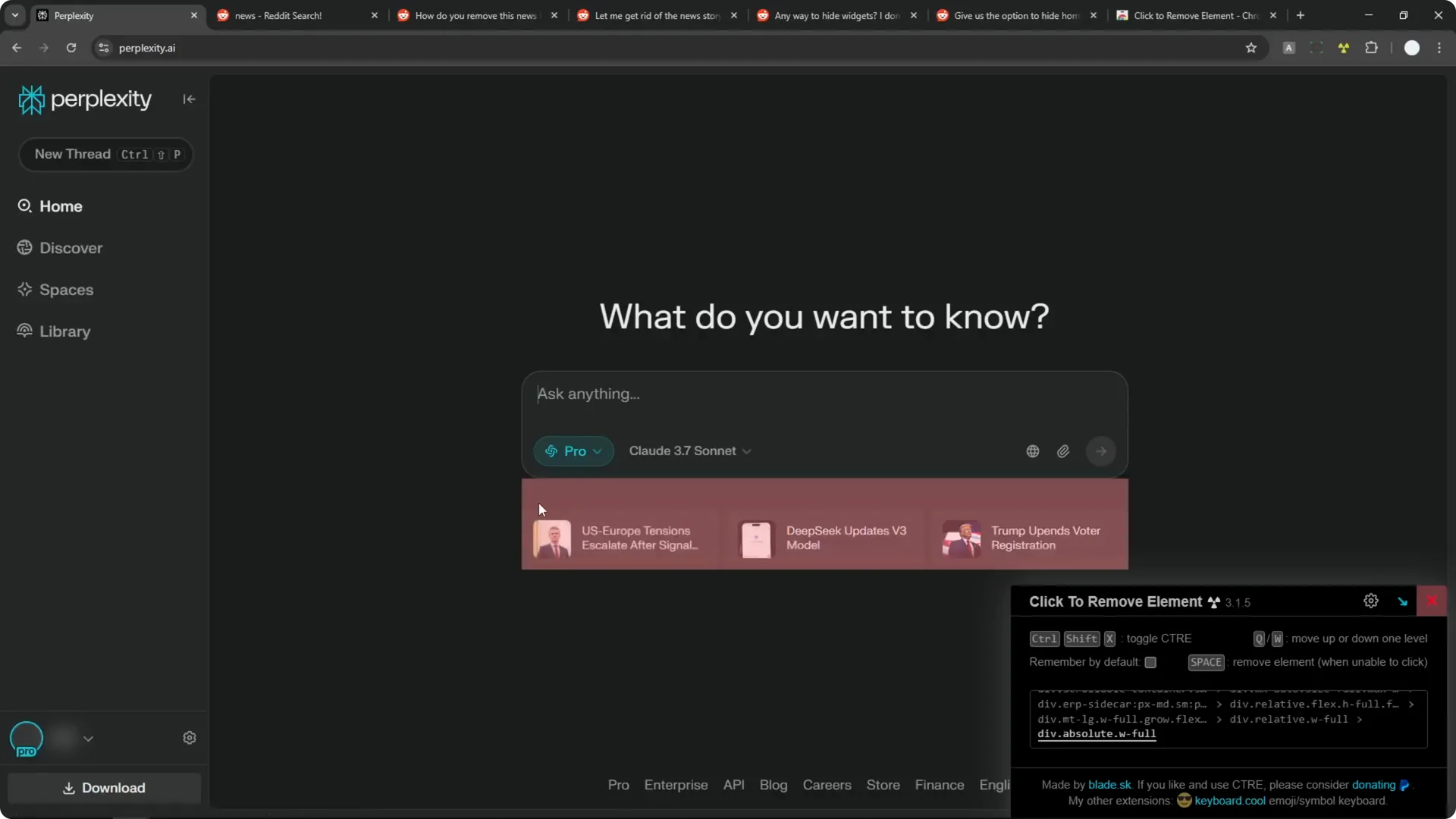
Step 6: If it comes back after a refresh, open the extension interface again. Enable the Remember setting inside the extension. This is required to persist the removal across page loads.
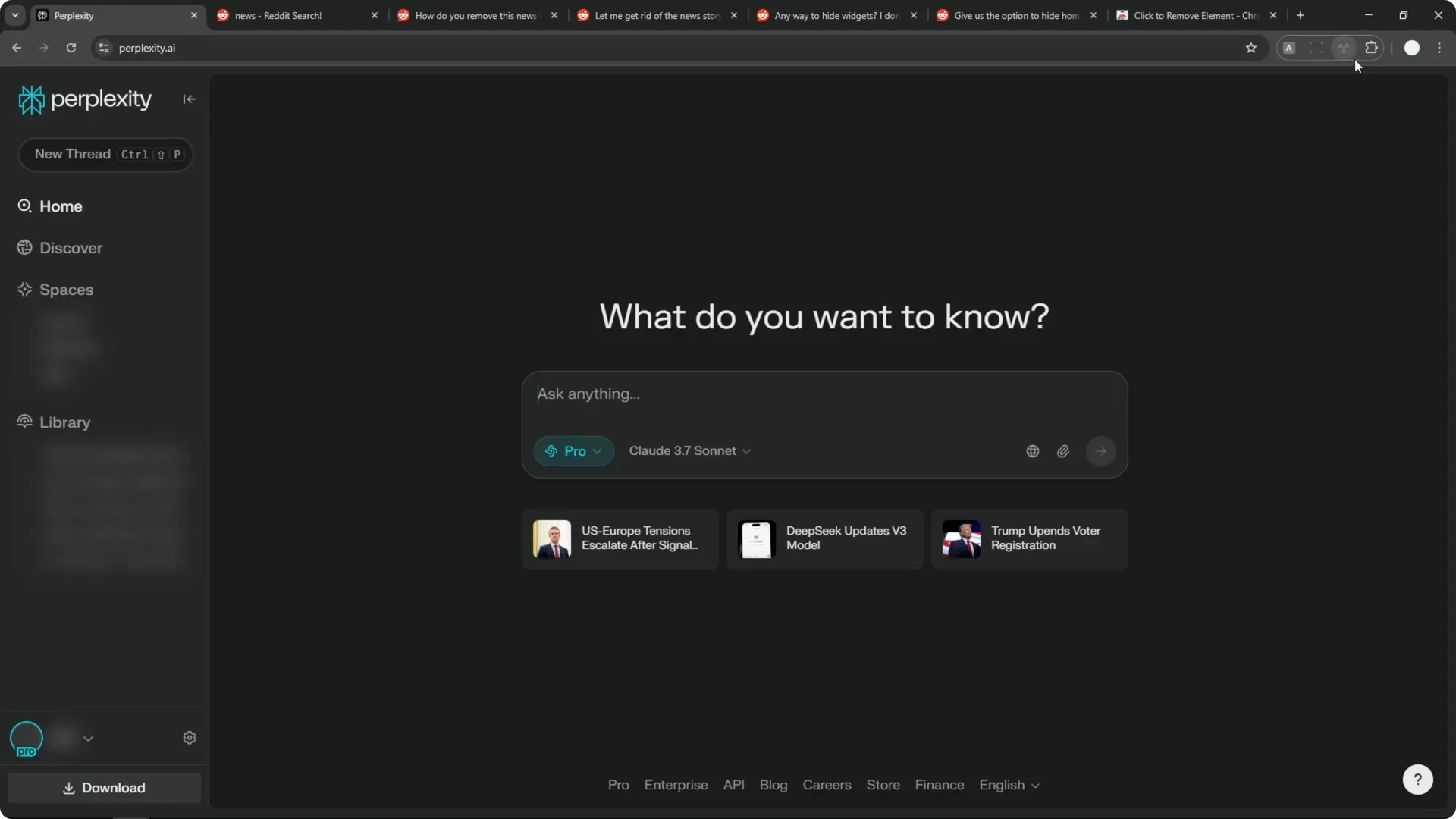
Step 7: With Remember enabled, repeat the removal. Click the extension, hover the news section, and click to remove it again. Close the extension window.
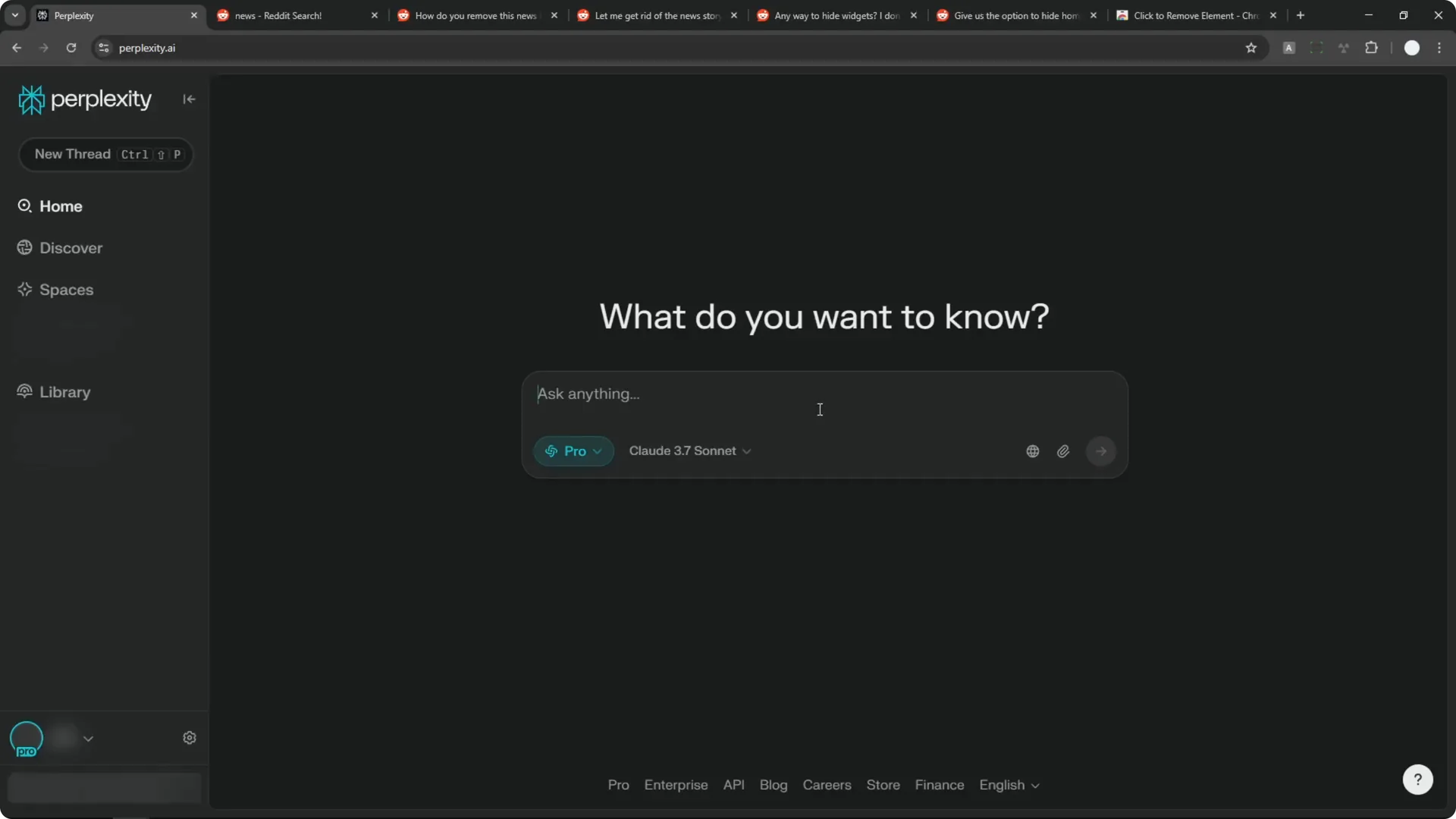
Step 8: Refresh the page to verify it stays gone. The news bar should no longer appear on your Perplexity homepage. You can work without the distraction.
Read More: Camera Control For Midjourney Ai Video
Limitations and Notes
This method only works on the web version of Perplexity. It does not work on the mobile app or the desktop application. Hopefully Perplexity will add a built-in option to customize or remove that section in the future.
Final Thoughts
There is no native toggle to remove the news bar in Perplexity, but a small Chrome extension solves it. Enable the Remember option, remove the panel once, and it will stay hidden on refresh. It is a quick way to keep your homepage clean and focused.
