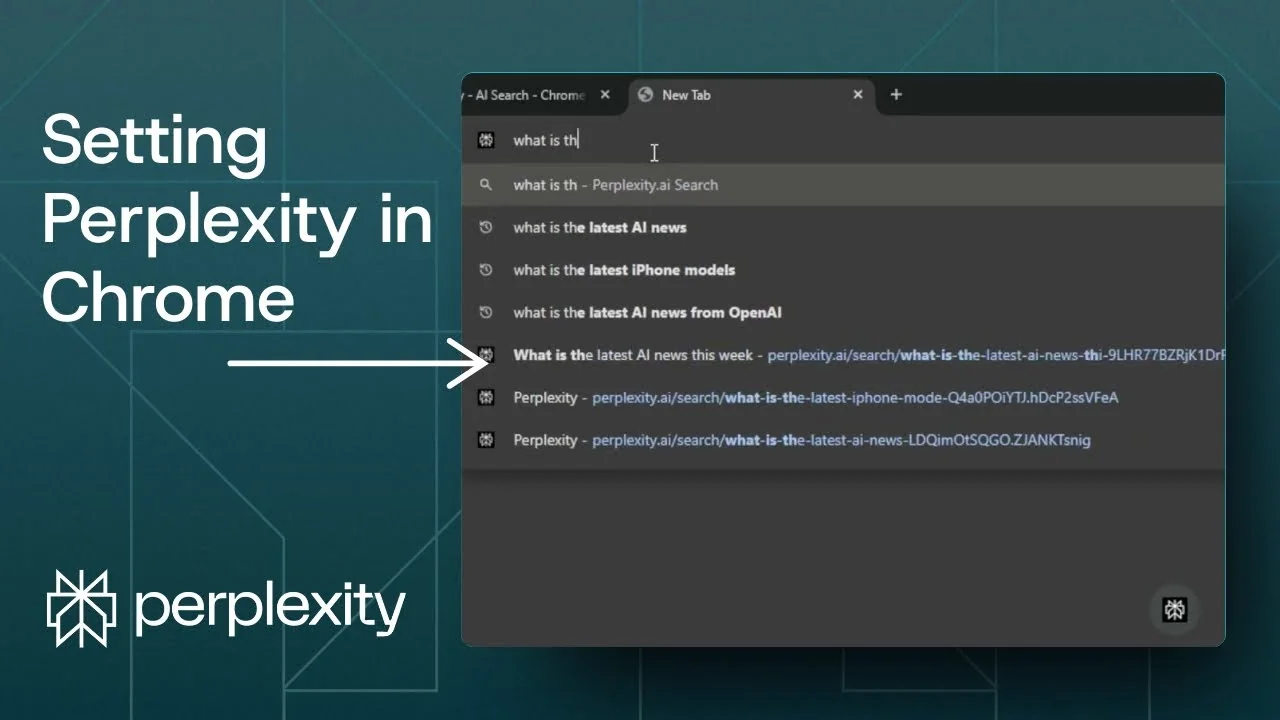
You can set Perplexity as the default search engine in Google Chrome. When you search from the address bar, the query goes to Perplexity instead of Google. I get answers immediately, and this is easy to enable in the browser.
Here is how to turn it on and how to try a free alternative with Gemini.
Set Perplexity as Default Chrome Search
Install the extension for Perplexity as Default Chrome Search
Open the Chrome Web Store
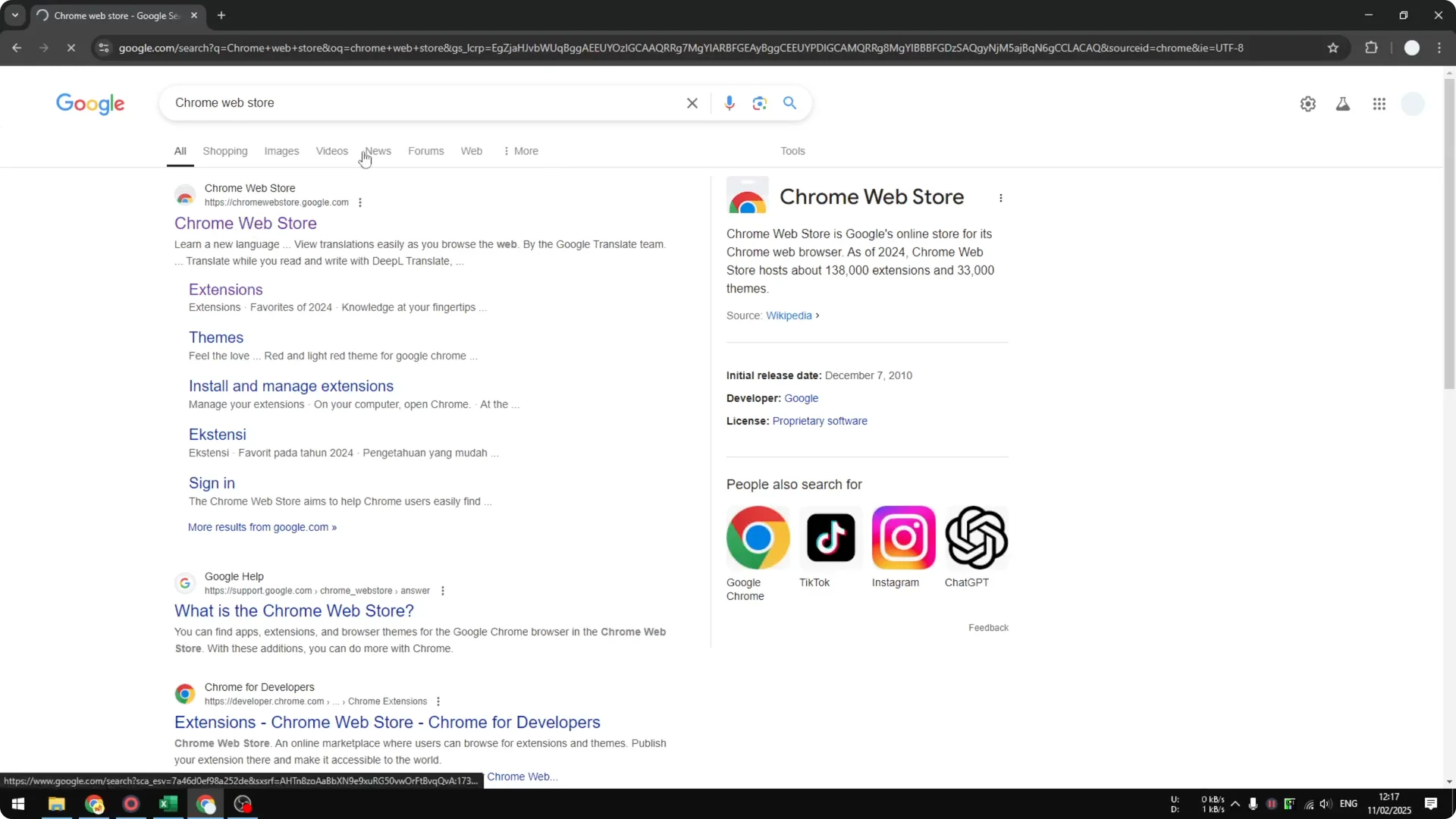
Step 1: Go to Google, search for Chrome Web Store, and press Enter. Open the official extensions page.
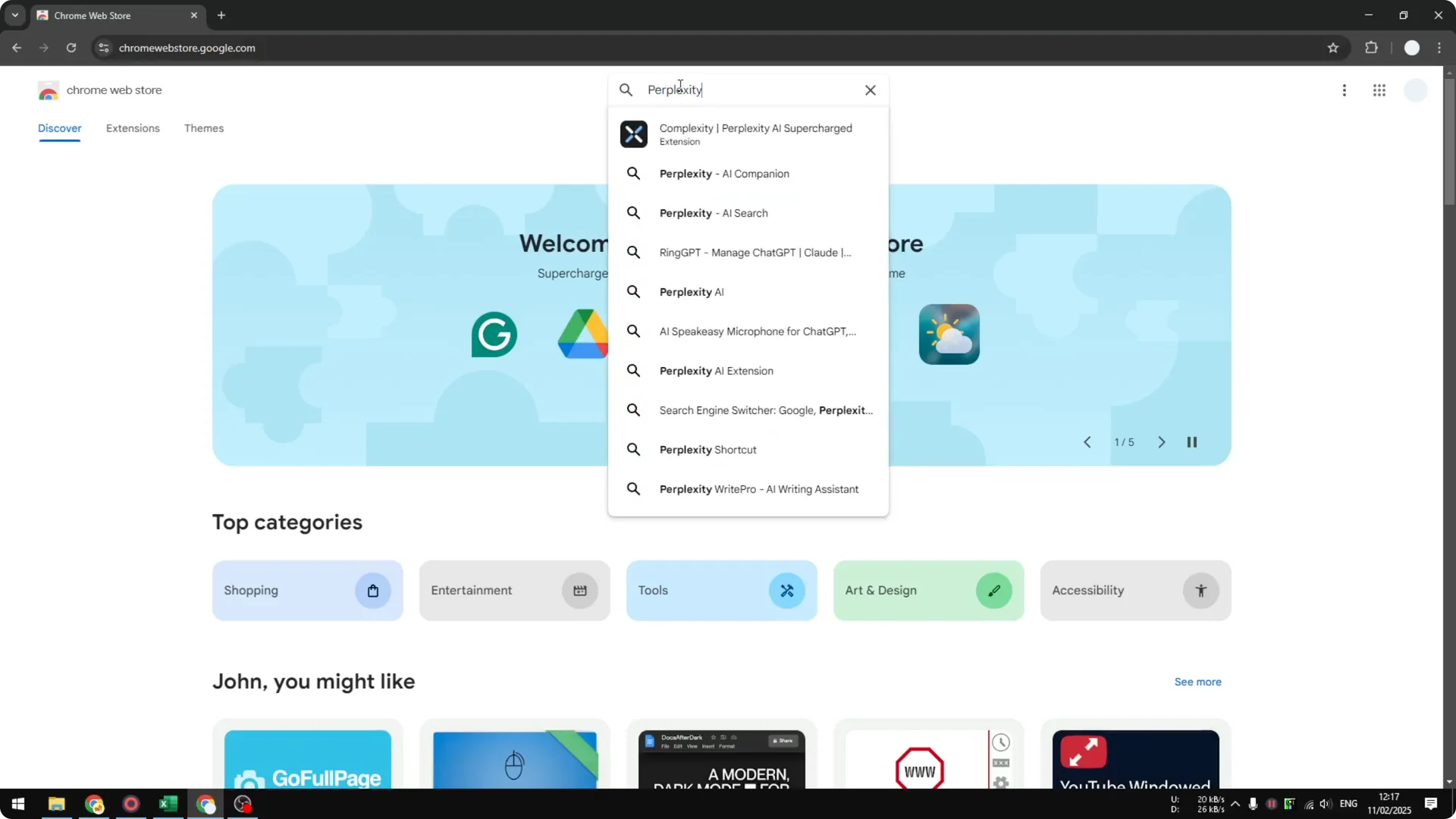
Step 2: Search for Perplexity AI Search and press Enter.
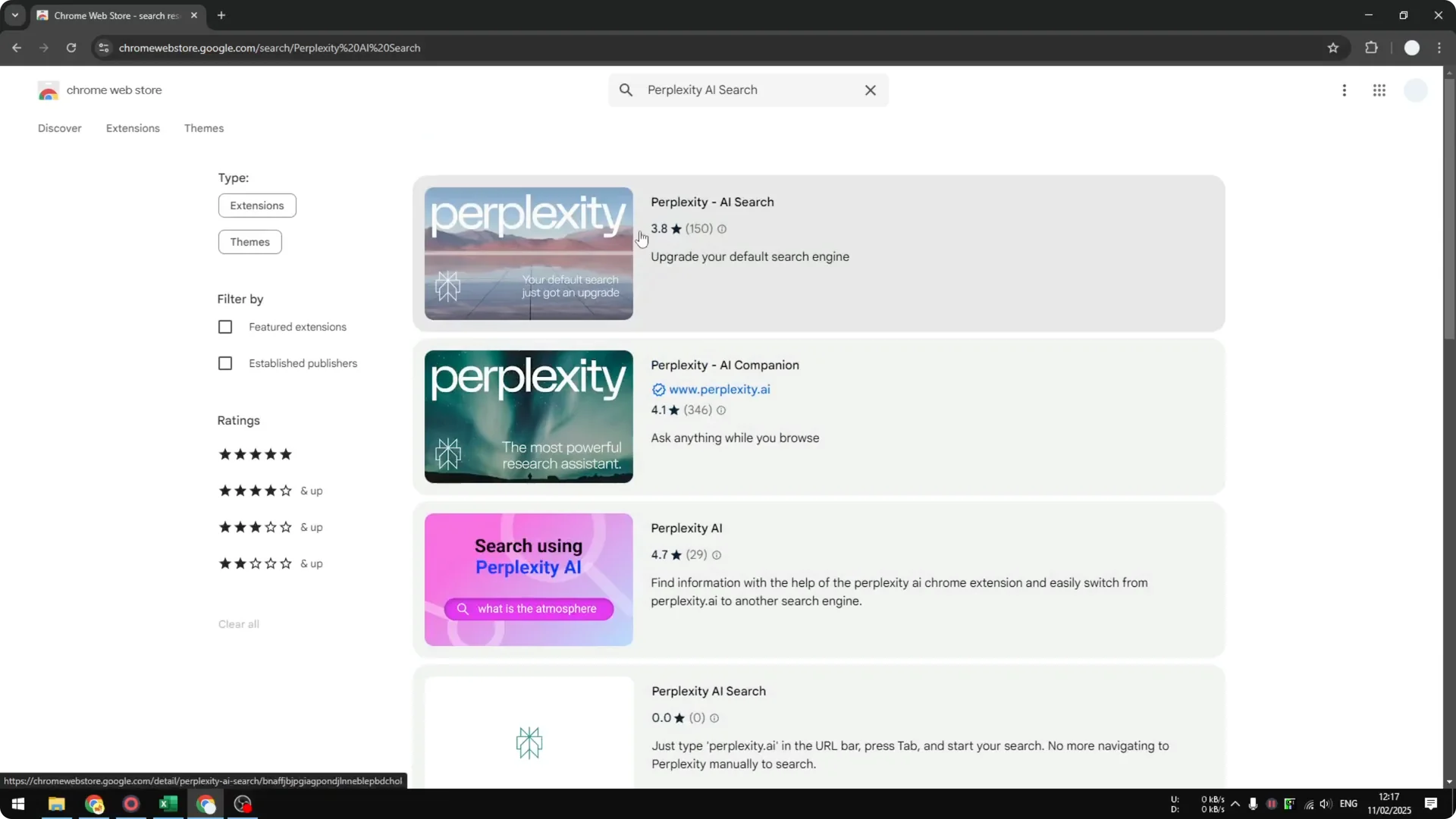
Add the Perplexity extension
Step 3: Pick an extension that enables Perplexity as the default search engine. I use a simple and straightforward one.
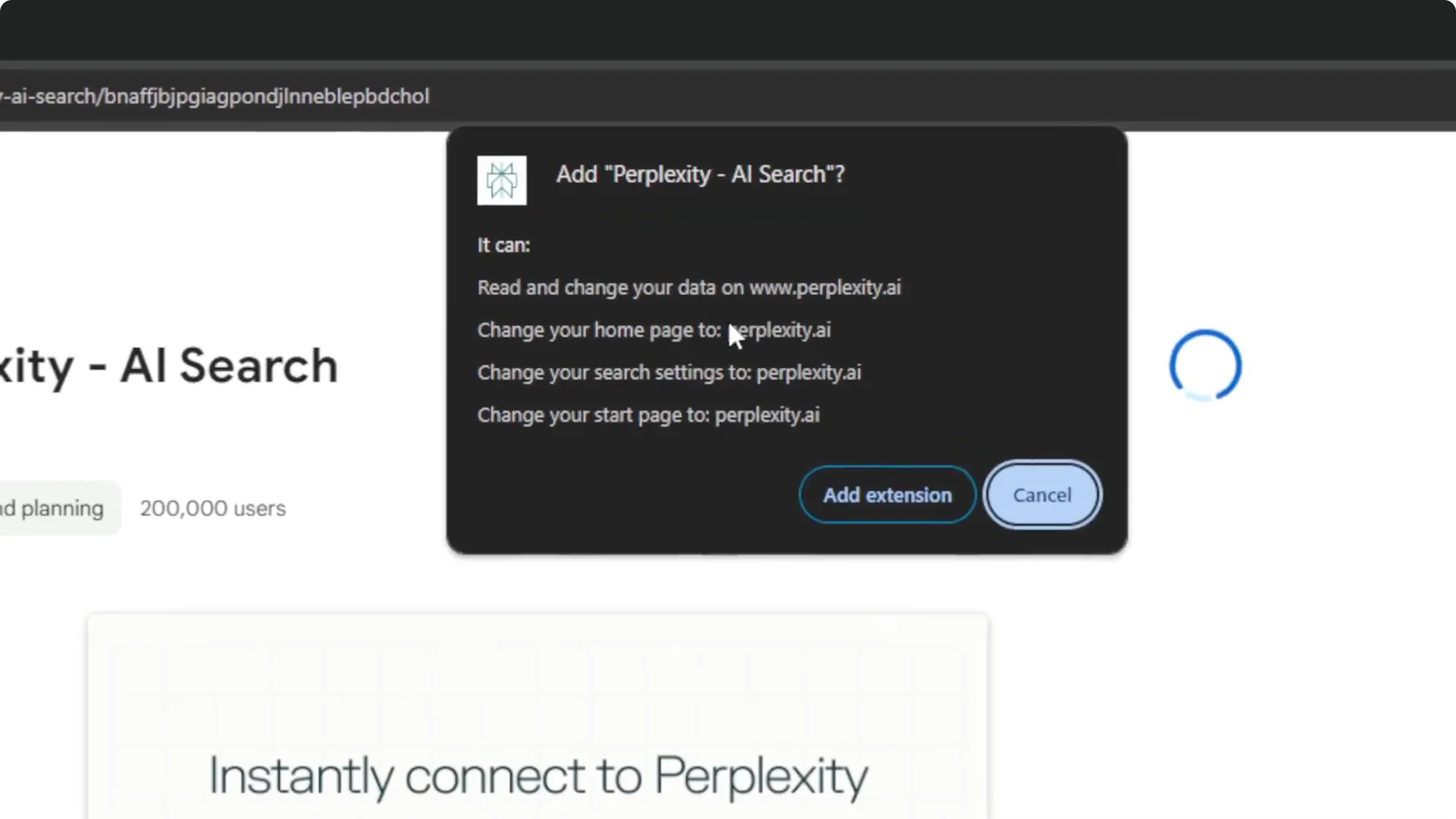
Step 4: Click Add to Chrome. When prompted, click Add extension.
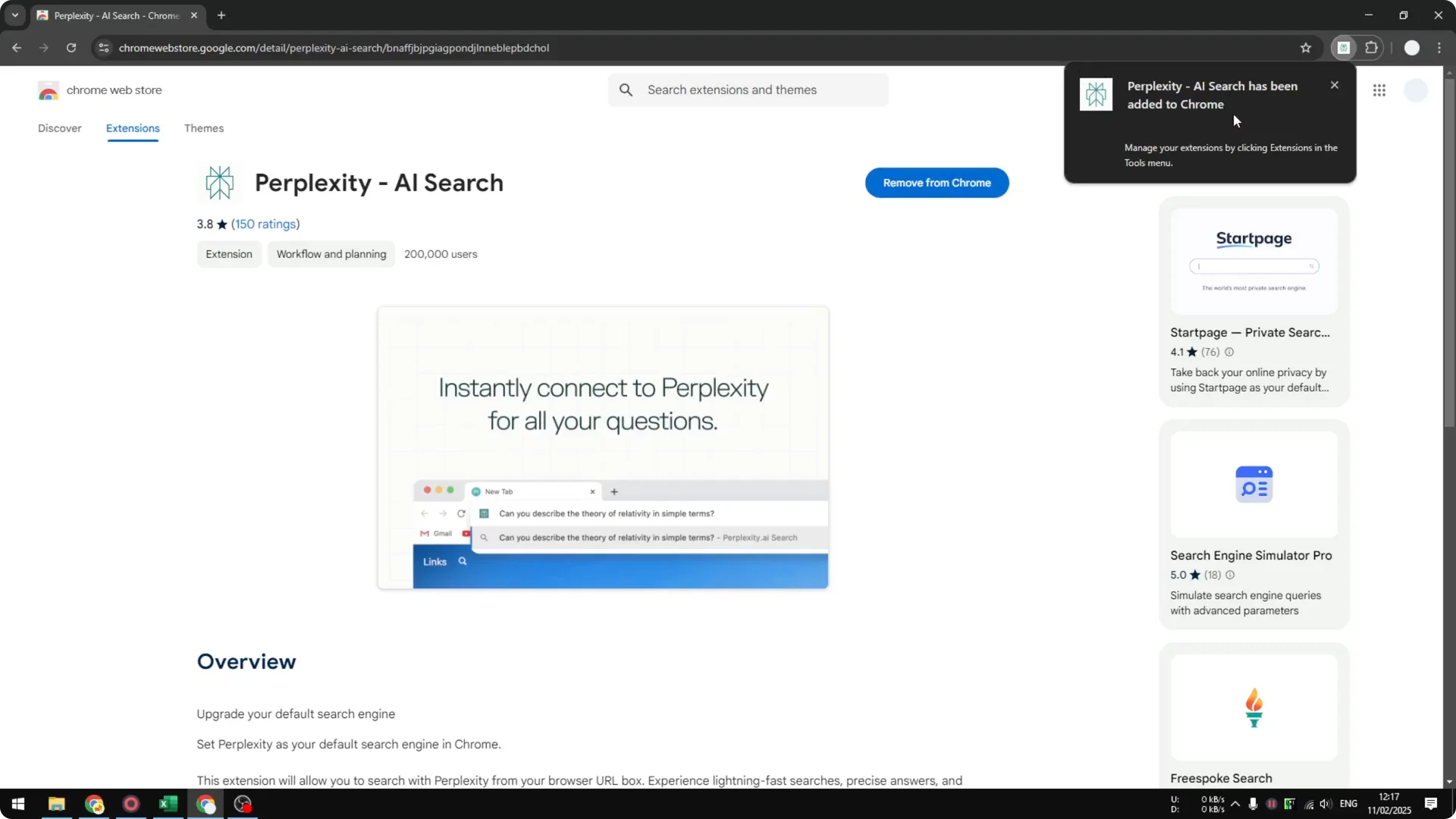
Step 5: Wait for the installation to finish. A notification confirms the extension is ready.
Read More: Midjourney User Profiles
Search from the address bar
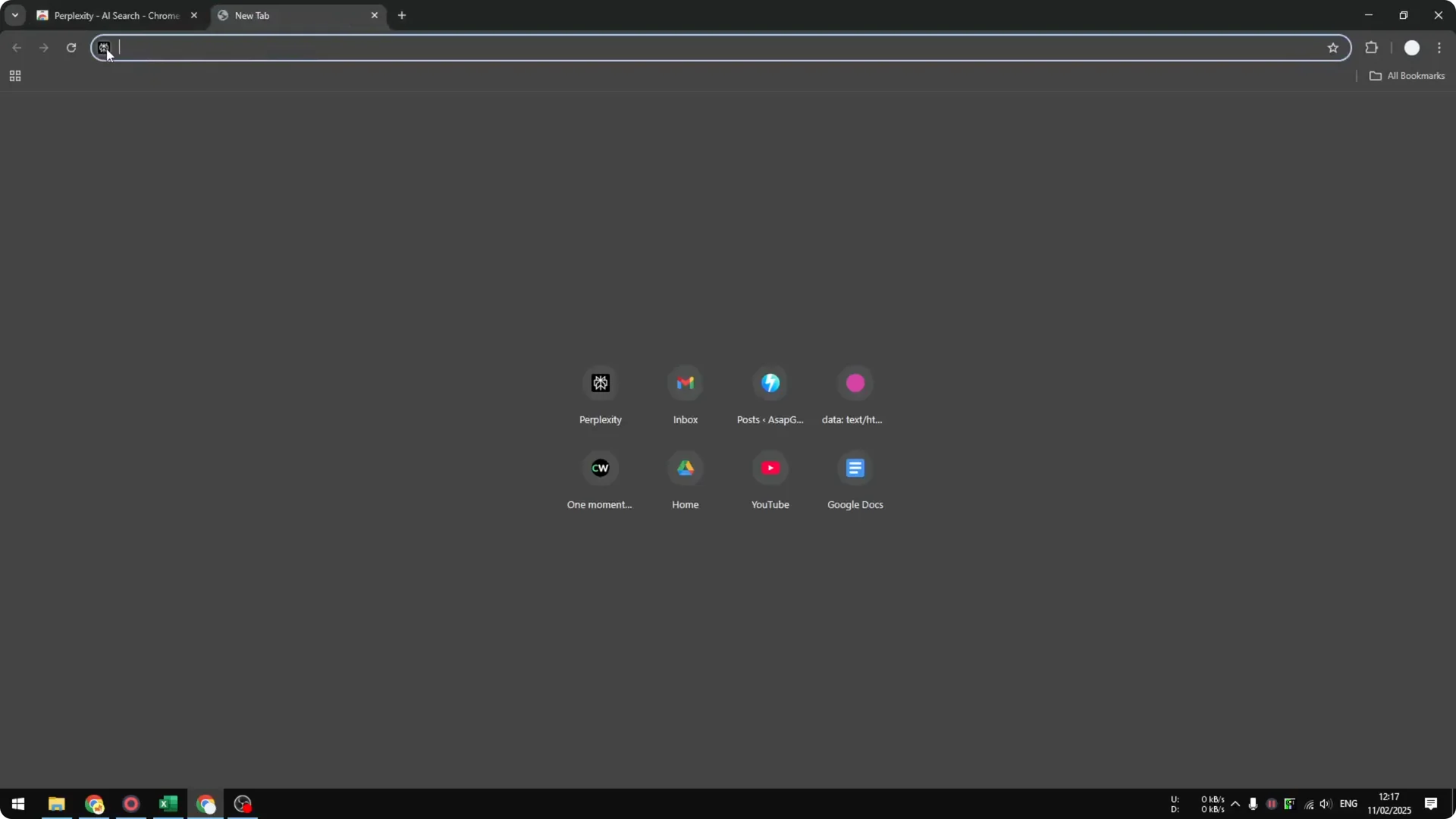
Step 1: Open a new tab and look for the Perplexity icon. That indicates you can search from the address bar.
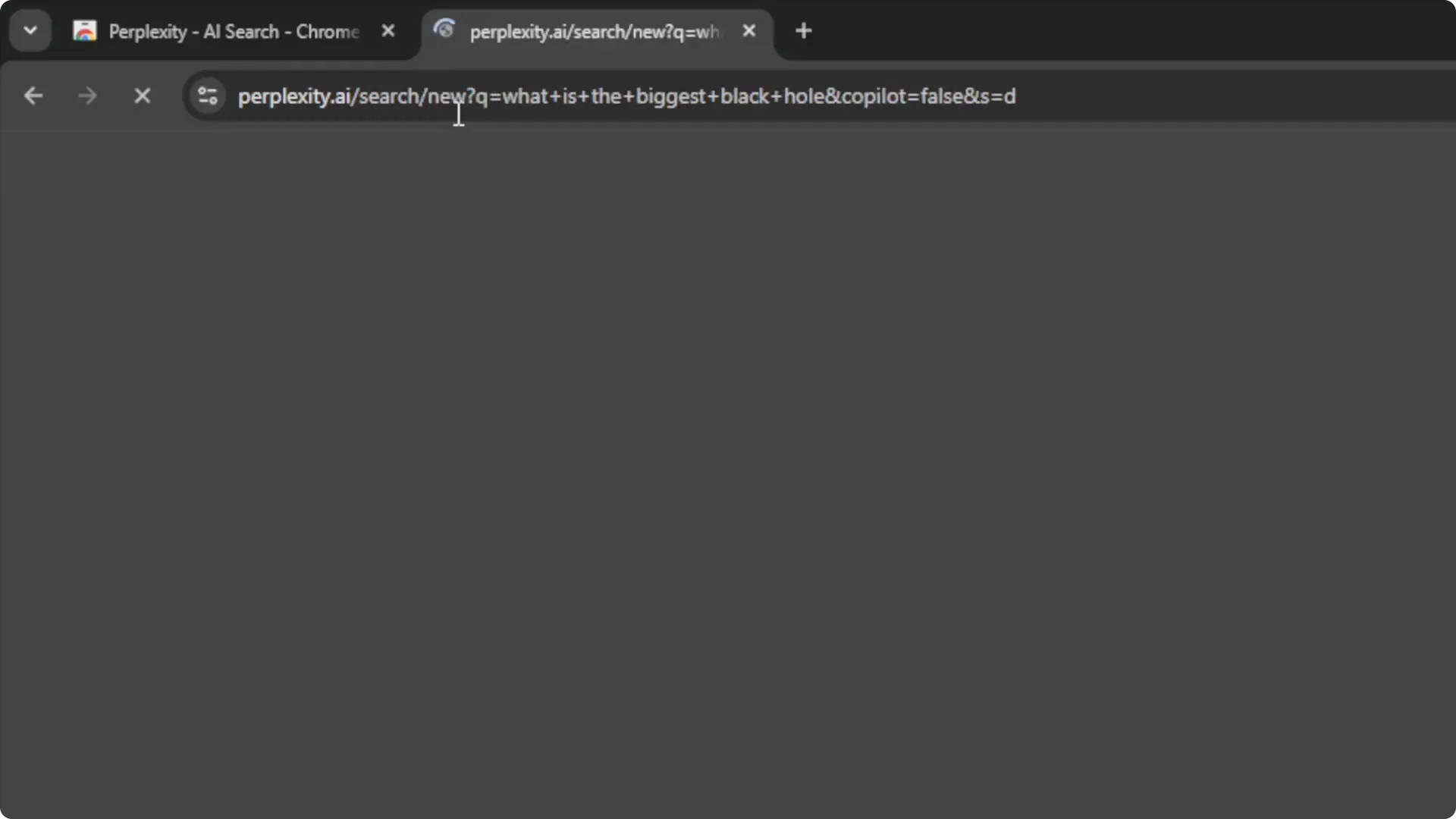
Step 2: Type your query, for example, what is the biggest black hole, and press Enter. It redirects to Perplexity, not Google.
Read More: Hide Midjourney Images On Your Profile
Experience with Perplexity as Default Chrome Search
A lot of times I go back to Google. In many cases I just want a quick answer and not all the extra information. Sometimes a shorter answer is better, so I do not use this extension very often.
If you find the extension useful, you can keep it. It may fit how you search day to day.
Read More: Midjourney Style Creator
Alternative to Perplexity as Default Chrome Search
Use Gemini in Chrome
You can use Gemini as a search engine in Google Chrome. This is a new feature and gives a similar experience to Perplexity, and it is free.
Enable Gemini from the address bar
Step 1: If you want, remove the Perplexity extension first.
Step 2: Open a new tab. Type the character @ and then Gemini.
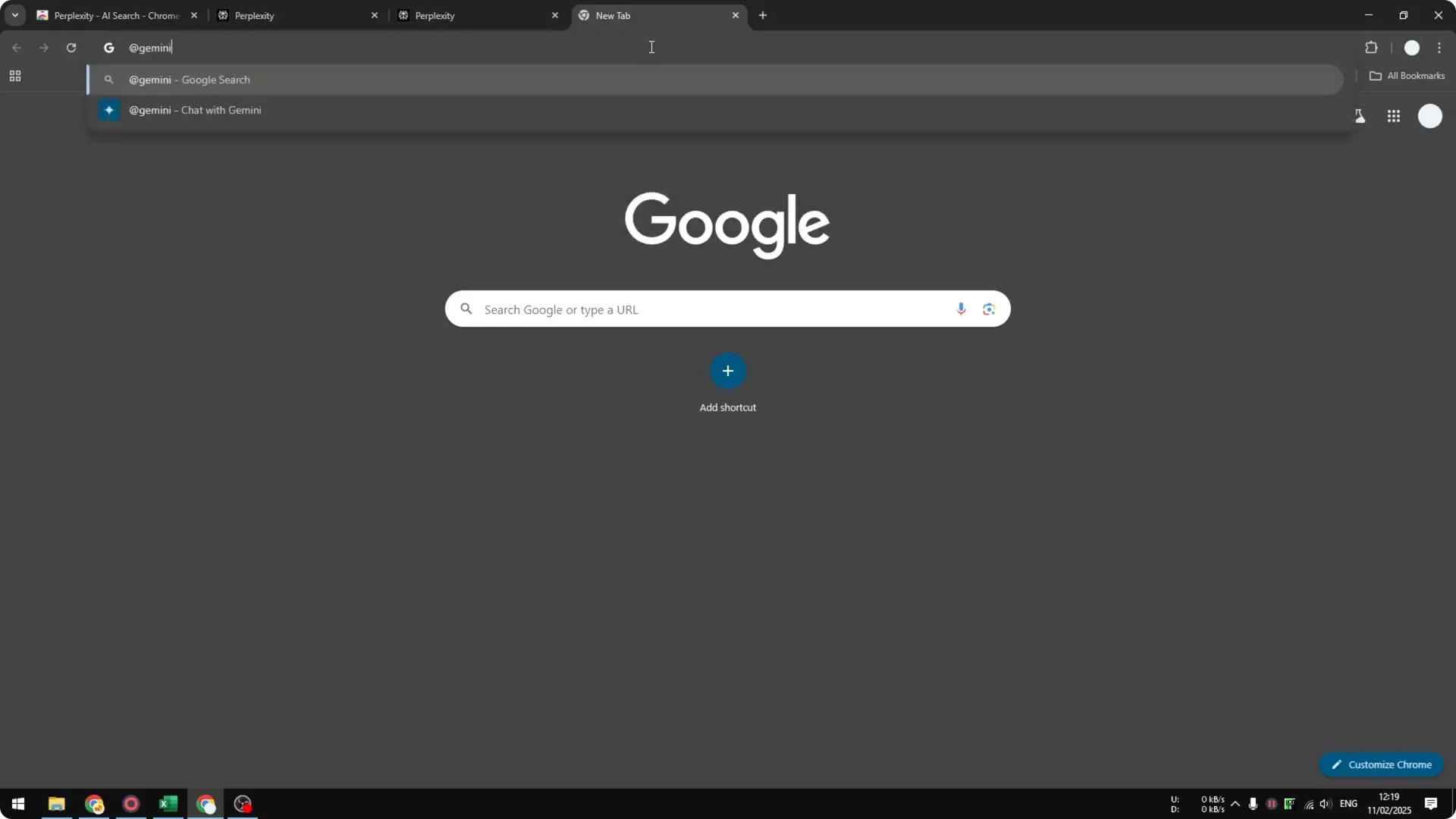
Step 3: Press t t on the keyboard to send the query to Gemini. Ask something like what is the largest star in the Milky Way galaxy and press Enter.
Get an answer from Gemini
Step 4: Chrome sends you to Gemini instead of Google. This is AI like Perplexity, ChatGPT, or Claude.
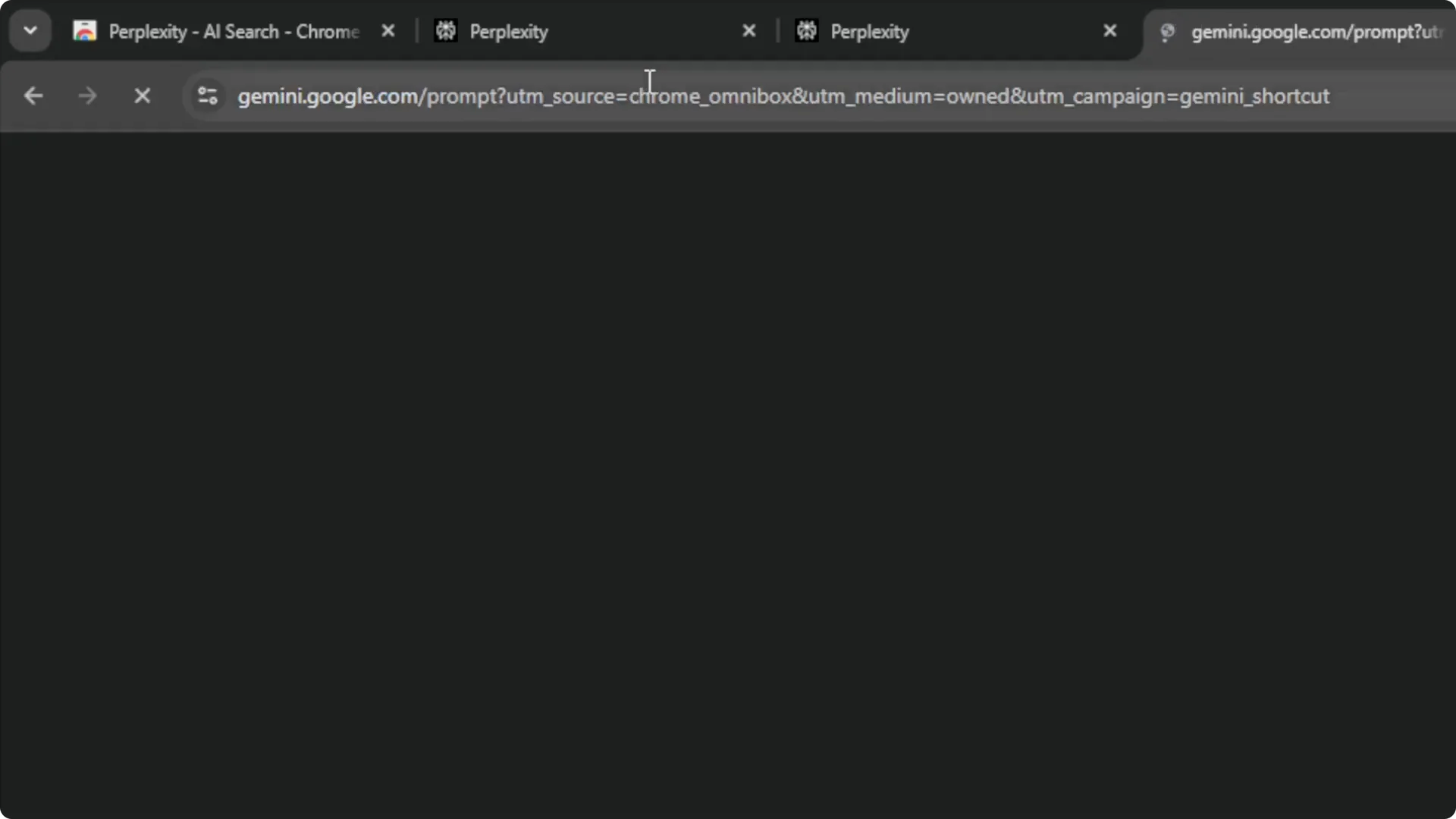
Step 5: You can get a quick answer without having to open a website. You might prefer this method if you do not want to use Perplexity very often.
Read More: Hide Bulk Download In Midjourney
Final Thoughts
Perplexity as Default Chrome Search is easy to set up with a simple extension and works directly from the address bar. I often switch back to Google for shorter answers, but the option is there if it matches your style. The Gemini method is a solid free alternative that routes your query to AI without installing anything.
