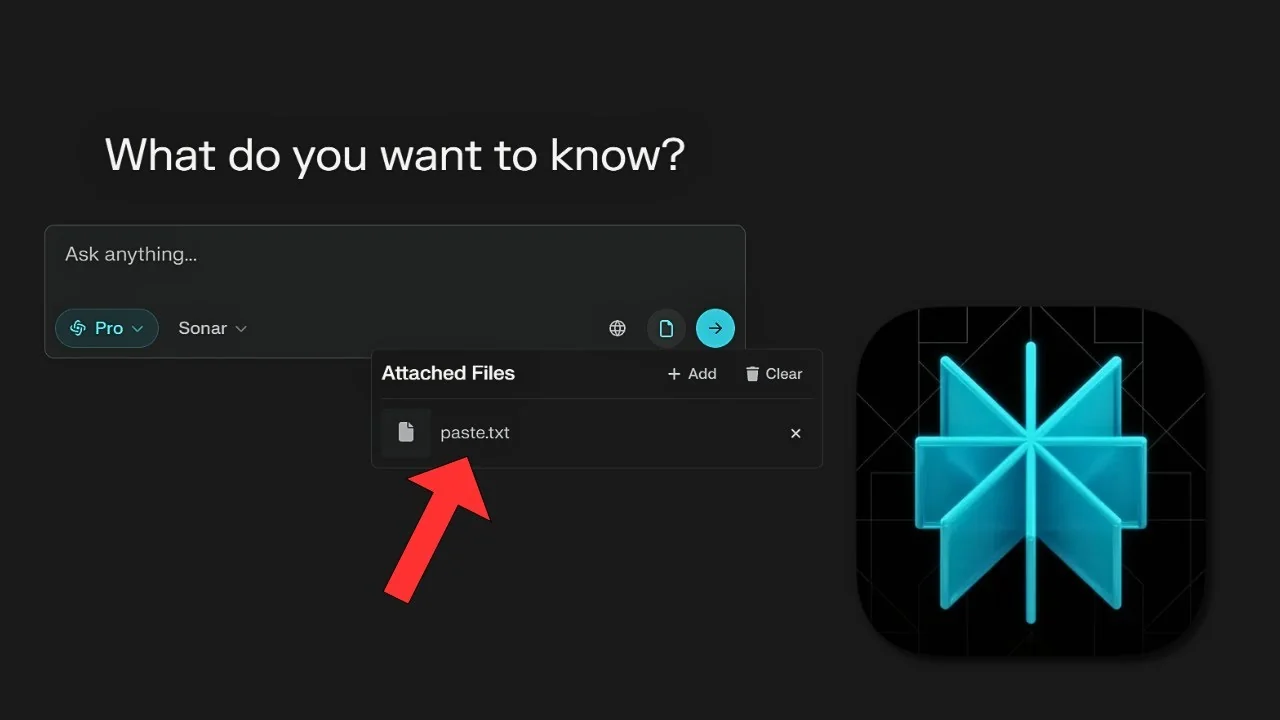
There is one behavior in Perplexity AI that annoys me a lot. When I paste a long transcript, Perplexity turns it into a document named paste.txt instead of keeping it inside the prompt. My transcript was about 3,000 words and I just wanted a concise summary.
This behavior shows up whenever you paste a lot of text into the message box. People have complained about it for a year or two, yet it remains. Maybe it is not a big deal for most users, but it still gets in the way.
Perplexity Paste.txt Prevention
I use two approaches to deal with this. One uses a Chrome extension, and the other requires no extension at all. I prefer the second method because it has been more reliable for me.
Read More: Midjourney Style Creator
Why this keeps happening
When you paste a big block of text directly into the compose box, Perplexity often converts it into a separate file named paste.txt. That breaks the flow because you cannot easily edit the pasted text inside the prompt anymore. It also makes follow-ups clunky.

Two approaches at a glance
You can try a Chrome extension that adds a module to block file creation. Or you can use a simple workflow inside Perplexity that avoids triggering paste.txt in the first place. The second option is less elegant but it consistently works.
Perplexity Paste.txt Prevention with a Chrome extension
The first method uses a Chrome extension called Complexity. It is popular among Perplexity users and adds features that Perplexity does not offer by default. Some modules may lag behind when Perplexity updates the interface, so keep that in mind.
Step 1: Install the Complexity extension from the Chrome Web Store.
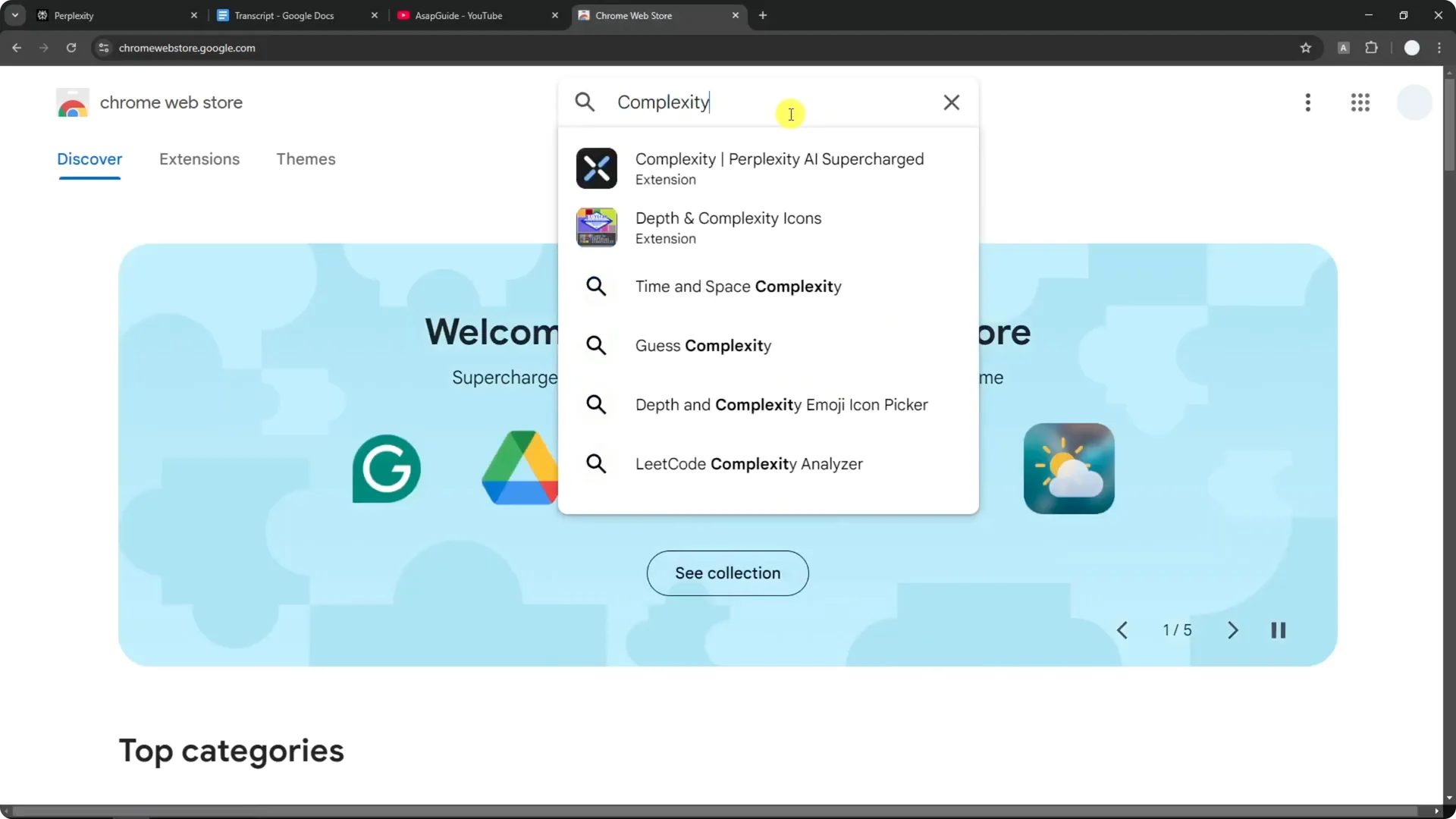
Step 2: After installation, open its dashboard from the welcome page or via the extension menu.
Step 3: Find the module named Prevent file creation on page and enable it.
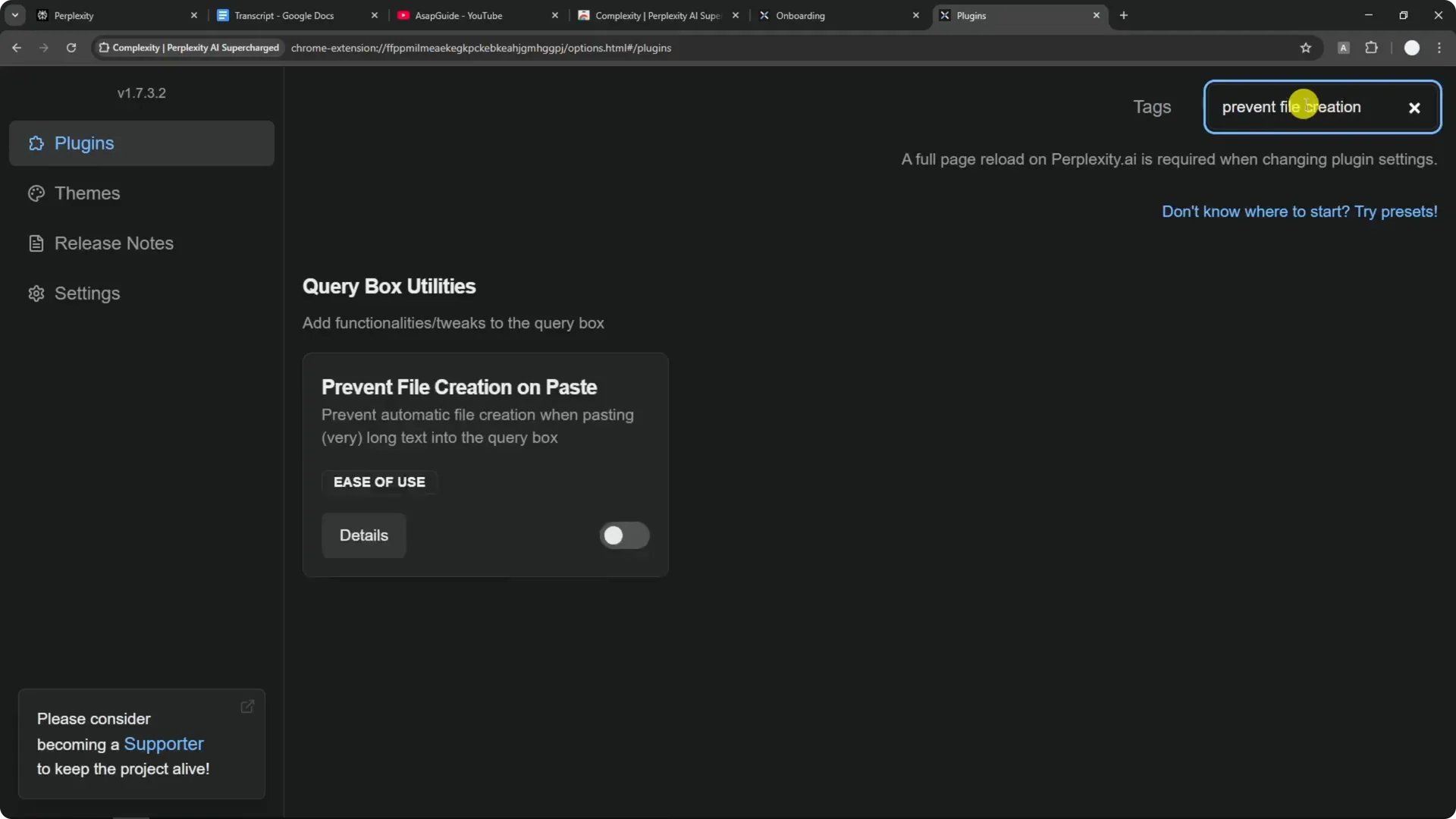
Step 4: Go back to Perplexity and refresh the page. You may notice a slight color theme change from the extension.
Step 5: Test by pasting your long text again. In my case, it still created paste.txt, even though this module used to work.
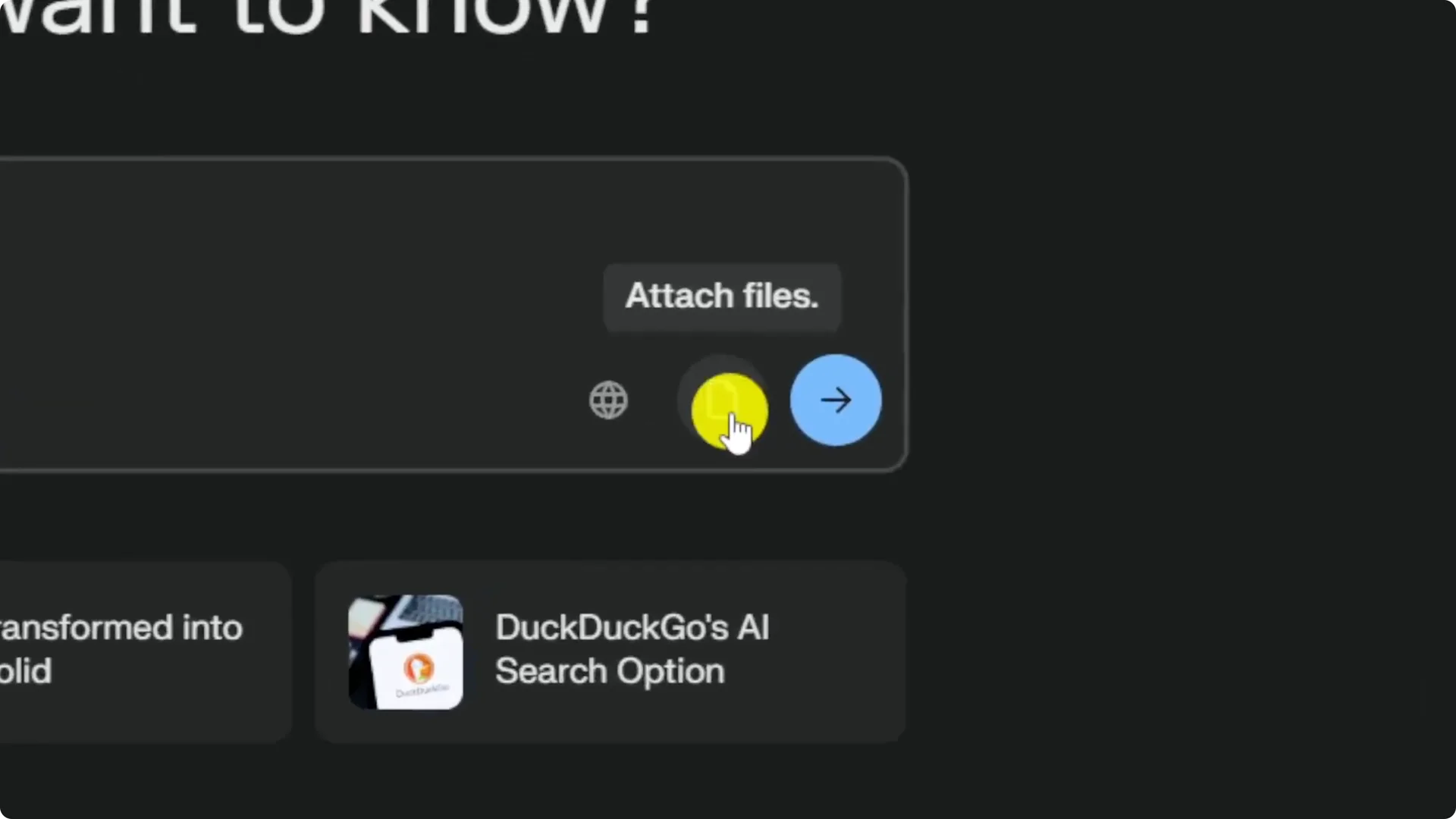
Step 6: This is common because Perplexity UI changes can break modules until the developer updates the code. If it works for you, great, but if not, use the next method.
Read More: Creating Art For Book Covers Midjourney
Perplexity Paste.txt Prevention without extensions
The second method does not need any extra tools. It avoids the paste.txt behavior by editing the existing prompt instead of pasting into a blank field. This has been far more reliable for me.
Step 1: Start a new thread and send a short prompt first, even a simple sentence is fine.
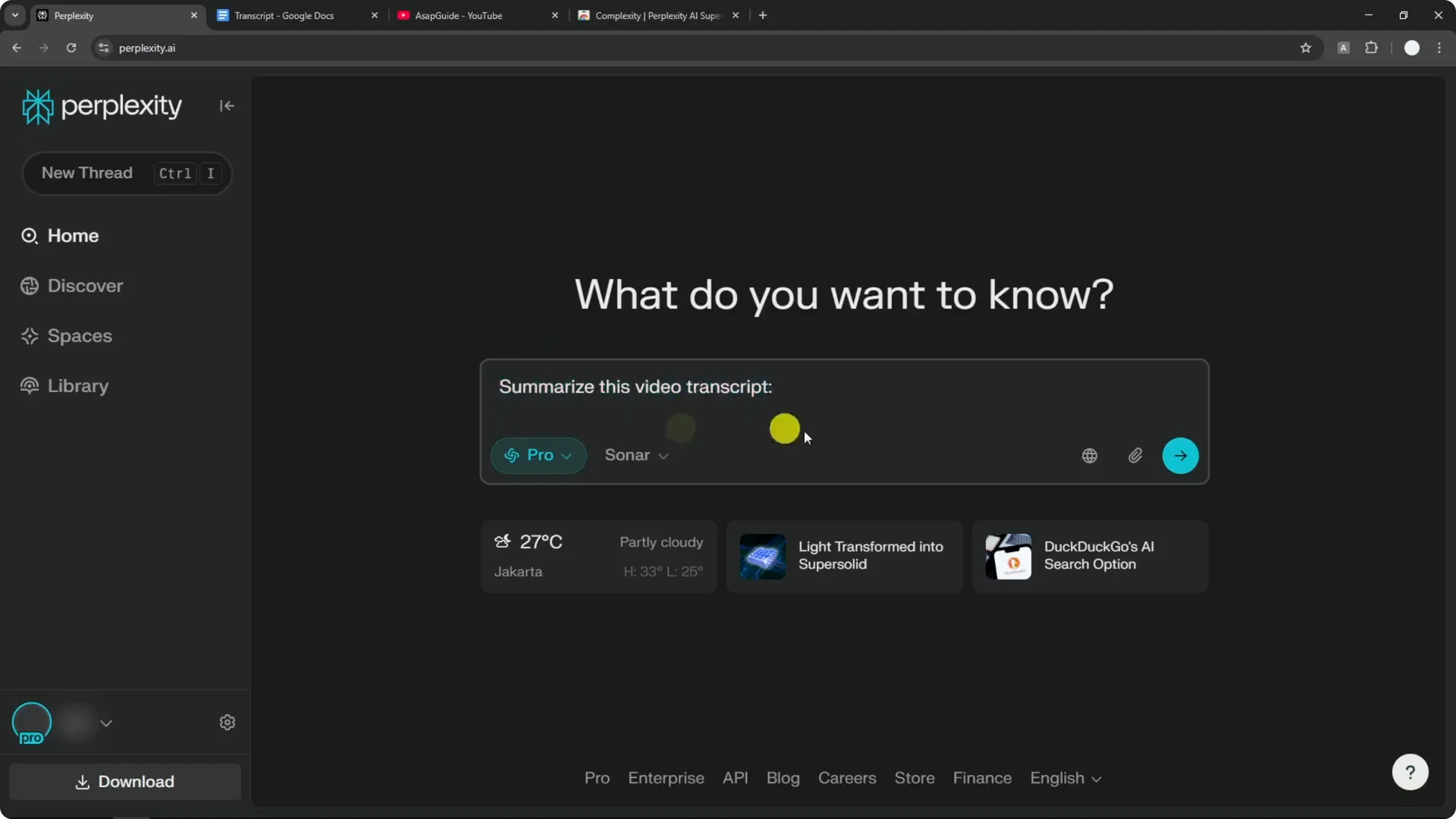
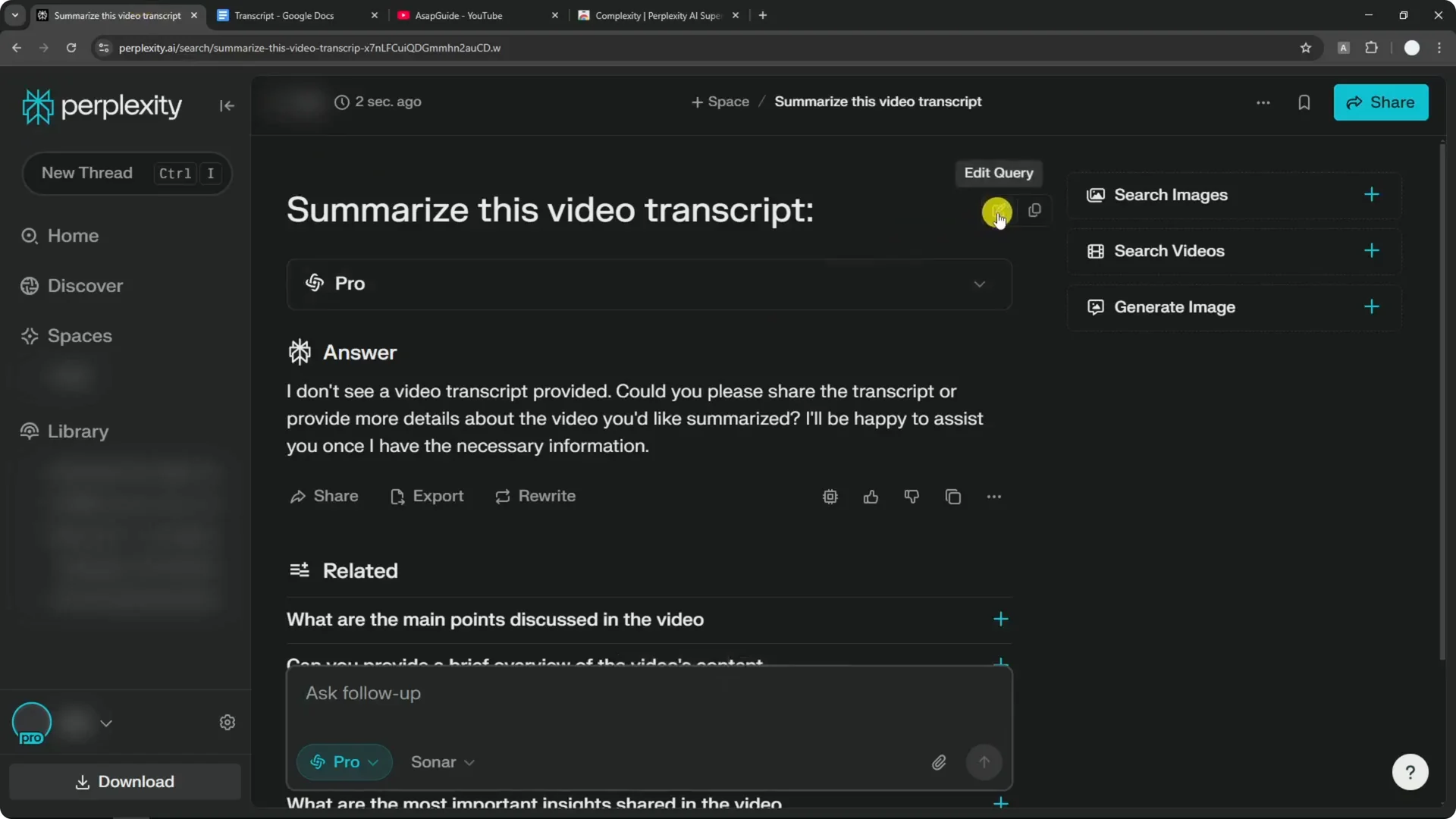
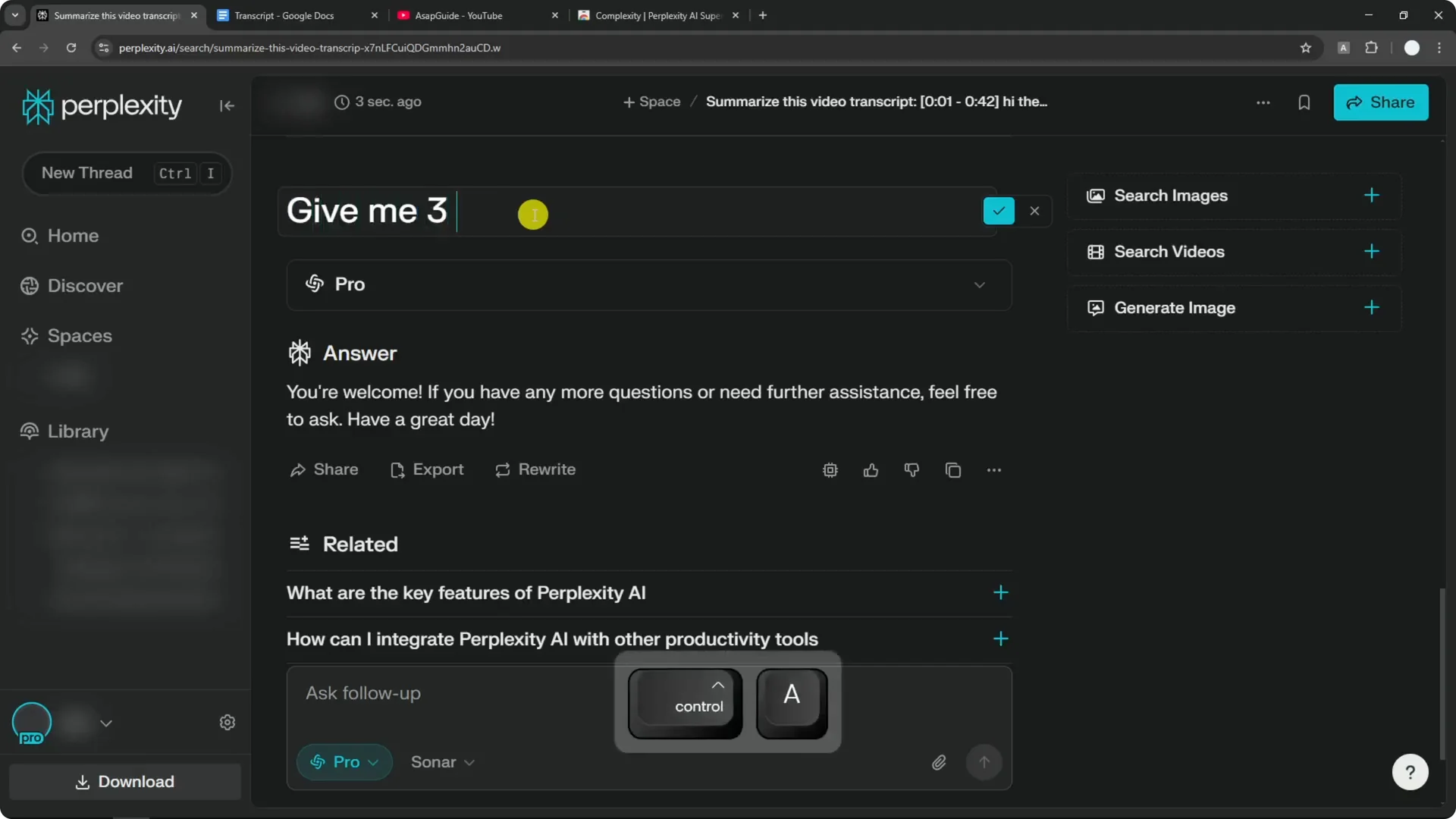
Step 2: Click Edit query.
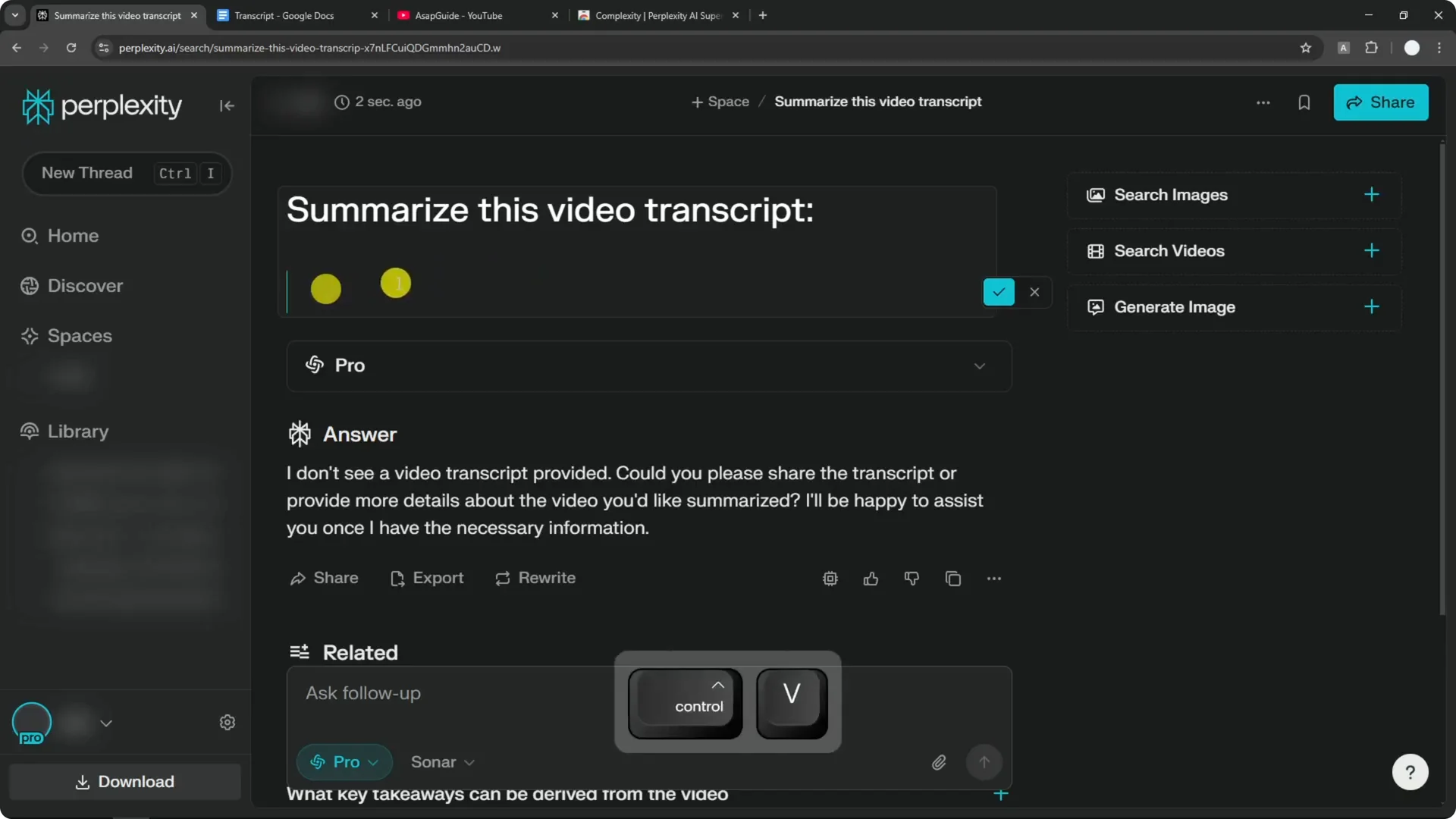
Step 3: Add a new line, then press Ctrl+V to paste your full text. You will see all the text inside the prompt area, not as a separate file.
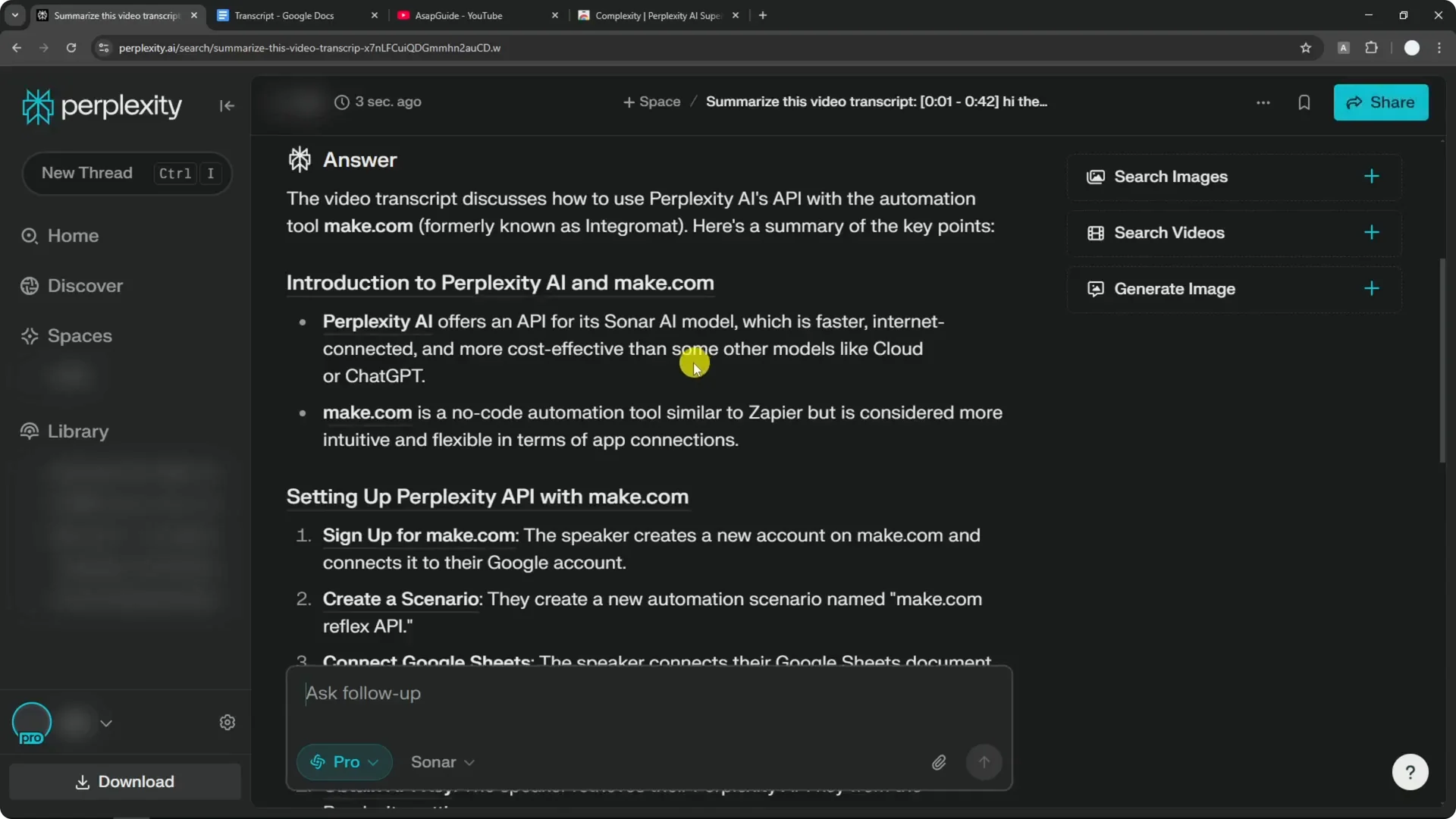
Step 4: Submit the prompt. Perplexity sends the entire text and does not create paste.txt, and you can still edit the prompt later.
Step 5: For follow-ups, do not paste into a blank compose box. Send a short message first, then click Edit query, paste the long content again, and submit.
Read More: Hide Bulk Download In Midjourney
Reliability and workflow tips
This edit-first flow lets you keep everything in-line inside the prompt. You can adjust, shorten, or correct the text without dealing with an auto-generated file. It is simple and consistently avoids the paste.txt behavior.
If you need to extract specific items like three key points, add that instruction to your edited prompt before submitting. Keep your instruction clear, then paste the full text below it. Perplexity will answer based on the combined input without creating a separate file.
Read More: Hide Midjourney Images On Your Profile
Final Thoughts
If the Complexity module works on your setup, it is a quick fix. If it fails due to interface changes, the edit-first method is straightforward and dependable. Use the second approach to keep long text inside your prompt and prevent Perplexity from auto-creating paste.txt.
