You probably already know that if you open one of your images in Midjourney and go to Animate image, you can click Auto to automatically generate a video or Animate manually to add a prompt. You can now create looped videos too. Here are tips to help you create better AI videos using Midjourney Motion.
Midjourney Motion Video Tips: Loops and End Frames
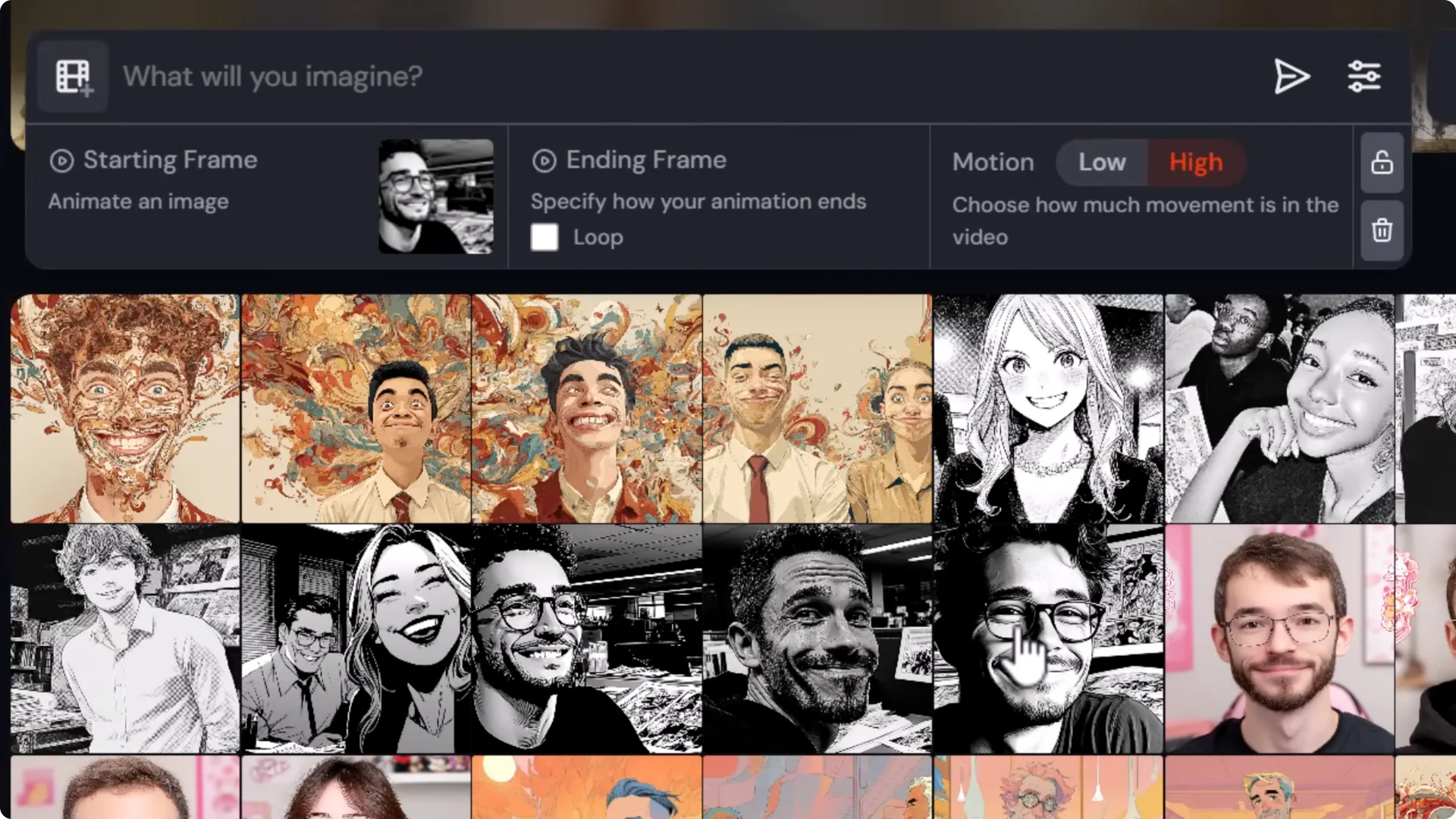
Loop your videos:
- Open an image, choose Animate image.
- Use Auto with Low motion or High motion and toggle Loop.
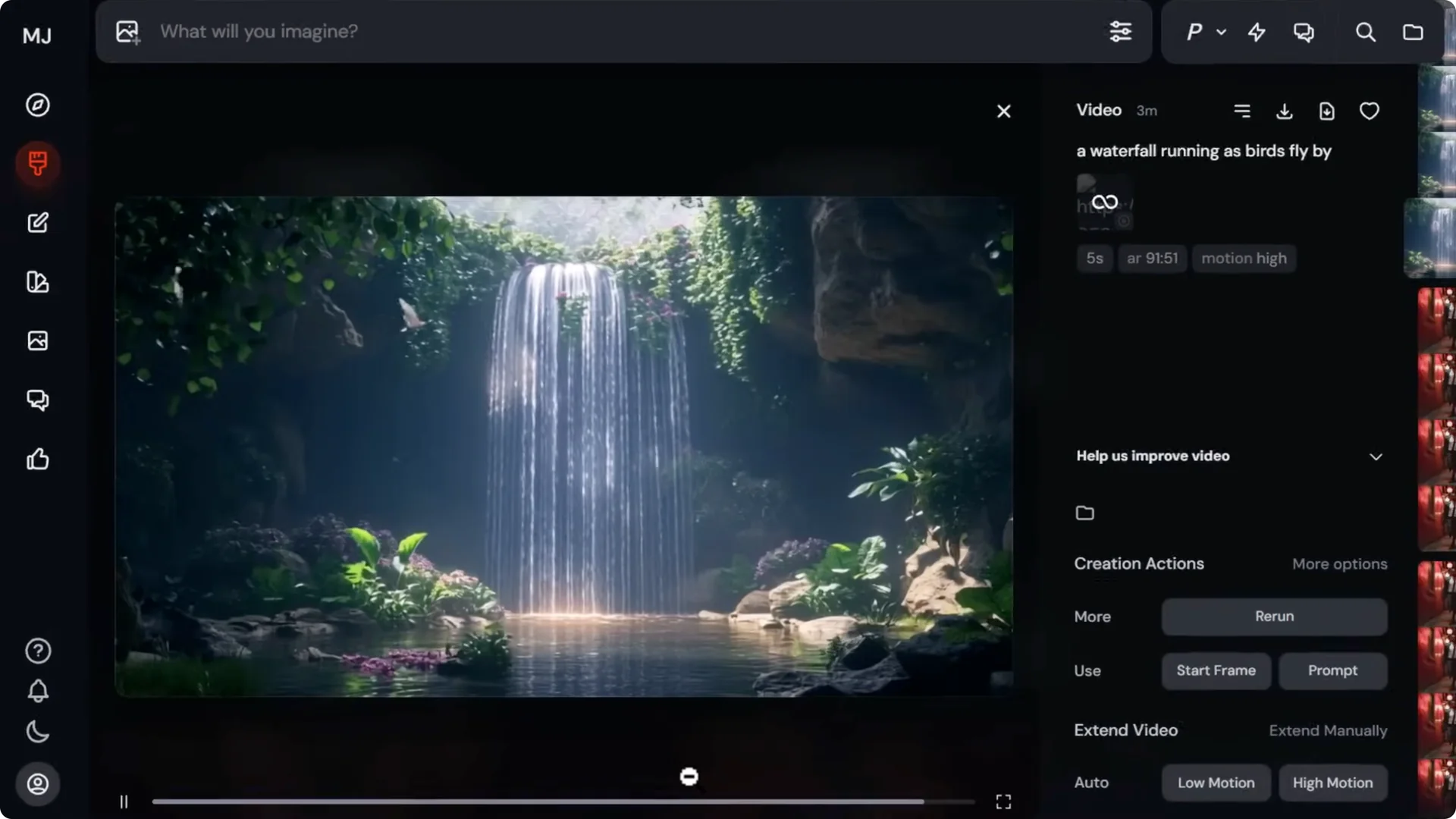
- Or choose Animate manually, write your prompt, and toggle Loop in settings.
- You can also add the parameter –loop.
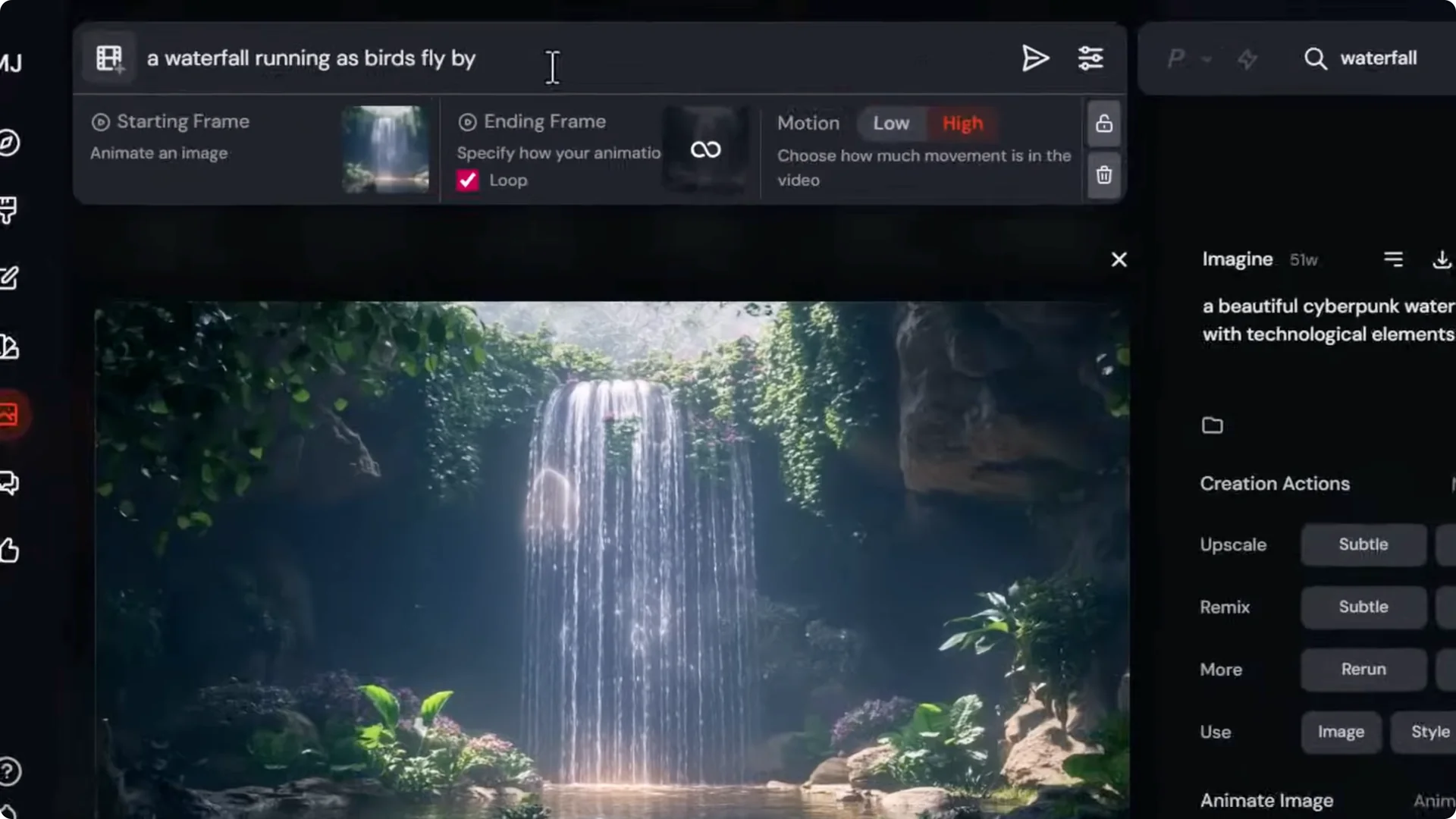
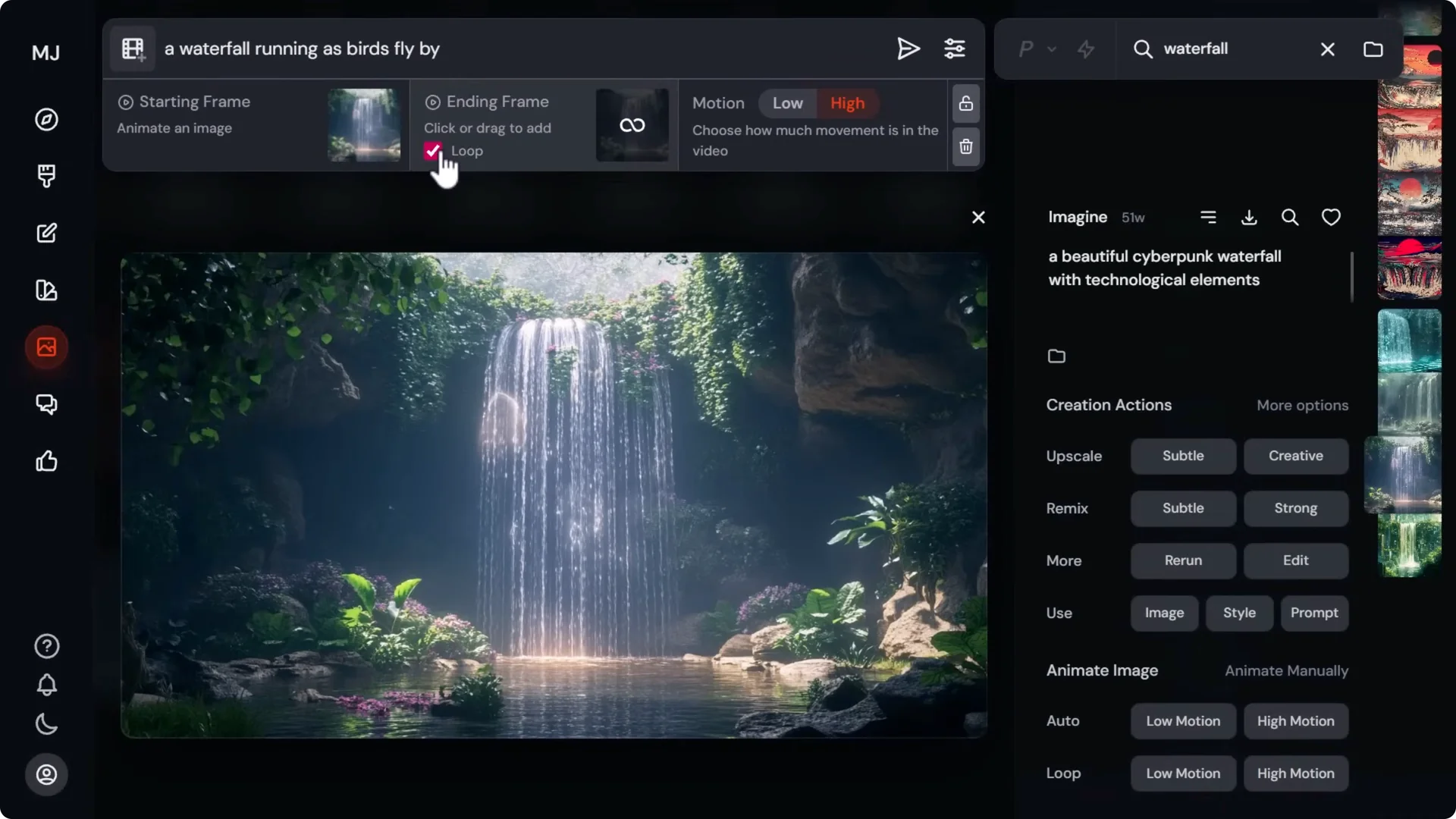
Add an end frame:
- Drag your first image into Start frame.
- Drag a similar image into End frame.
- Write a prompt, set motion, and submit to go from start to end.
Midjourney Motion Video Tips: Aspect Ratio and Editing
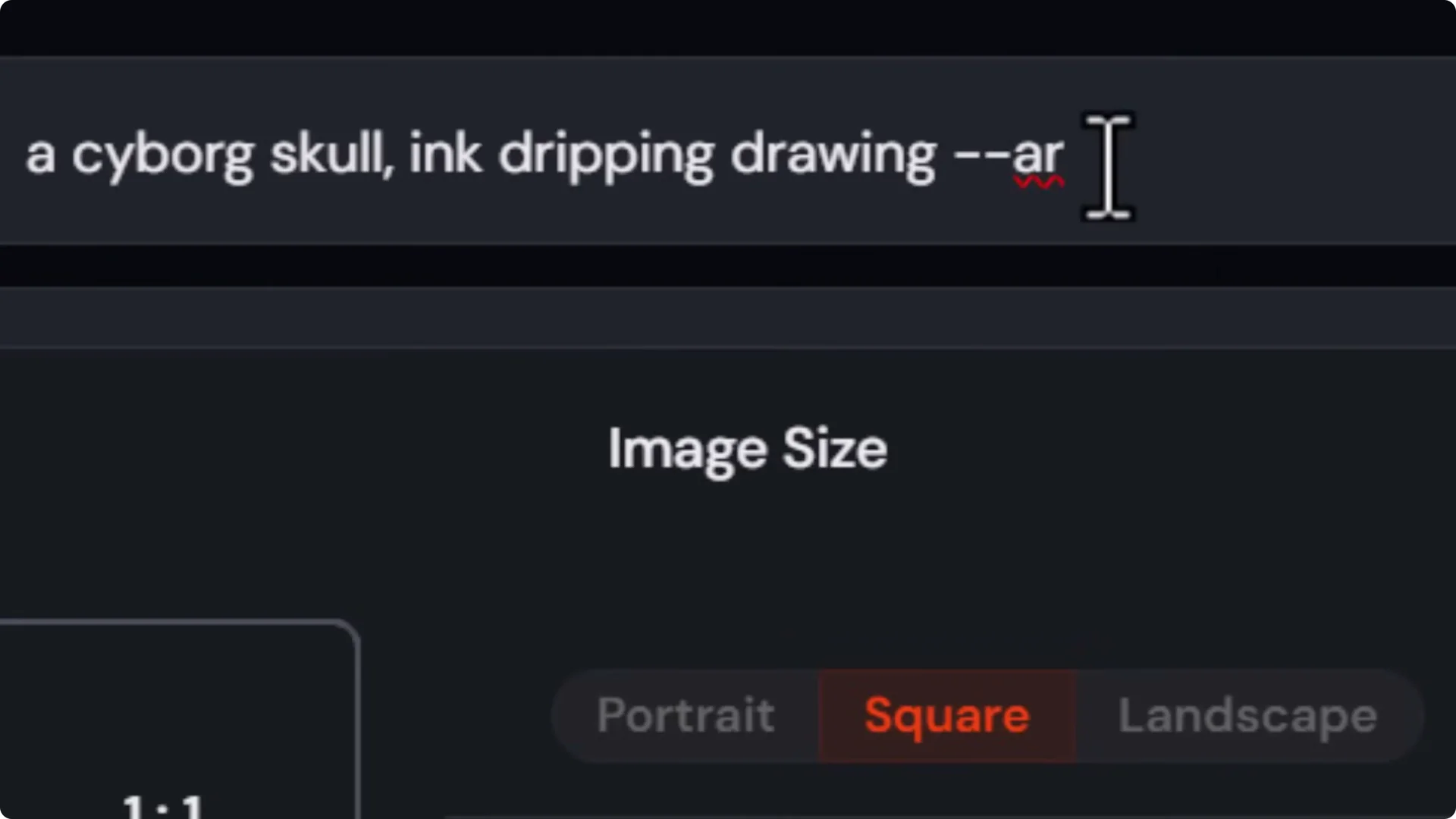
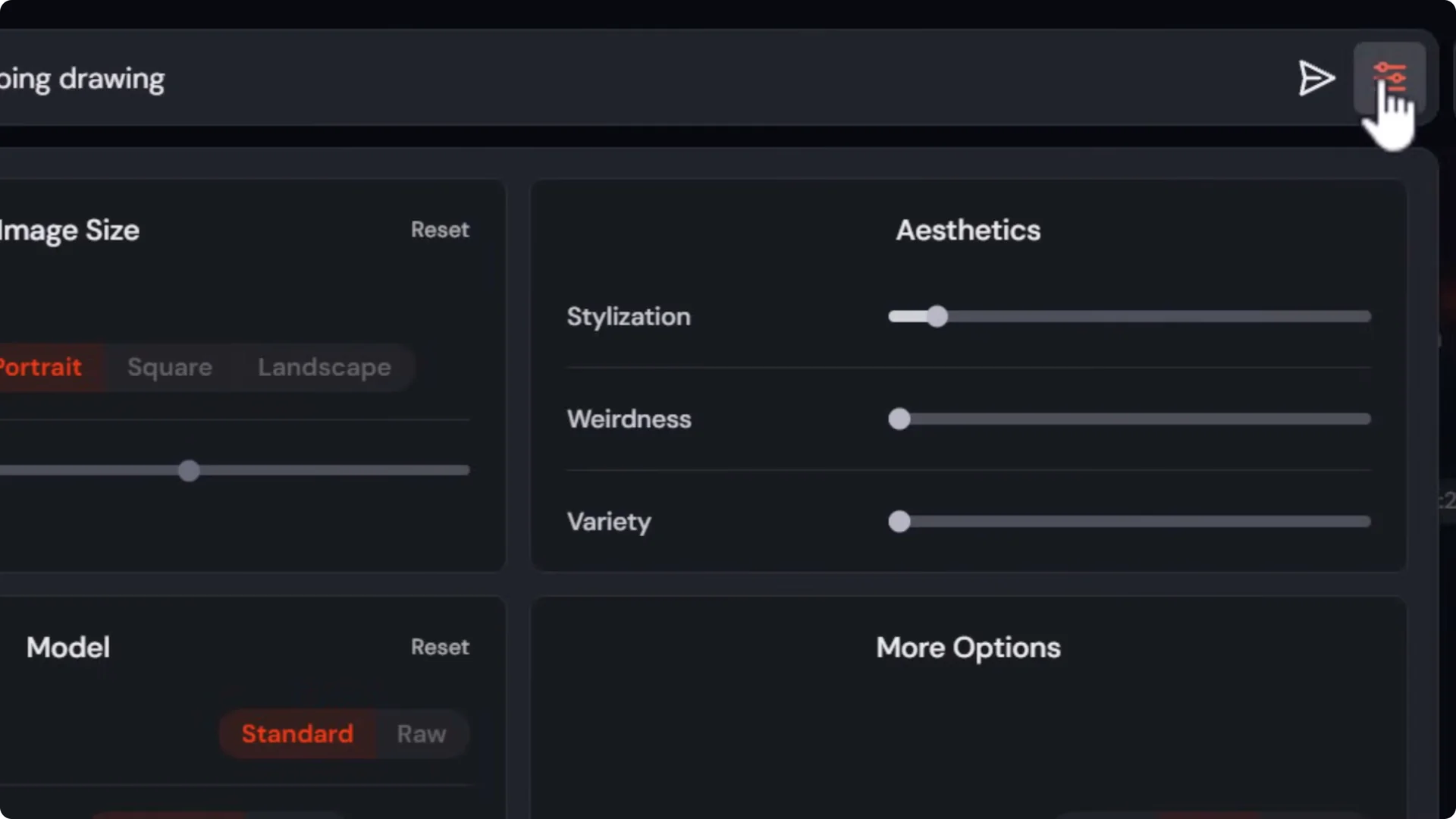
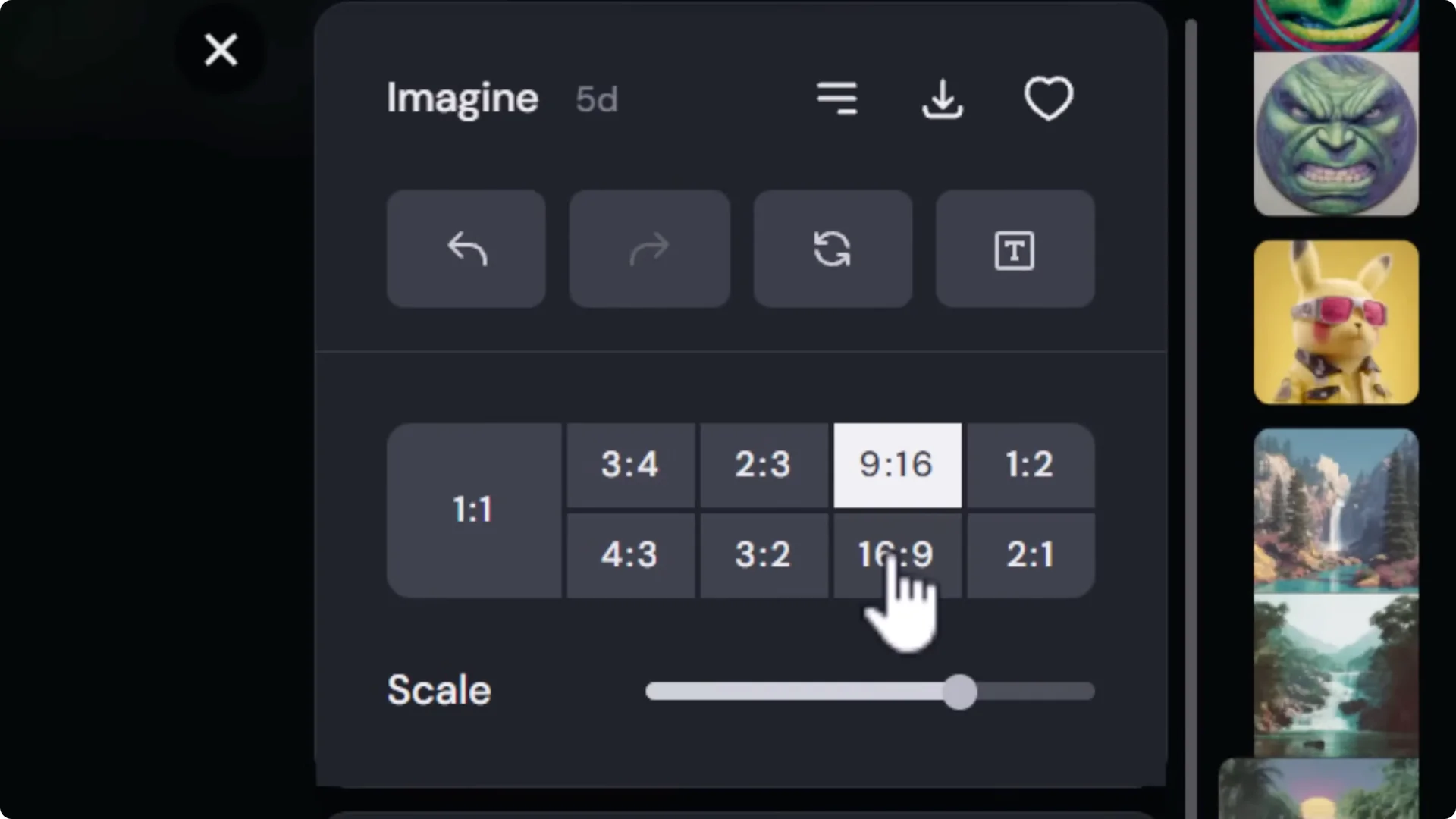
Set the aspect ratio before converting to video:
- Open Prompt settings, go to Image size, and set the aspect ratio with the slider.
- Or add the parameter d- AR followed by the ratio, for example 16:9.
- Aspect ratio may adjust slightly for Midjourney Motion compatibility.
Change aspect ratio in the editor:
- Open an existing image, click Edit.
- Switch to 9:16 for reels/shorts or 16:9 for long form.
- Reposition your subject and regenerate the background if needed.
- Submit the edit, choose the best result, then animate.
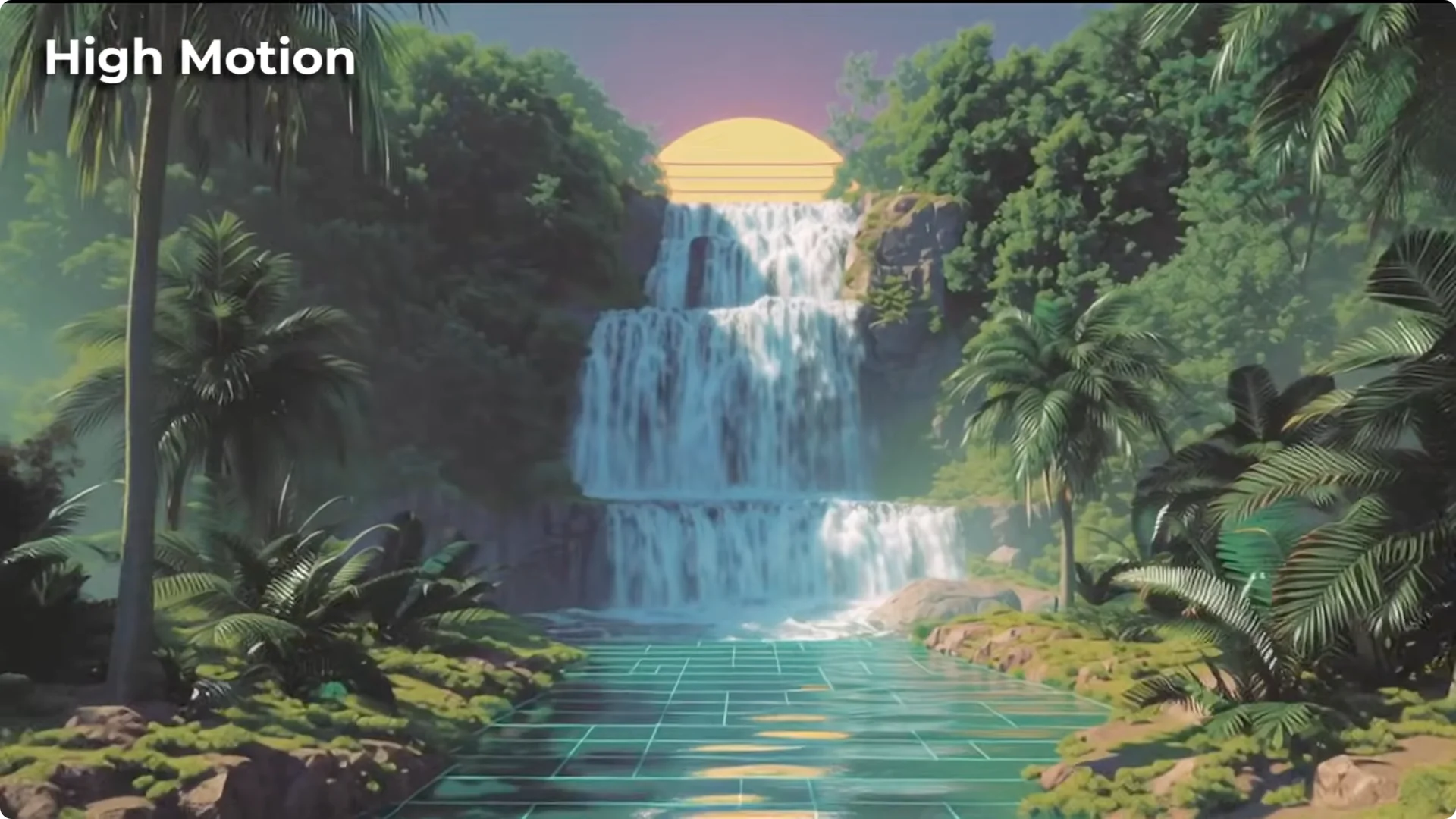
Low motion vs High motion:
- Low motion introduces subtle movement.
- High motion adds much more movement and camera action.
Midjourney Motion Video Tips: Prompting for Motion and Camera Moves
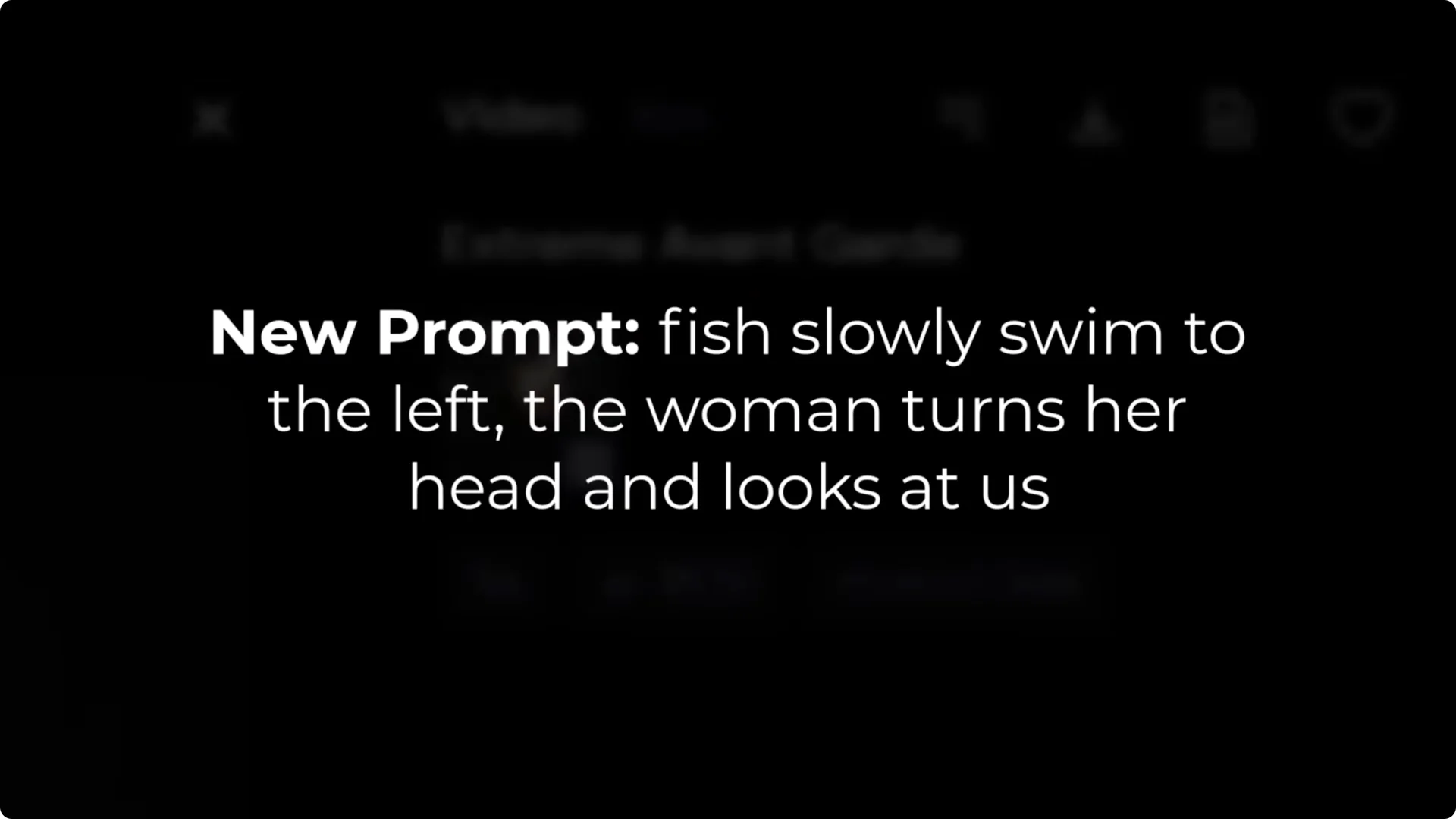
Prompt for movement:
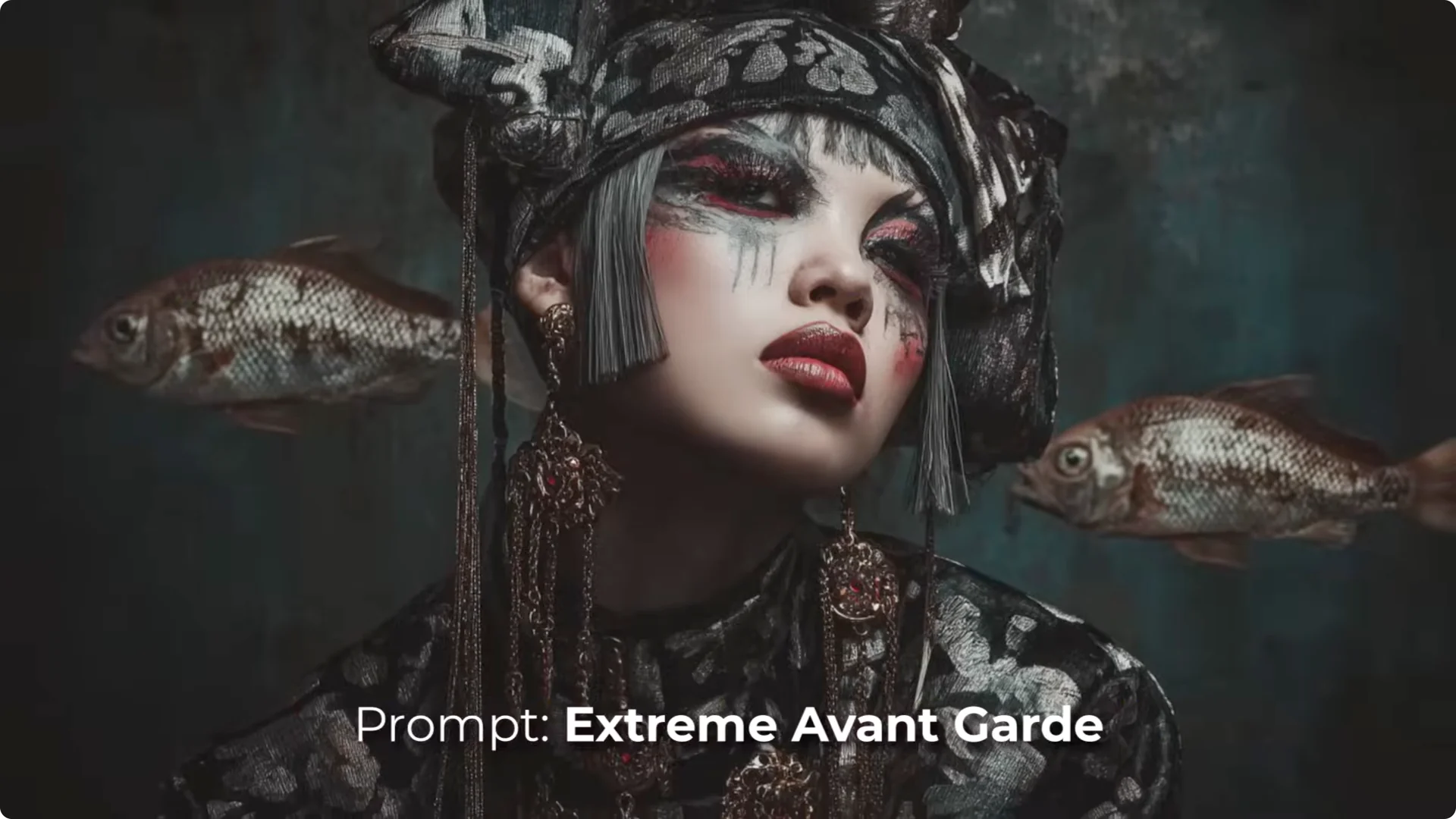
- A prompt like extreme vanguard may lead to odd motion or minimal action.
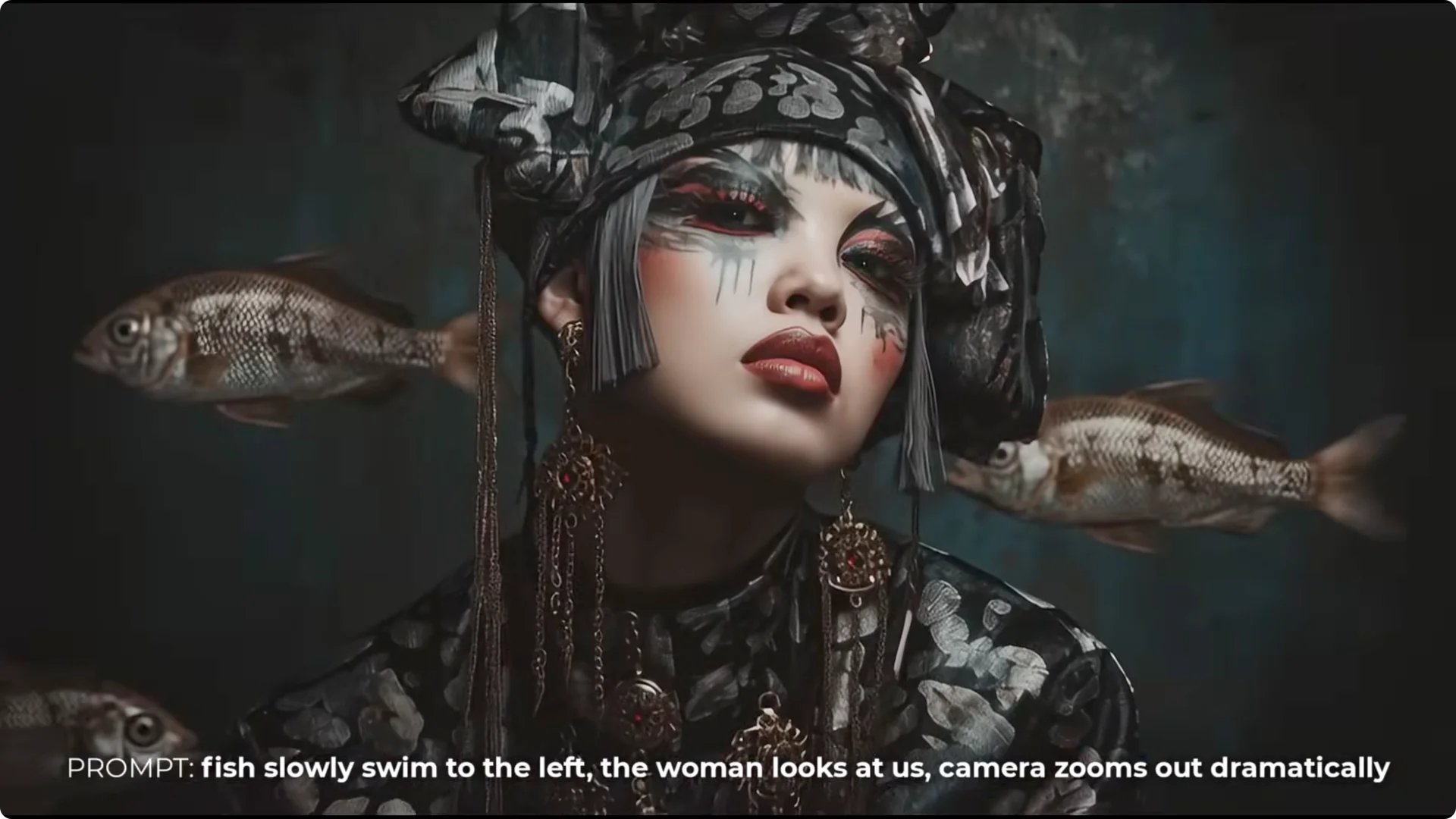
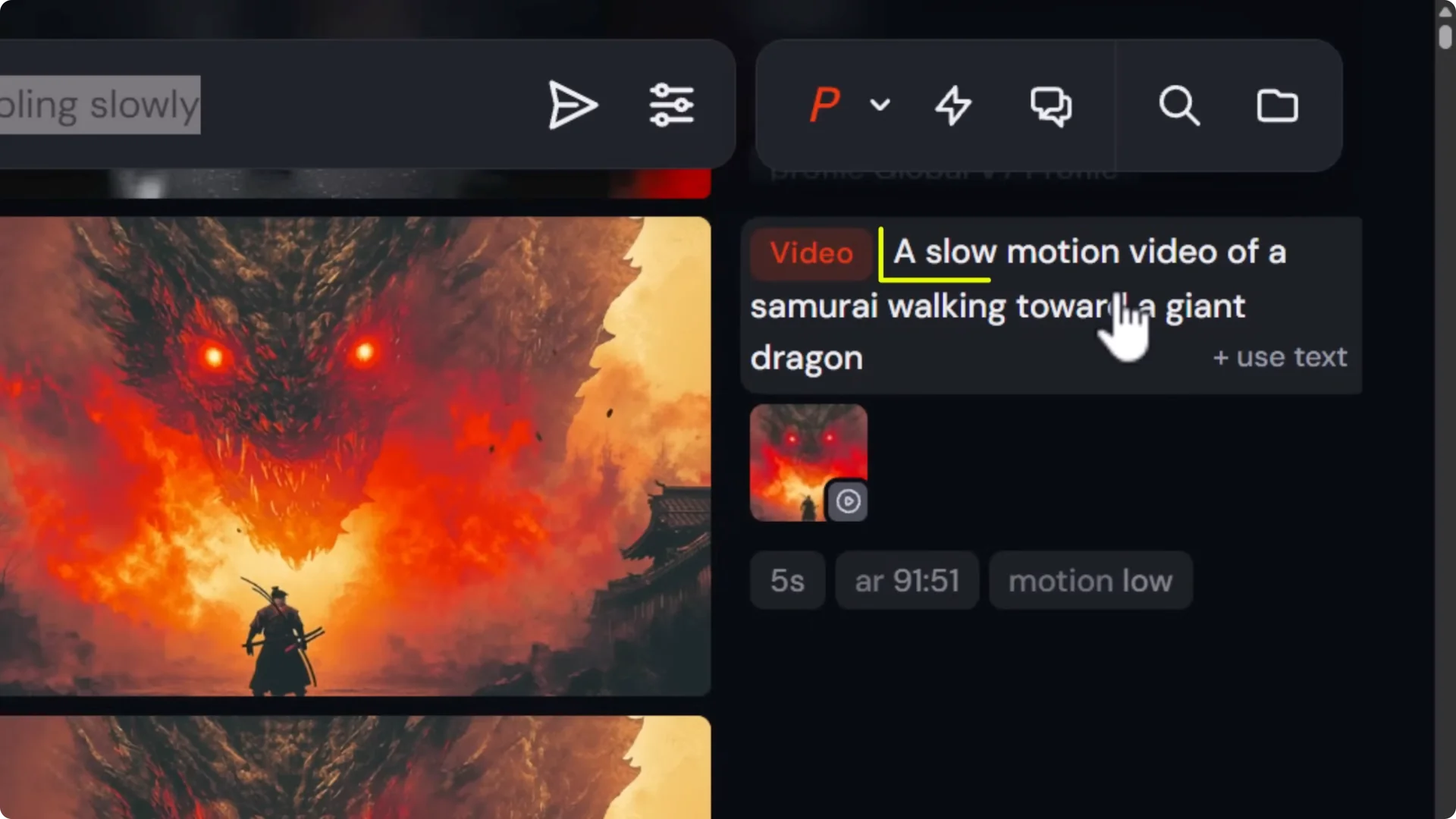
- Add movement cues, for example: fish slowly swim to the left, the woman turns her head and looks at us.
- Use motion low for subtle movement.
Add camera movement:
- Start the prompt with camera moves if needed: camera zooms out dramatically, zoom in, tilt up to reveal.
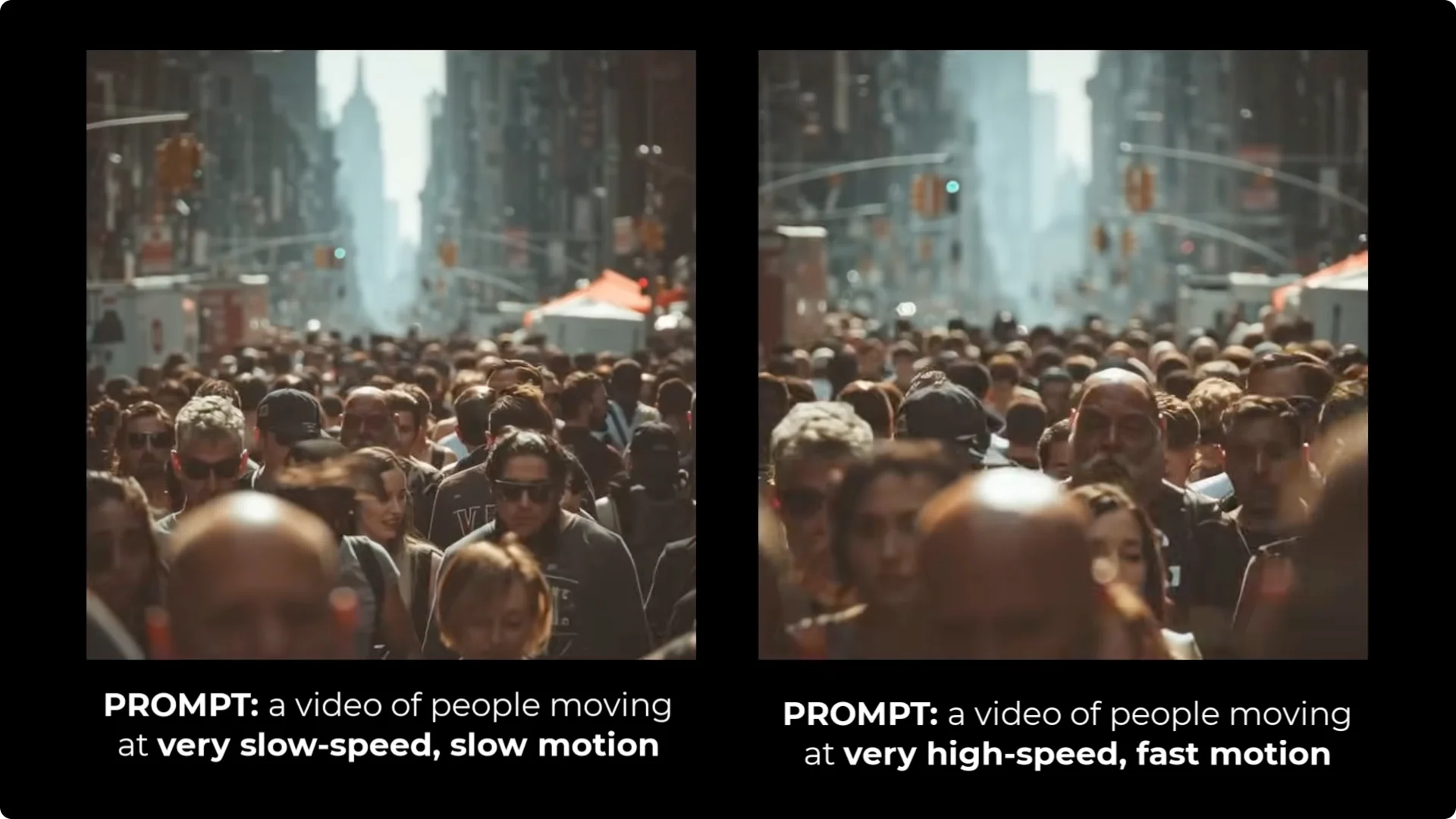
- Describe the speed: very slow, slow, very high speed, fast motion.
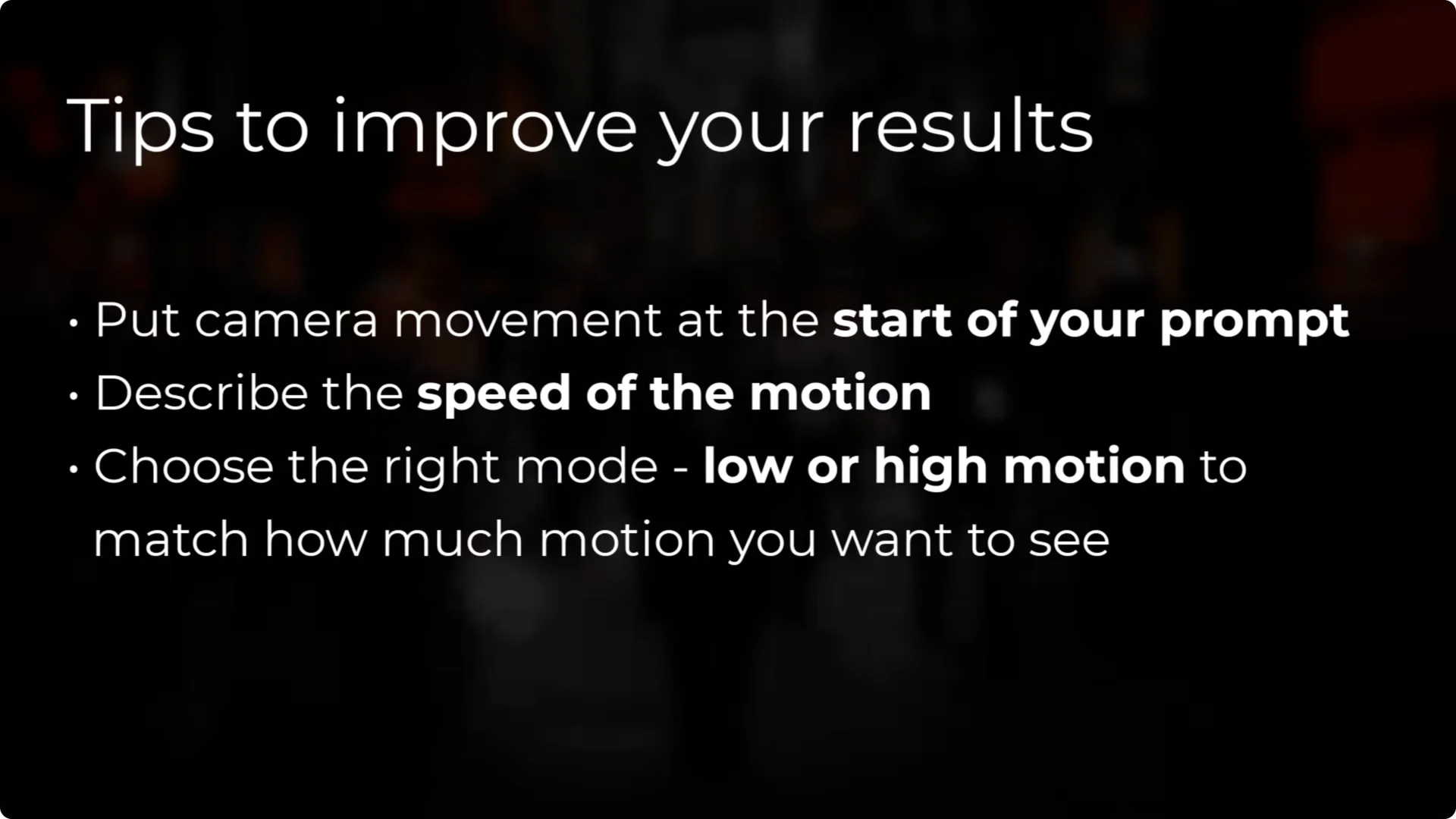
- Choose motion low for small, subtle motion; motion high for bigger camera moves and action.
- Be specific about where the camera should zoom, pan, or tilt so it knows where to start and stop.
Midjourney Motion Video Tips: Speed Control and Iteration
Speeding up is easier than slowing down:
- Slowing videos down via prompt can be hit-and-miss.
- Fast motion is more reliable, especially when you describe speed in the prompt.
- Compare results by running versions like very slow speed slow motion vs very high speed fast motion.
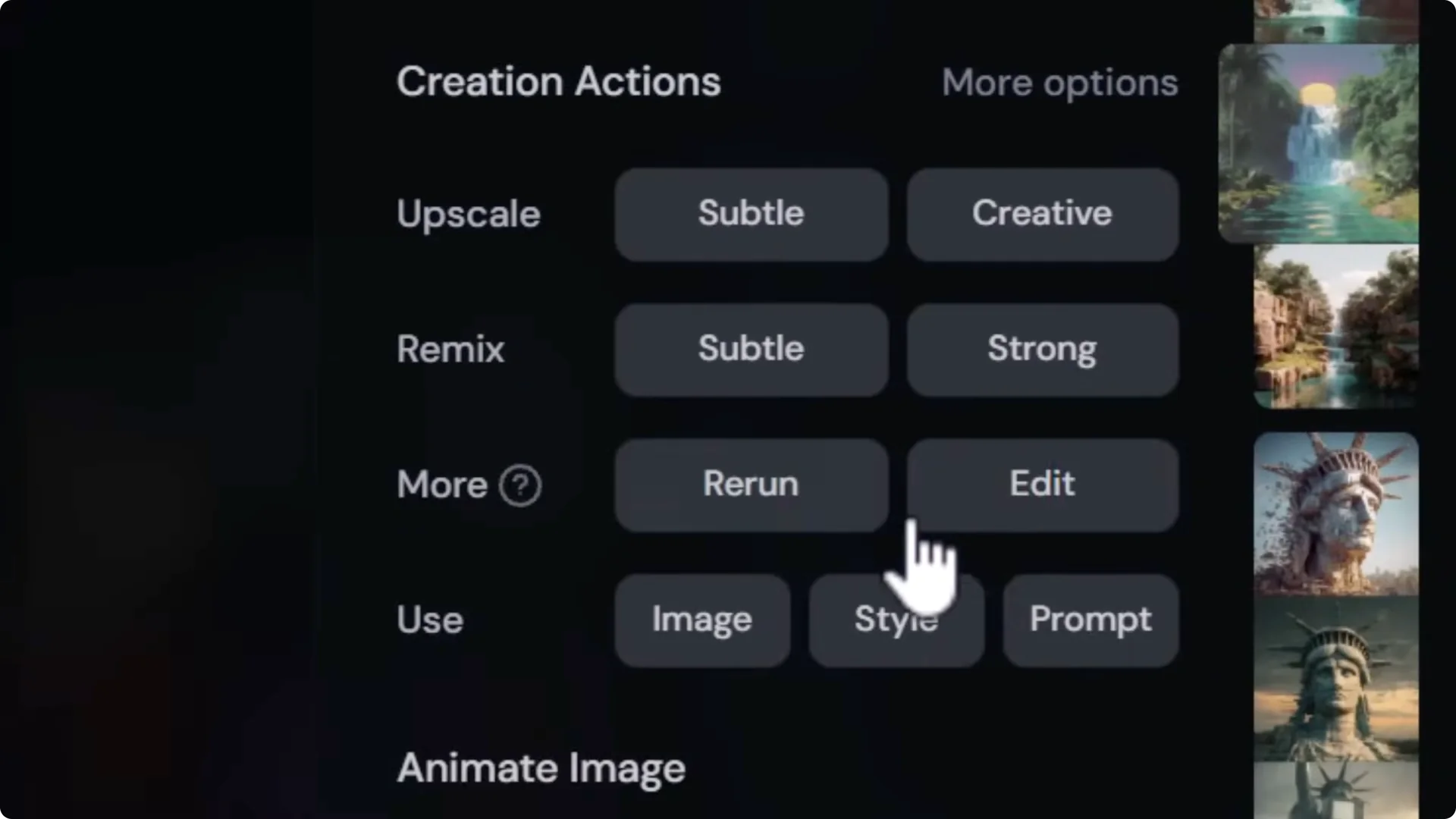
Rerun and adjust:
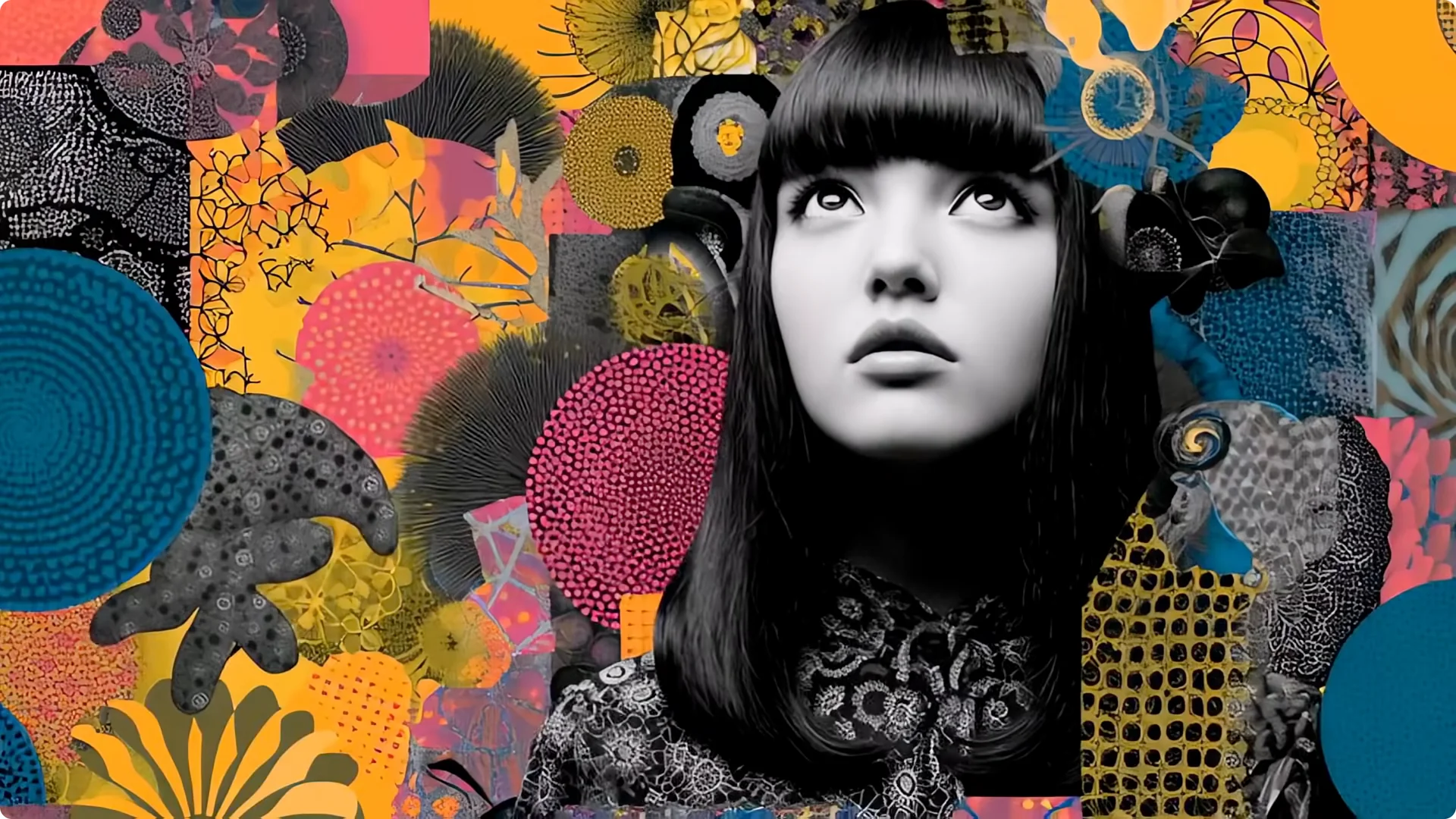
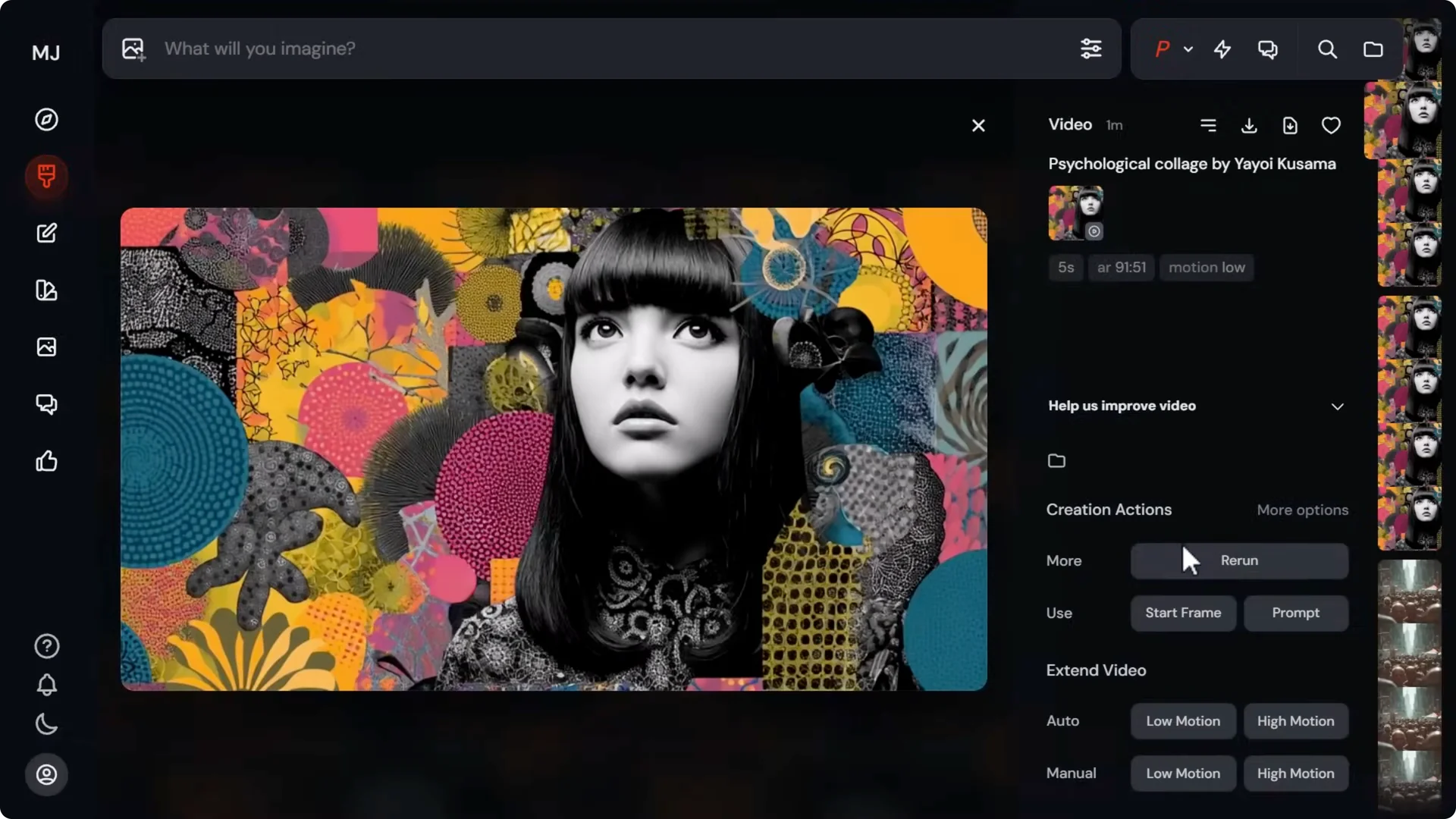
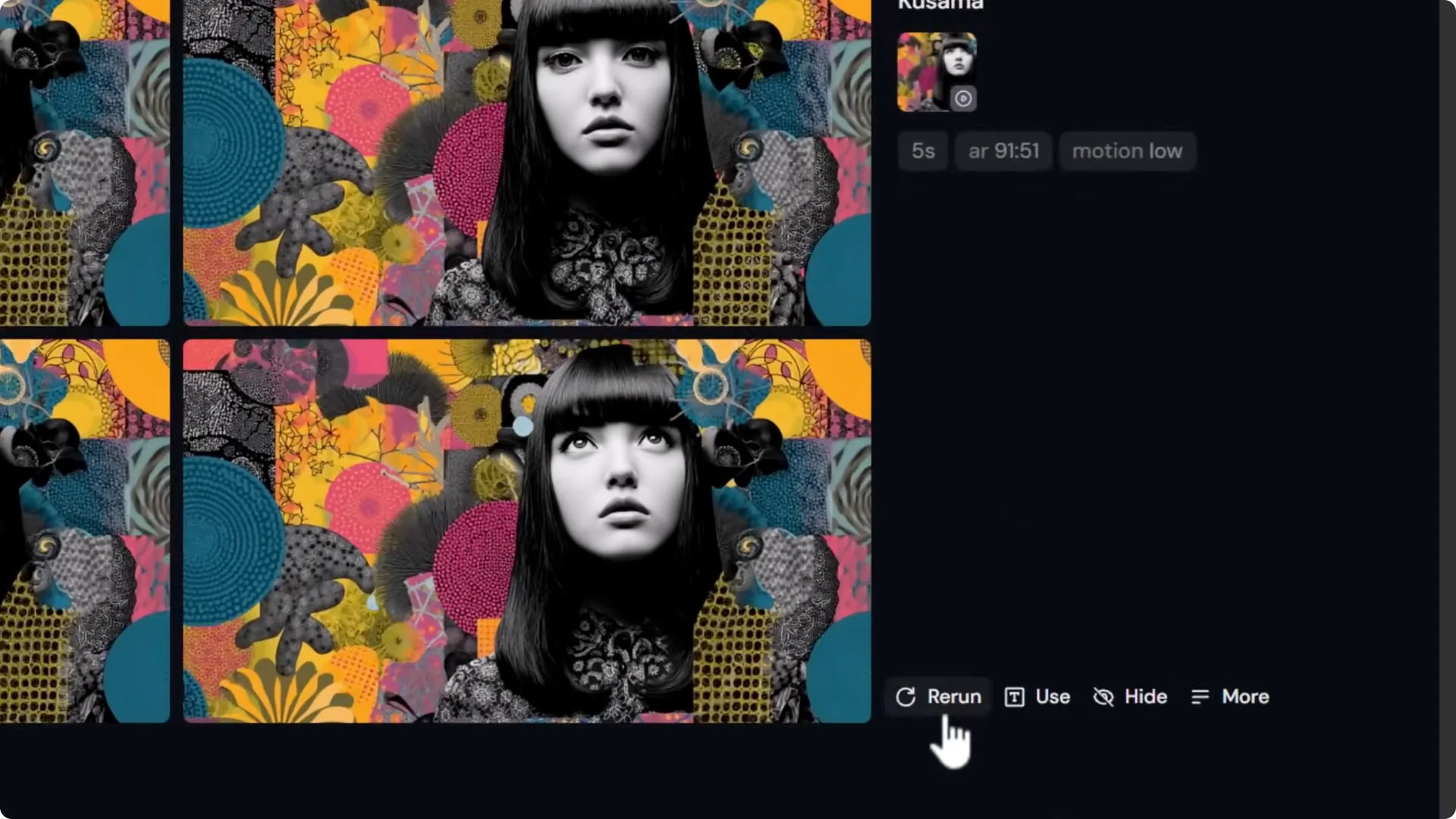
- Use Rerun to generate another version from the same setup.
- Open a generated video and Use start frame to keep the same start frame, then write a new prompt.
- You can also click Use next to a video to copy the prompt and start frame, switch between Low or High, and adjust settings.
Midjourney Motion Video Tips: Save Credits and Keep Work Private
Relax mode for videos:
- In Options, set Speed to Relax to save on time and credits.
- Relax for video currently works with Pro or Mega plans.
- You can toggle Relax mode in More options and it will carry over.
Stealth and privacy:
- With Pro or Mega, turn on Stealth to make generations private.
- In Organize, filter by Media type > Video to see your videos.
- Right-click a video to Hide it from your profile.
- Open a video and use the three-line menu to Unpublish it so others can’t see it.
Midjourney Motion Video Tips: Extend and Sequence Videos
Extend short videos:
- Open a video and choose Extend video.
- Use Auto to add 4 seconds or Manual to add 4 seconds with a prompt.
- You can extend up to four times, for a maximum of 21 seconds.
- Build sequences: for example, after the first extension, prompt the woman puts her hands on her face, then extend again with the next action.
Midjourney Motion Video Tips: Upscale to 1080p or 4K
Export and upscale workflow:
- Download Social for a quick upsize or download the RAW file at native resolution.
- Drag and drop into Topaz Video AI, click Start editing, and choose an upscale target like 1080p or 4K.
- Optionally, add more frames for smoother motion.
Choosing profiles:
- Use basic profiles to keep detail similar and clean.
- Iris is a solid choice for simple, clean upscaling without adding extra detail.
- Starlite Mini or Starlite are generative and can add sharper, more detailed frames, great for 4K.
Astra for maximum detail:
- Drag your clip into Astra to push detail further.
- Profiles:
– Precise keeps it close to the original.
– Creative subtle adds a bit more detail.
– Creative bold maxes out detail and is well suited for AI video.
Slow motion with frame interpolation:
- In Astra or Topaz Video AI, go to Adjust frame rate.
- Set to a higher frame rate or choose Slow motion at 2x, 4x, up to 8x.
- Render to get slower, smoother motion with improved quality after upscale.
Midjourney Motion Video Tips: Animate External Images and Prepare Start Frames
Animate your own images:
- Drag a non-Midjourney image into Start frame.
- Write a prompt, set motion, and submit.
- Try both motion high and motion low to compare movement quality.
Use the editor for better start frames:
- Open an image, click Edit, then Open in full edit tab.
- Change aspect ratio, refine the background, and adjust layout for better motion results.
- Upscale in the gallery, then animate the refined image.
Midjourney Motion Video Tips: Review With Scrub Tools
Scrub multiple results:
- Hover over a grid of videos and hold Control to scrub.
- Mouse at far left treats it as the start; far right as the end.
- Compare subtle differences across options, framing, or timing.
Track extensions:
- Open an extended video and look for segmented bars on the timeline.
- Each segment marks an extension block so you can jump to extension 2, 3, or 4 and evaluate changes.
Midjourney Motion Video Tips: Raw Mode and Parameters
Use Raw for stronger prompt influence:
- Example: red lights flicker, the woman turns and smiles might not follow the prompt unless Raw is enabled.
- Switch to Raw and resubmit to prioritize your prompt over system additions.
- Be more descriptive in Raw: background lights turn to black and switch off, scene goes dark frequently, the woman smiles as the lights come back on.
Know your video parameters:
- Manual often inserts parameters like d-motion low.
- Parameters in the prompt override panel settings.
- If you set motion high in the panel but d-motion low is in the prompt, it will stay low.
- Adjust parameters directly in the prompt:
– d-motion high or d-motion low
– d- raw
- After clicking Use, scroll parameter buttons to replace or add them without retyping.
Midjourney Motion Video Tips: Consistency Across Shots
Keep characters and style consistent:
- Drag the original image as an Omni reference to lock in the subject and some scene elements.
- Increase Omni strength if you want stronger character and layout consistency.
- Add the same image as a Style reference to maintain the overall look and feel.
- Write the next prompt with scene details:
– Example: close-up shot of a hitman dressed in a suit, dark alleyway with red bricks, dim lighting.
- If Omni strength is too high, it may lock pose. Dial it back for new actions like sprinting toward us.
- Use style references, personalization, and mood boards to build a coherent sequence.
Midjourney Motion Video Tips: Edit and Polish in a Video Editor
Build bigger projects:
- Use tools like Camtasia, Adobe Premiere Pro, Canva, Adobe’s free editor, or CapCut.
- Place clips on a timeline, add sound, transitions, effects, and trim as needed.
Make videos look more real by dehancing:
- Add subtle film grain or noise to mask small issues and add texture.
- Download grain overlays from sites like pixels.com by searching for film grain or VHS overlay.
- Layer the grain clip over your video and set blend mode to Screen or Overlay for a subtle effect.
Midjourney Motion Video Tips: Create Videos in Discord
Animate in Discord:
- After upscaling an image, click Animate high motion or Animate low motion.
- With Remix mode on, change the prompt before submitting.
- Add parameters such as d- raw or d-loop if you want to experiment.
Use external images:
- Type /imagine, paste an image URL, and add -video with motion high or motion low.
- Add an end frame with d- end followed by another image URL.
- Include a prompt like zoom into the laptop to show only the logo.
Midjourney Motion Video Tips: Learn From the Community and Explore Other Tools
Community feed:
- Go to Explore, switch to Videos, and browse examples.
- Open results to see prompts and discover useful phrasing like iPhone 3G recording or long exposure panning effect.
Other AI video platforms:
- Feed your Midjourney images into tools like Cling, Runway, or all-in-one platforms such as Open Art AI’s video platform to try multiple models.
Final Thoughts
- Loop videos and use end frames to control transitions.
- Set aspect ratio early, and edit start frames for better results.
- Prompt clearly for motion and camera moves, and choose motion low or high based on the amount of action.
- Speed up reliably with fast motion phrasing; slow motion is best handled in post with frame interpolation.
- Save credits with Relax mode and keep work private with Stealth and Unpublish.
- Extend videos in 4-second blocks and chain prompts for sequences.
- Upscale to 1080p or 4K and consider Astra or generative profiles for sharper detail.
- Use Omni and Style references for consistency, and polish everything in a video editor with subtle film grain for a more natural finish.
