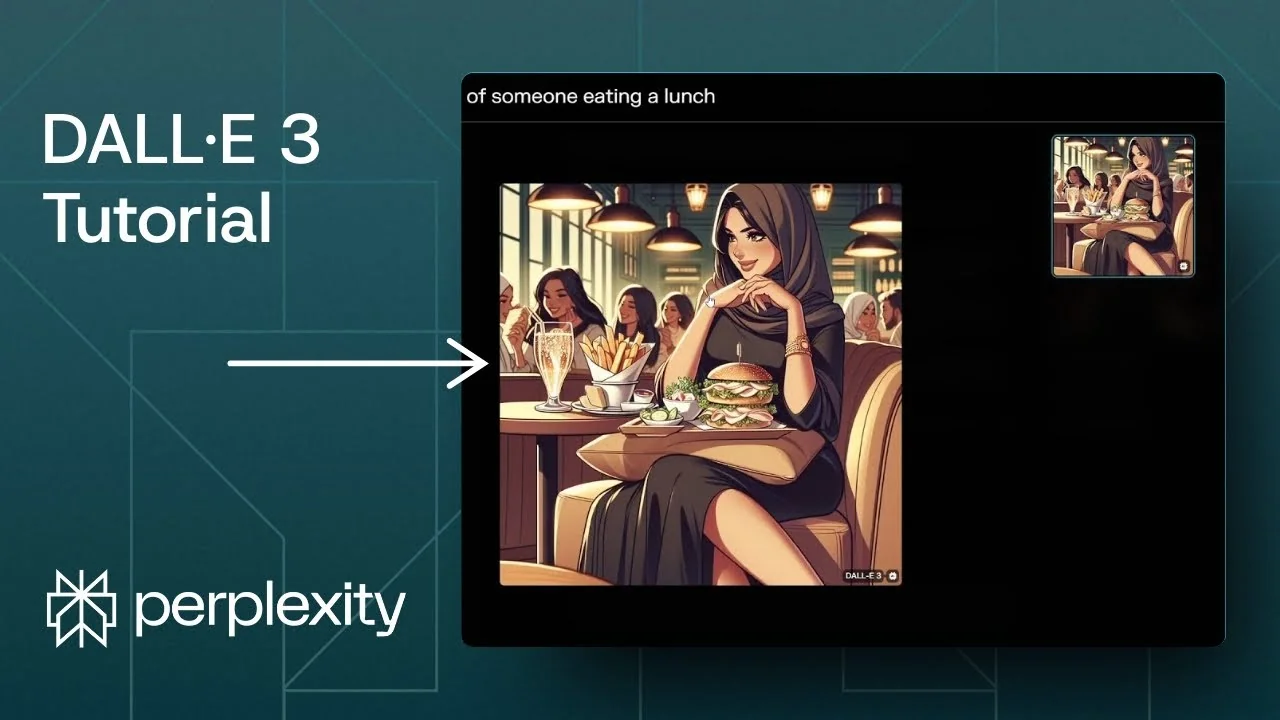
Perplexity is not just a research tool. This website lets you create AI images, and they have many AI models for generating images. One of them is DALL·E 3 from OpenAI.
If you want to generate an image using the DALL·E model in Perplexity, here is what you need to do. I will show how to set the model, prepare a clean thread, write a better prompt, and generate the image. If you also work with Midjourney, you might find it helpful to see how to pick the right settings in this guide: choose Midjourney image settings.
Set up Perplexity DALL·E 3 Image Generation
I want to make sure that I am using the DALL·E model in Perplexity. You can create a new thread and generate an image, but to be certain the correct model is used, set it first in settings.
Choose the image model
Step 1: Open Settings and go to the Account tab. Look for the Image generation model menu that might show Playground v3.
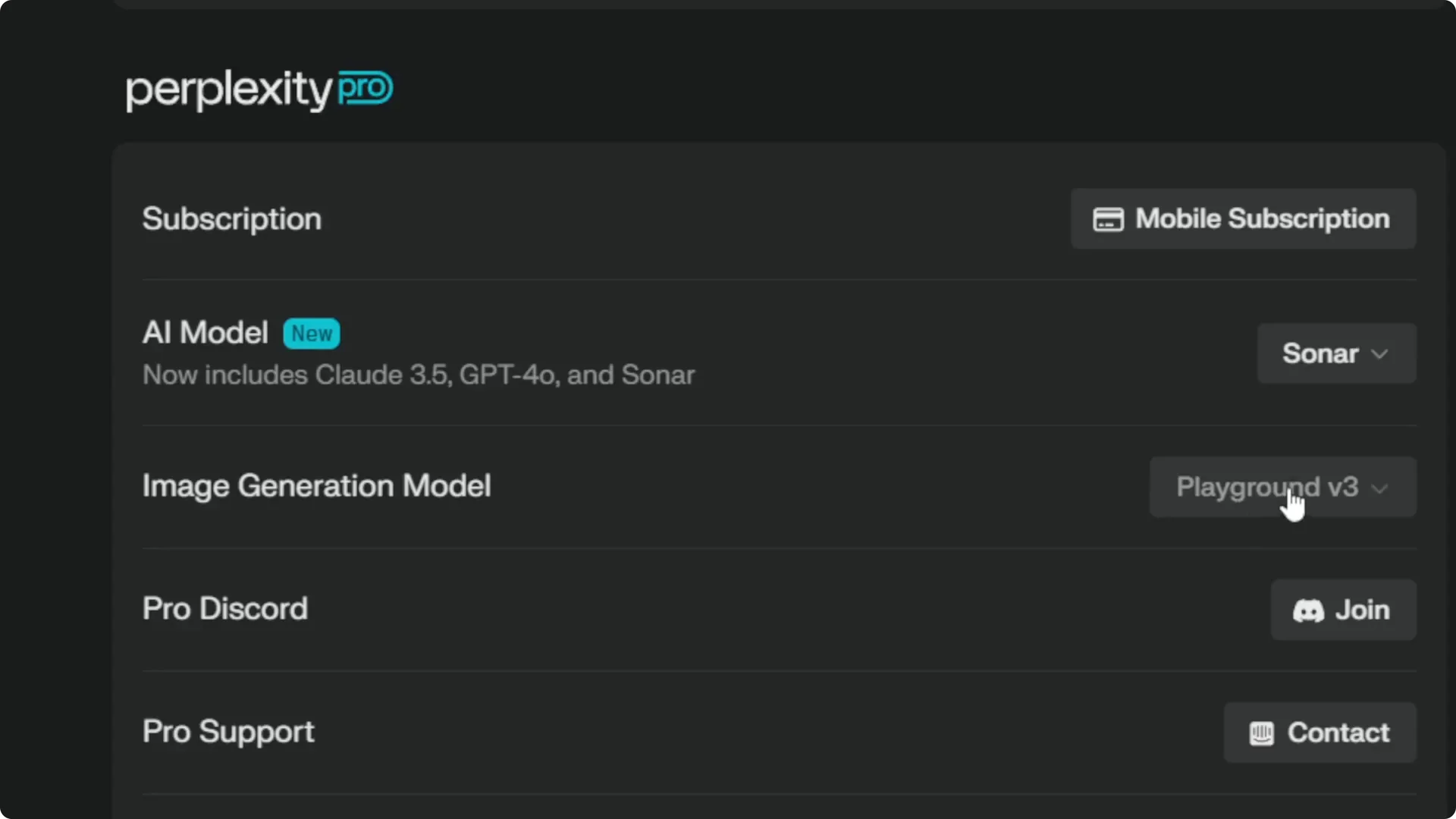
Step 2: Click it and review the options. You will see DALL·E 3 and Flux 1 among the choices.
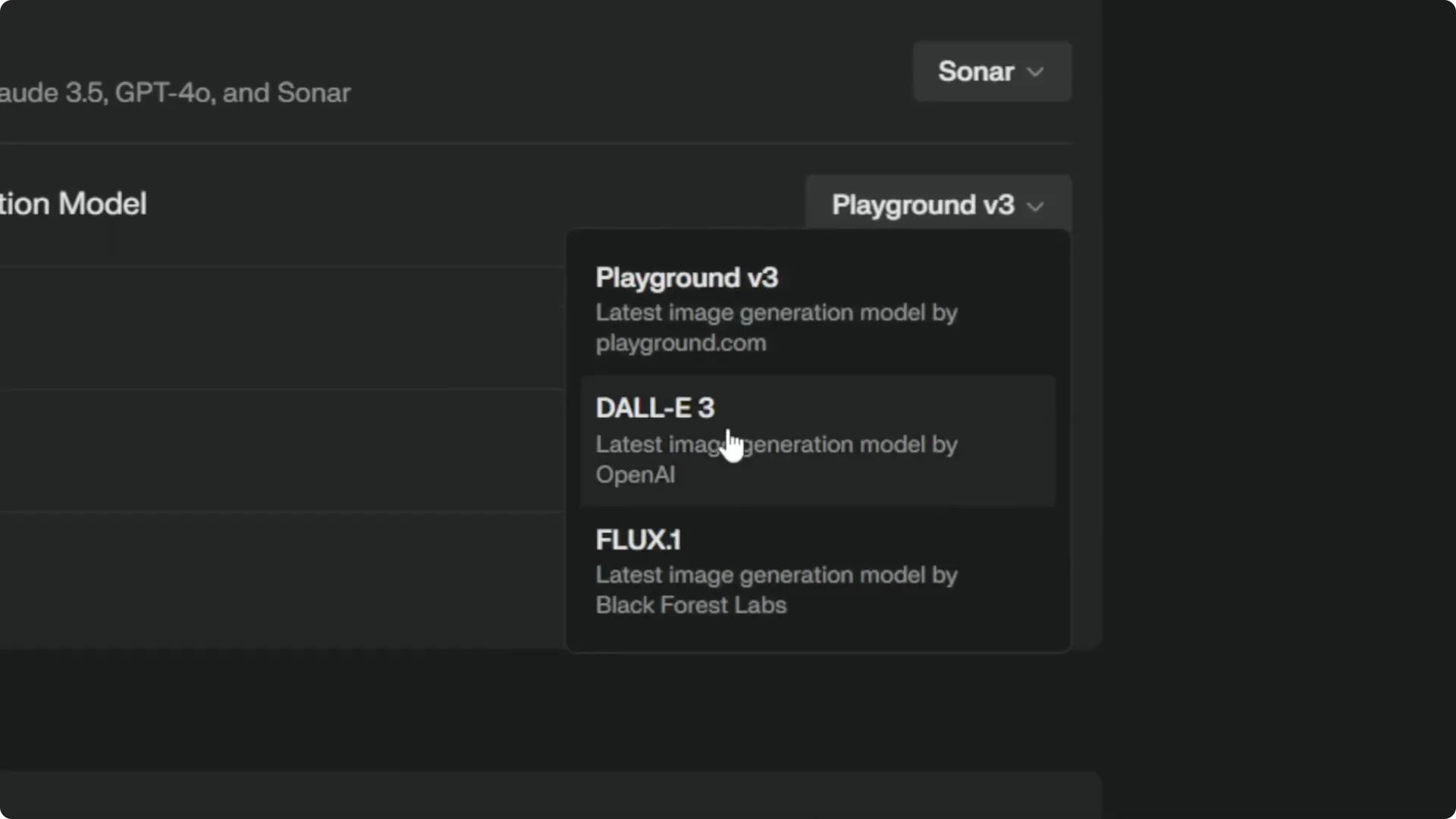
Step 3: Select DALL·E 3. This becomes the default model when creating a new image.
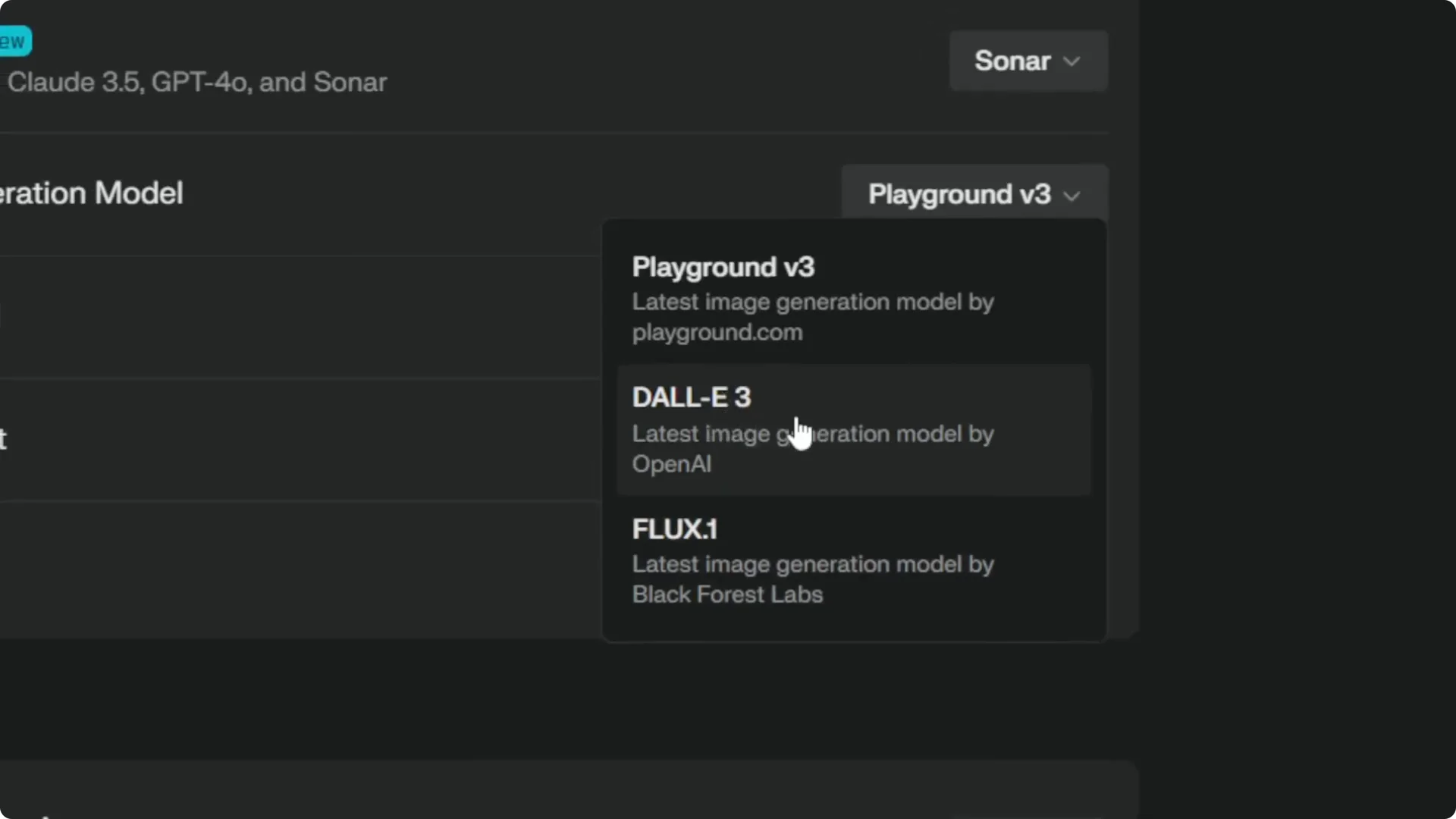
If you are curious about the Flux family for fast editing workflows, take a look at this overview of the Flux 2 Klein image editor.
Prepare a clean thread for Perplexity DALL·E 3 Image Generation
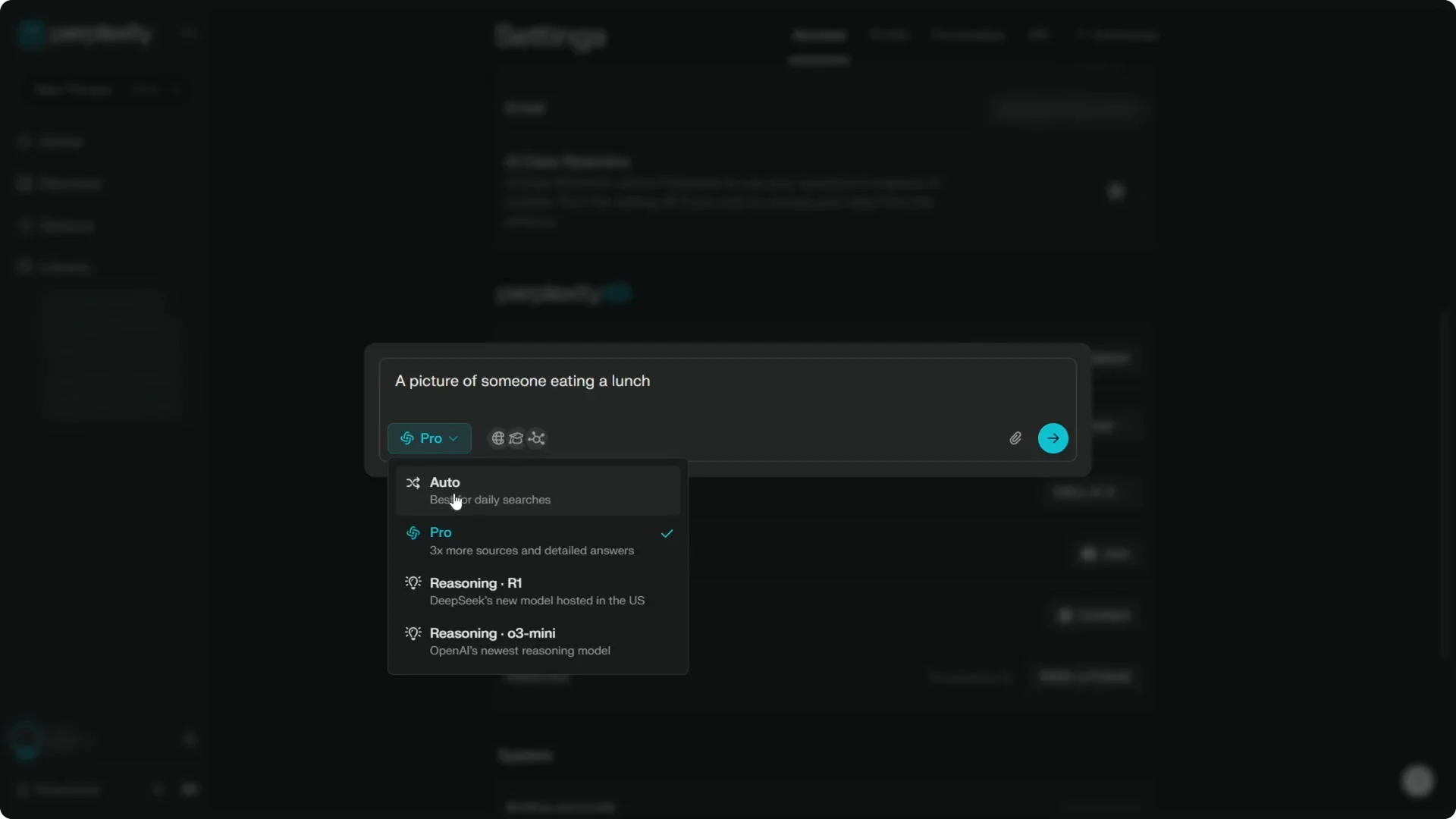
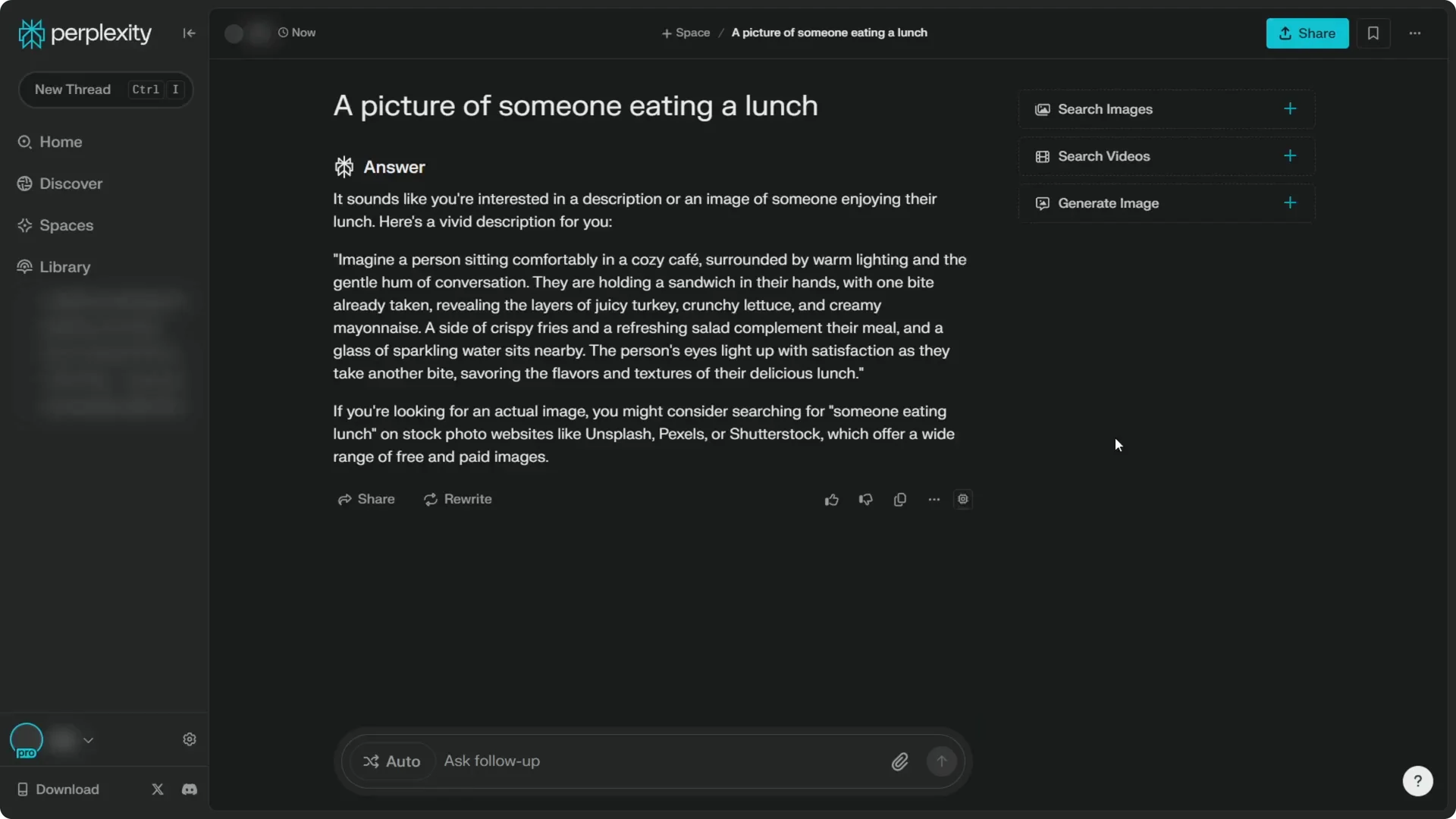
I will create a new thread and try a prompt like a picture of someone eating lunch. Since we are creating an image, there is no point in enabling the search feature.
Step 4: Switch to Auto and disable Web, Academic, Social, and Organization Files. Those are not necessary when generating images. This keeps the generation focused on the prompt.
For creative post-edits in another tool, you can get ideas from these new ways to use the Midjourney editor.
Prompting and style in Perplexity DALL·E 3 Image Generation
We are not going to use the answer section as the prompt. That area is for answering questions, and using it directly usually does not give the best quality image prompts.
Use a custom prompt
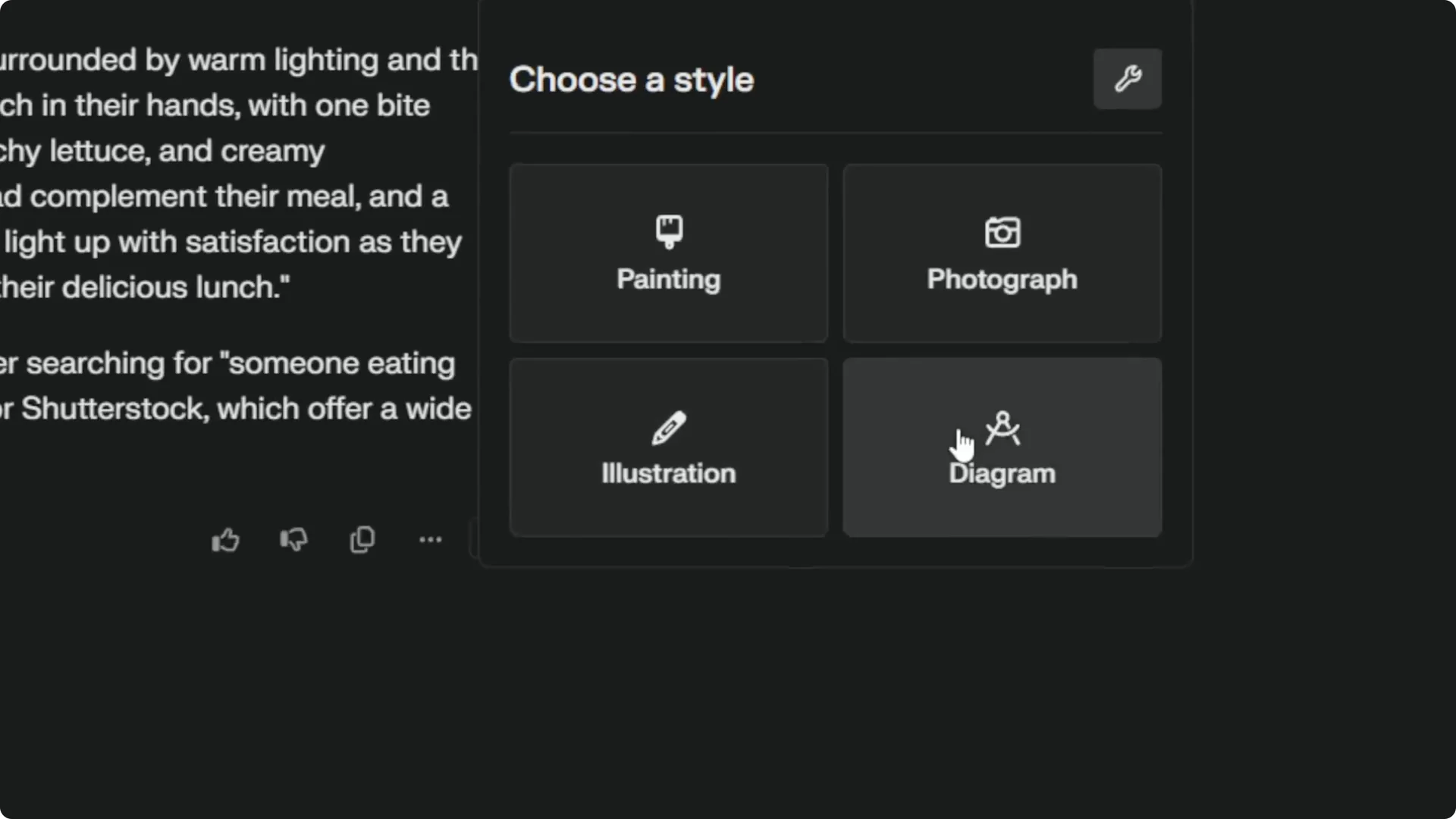
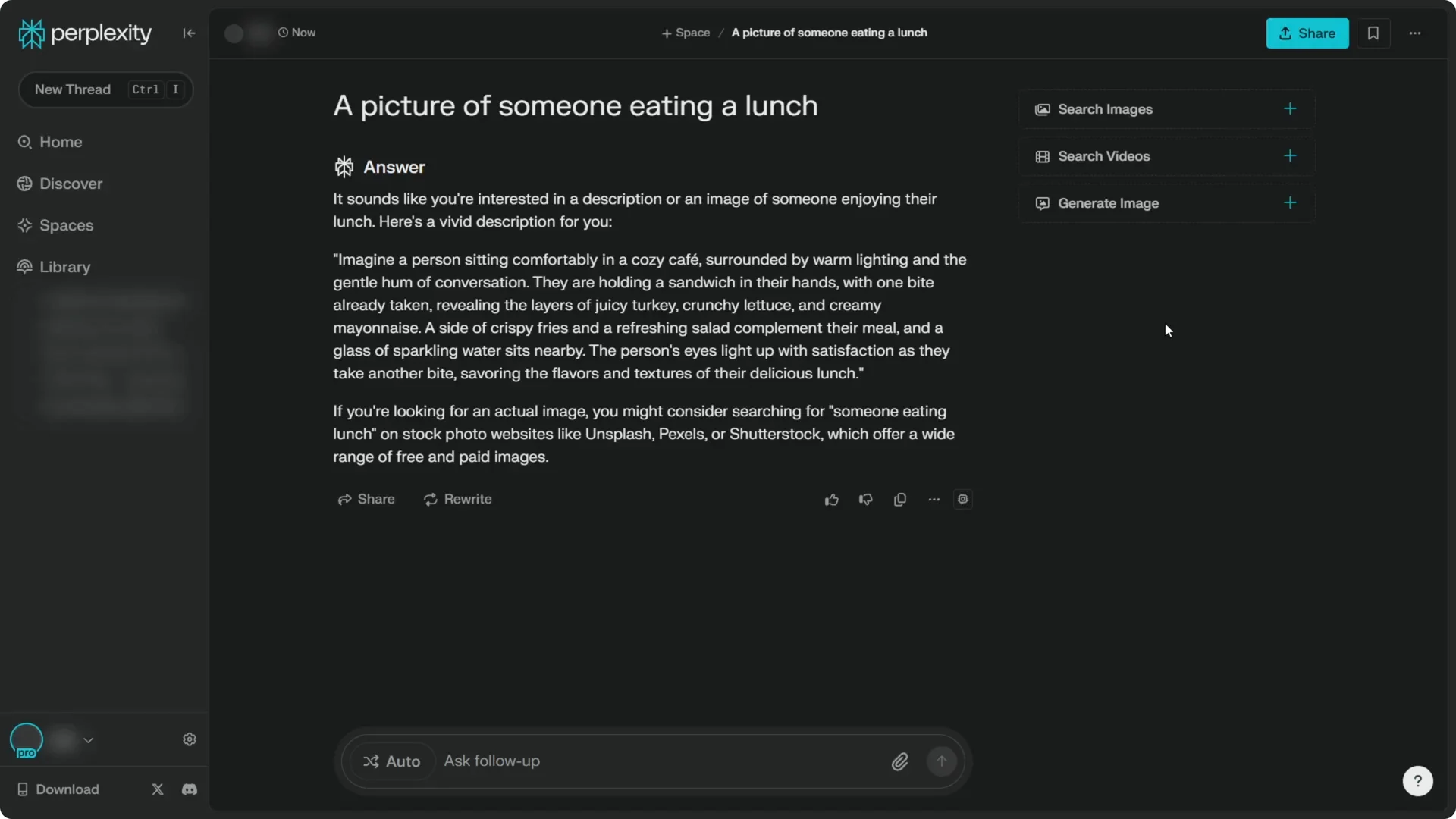
Step 5: Click Generate image. You will see options like painting, photograph, illustration, or diagram, but I do not recommend selecting those from the answer because they will generate an image based on that answer as the prompt.
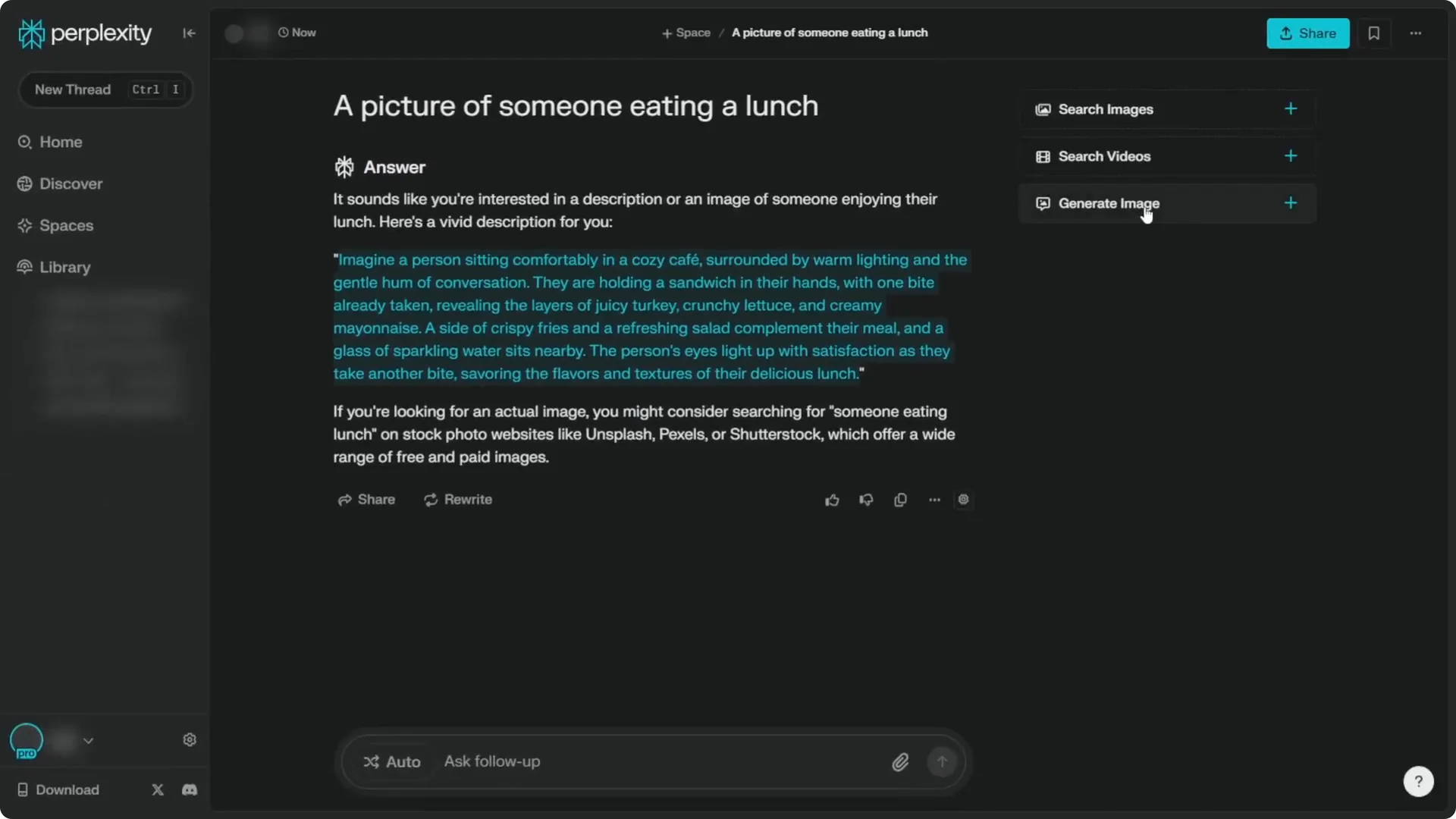
Step 6: Copy your own prompt, or if the answer detected that you plan to create a picture, copy the relevant part you want. Click Generate image, then click the Custom prompt icon.
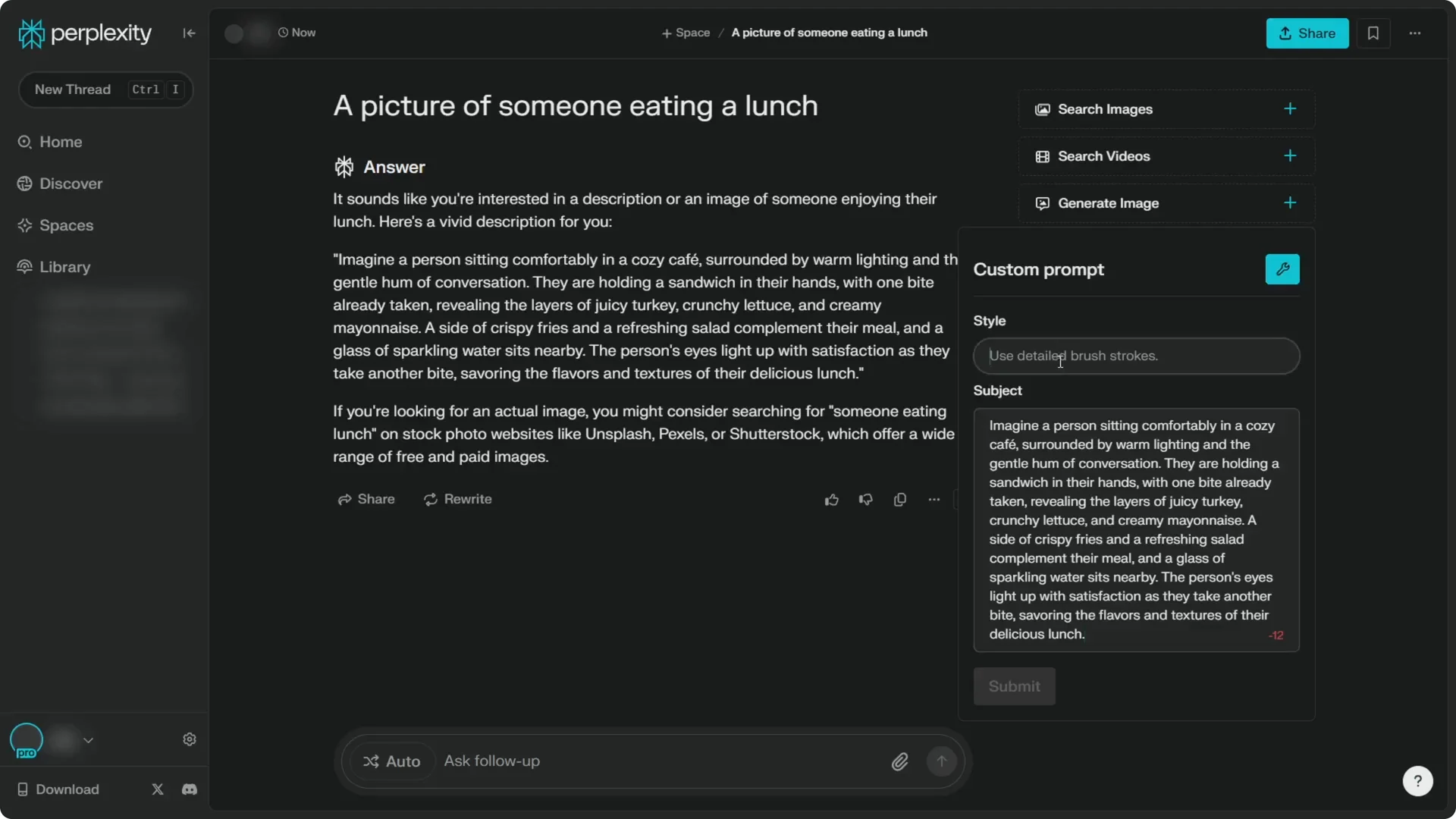
Step 7: Remove the default content in the prompt box and paste your new prompt. This is where you can specify the style of the image. I am using a 2D picture.
If you prefer to refine outputs after generation, check out this walkthrough of the Midjourney new image editor.
Refine and submit
Step 8: If the prompt is too long, trim parts that are not essential. Keep the core subject, style, and any key details you care about.
Step 9: Click Submit and wait until it finishes. The image will be generated with the DALL·E 3 model you selected earlier.
Generate and review with Perplexity DALL·E 3 Image Generation
Step 10: Review the image that comes back. You can confirm that DALL·E 3 is used for generating the image.
I think OpenAI might come with new AI models in the future, but I think DALL·E 3 is the best we have today. If you want more control after generation, explore editorial workflows alongside Perplexity using guides like new ways to use the Midjourney editor or revisit your prompt choices with tips on image settings.
Final Thoughts
Perplexity makes it easy to generate images once DALL·E 3 is set as the default model. Use a custom prompt instead of the auto-generated answer, keep the workspace free of search features, and specify style details like 2D to guide the result. Submit, wait for the render, and you are done.
