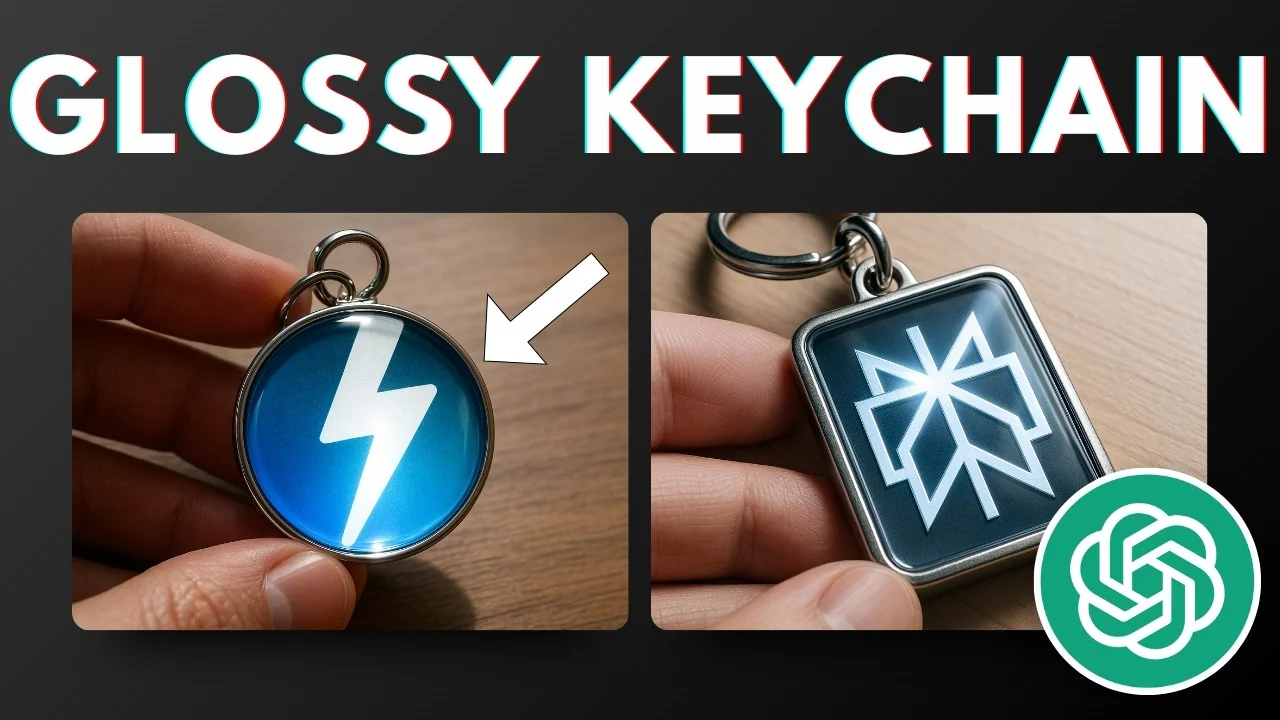
Let’s say you want to create a custom keychain using your logo, but you’re not sure how it’s going to look on a keychain. You can use AI to visualize the logo on a keychain without actually creating the physical keychain. This is a good way to test a product or a mockup before making it.
In my example, I used my logo and it looks very realistic. The picture is not real, it was made by AI. The detail is really good, with reflections and light penetrating through the glass, which gives a realistic feeling.
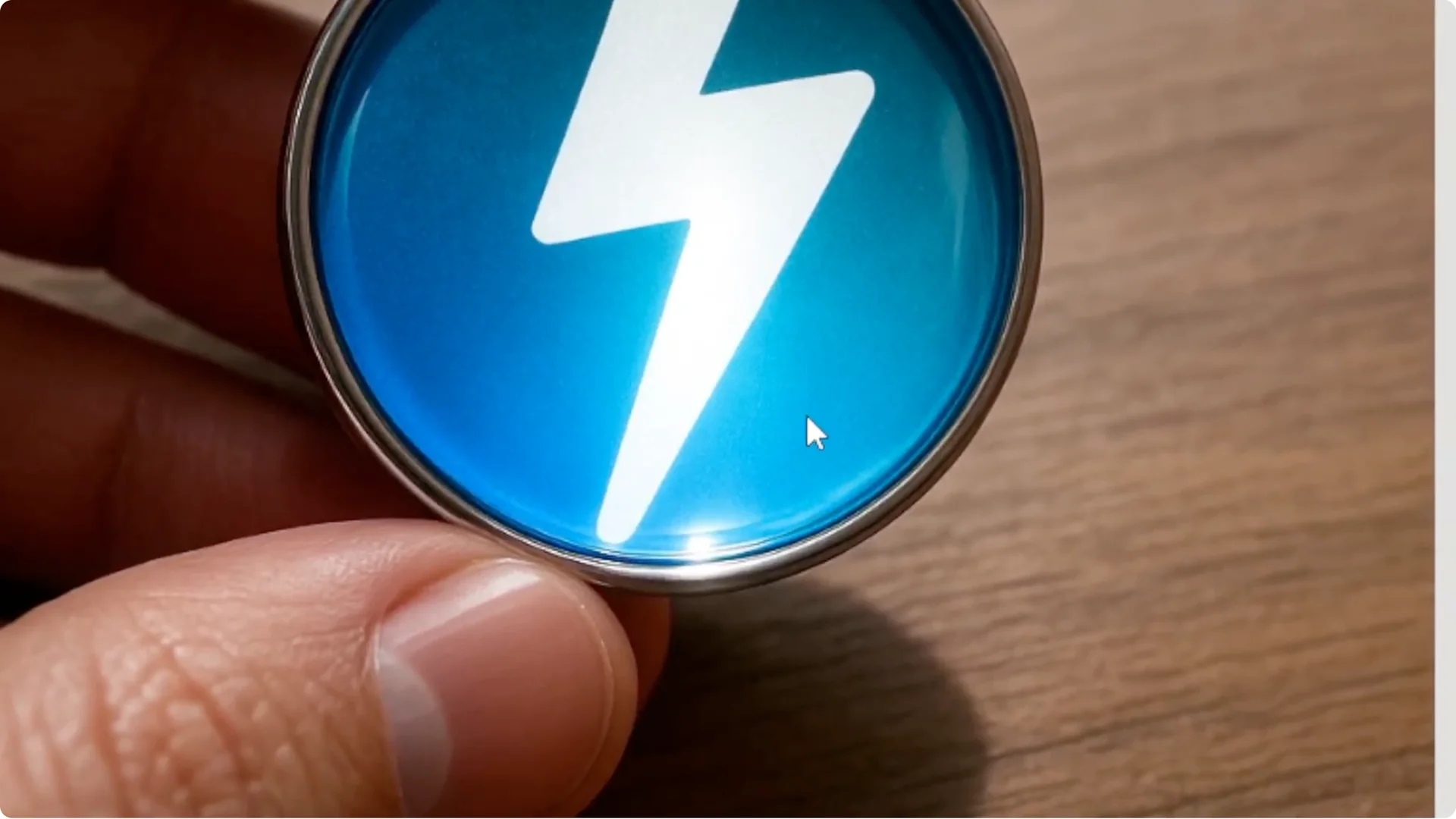
I created this using the GPT-Image-1 model, which is basically GPT-4o image generation from ChatGPT, though I created it on Perplexity. It does not matter what platform you use as long as it has access to GPT-Image-1 or GPT-4o. You can create the same effect, and if you want to push quality further, see our AI art guide.
AI Keychain Logo Mockups with ChatGPT
You can use ChatGPT to create a custom keychain logo mockup with your own logo. You can also use Perplexity, Croa AI, or Recap AI because they have the GPT-Image-1 model for this kind of picture. Here is the process I follow on ChatGPT.
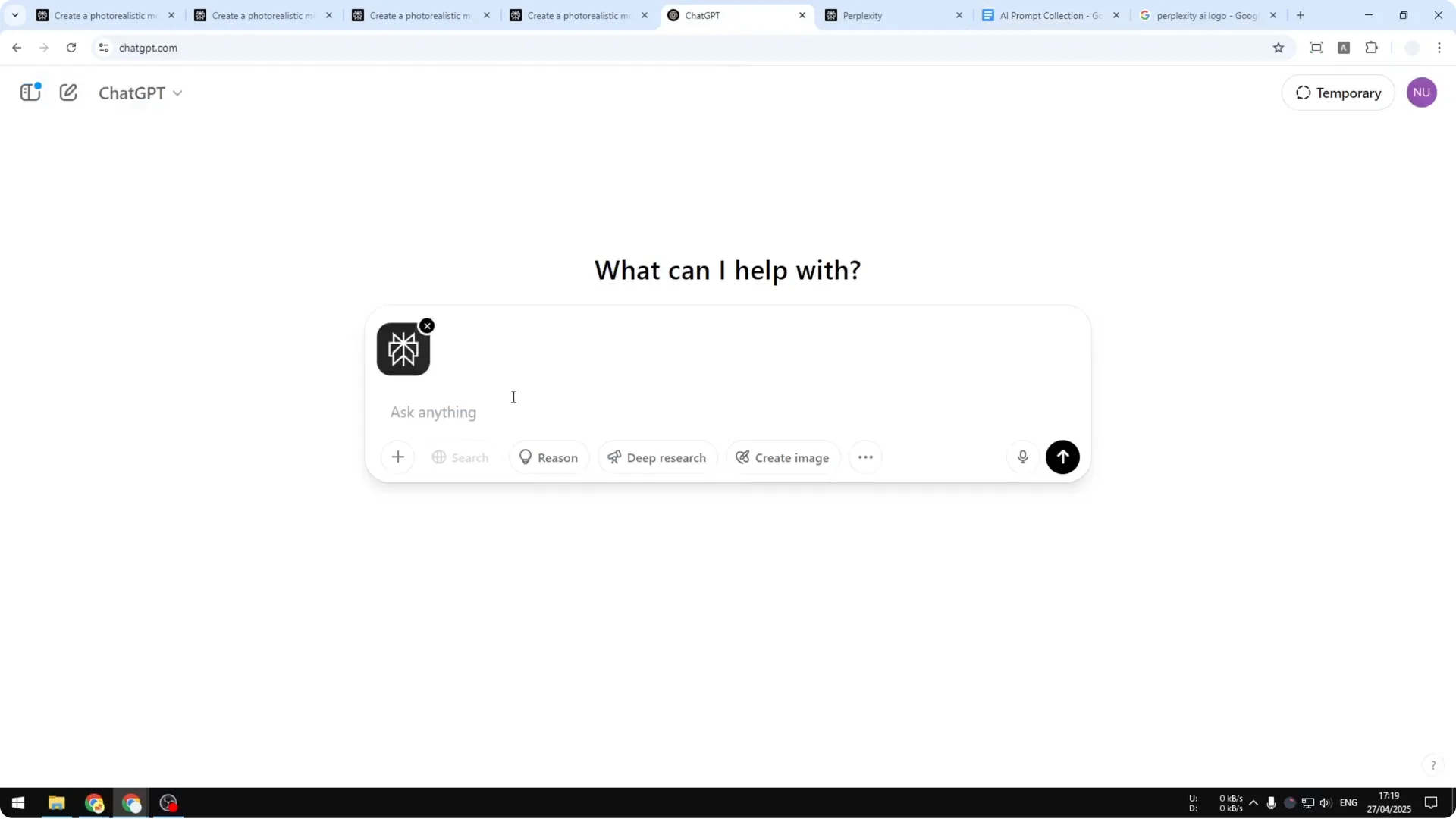
Step 1: Open ChatGPT and start a new chat. Create a fresh thread so the model focuses on this task. Keep your logo file handy.
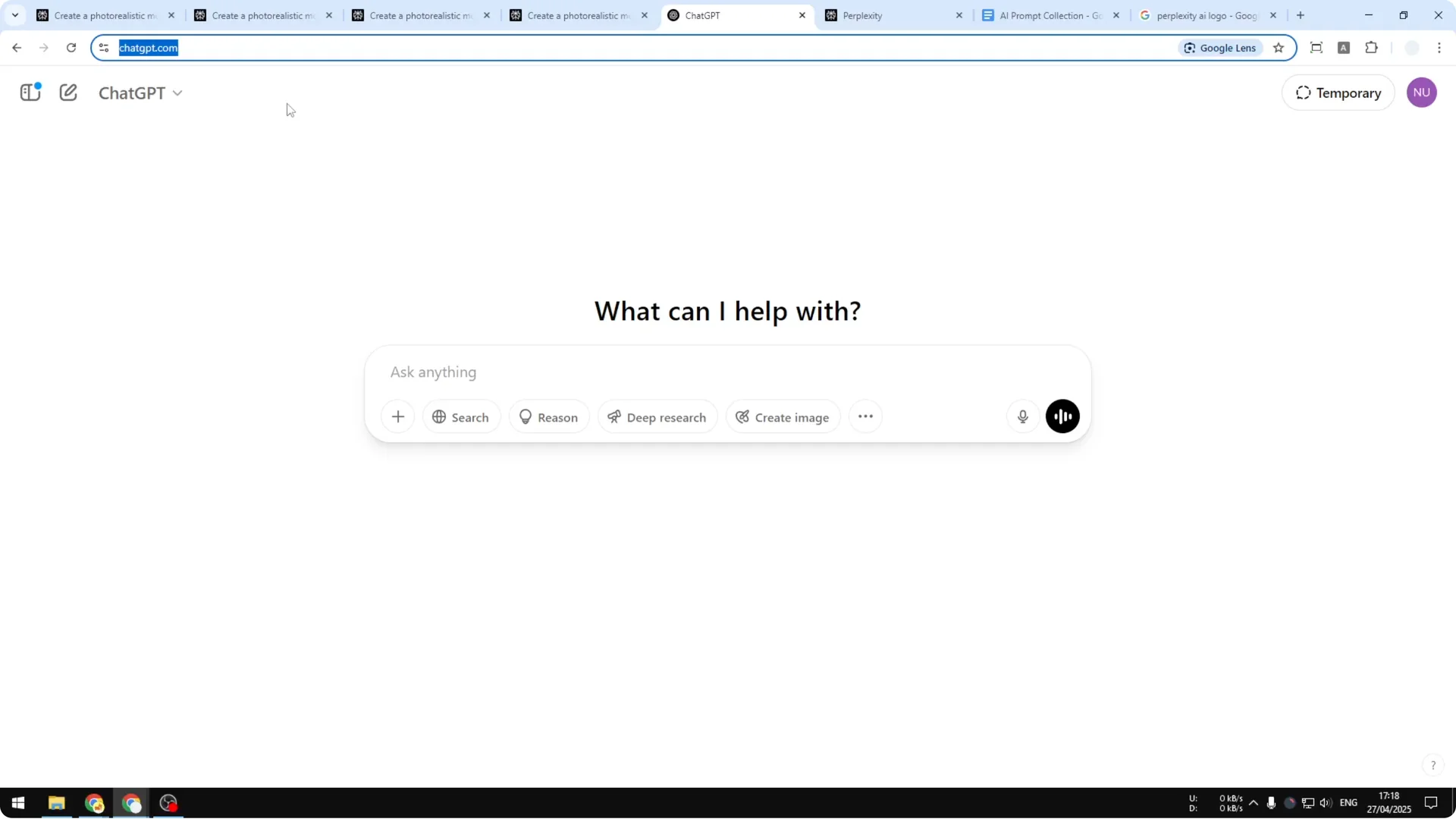
Step 2: Click the plus button, choose upload from computer, and select the logo you want to turn into a keychain. You can also paste an image directly, and it will automatically upload to the chat. Wait until the image appears in the message box.
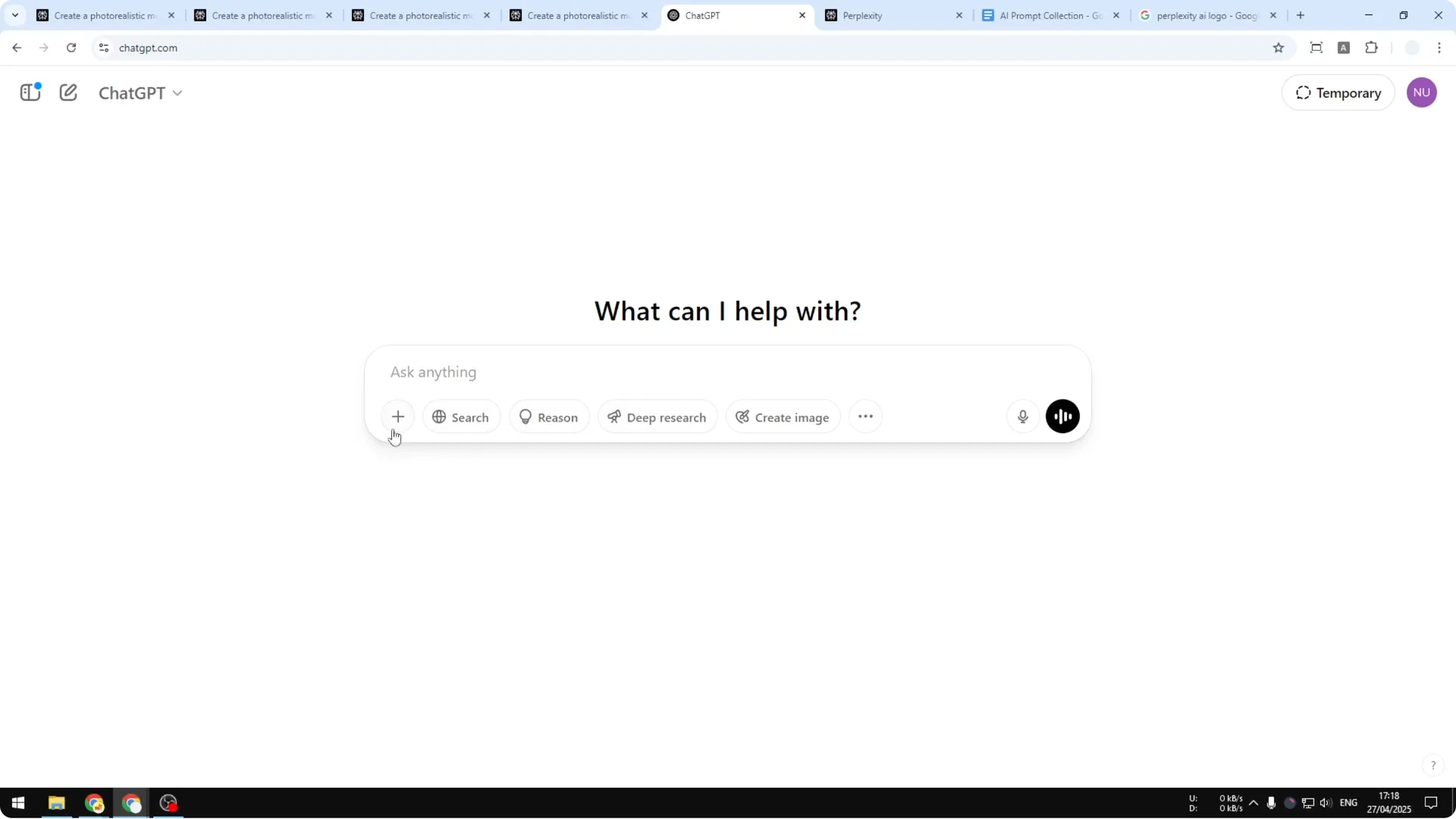
Step 3: Paste your prompt to create the keychain logo effect and enable image creation, then send the message. I ask for a realistic product shot of a glass keychain with my logo, clean reflections, and studio lighting. Keep any brand-specific details clear in the prompt.
If you want to explore visual directions before you render, build quick moodboards to clarify materials, lighting, and background vibes.
AI Keychain Logo Mockups on Perplexity
I also generate the same mockup on Perplexity. This lets me compare outputs and pick the version that looks best for production or presentation.
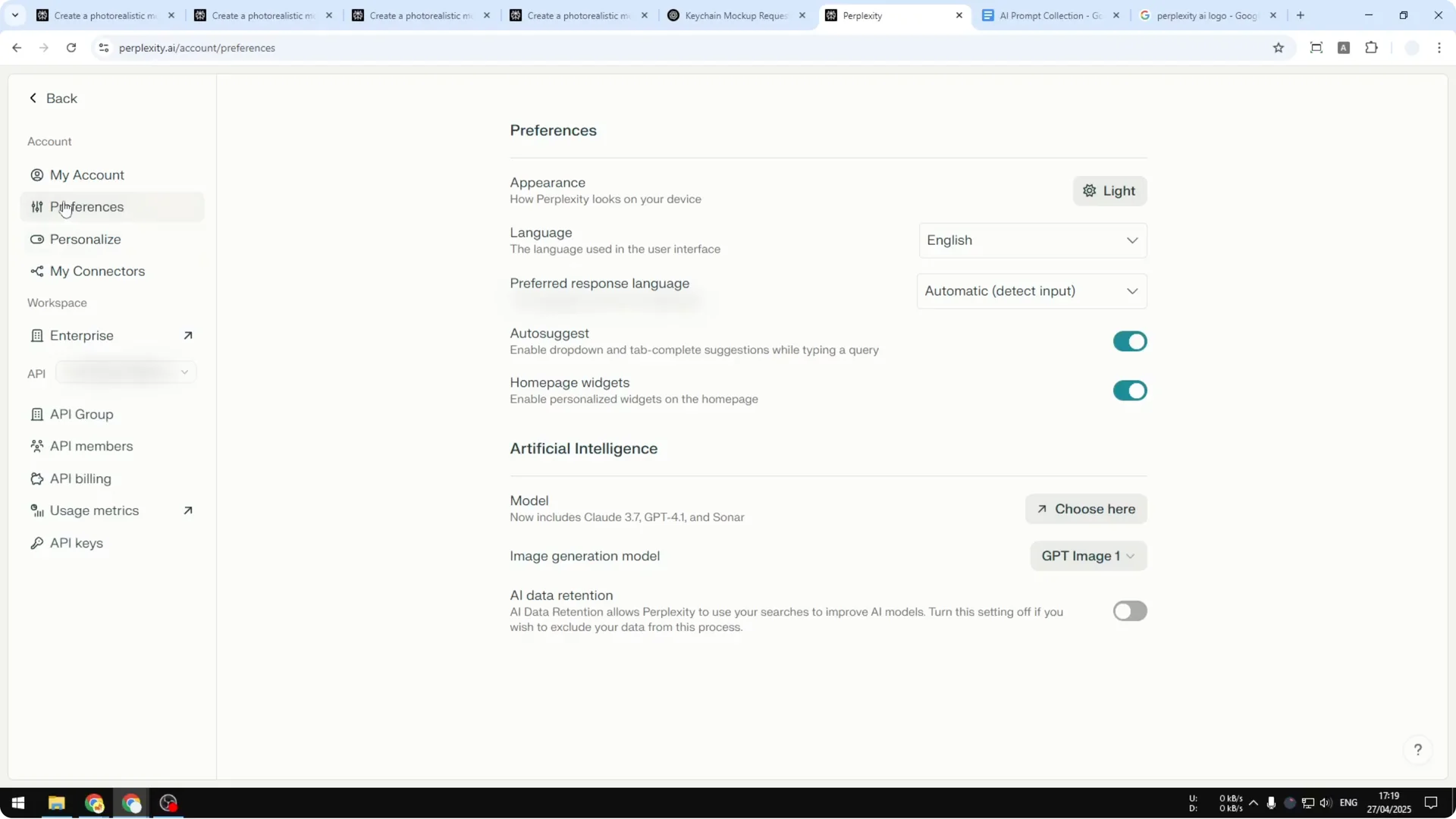
Step 1: In Perplexity, go to settings, click personalize, and select the GPT-Image-1 model. If you skip this, the model you need will not be used. Confirm the change and return to the main page.
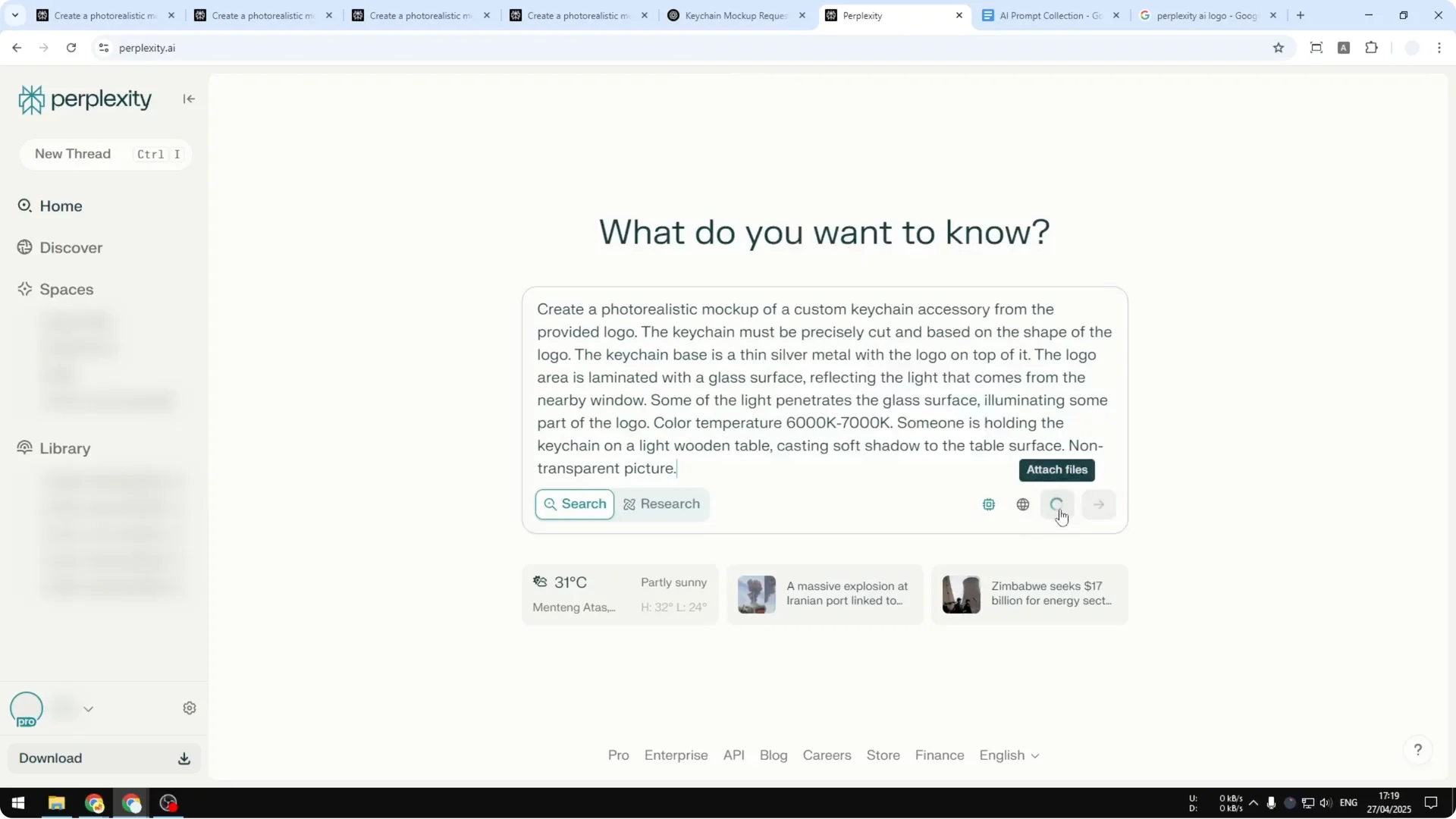
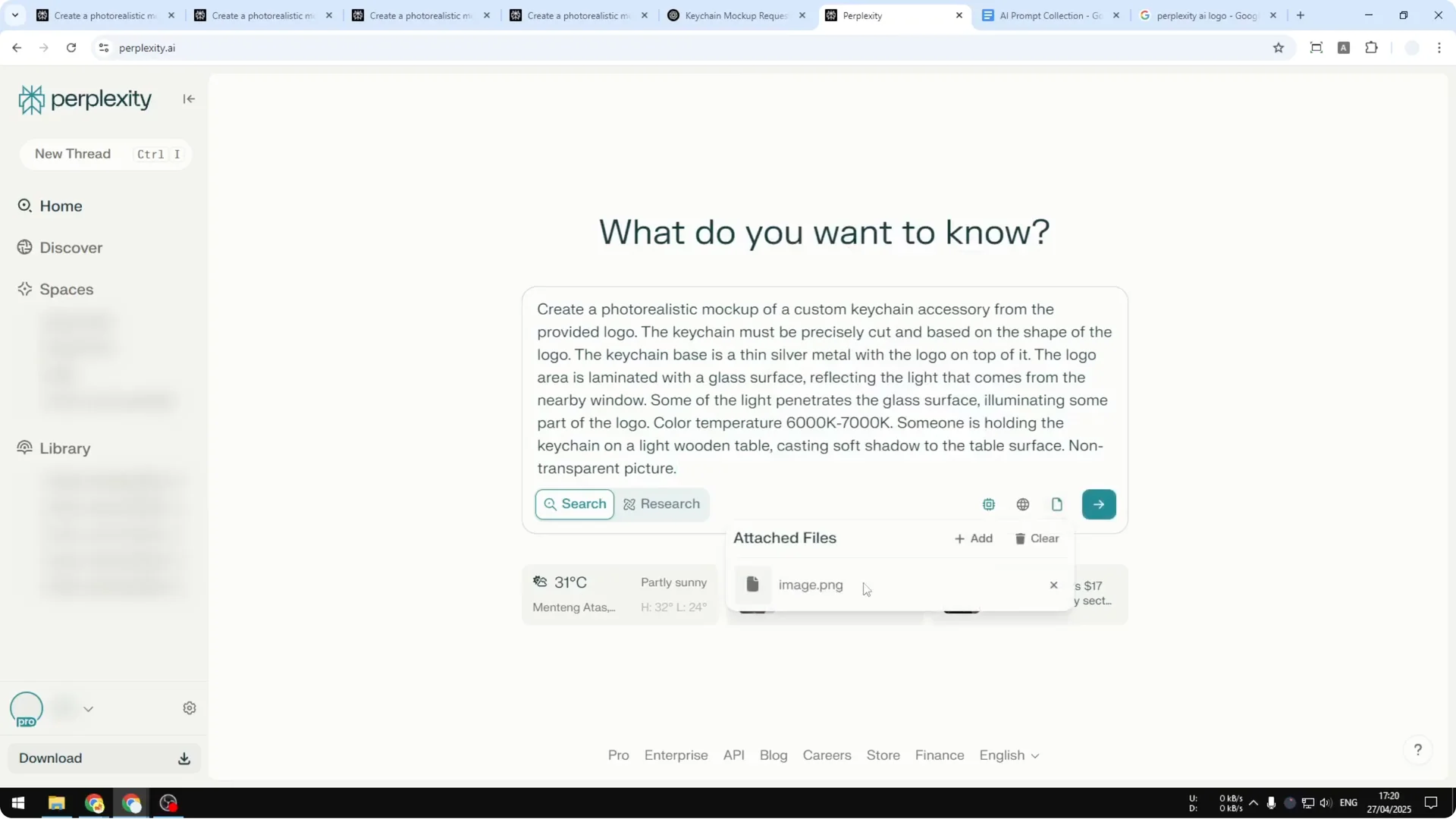
Step 2: Paste your prompt into the composer. Attach or paste your logo image, and Perplexity will automatically upload the file.
Step 3: Send the message and wait 1 to 2 minutes. The model will generate the mockup based on your logo and prompt.
If you want consistent looks across multiple renders, try a style creator approach to lock in lighting, materials, and angles.
AI Keychain Logo Mockups results and notes
Here is what I got from ChatGPT. It was not exactly square and followed the contour of the logo, which shows it is not always consistent. That can be a good reason to try other platforms, because they may have different settings that produce a slightly different look.
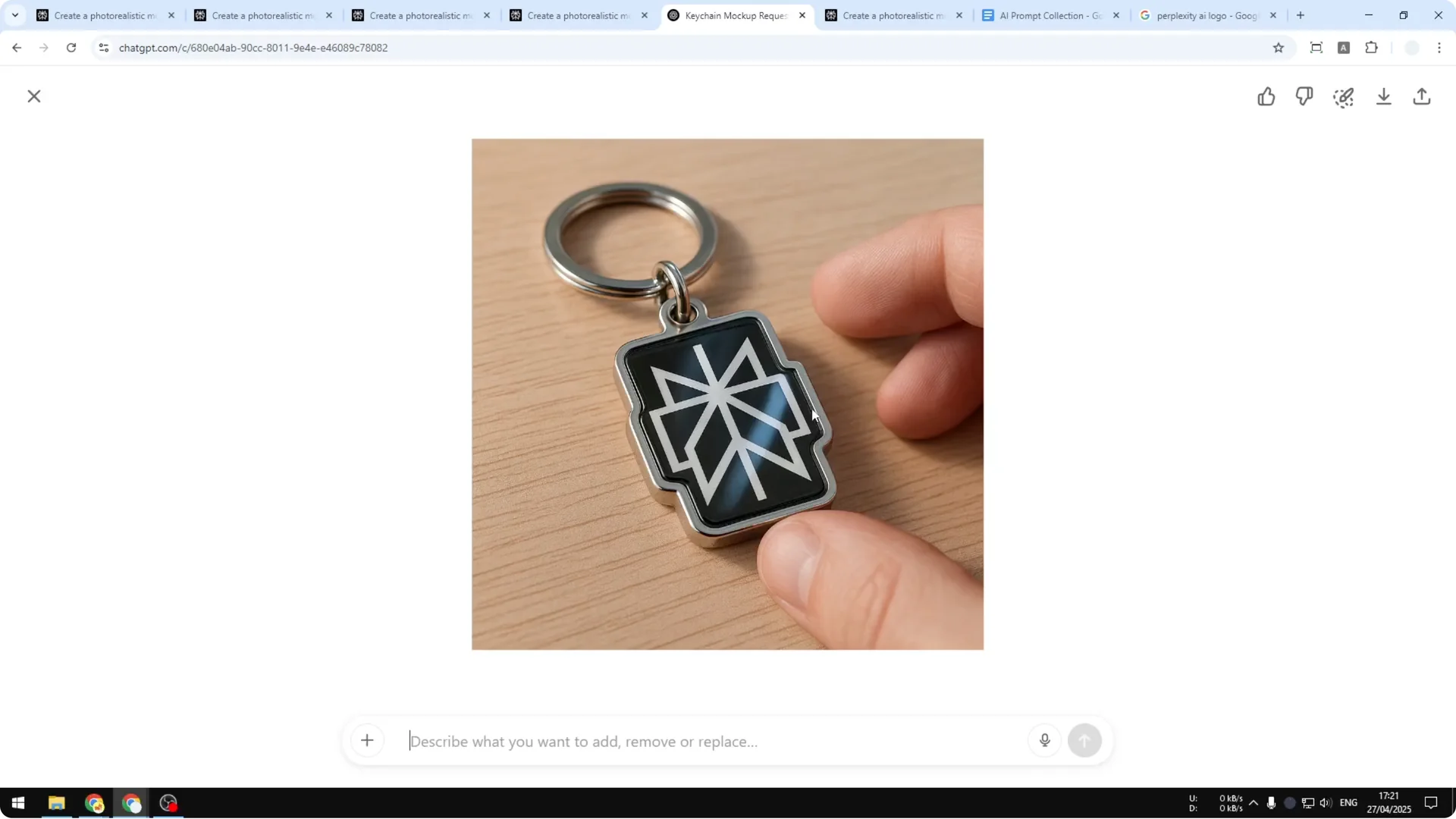
Overall, if we ignore those quirks, the result looks quite amazing. It is something I could use as a keychain. The product feel and reflections were convincing.
The result from Perplexity looked more realistic compared to the one from ChatGPT, although both looked great. The styling was just different. I explicitly asked for light to penetrate the glass and for some areas of the logo to glow, which makes it feel more realistic, and I prefer this one.
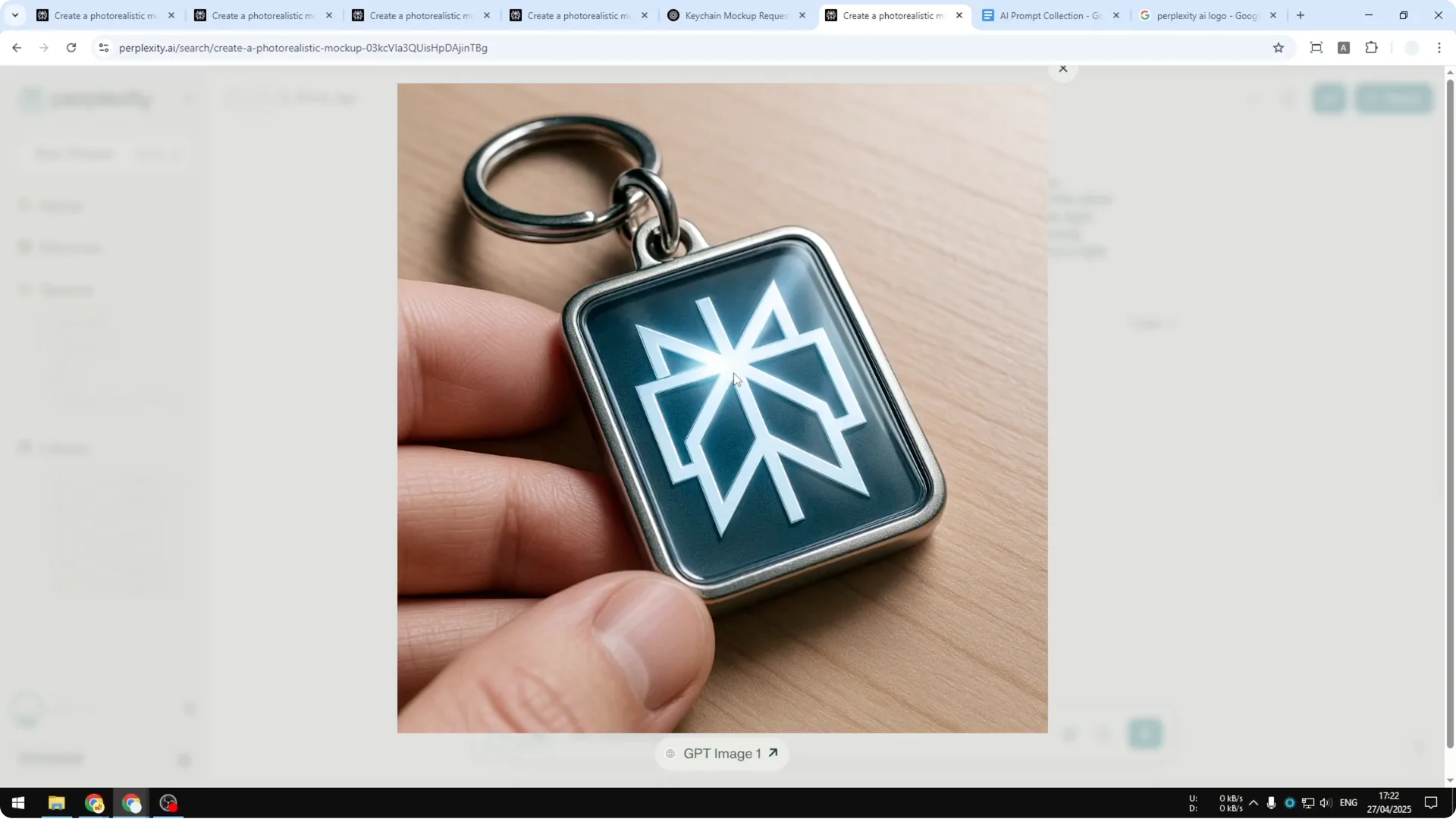
You can use these renders as mockups or simply for inspiration and visualization to see what your logo would look like in a keychain mockup. If you care about privacy on shared galleries, you can hide images to keep experiments out of public view. Pick the version you like and iterate by adjusting the prompt or re-uploading a tweaked logo.
Final thoughts
AI Keychain Logo Mockups are a practical way to preview a product without producing it first. Upload your logo, write a focused prompt, and generate on ChatGPT or Perplexity using GPT-Image-1 or GPT-4o. Compare outputs, refine the prompt, and select the render that best matches the look you want.
