Sometimes you have a clear vision for what you want to create in Midjourney. There’s a style in your head, you type a prompt, hit enter, and it just doesn’t look the way you want.
Here are several ways to take more control over the styles you apply to your images, starting with the fundamentals and building up to powerful tools like style references, style codes, and mood boards.
There are a few things to consider:
- Are you accurately describing the style in your prompt?
- Are you going into enough detail and being specific?
- Are you including color and texture?
- Do you have the right structure to your prompt?
Turning personalization on may help improve the quality of the images you create.
Fundamentals of Midjourney Style Prompting
Start simple with subject and style
Begin with a straightforward structure like subject plus style. For example:
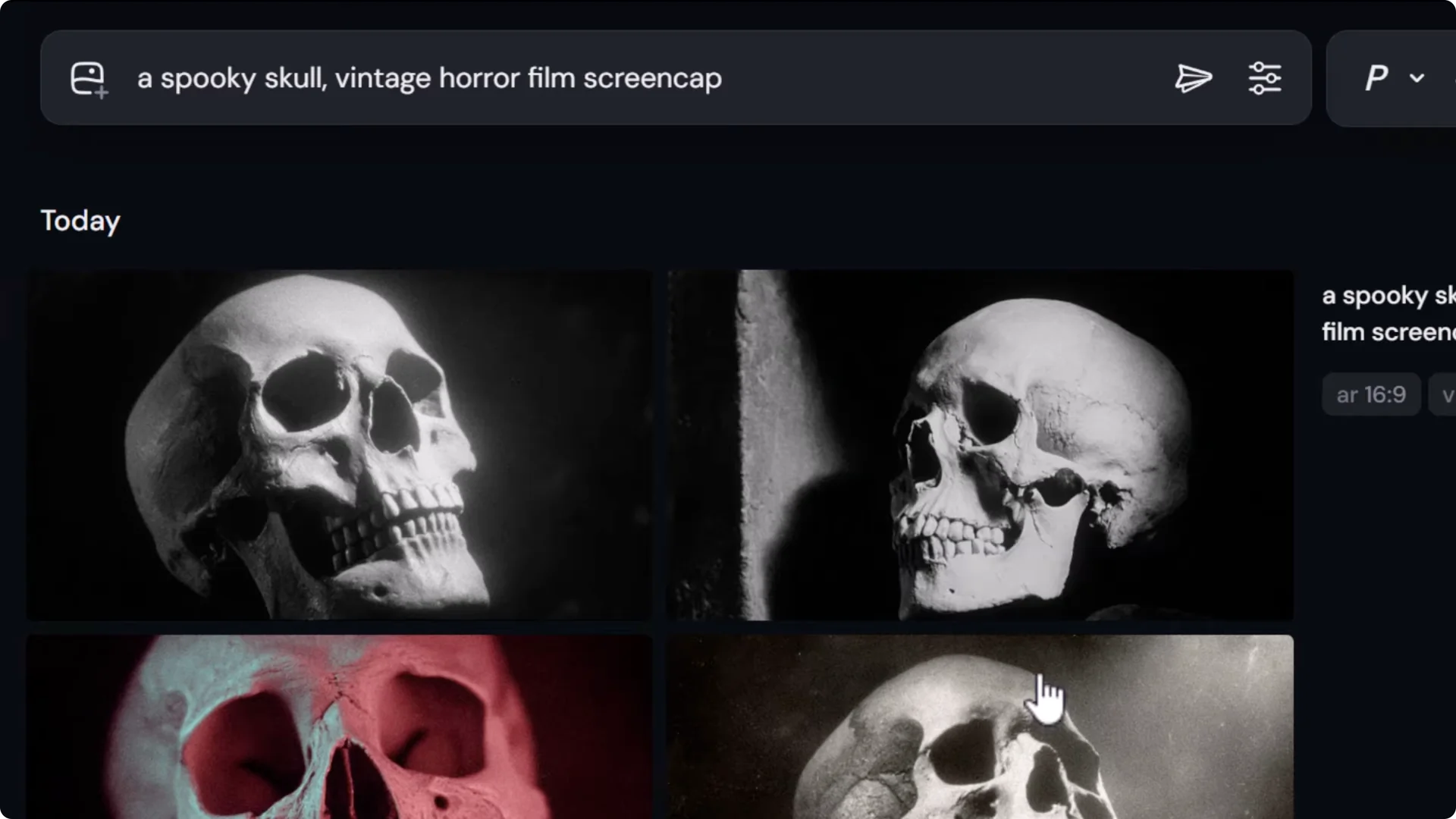
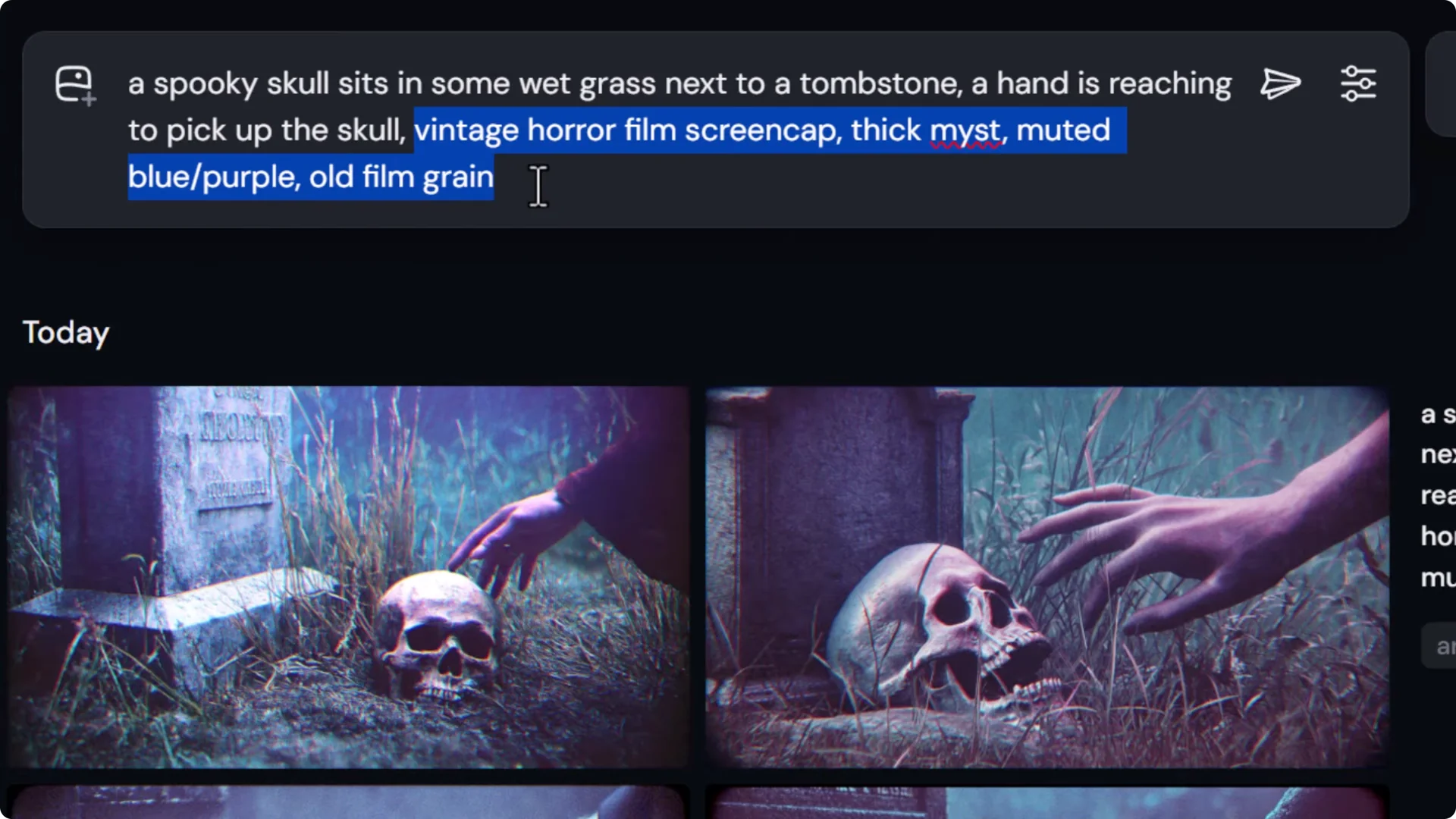
- a spooky skull vintage horror screen cap
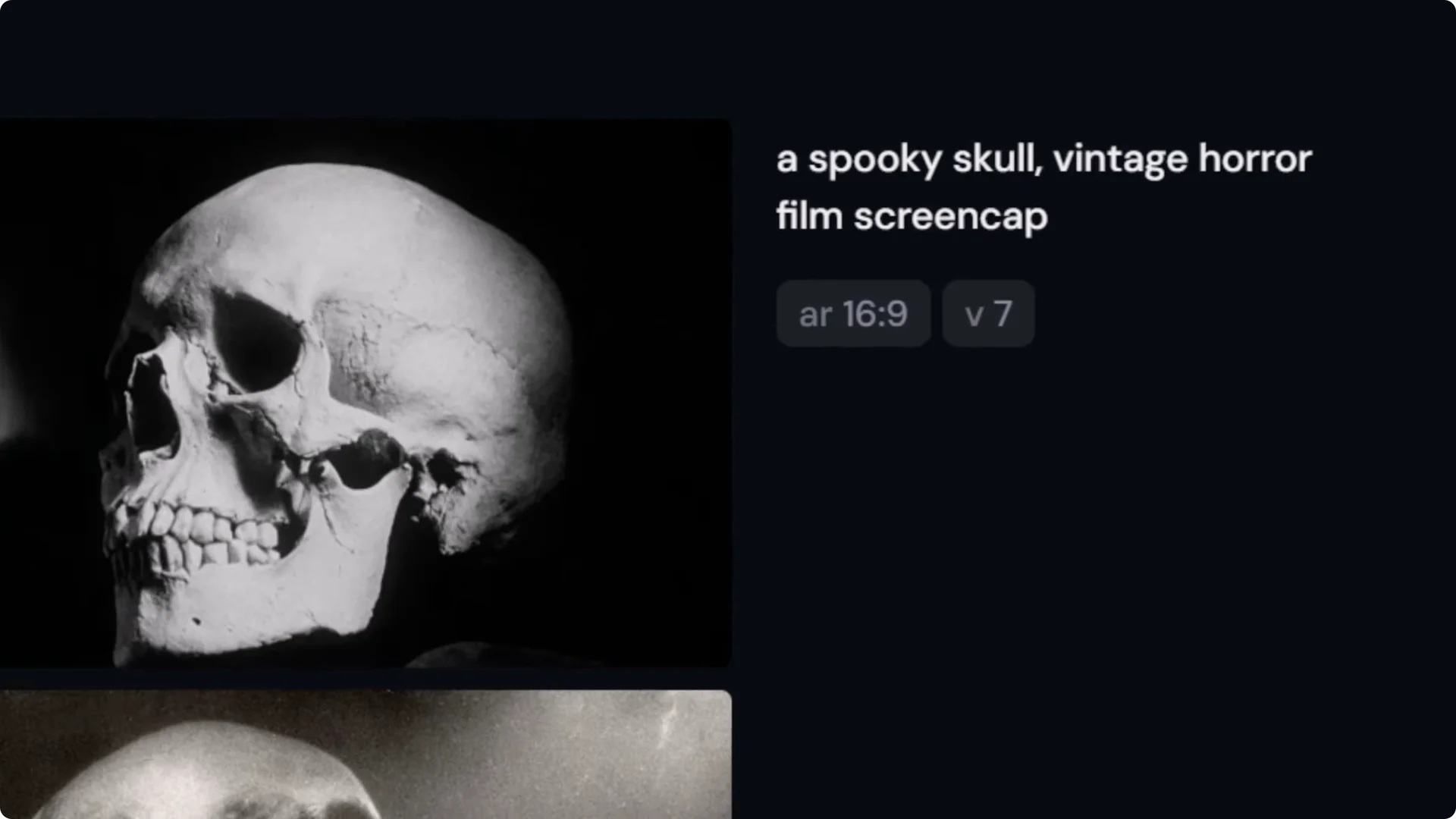
Submit, see what you get, then adjust. If things look too black and white or not quite right, build on it.
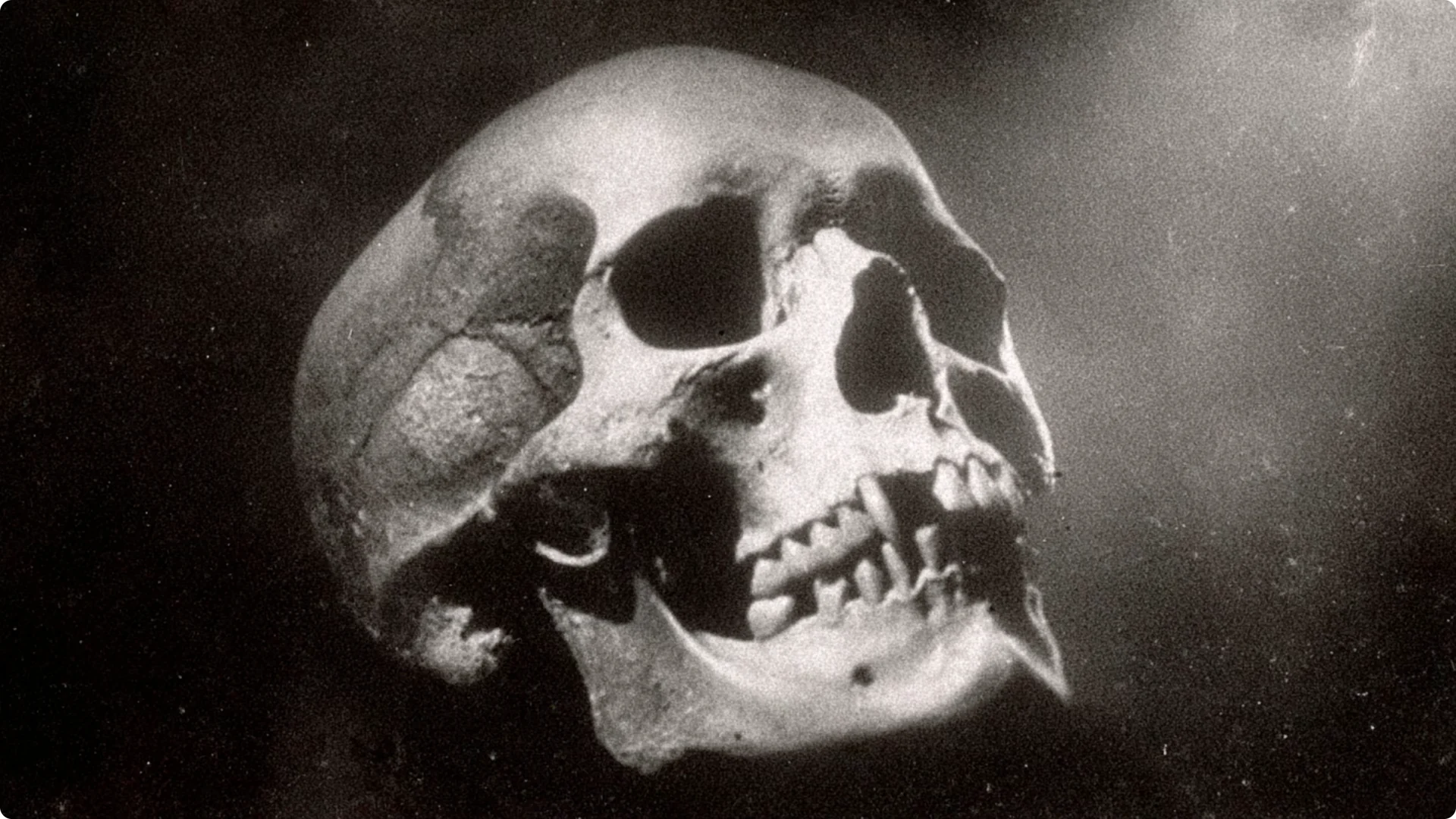
Add color and texture
Color is a big part of style. If you understand what colors define the look you’re after, add them. Also add environmental and texture cues.
- Example additions: thick mist, muted blue-purple, old film grain
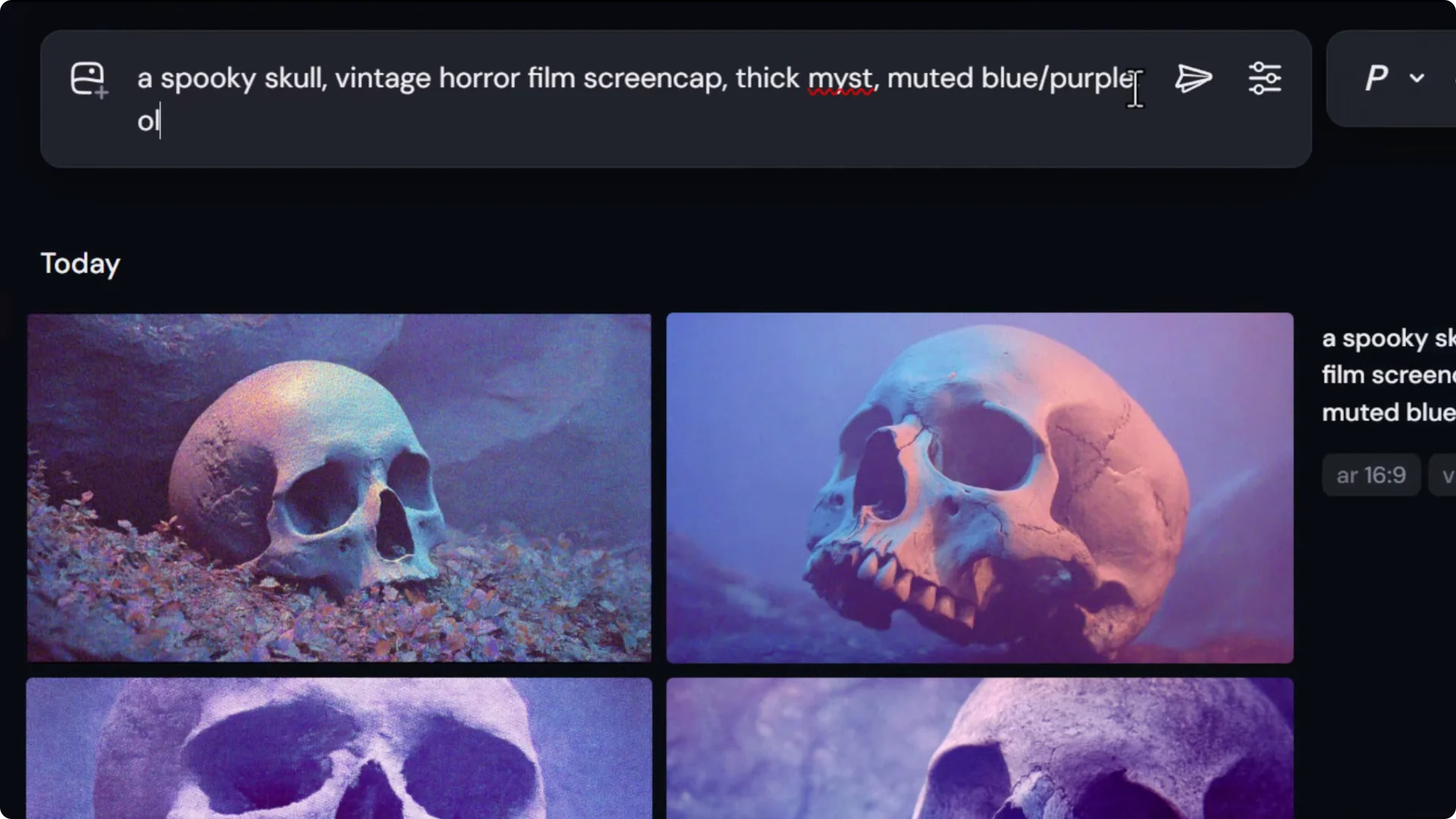
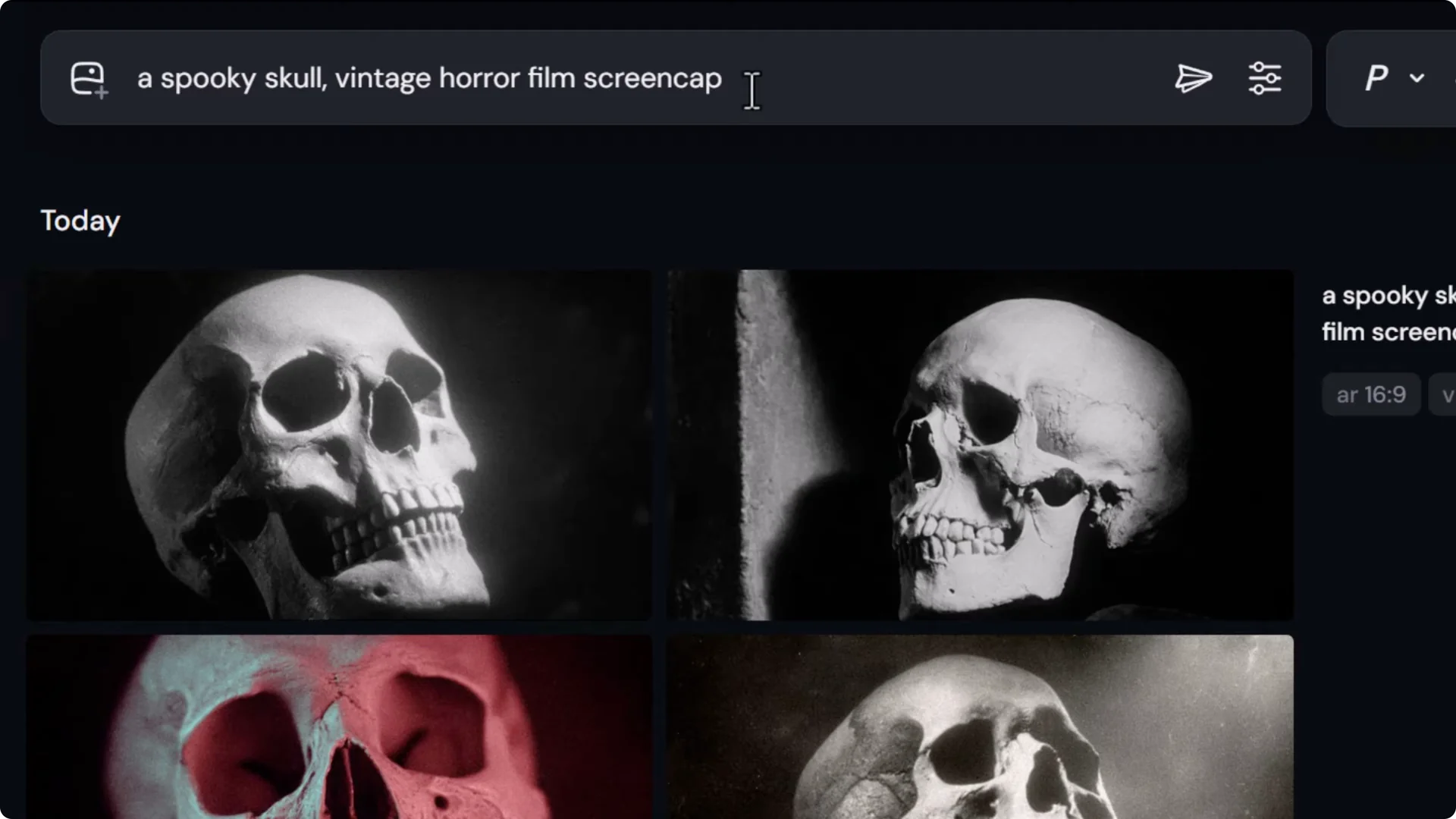
Submitting after each addition helps you see how each element changes the result.
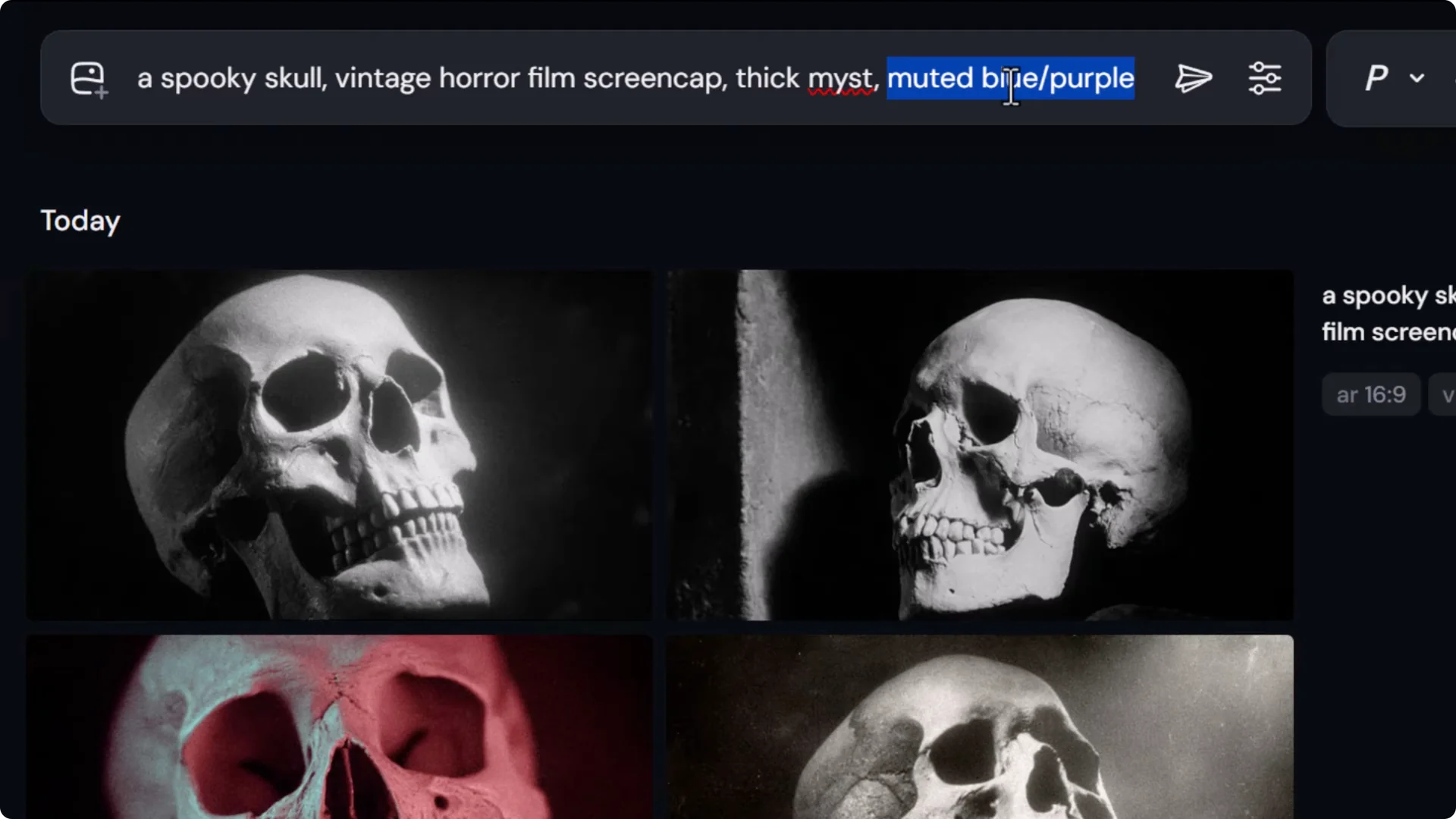
Balance specificity and style
As you add more subject detail, your style can diminish. Be mindful that more words can overcomplicate things.
Restructuring Prompts to Prioritize Style in Midjourney Style Prompting
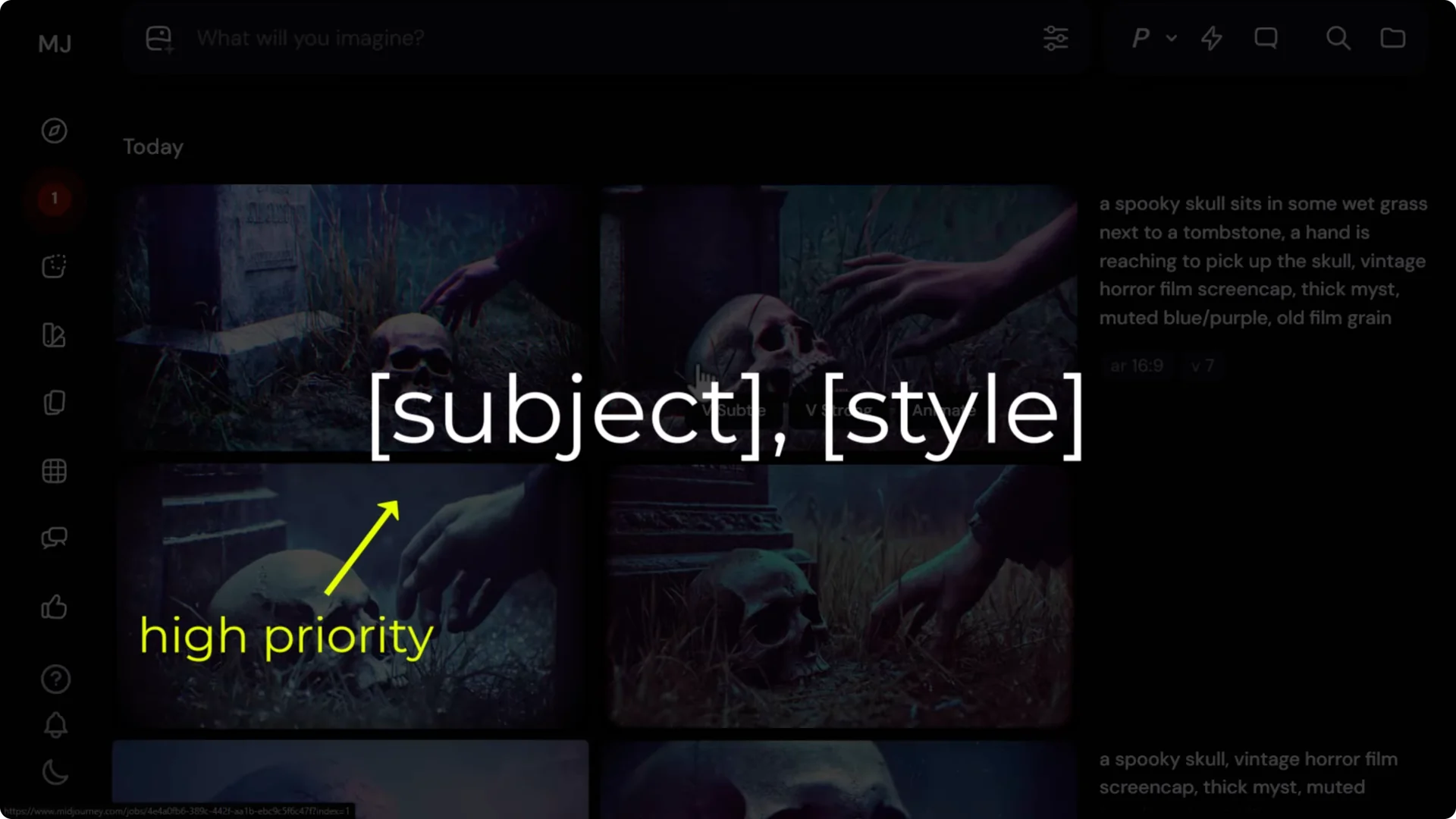
The earlier a word or phrase appears in your prompt, the more priority it tends to get. If your subject detail is overwhelming the style, move the style elements to the very start of the prompt, then add a full stop to separate style from subject.
This often strengthens the visual look you’re aiming for.
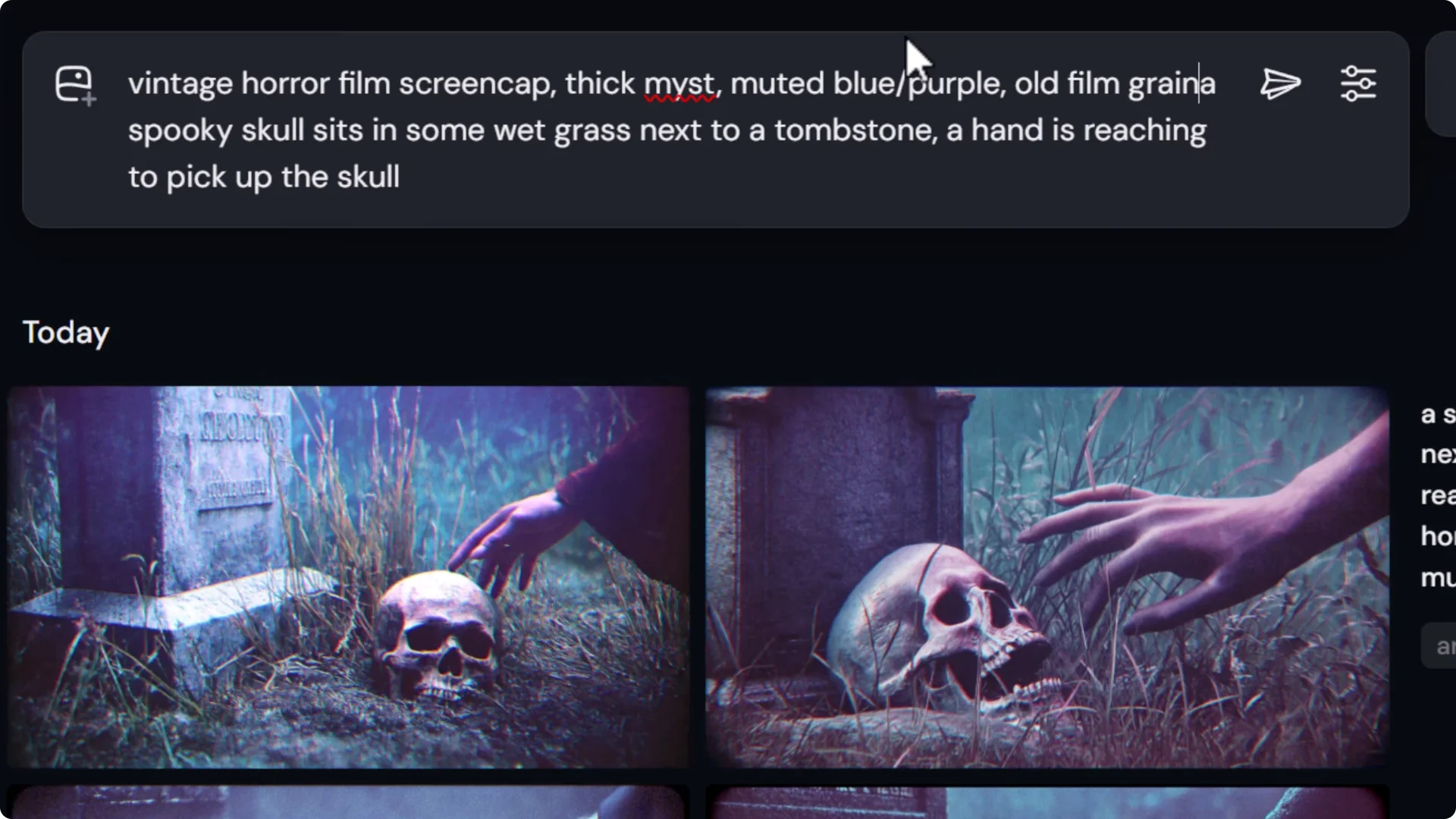
Also work on being more accurate with your description. Improving your visual vocabulary gives Midjourney clearer instructions and better results.
Build your visual vocabulary
- Research art styles, movements, and artists, and refer to them in your prompts.
- Search for art styles or artists and test those phrases.
- Ask ChatGPT for style suggestions and vocabulary.
- Read art books to pick up descriptive language and visual references.
Using Style References for Midjourney Style Prompting
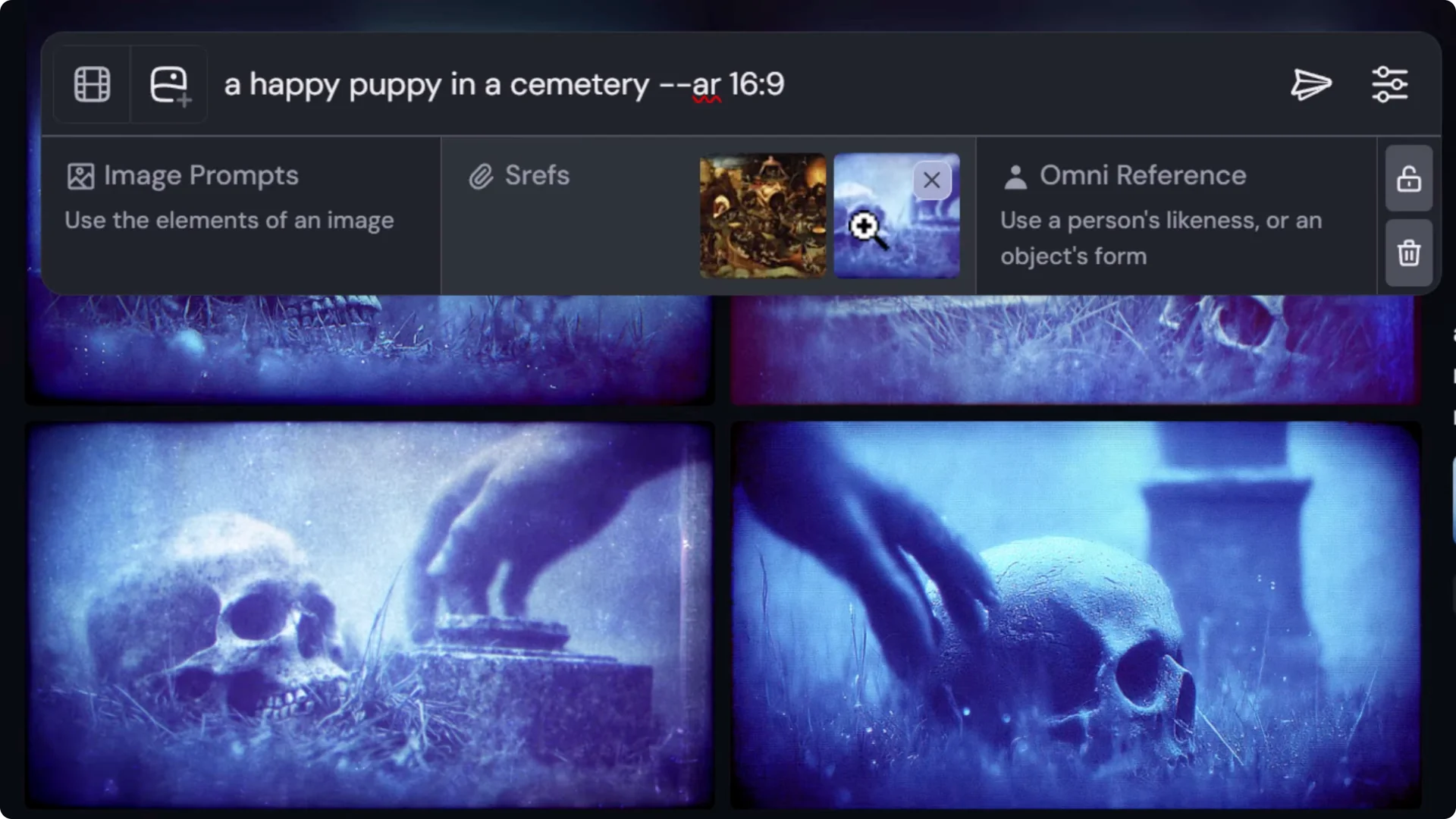
Create a style reference from your own image
1. Write a clean scene prompt without style phrasing:
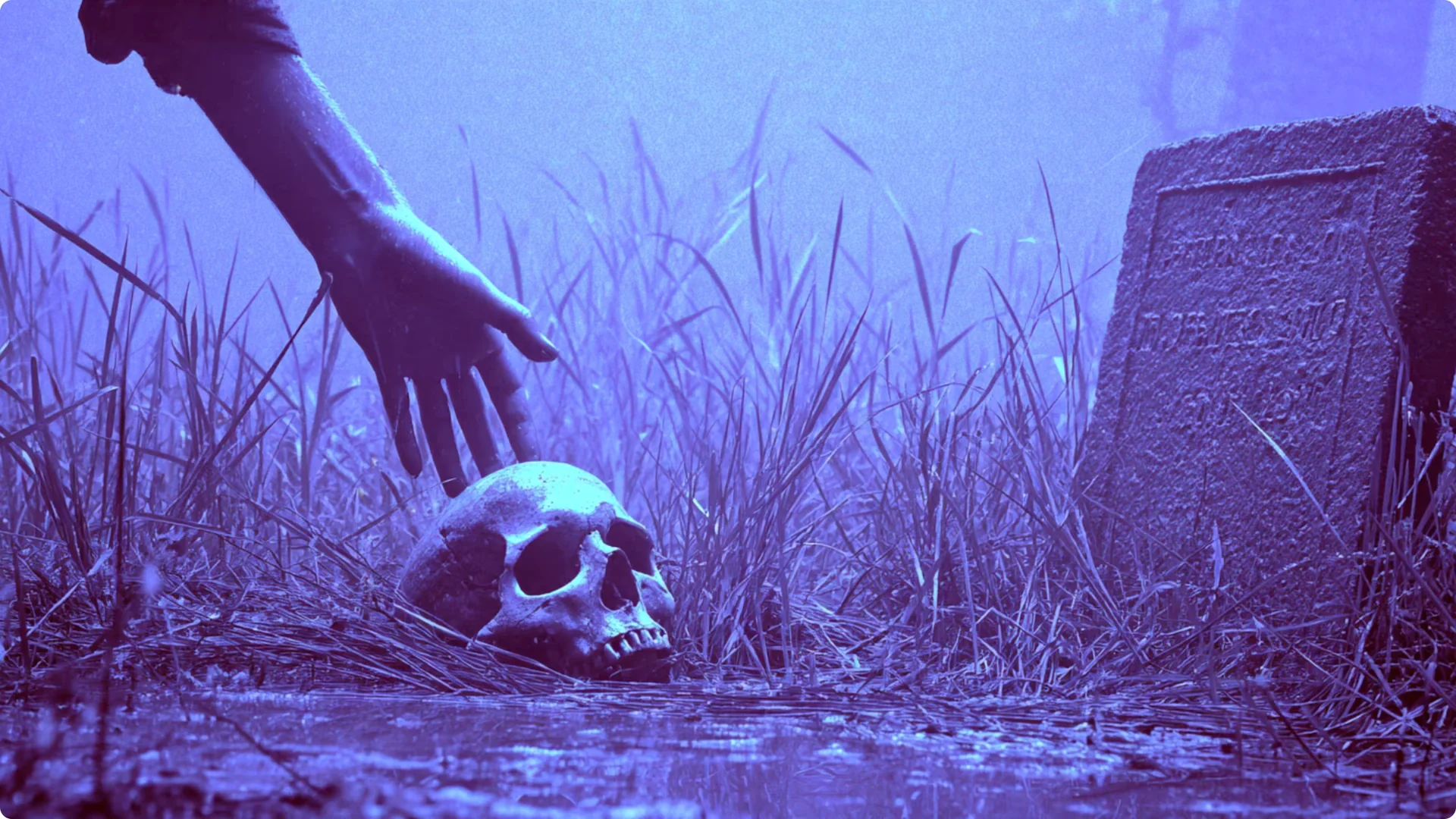
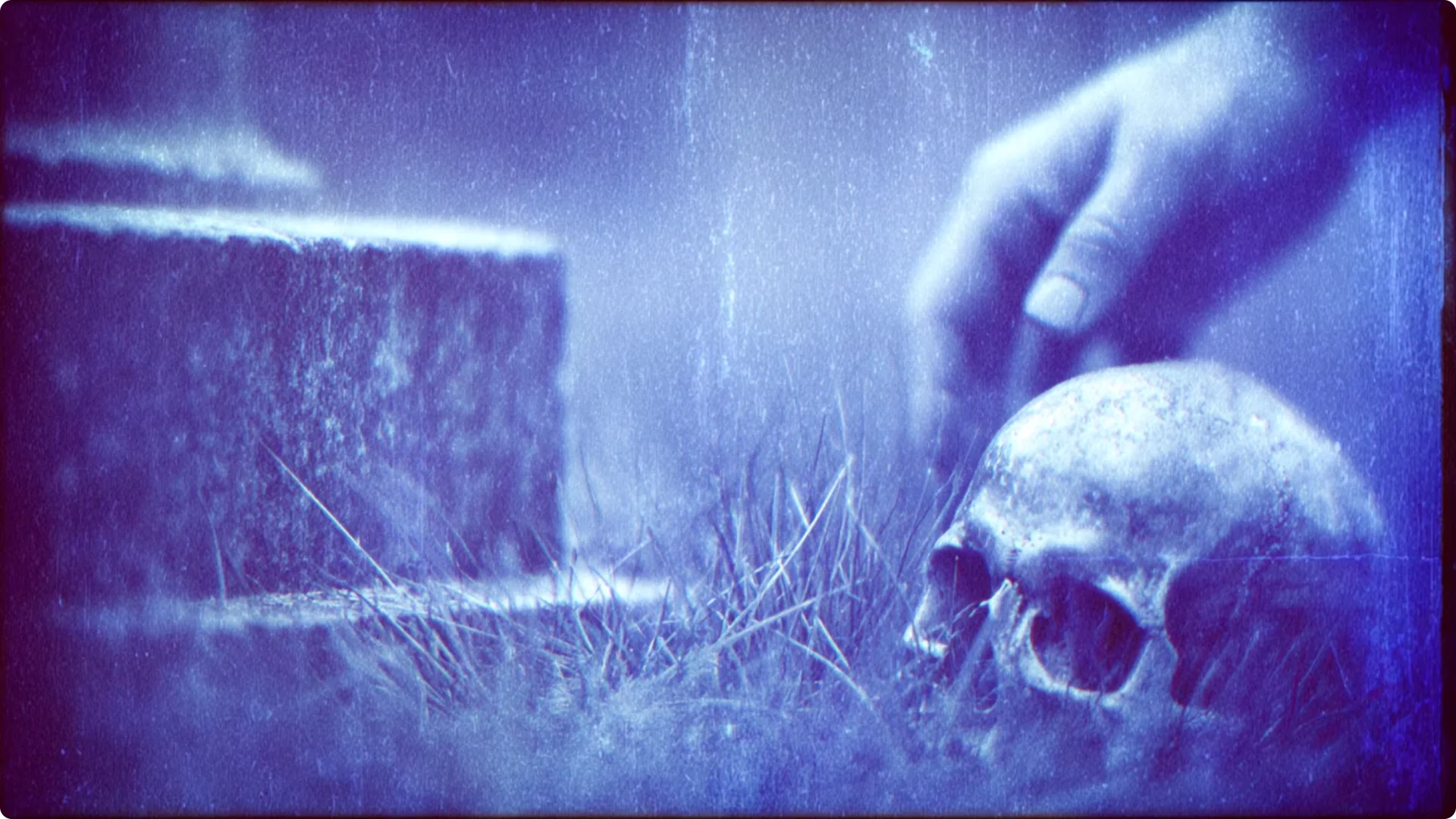
– a spooky skull sits in some wet grass next to a tombstone, a hand is reaching to pick up the skull
2. Find a generated image that nails the look you want.
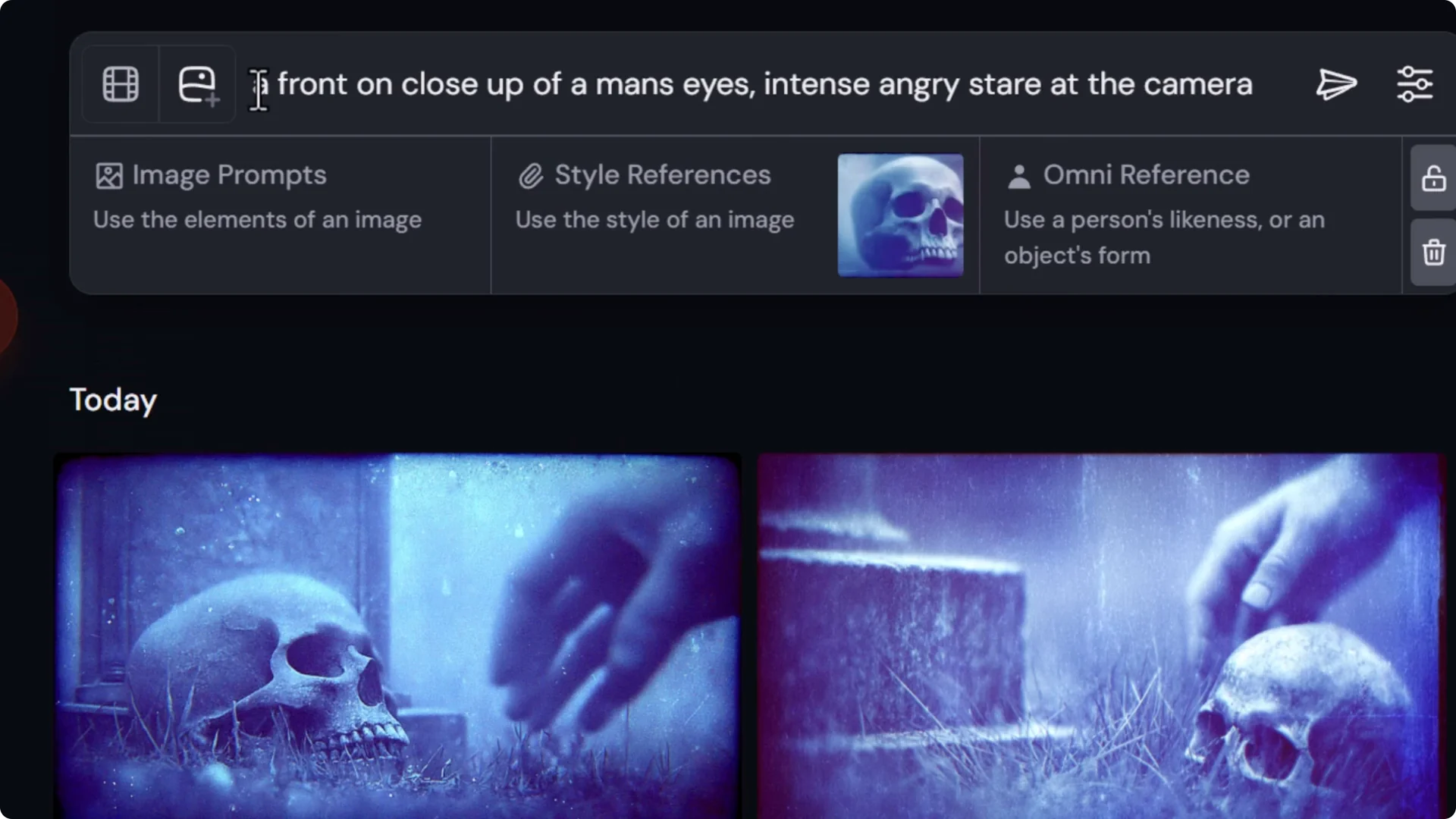
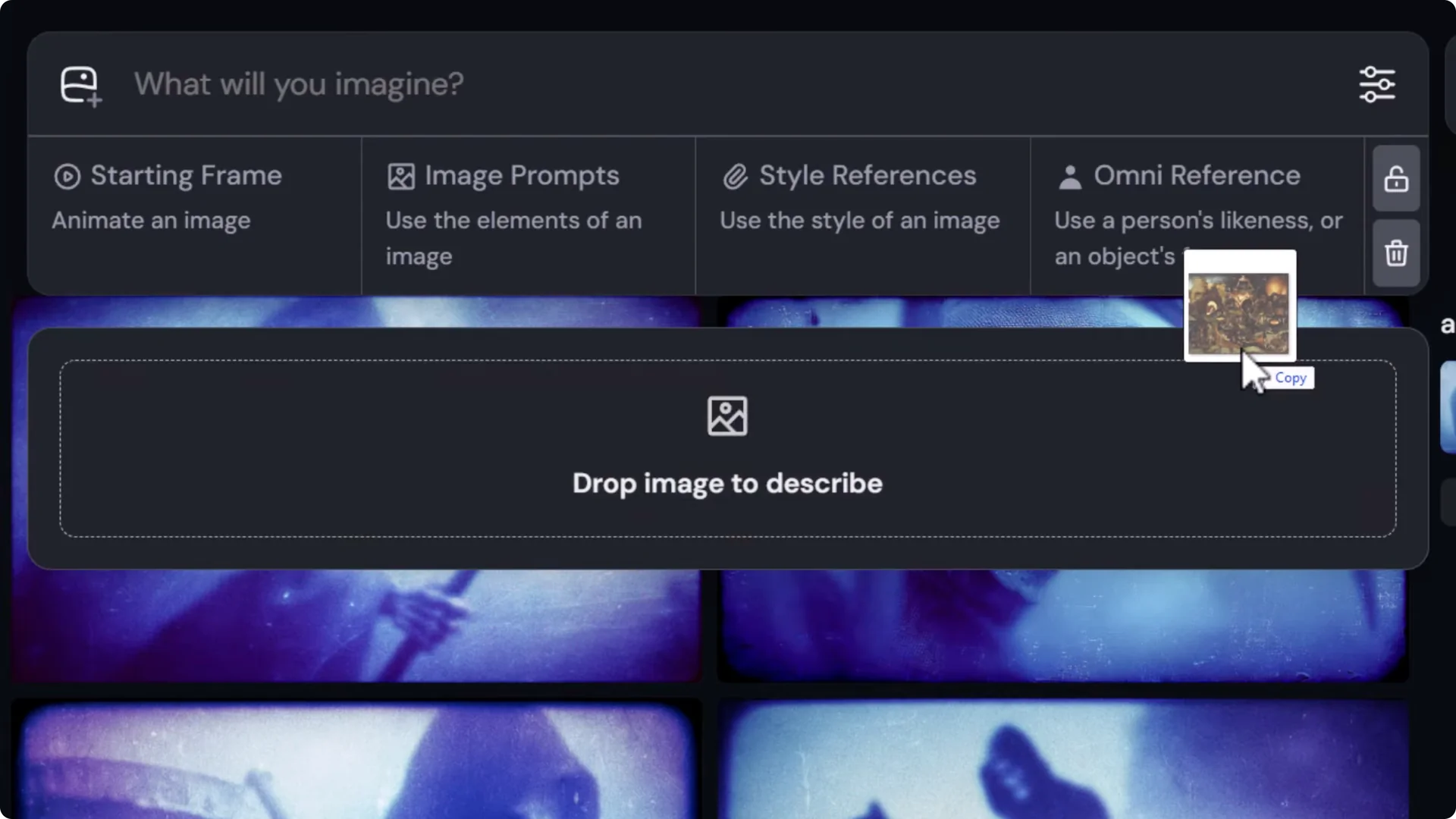
3. Drag that image in as a style reference and submit.
4. You’ll get images that match your scene while adopting that style.
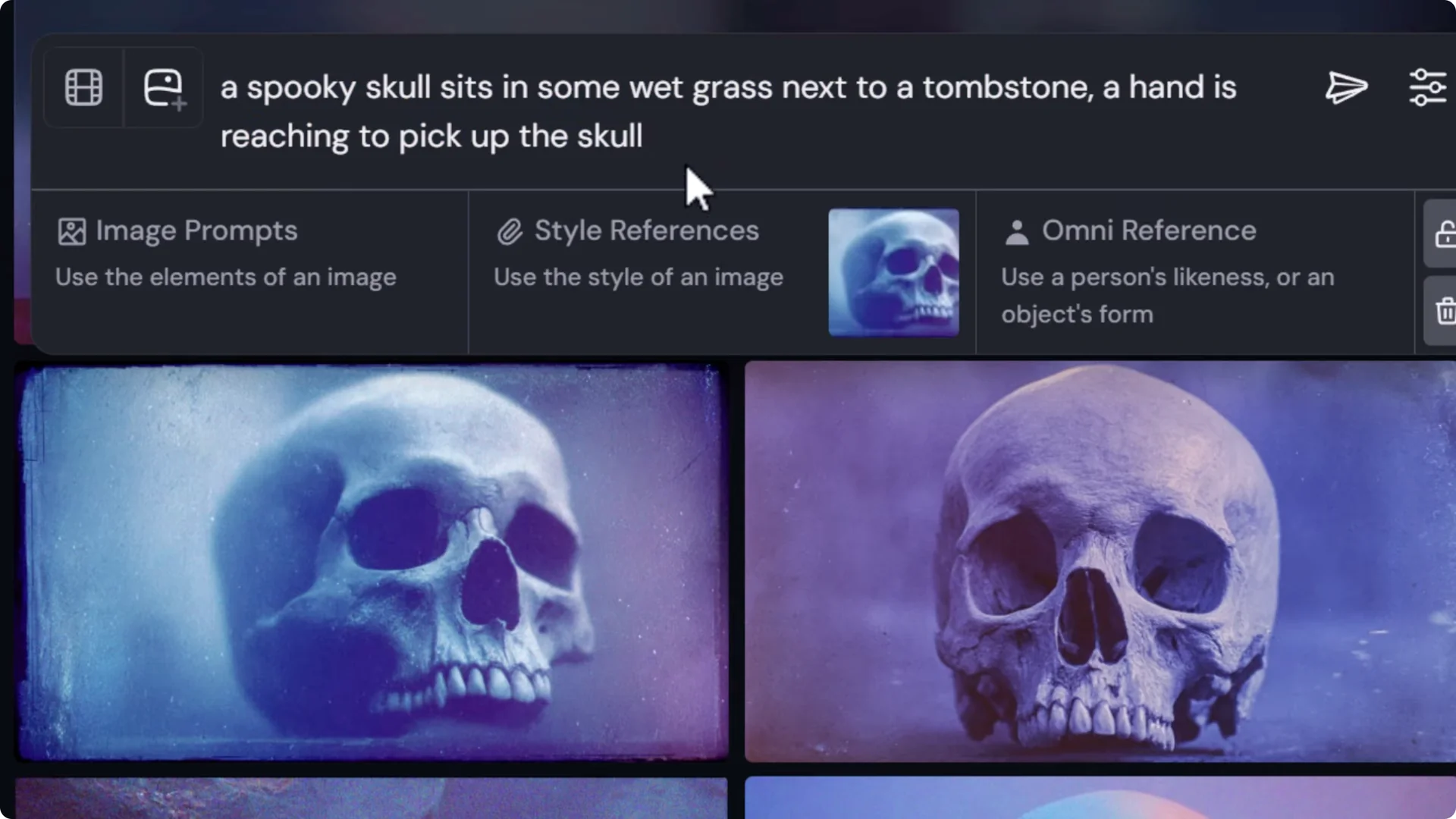
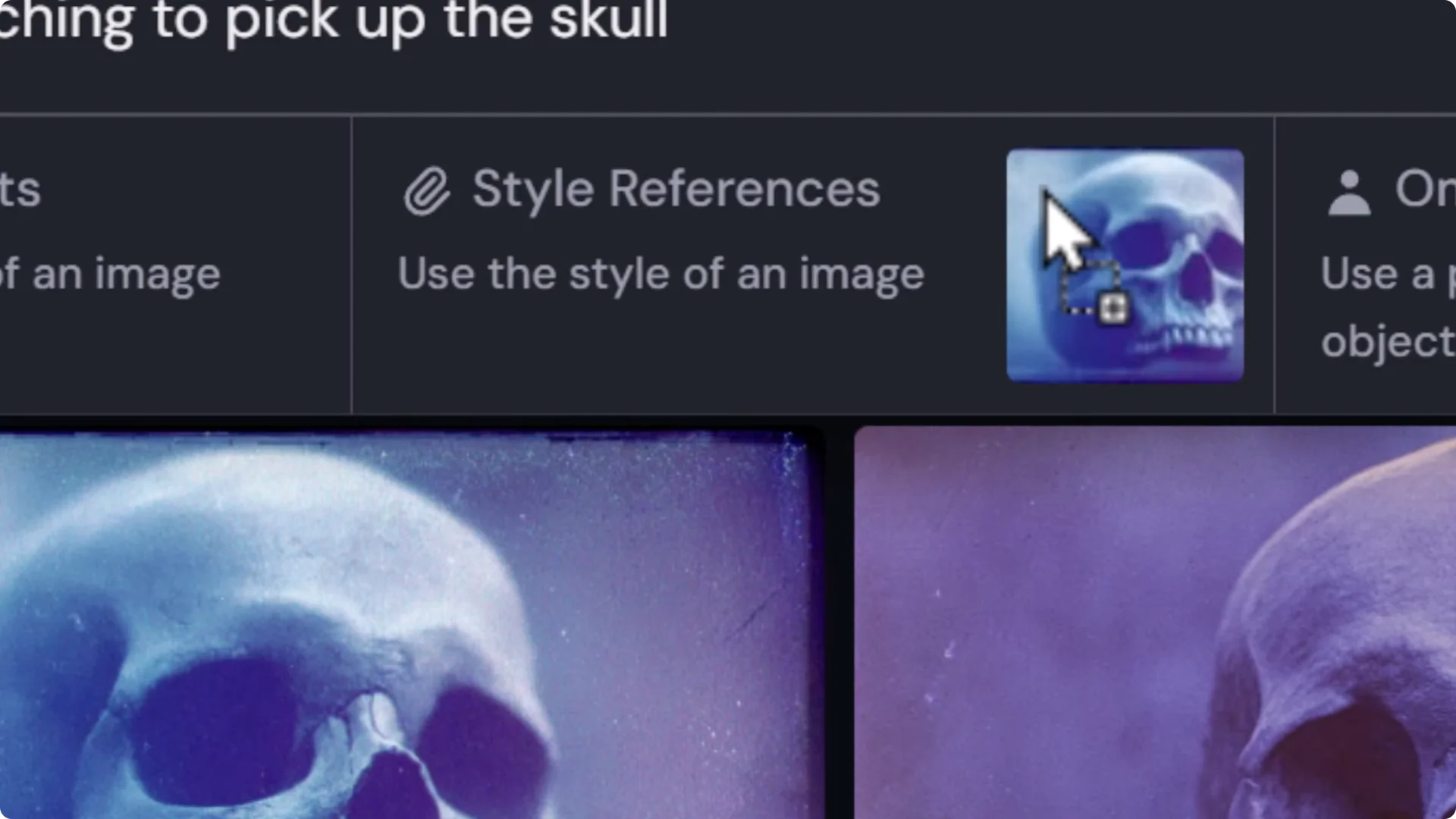
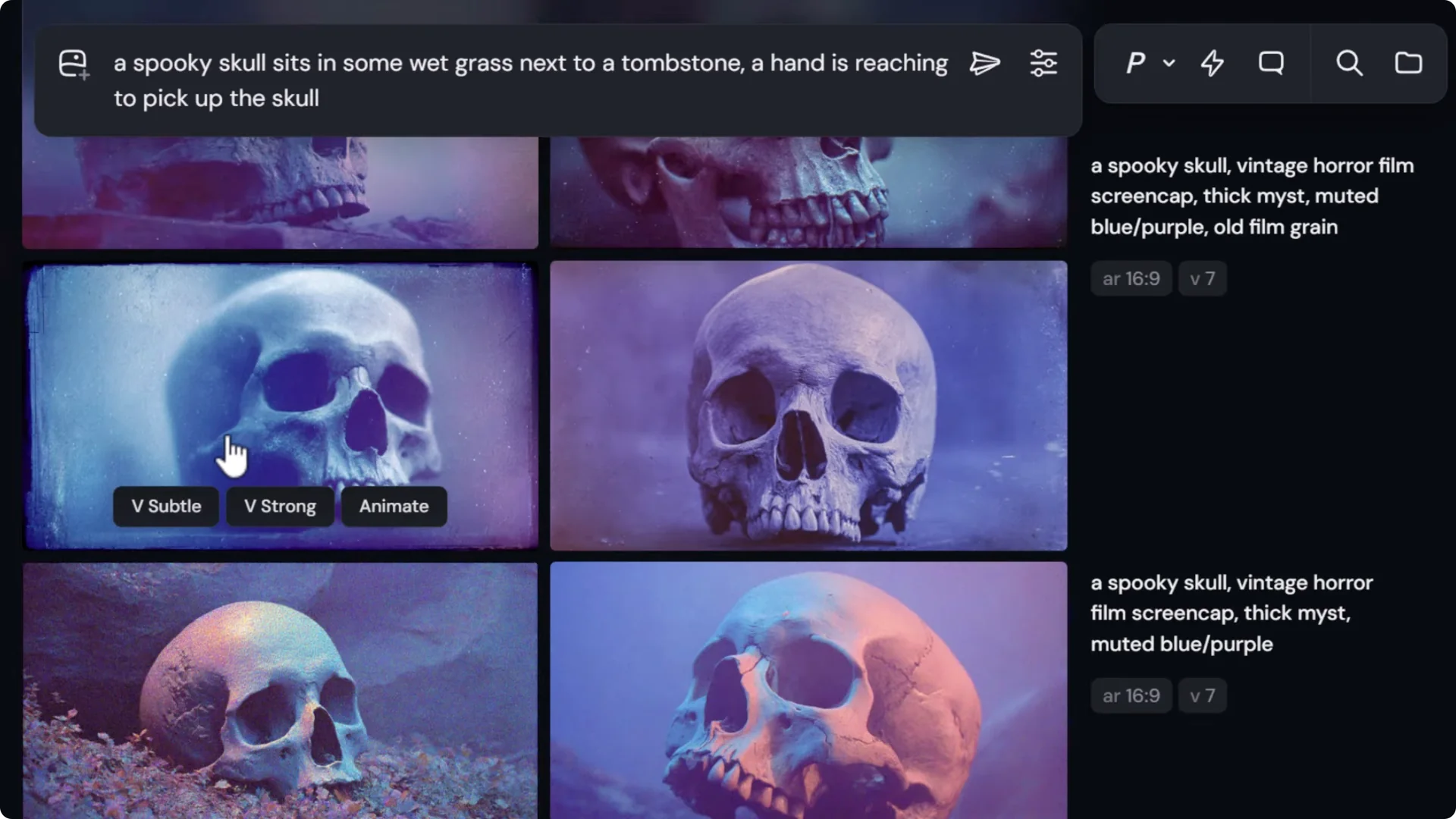

This splits the work: one prompt nails the look, another describes the scene. The style reference brings them together and increases consistency.
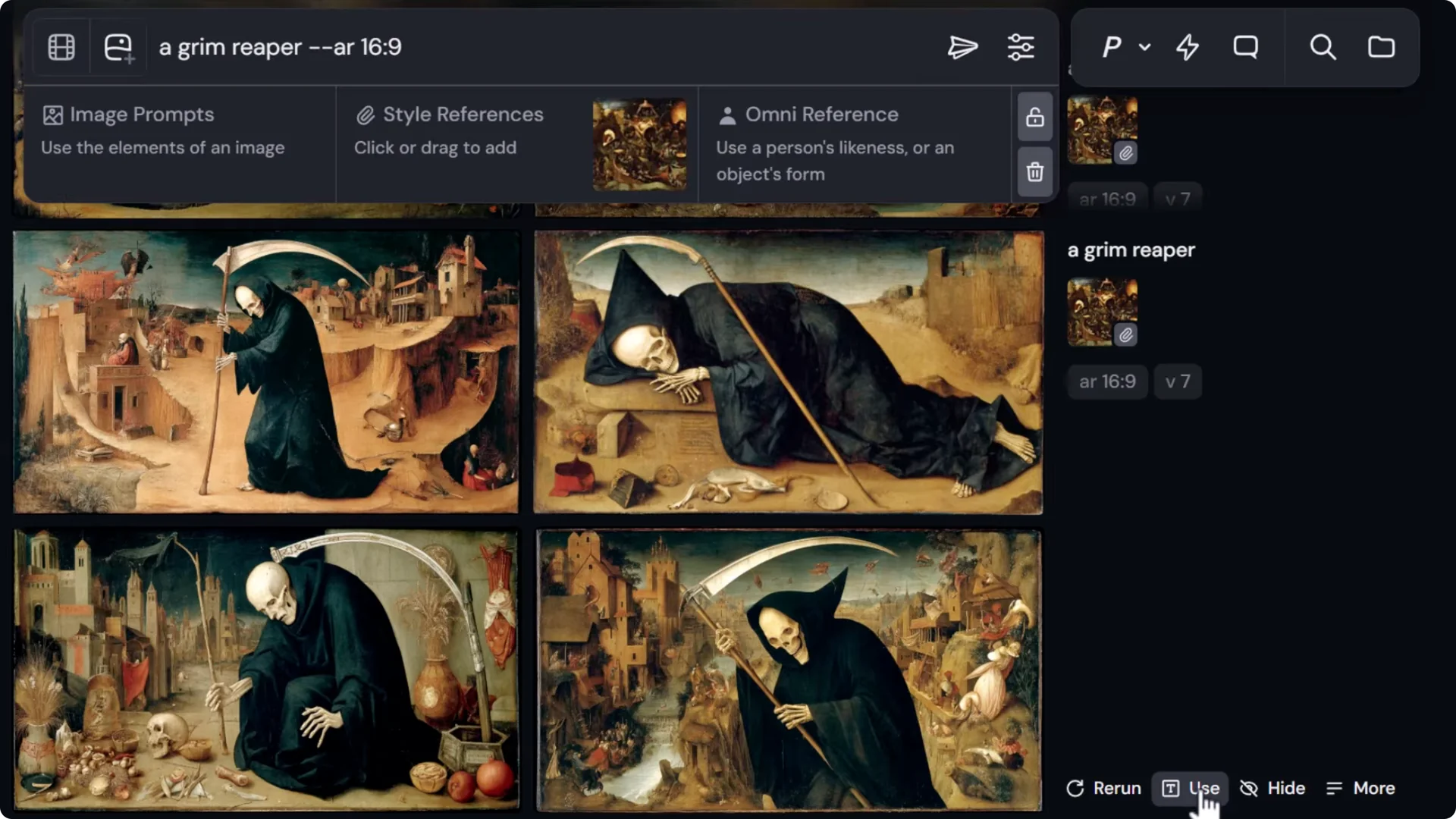
Use external images as style references
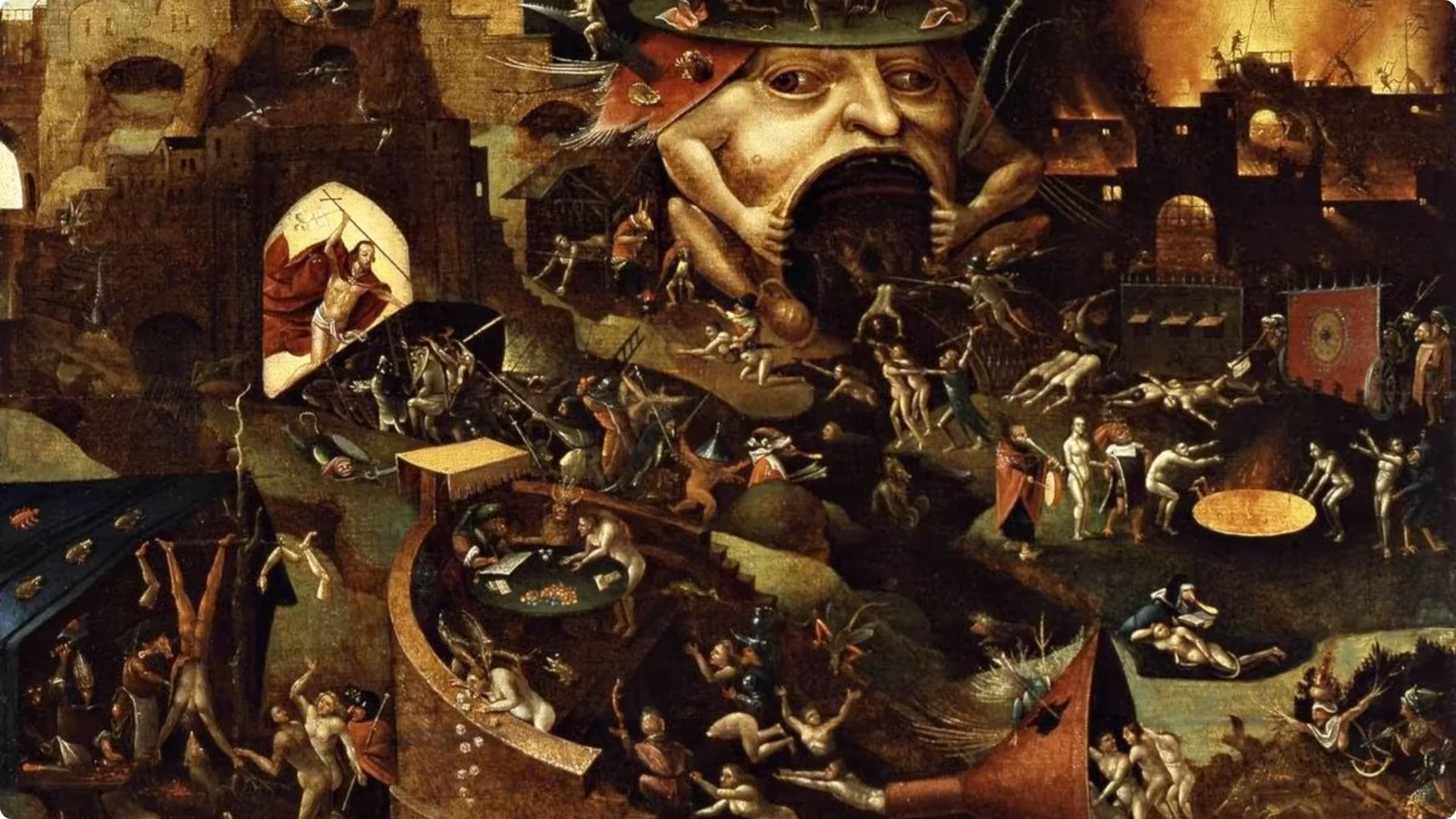
You can upload images from other artists or online sources as style references.
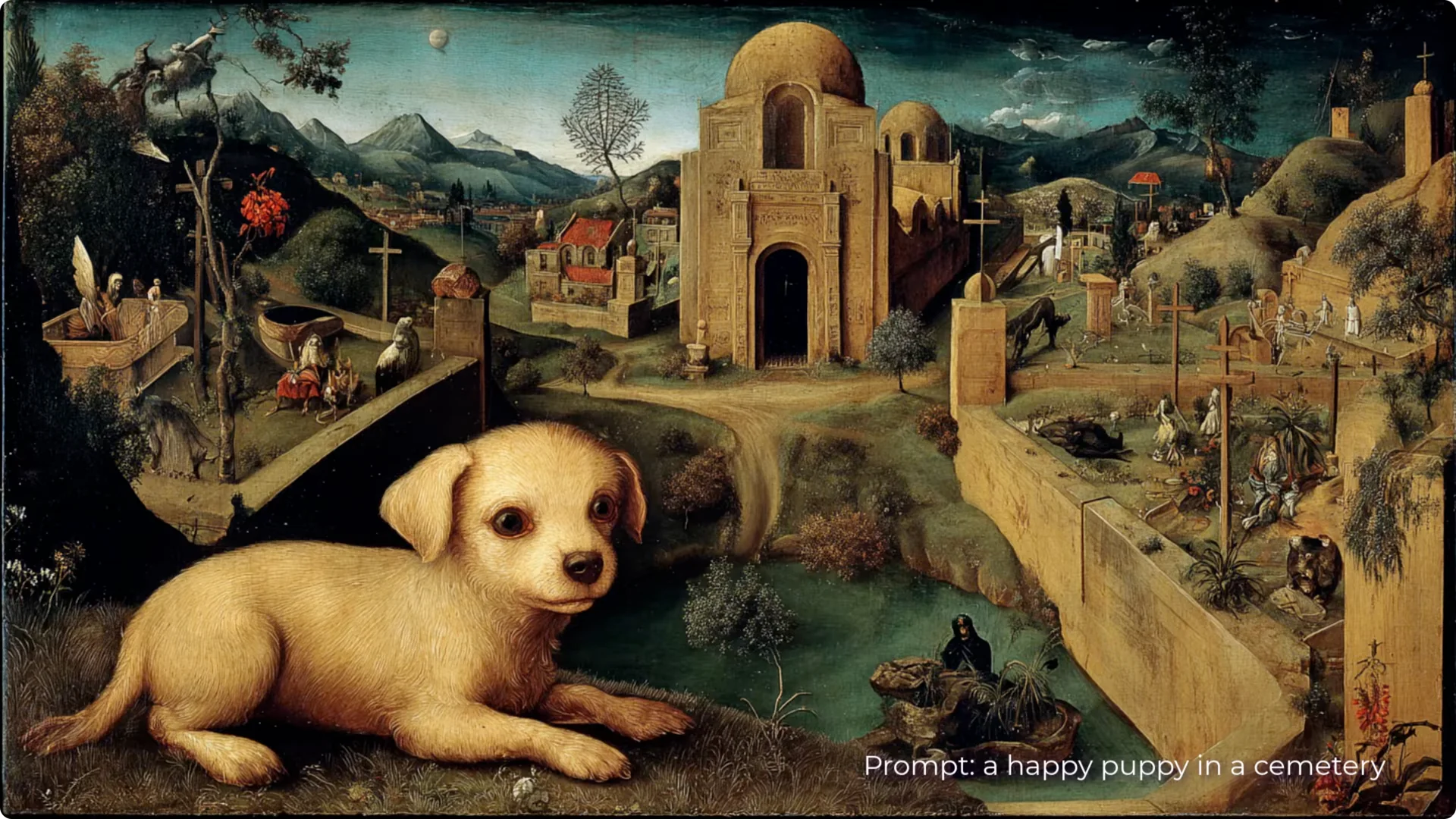
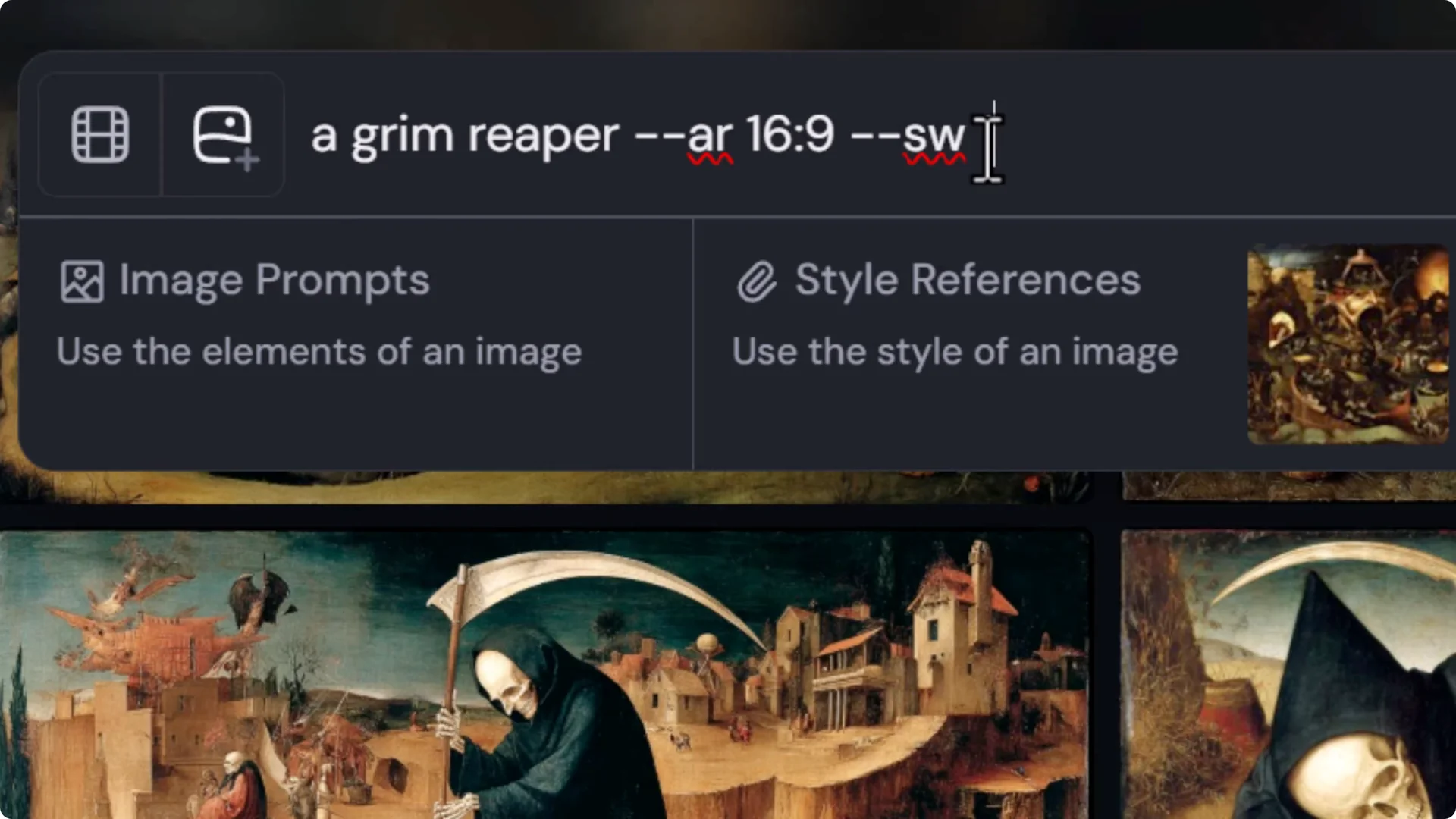
For example, dragging in a painting by Heronomous Bosch can infuse his colors, feel, and layout into your prompt. Results will vary, but it often gets close.
Control style strength with style weight
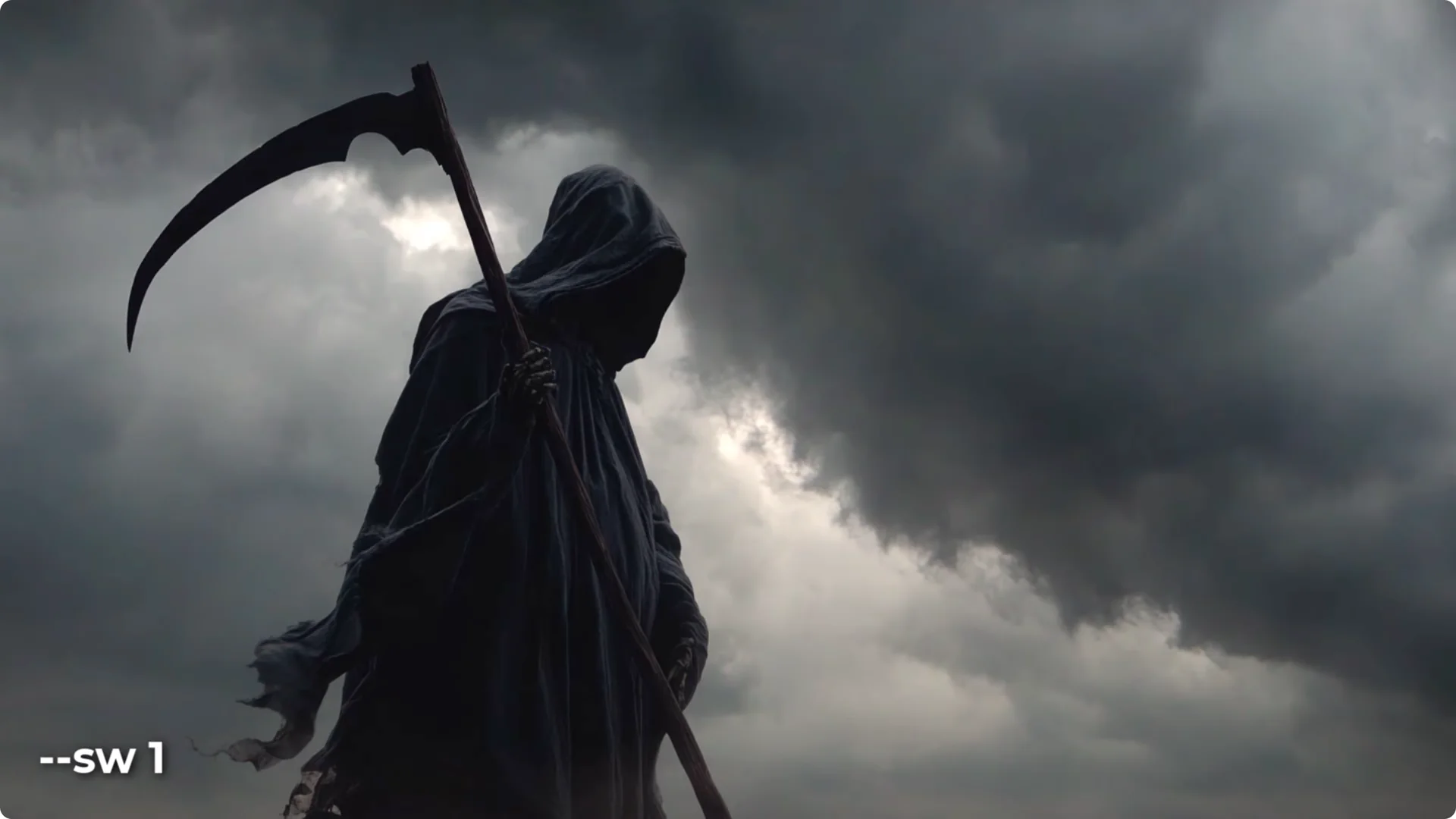
Add d-sw at the end of your prompt to control how strongly the style reference applies:
- Default is 100
- Range is 0 to 1,000
- Low values soften the style, high values intensify it
Combine and weight multiple style images
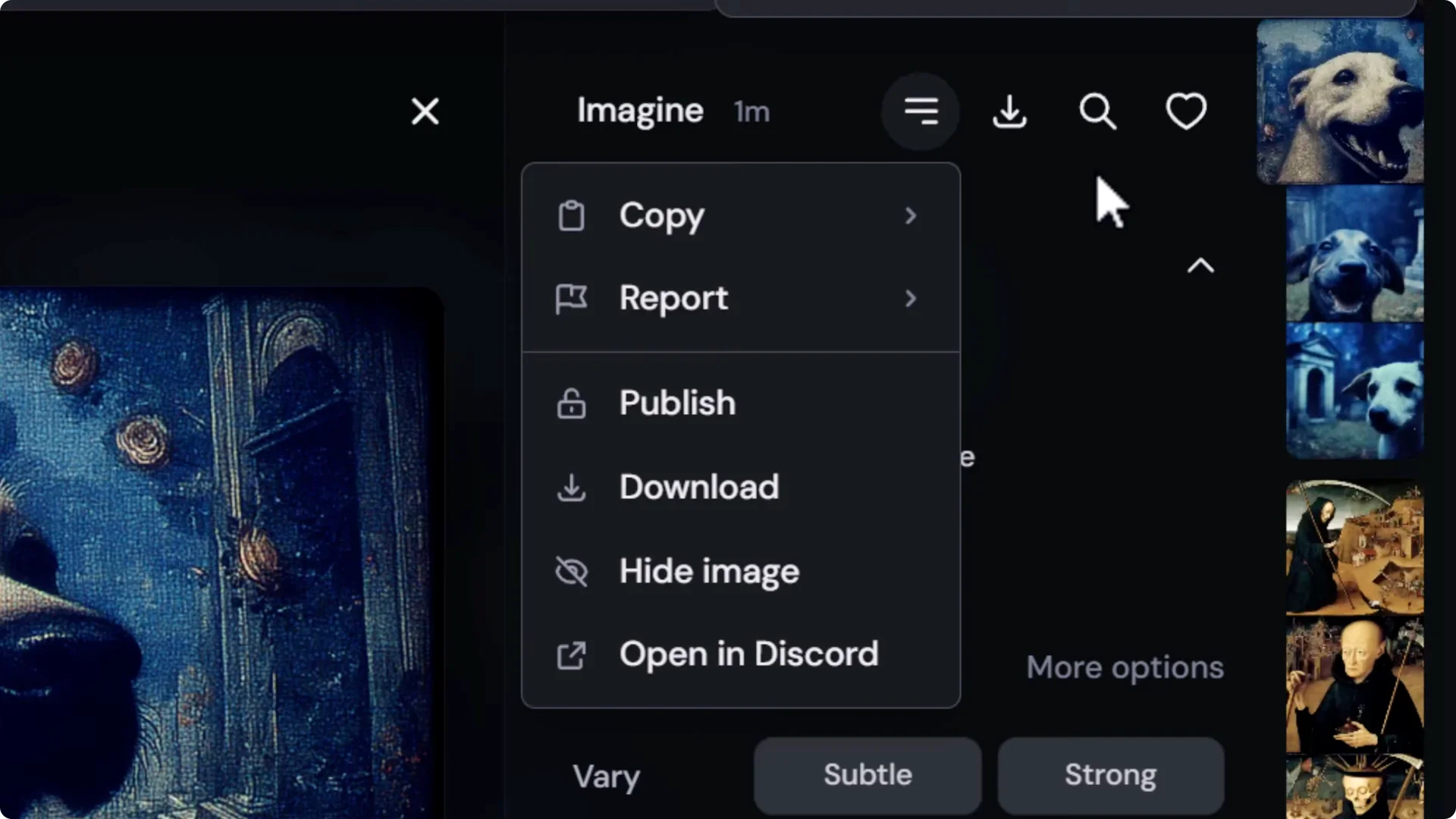
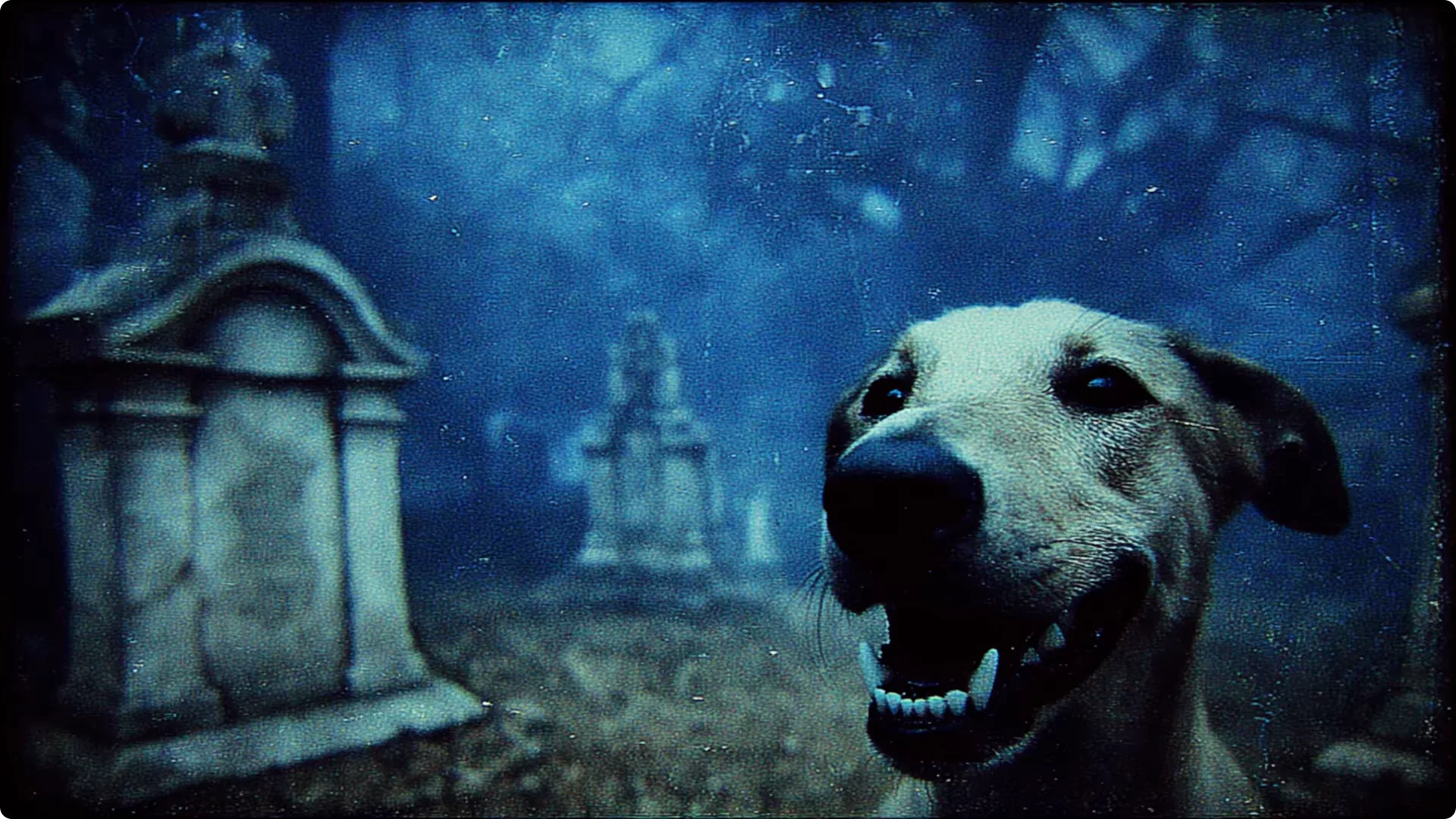
You can combine two or more style images. If you want to shift influence toward one, weight them in Discord:
1. Copy the full prompt with both image URLs.
2. In Discord, use /imagine, paste the prompt.
3. Identify which URL is which by pasting each into your browser.
4. Add ::number after each image URL to weight it:
– Example: first image ::2, second image ::0.5
5. Submit, then use /remix and roll to tweak values until you find a sweet spot.
Style Codes – SREF – for Midjourney Style Prompting
Generate random style codes
Use d-sref random to generate a style code. Midjourney will apply a distinct style and return a reusable code. Reuse that code with different prompts to keep the same look across subjects.
Discover multiple styles with repeat
Use d-re repeat to generate several codes in one go, depending on your plan:
- Example: d-re repeat 5
Changing a single number in the code can drastically change the style.
Explore styles in the Style Explorer
- Go to the explore page and switch from Images to Styles.
- Use Hot or Top Day-Week-Month to see popular styles.
- Hover over Try style to apply a style to your most recent prompt.
- Click the T button to append a style code to your prompt without auto-submitting.
- Click a style to preview images created with that code.
- Heart styles to save them under Likes for easy reuse.
- Search for themes like surrealism or biomec to narrow down options.
As you try styles, you’ll see a variety of results appear in your create page.
Adjust style intensity with style weight
If a style code looks too strong, add d-sw50 to halve the default intensity and resubmit.
Test a style with permutations
You can test a code across multiple prompts using permutations:
- Add prompts in curly brackets, separated by commas, then put the sref code after the bracket.
- Example: {a man’s eyes intense angry stare, an astronaut, a city street} d-sref [code]
This submits multiple prompts with the same code so you can quickly evaluate stability and look. It also works if you keep permutations in the prompt bar and click Try style in the explorer.
Blend multiple style codes and weight them
1. Add multiple sref codes at the end of your prompt.
2. Weight each code using ::number, for example:
– First code ::0.6
– Second code ::1.5
– Third code ::1.8
3. Add an overall d-sw value to fine tune intensity.
Blending codes can produce very unique results, and weighting helps balance their influence.
Formalize Your Look with Mood Boards for Midjourney Style Prompting
Build source images for your mood board
Use permutations and your chosen style tools to generate a varied set of images in the look you want. Review and rerun any that stand out so you have enough strong examples.
Create a mood board
1. Open the Mood Boards tab.
2. Create a new mood board and name it, for example: black and white glitch grunge.
3. Add from gallery and select images that clearly represent your style. It can help to include one or two that are slightly less stylized for balance.
Generate with a mood board code
- Use your next prompt, for example: a woman’s face smiling.
- When you click use, your mood board code is added automatically.
- Submit to generate images that match your defined style elements.
You can also enable a mood board from the personalization menu by filtering for its name and toggling it on.
Step-by-Step Quick Guides
Build a style directly in your prompt
1. Start with subject + style phrase.
2. Add color and environmental elements.
3. Add texture like old film grain.
4. If needed, move style phrases to the start to prioritize them.
5. Refine vocabulary with references to art styles or artists.
Apply style via image references
1. Create or upload a style-defining image.
2. Write a clean scene prompt without style phrasing.
3. Add the style image as a style reference.
4. Adjust with d-sw for intensity.
5. Combine multiple style images and weight in Discord with ::number.
Work with style codes
1. Generate codes with d-sref random or discover many with d-re repeat.
2. Explore and save favorites in the Style Explorer.
3. Test stability with permutations.
4. Blend codes and weight each with ::number, then fine tune with d-sw.
Cement your look with a mood board
1. Generate a set of images in your chosen style.
2. Create a mood board and add the best examples.
3. Use the mood board code in future prompts for consistency.
Final Thoughts
Midjourney Style Prompting starts with clear, accurate style descriptions, then grows more powerful as you add color, texture, and prompt structuring. When that is not enough, style references let you apply a look directly to a scene prompt, with style weight giving you precise control.
Style codes and the Style Explorer help you discover, test, and blend new looks at speed. Once you lock in a style you love, formalize it as a mood board so you can create consistently in that look any time.
