Perplexity AI does not include a built-in feature that lets you use it as an AI companion in a side panel. You can still make Perplexity behave like a simple companion that stays with you while you research, browse, or work.
I use a small browser panel that keeps Perplexity visible on the right side while I move through other pages.
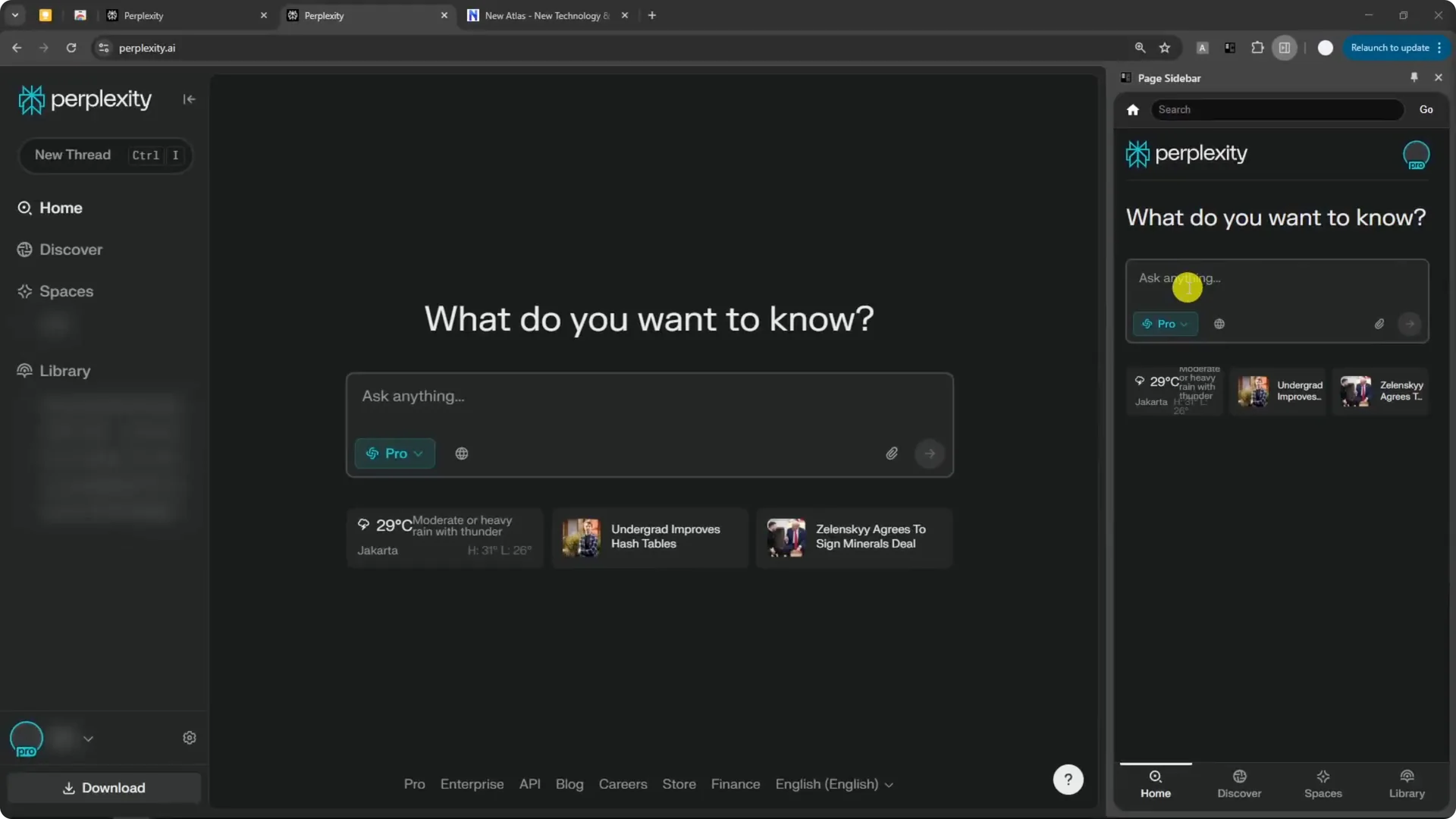
This is not an official Perplexity feature. I use a Chrome extension to open any web page inside the browser’s side panel, then load Perplexity there. The benefit is that the panel stays put as you navigate to different pages or sites.
Why a Perplexity AI Side Panel Helps
I like having Perplexity ready for quick questions that come up during research or general browsing. It sits next to the page I am viewing, so I can ask and refine prompts without switching tabs. It keeps me in flow during tasks.
You are not limited to Chrome. Most modern browsers use Chromium, including Brave and Microsoft Edge, so they can install the same extension from the Chrome Web Store. That makes this setup broadly accessible.
Read More: Create Superior Ai Art
Set up a Perplexity AI Side Panel in Chrome
Install the extension
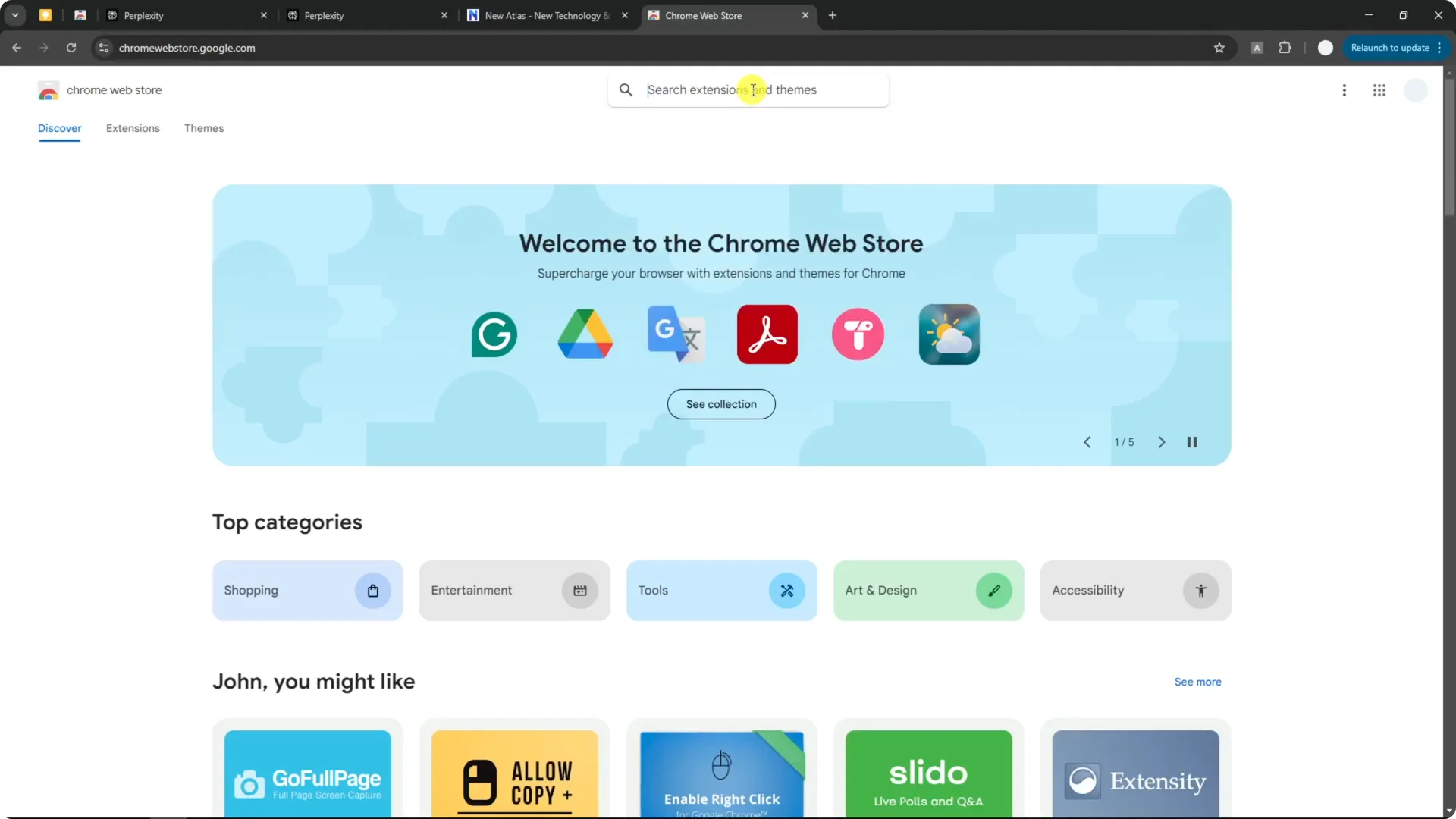
Step 1: Open the Chrome Web Store. Search for Page Sidebar.
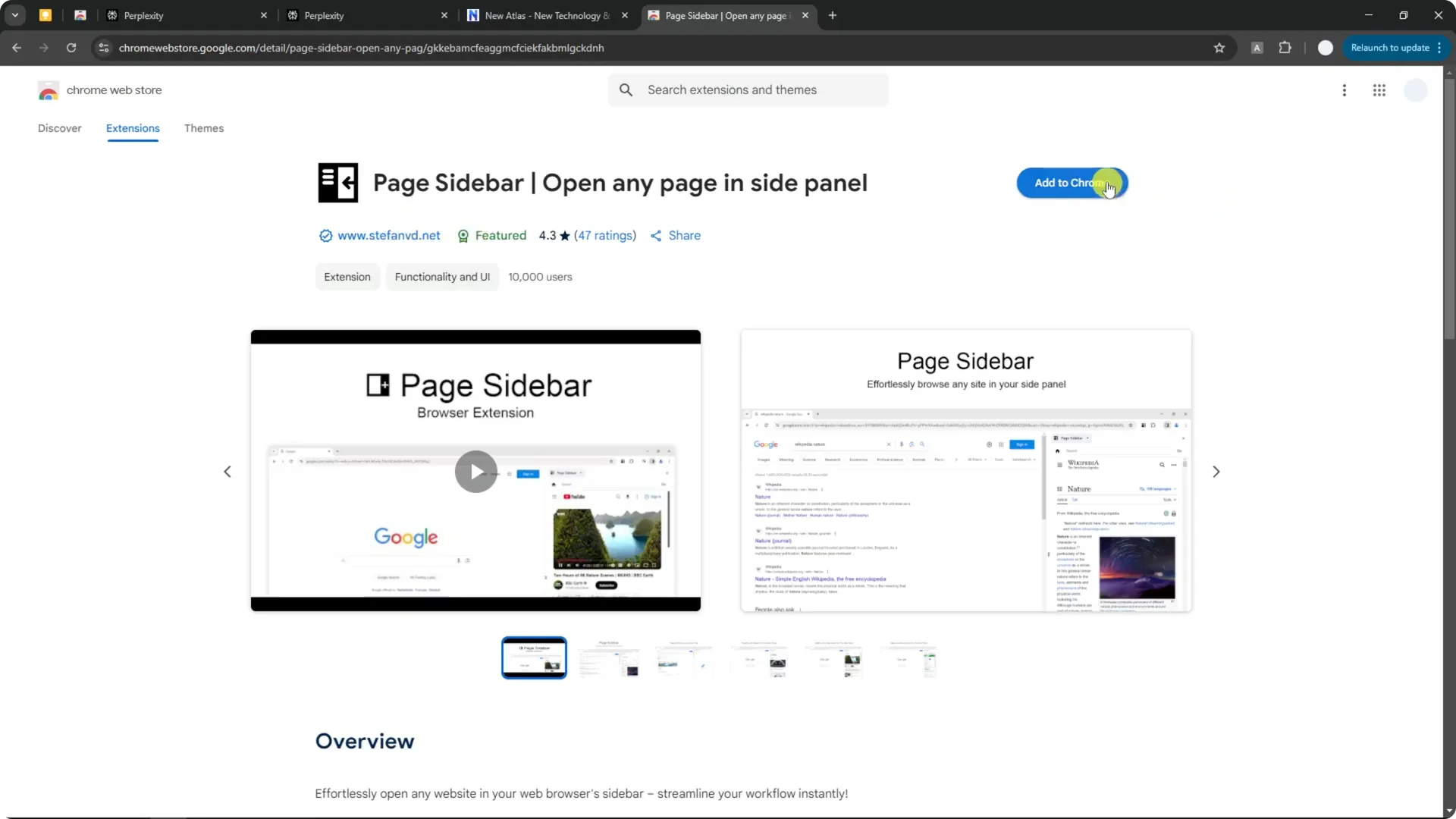
Step 2: Find the extension named Page Sidebar and confirm you are installing the correct one. Click Add to Chrome.
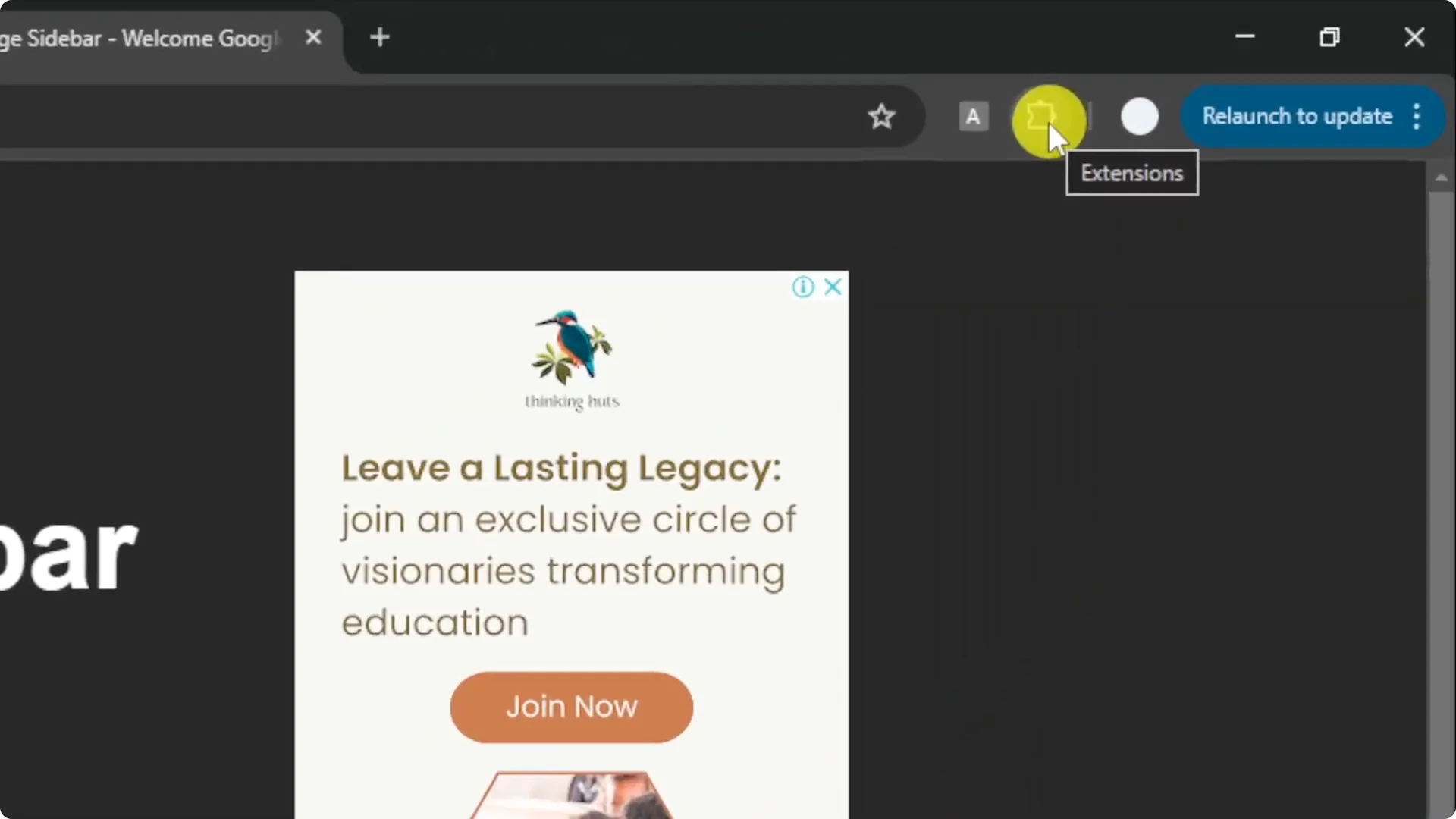
Step 3: After installation, pin the extension for quick access. Click the extensions icon in your browser and click the pin next to Page Sidebar.
Load Perplexity in the panel
Step 4: On any page, click the Page Sidebar icon. A blank panel opens on the right.
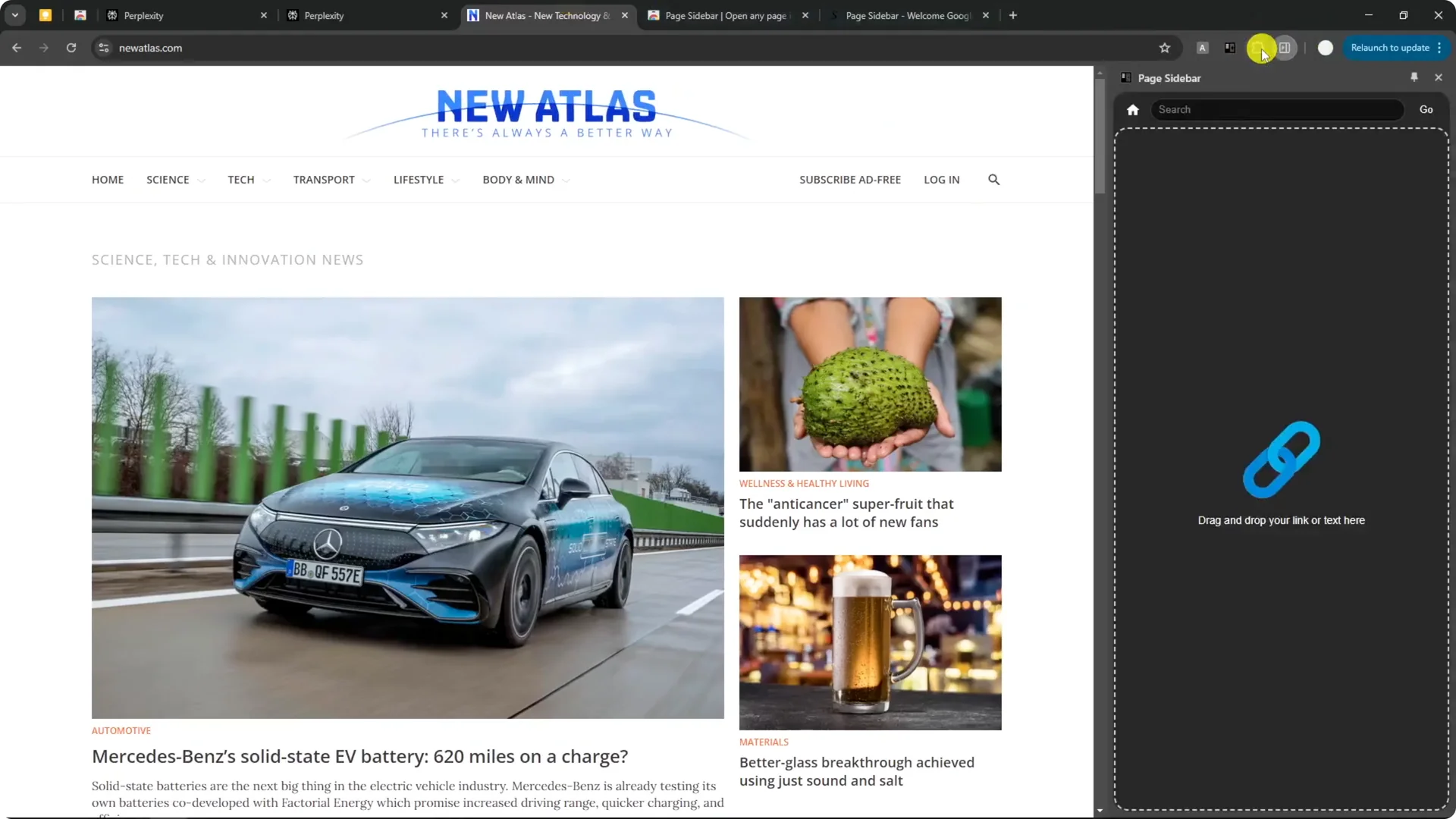
Step 5: Load Perplexity into the panel. Type perplexity.ai, paste the URL, or drag and drop the URL into the panel.
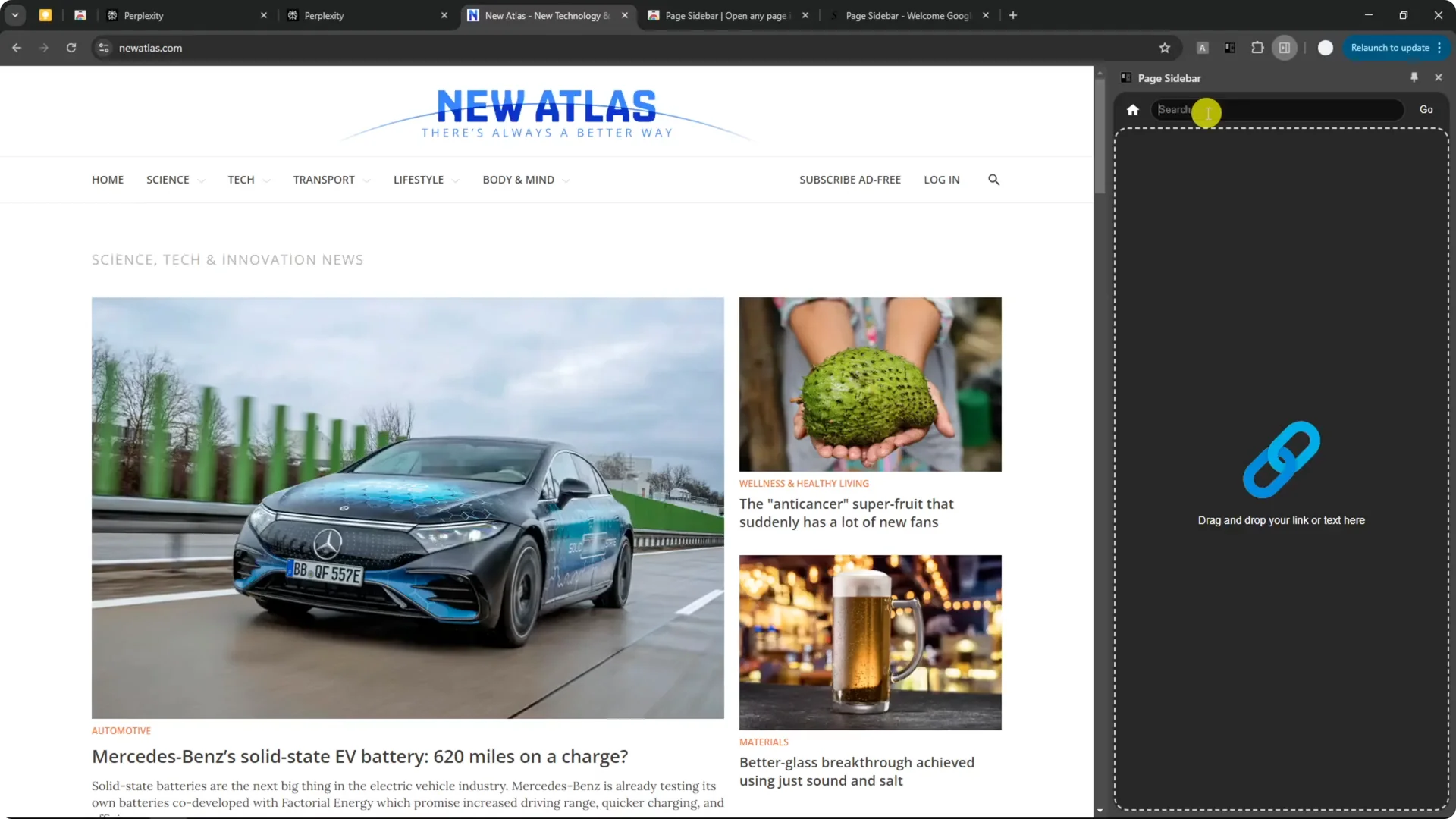
Step 6: Keep the panel open as you browse other tabs or sites. Perplexity stays visible and ready for prompts.
Read More: Eye Catching Ai Art Midjourney Prompts Styles
Use the Perplexity AI Side Panel
Features in the panel
Once loaded, Perplexity works as expected for searching and answering questions. I can rewrite content using different models and share documents. It is responsive and usable inside the panel.
Voice feature differences
The panel uses the mobile web version of Perplexity, and it is not the same as the mobile app. The web version has no voice feature. The iOS and Android apps include voice, which makes the feature set inconsistent across platforms.
Read More: Camera Control For Midjourney Ai Video
Limitations of a Perplexity AI Side Panel
The panel is not aware of the main page content you are viewing. If you ask it to summarize the page you have open, it will not know what you are referring to. It has no direct connection to your current tab.
This means you will get a response like having no access to the content you mentioned. For quick context-aware help, this is a real limitation. You need to provide the content or a link yourself.
Workarounds for page awareness
Step 1: Copy the URL of the page you want summarized. Paste that link directly into your Perplexity prompt in the panel.
Step 2: Ask your question with the link included, such as summarize this page, then send it. Perplexity will search and read from its sources to return a summary.
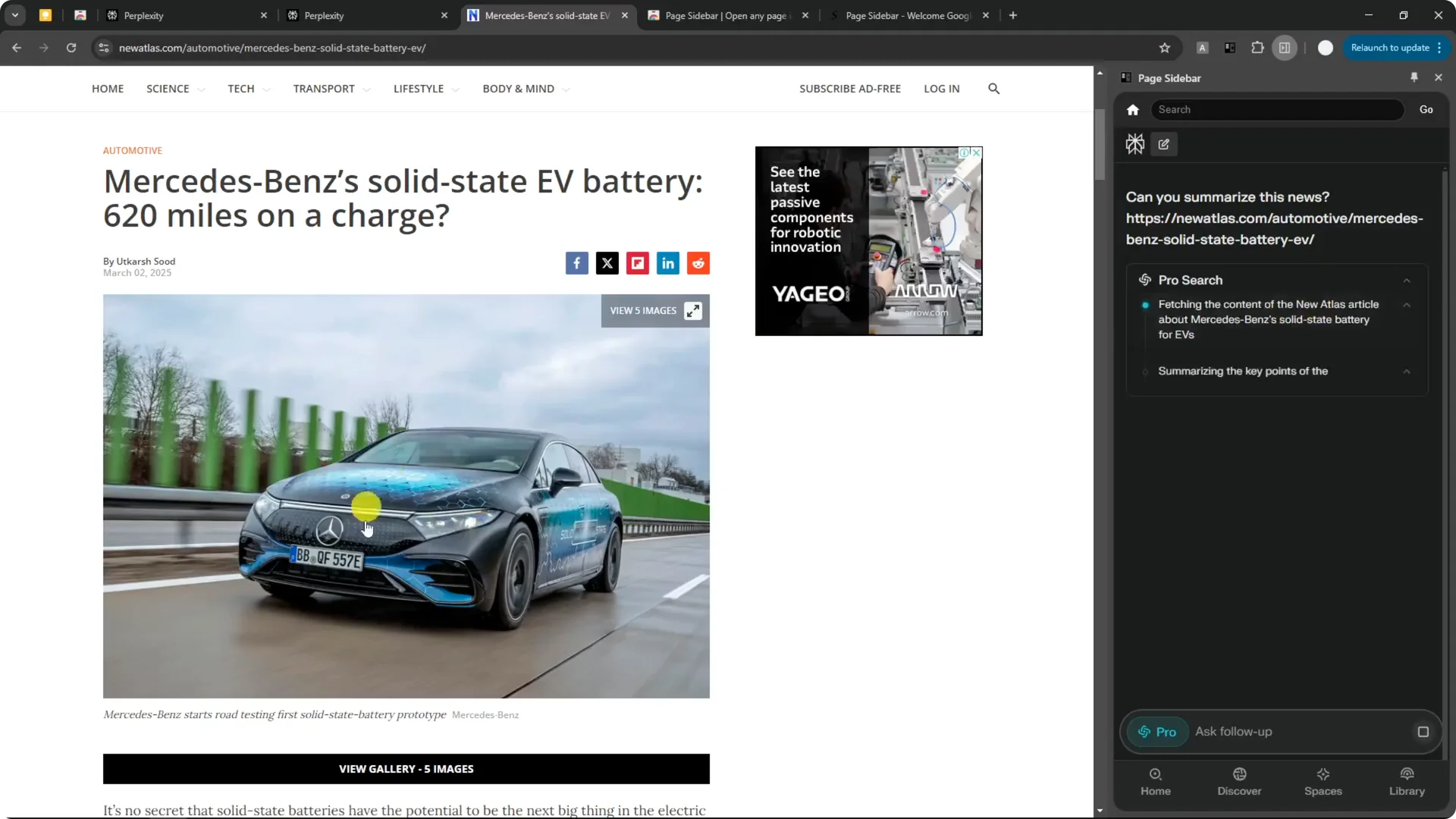
This small extra step keeps the panel useful during research. It still speeds up the workflow if you are comfortable pasting links or snippets. For many tasks, that is enough to make the side panel helpful.
Read More: Transformative Ai Art Midjourney Prompts
Final thoughts
A Perplexity AI Side Panel is not an official feature, but a simple extension can give you a solid companion that stays open while you work. It is great for quick questions, rewriting, and sharing, as long as you provide links for context.
The main tradeoff is the lack of page awareness and no voice on the web version. If that fits your workflow, it is an easy way to keep Perplexity at your side.
