Version 8 of Midjourney is pretty great at generating text, and here is how to get the most out of it. Depending on timing, V8 might only be available on the alpha website. Keep that in mind as you test prompts.
When you write your prompt, add the text you want to see inside quotation marks.
That is the basic move to get readable words into your image.
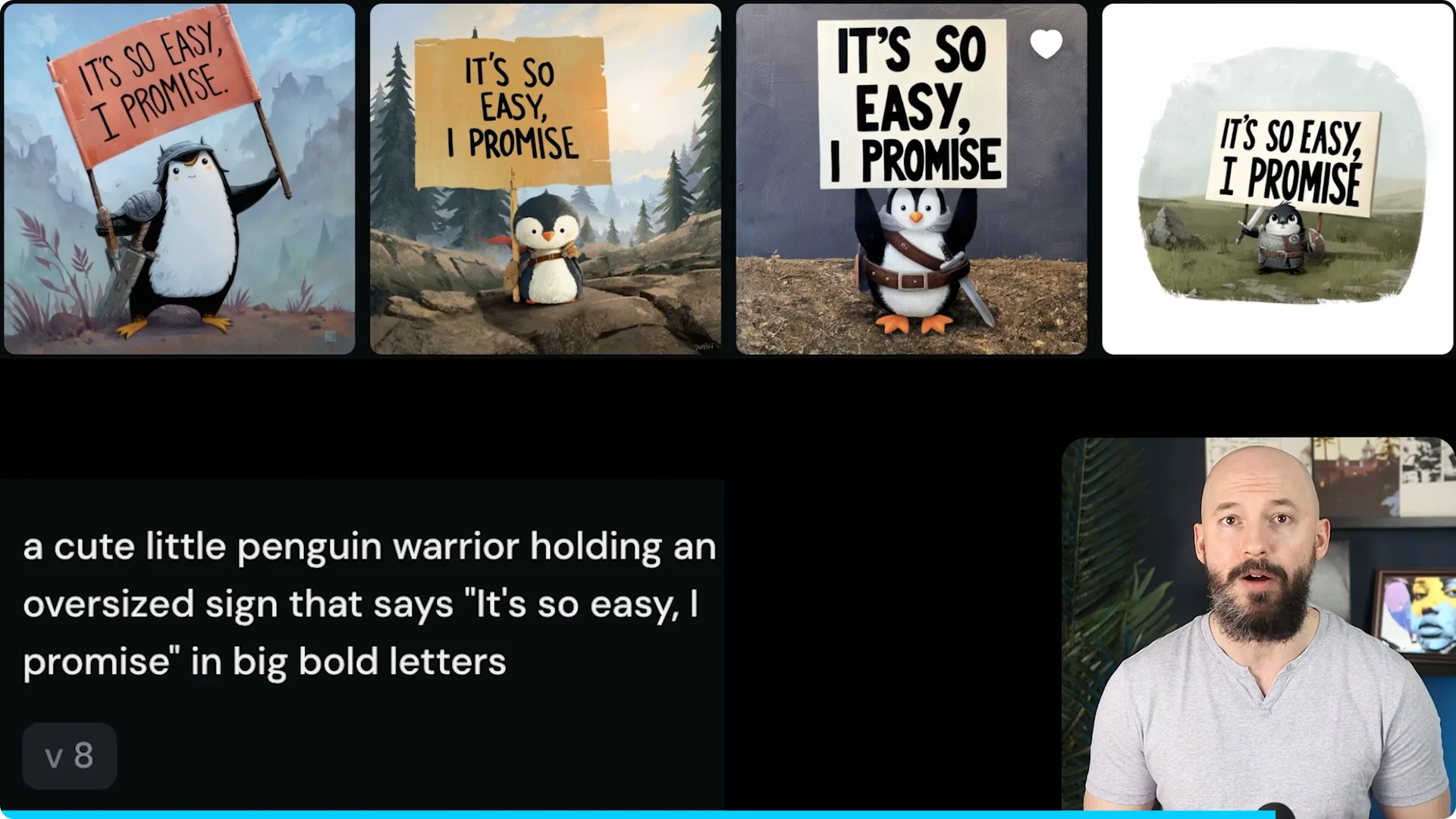
For example, a cute little penguin warrior holding a sign that says “It’s so easy.”
You can add symbols too.
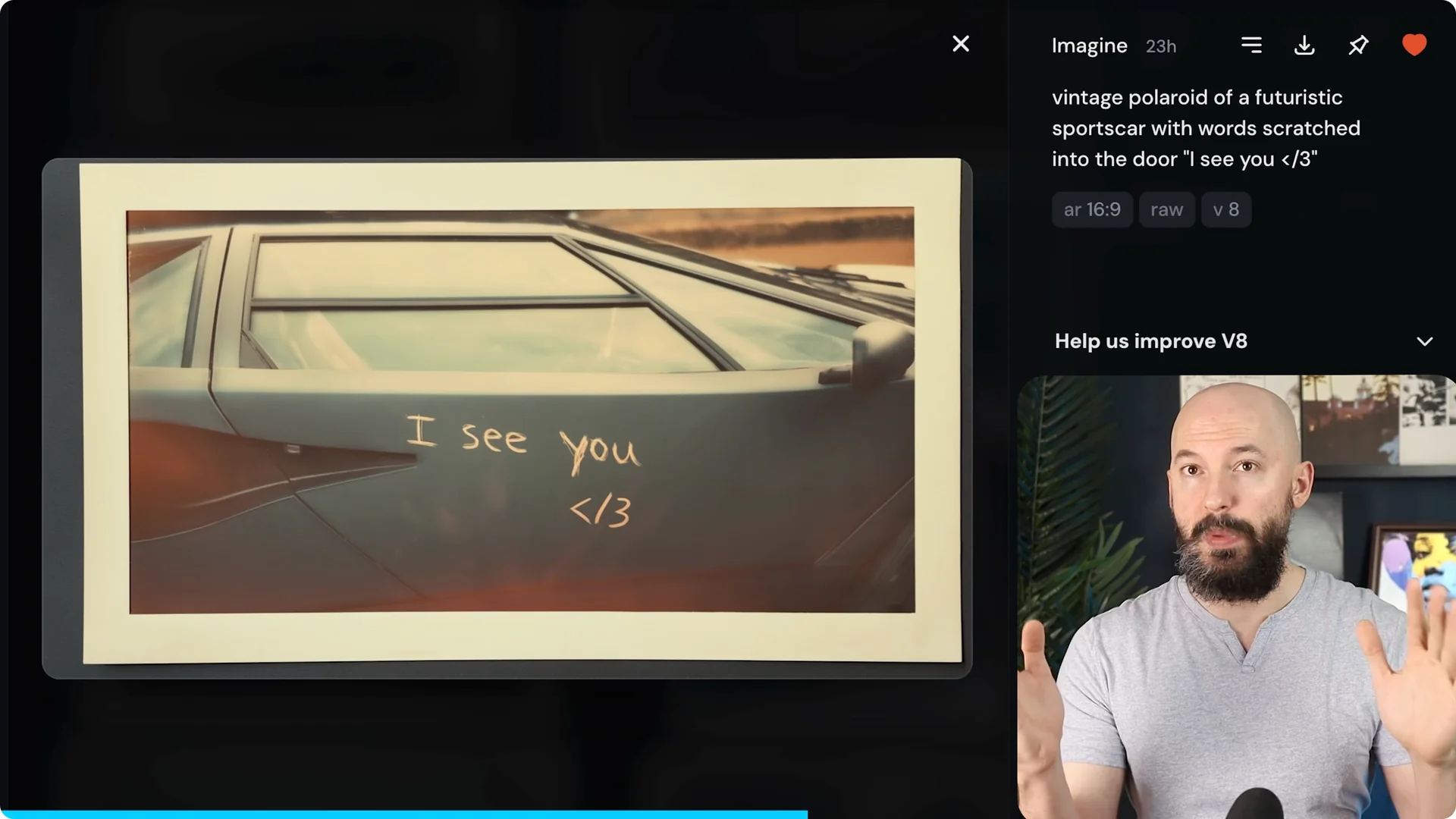
Try something like a vintage Polaroid of a futuristic sports car with the words “I see you” scratched into the door, followed by a triangle, a backslash, and the number three.
You will often see creative placements, like using a door frame as the slash.
Basics for Text Batching in Midjourney V8
The biggest tip is simple. If you want to add a lot of text, add the text in batches. Split the sentence into multiple quoted chunks.
Here is the initial example that struggled.
A cinematic still of a vintage motel sign that says “Worry not, you can sleep here for free if danger is in your future.” All of that was in one set of quotation marks, and the results were mixed.
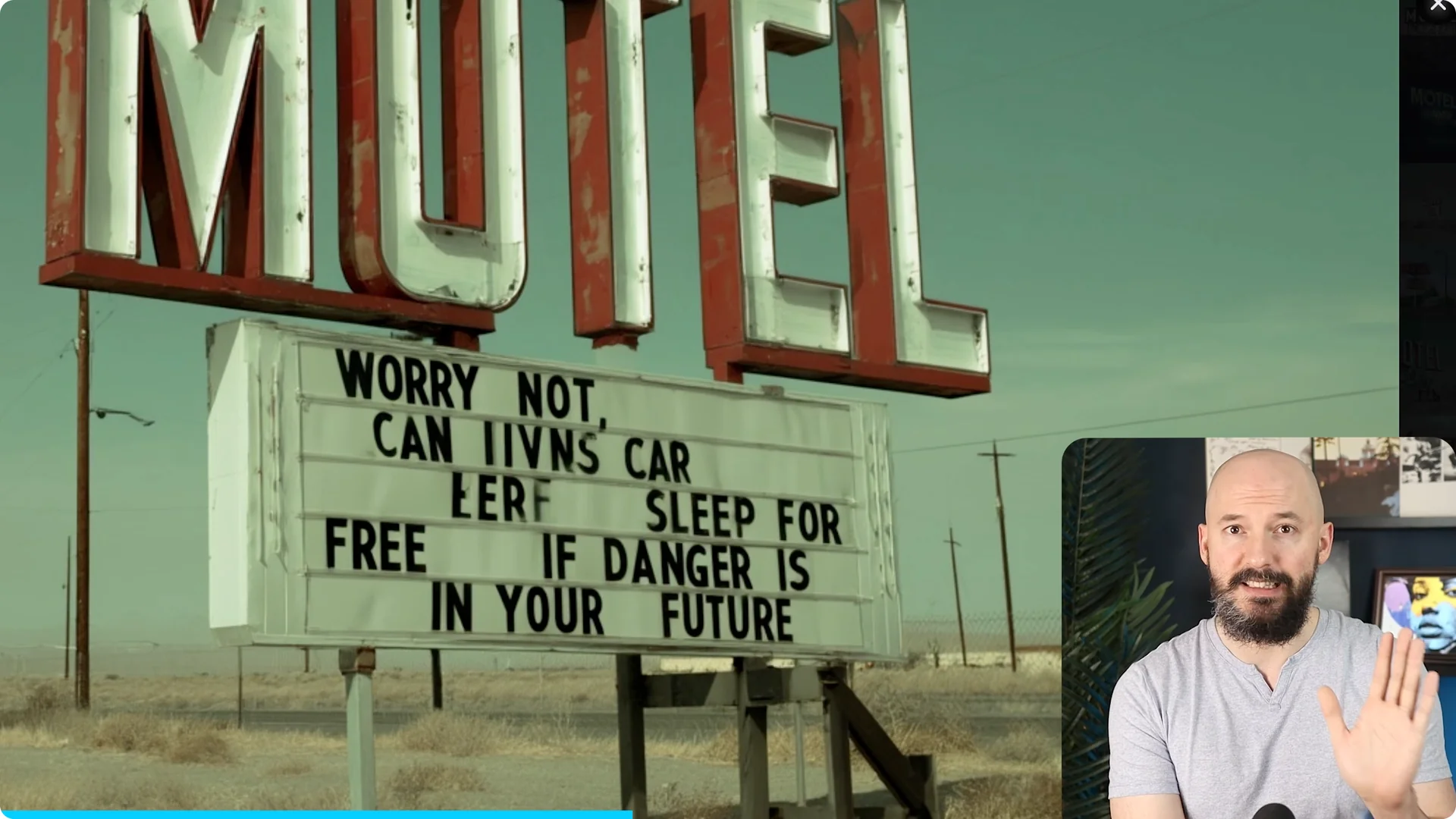
Rewrite it by batching the text. A cinematic still of a vintage motel sign that says “Worry not” “You can sleep here for free” “If danger is in your future.” The difference in accuracy is dramatic.
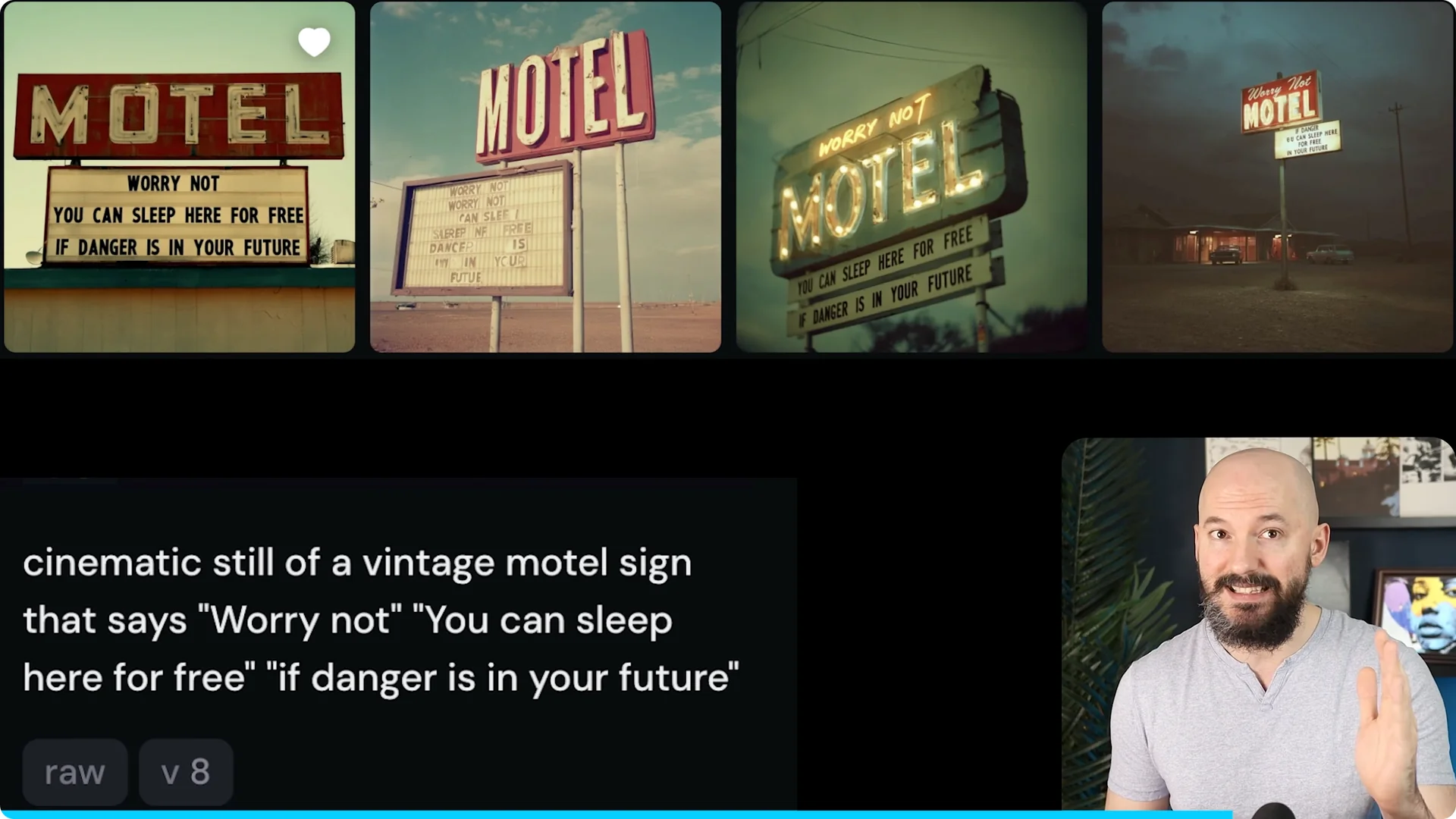
There is no way you would know by looking at the picture that the prompt was written with that batch effort. If you are adding a lot of text, write it in batches. Put different parts inside quotation marks.
Step-by-step: Text Batching in Midjourney V8
Step 1: Describe the scene you want to generate. Keep the visual description clear and short.
Step 2: Add the first part of your sentence inside quotation marks. Keep it concise.
Step 3: Add the next chunk of text in its own quotation marks. Continue splitting until each phrase has its own quotes.
Step 4: Generate and zoom in to check letter accuracy. If a chunk is off, adjust that chunk’s wording and regenerate.
More Examples of Text Batching in Midjourney V8
Here is a breakfast menu for a local diner. I asked for the price to be crossed out and replaced with a nonsensical price of $3.99, and it worked.
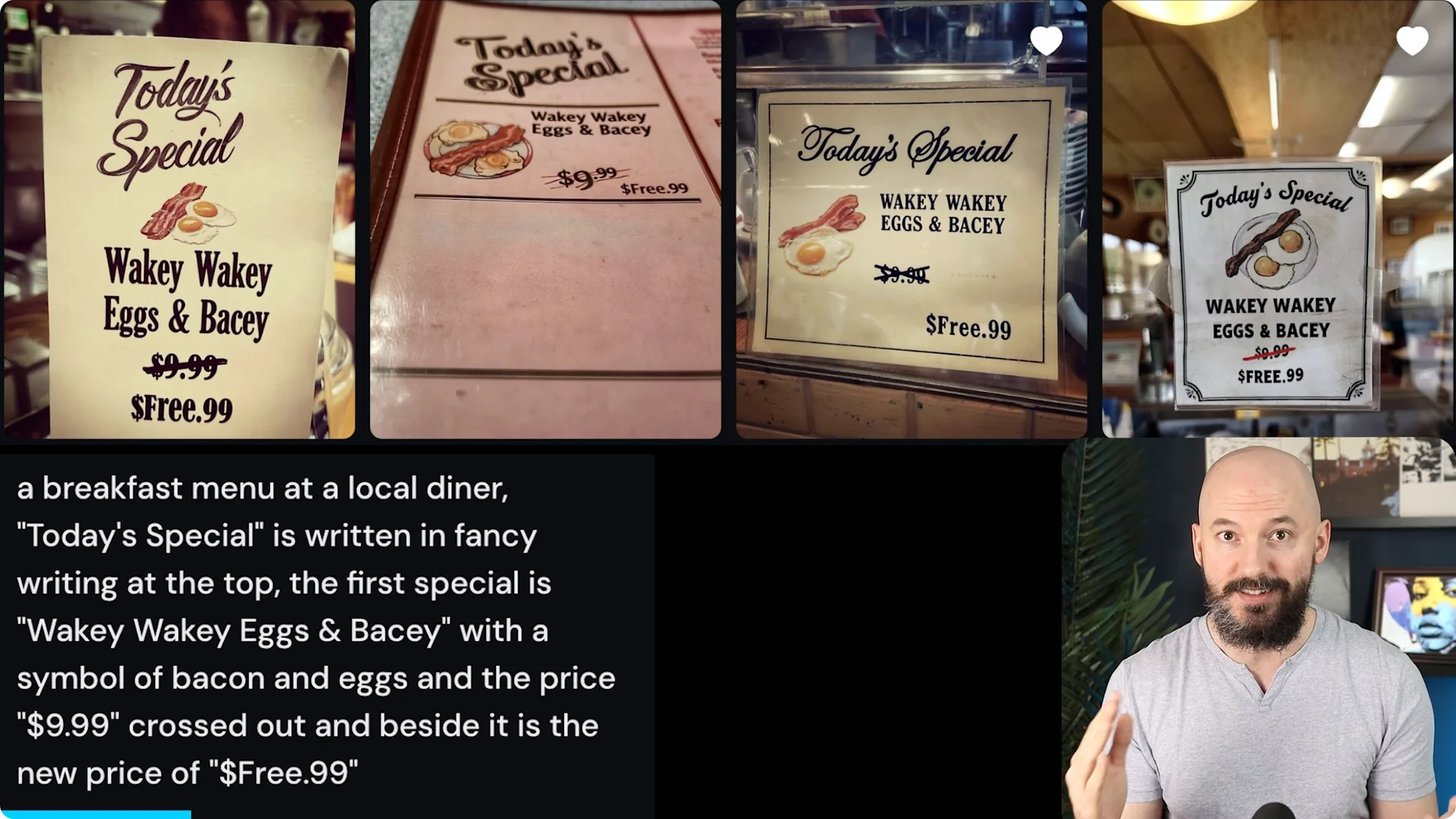
Here is the full prompt. A breakfast menu at a local diner. Today’s Special is written in fancy writing at the top.
The first special is “Wakey wakey eggs and bakey” with a symbol of bacon and eggs and the price “$9.99” crossed out and beside it the new price of “free.99.”
Writing a prompt is a lot more casual in Version 8. You can be matter of fact with how you say things.
Precision of language is not the main goal anymore.
Precision of idea remains highly influential though. Describe the whole picture, then batch the text.
If you are building repeatable looks for text projects, you can create and reuse styles.
For that, explore the Style Creator workflow to keep consistency across prompts.
Fixing Text Outside Midjourney
If your picture generates and the bot does not fill the page with proper words, there is one simple fix. Take the picture outside of Midjourney and repair the text.
I brought the image to Gemini and used Nano Banana to correct specific lines. I gave it the original picture and said, “Can you fix the text on the bottom and make it say Waffles and Pancakes?” It listened and did a good job.
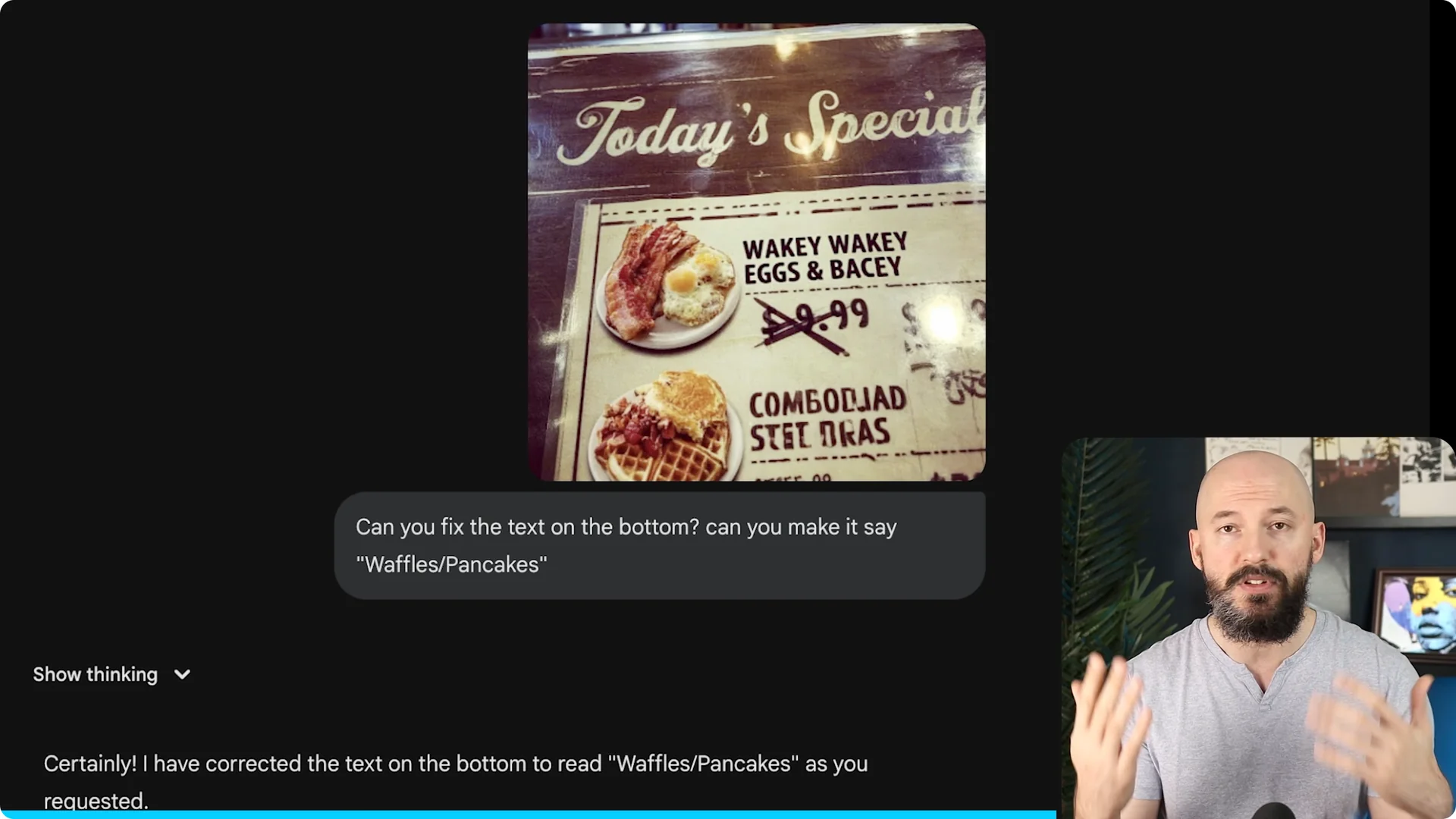
Fixing text in Midjourney may not be the move right now for elaborate edits. Fixing text with Nano Banana could be the move when you need surgical changes.
Keep your core layout in Midjourney, then patch the copy elsewhere.
Prompt Help for Text Batching in Midjourney V8
I asked GPT to help create a prompt for a monster trading card. The first draft was too long, so I followed up with a tighter instruction.
I said, “Shorten the prompt immensely and write as if the card is already created.” I also said, “Anytime you mention the text, put the corresponding text inside quotation marks.”
That got the job done. The results were crisp, and the card layout matched the text areas. You can iterate like this and keep only what matters.
What We Learn From the Monster Card Example
If you are going to add a lot of text to your picture, do it in batches. The layout pieces can each get their own quotes, and it stays readable in the image.
Here is the structure that worked. A vertical monster card called “Penguin Warrior,” fully illustrated and laid out with a bold title bar at the top reading “Penguin Warrior.” A small circular cost icon in the top left reading “3” and a faction icon for ice.
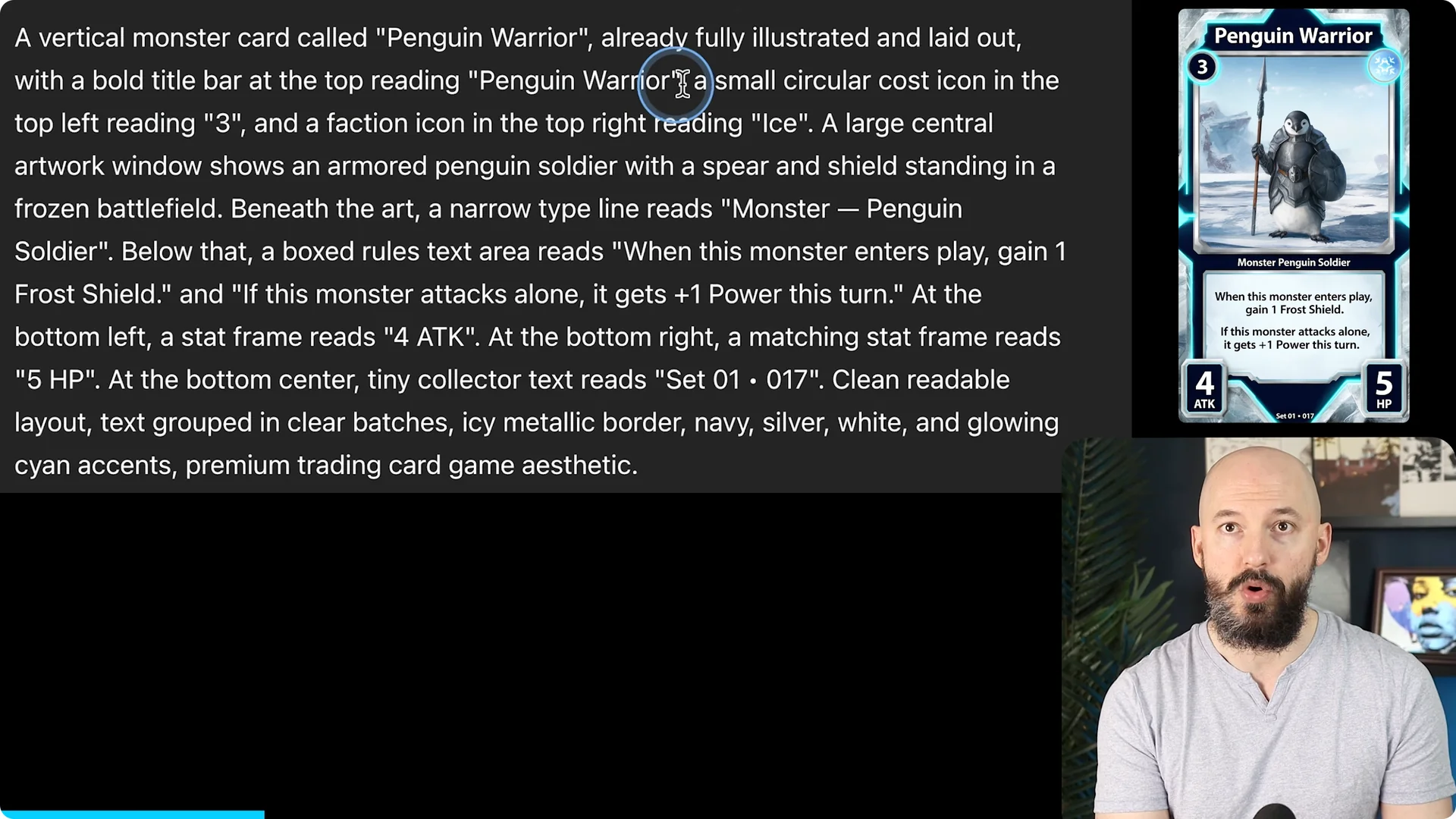
Below that, a box rules text area reads “When this monster enters play, gain one frost shield.” “If this monster attacks alone, it gets plus one power this turn.” At the bottom left, a stat frame reads “4 Attack.”
At the bottom right, a matching stat frame reads “5 HP.” At the bottom center, tiny collector text reads “set01-017.” That is a simple, batch-friendly pattern that V8 reads well.
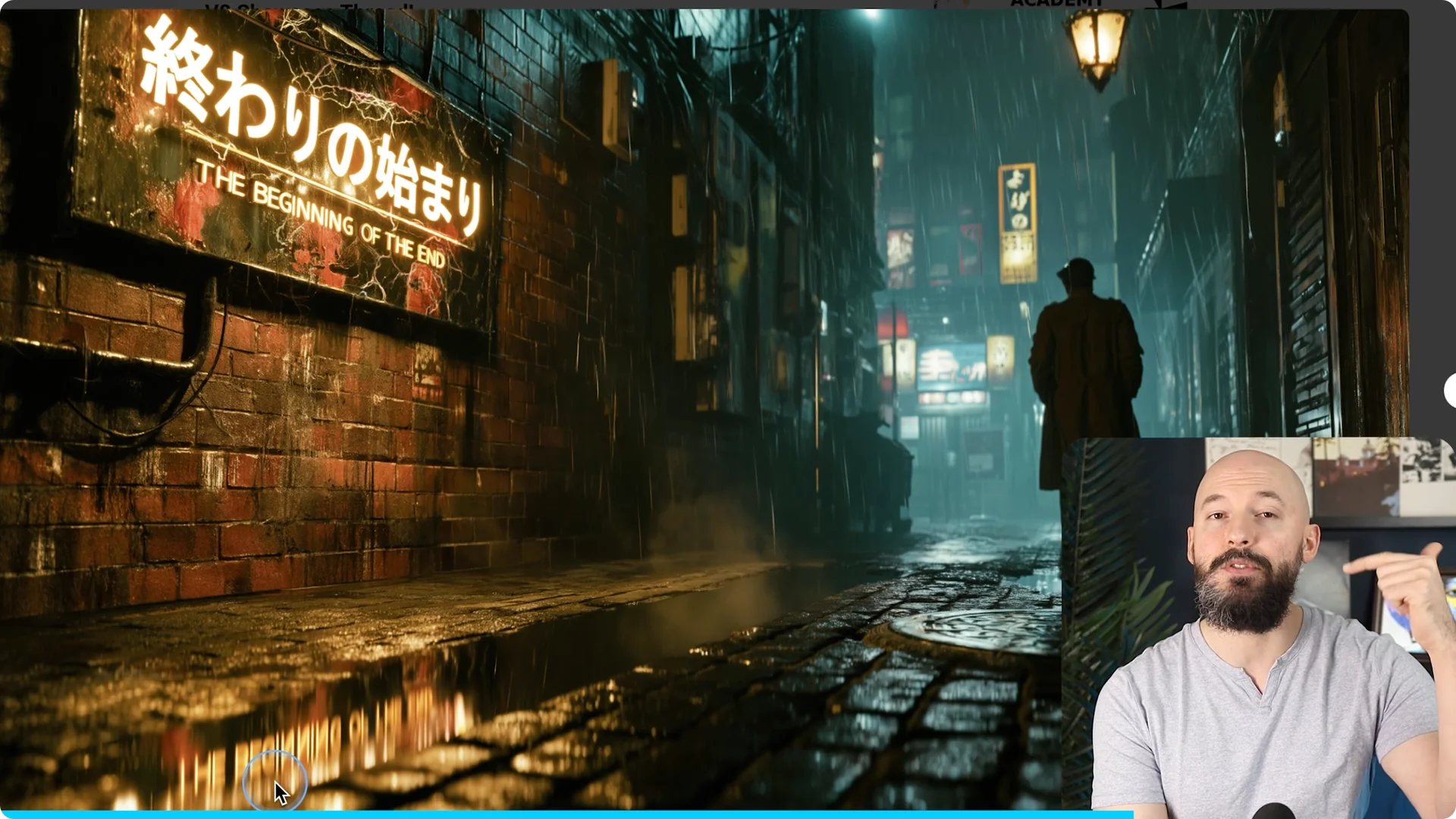
A community example showed that you can put different languages inside the image. Based on the prompt, the non English text was accurate. Another detail was the reflection in water showing “The beginning of the end.”
If you want to understand how your work appears publicly and what others can see, review how user profiles work. It helps when you are sharing text heavy experiments.
Memes With Text Batching in Midjourney V8
You can create memes by describing them panel by panel. Keep each panel’s caption in its own quotes.
Panel one: a dramatic fantasy monster card revealed on a glowing pedestal. Text: “Finally, my original monster card game.”
Panel two: closeup of the art showing an insanely jacked, cool armored penguin warrior on steroids. Text: “Deep lore, strategic combat, unique factions.”
Panel three: the creator proudly holds up the card while other people stare blankly. Text: “So, what do you think?”
Panel four: one guy points at the card and says “Why is the penguin so jacked?” It is silly, but it shows how panel by panel batching makes multi frame text work.
Random Styles for Text Batching in Midjourney V8
Add a random style at the end of your prompt with –sref random. Then use the repeat parameter to run the prompt multiple times.
I ran the meme prompt six times to see six art styles. Some look better from a distance, but the point still stands.
If you create lots of outputs and need to manage how downloads are presented, you can hide the bulk download option. It keeps your gallery interactions tidier while you experiment.
Custom Fonts With Text Batching in Midjourney V8
You can create custom letterforms by describing how the characters are built. A simple pattern is “the words ‘future tech academy’ in novelty retrofuturistic font,” then say that the characters are made up of retrofuturistic assets like phones, cars, robots, spaceships, etc.
I also used –sref random to explore variations. The letter construction looked great across results.
Another fun prompt is a complete alphabet sheet. Split the alphabet into several quotation groups like “A B C D E” “F G H I J” “K L M N O” “P Q R S T” “U V W X Y Z” and add “style: retrofuturistic panels on a solid black background.”
That solid black background line helps the composition a lot. You can add descriptors like “experimental, very readable, typographic student art poster.” An aspect ratio like 7×10 frames sheets nicely.
If you prefer to keep experiments private while testing custom lettering, you can hide images on your profile. That way you can refine fonts before showing them.
Troubleshooting Text in Midjourney V8
Use style raw. Add –style raw at the end of your prompt to reduce stylization and improve text accuracy.
If things still are not working, increase quality. Add –quality 4 or –q 4 to give the model more steps to nail the lettering.
Lower the stylize value as a last resort. Try –stylize 50 or even lower to reduce decorative interpretation on text.
You can also add –hd for a higher resolution image. That often makes small printed areas clearer and easier to read.
Step-by-step: Troubleshooting Flow
Step 1: Run your prompt with batching and inspect close up. Note exactly which chunks fail.
Step 2: Add –style raw and regenerate. If needed, add –quality 4 and check again.
Step 3: Lower –stylize and consider –hd for fine print. If a single word keeps failing, rephrase that chunk and try again.
Ransom Note Prompt That Works
You can create a ransom note with a cutout look. Try “A ransom note where each letter is cut from a different style of magazine text” followed by the quoted message “Bring the money to 17th Street.”
Many runs even cut Os as circular clippings from random page areas. The collage look feels authentic and playful.
Animate Your Text
Animating text can look really cool. Midjourney often keeps letterforms intact while adding motion and flare.
When it works, it does not distort the words. It just adds energy to the design and is fun to look at.
Final Thoughts on Text Batching in Midjourney V8
Put text in quotation marks and split long lines into batches. Keep prompts casual, but make the idea precise.
If Midjourney stumbles on copy, patch it in Gemini with Nano Banana. For tougher prompts, rely on –style raw, –quality, –stylize, and –hd to push clarity.
Explore styles with –sref random, try custom letterforms, and build panel based memes. With smart batching, text heavy images in V8 become far more reliable.
