One of the major issues with the Midjourney profile system is that if you have images you made that are public, everyone can see them. If you’ve made thousands upon thousands of images, this is a massive hassle because sometimes people want to keep their images private.
I’m going to show you how to make images private, the limitations, and the quickest way I’ve found to do it. You might know a better one, but this should help you get a lot of images privated nice and quick.
Requirements for Midjourney Image Privacy
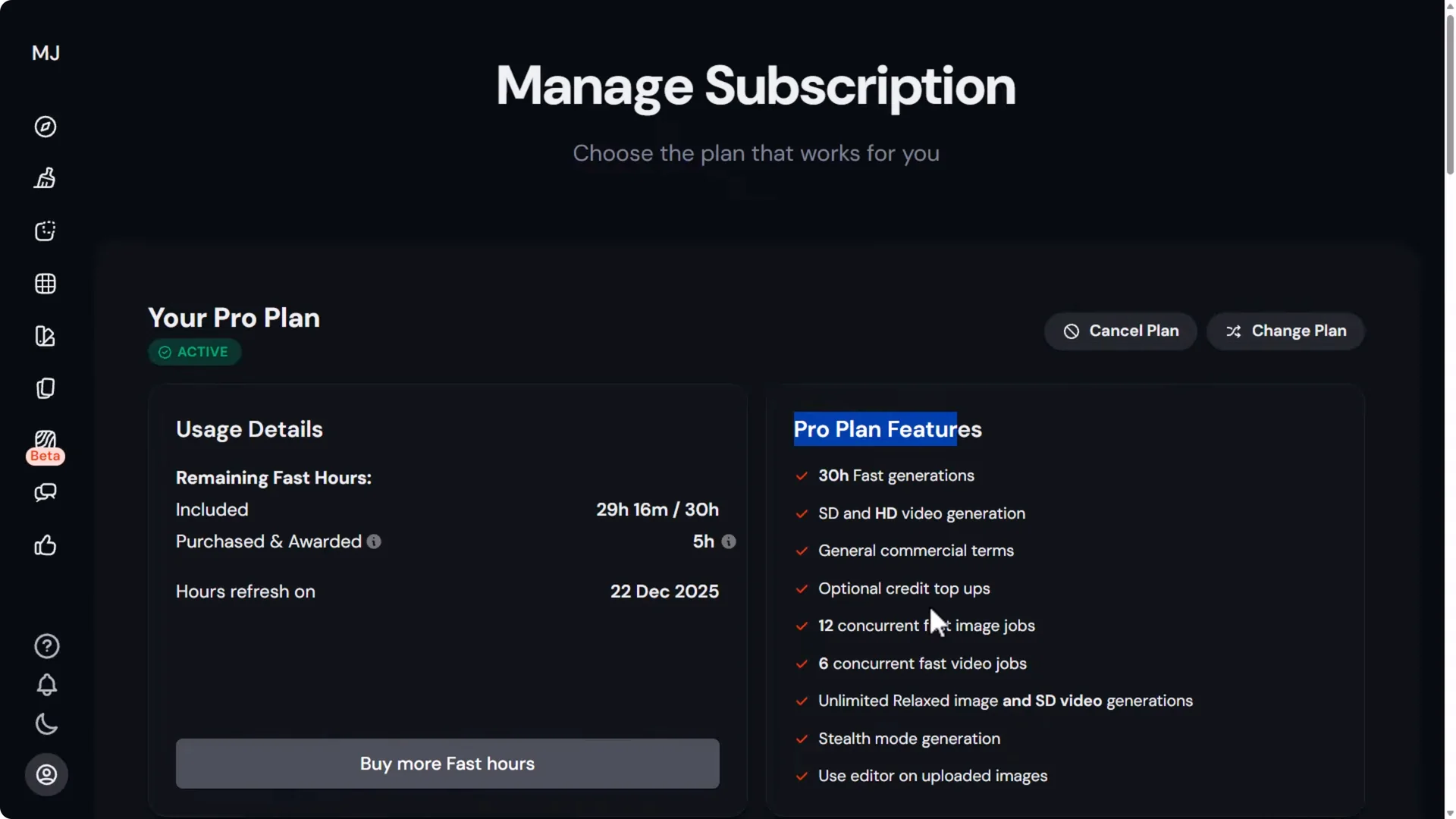
You do need the Pro plan.
The Pro plan has stealth mode generation, and the lower plans don’t have it. It could be worth upgrading if you’re looking to keep your generations private. It does cost a bit extra.
Prepare Your Workspace for Midjourney Image Privacy
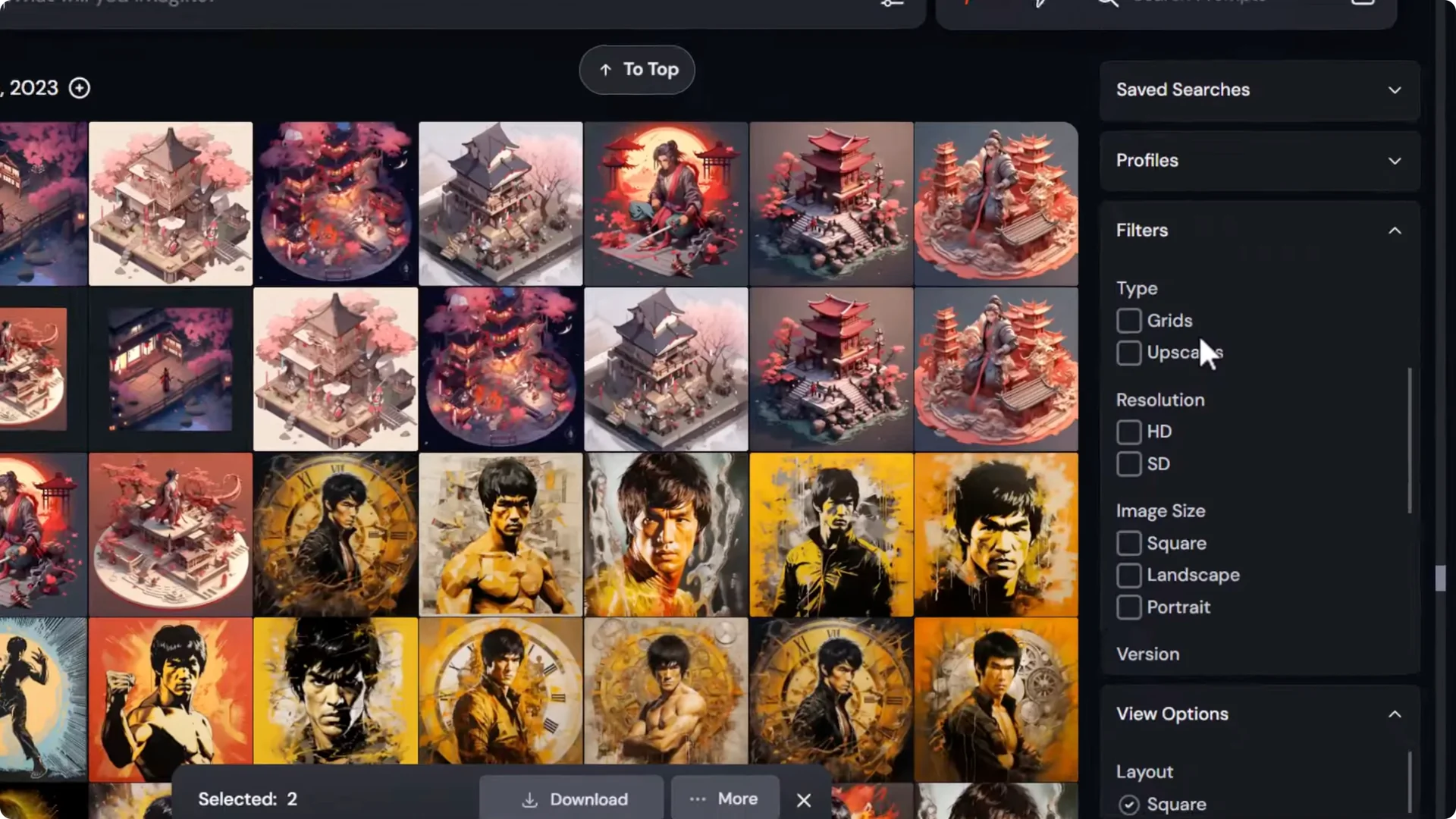
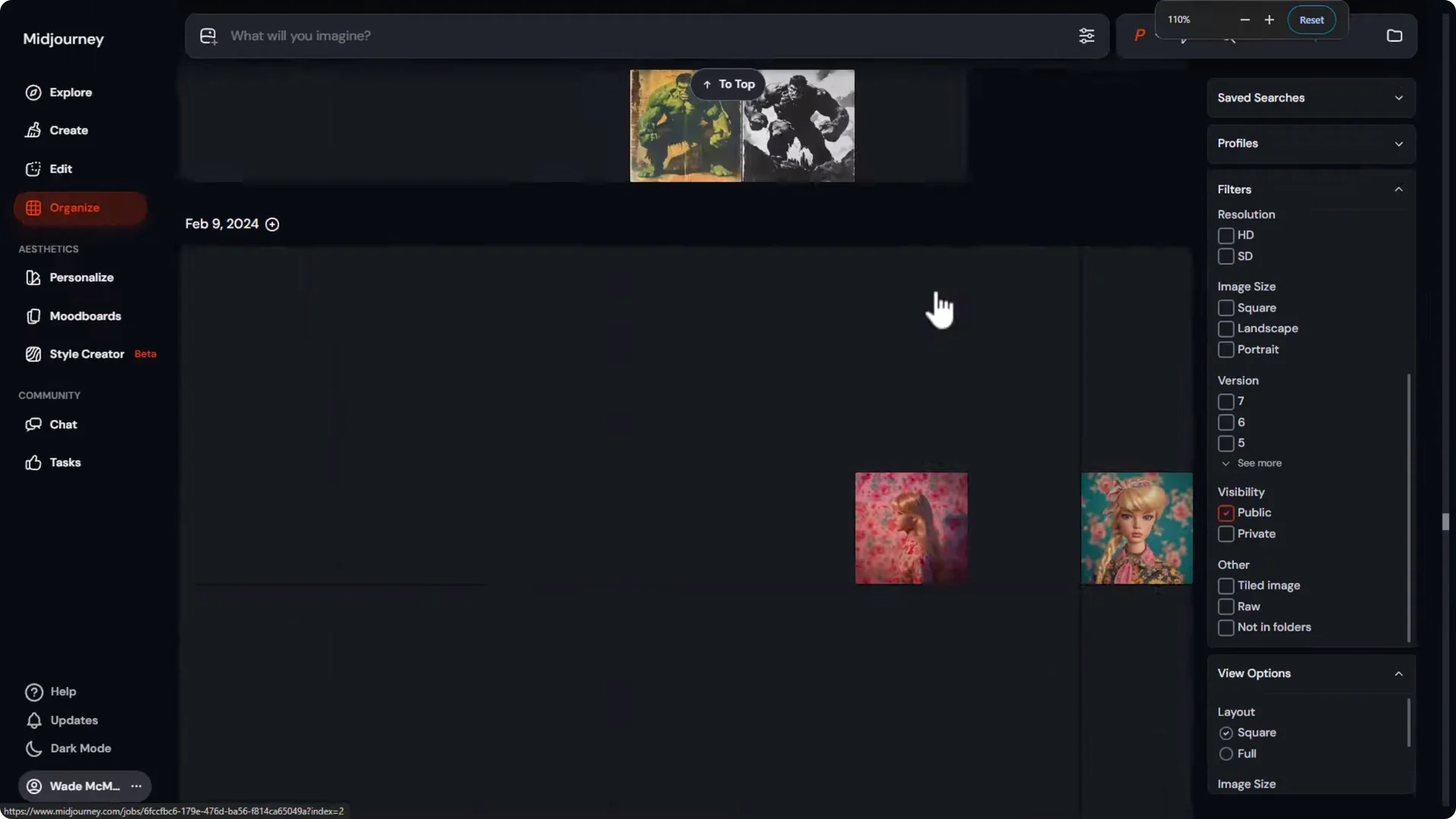
Go to the Organize tab. On the filters on the right, make sure Public is ticked. That way only images that are public will show, and if they’re private then they won’t show. This helps avoid accidentally repeating your workload.
Step-by-Step: Make Images Private in Midjourney
- In Organize, enable the Public filter.
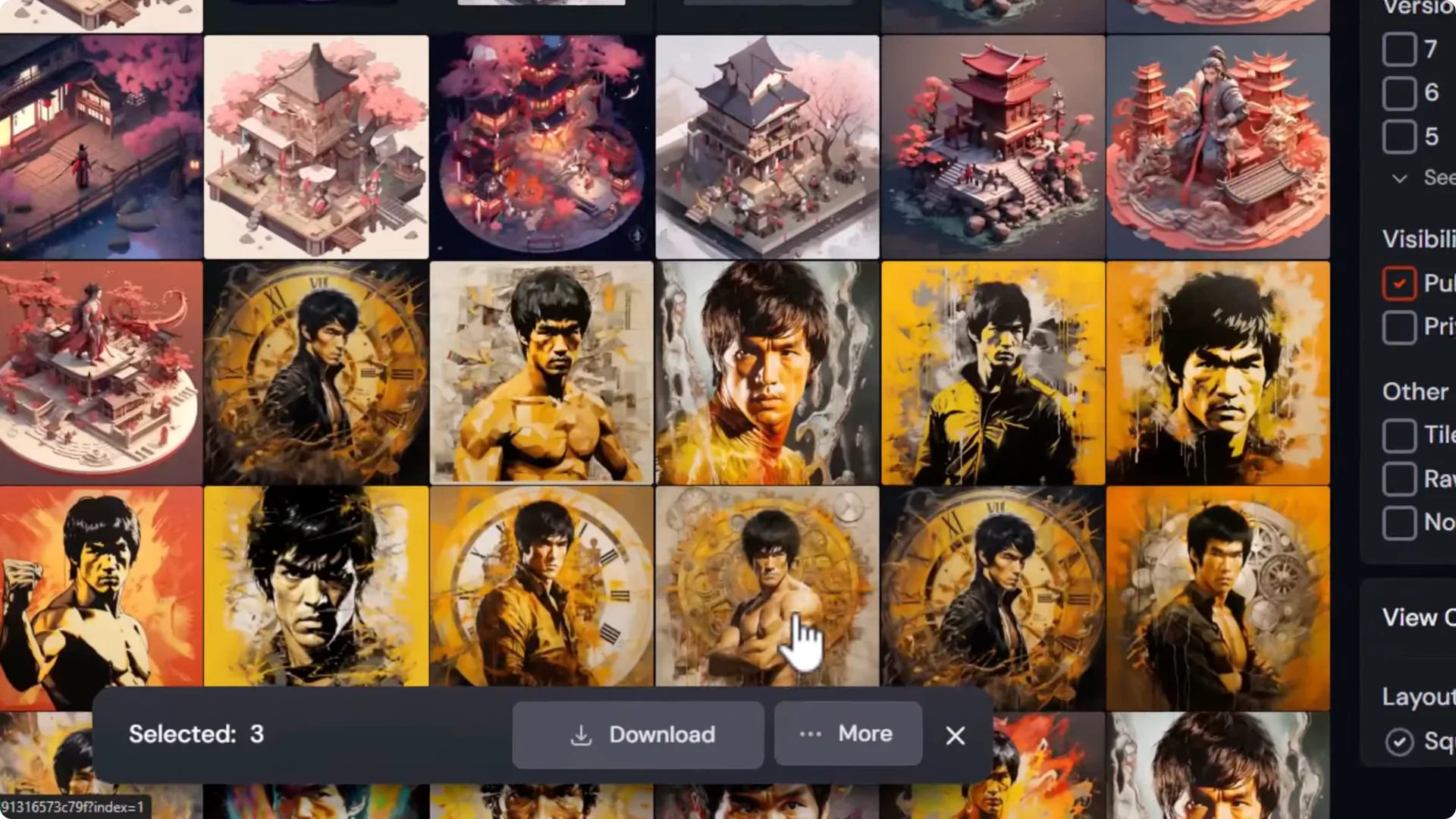
- Hold Shift and select a few images.
- Click More and choose Make Private.
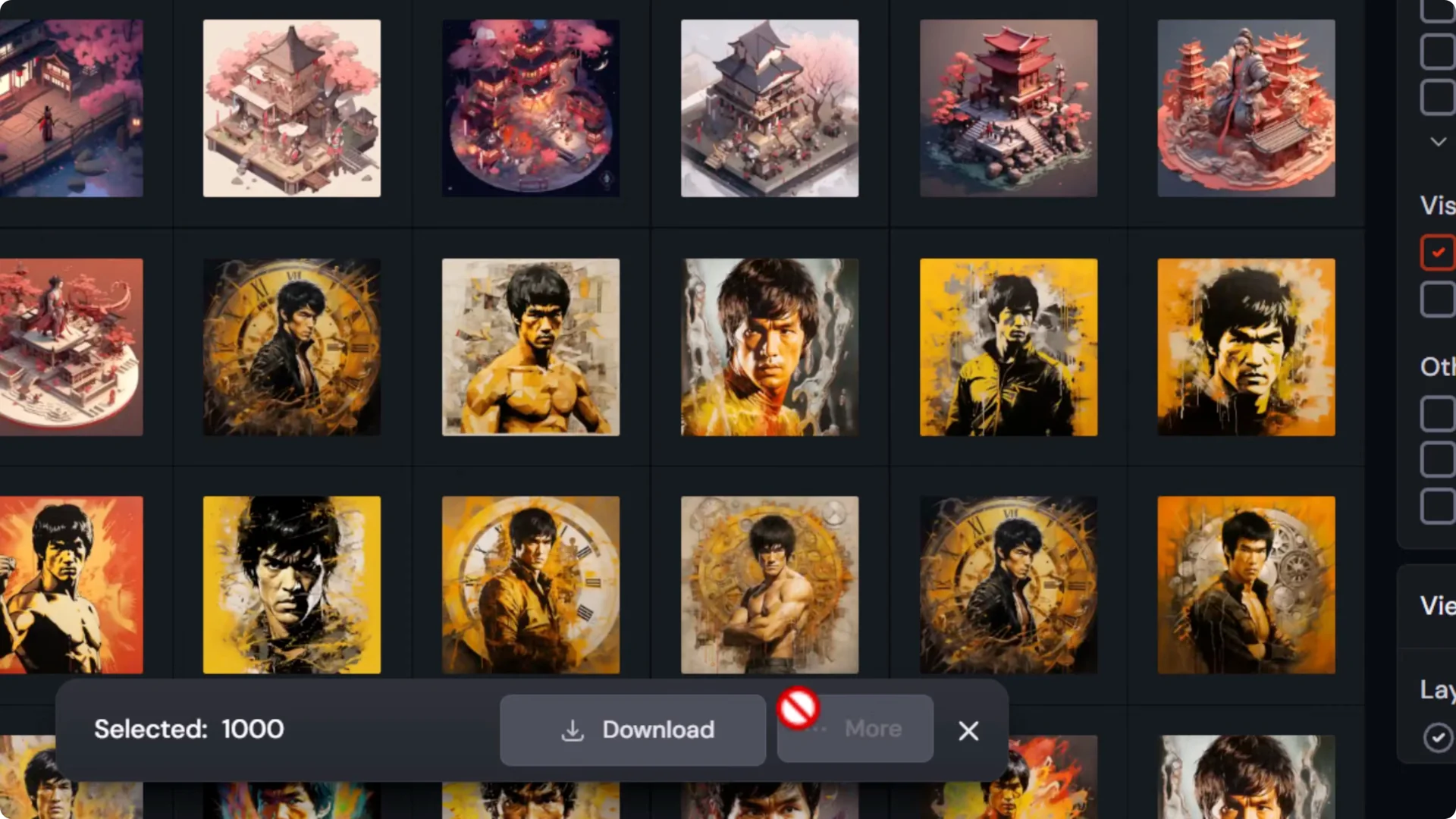
- If you select an entire day, you may have selected too many images and the More button won’t work.
- You can also right click an image and choose Make Private, but this is still quite a slow way of doing things.
Faster Bulk Method for Midjourney Image Privacy
I zoom out of the browser with Control plus the mouse wheel to see as many images as possible. In the bottom right, set the image size to Small.
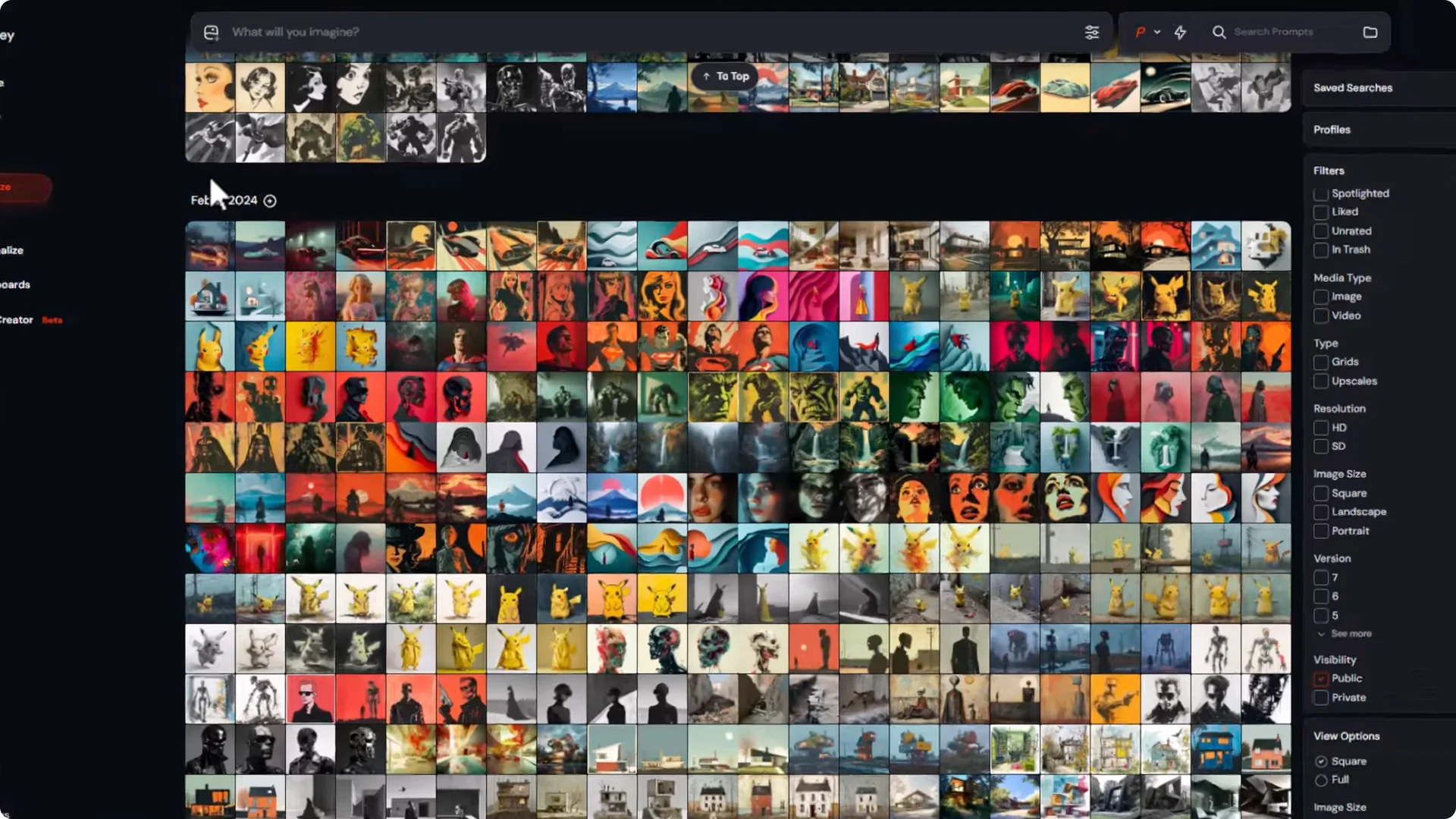
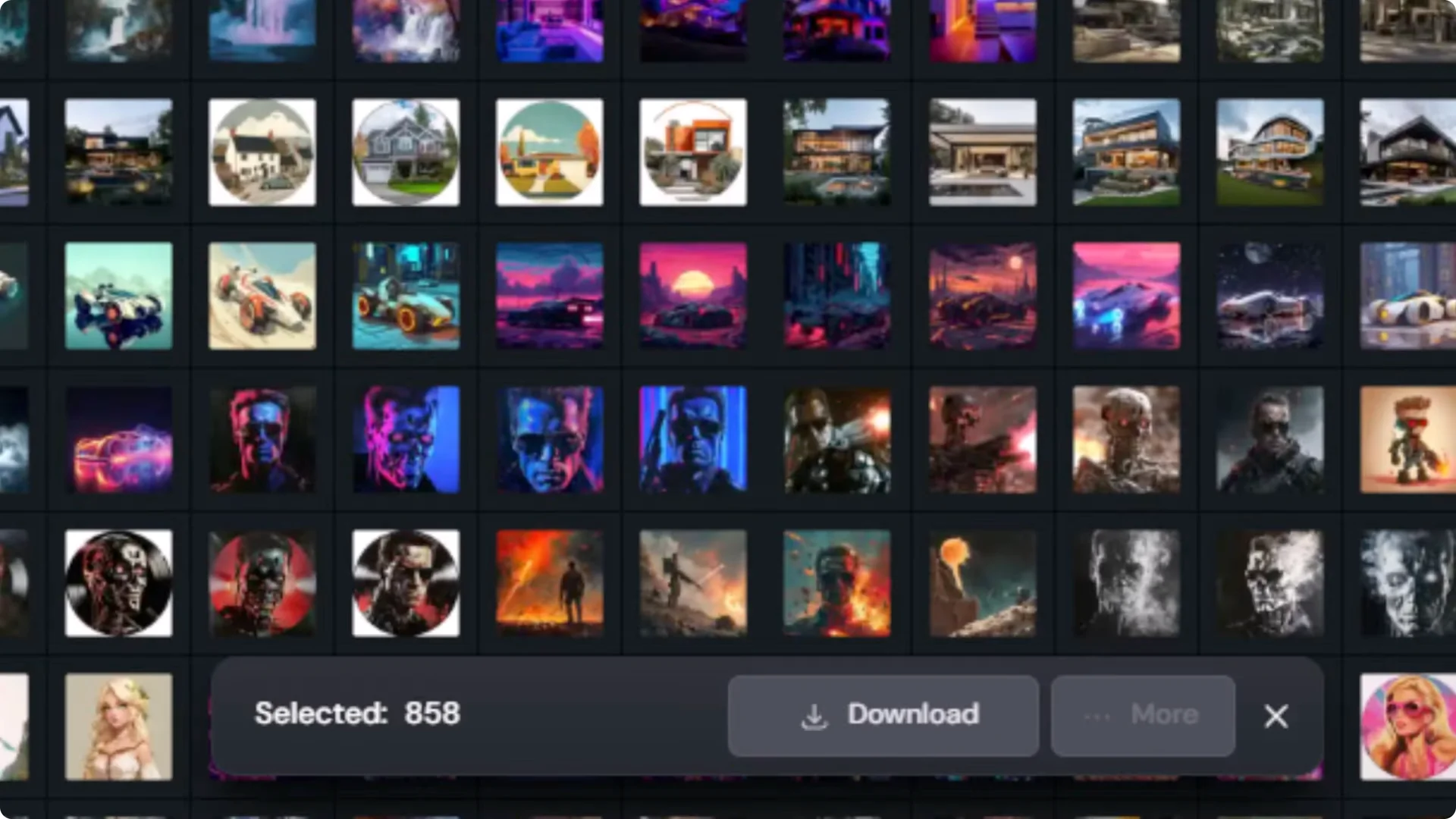
From there, click and drag a selection box just above a series of images and let it auto scroll down the page. You’ll see a selected count increasing into the hundreds.
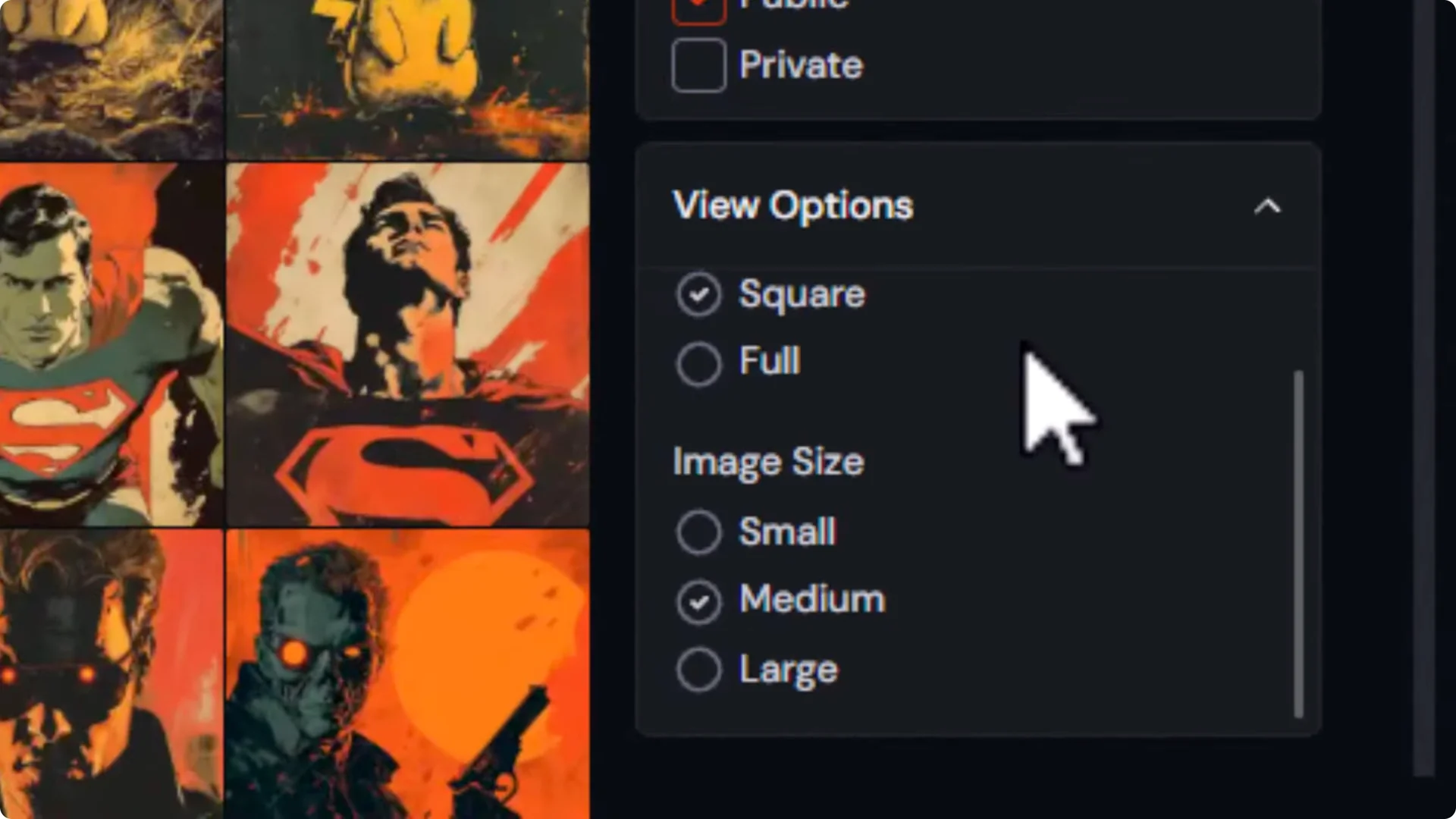
Right click and choose Make Private.
I’ve selected 858 images at a time this way, which lets me make more images private very quickly compared to clicking a few hundred and using the More button.
Limitations and Workflow Tips for Midjourney Image Privacy
There is still the process of going through and selecting them all, and this can take a while, especially if you have 30,000 to 100,000 plus images. It’s a slow task but seems to be about the fastest way of doing it that I’ve been able to find.
I don’t want to private all of my images. I go through, right click, and make private. With the Public filter on, I can see what’s left over. I’ve got thousands upon thousands of images, so this is what I’ll be using to private most of them. I’ll simply spotlight the ones I want to show.
Final Thoughts
This is a quick tip that can help if you have a profile and you’re not happy with the fact that all your images are easy to find.
