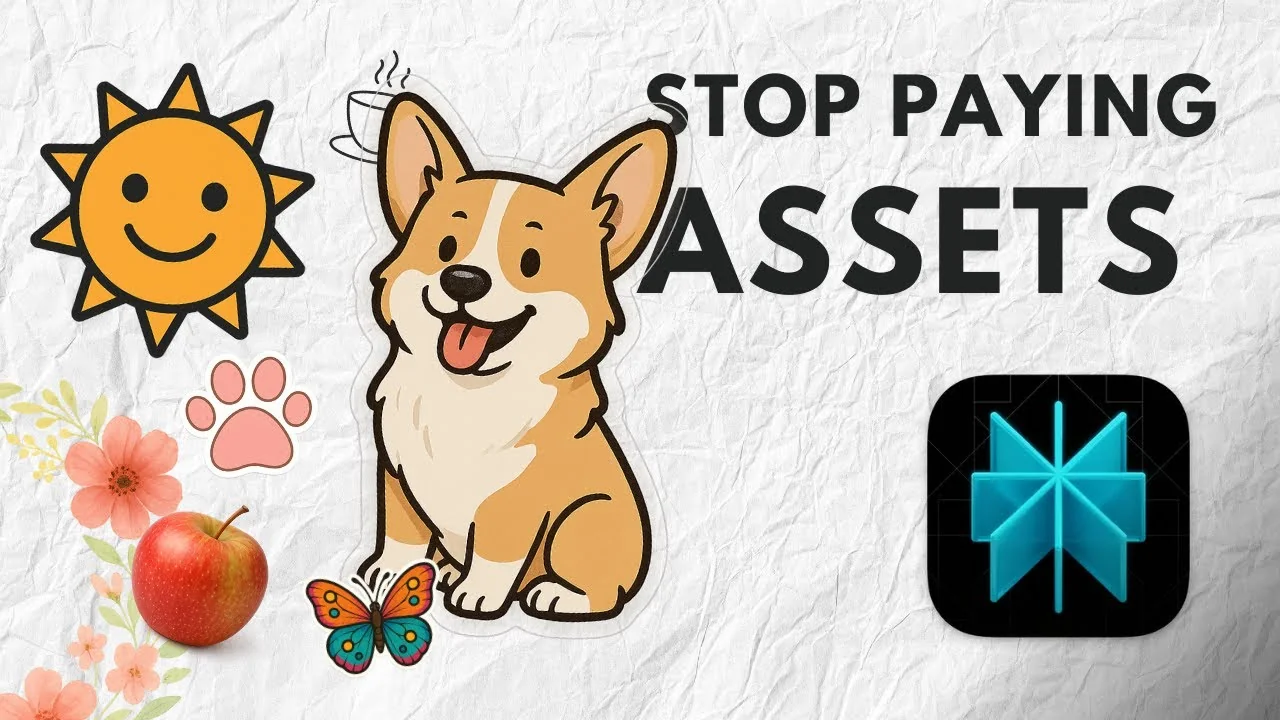
Perplexity now includes the same image generation model used in ChatGPT. It is called GPT Image 1 in Perplexity and appears as GPT-4 image generation in ChatGPT, but they refer to the same model. With it, you can create high quality images, apply Studio Ghibli style to your photo, and generate transparent pictures.
I will show you how to get a clean transparent image result in Perplexity AI. The process is easy once you switch to the right model and use the correct prompt keyword. I will also share a quick note on speed, editing limits, and a simple mockup use case.
Perplexity AI Transparent Image Generation setup
Step 1: Go to perplexity.ai, log in, and open Settings. Head to Preferences to change a single option before you start. This matters for transparency.
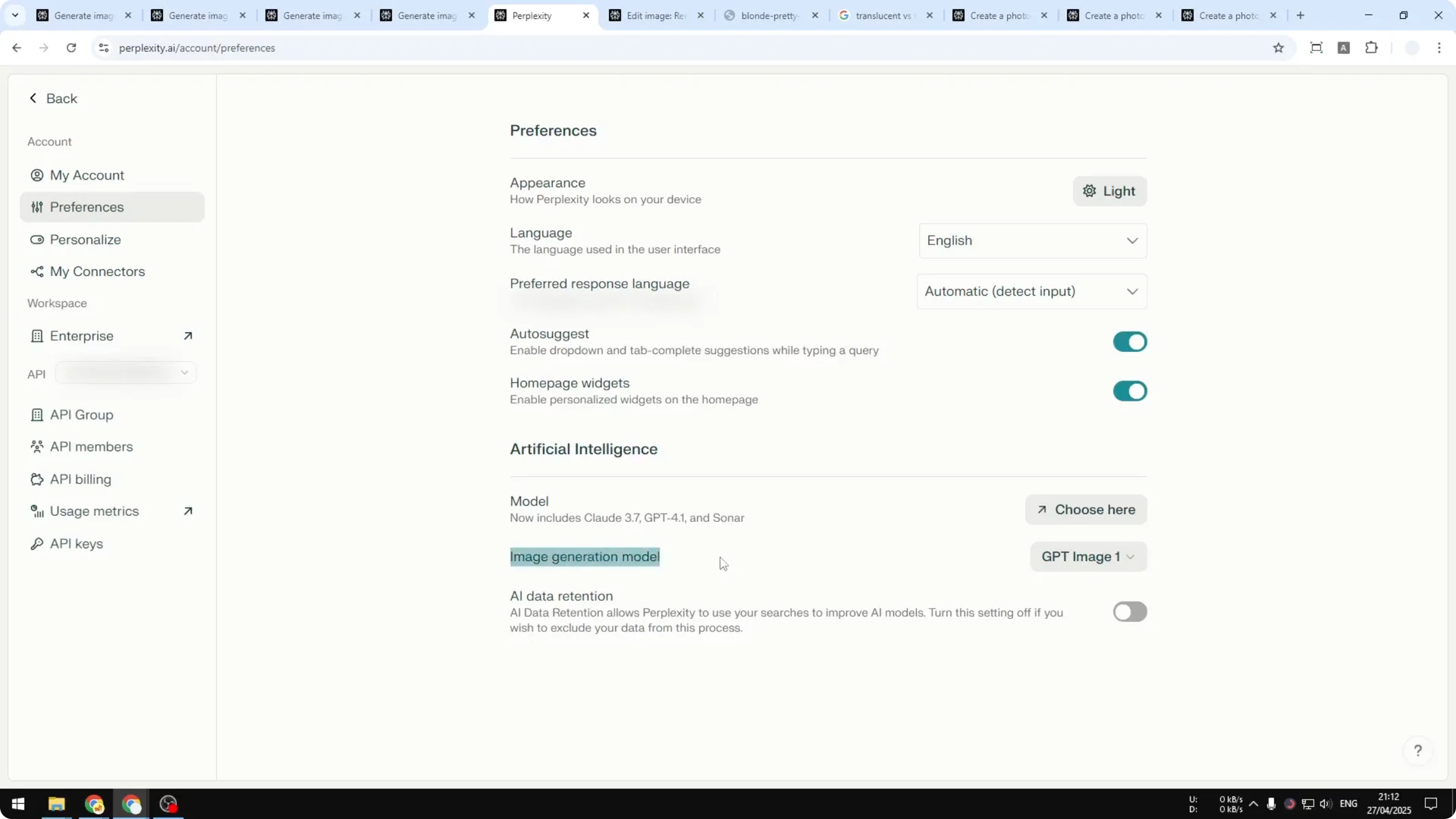
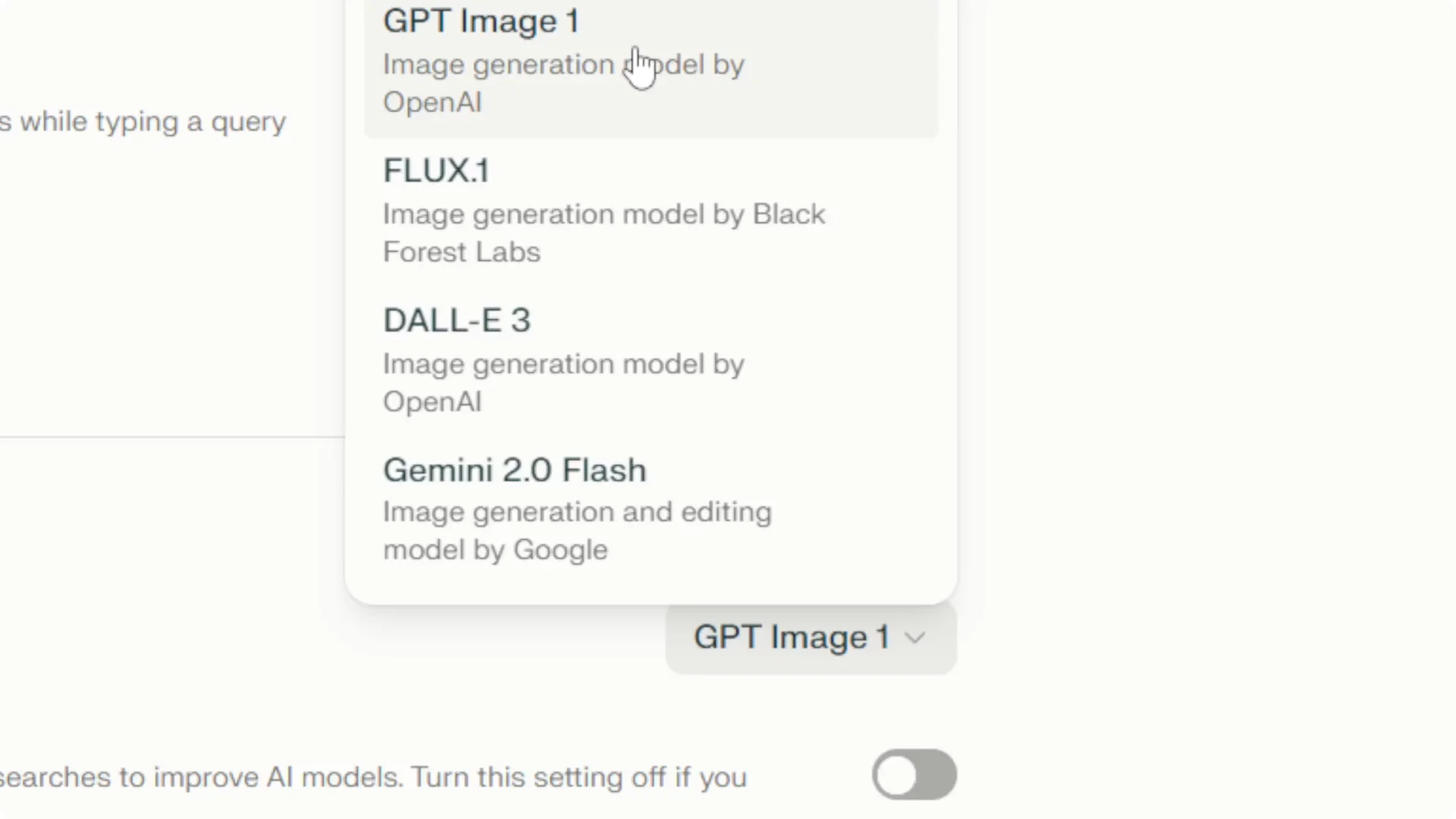
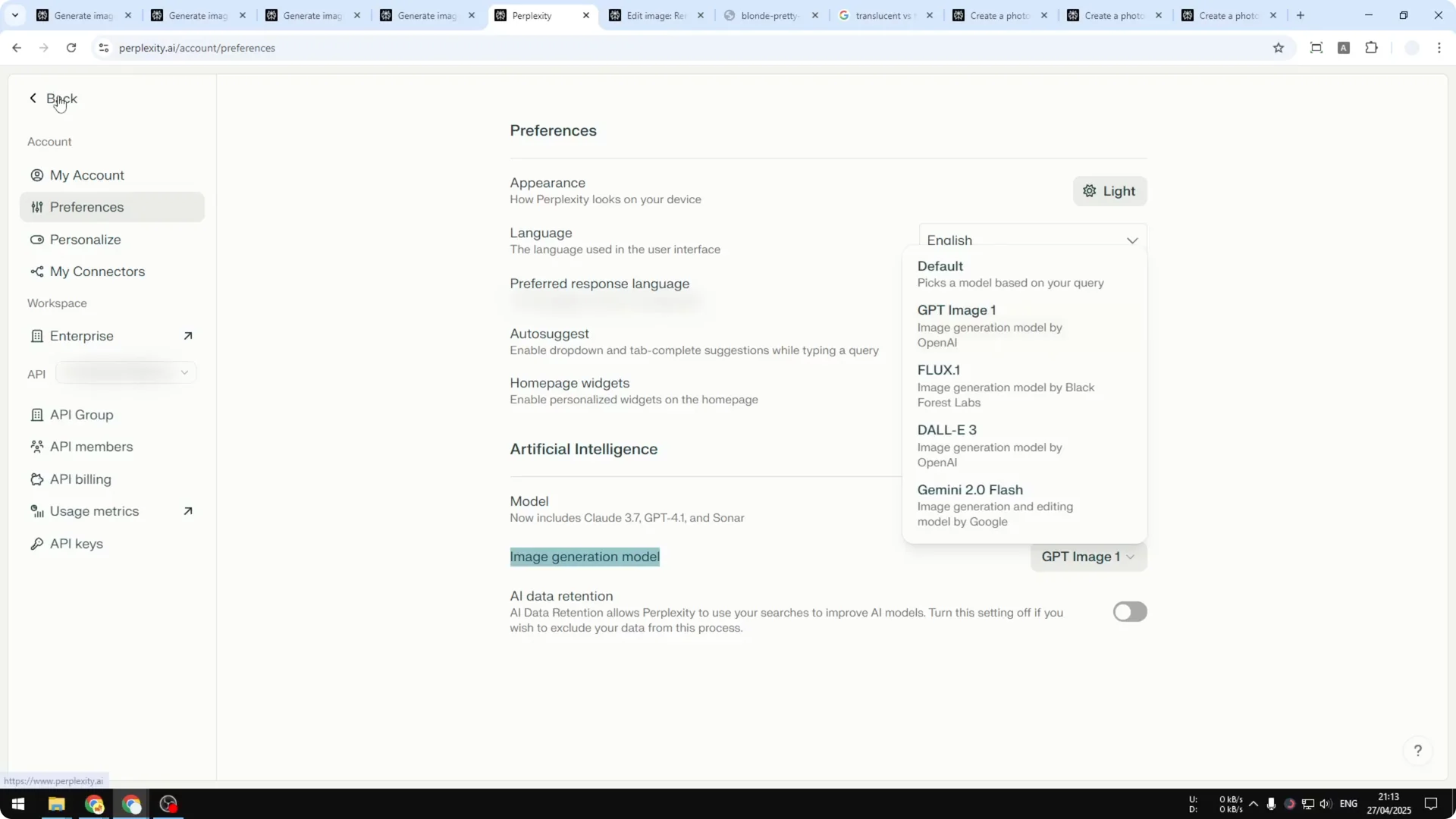
Step 2: In the Image Generation Model, select GPT Image 1. It is the only model available in Perplexity that can generate a transparent picture. If you skip this, Perplexity will not use the correct model.
Step 3: Return to the homepage to start prompting. The language model choice for chat does not matter here because the request is sent to the image model anyway. Focus on the image prompt itself.
Perplexity AI Transparent Image Generation prompt tip
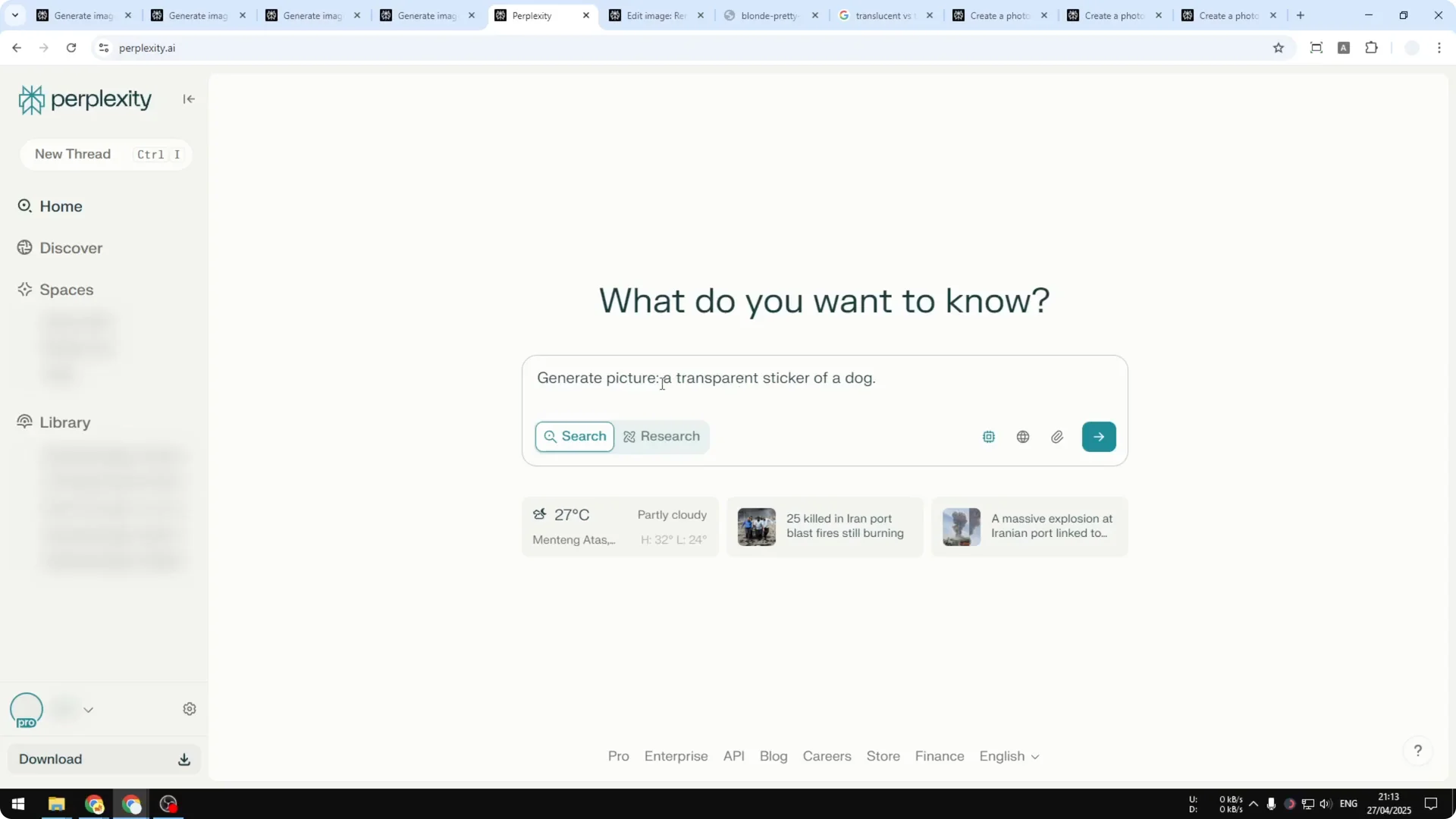
Step 4: Include the keyword generate image or generate picture in your prompt. If you do not explicitly say this in Perplexity, there is a good chance it will not create an image. After that, describe what you want to make.
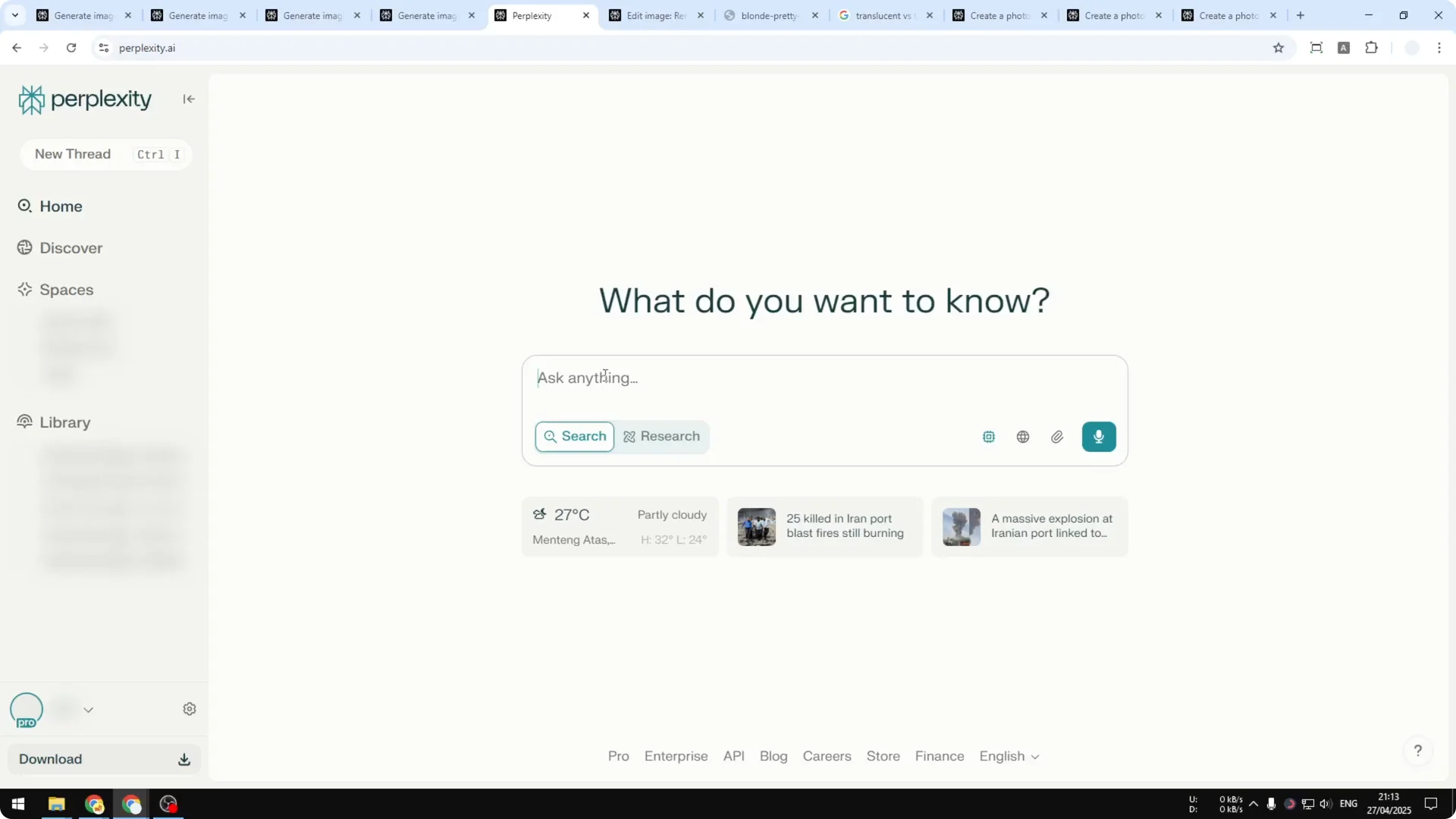
Step 5: For example, ask it to generate a transparent sticker of a dog. You can add a style like Studio Ghibli if you want a specific look. Keep the description clear and concise.
For more help crafting visuals, see AI art and style prompts.
Perplexity AI Transparent Image Generation speed and model notes
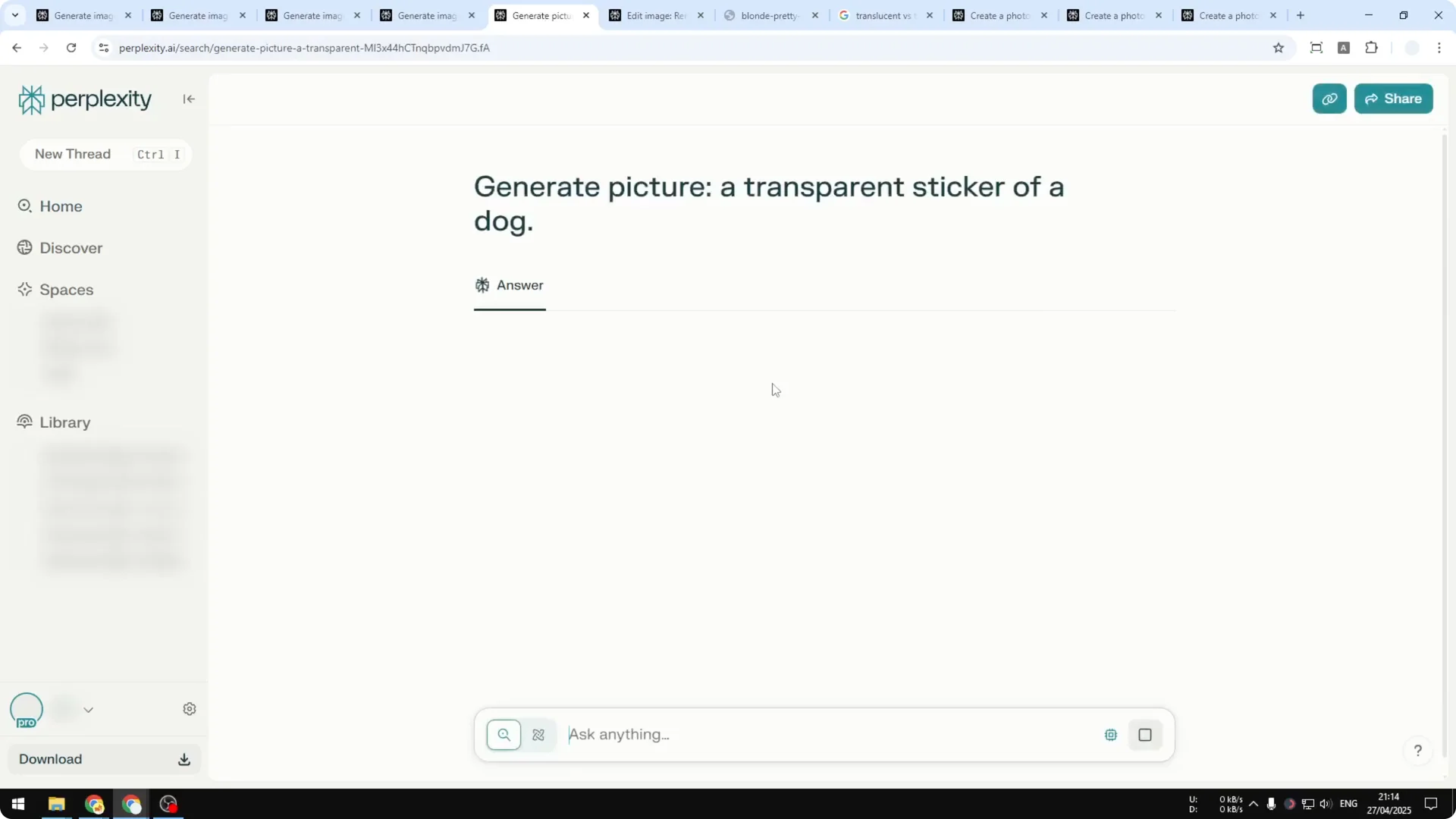
Step 6: Send the prompt and wait. The process usually takes less than 2 minutes in my tests, and it has been a lot faster than ChatGPT for image generation. That is one reason to use Perplexity even though both use the same model.
Perplexity AI Transparent Image Generation result clarity
When the image is ready, check the edges. You might see an outline that looks like it is translucent, but the area between the subject and that outer line is fully transparent. It cannot create a translucent picture at the moment.
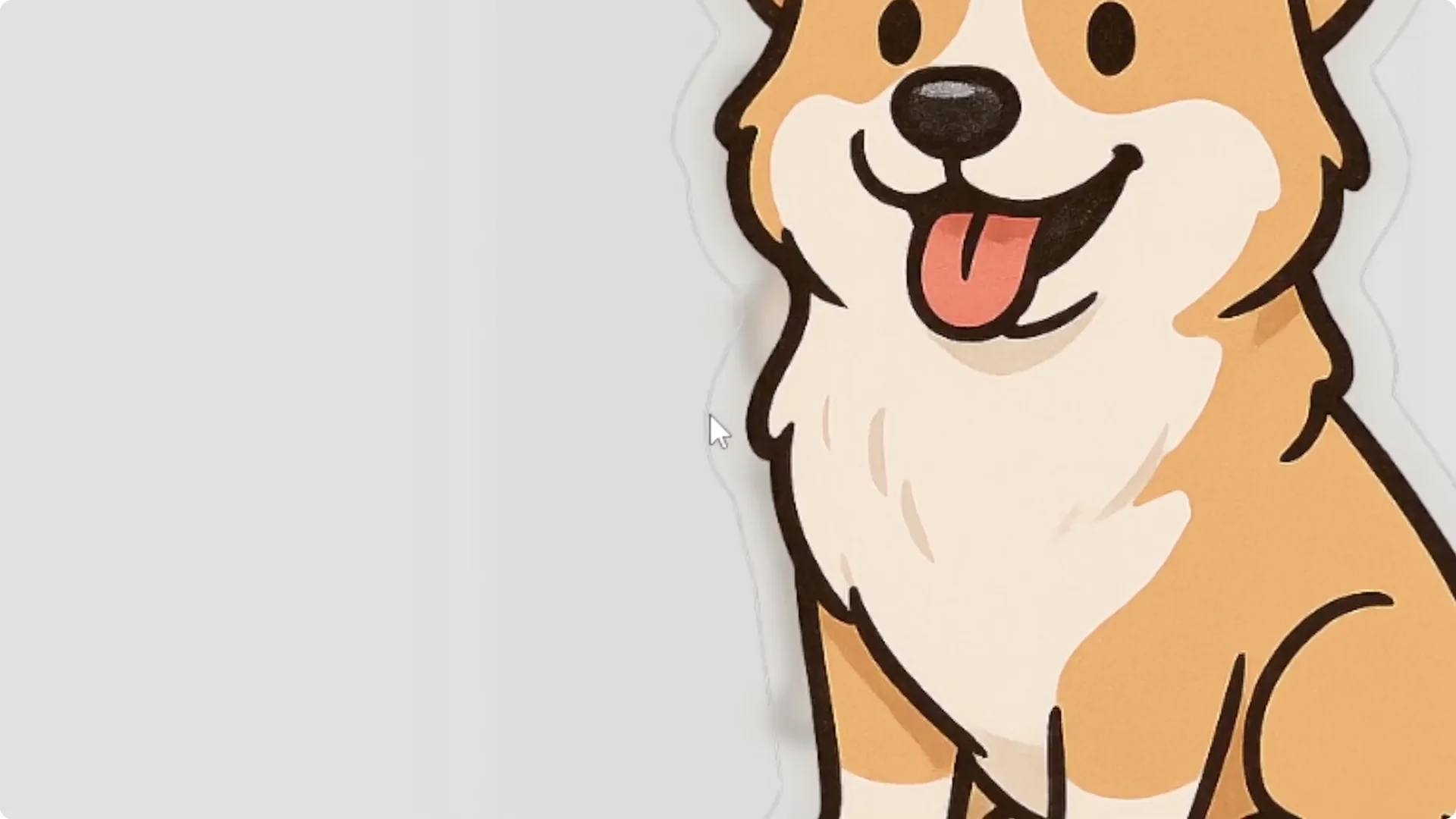
Translucent means semi-transparent where you can still see what is behind it, but not very clear. Transparent is 100 percent clear. Perplexity with GPT Image 1 does not support translucency yet.
Perplexity AI Transparent Image Generation editing limits
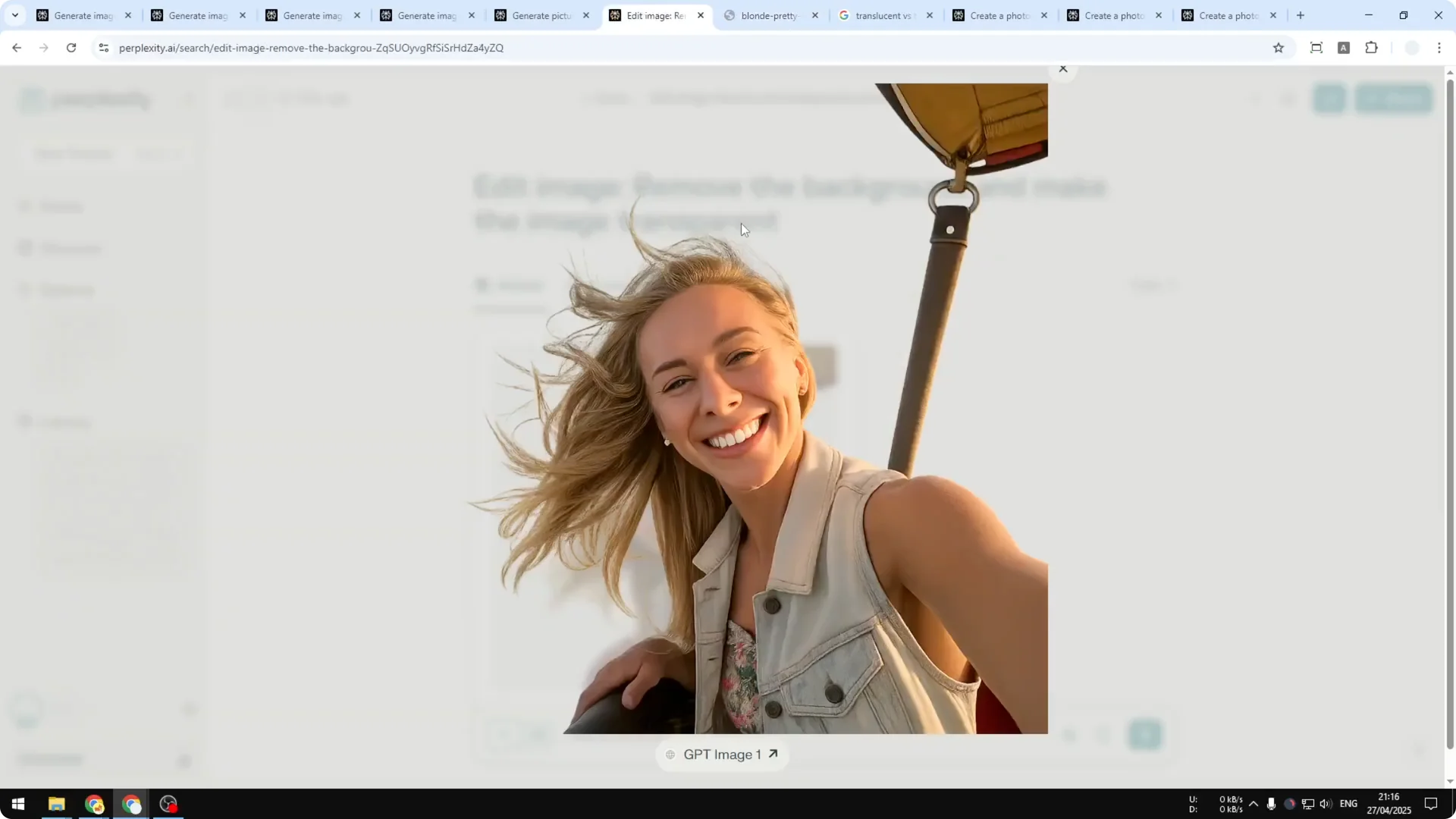
You can upload a picture and ask Perplexity to remove the background or make it transparent. It can do it, but the quality is not perfect. Use it only if you are okay with a downgrade.
In one example, after background removal, the face changed slightly and looked smoothed out. It ended up looking like a different person compared to the original. For now, GPT Image 1 in Perplexity is better for creating new pictures than editing existing ones.
Read More: Camera Control For Midjourney Ai Video
Creative uses with Perplexity AI Transparent Image Generation
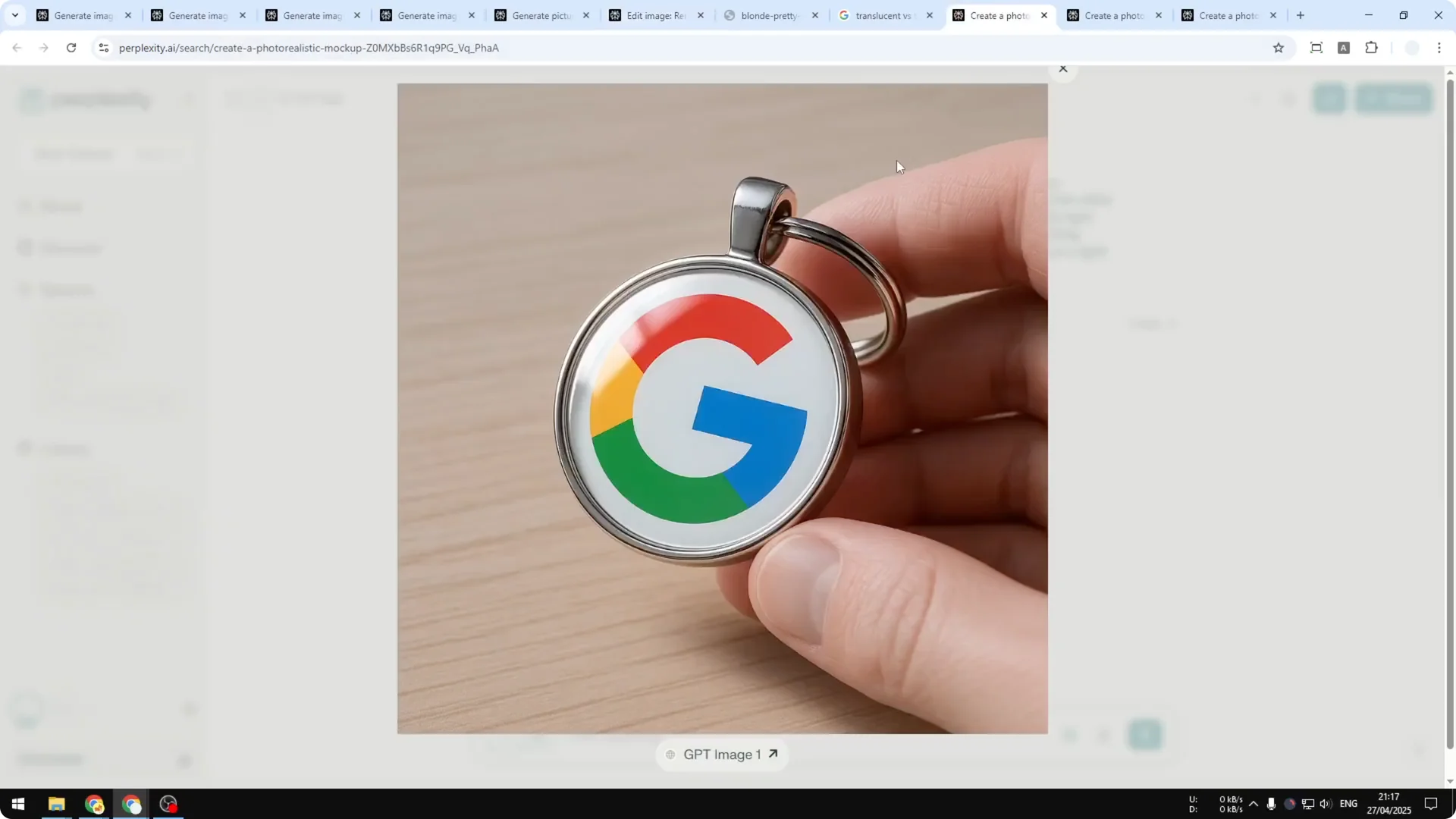
You can generate many practical assets with transparent backgrounds. I made a keychain concept in Perplexity that looked great as a mockup. You can place a logo or your photo to visualize a product before producing it.
If you want more prompt ideas for visuals, see art prompts. These concepts translate well when you describe scenes, styles, and materials for the image model. Keep prompts direct and include the generate image or generate picture keyword.
Final thoughts
Perplexity with GPT Image 1 can create high quality images, apply styles like Studio Ghibli, and generate fully transparent stickers. Select GPT Image 1 in Settings, include the generate image or generate picture keyword, and you should get results in under 2 minutes. Use it for creating new assets, and avoid heavy edits for now due to quality loss.
