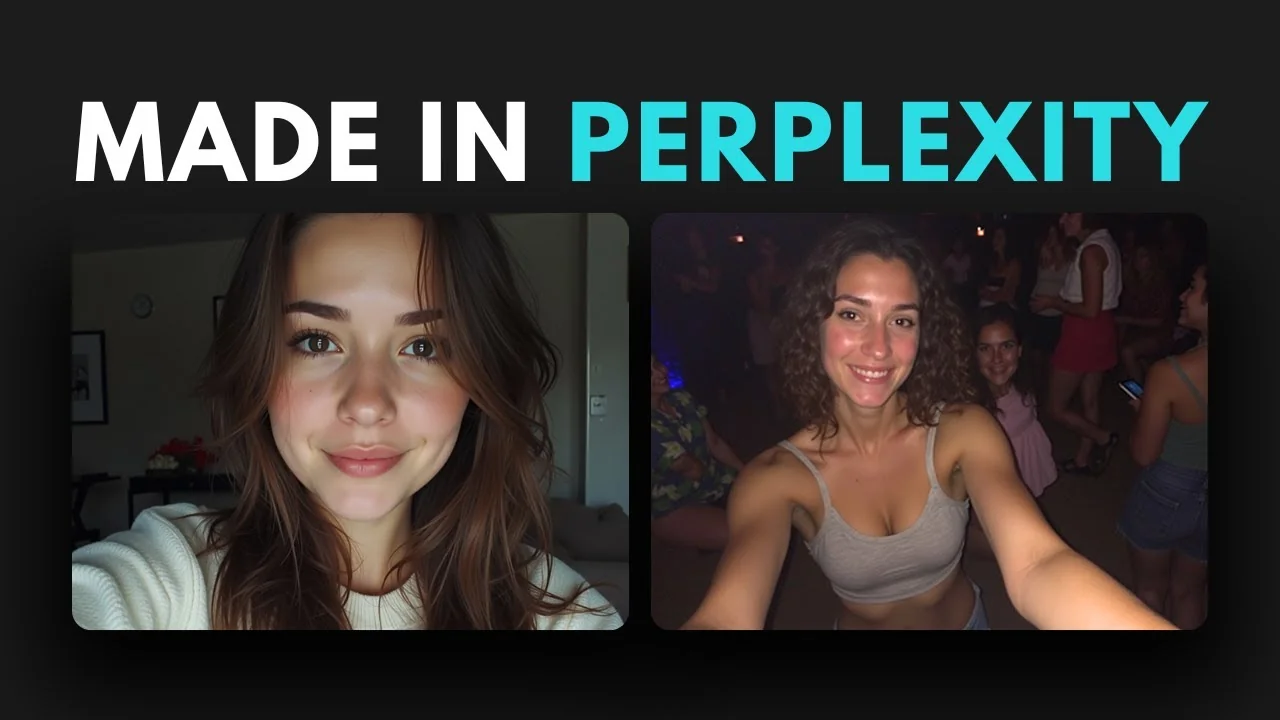
Flux is an image model used to generate AI images, and LoRA is a training technique that can be paired with Flux to produce a different kind of picture. You have probably seen examples where Flux and LoRA combine to create photos that feel natural. They still look high quality, but the spontaneity makes them feel like something a real person shot.
Typical AI images look overly polished because the training data skews toward stock photos. That is why the output often looks professional and easy to flag as inauthentic. With Flux and LoRA, the result can get much closer to an authentic photo taken by a real person.
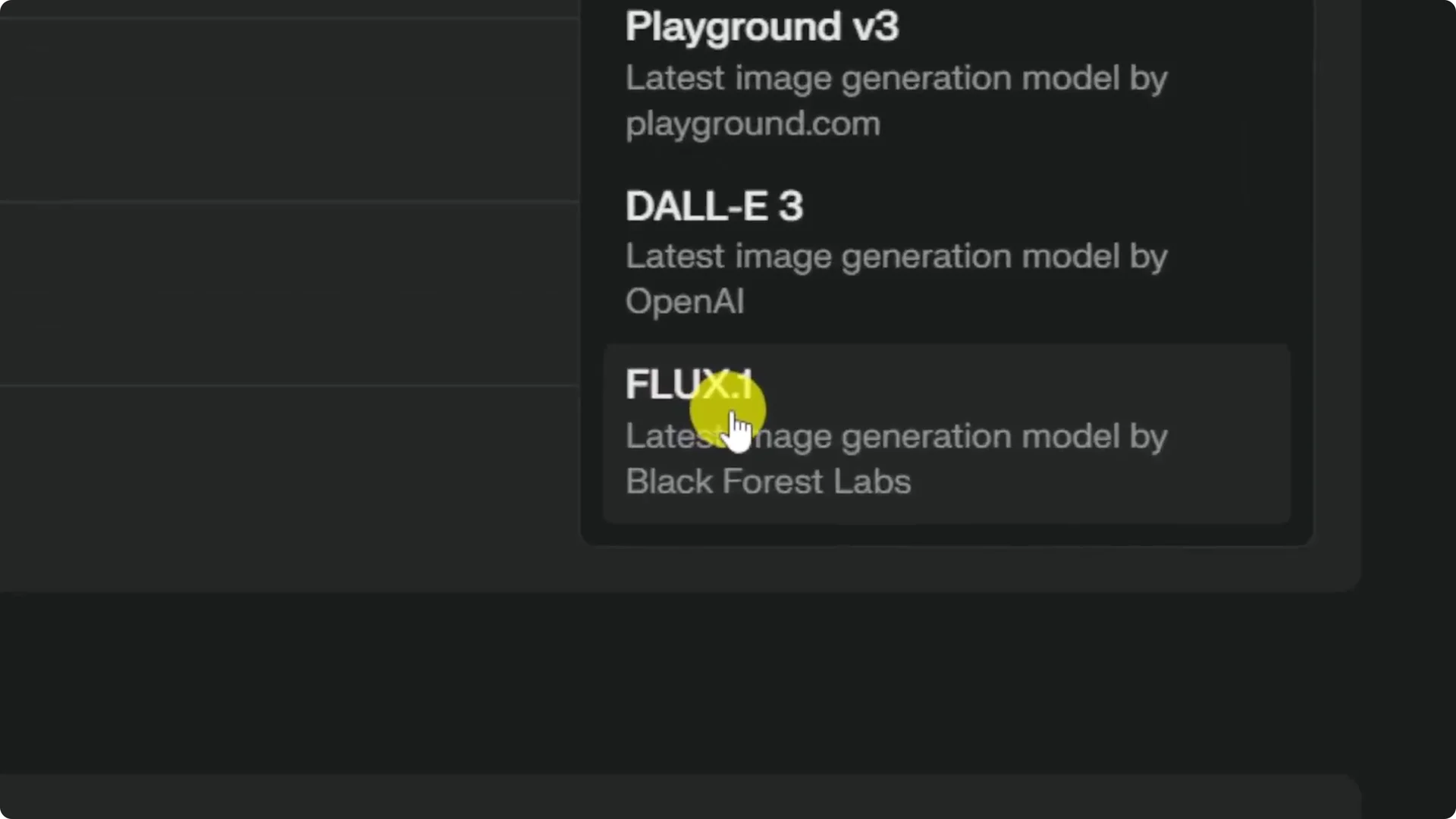
Perplexity gives you access to Flux One, which is a solid image model. In settings, you can pick Flux One, but there is no LoRA available. The question is how to get something that looks like a Flux plus LoRA combo inside Perplexity.
Why aim for Amateur-Looking AI Photos in Perplexity
I tested a method to push Flux One toward more natural results. I generated selfies, a woman in a restaurant, and a casual breakfast shot that looked like someone used a smartphone. They did not feel like generic stock photos.
Selfies are easier because there is a lot of training data from smartphone cameras, which usually have lower quality than professional gear. The lighting, focus, and grain help the image feel unplanned and real. This is the quality we want.
For more ideas on shaping results with styles and phrasing, see prompt styles. Short, targeted language matters here.
Step-by-step: Amateur-Looking AI Photos in Perplexity
Step 1: Use Perplexity Pro. The image generator is available to Pro subscribers, and you need that to run Flux One.
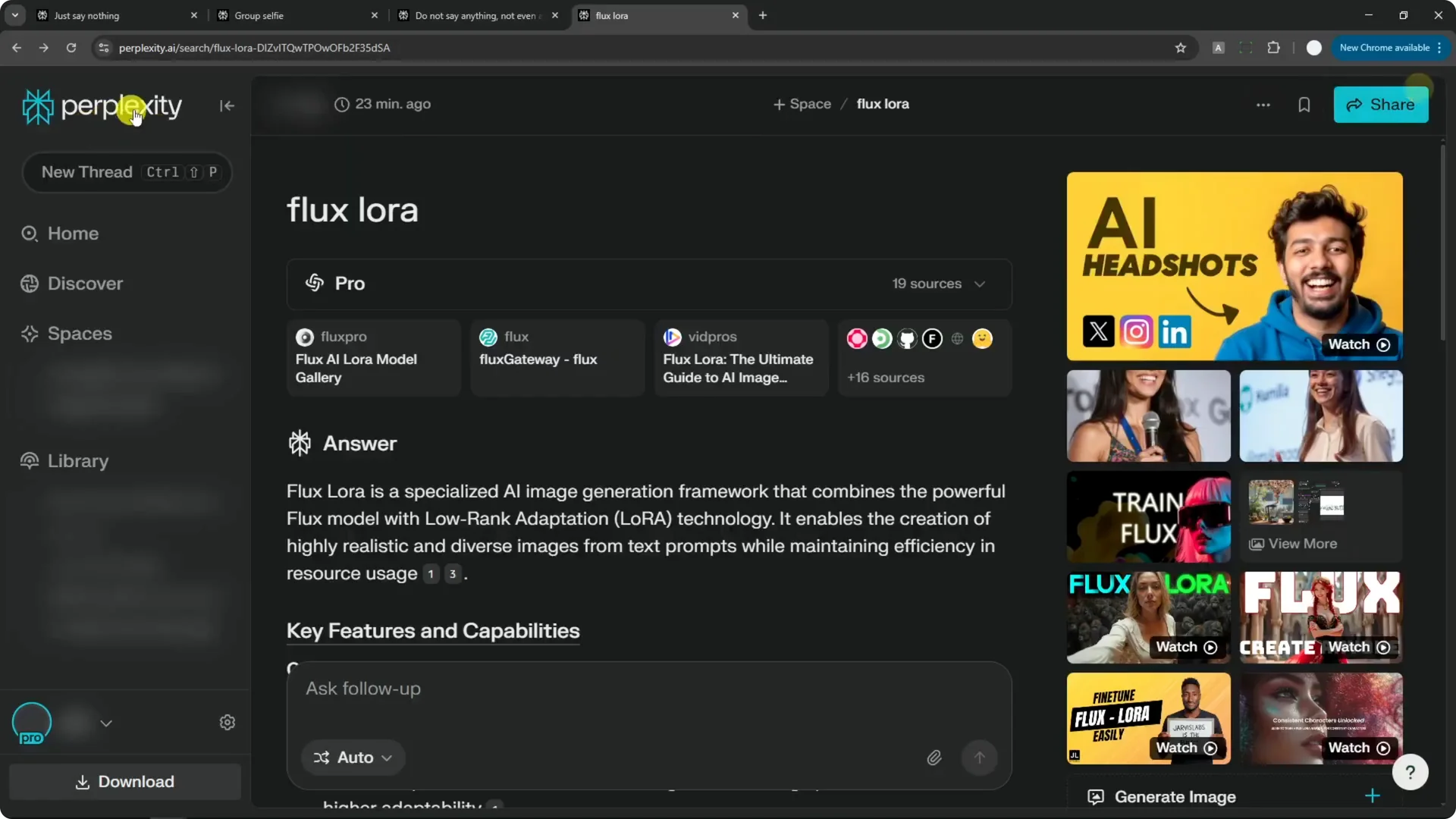
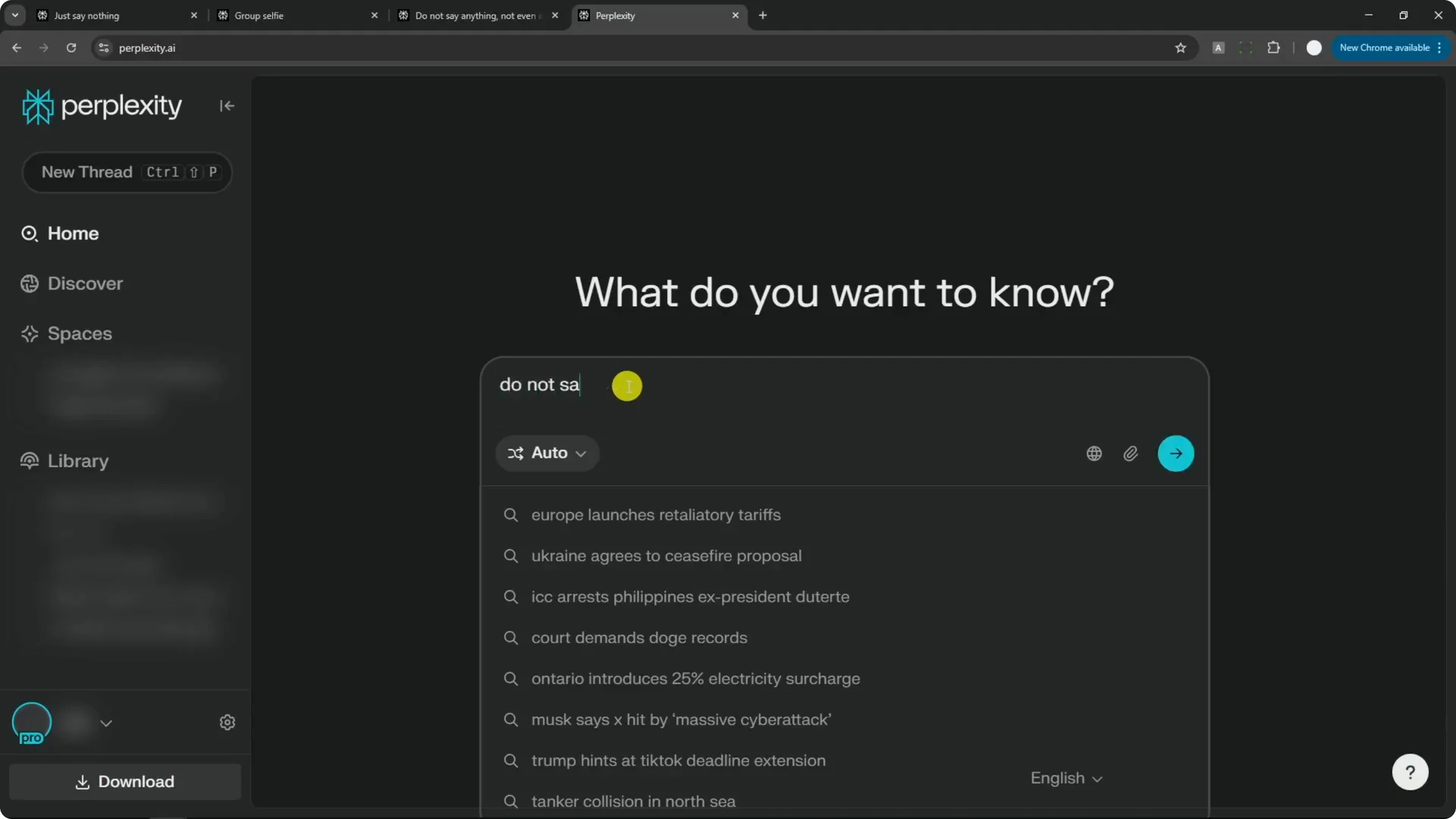
Step 2: Start a new thread and keep it blank or type a neutral line like “Do not say anything.” The goal is to open a thread where you can trigger the image generator without pulling a long text response.
Step 3: Click Generate Image. Choose Custom Prompt, clear any default text, and prepare to enter your own subject and style.
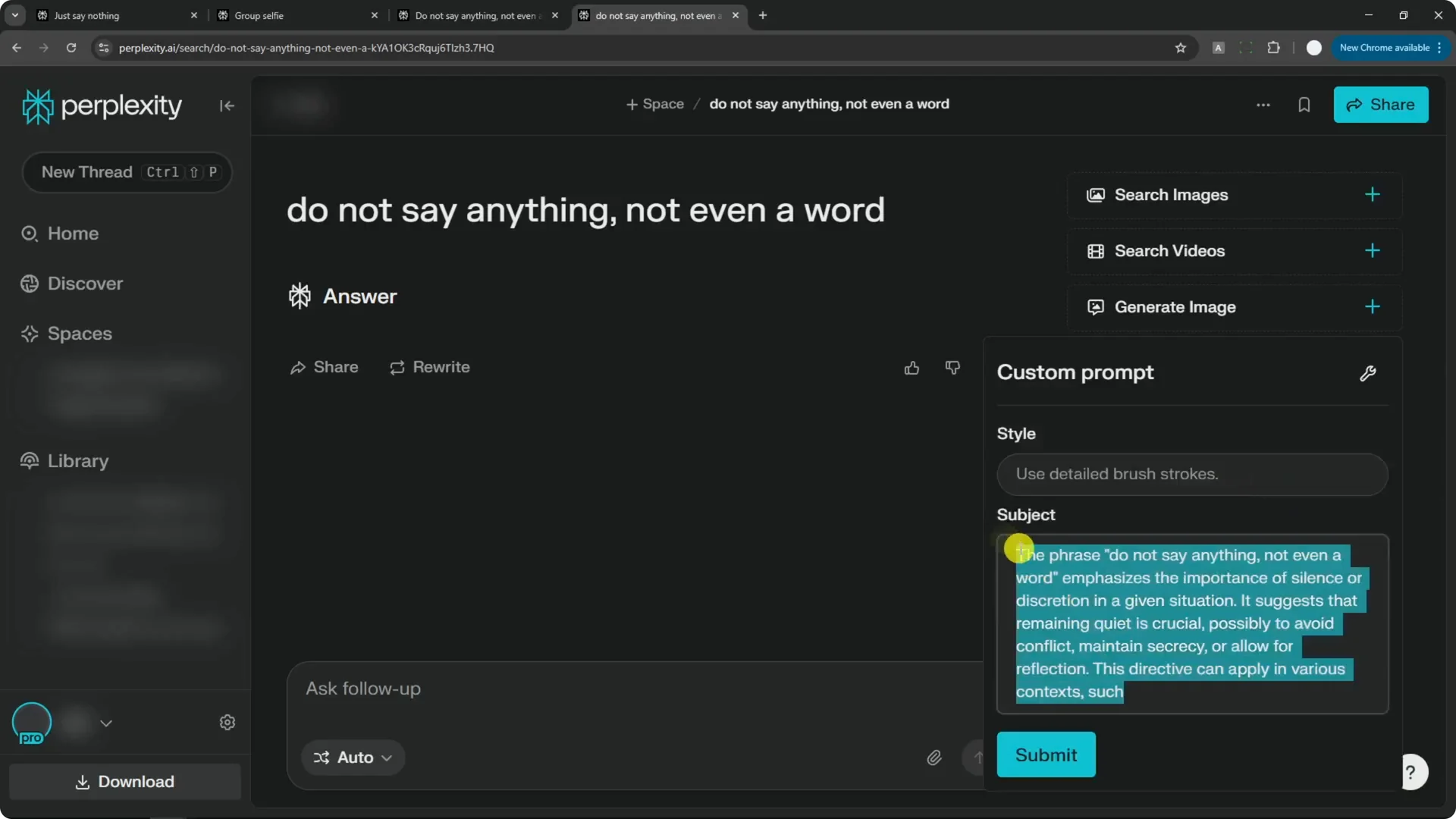
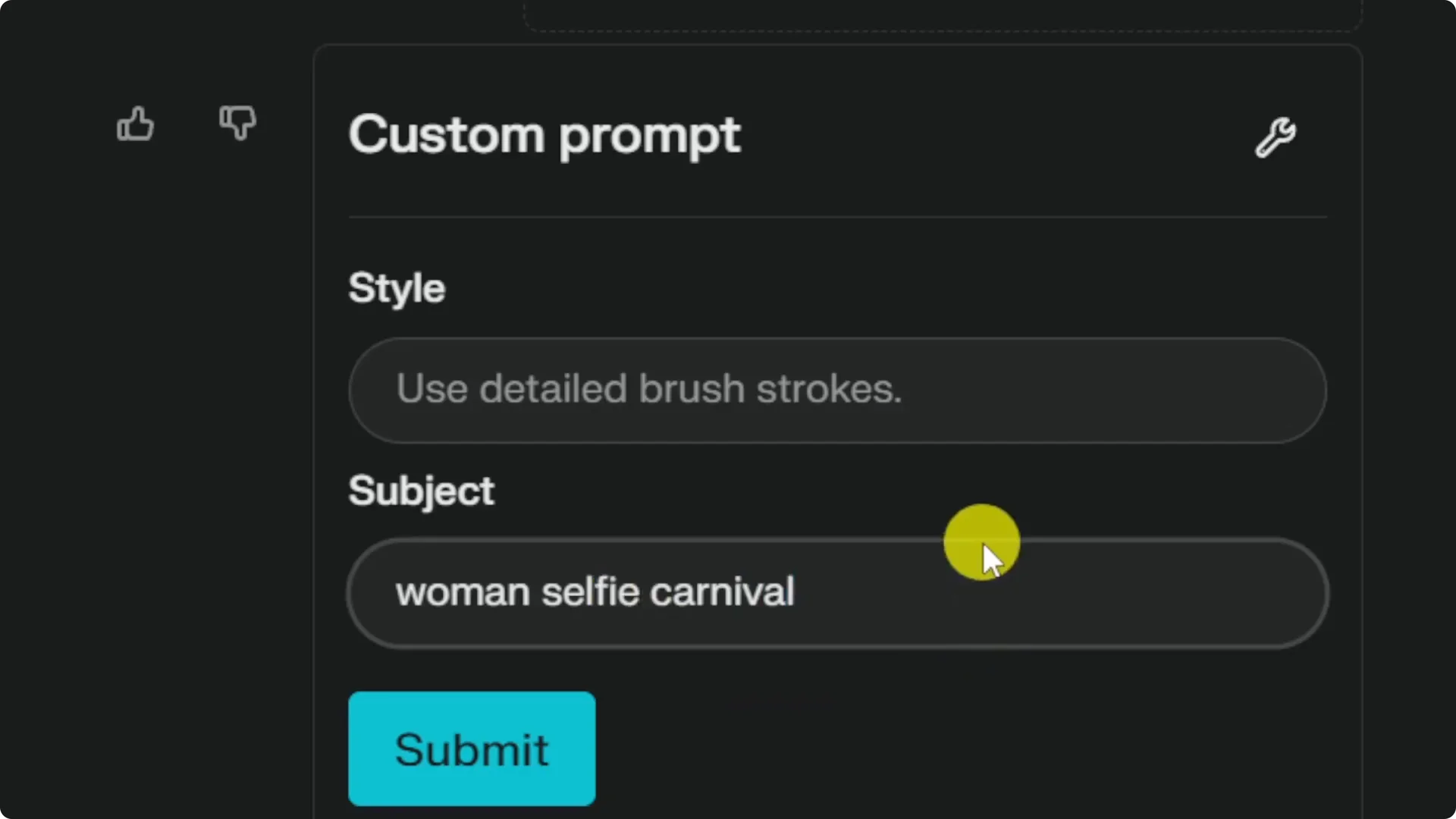
Step 4: Write an ultra-short subject prompt. Keep it under 10 words, and under 5 words is even better. Make it include the essentials, and do not worry about perfect grammar.
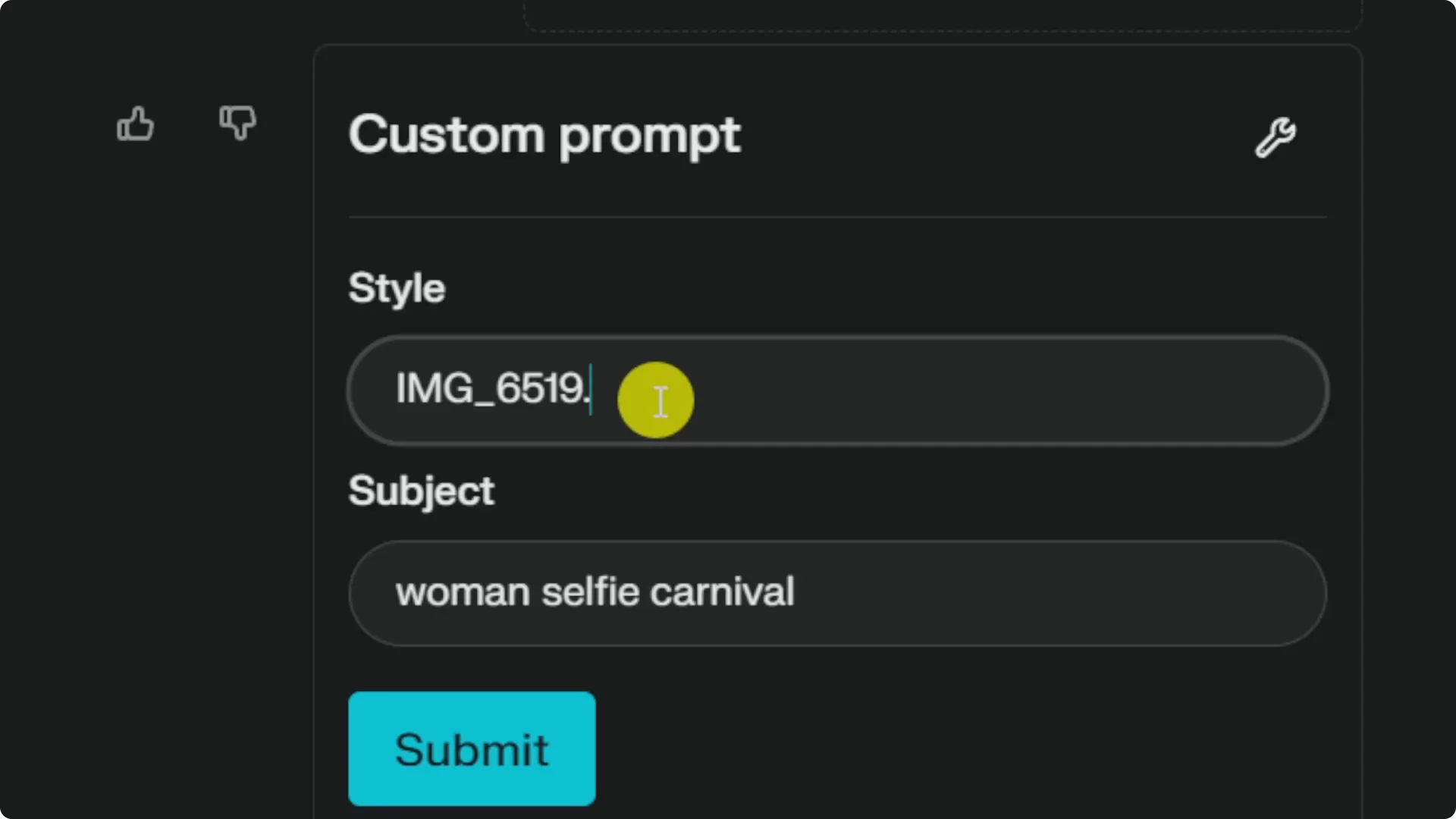
Step 5: In Style, use a filename-like string. For example, type IMG_6519.jpg or selfie.jpeg as the style. The number can be anything, because the trick is to mimic filenames common in training images from smartphones and consumer cameras.
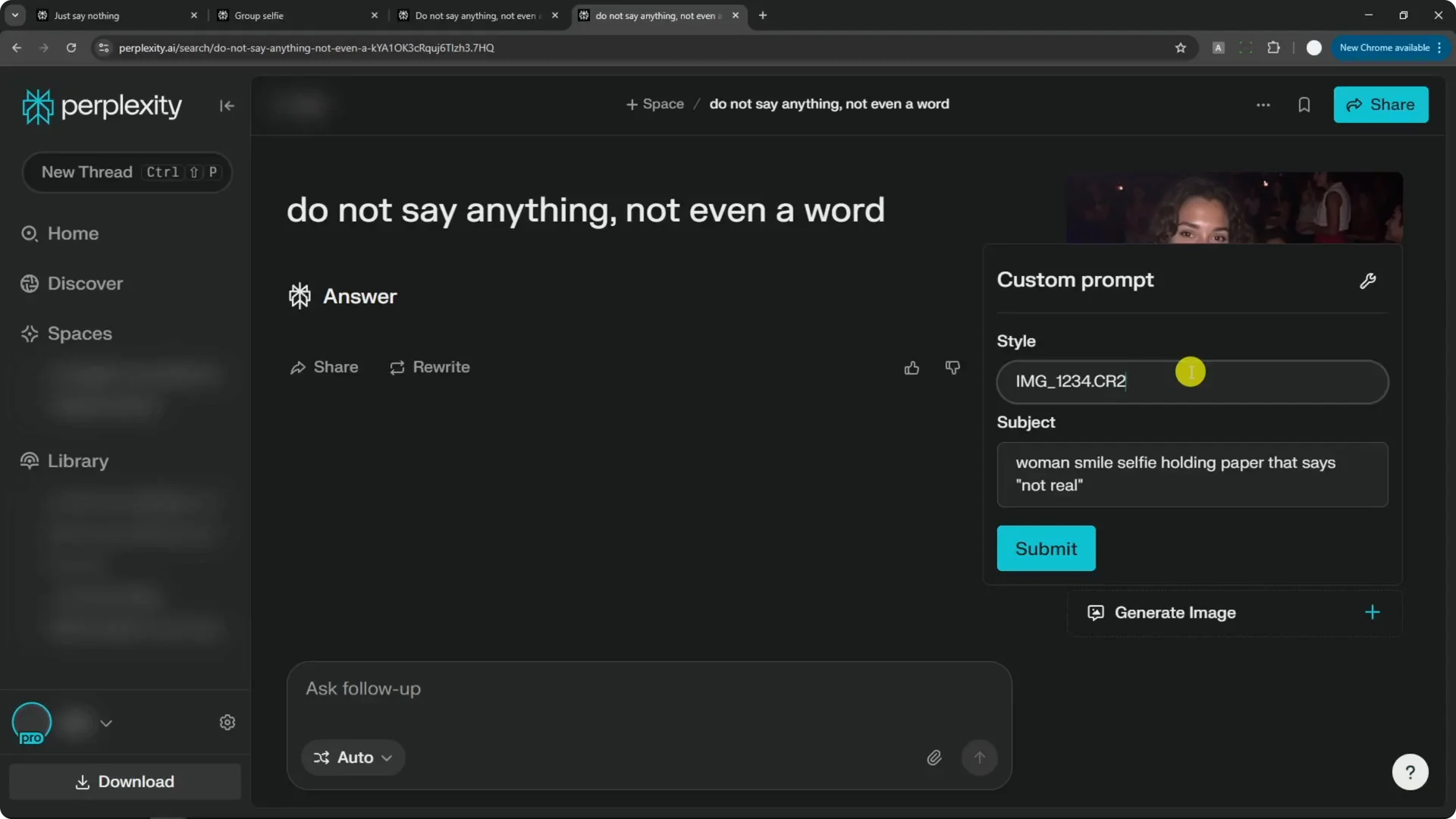
Step 6: You can swap the extension to shift the vibe. Try .jpg or .jpeg, but also test .cr2 or .heic to nudge the output toward consumer camera or phone aesthetics. You can also hint time or place in the style, like night.jpg or street.jpg.
Step 7: Submit and review the image. If it still looks too professional, change the style to something like selfie.jpeg or adjust the subject to a context with casual cues, like college party.
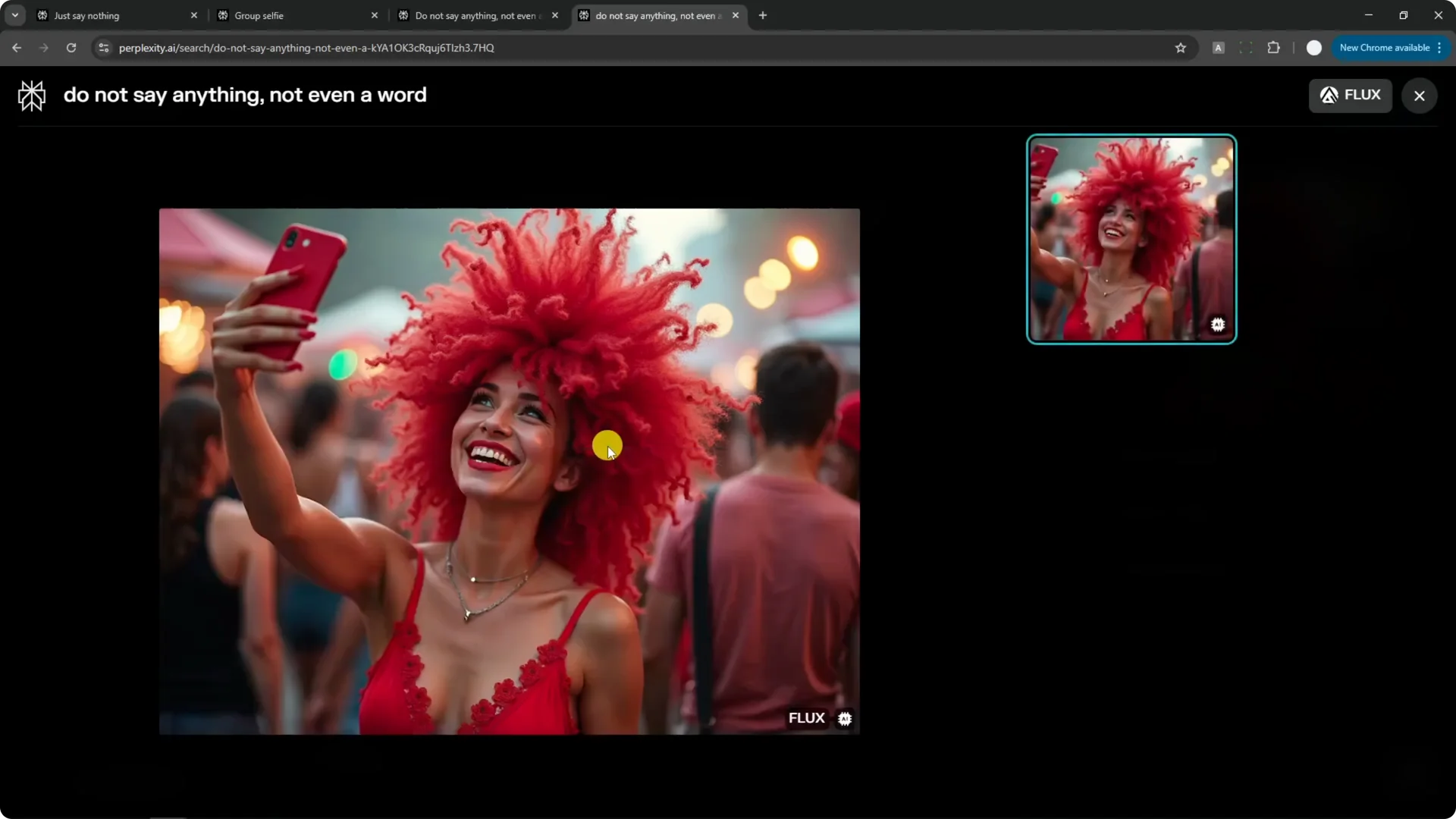
Step 8: Iterate and accept some variance. Even with the same settings, the output can vary, but this method often produces a more amateur look. Keep prompts short and keep the style field in that filename pattern.
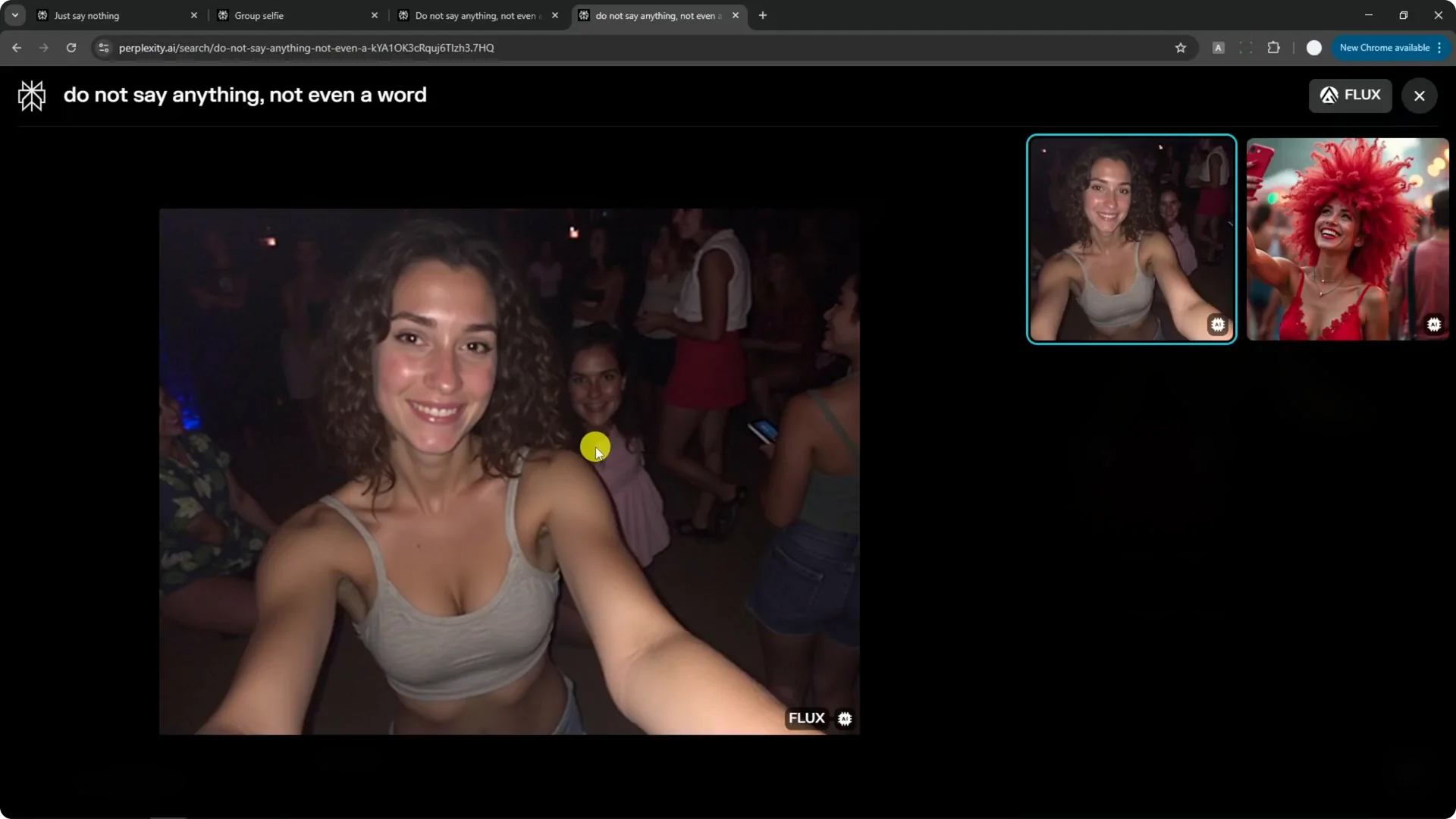
If you want deeper prompt craft beyond Perplexity, check out transformative prompts. It will help you think about minimal phrasing that still anchors the subject.
Results with Amateur-Looking AI Photos in Perplexity
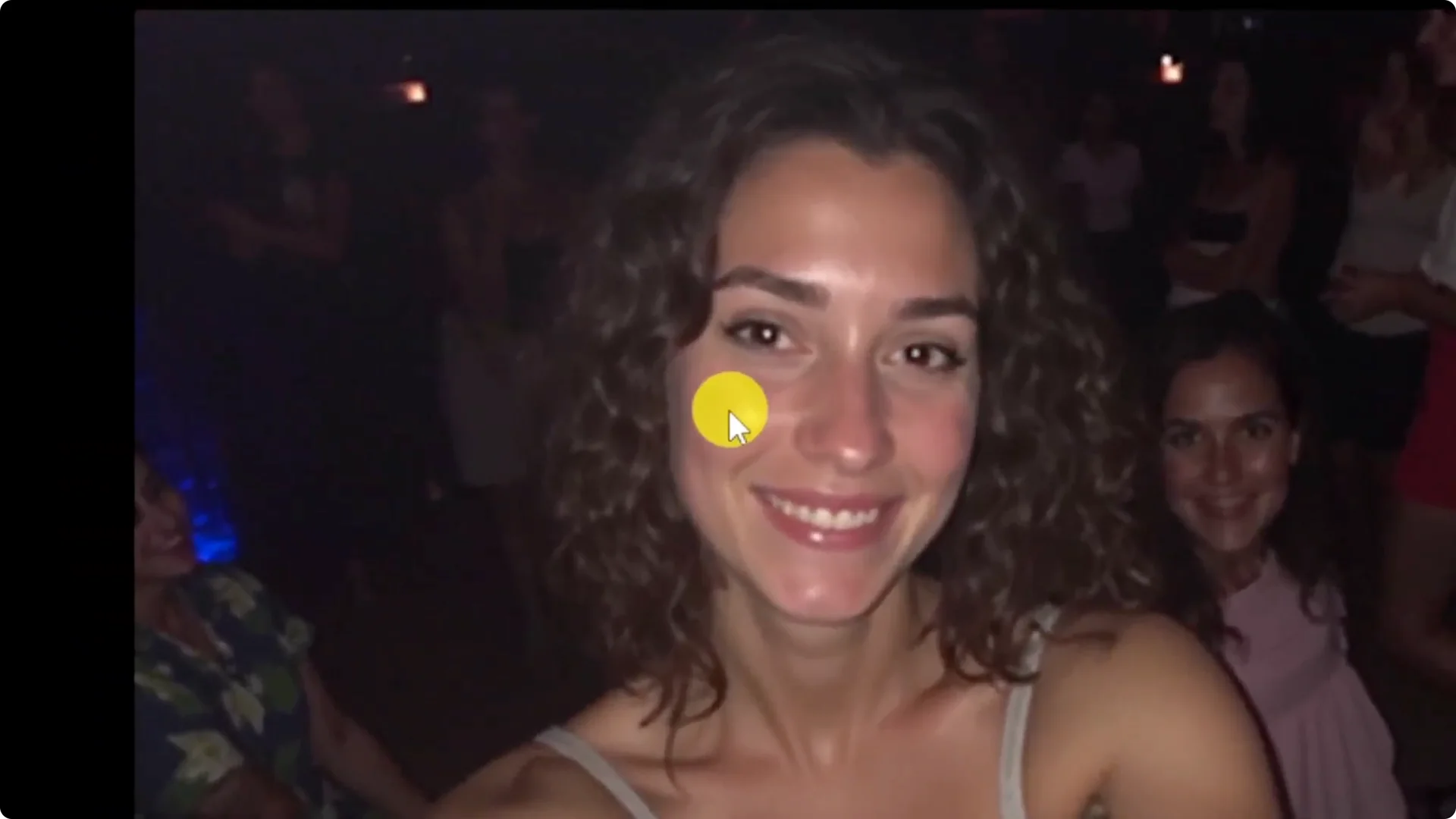
Using only Flux One in Perplexity, I produced selfies that felt casual and unpolished. A shot of a woman in a restaurant looked authentic, not staged. A breakfast photo came out messy and very natural, with smartphone vibes.
One example prompt was “woman smile selfie holding paper that says not real.” The style was IMG_1234.cr2, and the grain, lighting, and soft focus actually helped. When an image looks a bit rough, that usually means it reads as natural.
If you care about camera behavior and feel, see camera control. The same thinking about lens, angle, and motion cues can inspire still-image prompts and styles.
Prompting for Amateur-Looking AI Photos in Perplexity
Keep prompts short. Long prompts often push Flux toward polished, studio-like results, which is the opposite of what we want.
Include key elements but skip extra adjectives and fancy grammar. “Woman selfie carnival” is enough to set the scene.
For more on refining your creative approach, see better art. Precision with a few words often beats long descriptive blocks.
Practical Variations for Amateur-Looking AI Photos in Perplexity
If your first result feels too glossy, switch the style extension. Try selfie.jpeg, IMG_7xxx.jpg, or IMG_2xxx.heic.
Change context lightly while keeping the prompt short. “College party selfie” plus style selfie.jpeg can flip the vibe from studio to casual.
Small nudges help. Add “street” or “night” inside the style as night.jpg or street.jpg to imply rough lighting and handheld capture.
Final Thoughts on Amateur-Looking AI Photos in Perplexity
Flux One in Perplexity can produce authentic-feeling photos without LoRA if you control two things. Keep the subject prompt extremely short, and set the style field to a filename-like string such as IMG_####.jpg, selfie.jpeg, or IMG_####.cr2.
Expect some variance and iterate. With these tweaks, you can nudge Flux One toward photos that feel candid, imperfect, and real. For broader style inspiration that complements this workflow, explore prompt styles and transformative prompts.
