Perplexity and the Arc browser are in a partnership. If you are using Arc, you can switch your default search to Perplexity so your queries go straight to it. Here is how I set it up and what to expect.
Arc Browser Perplexity Integration overview
You can replace Google or Bing with Perplexity as your default search inside Arc. Arc will send your question to Perplexity, and Perplexity will generate an answer using its AI model. It reads content on the internet and then delivers a concise response.
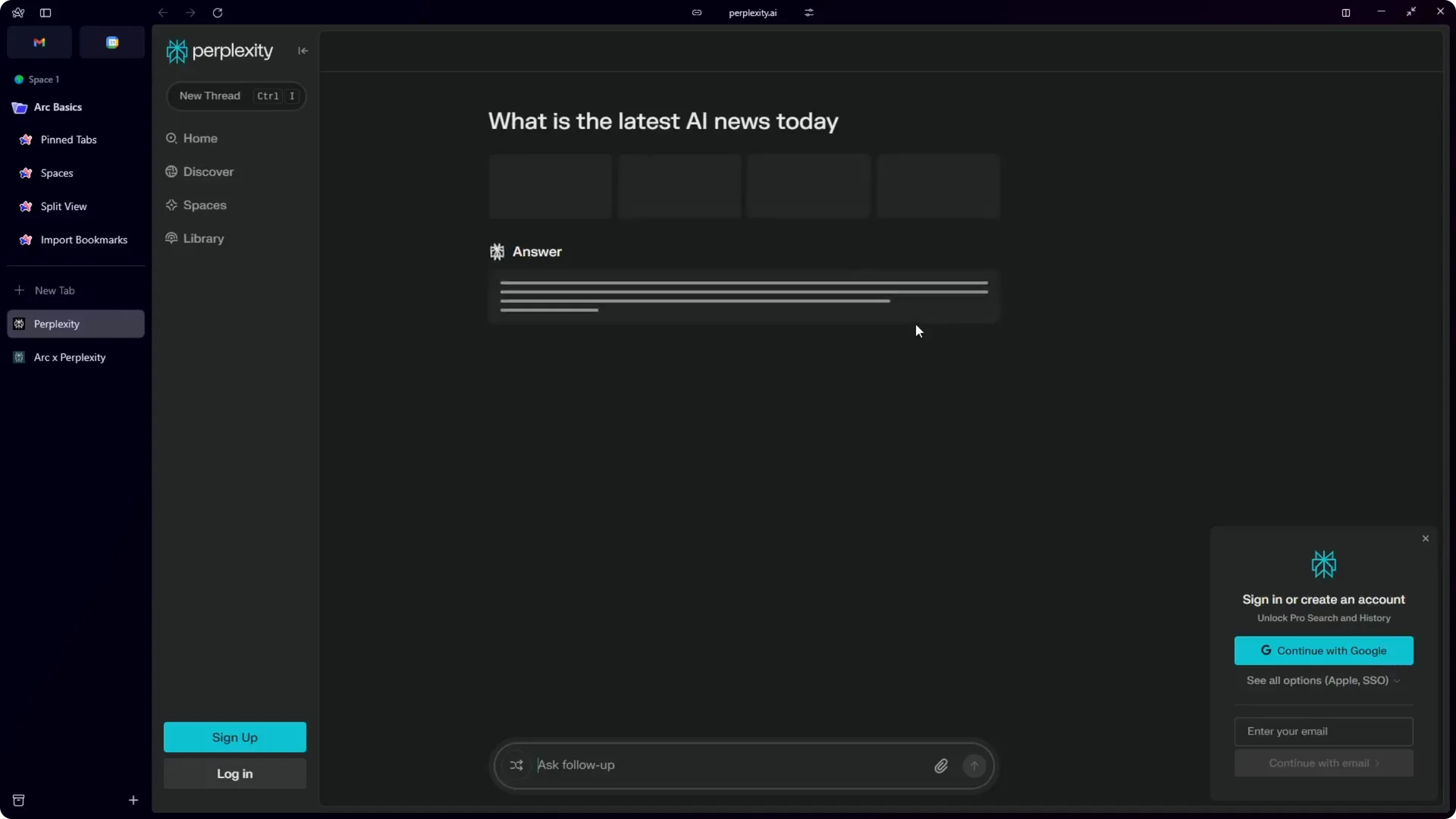
One bonus is you do not need to log in to your Perplexity account to get answers. That is helpful if you want more privacy or you do not want to pay for a Pro subscription. You can still ask follow-ups and tap core features without signing in.
Read More: Create Superior Ai Art
Arc Browser Perplexity Integration setup
Requirements
This is a new addition, so make sure you are running the latest version of Arc. Update Arc first to avoid missing the Perplexity option. Then proceed with the steps below.
Step-by-step guide
Step 1: Click the Arc icon at the top left corner of the window.
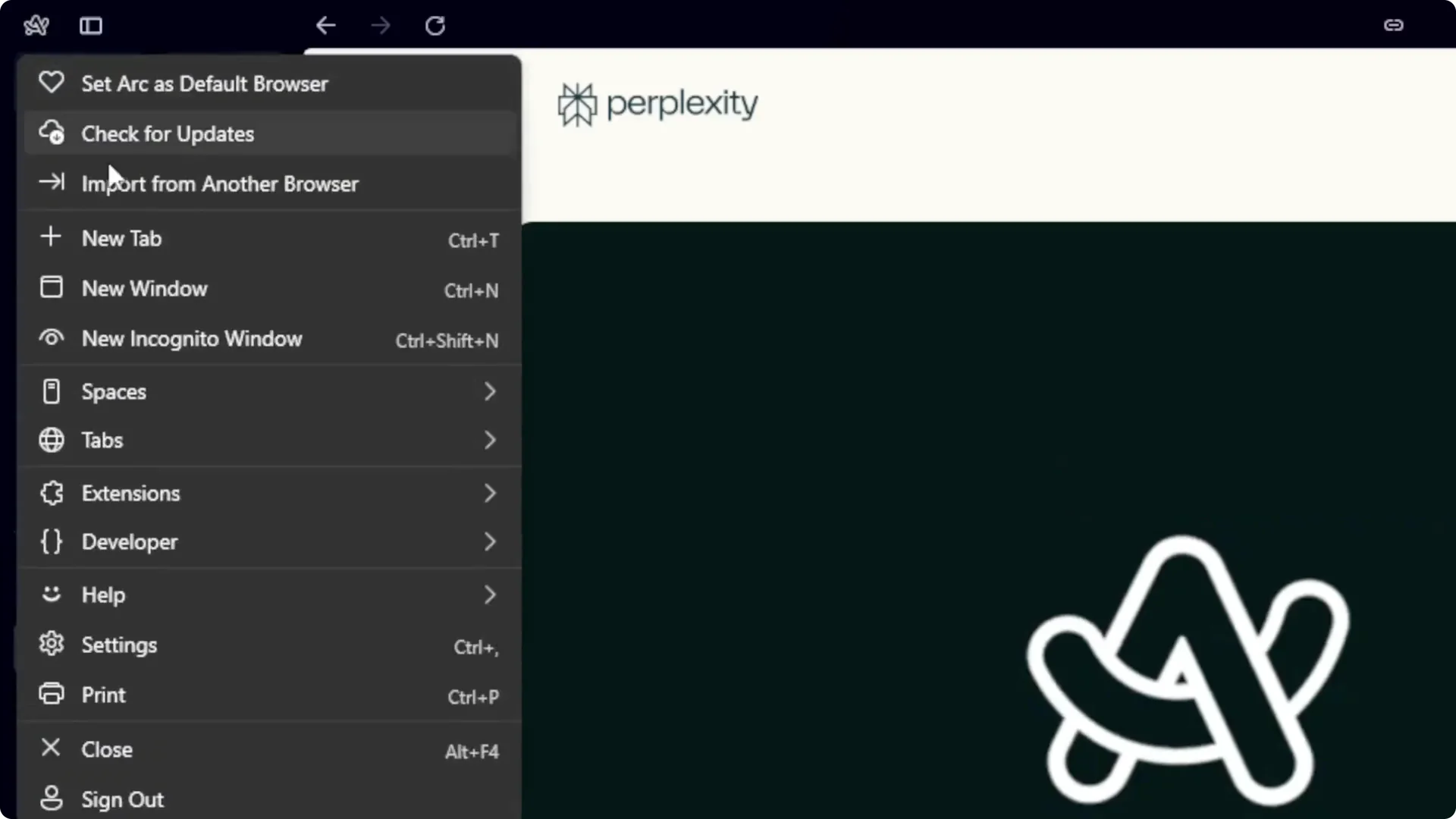
Step 2: Open Settings.
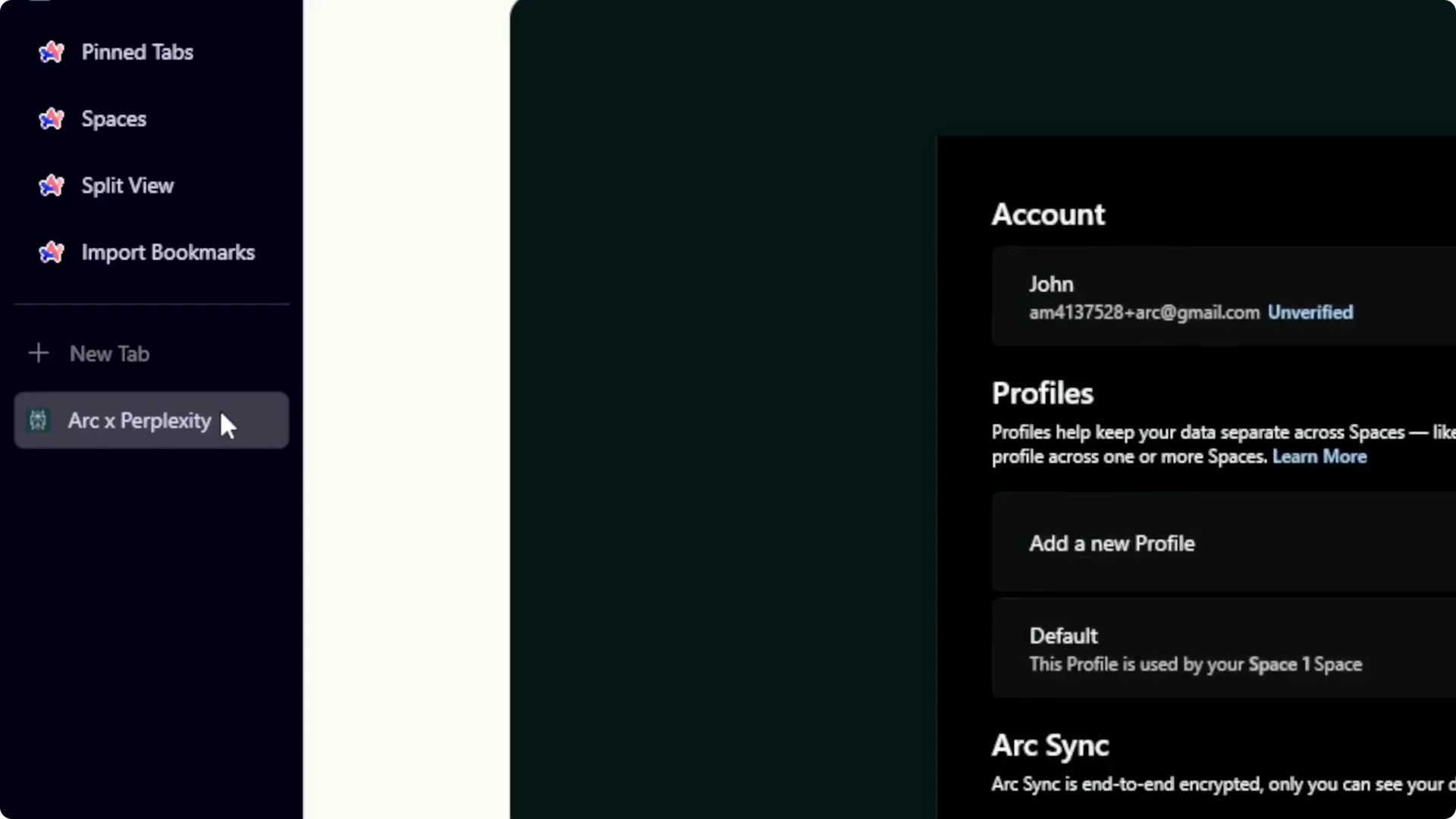
Step 3: Find the Search section and click the Default option.
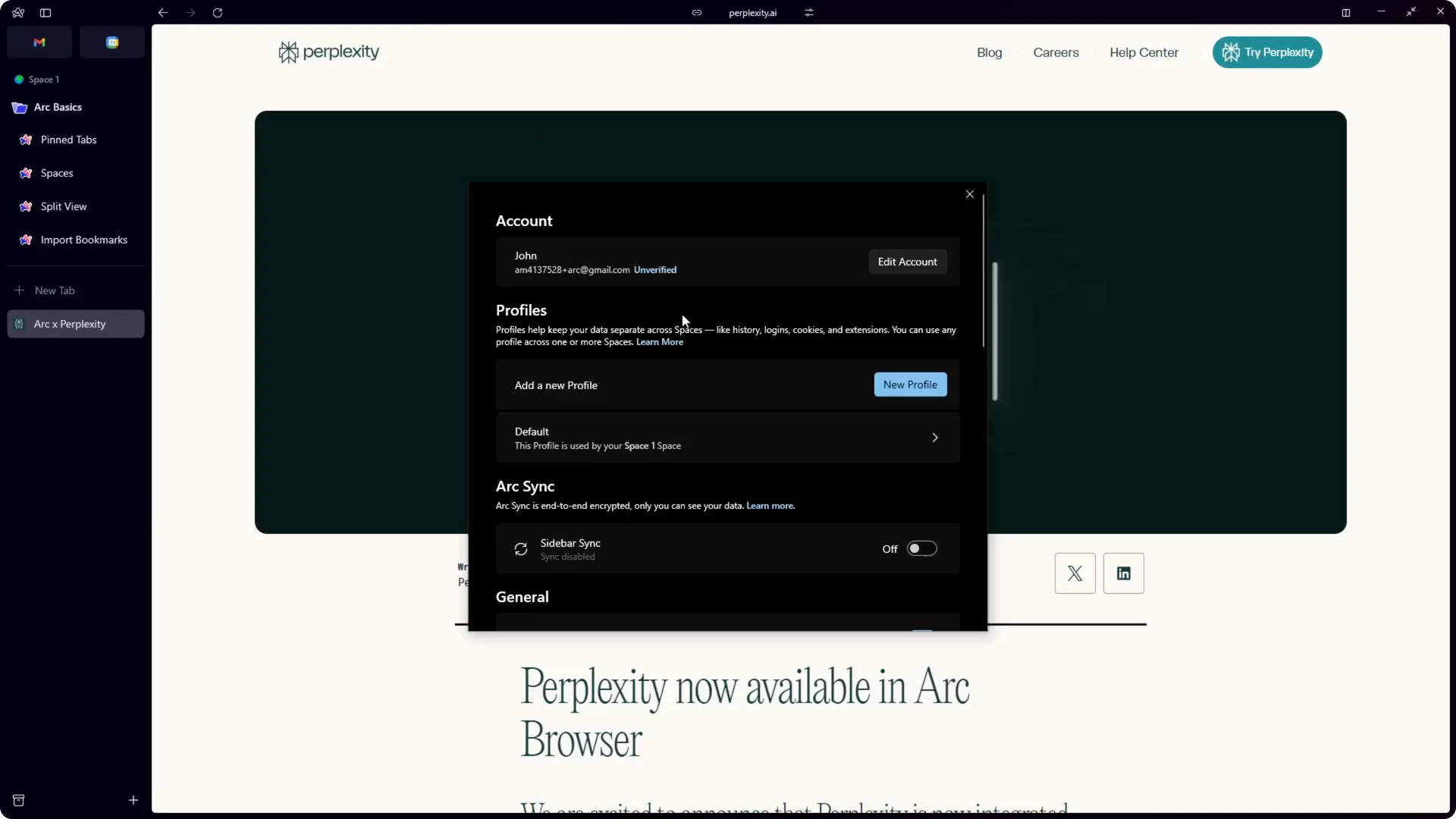
Step 4: Switch the search engine from Google or Bing to Perplexity.
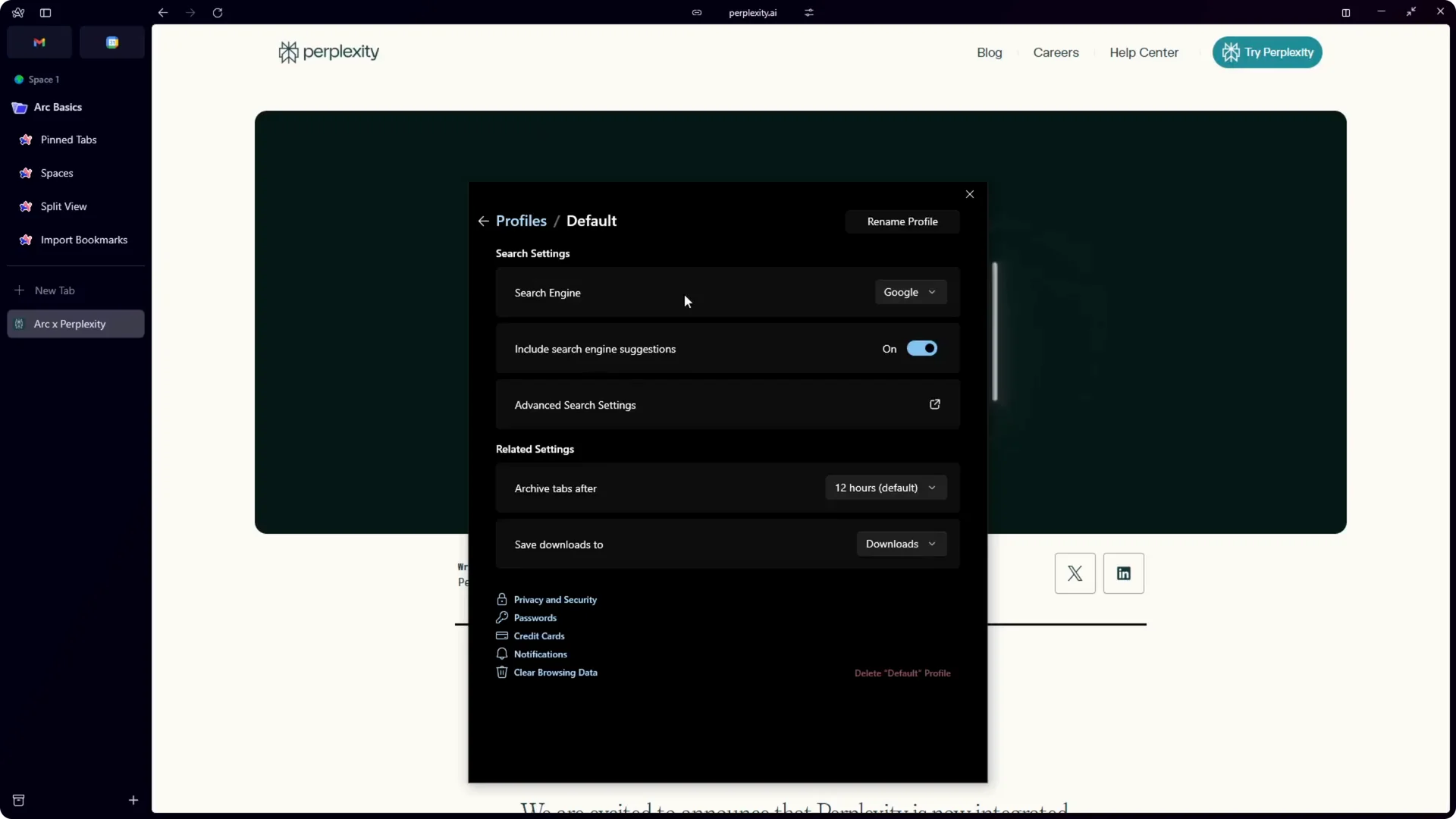
Step 5: Close the Settings window.
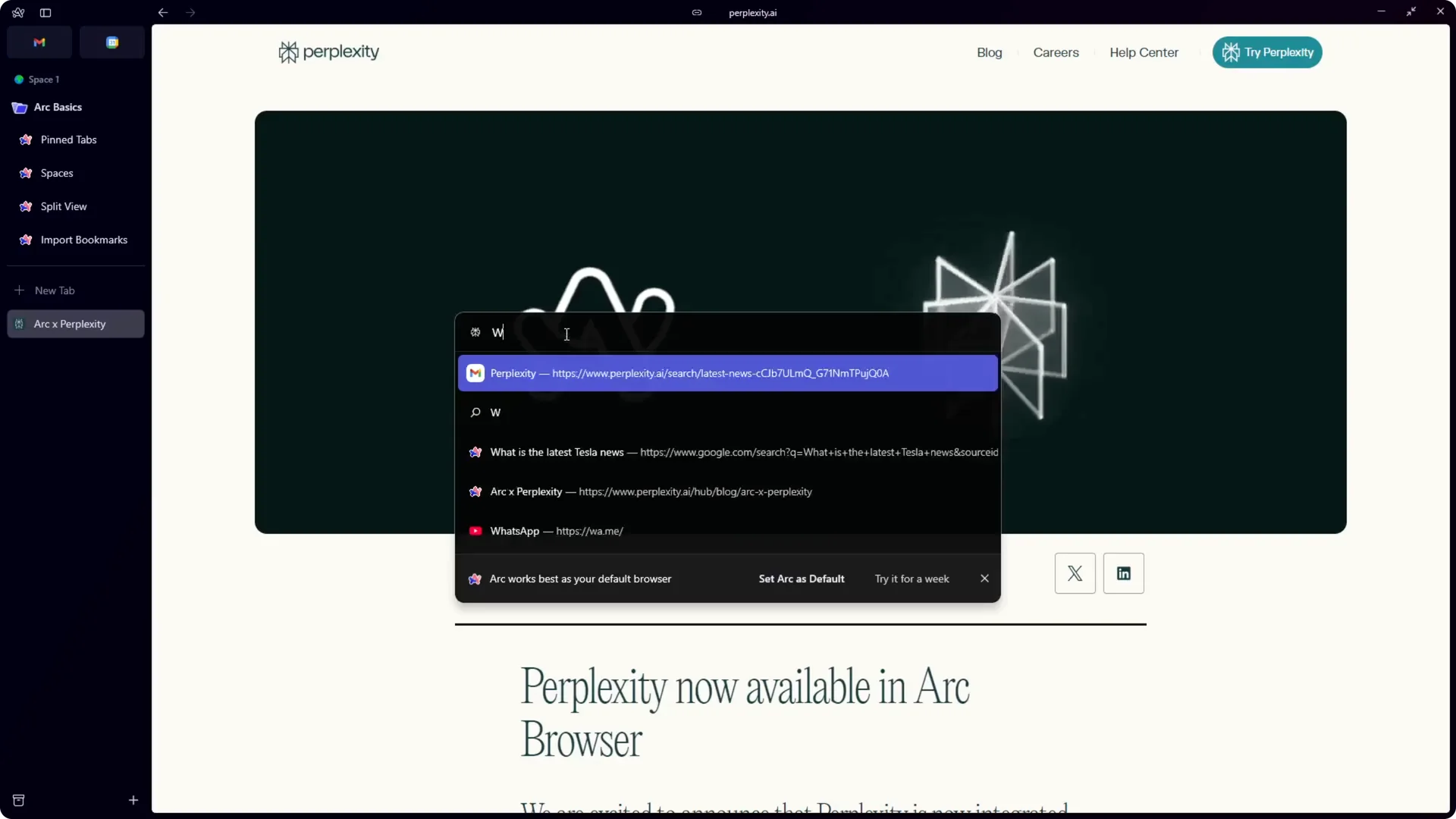
Step 6: Open a new tab, type your query, and press Enter.
Read More: Eye Catching Ai Art Midjourney Prompts Styles
Use Arc Browser Perplexity Integration for research
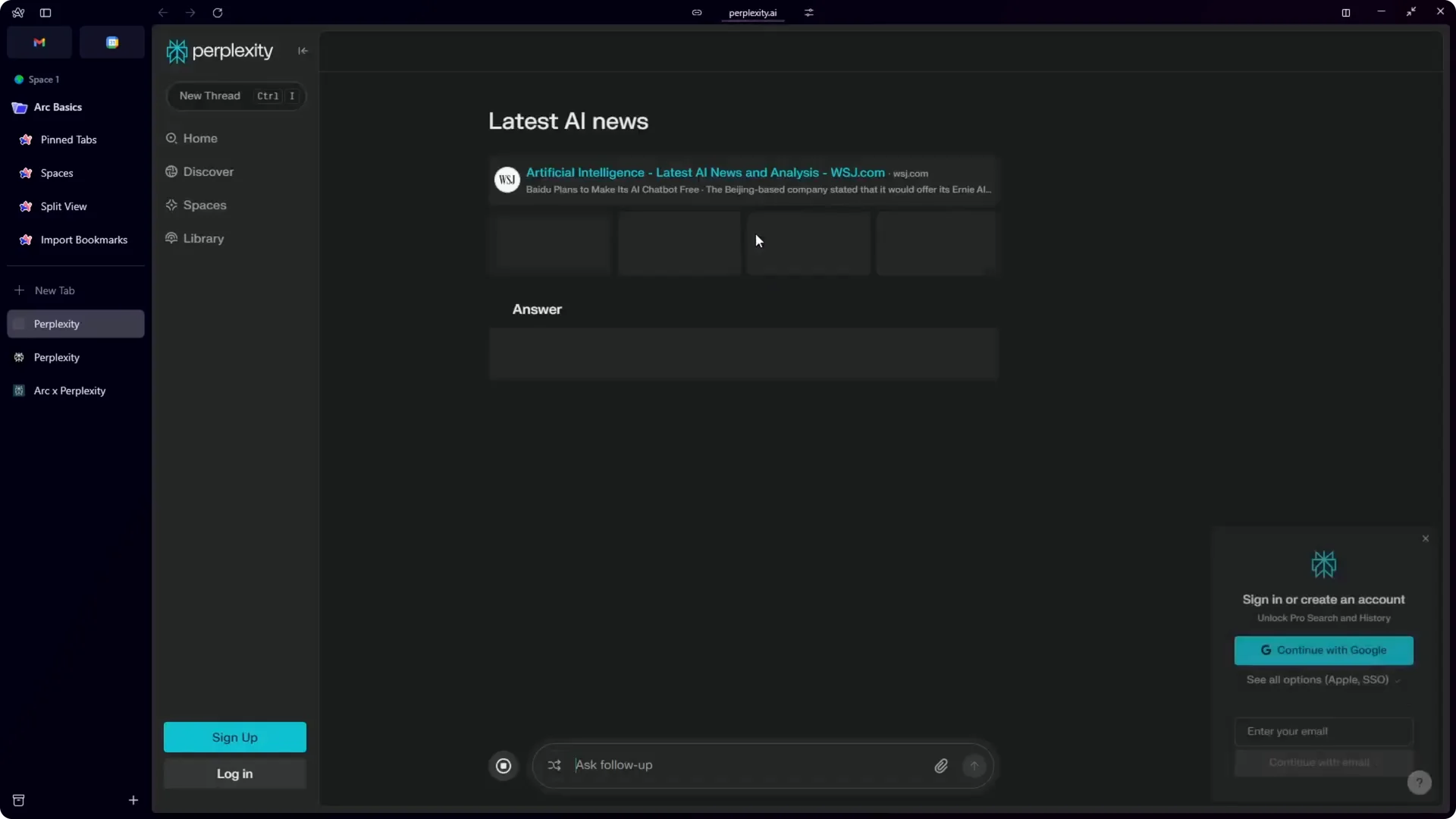
I tested it by searching for the latest AI news today. Instead of going to Google, the question was sent to Perplexity. Perplexity returned an answer quickly with sources summarized.
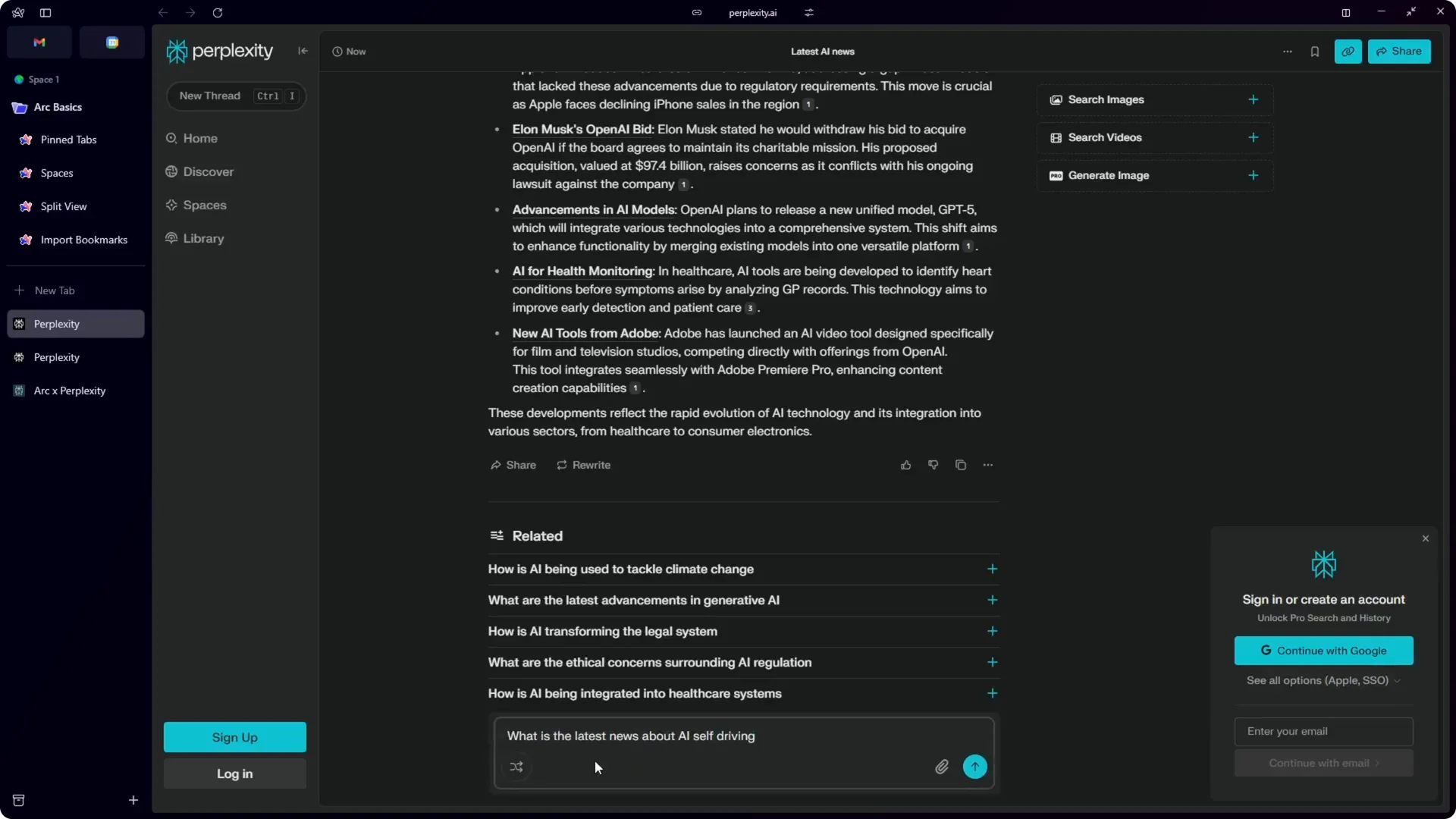
You can ask follow-up questions like the latest news about AI self-driving. Keep refining your query to narrow down the topic. You will still get full answers without signing in.
Handling slow results and errors
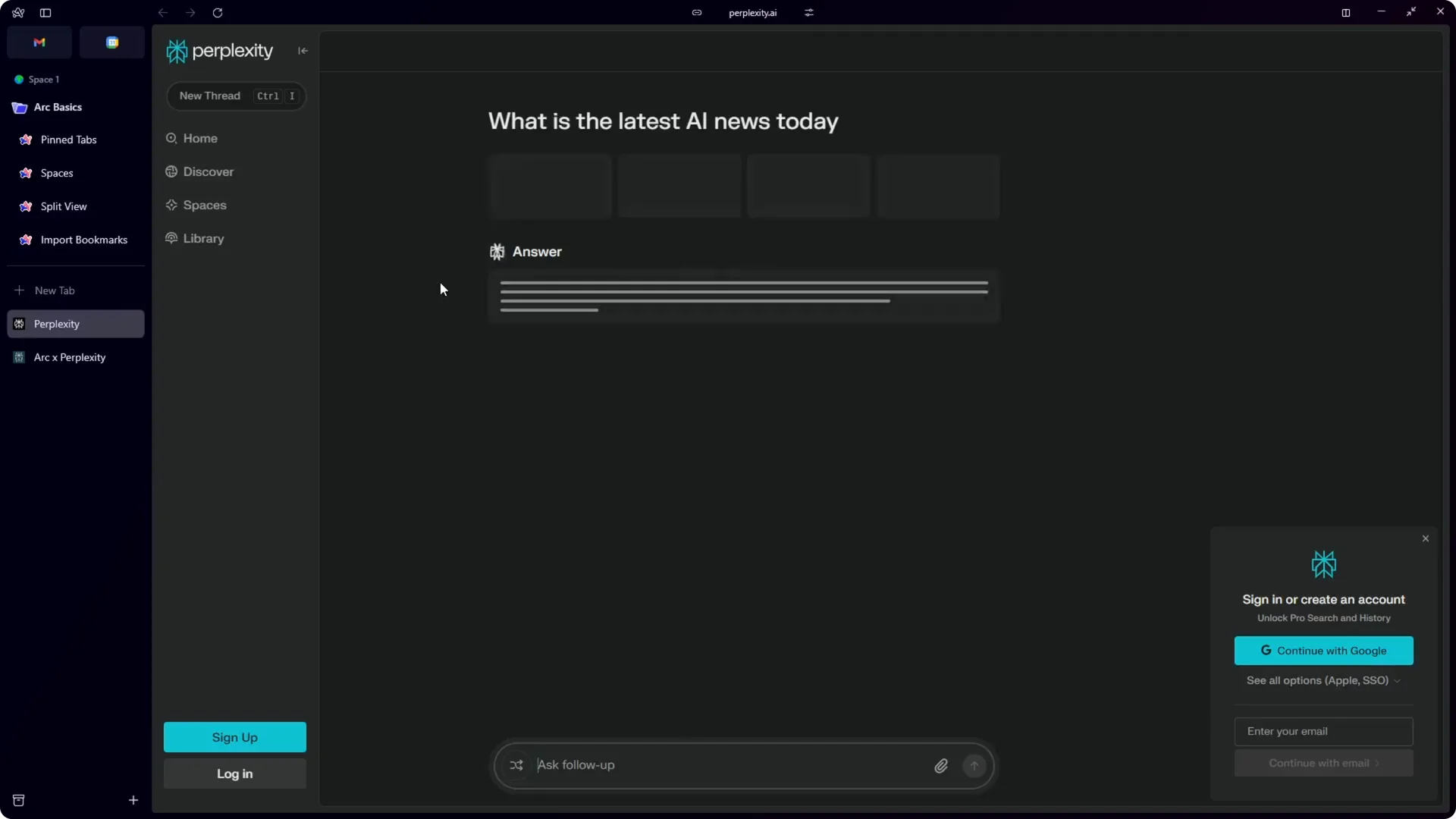
If it looks like it is taking too long, try the query again. I had a moment where it stalled, then a retry returned an instant answer. In normal use, results should arrive quickly.
Read More: Transformative Ai Art Midjourney Prompts
Privacy and Pro access
You do not have to log in to use Perplexity through Arc. That is a plus if you prefer to keep your browsing separate from an account. It also works if you do not want to pay for Perplexity Pro.
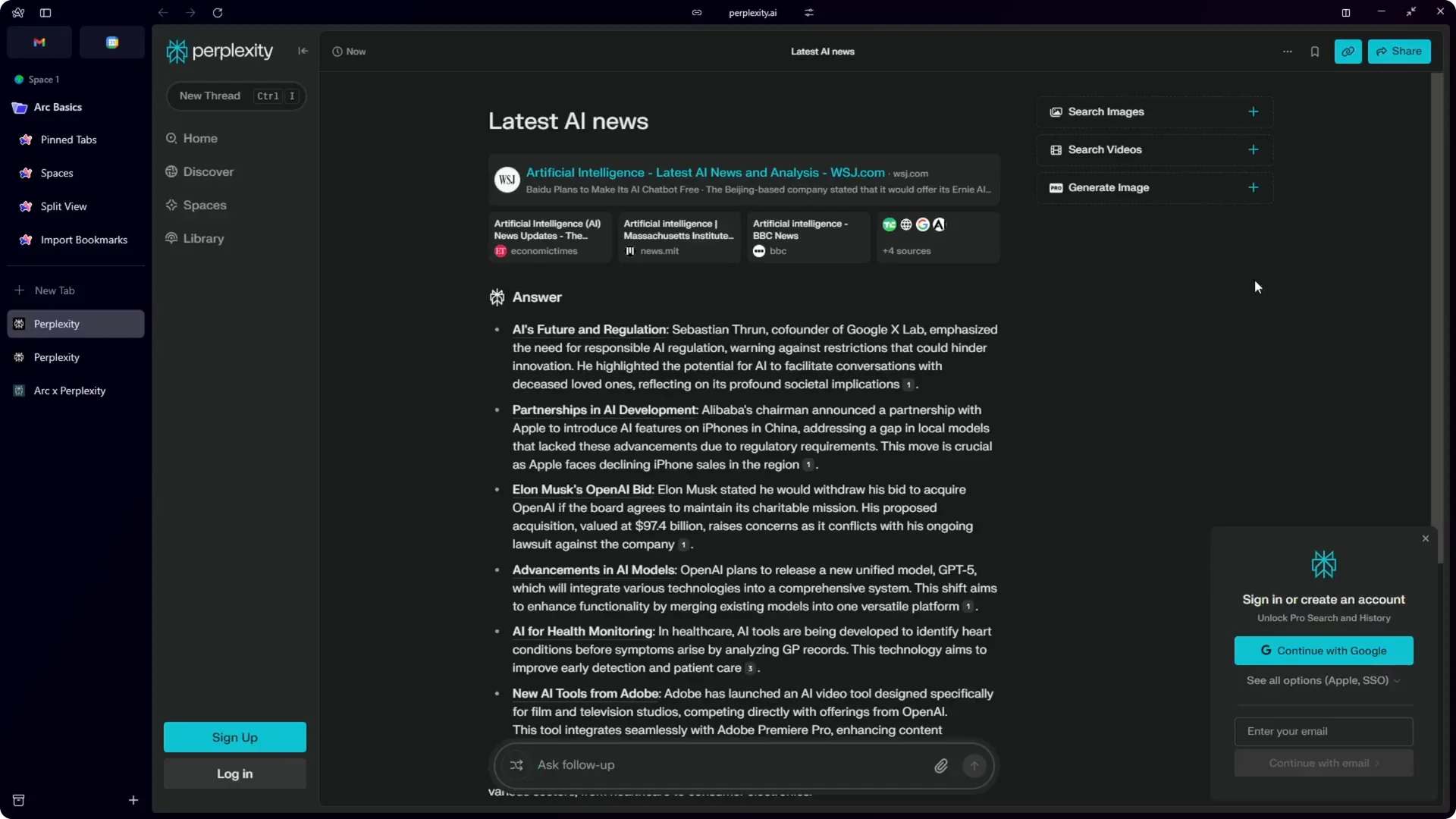
Even without signing in, you can ask follow-ups and get complete answers. For many quick research tasks, this setup is enough. If you need Pro features, you can still sign in directly on Perplexity later.
Read More: Camera Control For Midjourney Ai Video
Final thoughts on Arc Browser Perplexity Integration
Switching Arc’s default search to Perplexity lets you research and get AI-generated answers without logging in. It is quick to set up, and you can ask follow-ups right in a new tab. If a query hangs, retry once and it should respond fast.
