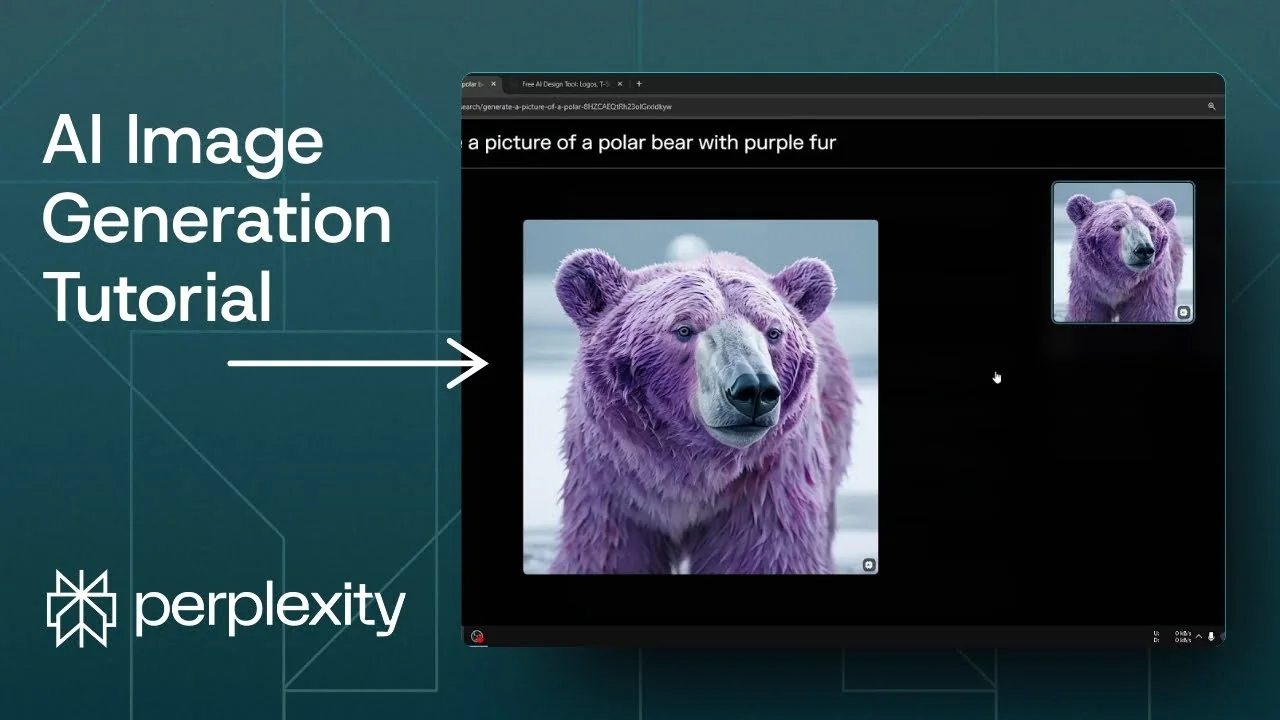
I’m going to show you how to generate a picture using the Playground V3 model via Perplexity. I created this feature using a different model at first, but you can switch to Playground Version 3 inside Perplexity without any trouble. This model is particularly good at designing logos, text, and illustrations, which in many cases is more useful than a random picture.
I find the quality from Playground Version 3 a lot better than some alternatives. If you need prompt inspiration for stylistic variety, see these curated Midjourney prompt styles to spark ideas you can adapt for your images.
Getting started with Perplexity Playground V3 Image Generation
Setup and requirements
Step 1: Open Perplexity and click the gear icon to open Settings. Scroll down to the Perplexity Pro section. This image feature is available for Pro subscribers.
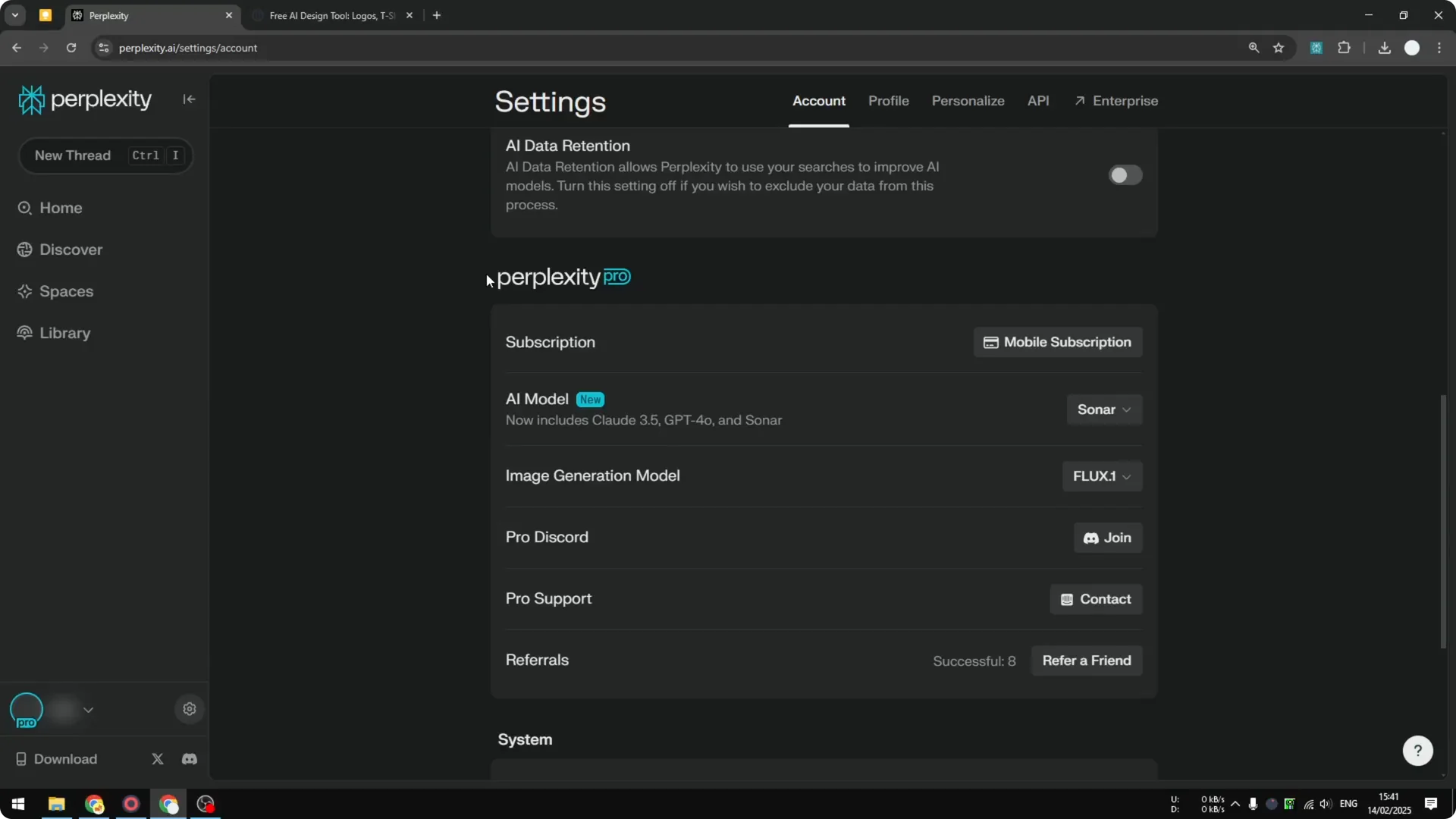
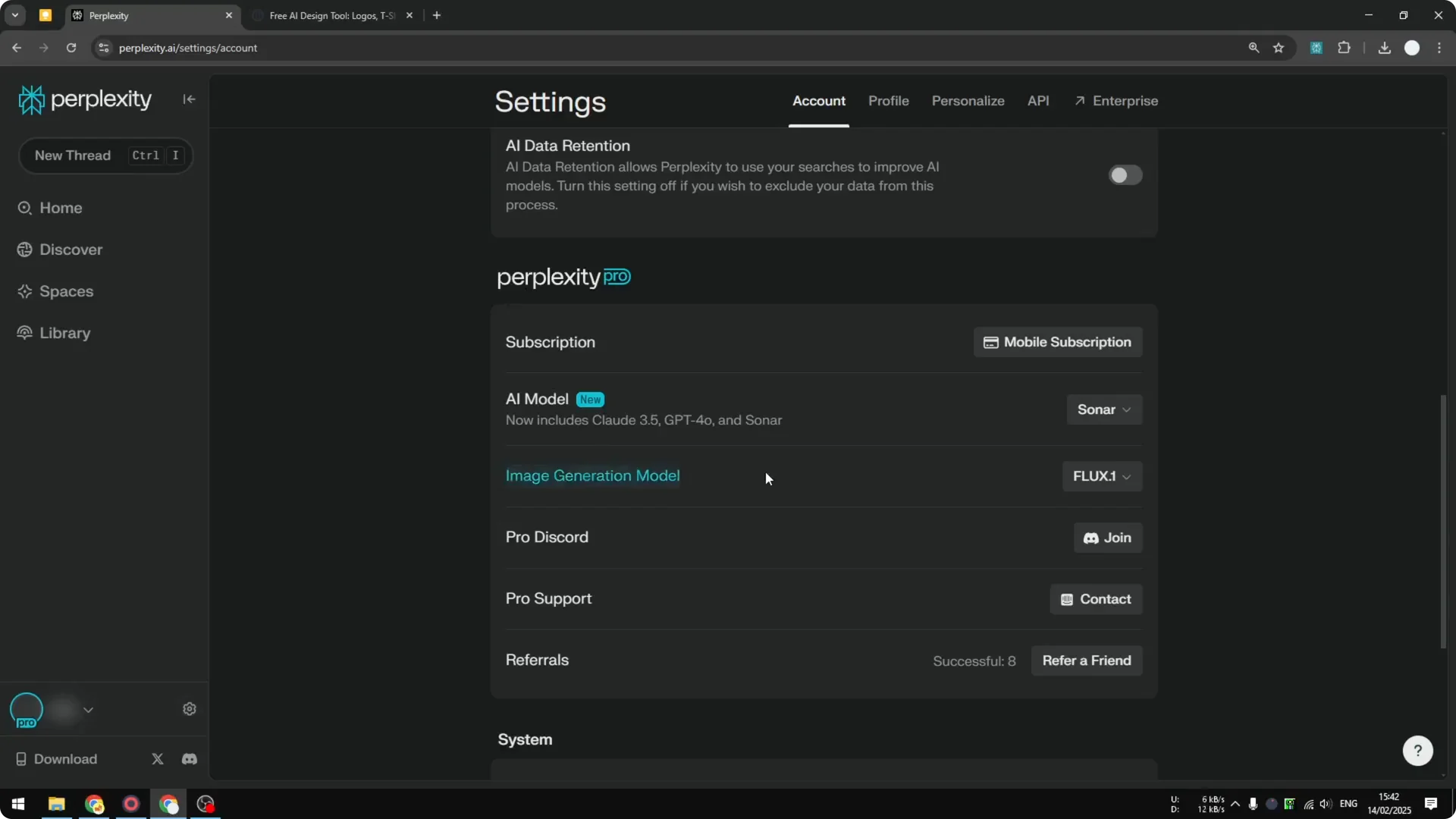
Step 2: Find Image generation model. If it is set to Flux One, change it to Playground Version 3.
If you are exploring editing options outside Perplexity, an ultra fast AI image editor can help refine outputs after generation.
Create a new thread and configure search
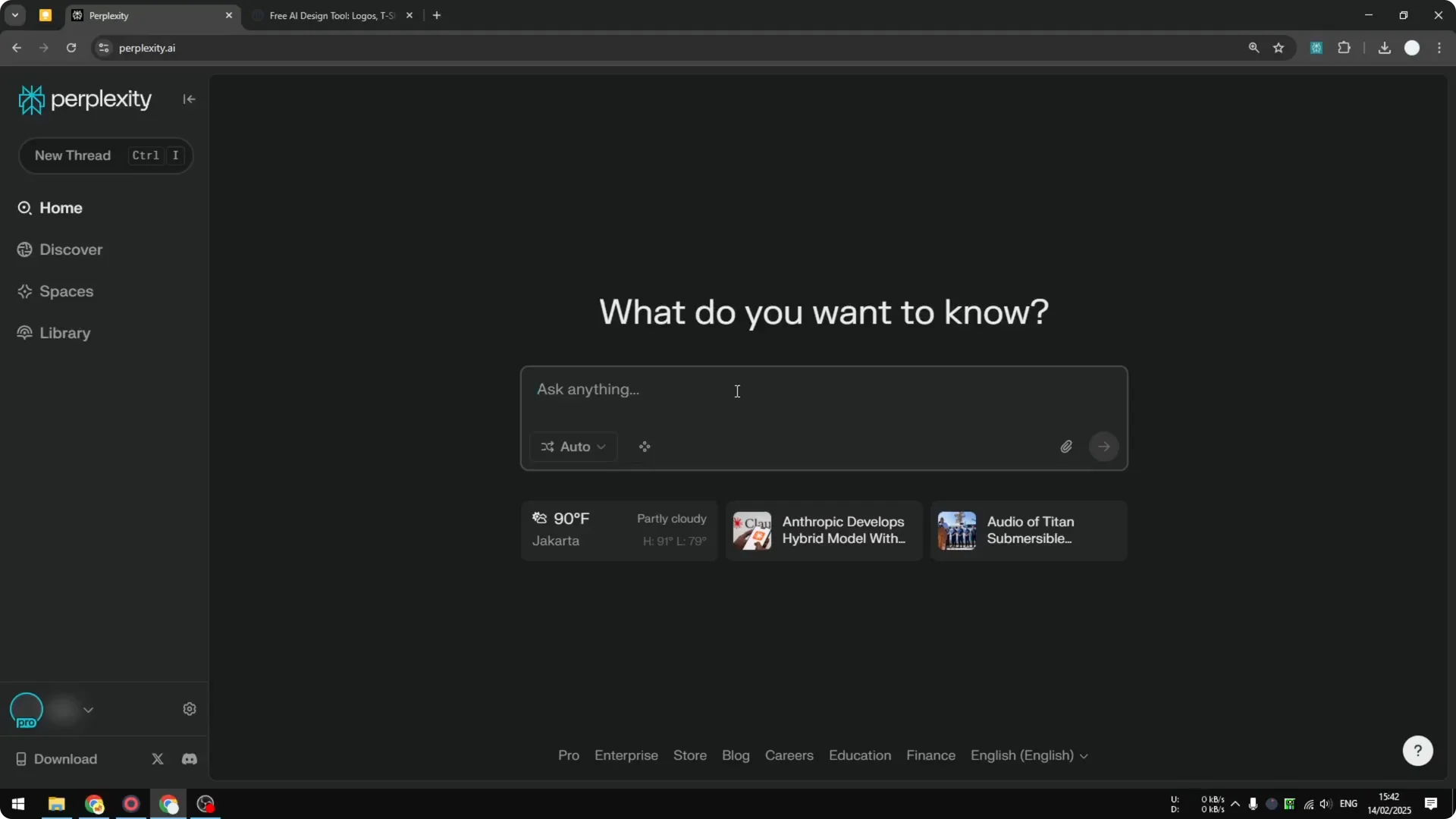
Step 3: Go back to Perplexity and start a New Thread. Switch to Auto mode because we don’t need to search the internet. Turn off web, academic, and social search so nothing external interferes with the prompt.
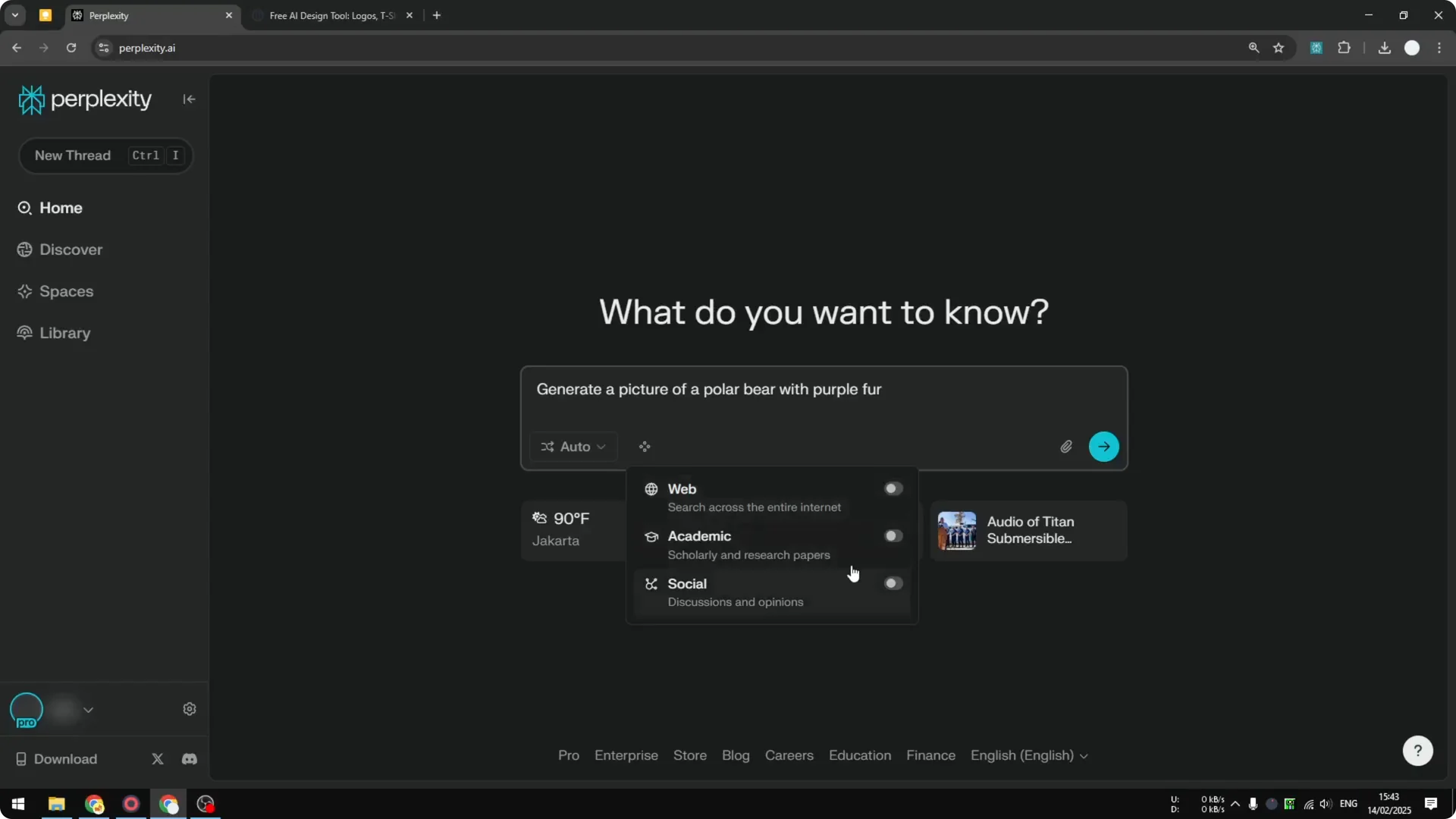
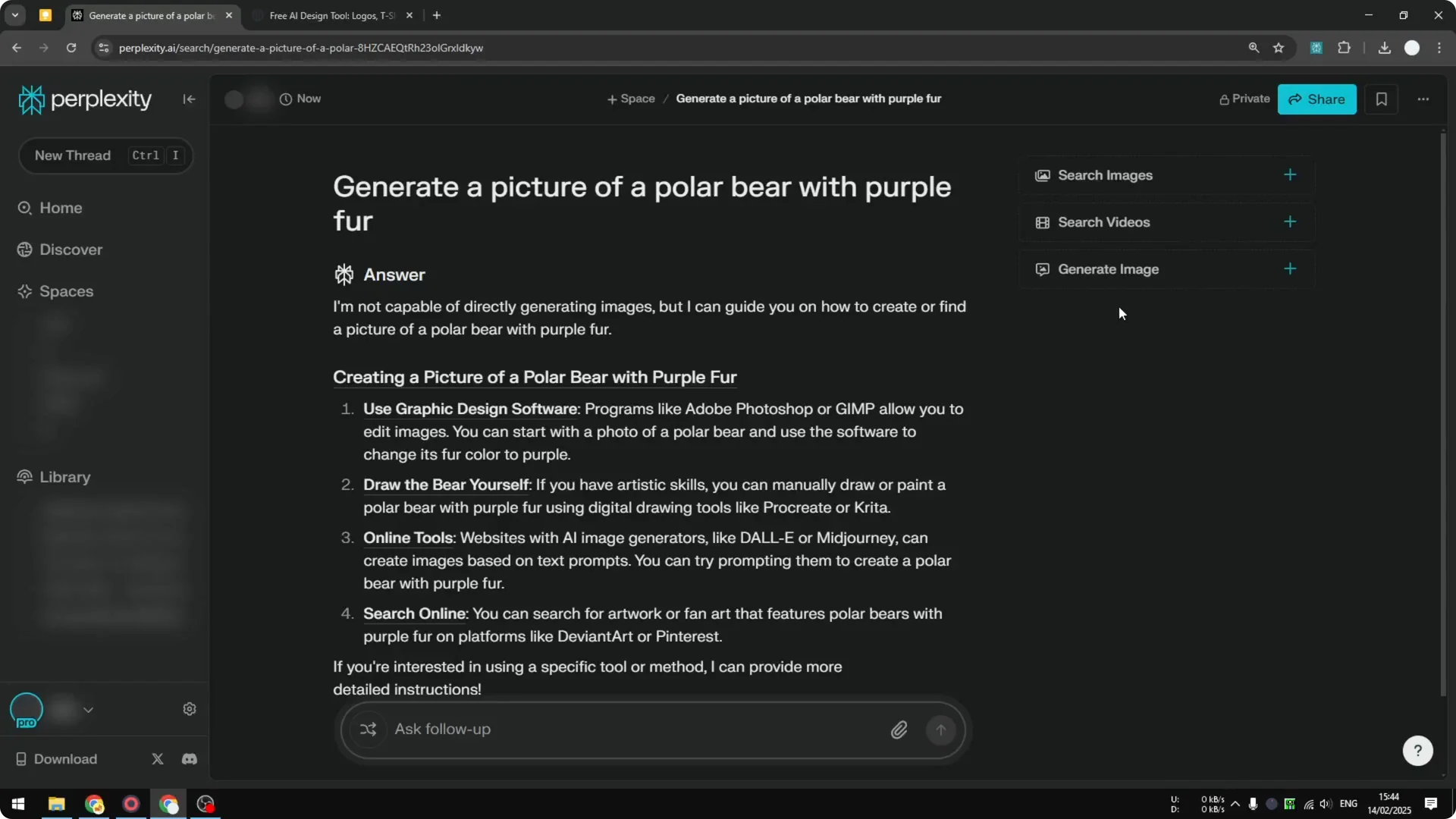
Step 4: Type your prompt. For example, “Generate a picture of a polar bear with purple fur.” Press Enter to let Perplexity prepare the response area.
For better structure and variety in prompts, you can borrow patterns from this guide to transformative AI art prompts and adapt them to Playground V3.
Generate the image with a custom prompt
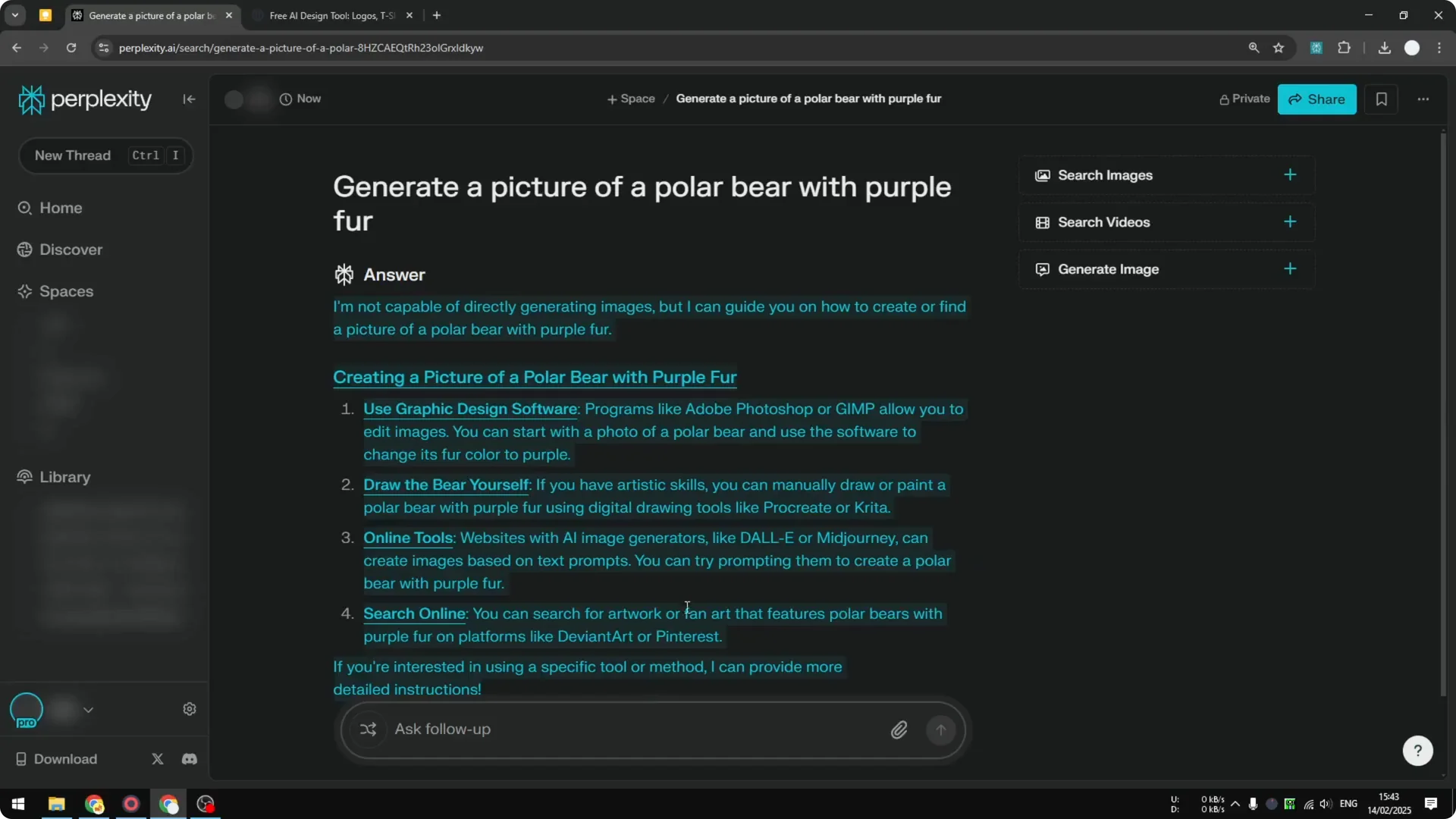
Step 5: Click Generate image. You will see style options, but avoid picking them here because Perplexity will try to use text from the answer as an image prompt, and that is not an image prompt.
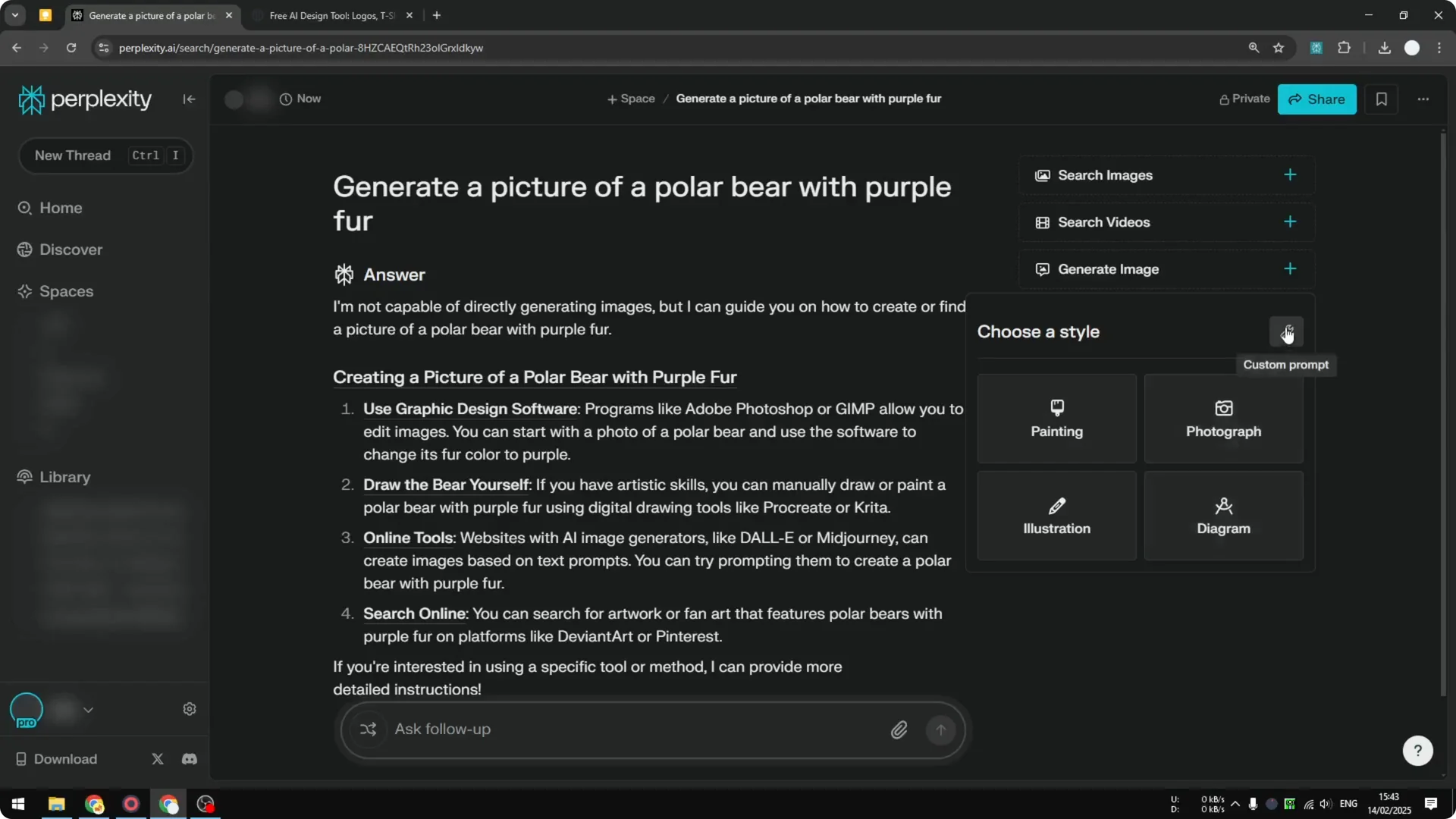
Step 6: Click Custom prompt. Remove any pre-filled text and paste your actual image prompt.
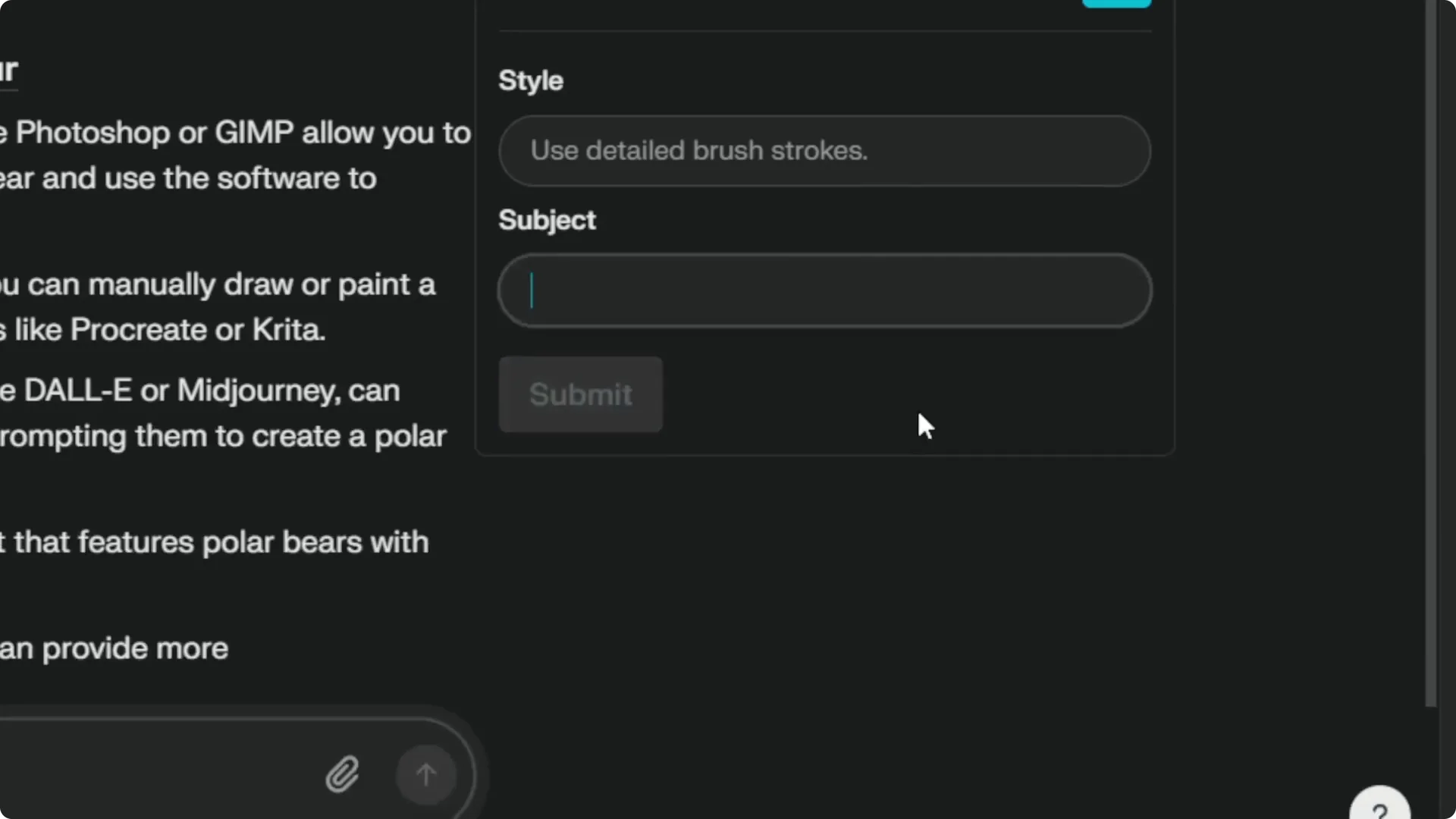
Step 7: In Style, choose Realistic picture if that fits your idea. Click Submit to start generation.
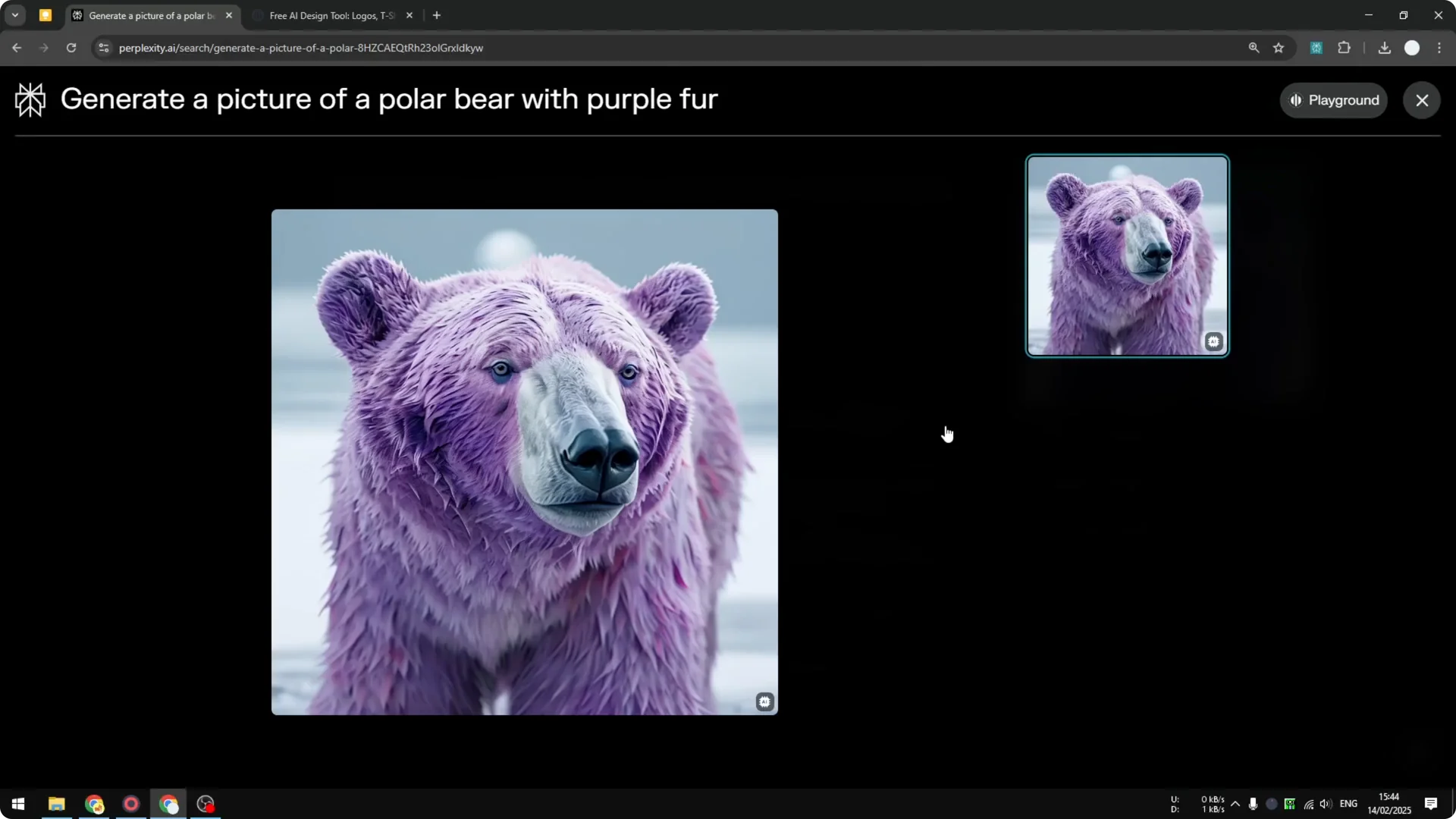
Step 8: Wait around 20 to 30 seconds for the image to appear. The result should load in the same thread.
Results and notes on Perplexity Playground V3 Image Generation
I compared the output to the one generated by Flux, and this result looks more realistic. With a stronger prompt, the result can improve further. Overall, the Playground model exceeded my expectation on this image.
If you plan to take your images into motion later, here is helpful guidance on camera control for AI video that pairs well with still-image workflows.
Final thoughts
Perplexity with Playground Version 3 is a solid combo for logos, text-based graphics, and illustrations. Keep search turned off, use Custom prompt, and pick a fitting style before submitting. Small prompt tweaks go a long way toward better results.
