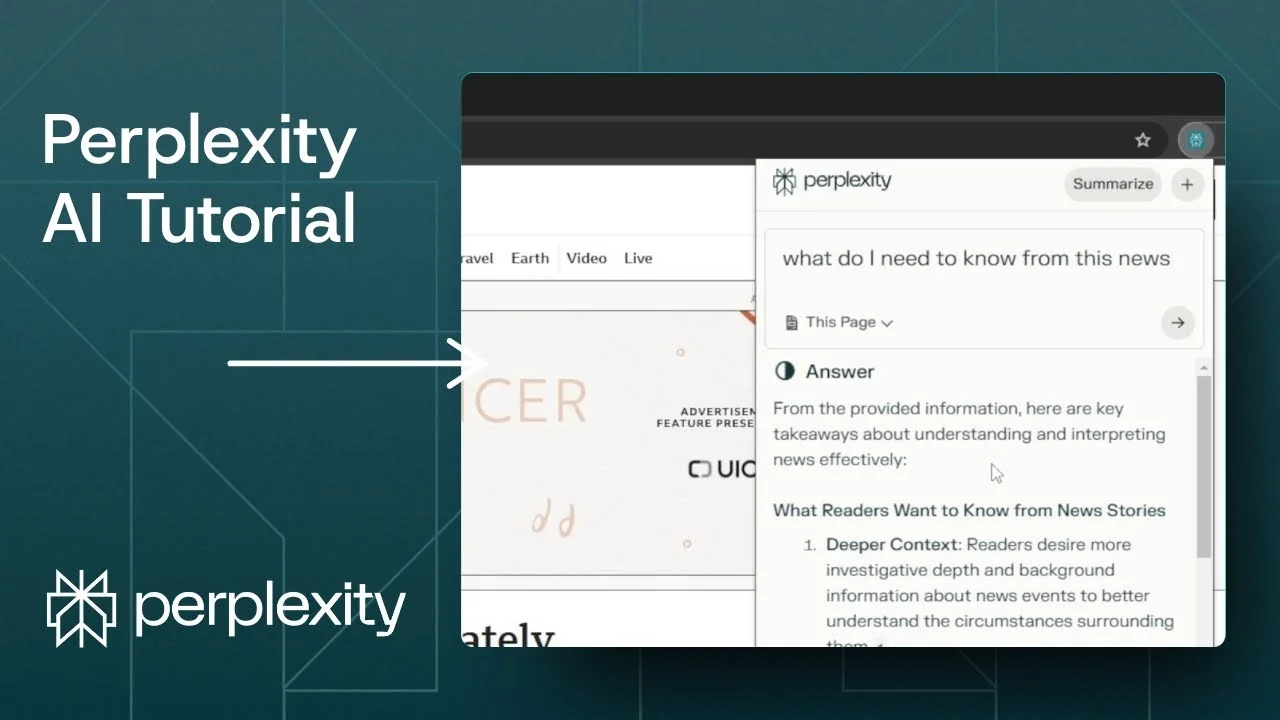
Here is how to use the Perplexity AI Chrome Extension to get specific information from the current page or across the internet without opening Perplexity manually. I cover installation, pinning, on-page summarizing, and how results appear in your account.
This walkthrough keeps my original phrasing where it adds value and removes video-only filler.
Install the Perplexity AI Chrome Extension
Step 1: Go to Google, search for Chrome Web Store, and open the official store from Google.
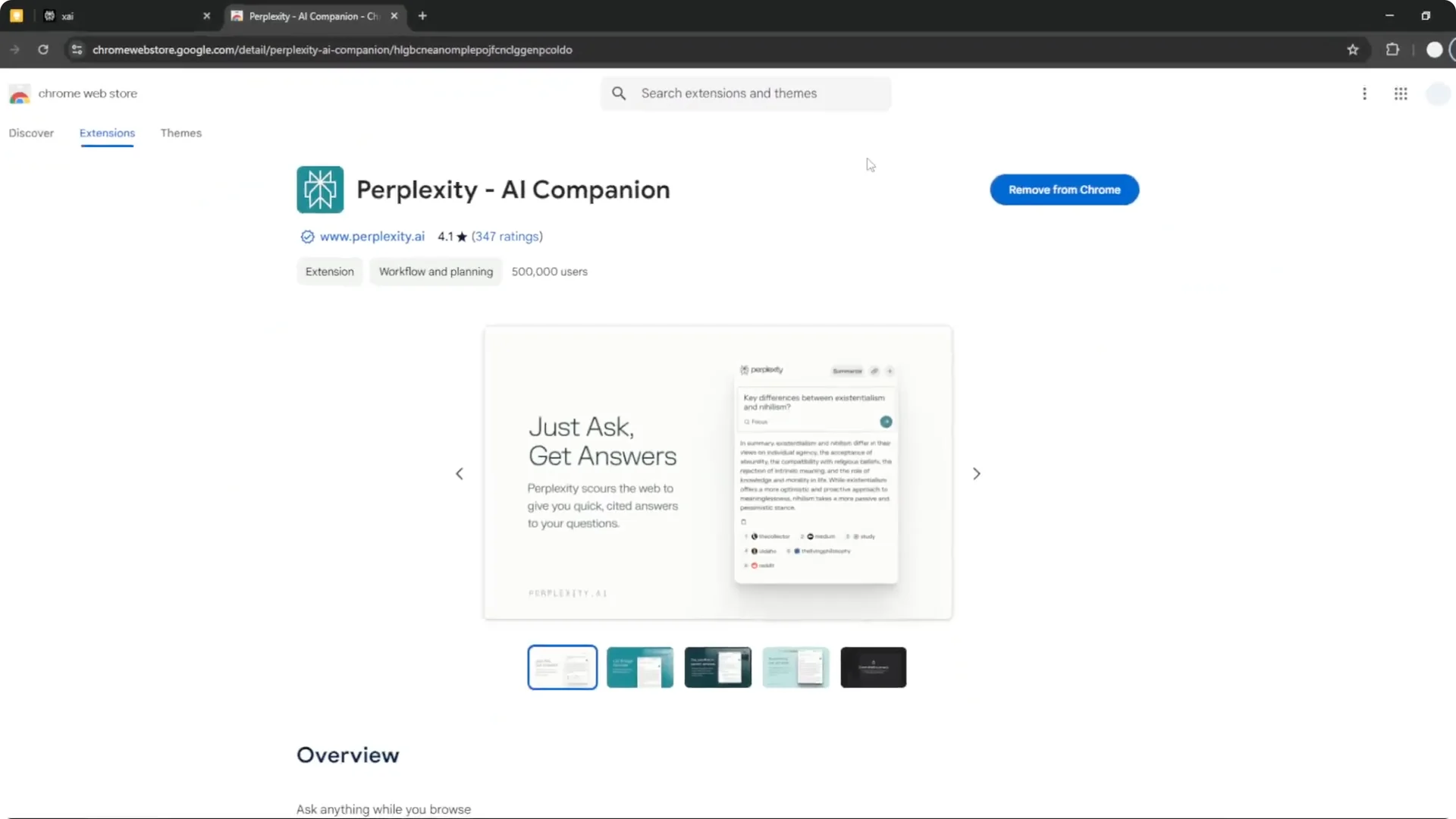
Step 2: Search for “Perplexity” and select the extension from Perplexity AI, which is the official one.
Step 3: Click Add to Chrome, then click Add extension.
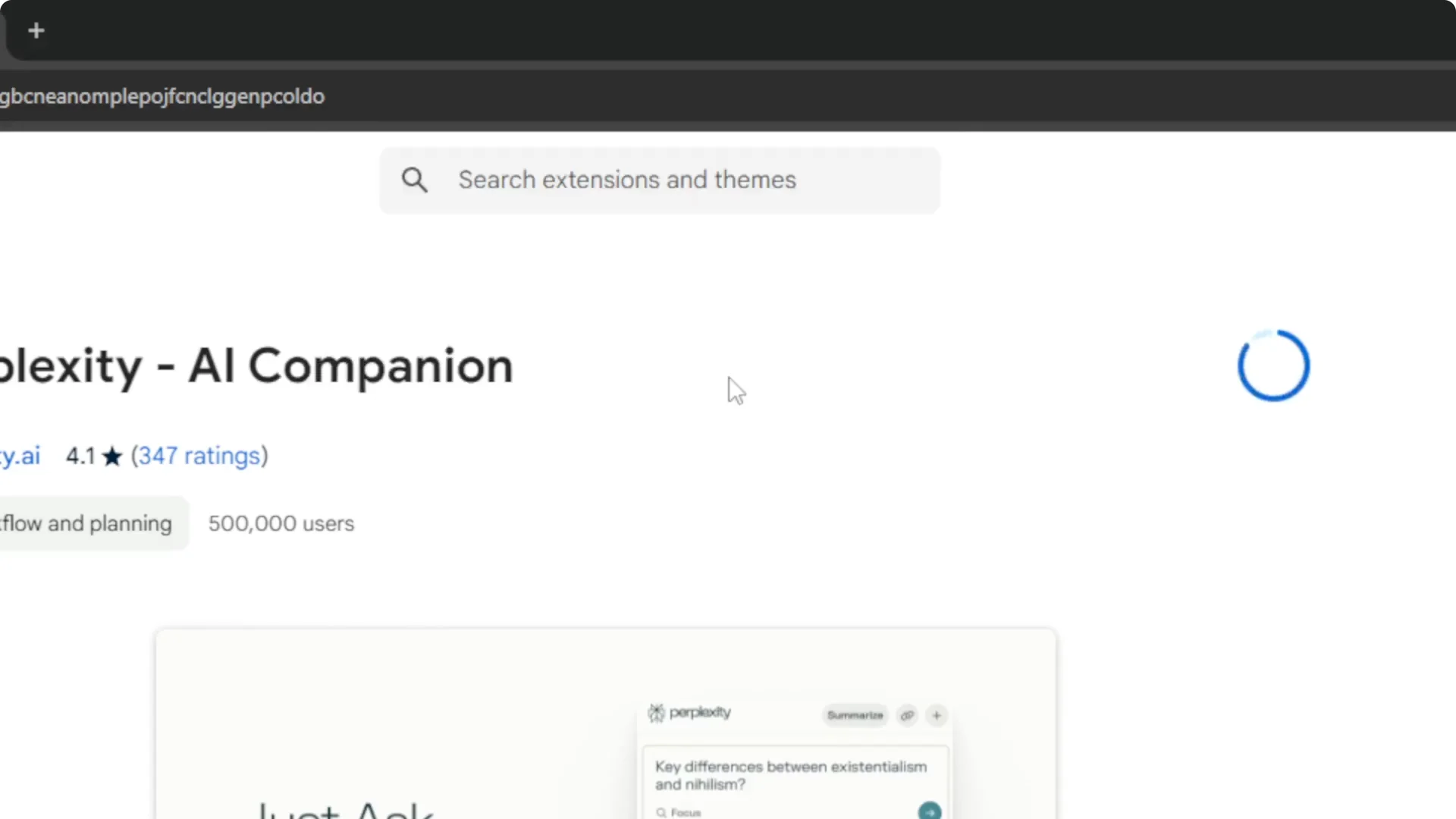
Step 4: Wait for the installation to finish.
Step 5: Installation typically takes less than 30 seconds, depending on your internet speed.
Pin for quick access
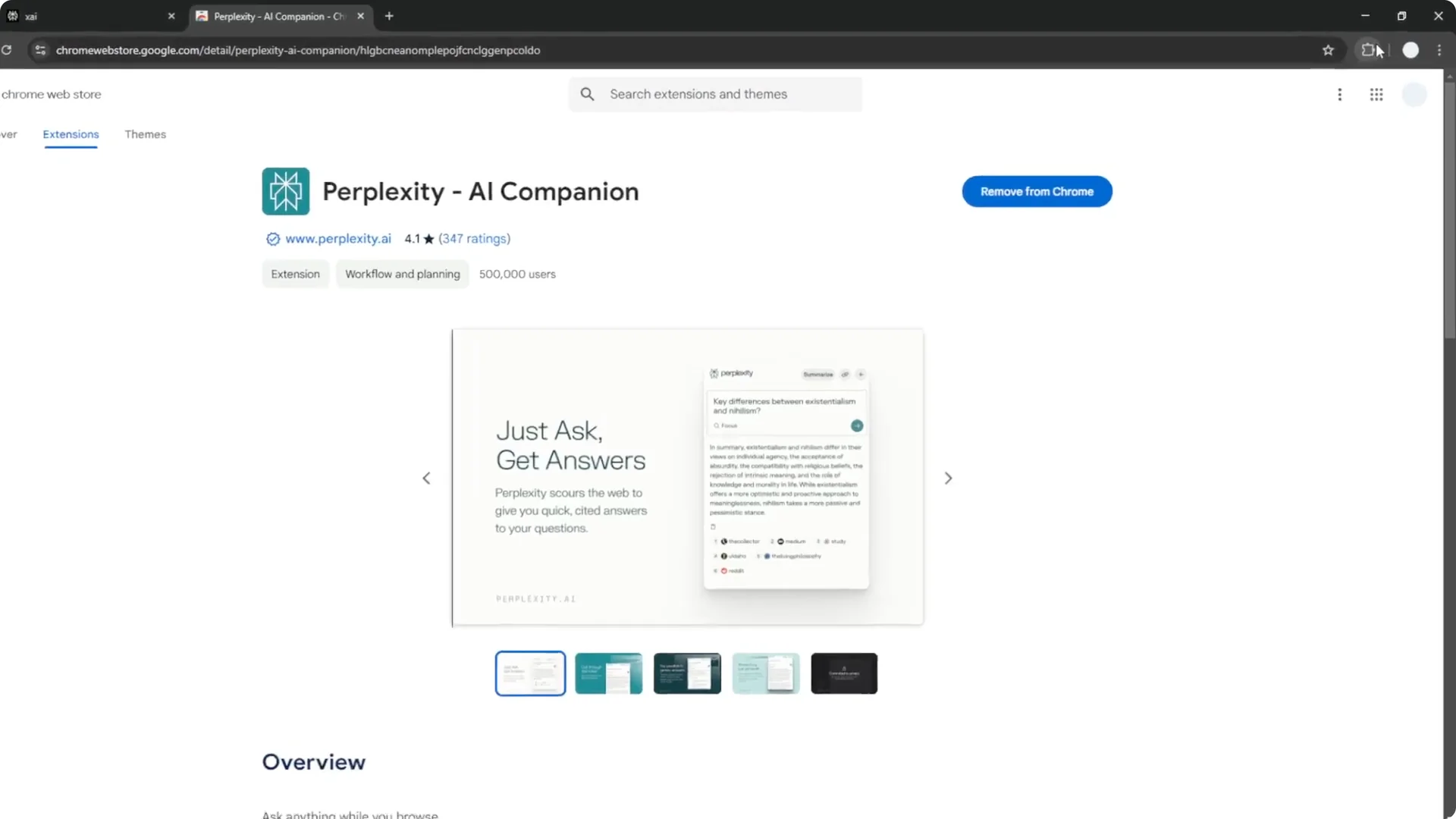
Click the Extensions icon in Chrome and pin the Perplexity AI Chrome Extension to your toolbar.
This makes it available for one-click access, which is important because the extension works when you click its icon.
Pinning keeps it visible for faster use.
Read More: Create Superior Ai Art
Use the Perplexity AI Chrome Extension on a page
I searched for “AI news today” and opened an article titled “AI unable to accurately summarize news, BBC finds.”
I wanted the key takeaways from the page without reading the whole thing.
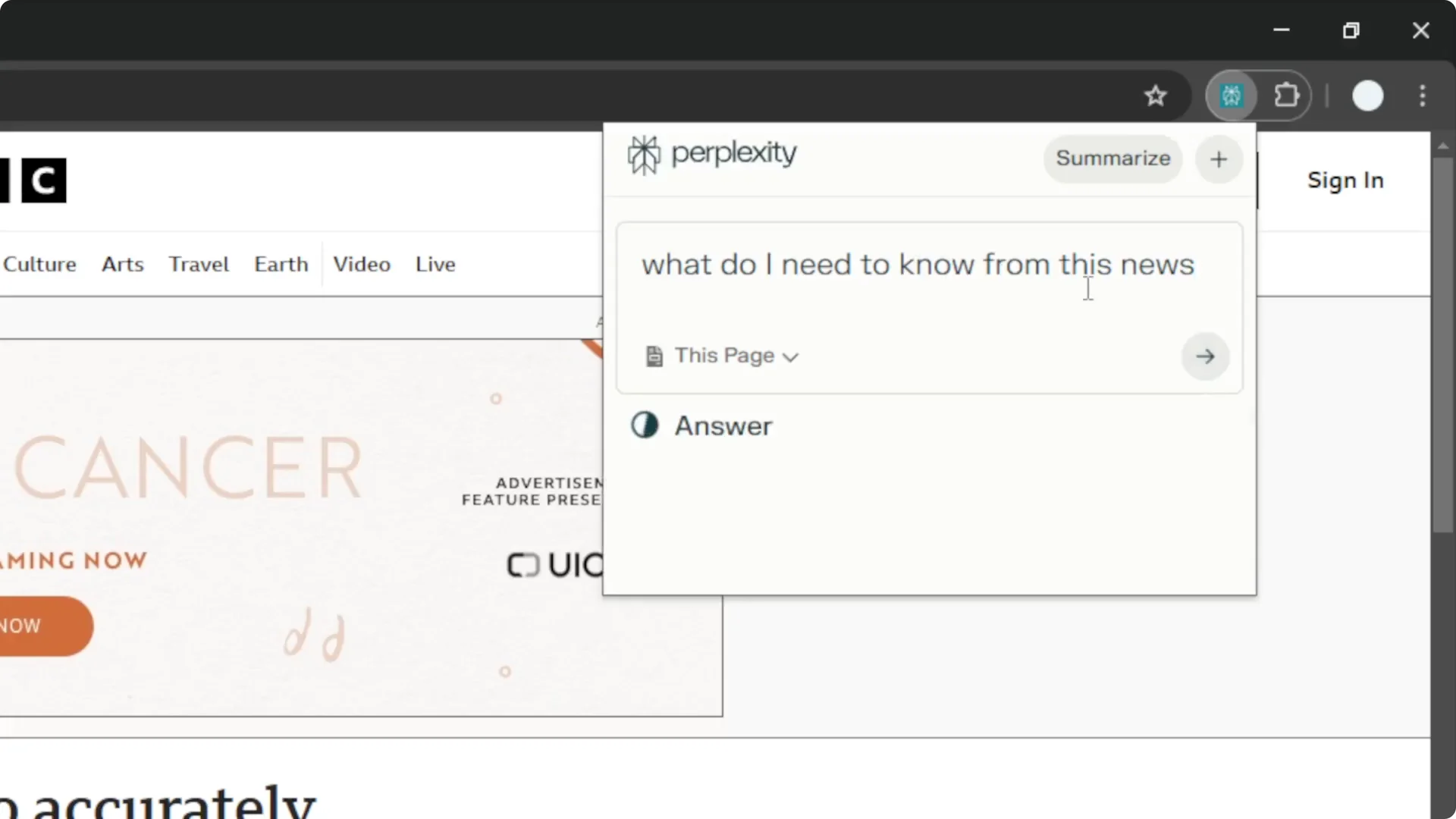
I clicked the Perplexity icon and asked, “What do I need to know from this news?”
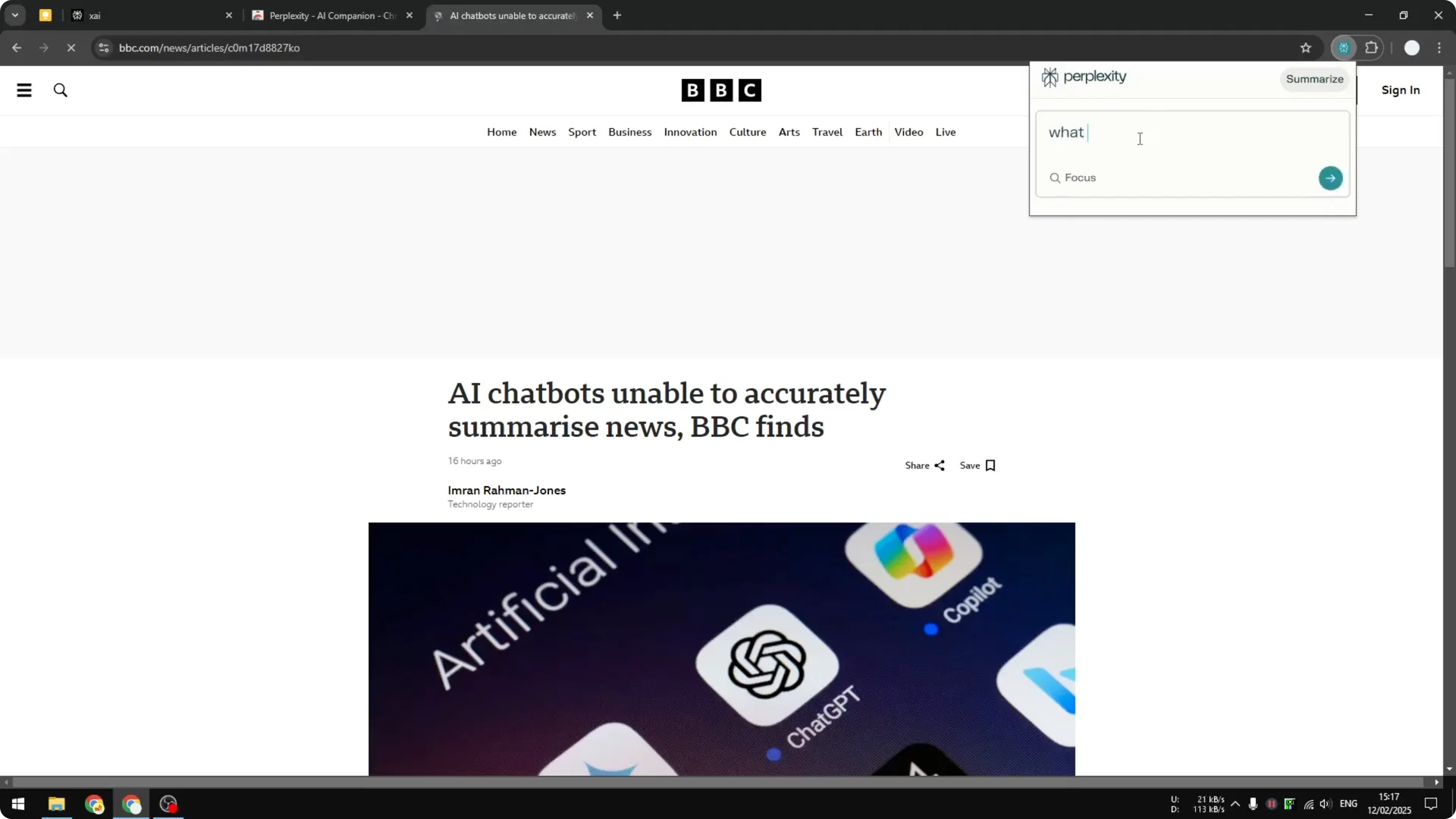
Set the source to This Page
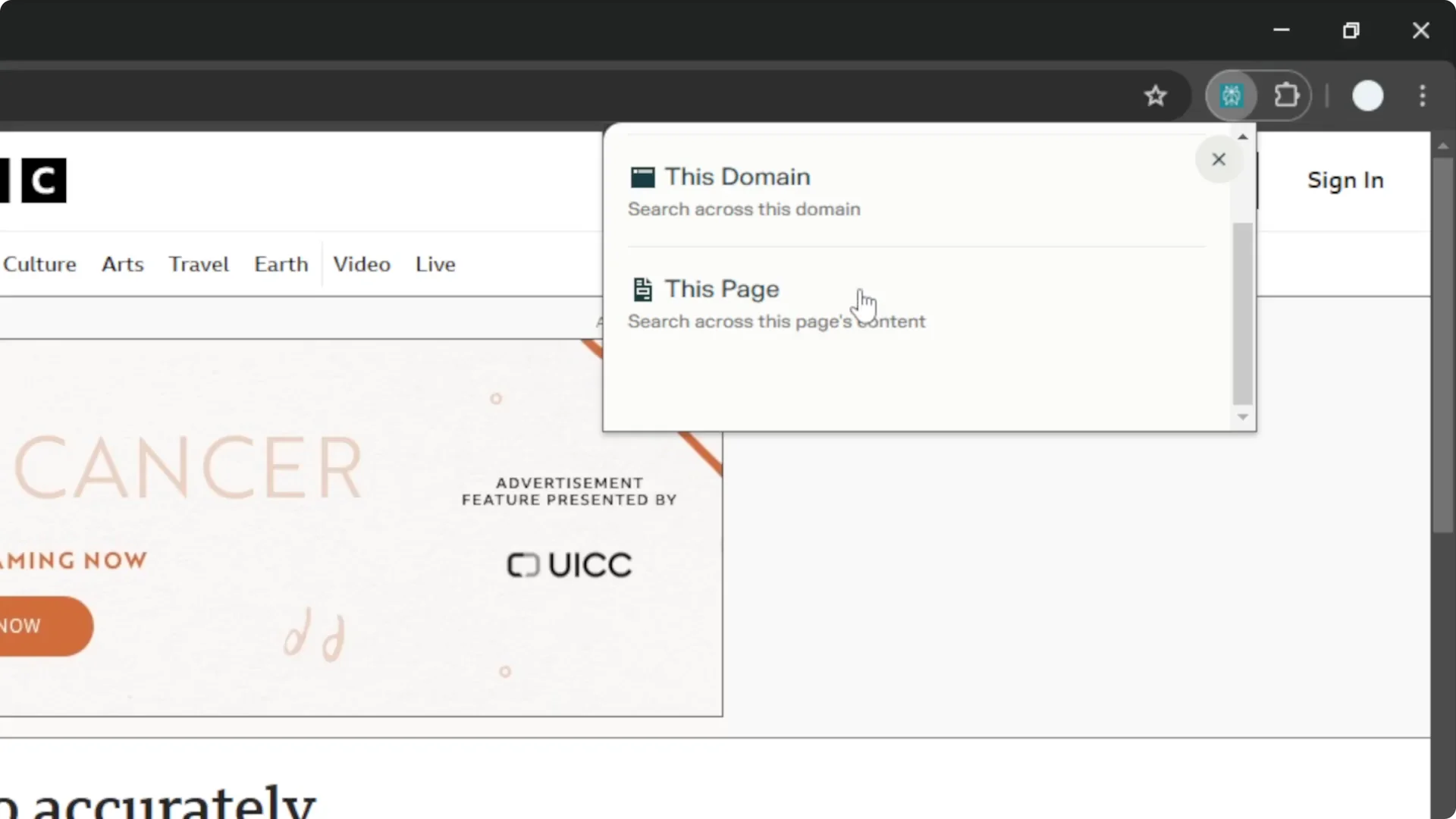
Switch the source from Focus to This Page before submitting your question.
If you do not do this, Perplexity might search the entire internet instead of the content on the current page.
After selecting This Page, submit the prompt and wait for the result.
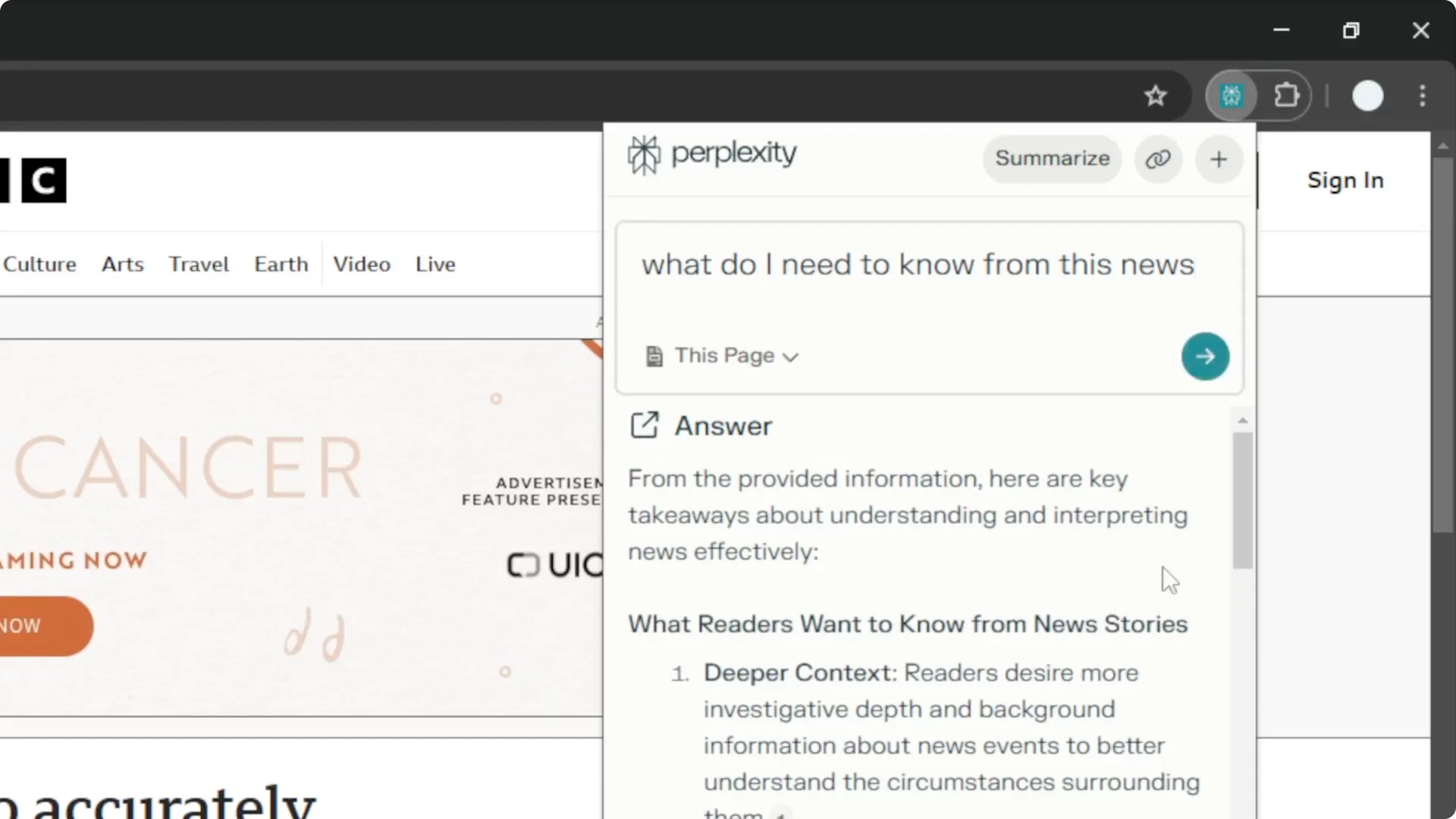
The extension provided the key takeaways, which matched the main points of the article.
It is a bit ironic because the article discusses AI not being reliable for summarizing news, and I used AI to summarize it.
This is just an example, but you can also ask for specific details from a page or request a summary.
Read More: Eye Catching Ai Art Midjourney Prompts Styles
Perplexity AI Chrome Extension and your account
The extension uses your Perplexity account, so you need to be logged in.
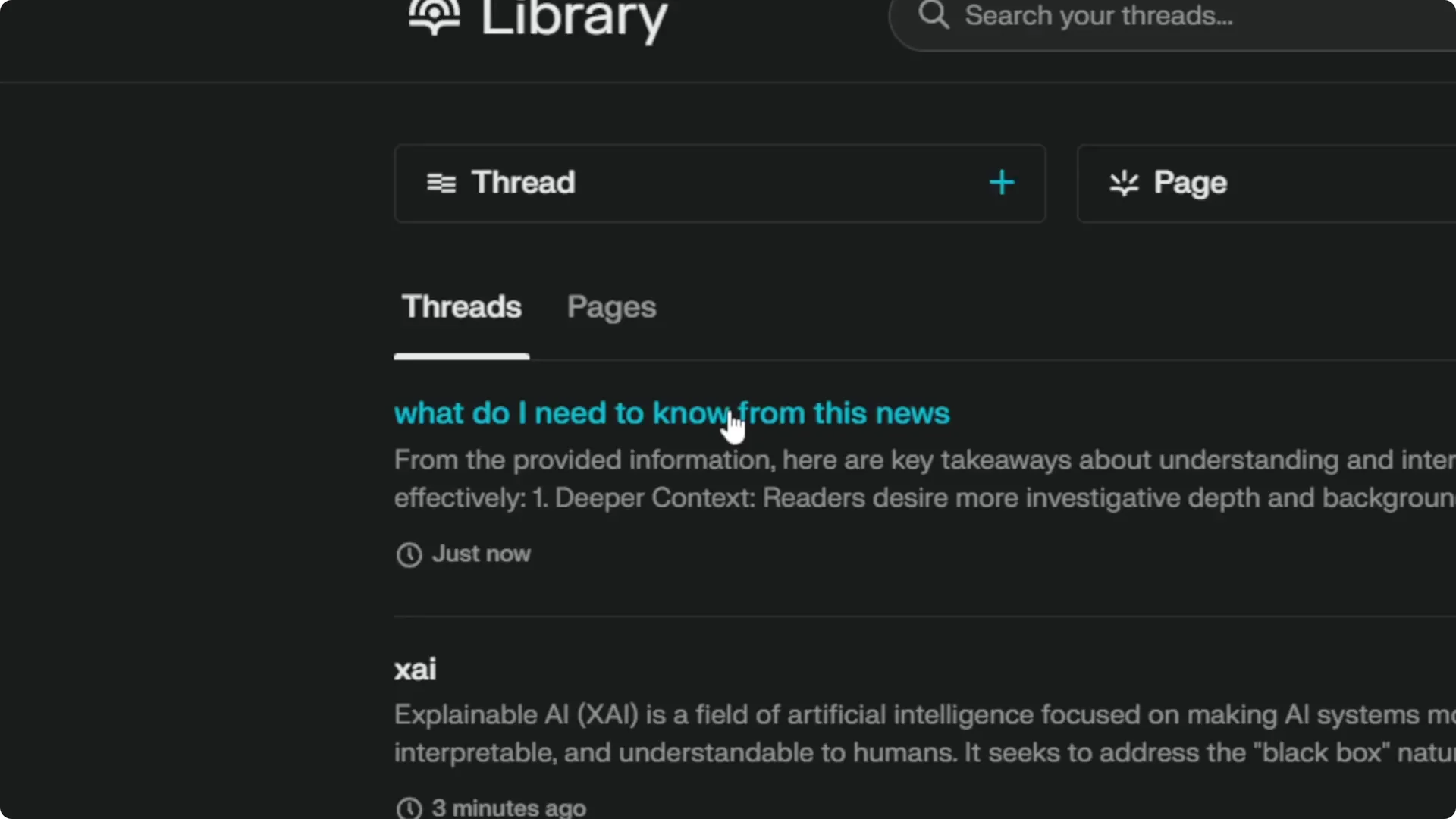
You can see the generated content in your Perplexity account by going to Library.
The question you asked for that page will appear there, tied to your account.
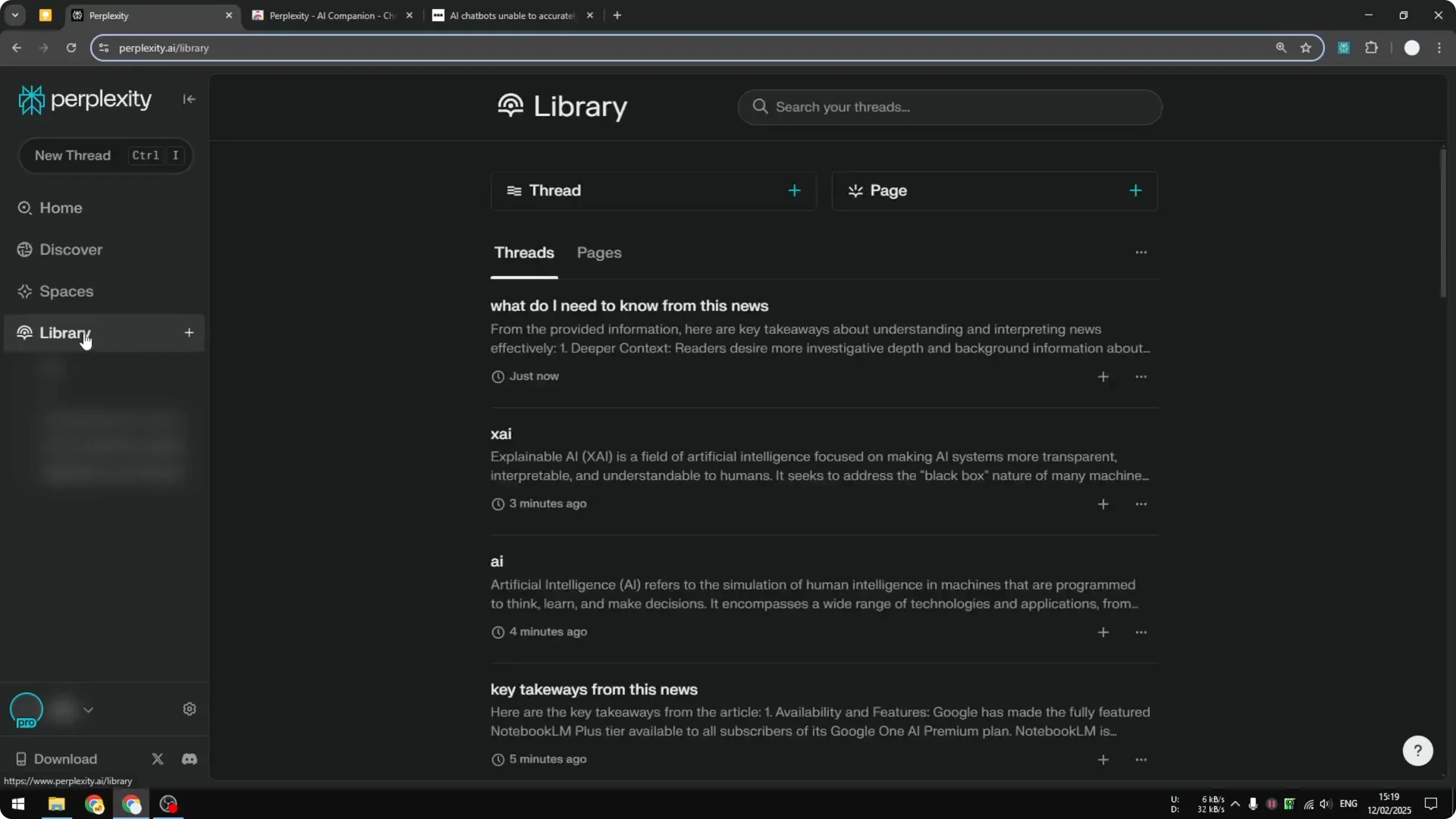
That is why you must use your account to get the extension working.
Your prompts and results will sync to your Perplexity Library for later reference.
This makes it easy to revisit summaries and questions you asked from any page.
Read More: Camera Control For Midjourney Ai Video
Read More: Transformative Ai Art Midjourney Prompts
Final thoughts
The Perplexity AI Chrome Extension makes it quick to extract key points or specific information from the page you are on.
Install it, pin it, switch the source to This Page when needed, and your results will save to your Perplexity Library.
It is a fast way to get answers without leaving your current tab.
