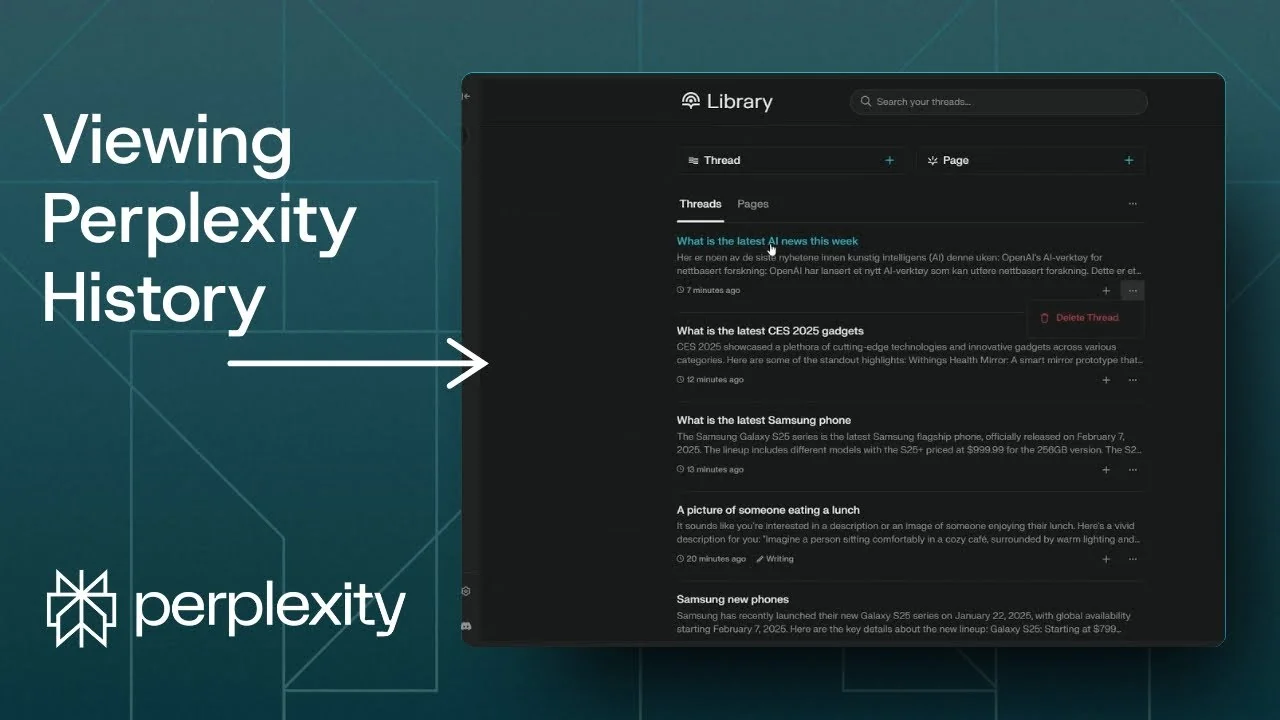
I’m going to show you how you can easily see the history of your threads in Perplexity. After you create a thread or have a conversation by asking something to AI, your conversation will be stored in your Perplexity account. Here is how you can access and manage them.
Perplexity Thread Management basics
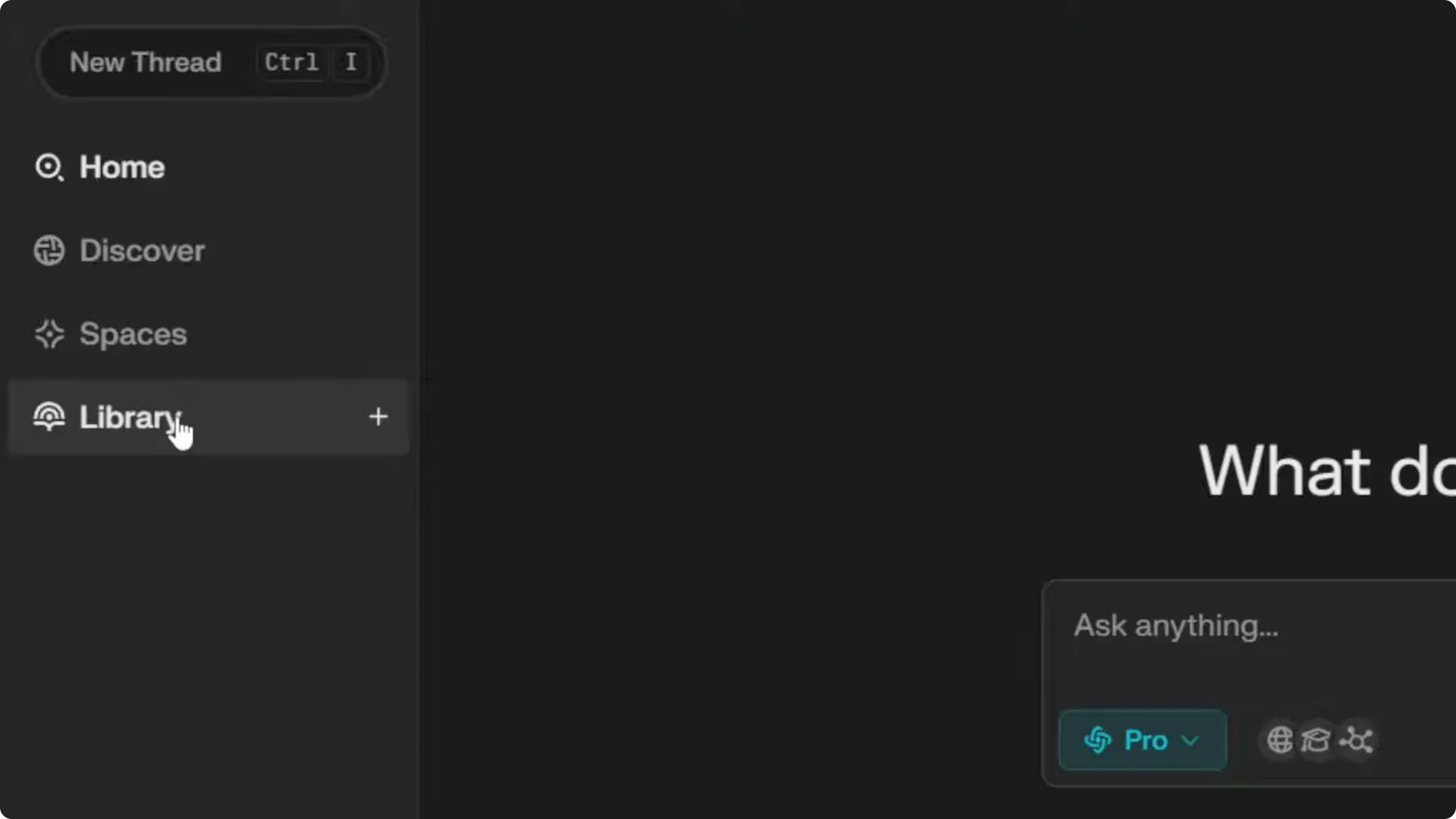
Your thread history lives in a place called Library. On desktop, the Library menu is on the left side. On mobile, the Library menu is at the bottom.
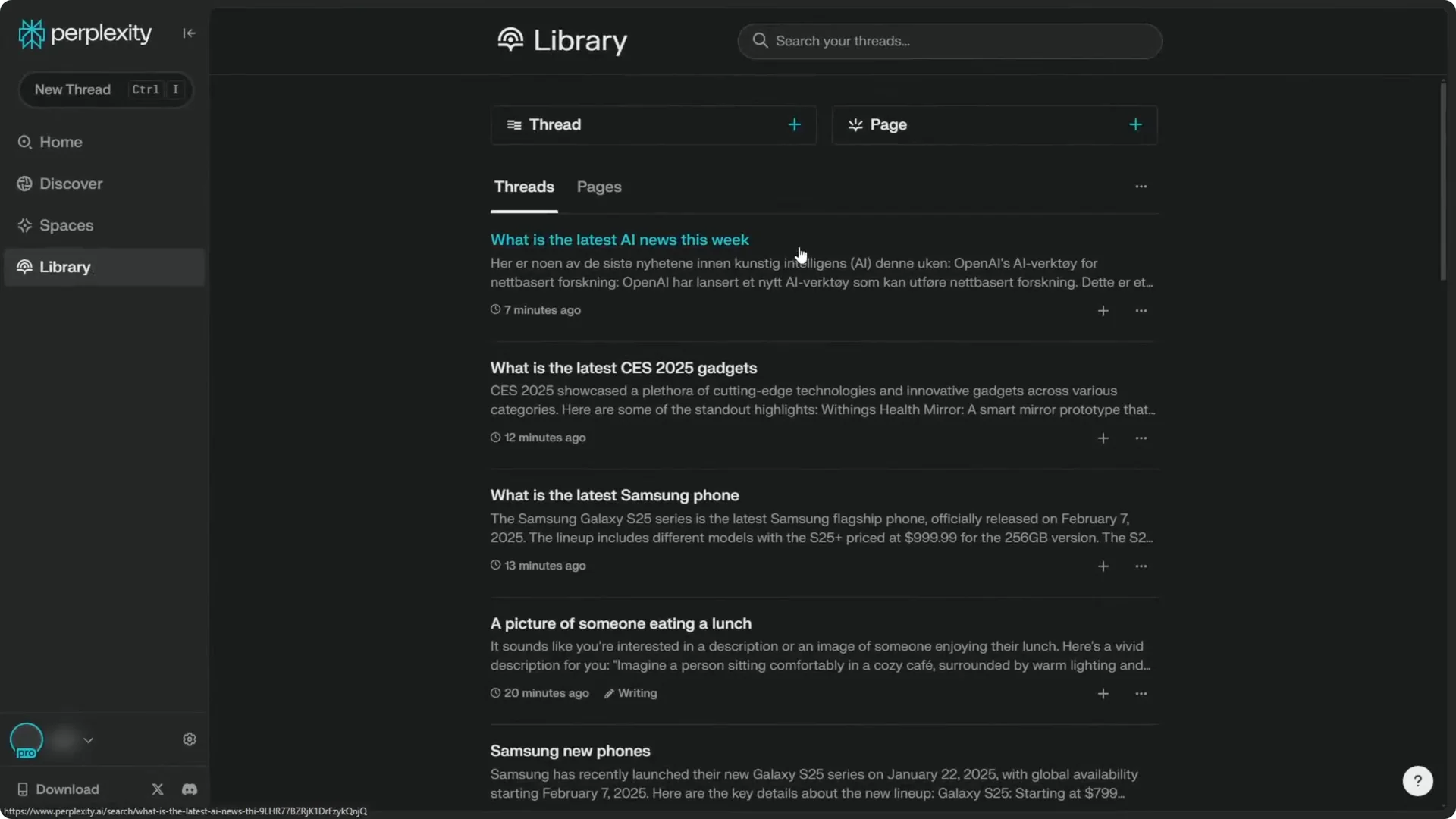
When you open Library, it reveals all the threads that have been created on your account. You can browse, open, and manage each thread from here. I will cover several features you can interact with.
Accessing your history in Perplexity Thread Management
Step 1: Open Perplexity and sign in to your account. Look for the Library menu.
Step 2: On desktop, click Library on the left. On mobile, tap Library at the bottom.
Step 3: Review the list of threads shown. Open any thread to continue your work.
Read More: Eye Catching Ai Art Midjourney Prompts Styles
Organizing threads for Perplexity Thread Management
There is a button that says Add to Space. When you click it, you can bookmark or put the thread into a folder. This is very good if you are managing many interactions and want to organize them by topic or by usage.
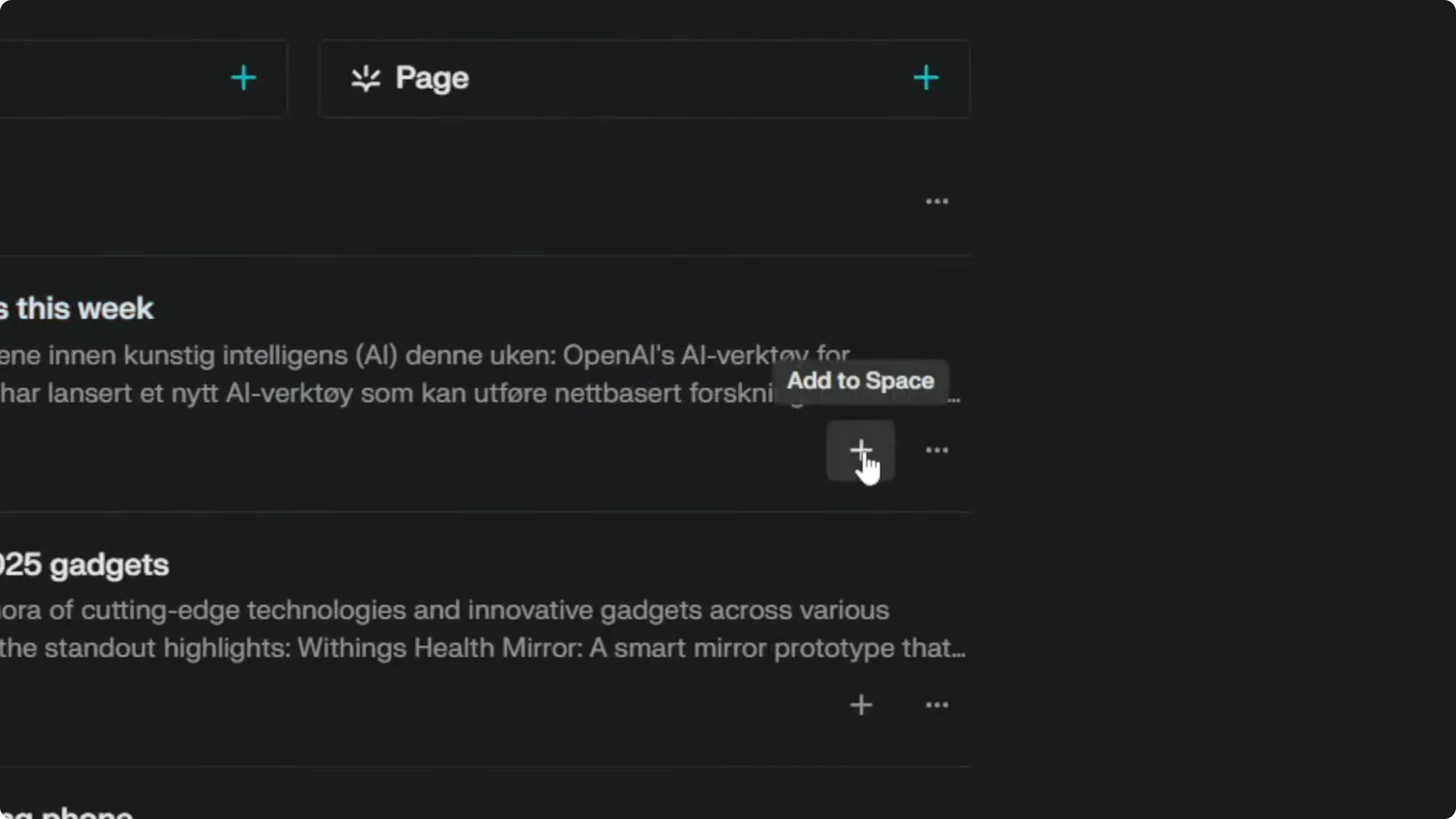
Spaces help you group related threads so you can find them faster later. Create topic-based spaces for research, writing, or experiments. Move threads into the right space as you go.
Read More: Camera Control For Midjourney Ai Video
Managing threads in Perplexity Thread Management
There is also an option to delete a thread. Click the menu on a thread and choose Delete thread. Confirm the deletion if prompted.
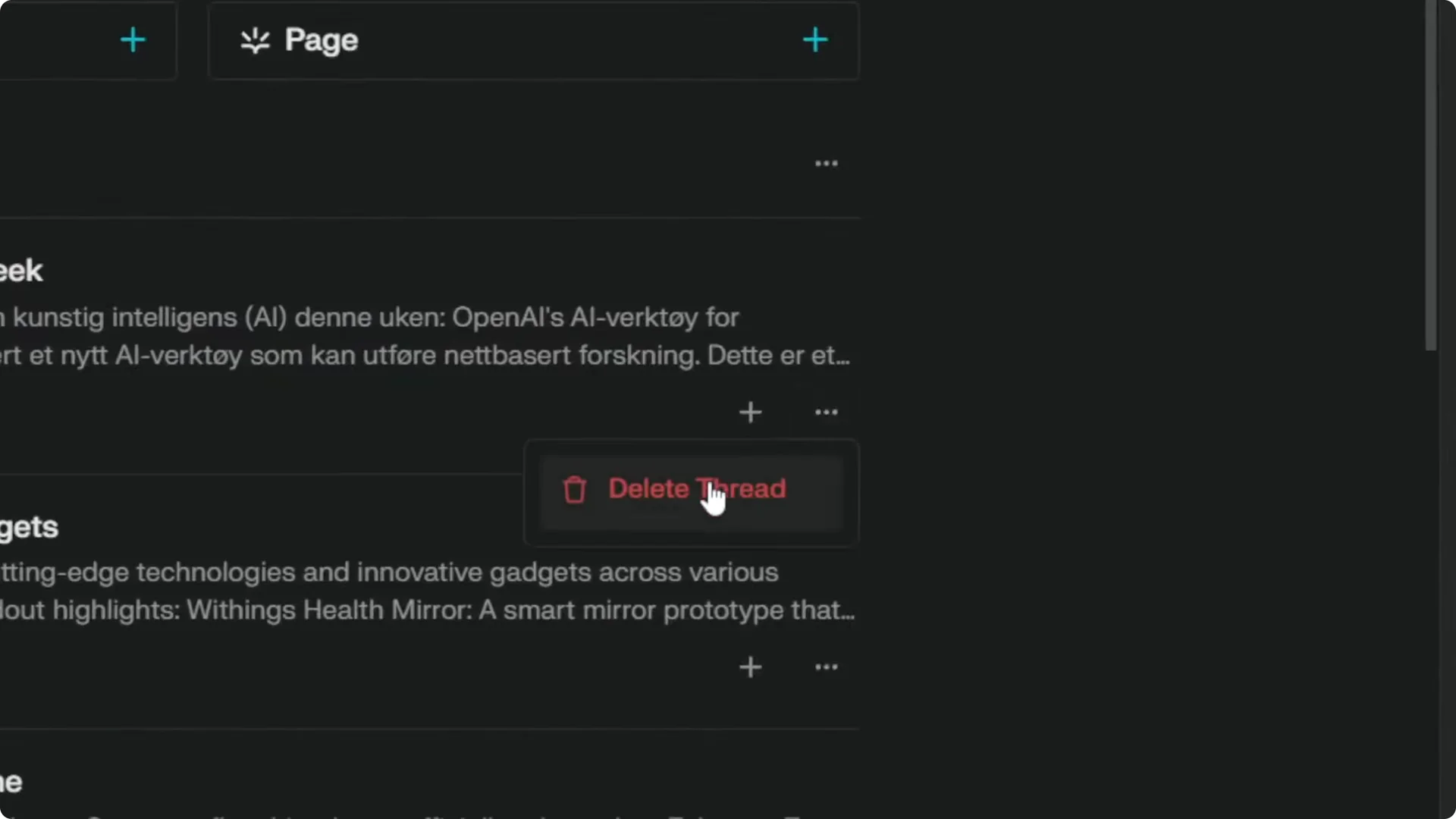
If you need to clean up old or duplicate work, remove threads you no longer need. Keep important conversations in Spaces. This keeps your Library focused and tidy.
Read More: Transformative Ai Art Midjourney Prompts
Working inside a thread with Perplexity Thread Management
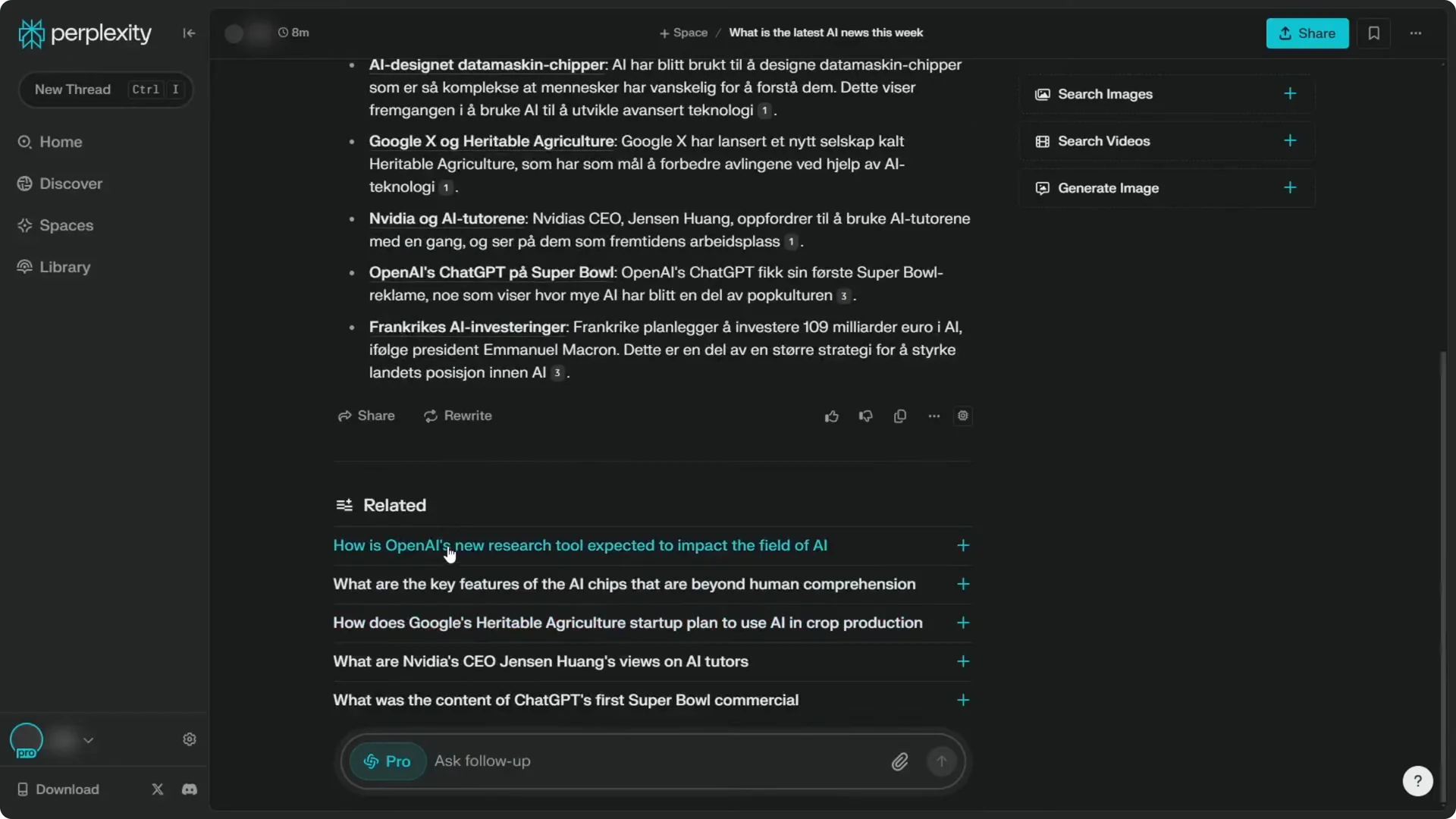
When you open a thread, it lets you continue the conversation. You can ask follow-up questions and build on previous context. This keeps your research or task moving without starting over.
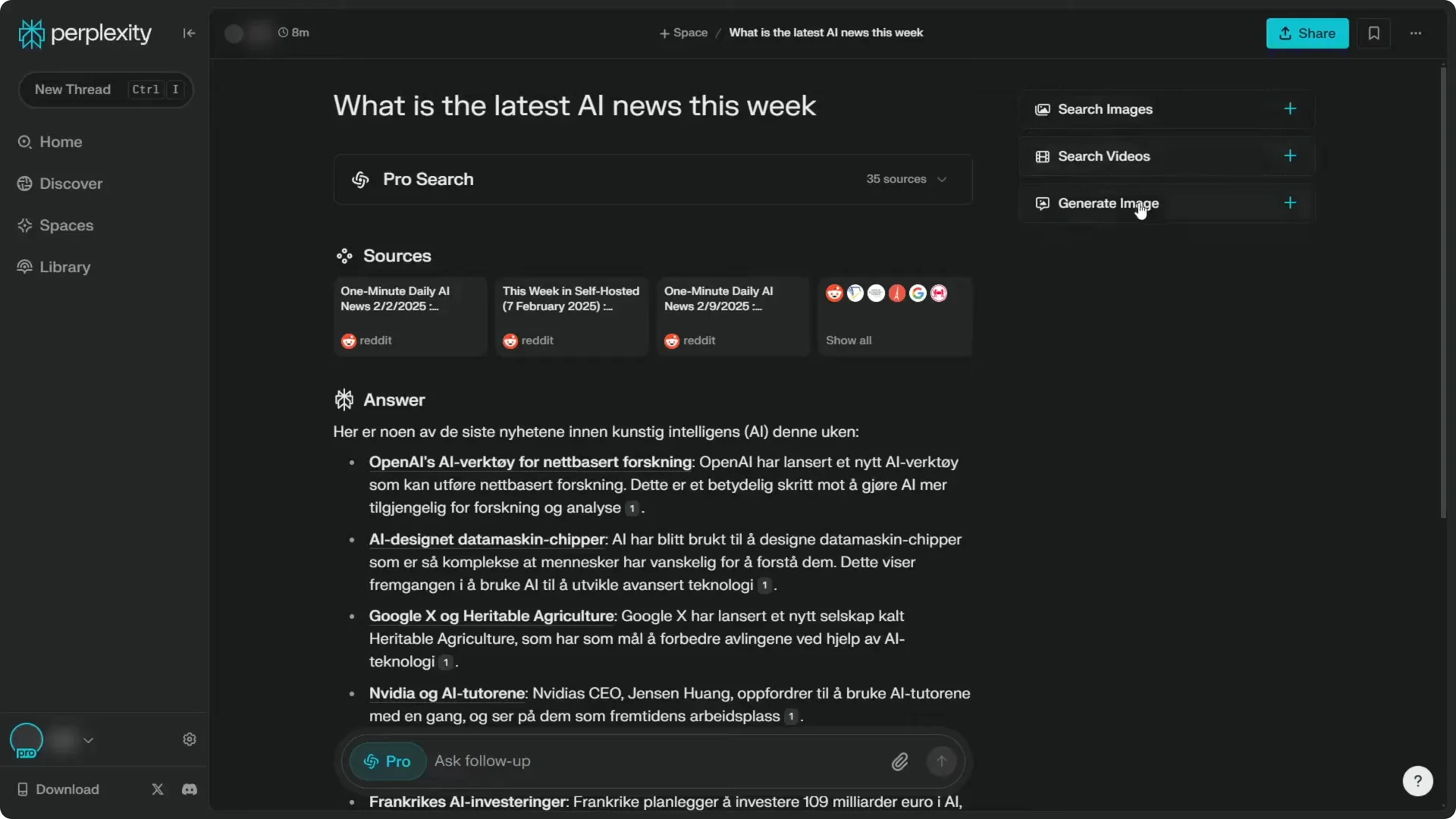
You can also check related questions to expand your understanding. The interface includes options like rewrite and share, along with more tools. Use them to refine responses or prepare content for others.
Sharing and Pages in Perplexity Thread Management
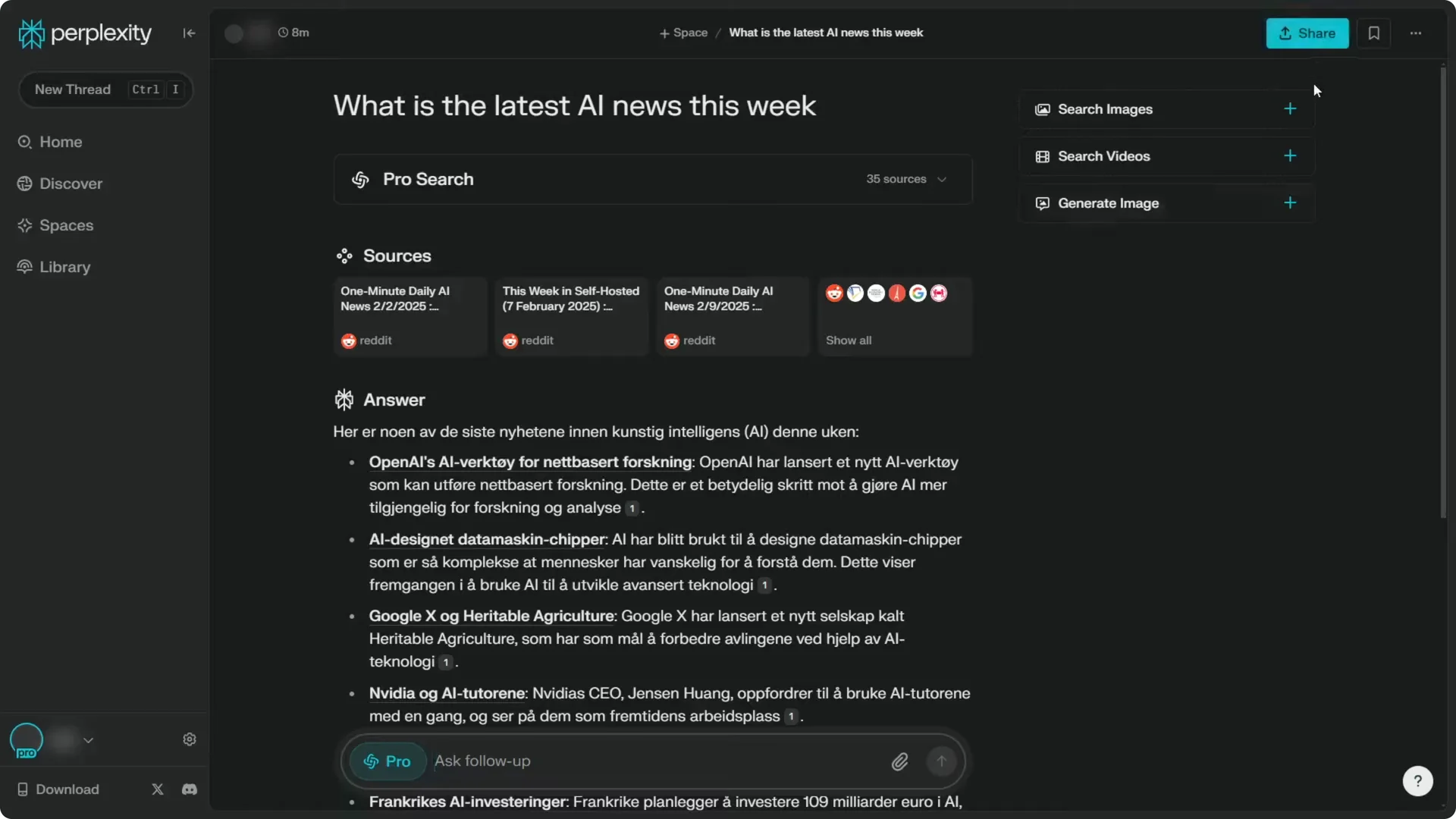
There is a Share button if you want to make a thread public. Click Share to generate a public link that others can view.
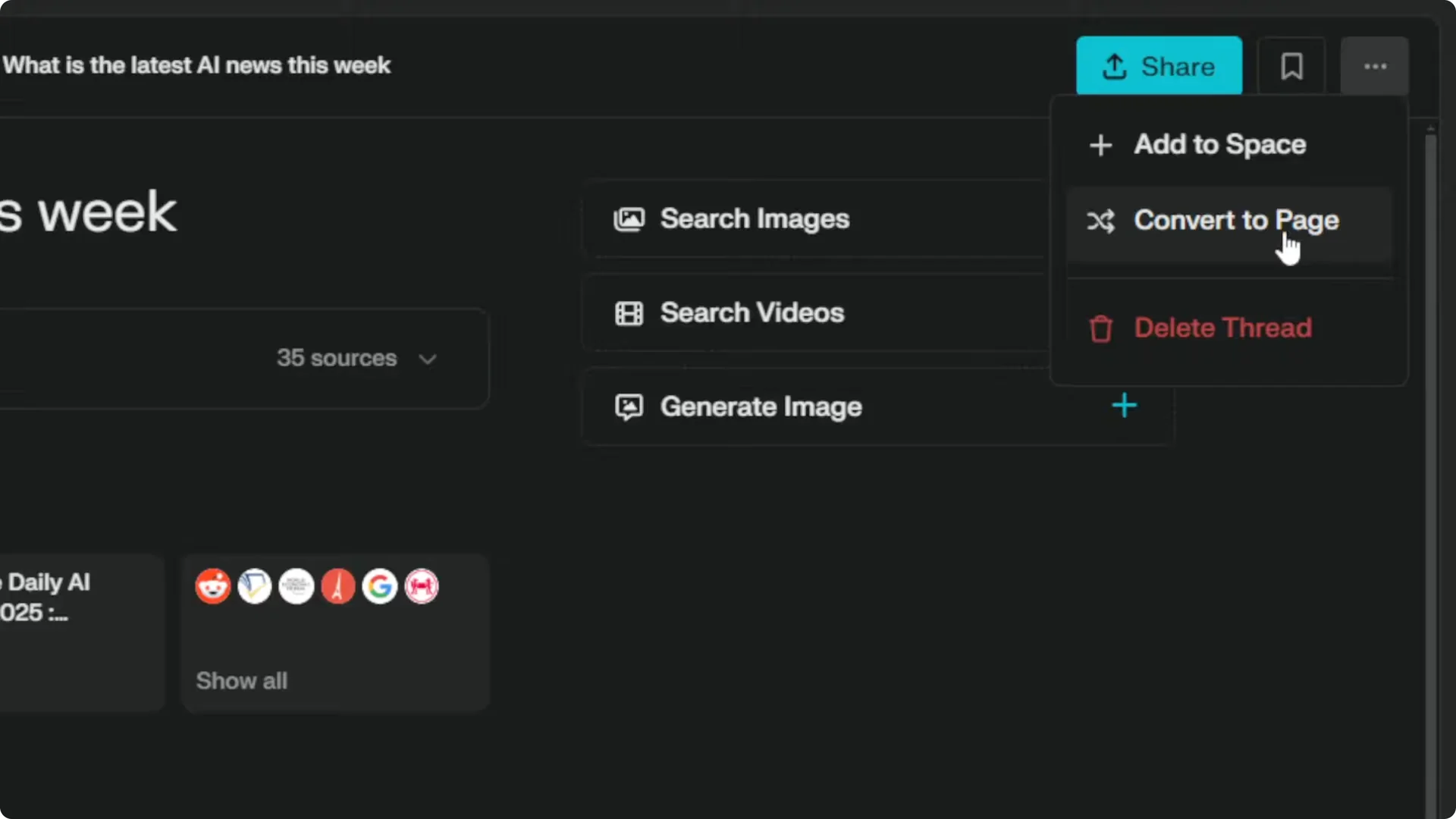
You can also turn a thread into a Page. Page is a feature that turns your thread into a Wikipedia-like page, created by AI based on your guidelines and what you wish to include. Click the Page option to set it up and publish.
Read More: Create Superior Ai Art
Searching and creating with Perplexity Thread Management
You can continue creating more content from within Perplexity. Search images, search videos, and generate images to support your work. Keep building on your threads as your project grows.
Final thoughts on Perplexity Thread Management
That is how you can see the history of threads you have created in Perplexity. Use Library to access them, Spaces to organize them, and Share or Page to publish. Manage deletions and keep working inside threads to maintain momentum and clarity.
