Did you know that you can have a chat with Perplexity AI on WhatsApp?
This is a real and new feature from Perplexity. You can search anything and ask it to generate images or even edit photos.
This gives you a quick way to pull up answers and visuals without leaving a chat. You can send any message and Perplexity will answer you. It feels close to the Perplexity web interface, just inside WhatsApp.
What Perplexity AI on WhatsApp can do
You can ask for the latest information, and it is able to access the internet while it is “typing.” It will do the research and return results right inside the thread. If you want better image ideas before you ask, see these AI art prompt styles for inspiration.
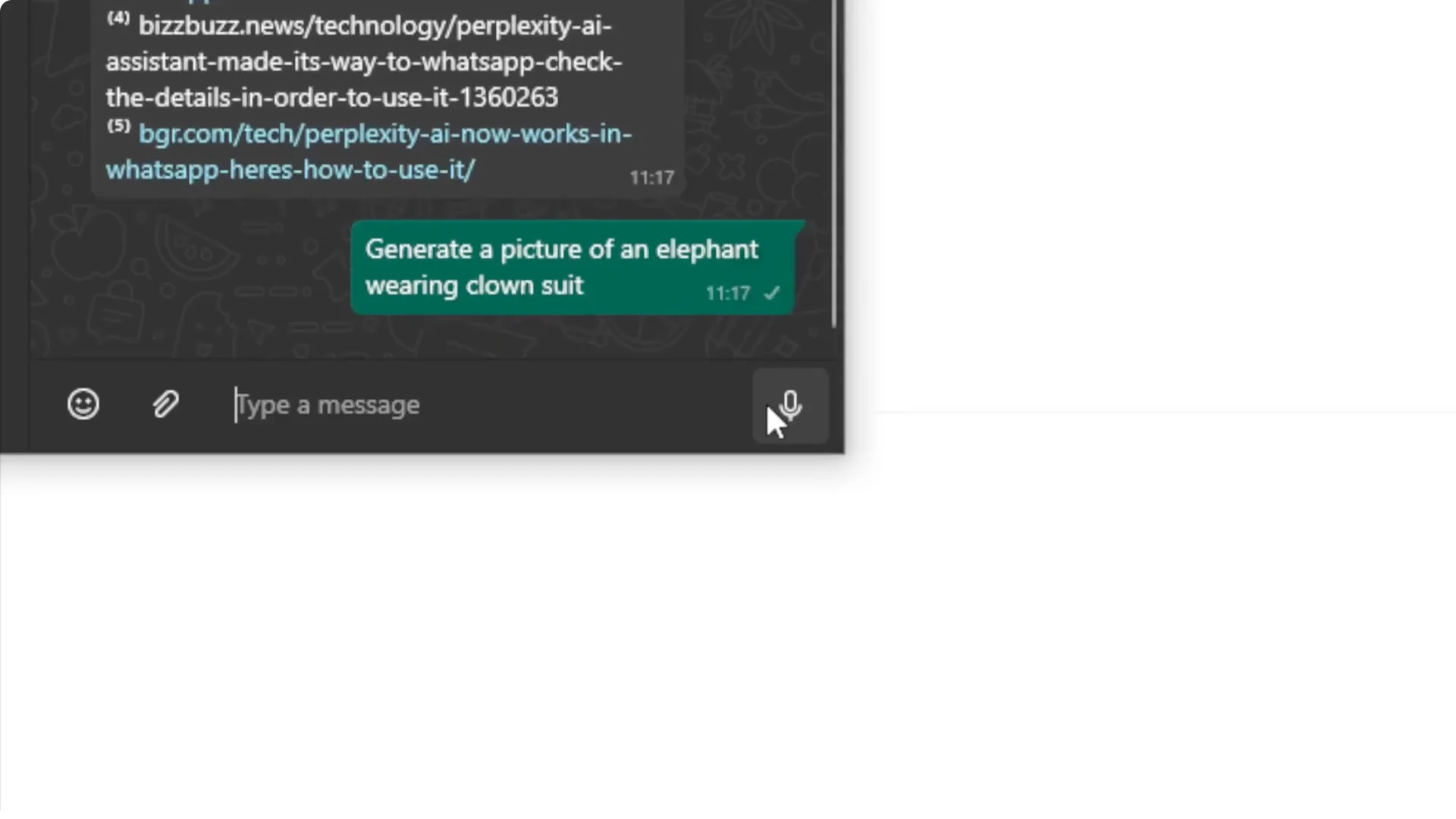
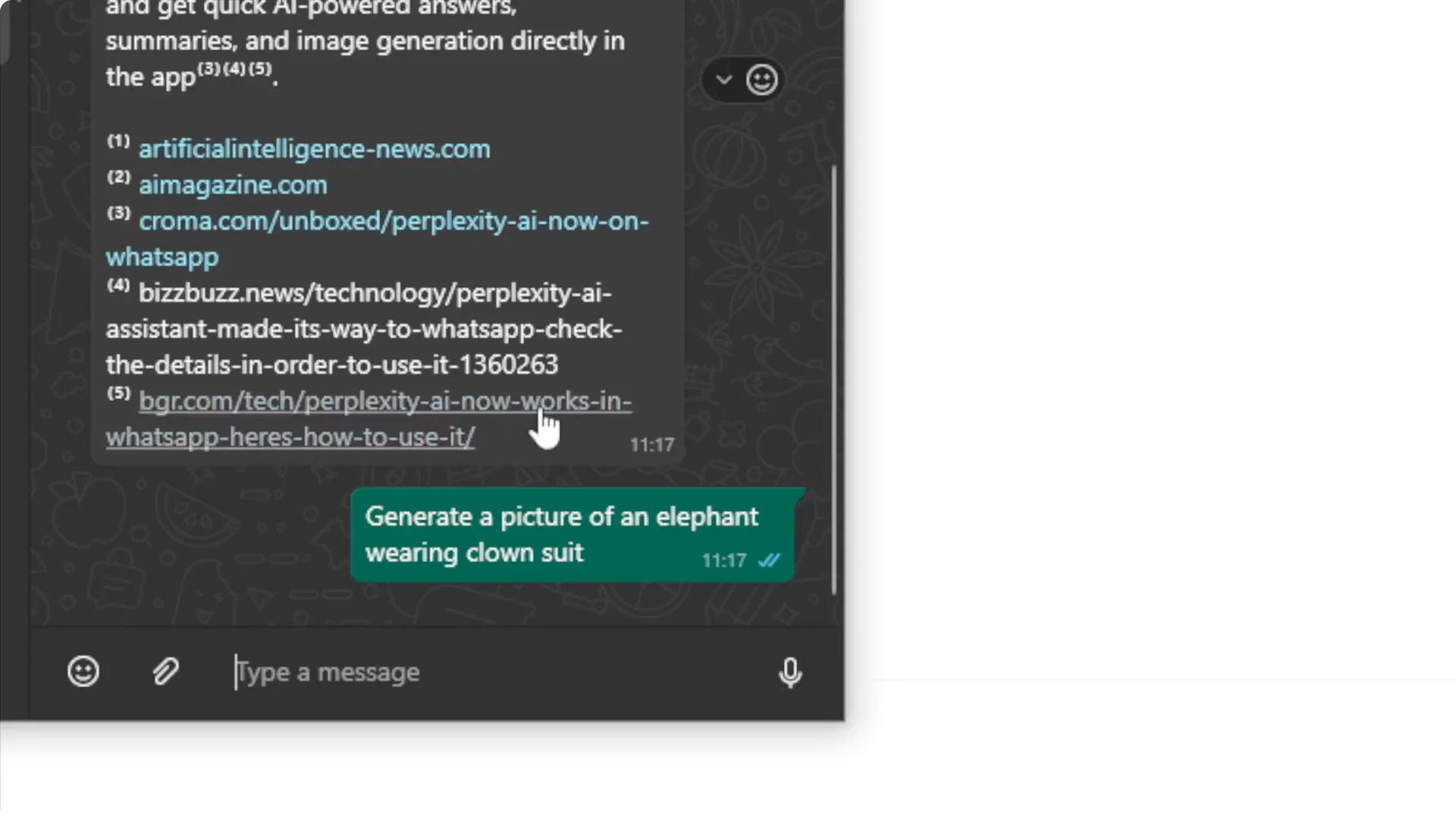
You can ask it to generate a picture, like an elephant wearing a clown suit. It can also edit a picture if you send one in. The experience is fast, and you can keep the whole workflow inside WhatsApp.
Step-by-step setup
Step 1: Save the official Perplexity WhatsApp number to your phone. Create a new contact and store the number so you can start a chat easily. Open WhatsApp and message that contact to begin.
Step 2: Use the wa.me method if you prefer a quicker route. Open a new browser tab and type wa.me/ followed by the full phone number. Keep only digits and country code with no spaces, no parentheses, and no dashes.
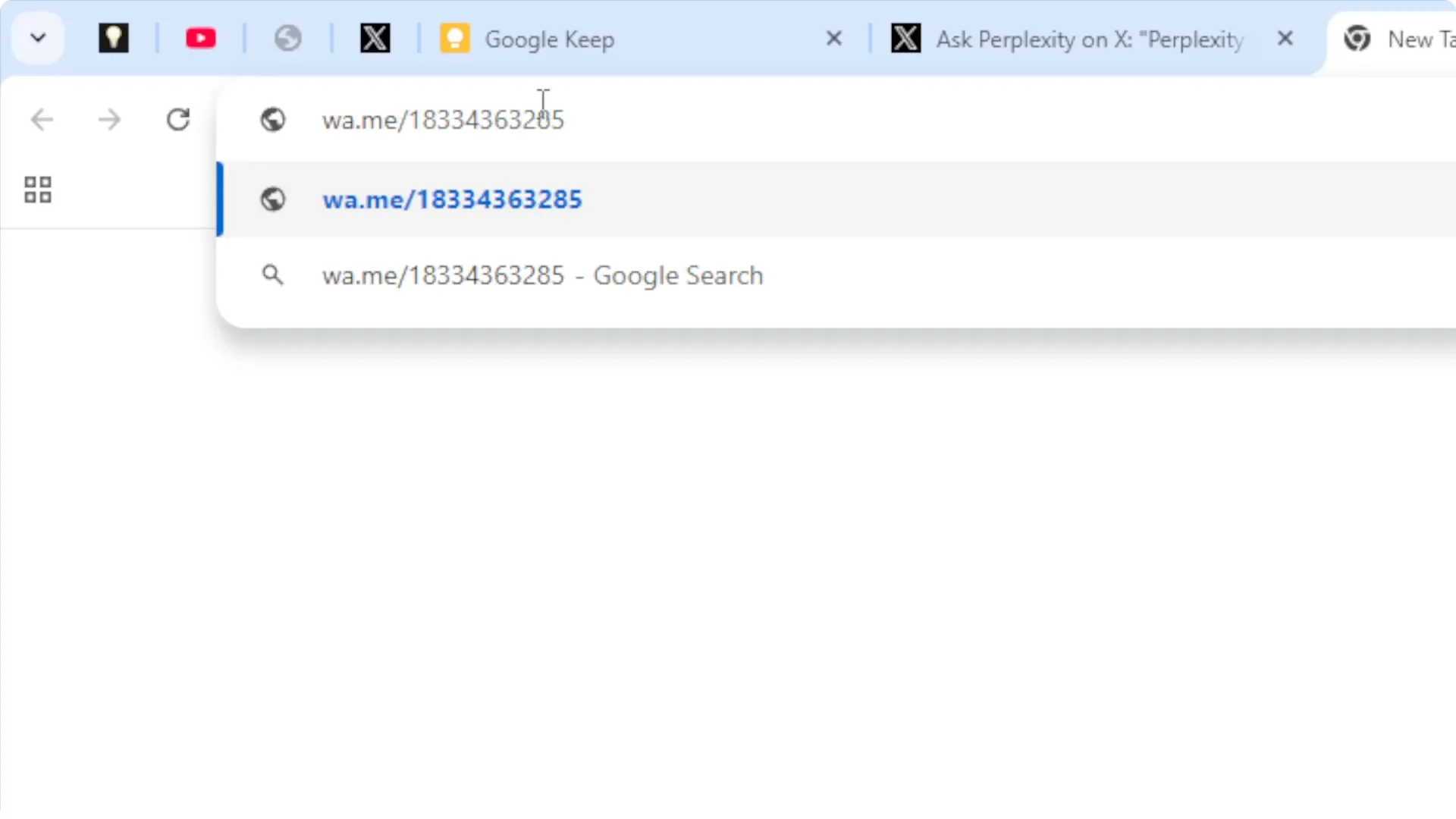
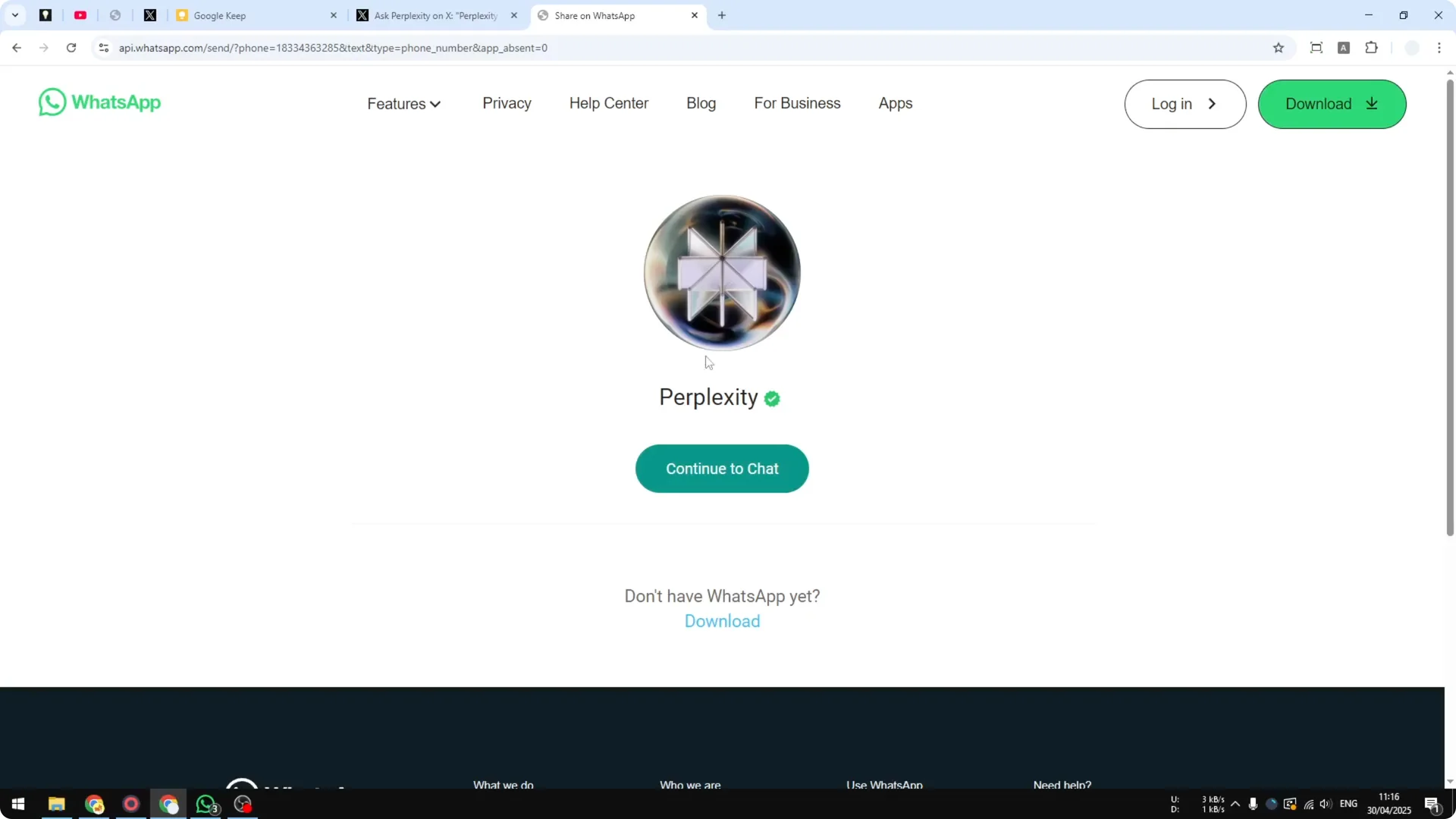
Step 3: Visit that URL and confirm the contact on the WhatsApp prompt. Click Continue to chat to proceed. It will open WhatsApp Desktop or redirect you to WhatsApp Web based on what you use.
In-chat experience
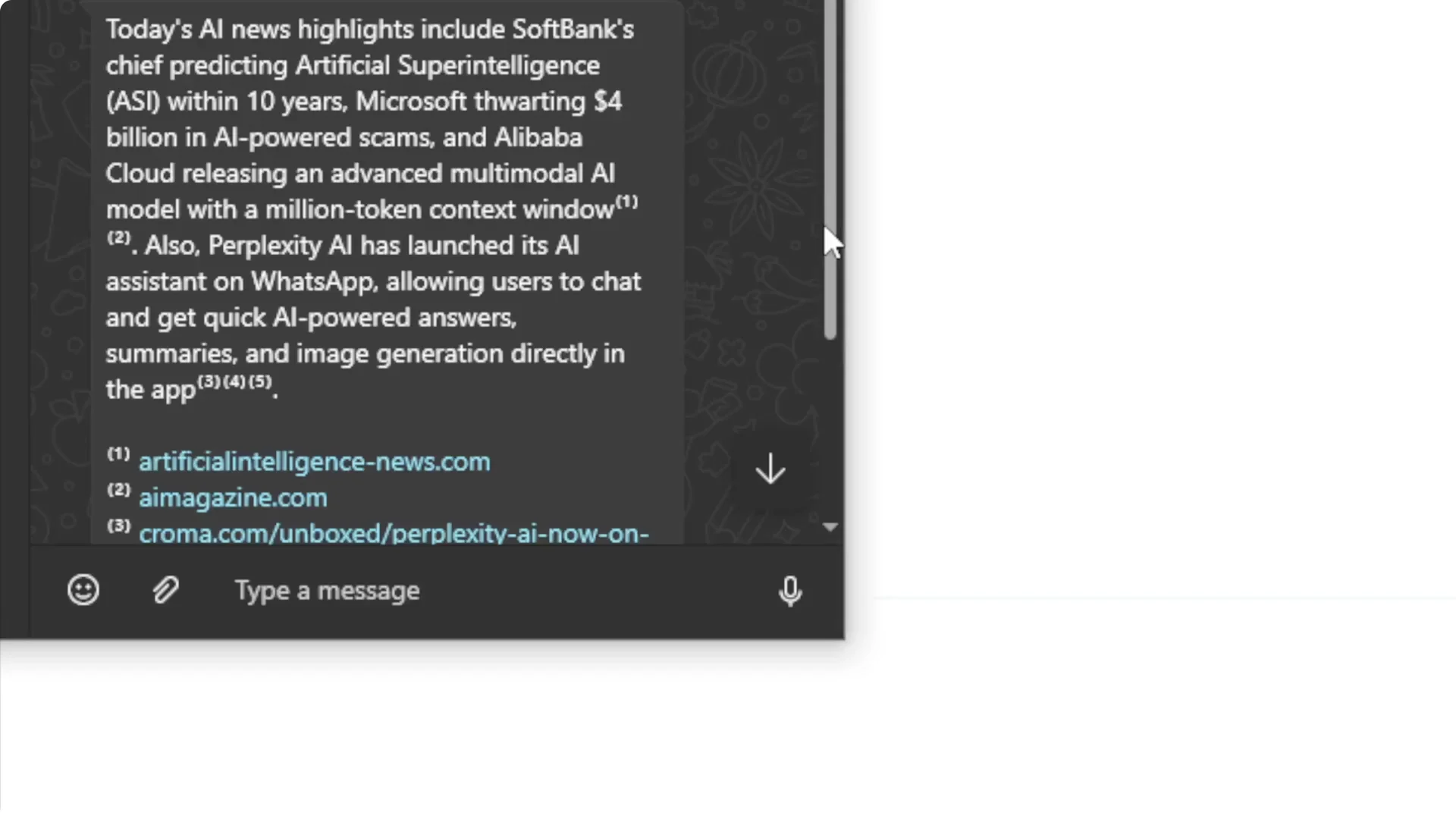
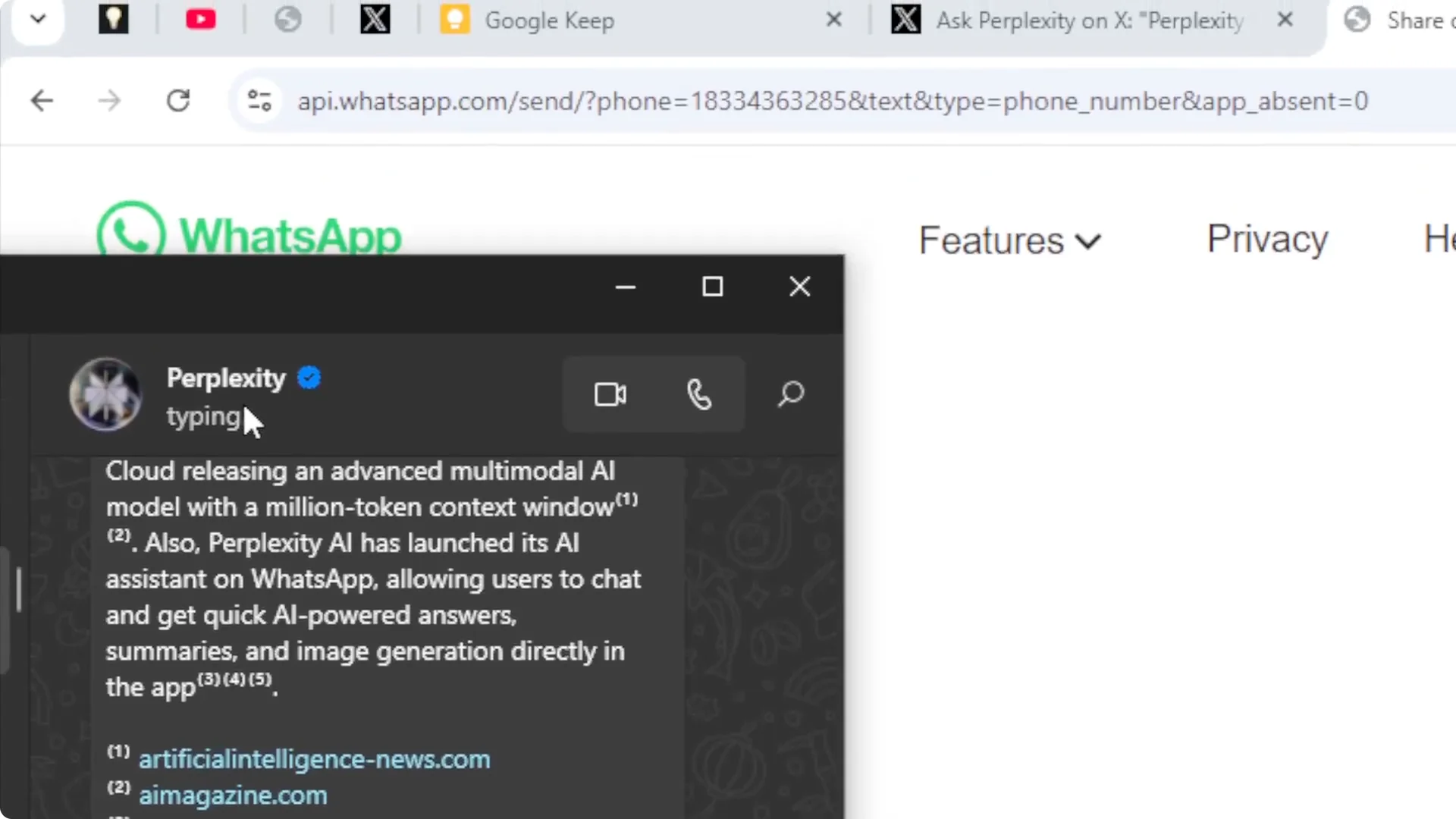
You can start with a simple query like “What is AI news today?” It will show as typing while it works, and then it sends the results. It can fetch current info and behaves much like the Perplexity web interface.
Generating and editing images
Ask for something visual, such as “Generate a picture of an elephant wearing a clown suit.” It may look like it is typing, but it is actually generating the image during that time. It is possible to create a picture or even edit a picture via Perplexity on WhatsApp.
I believe it is using GPT-Image 1 based on a demo that showed picture editing. If you want stronger prompt ideas for visuals, try these transformative prompt approaches. For improving quality and composition, this guide on creating superior AI art can help you shape better requests.
Limitations
You are still working inside the WhatsApp environment, so there could be some limits. For example, the mobile version of Perplexity may not generate images at all. You might see a delay while an image is being created.
Going beyond chat visuals
If you are exploring AI visuals outside a chat workflow, see how camera moves and framing affect results in this guide to camera control for AI video. It pairs well with prompt writing and helps you plan shots and motion. That way you can bring ideas from chat experiments into more polished media.
Final thoughts
Perplexity AI on WhatsApp lets you ask questions, get current answers, and even create or edit images from a simple chat. The setup is quick with either a saved contact or a wa.me link. It feels close to the web experience, with a few constraints to keep in mind.
