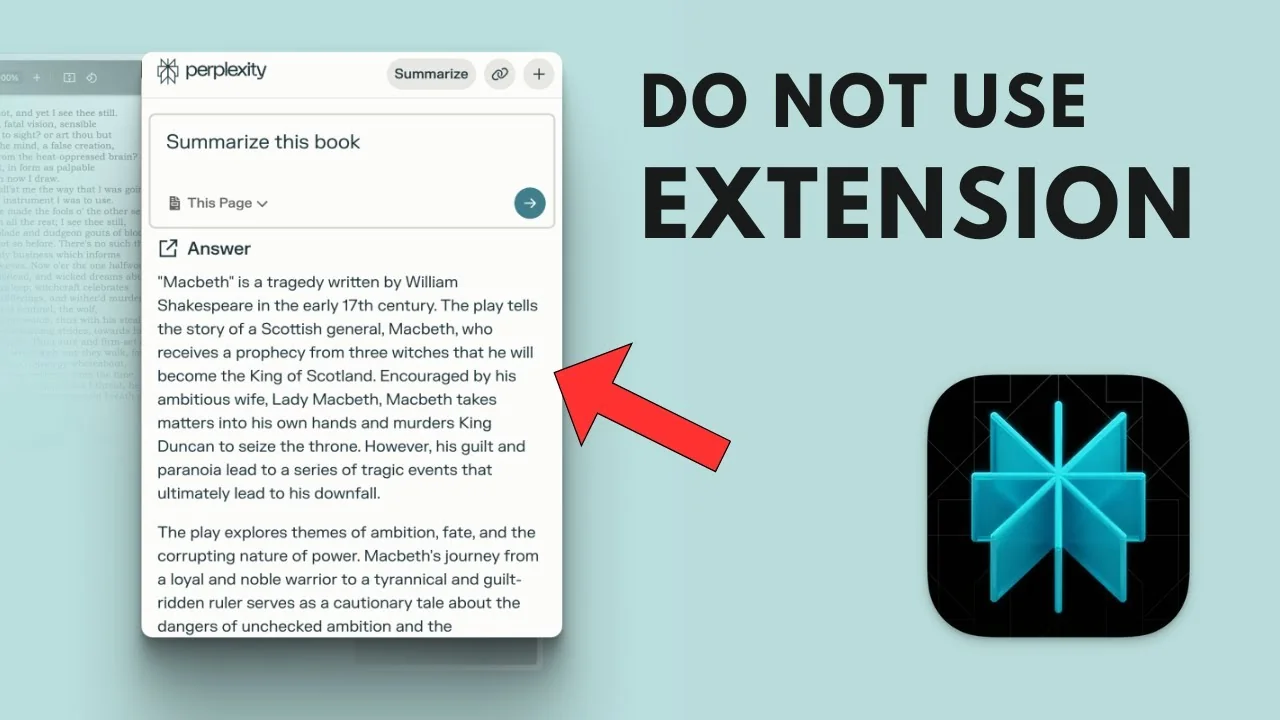
Perplexity can be used to summarize pretty much any content or article on the internet. There are two ways to do that. I use a Chrome extension for quick access, and a manual method that is more reliable.
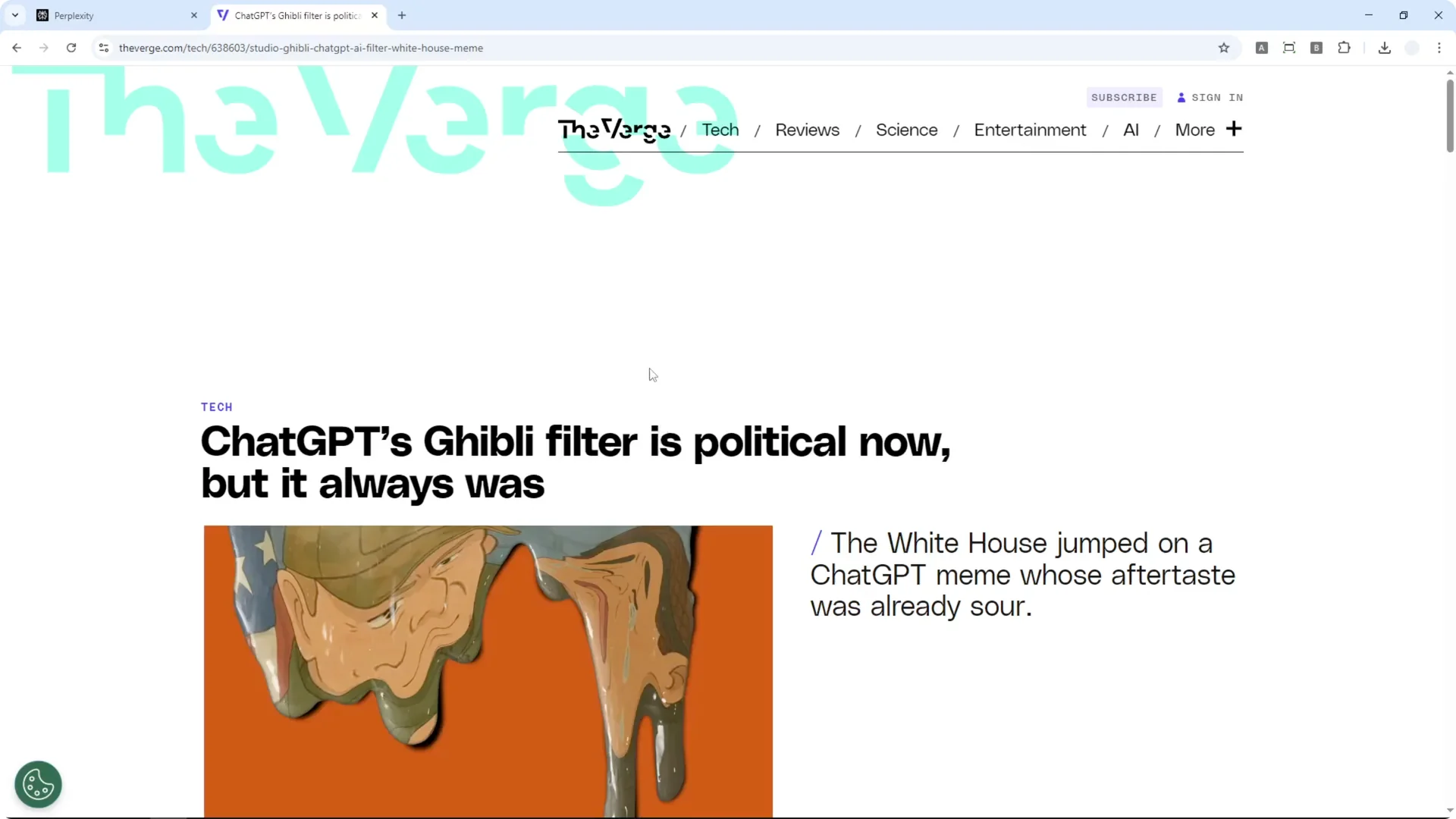
I tested this with an article about the Ghibli filter that went viral yesterday. I just wanted to know the main content and key takeaways. Here is exactly how I do it.
Method 1 – Chrome Extension for Perplexity AI Article Summarization
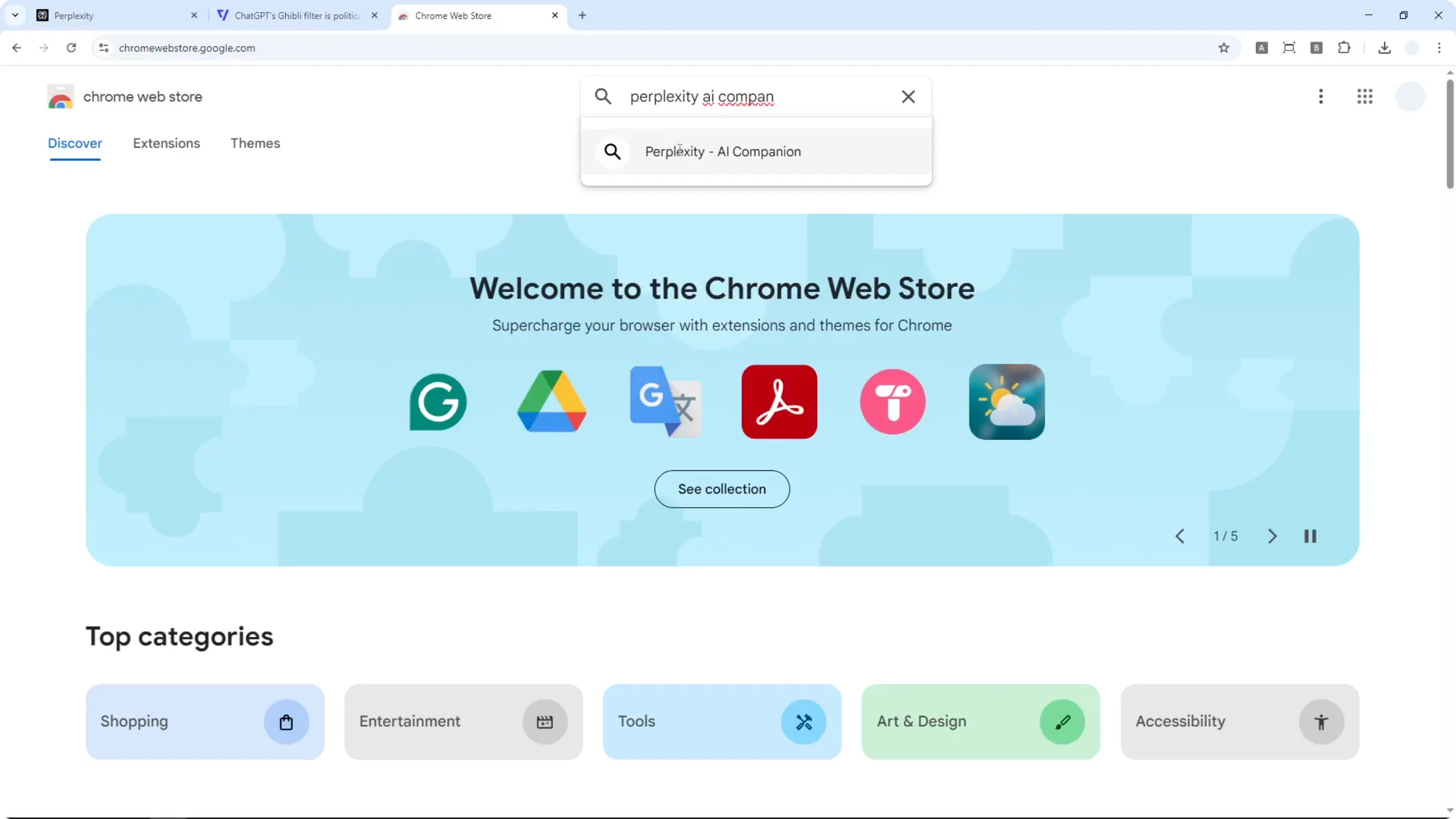
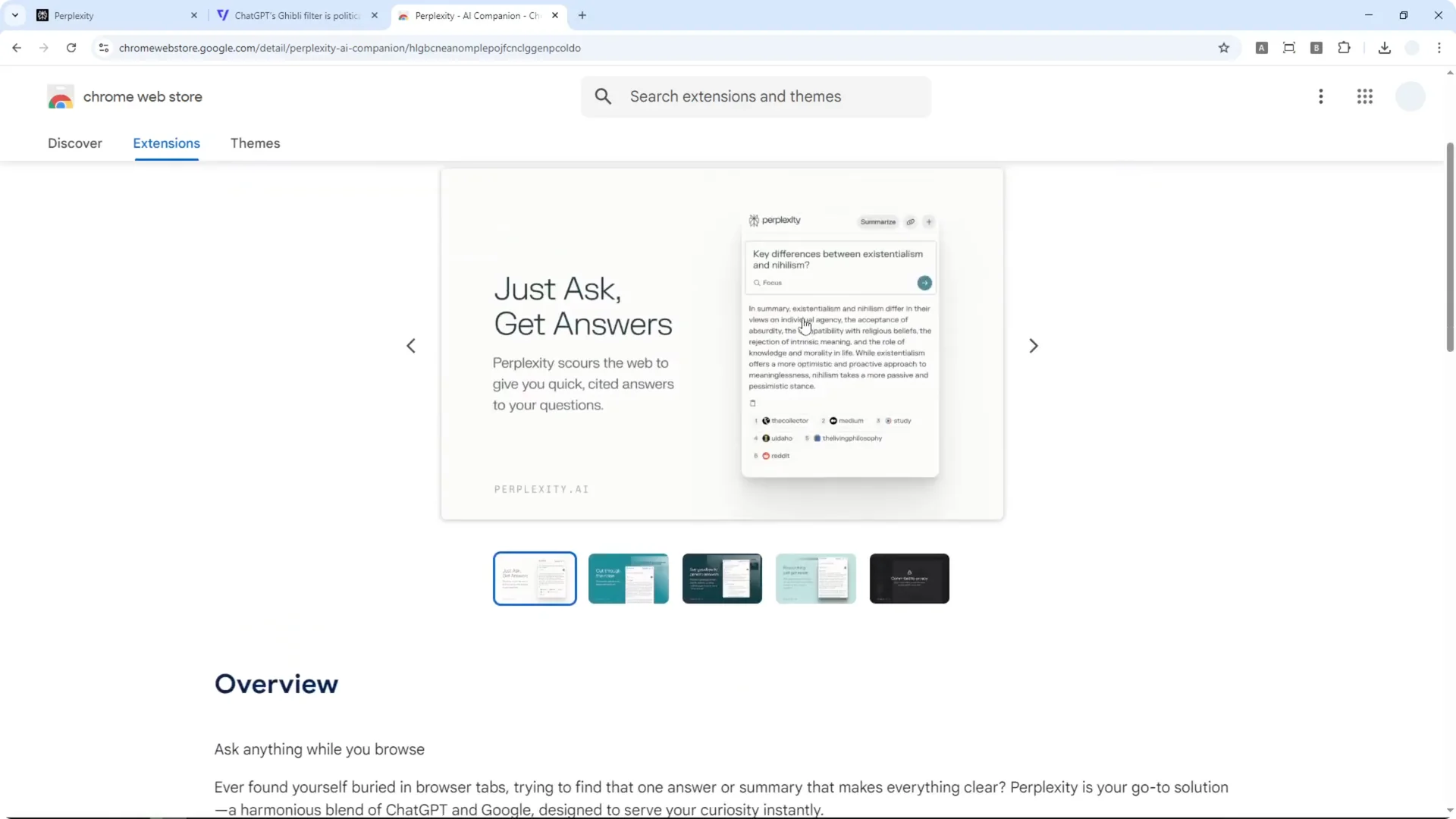
The first method involves a Chrome extension from Perplexity. I use the Perplexity AI Companion available in the Chrome Web Store. Make sure it is from Perplexity AI and click Add to Chrome.
Install and set up Perplexity AI Article Summarization
After installing a new Chrome extension, it is a good idea to refresh the page. I pin the extension so it is easier to access. Then I click the extension and hit the Summarize button.
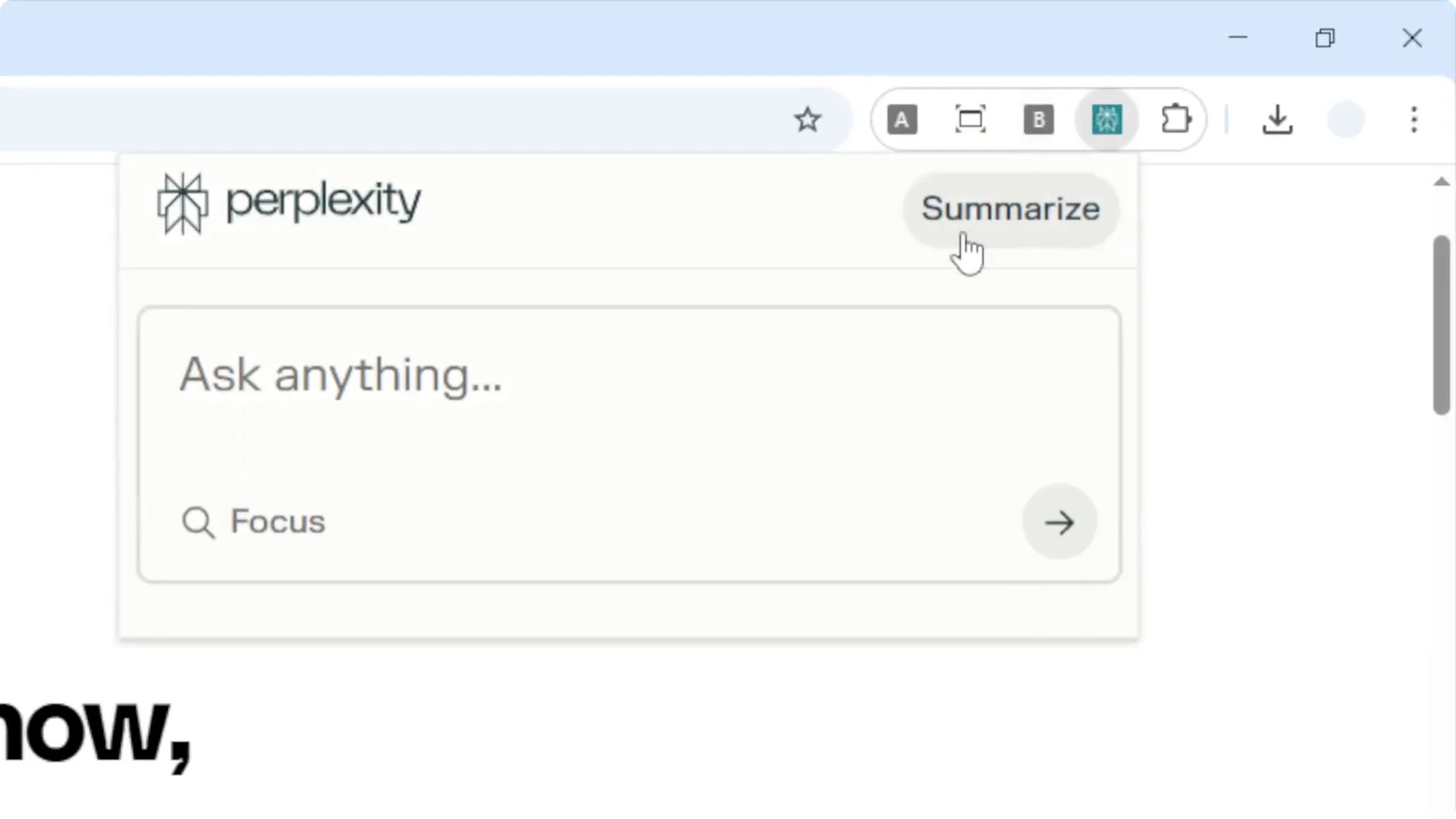
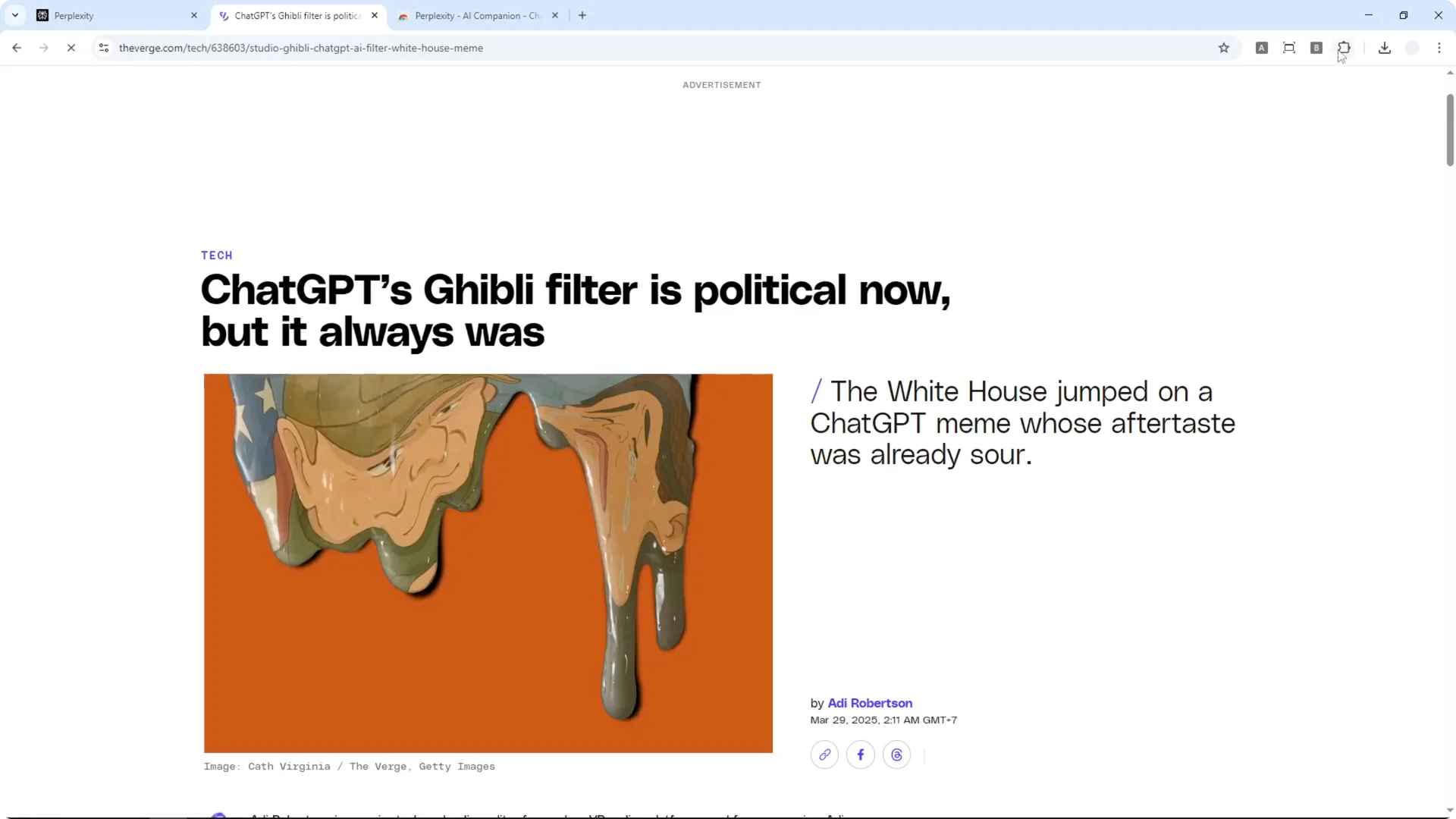
The idea of this extension is simple. You click on it and it gives you a summary of the website or the content you are reading. You can also ask AI questions about the page if you have something specific in mind.
Common issues with Perplexity AI Article Summarization
This is one reason why some people are not a fan of this Chrome extension. Even though it is the official extension, a lot of times it just does not work. You can ask it to summarize, but sometimes it is not able to read the content from the page.
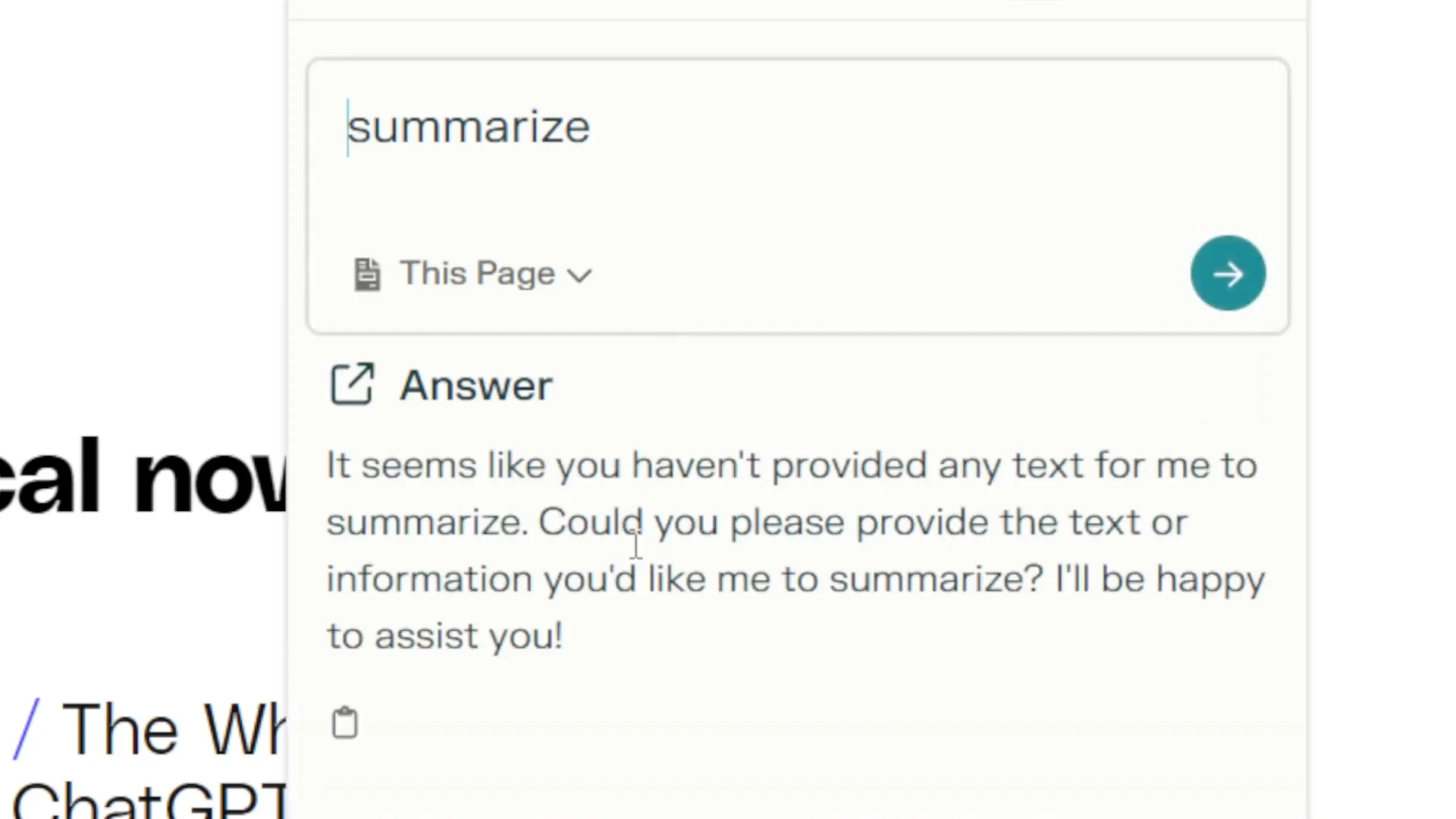
You will see this problem quite often. Sometimes it works, sometimes it does not. That is why I use another method that is more reliable.
Read More: Create Superior Ai Art
Method 2 – Manual Perplexity AI Article Summarization
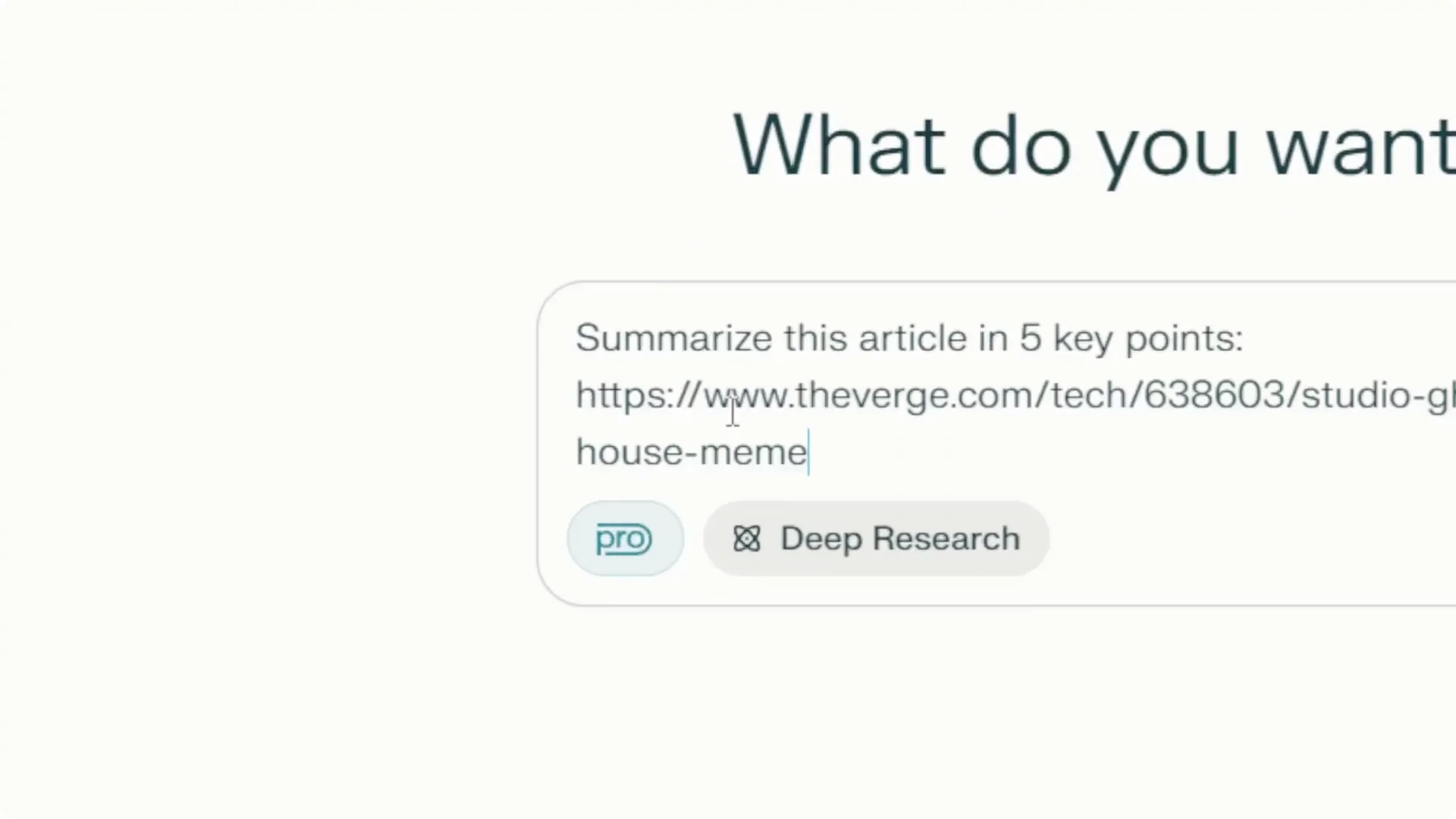
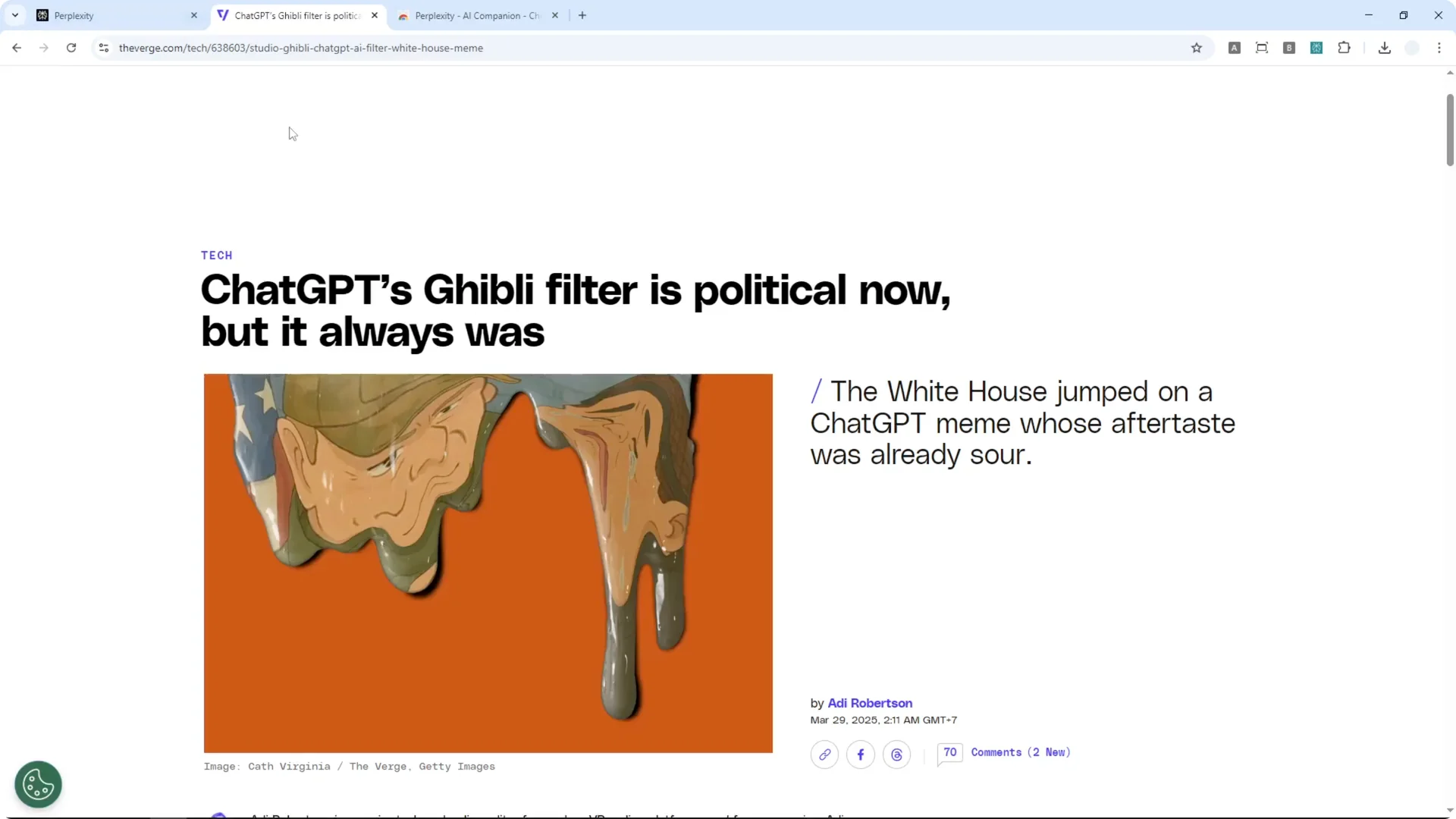
This second method is more manual, but it is much more reliable. I copy the article link and go directly to Perplexity. Then I ask it to summarize the article by pasting the URL.
Step-by-step Perplexity AI Article Summarization
Step 1: Copy the link of the article you want to summarize.
Step 2: Open Perplexity and start a new thread.
Step 3: Paste the URL and ask Perplexity to summarize the article.
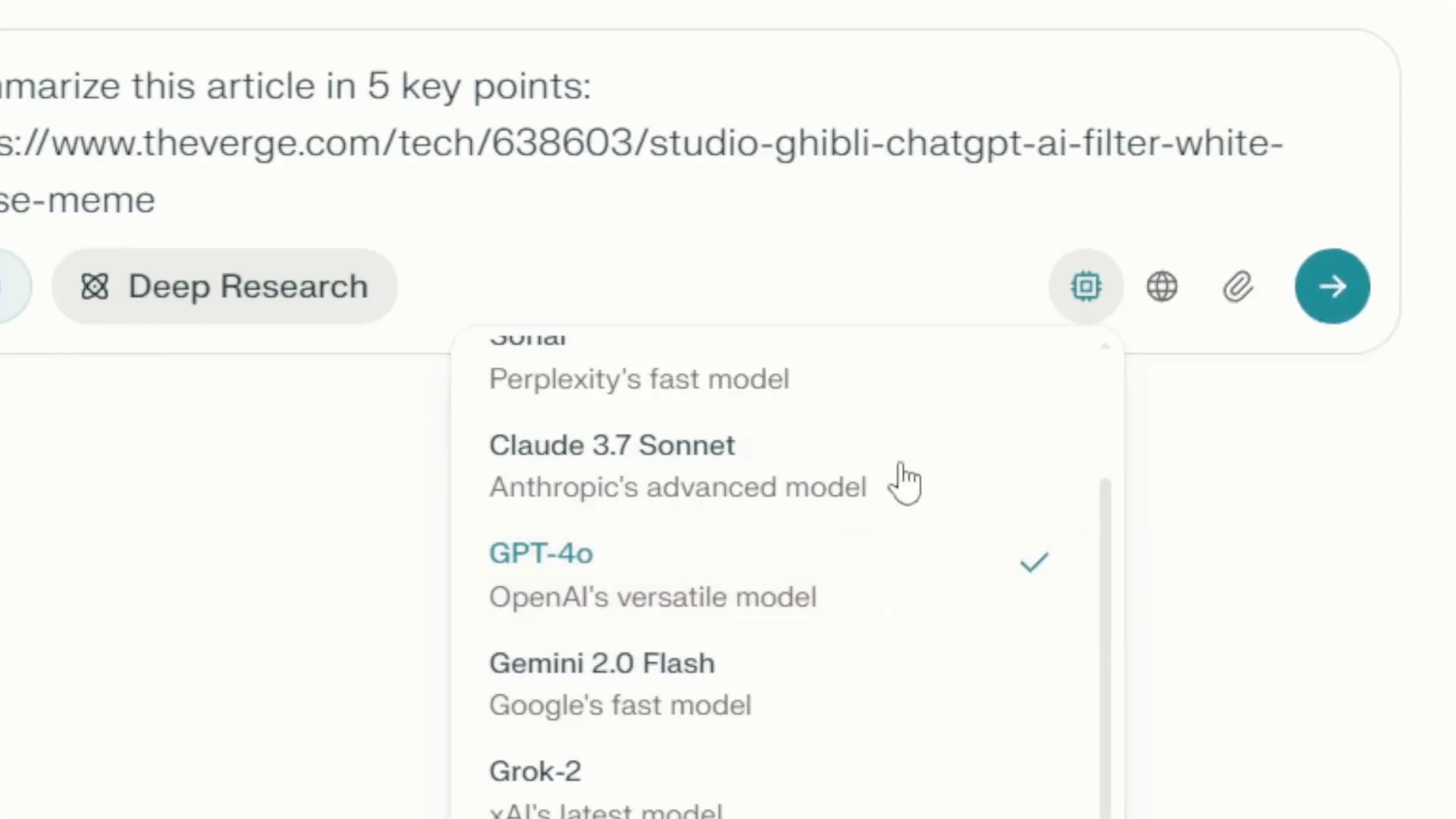
Step 4: Choose your preferred AI model if you want. You can go with the default or auto mode. I often use Claude 3.7 Sonnet.
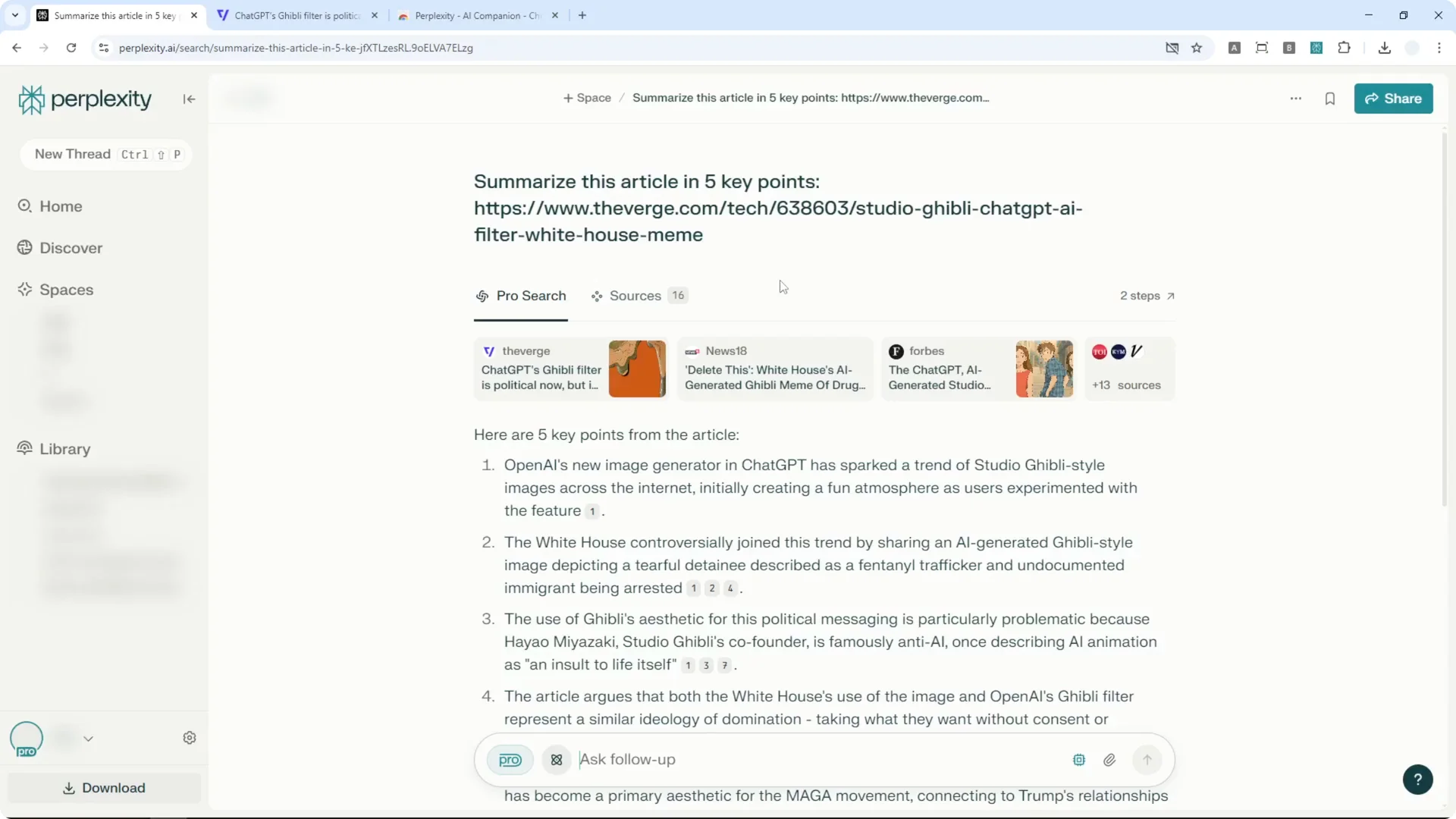
Step 5: Send the message and wait for Perplexity to summarize the article for you. This is usually quicker and more reliable than the extension. You can use this on mobile, any platform, or any browser since no extension is needed.
Read More: Eye Catching Ai Art Midjourney Prompts Styles
Model choice for Perplexity AI Article Summarization
You can stick with the default model. Or pick a model you prefer for style and speed. Claude 3.7 Sonnet works well for me.
I find the results come back fast with this approach. It is consistent across devices. That is the main reason I recommend it.
Read More: Transformative Ai Art Midjourney Prompts
Final Thoughts on Perplexity AI Article Summarization
Both methods can summarize an article, a blog post, or social media content. The extension is convenient when it works, but the manual URL method is more reliable. You can use it anywhere without installing anything.
If you need a quick summary, paste the link into Perplexity and select your model. Then send the request and review the output. That is basically how you can summarize any article from the internet using Perplexity.
Read More: Camera Control For Midjourney Ai Video
